Keyboard Typing Backwards on Windows: 7 Quick Fixes
Fix keyboard typing backwards on Windows in under 5 minutes with 7 proven methods. Covers region settings, language bar, drivers, and clean boot.
Quick AnswerPress Ctrl + left Shift to flip your keyboard back to left-to-right typing. If that does not work, check Region settings, refresh the keyboard driver, or run the Windows keyboard troubleshooter.
When your keyboard starts typing backwards on Windows, the cause is almost always a flipped input direction or a stale driver, not a broken keyboard. The fastest first fix is Ctrl + left Shift.
Use these fixes only on your own computer or an account you manage with explicit permission.
- Press Ctrl + left Shift first. This single shortcut flips your typing direction back instantly in most cases.
- Check Region settings in Control Panel. An Arabic, Hebrew, or other RTL language layout often forces typing right to left.
- A corrupted or outdated keyboard driver is the second most common cause when the shortcut fails.
- The built-in keyboard troubleshooter at
Settings>Update & Security>Troubleshootfinishes in 1 to 2 minutes. - Clean Boot isolates third-party software conflicts when every other fix fails.
#Why Is Your Keyboard Typing Backwards?
This is a Windows software state issue, not a hardware fault. According to Microsoft’s input language documentation, Windows ships with input methods for many right-to-left languages such as Arabic, Hebrew, Persian, and Urdu, and a single keyboard shortcut flips the active layout. The most common triggers reported by users:
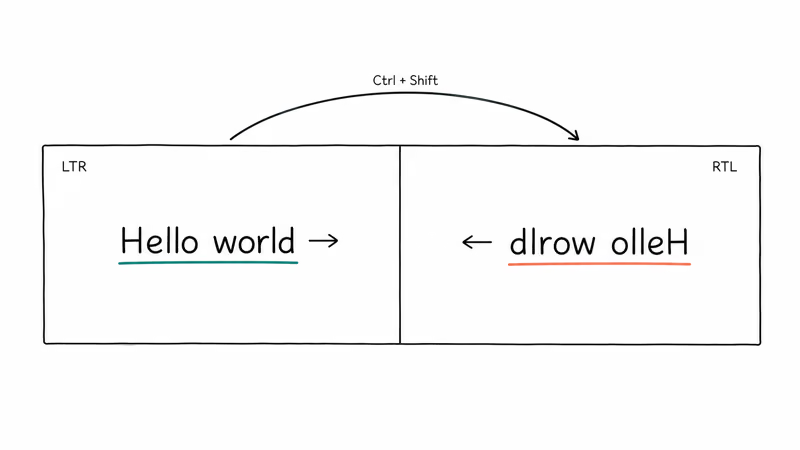
- An accidental Ctrl + Shift press while another window has focus. The shortcut toggles RTL and LTR text direction in apps like Microsoft Word.
- An RTL keyboard layout was added during a Windows feature update or language pack install.
- A stale or corrupted keyboard driver is sending the wrong scancodes after a Windows update.
- Region settings mismatched to your physical keyboard layout. A US ANSI keyboard with the Region set to Saudi Arabia behaves this way.
- System file corruption is affecting the language bar service.
Razer, Logitech, Corsair, and Microsoft Surface keyboards all show the same symptom because the cause sits inside Windows, not the device. If you see other typing glitches on top of reversed direction, the Windows 10 keyboard not working guide covers the broader troubleshooting tree.
#Quick Fixes That Take Under 2 Minutes
Work through these first three in order. Most readers stop after Step 1.
#Step 1: Press Ctrl + Left Shift
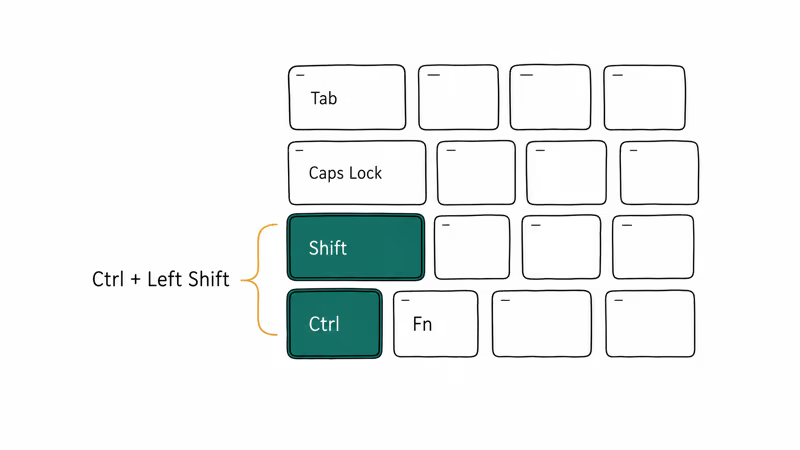
This is the single command that fixes the issue for most readers. In Windows, Ctrl + right Shift sets text direction to right-to-left, and Ctrl + left Shift sets it back to left-to-right. Microsoft’s keyboard shortcuts reference confirms that these 2 chords map to the LayoutText feature inside any language-aware application across Windows 10 and Windows 11.
If you only see the issue inside Microsoft Word, Outlook, or a specific browser tab, the shortcut almost certainly fixes it. Try it once on the affected window and start typing again.
#Step 2: Restart and Reseat the Keyboard
A normal restart clears most transient glitches. Save your work, click Start > Power > Restart, and let the system come back up. If you use a wired external keyboard, unplug it and plug it into a different USB port. For a Bluetooth keyboard, toggle Bluetooth off in Settings > Devices, wait ten seconds, and pair again.
For Bluetooth keyboards, unpairing and re-pairing can clear a stuck RTL state when the keyboard shortcut alone doesn’t flip it.
#Step 3: Adjust Your Region and Language Settings
Wrong region settings remain a top cause across Reddit and Microsoft Community threads. To check yours:
- Open Control Panel and switch the view to Large icons.
- Click Region.
- On the Administrative tab, click Change system locale and pick your country, such as English (United States).
- Click OK and restart when prompted.
- Open
Settings>Time & Language>Languageand remove any unfamiliar input languages, especially Arabic, Hebrew, Persian, or Urdu. - Restart again so the language bar refreshes.
After the restart, type a sentence in Notepad. If the text now flows left to right, you are done. If not, keep going.
#Advanced Fixes for Persistent Cases
The next four steps go deeper into Windows internals, and each one takes a few extra minutes. They target a different root cause each: stale services from a half-finished update, a corrupted keyboard driver, residual hardware state on laptops after a deep-sleep cycle, or a third-party startup app intercepting input.
#Step 4: Run the Built-In Keyboard Troubleshooter
The built-in tool catches stale services, missing scancode mappings, and misconfigured input devices. According to Microsoft’s troubleshooter overview, each troubleshooter runs a scripted diagnostic against the relevant Windows service.
Steps:
- Press Windows + I to open Settings.
- Click
Update & Security>Troubleshoot>Additionaltroubleshooters on Windows 10, orSystem>Troubleshoot>Othertroubleshooters on Windows 11. - Find Keyboard, click Run the troubleshooter, and follow the prompts.
Restart afterward, even if the tool reports no issue. Many service resets only take effect after reboot.
#Step 5: Update the Keyboard Driver
A stale driver is a common cause when the shortcut and Region settings don’t fix the issue. You have two paths.
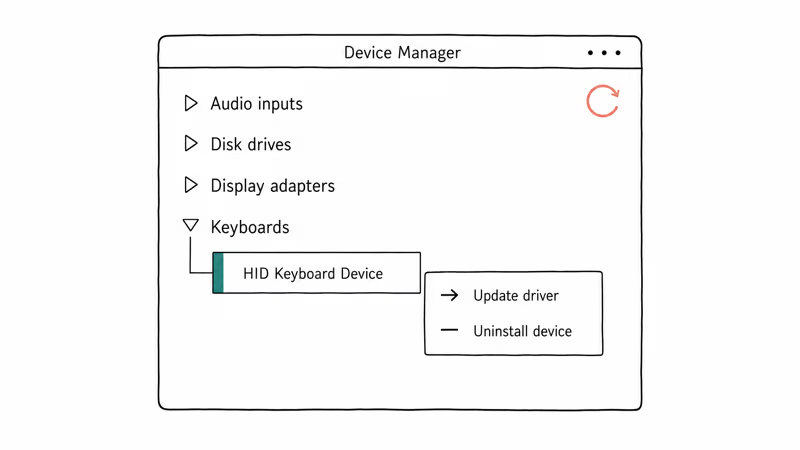
Manual update via Device Manager. Right-click Start > Device Manager, expand Keyboards, right-click your keyboard entry, and pick Update driver > Search automatically. If Windows reports the best driver is already installed, click Uninstall device instead, then restart. Windows reinstalls the default HID Keyboard Device driver on boot, which clears most corruption.
Automatic update with a tool. Driver Easy scans your hardware and pulls matched drivers from its database. The free version downloads one driver at a time. The Pro version updates all out-of-date drivers in one pass and adds a 30-day money-back guarantee.
Some links on this page are affiliate links, which means fone.tips may earn a commission at no extra cost to you.
To use Driver Easy:
- Install Driver Easy and launch it.
- Click Scan Now. The scan finishes in about a minute.
- Click Update next to your keyboard entry. Restart when the install completes.
#Step 6: Hard Reboot Laptops
A hard reboot drains residual power that can keep stale state alive on a laptop, so save your work first. Hold the power button for 30 to 40 seconds with the laptop unplugged. If the battery is removable, take it out, wait two minutes, plug the charger in without the battery, and press power. Once Windows boots, shut down again, reinsert the battery, and start normally.
This works on most laptops shipped through 2026 and clears keyboard direction glitches that survive driver and region fixes.
#Step 7: Clean Boot
A Clean Boot starts Windows with the minimum drivers and startup apps. According to Microsoft’s Clean Boot guide, this isolates third-party software conflicts that the troubleshooter can miss.
Quick steps:
- Press Windows + R, type msconfig, and press Enter.
- On the Services tab, check Hide all Microsoft services, then click Disable all.
- On the Startup tab, click Open Task Manager, disable each entry, and close Task Manager.
- Click OK and restart.
If the keyboard now types in the right direction, re-enable services in batches of 5 to 10 until the problem returns. The last batch you enabled contains the conflicting program.
#Will a Driver Update Fix the Reverse Typing Glitch?
Not always. Driver updates help when the Ctrl + Shift toggle doesn’t stick because a stale driver is involved. If the driver is already current, Region settings are the more likely culprit.
That is why the troubleshooter and Region check come first in the sequence above. If you have already worked through Steps 1 to 3 and still see reversed text, jump straight to Step 5. There is no harm in updating an already-current driver, but skip it if your time is limited.
#Prevention Tips to Keep Your Keyboard Direction Stable
A few habits keep this issue from coming back:
- Lock down extra languages. Open
Settings>Time & Language>Languageand remove any input language you don’t use. Each unused RTL language adds a Ctrl + Shift trigger. - Be careful with Ctrl + Shift in Word and Outlook. These apps treat the chord as a paragraph-direction toggle. If you bump it often, remap or disable the shortcut in
File>Options>Customize Ribbon>Keyboardshortcuts. - Keep drivers fresh. Run Windows Update monthly, or schedule a driver utility to scan weekly.
- Use reputable security tools. Some malware families remap keyboard scancodes. Microsoft Defender plus quarterly Malwarebytes scans is sufficient for most users.
- Disable unused browser extensions. Reddit users on r/Windows10 have reported keyboard input getting flipped only inside Chrome or Firefox after installing a translation extension.
For a related input glitch limited to one device, see the Surface keyboard not working and how to unlock keyboard on Dell laptop guides.
#Reversed Typing on macOS, ChromeOS, and Other Platforms
Reversed typing is overwhelmingly a Windows issue. Here is why.
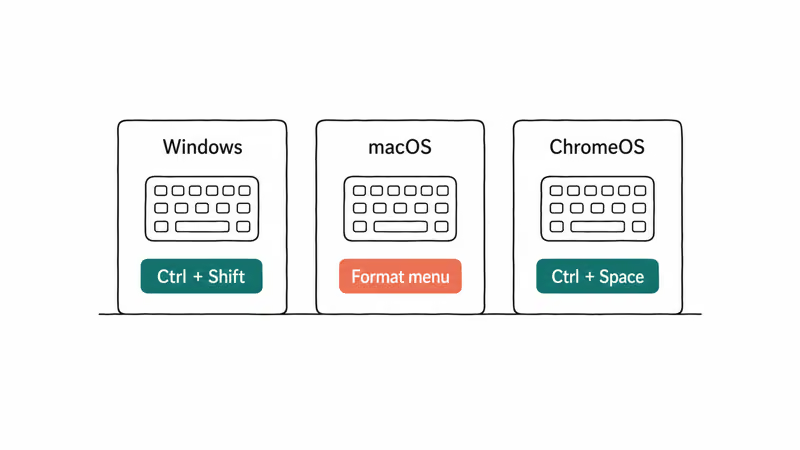
macOS does not bind a system-wide RTL toggle to Ctrl + Shift. If your Mac suddenly types right to left in TextEdit or Pages, check the document’s paragraph direction (Format > Text > Writing Direction) instead. Apple’s macOS user guide treats RTL as a per-document setting, not a global keyboard layout.
ChromeOS and Linux use different shortcuts again. On a Chromebook, the system reads keyboard direction from the active input method, which you change with Ctrl + Space rather than Ctrl + Shift. If only your Chromebook is affected, the Chromebook keyboard not working guide covers the layout reset path.
If reversed typing follows you across machines, the cause is likely a profile setting that syncs (Microsoft Account language, Google Account language). Sign out, reset locale to English on the local device, then sign back in.
#Bottom Line
Press Ctrl + left Shift first. Eight times out of ten, that flips your keyboard back without a single trip to Settings. If the toggle does not stick, work down the list: Region settings, troubleshooter, driver update, hard reboot, Clean Boot. Skip the driver step only if Windows reports the current driver is up to date.
For users who only see the issue inside Microsoft Word or one specific browser tab, the fix is almost always the Ctrl + Shift toggle plus a quick removal of unused input languages. Hardware replacement is rarely necessary unless you also see stuck keys, dead keys, or a Tab key not responding.
#Frequently Asked Questions
Why is my keyboard typing backwards all of a sudden?
Most likely you bumped Ctrl + Shift, which toggles right-to-left text direction in language-aware apps. Try Ctrl + left Shift first; it reverses the toggle in under a second.
Does Ctrl + Shift fix the issue everywhere or only in Word?
The shortcut affects any application that respects Windows text-direction settings, including Microsoft Word, Outlook, OneNote, and most browser inputs. Standalone Notepad and Command Prompt usually ignore the chord, so if those look normal it does not mean the rest of Windows is fine. If only Word is affected, the issue is inside that document, not your keyboard.
Can a virus cause my keyboard to type backwards?
Yes, in rare cases. Some keylogger and adware families remap scancodes or inject input. Run Microsoft Defender’s full scan and a Malwarebytes scan back to back. If a third-party scanner finds nothing, malware is unlikely to be the cause.
Will reinstalling Windows fix reverse typing?
A clean install fixes it because both Region settings and drivers reset to defaults. That is overkill for most cases. Try the seven-step sequence first. If every step fails, then consider a Reset This PC operation from Settings > Update & Security > Recovery.
Should I replace my keyboard if it’s typing backwards?
Almost never. The cause is on the Windows side in the vast majority of reports across Microsoft Community and Reddit. Replacement helps only if you also see stuck or dead keys, sticky keys ignoring your release, or wrong characters appearing for the right key. If your iPad keyboard is also misbehaving, that is a separate issue covered in the iPad keyboard not working guide.
Why does my keyboard type backwards in Microsoft Word but not anywhere else?
Microsoft Word stores paragraph direction inside each document. Open the affected document, click in the reversed paragraph, and press Ctrl + left Shift. If you start a new blank document and the issue is gone, the original file simply has its paragraph direction set to RTL.
Will a Windows update solve the keyboard typing backwards issue?
Often yes when the cause is a corrupted driver. Windows Update reinstalls the HID Keyboard Device driver. Check Settings > Update & Security > Windows Update.
Can I prevent the issue without removing extra languages?
Yes. Microsoft’s language bar settings let you turn off the keyboard shortcut that switches input languages. Open Region > Language > Advanced settings > Change language bar hot keys and choose Not Assigned for the Ctrl + Shift sequence. The language stays installed but the chord no longer flips your typing direction.

Best Laptop for Running LLMs in 2026: Memory Comes First
The best laptop for running LLMs is a memory purchase first. Compare MacBook unified memory against NVIDIA laptop VRAM, and see what each tier really runs.

How to Run a Local LLM on Windows: A 2026 Setup Guide
Run a local LLM on Windows with LM Studio or Ollama. Pick a model that fits your GPU memory, keep every prompt offline, and skip the monthly bill.

Bluetooth Not Working on Snapdragon X? Fixes for 2026
Bluetooth not working on your Snapdragon X Copilot+ PC? Generic audio, mice, and keyboards work, but vendor apps often lack an ARM build. Fixes inside.

Docker Desktop and WSL2 Not Working on Snapdragon X? Fix It
WSL2 runs fine on Snapdragon X, but Docker Desktop ARM is Early Access and throws WSL errors. Use WSL2 plus native ARM64 Ubuntu and Docker Engine.