iPad Keyboard Not Working: Safe Fixes for Every Type
Fix an iPad onscreen, Bluetooth, Magic Keyboard, or Smart Keyboard problem with current Apple-supported checks, reset cautions, and service guidance.
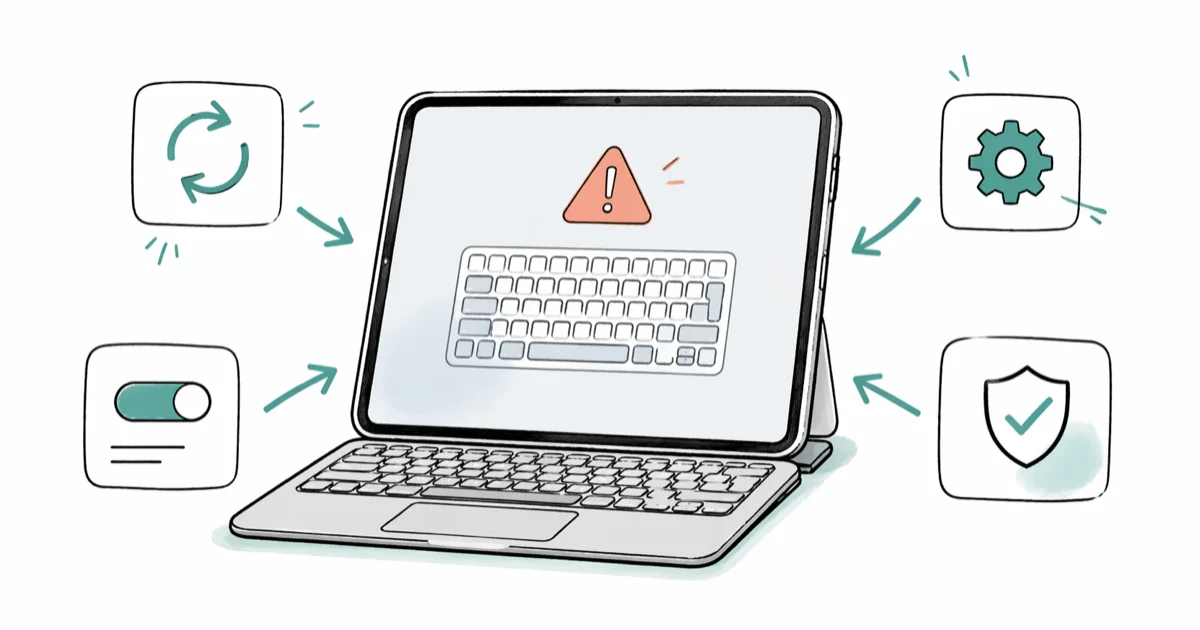
Quick AnswerIdentify the keyboard type first: show the onscreen keyboard, reconnect a Bluetooth accessory, or clean and reseat a Smart Connector keyboard. Restart the iPad if input stays unresponsive.
An iPad can use an onscreen keyboard, a Bluetooth accessory, or a Smart Connector keyboard. Identify which one failed before changing settings: each type has a different recovery path.
- An actively connected external keyboard can hide the onscreen keyboard; use Show Keyboard when you want both
- Bluetooth keyboards pair in Settings, but Magic Keyboard for iPad and Smart Keyboard use the Smart Connector
- A force restart doesn’t erase data, while Erase All Content and Settings does
- Reset Keyboard Dictionary removes learned words; Reset All Settings affects many more preferences
- For a Smart Connector keyboard, verify compatibility, update iPadOS, clean both connectors, remove other cases, and restart
#Why Did Your iPad Keyboard Stop Working?
The missing keyboard isn’t one diagnosis. An actively connected external keyboard can suppress the onscreen keyboard, while a floating or split keyboard can make the usual full-width layout seem missing. One unresponsive app, a third-party keyboard, Bluetooth pairing, and a Smart Connector accessory each call for a different check.
If the keyboard won’t accept taps, test Notes and another screen. Touch failures outside text fields point to a wider iPad problem.
If only one downloaded keyboard fails, switch back to an Apple keyboard and check the app’s current support information. Don’t attribute every lag or freeze to a growing dictionary file; Apple documents the reset as removing learned words, not as a guaranteed performance repair.
#How Do You Fix an On-Screen Keyboard That Won’t Show Up?
Start by checking whether iPadOS currently recognizes an external keyboard.
#Turn Off Bluetooth
Open Settings > Bluetooth. If a keyboard shows Connected, disconnect it or turn Bluetooth off briefly, then return to a text field.
Don’t blame a powered-off keyboard or a Bluetooth speaker merely because it remains in the saved-device list. Forget a keyboard only when iPadOS shows it connected and you no longer want that pairing.
If you want the onscreen keyboard while an external keyboard stays connected, Apple’s current keyboard-switching guide says to tap the Keyboard Shortcut button in the bottom Shortcuts bar, then tap Show Keyboard.
#Undock a Split or Floating Keyboard
Spread two fingers on a floating keyboard to restore its full-size layout.
For a split keyboard, press and hold the keyboard icon in the bottom-right corner and select Merge or Dock and Merge. Apple’s current split-keyboard guide says the feature is available only on iPad mini and iPad (9th generation and earlier), so that control won’t appear on iPad Air or iPad Pro.
#Verify Keyboard Settings
Go to Settings > General > Keyboard > Keyboards. Apple’s add-or-change guide shows how to add a language keyboard or remove one that no longer works. You can also review autocorrect settings separately without resetting the device.
#Force Restart Your iPad
A force restart can recover an unresponsive iPad without erasing its data. The steps differ by iPad model.
iPad without a Home button:
- Press and quickly release the volume button closest to the top button
- Press and quickly release the volume button farthest from the top button
- Press and hold the top button until the Apple logo appears
iPad with Home button:
- Press and hold both the Home button and the top or side button
- Keep holding until the Apple logo appears
Apple’s current force-restart instructions use the button positions above. A force restart doesn’t erase the iPad, but it also doesn’t prove that a recurring keyboard problem is software-only.
#Reset Keyboard Dictionary and Settings
Use the narrow dictionary reset when the problem is limited to learned words or autocorrect suggestions. It isn’t the first fix for a missing keyboard or a physical accessory that won’t connect.
Go to Settings > General > Transfer or Reset iPad > Reset > Reset Keyboard Dictionary and enter your passcode. Done.
According to Apple’s current reset-settings guide, this option erases only words you’ve added to the keyboard dictionary.
Test the same text field again. If input still lags, switch keyboard apps and try Notes so you can separate an app-specific problem from system-wide input trouble.
Reset All Settings is much broader. Apple says it resets network, keyboard-dictionary, location, privacy, and Apple Pay settings without deleting media. Back up settings you need first, and don’t use this option merely because the narrower keyboard reset didn’t improve an accessory connection. If you later need to rebuild Wi-Fi settings, use the separate iPad connectivity guide.
#Fix Bluetooth Keyboard Connection Failures
Bluetooth and Smart Connector keyboards each have their own troubleshooting path.
#Unpair and Re-Pair a Bluetooth Keyboard
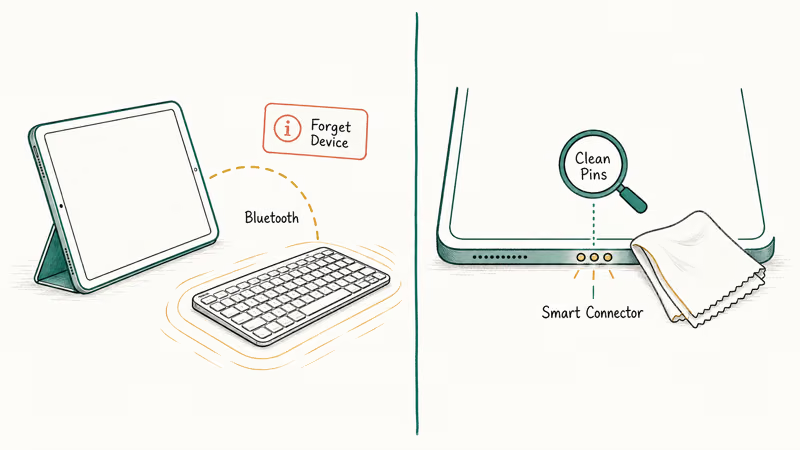
This section applies to a standalone Bluetooth keyboard, including Apple’s standalone Magic Keyboard. Go to Settings > Bluetooth, tap the information button beside the keyboard, and choose Forget This Device. Then use that keyboard manufacturer’s current pairing instructions and select it again in the Bluetooth device list.
Don’t use these steps for Magic Keyboard for iPad, Magic Keyboard Folio, Smart Keyboard, or Smart Keyboard Folio. Those iPad accessories connect through the Smart Connector and aren’t paired in Bluetooth settings.
#Fix a Smart Connector Keyboard
Smart Connector keyboards don’t use Bluetooth pairing. First confirm that the exact iPad and keyboard models are compatible, then disconnect the keyboard and inspect both connectors.
According to Apple’s current Smart Connector troubleshooting page, remove any other case or cover, clean both connectors with a soft lint-free cloth, reconnect the keyboard, and restart the iPad if it doesn’t respond. Apple doesn’t tell readers to test on an arbitrary second iPad; compatibility differs by accessory and model.
#Update iPadOS to the Latest Version
Go to Settings > General > Software Update and install the latest version available for your iPad.
Apple’s current Smart Connector guidance makes the software requirement product-specific: Magic Keyboard for iPad Air requires iPadOS 18.3 or later, while the other Magic Keyboard devices listed there require iPadOS 14.5 or later. The former “four keyboard fixes” attribution wasn’t present in Apple’s cited release notes and has been removed.
Follow Software Update’s prompts; fixed download sizes and completion times aren’t reliable. Use the display troubleshooting guide if the screen turns white or unresponsive.
#Get Support Before a Factory Restore
Before erasing anything, test the onscreen keyboard in Notes, disconnect accessories, and try a known-compatible keyboard when available. If touch input fails outside text fields or a Smart Connector accessory remains unresponsive after Apple’s compatibility, update, cleaning, case-removal, and restart checks, contact Apple iPad Support for diagnosis.
A factory restore is a destructive last step for your own device, not a hardware test. Apple’s current factory-restore guide says it erases the iPad’s information and settings and installs the latest iPadOS. Create a verified backup first.
If Apple Support recommends a restore:
- Open Finder on a current Mac or Apple Devices on a current Windows PC. Use iTunes only on a PC without Apple Devices or a Mac running macOS Mojave or earlier.
- Connect your iPad, follow any passcode or Trust This Computer prompt, and select the device.
- Click Restore iPad, confirm the erase, and keep the iPad connected until it restarts.
If your iPad is disabled, follow the passcode-recovery route instead of assuming the keyboard procedure applies.
When Apple asks you to test a clean setup, check typing before restoring a backup. If the problem returns later, report the sequence to support; that timing alone doesn’t prove the backup is corrupt. After restoring your data, check iCloud sync status before treating a missing document as keyboard data loss.
#Bottom Line
Match the fix to the keyboard. Show the onscreen keyboard, reconnect a Bluetooth accessory, or clean and reseat a compatible Smart Connector keyboard. Restart and update the iPad next. Use Reset Keyboard Dictionary only for learned-word problems, and contact Apple before considering a destructive factory restore.
#Frequently Asked Questions
Why does my iPad keyboard disappear when I connect a Bluetooth device?
An actively connected external keyboard can hide the onscreen layout. Tap the Keyboard Shortcut button in the bottom Shortcuts bar and choose Show Keyboard, or disconnect the keyboard in Settings > Bluetooth. A powered-off device in the saved list isn’t proof that it caused the change.
Can a third-party keyboard app cause my iPad keyboard to stop working?
It can fail independently of Apple’s keyboard, but don’t assume the app is the cause without testing. Switch keyboards from the globe or keyboard control, then review or remove downloaded keyboards at Settings > General > Keyboard > Keyboards. Contact the app developer if only that keyboard keeps failing.
Does resetting keyboard dictionary delete my data?
It erases the words you’ve added to the keyboard dictionary, not photos, apps, or messages. Don’t confuse Reset Keyboard Dictionary with Erase All Content and Settings.
How do I fix keyboard lag on an older iPad?
Test Notes and another app first. If one app alone lags, quit and reopen that app. If every text field lags, restart the iPad, check Settings > General > Software Update, and temporarily switch off unneeded typing assistance at Settings > General > Keyboard. Apple doesn’t promise that closing every app will free enough resources to eliminate keyboard lag.
Why won’t my Magic Keyboard work after an iPadOS update?
First identify the product. A standalone Apple Magic Keyboard uses Bluetooth, so you can forget and pair it again. Magic Keyboard for iPad and Magic Keyboard Folio use the Smart Connector; verify compatibility, update iPadOS, remove other cases, clean both connectors, reconnect, and restart. Apple doesn’t publish a standard 2–3 week patch window.
What should I do if my Smart Keyboard Folio works intermittently?
Remove other cases, disconnect the keyboard, clean the Smart Connector on both products with a soft lint-free cloth, reconnect it, and restart the iPad. If the problem continues, ask Apple or an authorized provider to inspect the compatible pair rather than declaring that an internal cable failed.
Is there a way to use my iPad without any keyboard?
You can enable Dictation at Settings > General > Keyboard, then tap the microphone in a text field. Availability and processing depend on the language, region, model, and current iPadOS version, so don’t rely on the former fixed chip and language-count claim.
How long does a full iPad restore take?
Apple doesn’t promise one duration or download size. The time depends on the current software download, computer, cable, and any backup you restore. Keep the iPad connected until Finder or Apple Devices reports that the restore has finished and the device restarts.

Mac mini M6 vs M5 Pro: Which Model Should You Buy?
Mac mini M6 vs M5 Pro compared on price, memory, ports, displays, and real workloads. Find the better 2026 Mac mini for your desk and budget.

Apple Siri Settlement: Who Qualifies and How to Claim
Apple's $250 million Siri settlement covers iPhone 15 Pro and iPhone 16 models bought June 2024 to March 2025. See who qualifies and how claims work.

iOS 26.6.1 Security Update: What Apple Fixed and Who Gets It
Apple released iOS 26.6.1 on August 17 with 29 security fixes, including an IPSec interception bug. See what it patches, who gets it, and how to update.

iPhone Adaptive Power: How It Works and When to Use It
Learn how iPhone Adaptive Power works, which models support it, what it changes, and when Low Power Mode is still the better battery-saving choice.