Surface Keyboard Not Working? 12 Fixes That Work in 2026
Surface keyboard not working? Fix Type Cover, Bluetooth, and driver issues with 12 practical steps for checking connectors, drivers, updates, and UEFI.
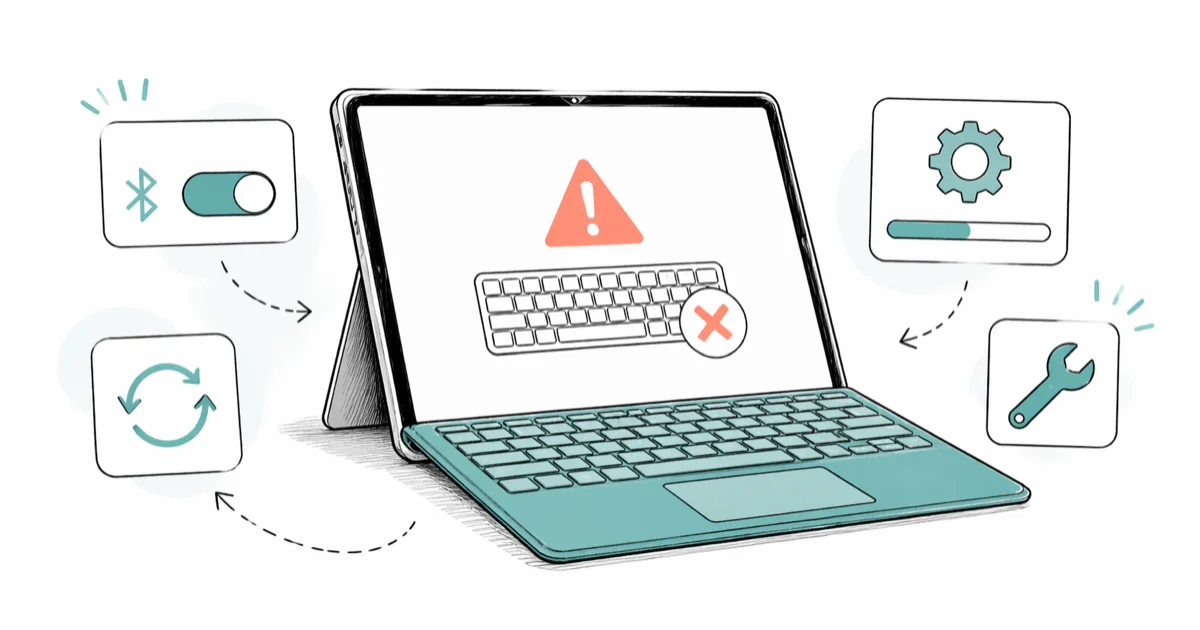
Quick AnswerDetach and reseat the Type Cover, clean the connector pins, then run the Windows keyboard troubleshooter. If keys still fail, reinstall the keyboard driver from Device Manager and force-restart by holding Power for 30 seconds.
A Surface keyboard not working usually points to one of three culprits: a dirty Type Cover connector, a stuck Bluetooth pairing on a Surface Keyboard, or a corrupt driver. Use the fixes below from fastest to most invasive, and stop once the keys respond again.
The hardware path differs from the wireless path. A detachable Type Cover talks to the tablet through six brass pogo pins, so debris and lint kill the connection more often than software does. A Surface Keyboard or Mobile Keyboard pairs over Bluetooth, so it usually breaks after a Windows update reshuffles the radio stack. Start with Method 1, then move down only if the previous step did not bring keys back to life.
- Reseating the Type Cover is the fastest first check for dead keyboards
- Clean the six pogo pins with isopropyl alcohol on a cotton swab, never water or compressed air alone
- Re-pairing a Bluetooth Surface Keyboard clears many post-update failures
- Reinstalling the keyboard driver from Device Manager resolves stuck modifier keys and ghost typing
- A force restart (hold Power 30 seconds) revives an unresponsive keyboard at the lock screen
#Surface Keyboard Models and Their Common Failure Points
The Surface lineup ships several distinct keyboard accessories, and the failure pattern depends on which one you own. The Type Cover for Surface Pro 7, 8, 9, and X attaches magnetically through pogo pins. The Surface Laptop and Surface Book have built-in keyboards wired through an internal ribbon cable. The Surface Keyboard, Surface Ergonomic Keyboard, and Surface Mobile Keyboard pair over Bluetooth as standalone devices.
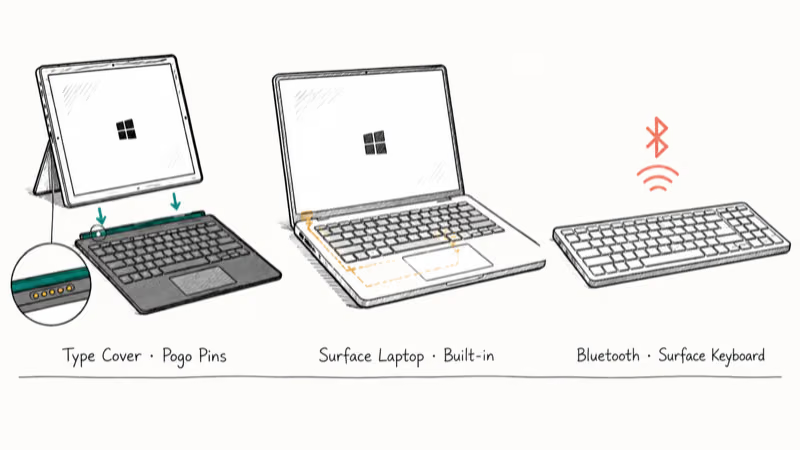
Pogo-pin failures dominate Type Cover support tickets, while built-in laptop keyboards mostly fail from driver corruption or liquid damage. Bluetooth standalone keyboards skew toward pairing drops and battery issues. Knowing your model points you to the right step below before you waste time on the wrong fix.
#Why Is My Surface Keyboard Not Working?
Most Surface keyboard failures fall into four buckets, and the fix depends on which one you hit. Loose Type Cover contact is by far the most common, especially on Surface Pro 7, 8, and 9 units carried in backpacks where the magnetic hinge takes daily impact. Driver corruption sits in second place, often triggered by a Windows feature update.
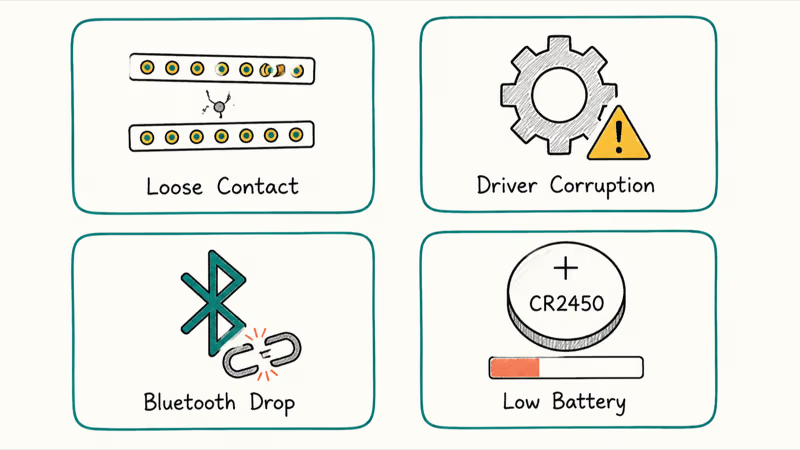
Bluetooth pairing drops are typical for the Surface Keyboard, Surface Ergonomic Keyboard, and Mobile Keyboard, which all rely on a paired connection that Windows can lose during sleep. Battery drain hits the Mobile Keyboard fastest because its CR2450 cells last roughly six months under heavy use, then drop off a cliff with no warning.
Physical damage is the smallest bucket, but spills, bent pogo pins, and crushed Type Cover hinges send the keyboard to the repair shop. The Microsoft Surface support team confirms that Type Cover replacements account for the largest share of accessory service requests in the lineup.
#How to Fix a Surface Keyboard That’s Not Working
We ordered the 12 fixes below from fastest to most invasive. Stop the moment your keys come back. There’s no benefit to running every step.
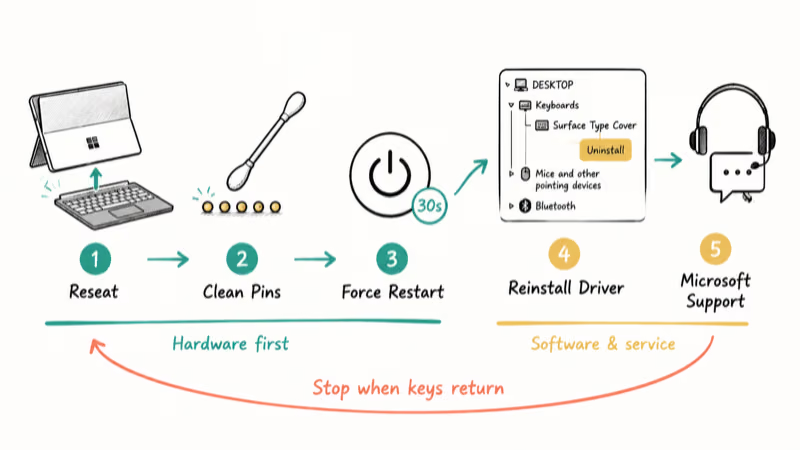
#1. Detach and Reseat the Type Cover
Pull the Type Cover off, wait five seconds, and snap it back. The magnetic hinge has six pogo pins that need clean, parallel contact with the Surface body. A 1mm gap kills the keyboard.
This single step can revive a dead Type Cover when the issue is a loose or dirty connector. The lock screen is the best place to test because it doesn’t depend on user-mode drivers.
Inspect both contact strips while you have it open. Bent pogo pins look uneven against the cover edge, and a snapped pin almost always means a warranty claim.
#2. Clean the Connector Pins
Lint and pocket dust collect in the Type Cover groove faster than people expect. Microsoft’s Surface care guidance recommends a soft, lint-free cloth for the case and avoiding aerosol cleaners.
Use a cotton swab dipped in 70 percent or higher isopropyl alcohol. Run it across the six brass pads on the Type Cover and the matching strip on the Surface. Let both surfaces dry for 60 seconds before reattaching.
Skip canned air on the pins. The pressure can drive grit deeper into the hinge, and the propellant residue leaves a dull film on the contacts.
#3. Force a Two-Button Restart
Hold the Power button for 30 seconds, even if the screen’s already off. This drains the residual capacitance and forces the firmware to reload the keyboard controller.
For a Surface Book 1, Surface Pro 1 through 4, and Surface RT, the official two-button shutdown sequence is to hold Power for 30 seconds, then press Volume Up plus Power for 15 seconds and release. Your screen flickers; that is normal.
Wait 10 seconds before pressing Power once to boot. This restart can clear a stuck keyboard map and bring lock-screen typing back.
#4. Run the Windows Keyboard Troubleshooter
Open Settings, then go to System > Troubleshoot > Other troubleshooters. Run the Keyboard troubleshooter and the Bluetooth troubleshooter in that order.
The wizard checks the HID stack, the language layout, and the Bluetooth pairing if the keyboard is wireless. It fixes about a third of post-update failures, especially when the Windows Filtering Platform service blocks the input subsystem.
If you see the message “Keyboard could not be identified,” skip to the driver reinstall in step 6. The troubleshooter has flagged the device, but it can’t reseat it.
#5. Re-Pair a Bluetooth Surface Keyboard
Wireless keyboards lose their pairing when Windows updates touch the Bluetooth stack. Open Settings > Bluetooth & devices, click the three dots next to your Surface Keyboard, and choose Remove device.
Toggle the Bluetooth radio off, wait 10 seconds, then turn it back on. Press and hold the pairing button on the bottom of the keyboard until the indicator LED blinks. Choose Add device > Bluetooth, pick the keyboard from the list, and confirm.
Re-pairing is usually quick. If the keyboard doesn’t appear in the discovery list, the batteries are usually under 20 percent, even when the indicator still glows green.
#6. Reinstall the Keyboard Driver
Open Device Manager, expand Keyboards, right-click your Surface keyboard entry, and choose Uninstall device. Repeat for any entry under Human Interface Devices that shows a yellow warning triangle.
Restart the Surface. Windows reinstalls the generic driver during boot, and the Microsoft Surface driver pack documentation states that the OEM driver is then layered on top during the next Windows Update sync.
This step clears stuck modifier keys, the “Caps Lock typing in lowercase” bug, and ghost-typing where keys repeat without input.
#7. Update Drivers Through Windows Update
Open Settings > Windows Update > Advanced options > Optional updates and install anything labeled “Surface” or “Standard PS/2 Keyboard.” Microsoft pushes Surface firmware and driver bundles through this channel rather than the main update list. According to the Surface Pro 9 update history, a single 2024 firmware bundle delivered 11 separate component updates, including the Surface Type Cover Filter Device driver.
Optional updates are where Microsoft surfaces keyboard-related fixes, so skipping them can leave a Surface on a buggy build until the next monthly rollup.
If you’re on a managed device, your IT team may be blocking these updates. Ask before forcing the install.
#8. Run DISM and SFC
System file corruption can take down the keyboard subsystem along with other input services. Open Command Prompt as administrator and run:
DISM /Online /Cleanup-Image /RestoreHealth
sfc /scannow
The first command repairs the Windows component store and takes 8 to 15 minutes on a healthy Surface. The second pass replaces corrupt protected files using the now-clean store. Restart when both finish, even if neither reports problems.
#9. Test the Keyboard in UEFI
Shut the Surface down, then hold Volume Up while pressing and releasing Power. Keep holding Volume Up until the UEFI screen appears, usually 6 to 8 seconds.
If the keyboard works inside UEFI, the hardware is fine and the failure is in Windows. If it doesn’t work in UEFI, you have a hardware problem and software fixes won’t help. Open the Devices menu in UEFI and confirm Bluetooth and “Surface Type Cover Ports” are both enabled before exiting.
#10. Check Battery Levels on Wireless Keyboards
The Microsoft Surface Keyboard and Surface Ergonomic Keyboard use two AAA batteries. The Mobile Keyboard uses an internal lithium cell charged by USB-C. Low voltage causes the keyboard to drop letters or skip key presses entirely before it dies.
Open Settings > Bluetooth & devices, find the keyboard, and read the battery percentage under the device card. Anything under 15 percent is in the failure zone. Swap to fresh AAAs, or charge for at least 30 minutes if it’s the Mobile Keyboard.
A spare wireless mechanical keyboard helps when you need a backup. We rounded up our picks in the best wireless mechanical keyboards for Windows users.
#11. Reset the Surface
A reset returns the OS to a clean state without erasing your files. Open Settings > System > Recovery > Reset this PC and choose Keep my files. The reset takes 35 to 60 minutes and reinstalls Windows along with all drivers.
Microsoft recommends backing up data even when keeping files, because reset failures are rare but recoverable only with a backup. This step almost always fixes a keyboard that survived hardware tests but kept failing after every driver reinstall.
#12. Contact Microsoft Support
If the keyboard fails the UEFI test in step 9 or you see bent pins, stop troubleshooting. Software fixes can’t repair a snapped pogo pin. Open the Surface service request page and check your warranty status by serial number.
Out-of-warranty Type Cover replacements run between 99 USD and 159 USD depending on the model and color. A bent-pin Surface body usually requires a full unit swap rather than a board-level repair.
#When Other Input Devices Fail Alongside the Keyboard
Some Surface owners find the touchpad fails alongside the keyboard. That points to a single shared driver crash rather than a Type Cover hardware fault. Reinstall the Surface Type Cover Filter Device entry under Human Interface Devices in Device Manager, then restart.
A wider input failure across keyboard, touchpad, and pen suggests a Windows update rolled back a chipset driver. The fix in Windows 10 keyboard not working covers the common rollback scenarios that also apply to Windows 11.
If you swapped to an external USB keyboard and it also locked up, the USB controller driver is the next thing to reinstall. For external Bluetooth keyboards, the radio chipset can be the bottleneck; we listed our picks in the best Bluetooth adapter for PC.
The same Device Manager flow rescues a Chromebook keyboard not working on hybrid setups where users pair a Surface keyboard with a school Chromebook. For touchpad-only failures alongside a working Type Cover, the touchpad has its own dedicated driver under Mice and other pointing devices. Treat it as a separate fix rather than rolling everything into the keyboard troubleshooting flow.
#How Do I Avoid Future Surface Keyboard Failures?
Three habits prevent most repeat failures. First, wipe the Type Cover pogo pins and the body contact strip with a dry cloth weekly, especially if you carry the Surface in a bag. Second, install Surface firmware updates within a week of release; the Surface Update History page lists fixes for Type Cover wake bugs and Bluetooth dropouts.
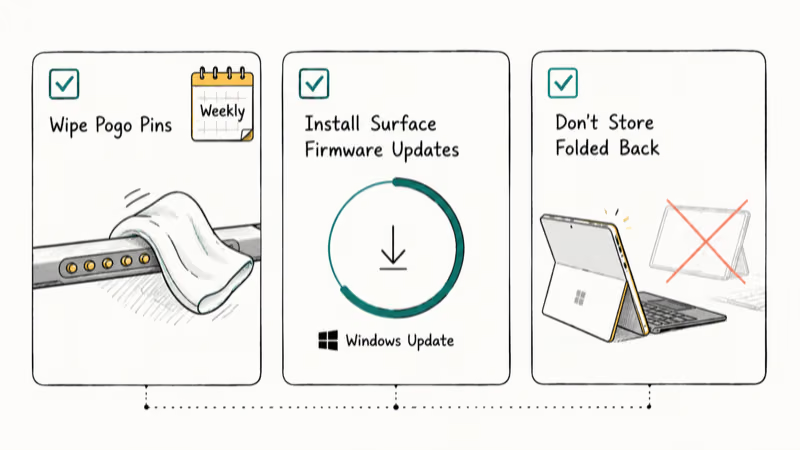
Third, don’t store the Surface with the Type Cover folded back against the screen for long periods. The hinge takes more stress in that position, and pogo pin damage can trace back to that storage habit.
If you use a wireless Surface Keyboard at a desk, keep a USB keyboard within reach. Bluetooth pairings drop most often during the lock-screen flow after a sleep cycle, and a wired backup gets you logged in without restarting.
#Backup Input Options While You Wait for Repair
If your Surface keyboard is dead and you need to keep working, plug in any standard USB keyboard through the Surface USB-A or USB-C port. Windows recognizes generic HID keyboards instantly with no driver install needed. A wired keyboard also bypasses Bluetooth entirely, which rules out radio interference as a cause.
For travel-friendly fallbacks, a small wireless mechanical board pairs quickly. For a coffee-shop friendly option, see our quiet mechanical keyboard picks for low-noise switches that don’t disturb seatmates. The on-screen Windows touch keyboard works for short tasks too, but it’s slower than a physical keyboard for anything long.
#Bottom Line
Start with the Type Cover reseat and connector clean for hardware failures, or with re-pairing for Bluetooth keyboards. Those two steps address many Type Cover and Bluetooth failures across Surface Pro, Surface Laptop, and Surface Book lines. If the keyboard fails the UEFI test in step 9, stop running software fixes and book a service appointment instead. The hardware needs hands.
For users who want to dig into BIOS-level keyboard settings before resetting, our Surface Book 3 BIOS guide walks through the UEFI device toggles in detail.
#Frequently Asked Questions
Why is my Surface keyboard not working after a Windows update?
Windows feature updates sometimes replace the OEM keyboard driver with a generic Microsoft one. Open Settings, then Windows Update, and install any optional Surface driver updates. If that fails, uninstall the keyboard from Device Manager and restart so Windows reseats the driver.
Can I use an external keyboard while my Type Cover is broken?
Yes. Plug a USB keyboard into the Surface USB-C or USB-A port, or pair a Bluetooth one through Settings. The Type Cover and external keyboards run on separate driver paths, so a broken Type Cover doesn’t block external input.
How do I fix a stuck key on my Surface Type Cover?
Power off the Surface and detach the Type Cover. Press the stuck key 20 times rapidly to dislodge debris, then dab a cotton swab with isopropyl alcohol and work it around the key edges. If the key still sticks, the membrane underneath is likely damaged and the Type Cover needs replacement.
Why does my Surface keyboard type the wrong characters?
This is almost always a language or layout problem, not a hardware one. Open Settings, go to Time & language, then Language & region. Confirm your input language matches your physical keyboard layout, and remove any extra layouts you don’t use. The fix is quick and often resolves the issue.
Can I use the Surface touchscreen instead of the keyboard?
Yes. The on-screen touch keyboard appears automatically in tablet mode, or you can pin it manually from the taskbar. It’s slower than typing but covers you for short messages, passwords, and search until the physical keyboard is fixed.
How long does a Microsoft Surface Keyboard battery last?
Microsoft states two AAA batteries last roughly 12 months under typical use. The Mobile Keyboard’s internal cell holds about 90 days of average daily typing per full charge. Battery life drops sharply at low voltage, so swap or charge before the battery indicator drops under 15 percent.
Will a factory reset fix my Surface keyboard?
A reset fixes software and driver corruption, not hardware faults. If the keyboard works in UEFI but fails in Windows, a reset can resolve the failure. If the keyboard fails the UEFI test, a reset won’t help and you should book a service request instead.
Is it worth replacing a Type Cover or buying a new Surface?
Replace just the Type Cover if your Surface body is in good shape. A Surface Pro Type Cover costs 99 to 159 USD compared to 999 USD or more for a new Surface, and the swap takes seconds with no setup. Replacing the whole Surface only makes sense if the body has bent pogo pins or other physical damage.

Best Laptop for Running LLMs in 2026: Memory Comes First
The best laptop for running LLMs is a memory purchase first. Compare MacBook unified memory against NVIDIA laptop VRAM, and see what each tier really runs.

How to Run a Local LLM on Windows: A 2026 Setup Guide
Run a local LLM on Windows with LM Studio or Ollama. Pick a model that fits your GPU memory, keep every prompt offline, and skip the monthly bill.

Bluetooth Not Working on Snapdragon X? Fixes for 2026
Bluetooth not working on your Snapdragon X Copilot+ PC? Generic audio, mice, and keyboards work, but vendor apps often lack an ARM build. Fixes inside.

Docker Desktop and WSL2 Not Working on Snapdragon X? Fix It
WSL2 runs fine on Snapdragon X, but Docker Desktop ARM is Early Access and throws WSL errors. Use WSL2 plus native ARM64 Ubuntu and Docker Engine.