How to Unlock the Keyboard on a Dell Laptop (2026)
Unlock your Dell laptop keyboard with these 9 practical fixes. Covers Fn lock, Num Lock, Filter Keys, drivers, and BIOS reset for Windows 10 and 11.
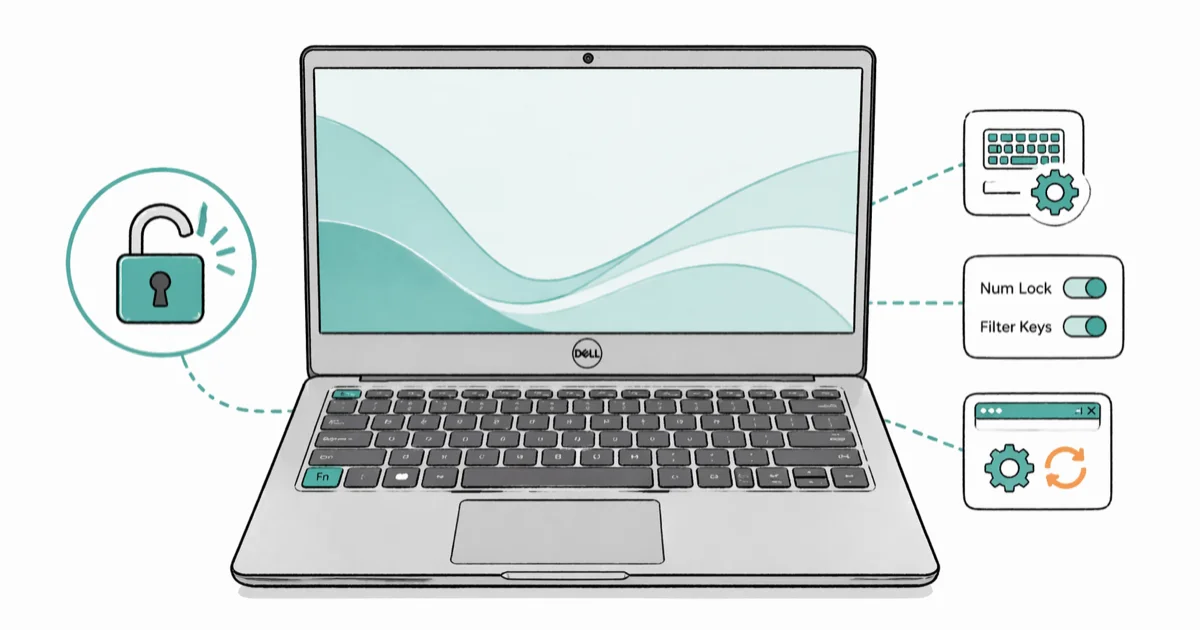
Quick AnswerPress Fn + Esc to toggle the function key lock, or check if Num Lock and Filter Keys are causing the issue. If that does not work, reinstall the keyboard driver through Device Manager and restart your Dell laptop.
Your Dell laptop keyboard stopped responding, and you need it working right now. Start with the Fn + Esc toggle, then move through the Windows and Dell diagnostics below. These methods cover common causes from accidental key locks to driver corruption.
This guide applies only to a device or account you own.
- Fn + Esc toggles the function key lock, the most common cause of a “locked” Dell keyboard
- Num Lock being off makes the number pad unresponsive; one key press fixes it
- Filter Keys in Windows accessibility can make your keyboard feel frozen or extremely slow
- Reinstalling the keyboard driver via Device Manager takes under 2 minutes
- Resetting BIOS to defaults resolves keyboard issues from incorrect firmware settings
#Why Is Your Dell Laptop Keyboard Locked?
A Dell keyboard that won’t respond isn’t always broken. Most of the time, it’s a setting that got toggled by accident. Fn lock, Num Lock, and Filter Keys are common culprits on Dell Inspiron, Latitude, and XPS models.
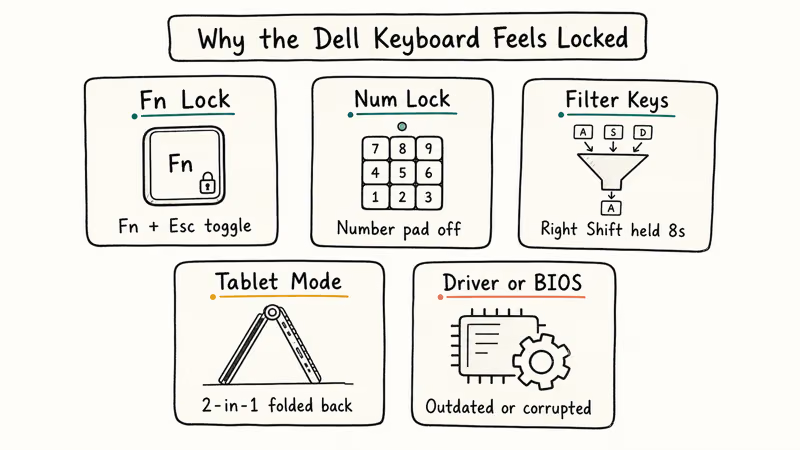
Outdated drivers, tablet mode on 2-in-1 devices, or a corrupted BIOS setting can also freeze it. Third-party apps occasionally conflict with keyboard input too.
Every one of these causes has a fix that takes under 5 minutes. If you’re also dealing with an iPad keyboard not working, we’ve got a separate guide for that.
#9 Ways to Unlock the Keyboard on a Dell Laptop
Work through these methods in order.
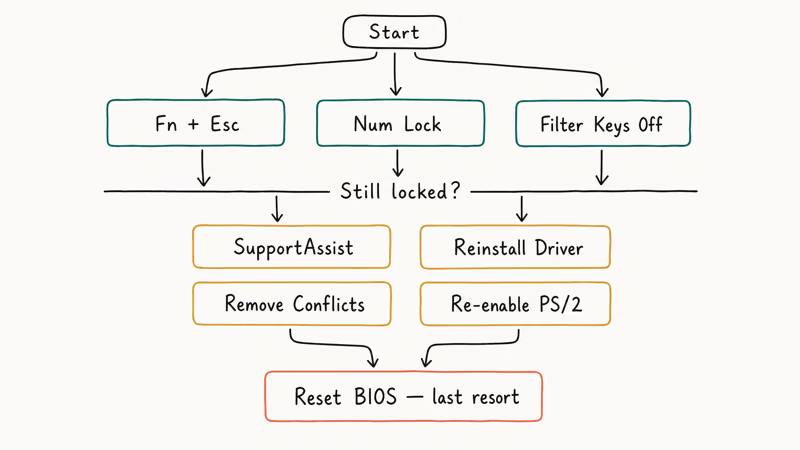
#Fix 1: Toggle the Fn Key Lock
This is the fix that works most often. If only your function row (F1-F12) stopped responding, you probably hit the Fn lock by accident.
-
Press Fn + Esc at the same time.
-
Try pressing an F-key like F5 (refresh) to see if it responds.
-
If the light indicator on the Esc key changes, the lock has been toggled.
On some Dell models, the Fn lock uses Fn + Caps Lock instead. Check the icons printed on your keys for the padlock symbol.
According to Dell’s keyboard troubleshooting guide, the Fn lock behavior varies by model and BIOS version. Some Dell Inspiron 15 and 16 laptops use the Fn + Esc combo while certain Latitude business models use Fn + Caps Lock. Your laptop’s manual confirms the exact key combination for your specific model.
#Fix 2: Check Num Lock
If only the number pad on the right side of your keyboard won’t work, Num Lock is probably off.
-
Look for the Num Lock key (usually top-right of the keyboard).
-
Press it once.
-
Check if the Num Lock indicator light turns on.
Done. Once Num Lock is back on, the number pad should respond normally.
#Fix 3: Turn Off Filter Keys
Filter Keys is a Windows accessibility feature that ignores brief or repeated keystrokes. If it gets turned on accidentally, your keyboard feels completely dead or reacts with a long delay. This can happen after holding the right Shift key too long during a game or while typing fast.
According to Microsoft’s list of accessibility keyboard shortcuts, holding the right Shift key for eight seconds turns Filter Keys on and off. That’s easy to trigger without realizing it.
On Windows 11:
-
Go to
Settings>Accessibility>Keyboard. -
Toggle Filter Keys to off.
On Windows 10:
-
Go to
Settings>Ease of Access>Keyboard. -
Turn off Filter Keys.
You can also disable it from the lock screen by clicking the Accessibility icon and toggling Filter Keys off before logging in.
#Fix 4: Switch Out of Tablet Mode (2-in-1 Models)
If you own a Dell 2-in-1 like the Inspiron 14 or XPS 13 2-in-1, tablet mode disables the keyboard entirely. Dell’s 2-in-1 troubleshooting page confirms that the keyboard and touchpad stop responding when the device is in tablet position.
On Windows 10:
-
Click the Action Center icon on the taskbar (bottom-right).
-
Click Tablet Mode to turn it off.
On Windows 11:
Windows 11 handles tablet mode automatically based on your laptop’s position. Fold your laptop back to standard laptop position, and the keyboard should re-enable within a few seconds.
#Fix 5: Run Dell SupportAssist Diagnostics
Dell SupportAssist comes pre-installed on most Dell laptops and can pinpoint whether the keyboard issue is hardware or software.
-
Open Dell SupportAssist from the Start menu.
-
Click the Troubleshooting tab.
-
Select I want to check a specific piece of hardware.
-
Scroll down and select Keyboard.
-
Follow the on-screen prompts to test each key.
Dell’s SupportAssist keyboard diagnostic guide walks through the full interactive test. If it reports a hardware failure, write down the error code. That code speeds up warranty claims.
If you’re experiencing a keyboard typing backwards issue instead, the problem is different and needs a separate fix.
#Fix 6: Reinstall the Keyboard Driver
Keyboard drivers can break after Windows updates. Reinstalling them forces Windows to rebuild the device entry.
-
Press Windows + R to open the Run dialog.
-
Type devmgmt.msc and press Enter.
-
Expand the Keyboards section by double-clicking it.
-
Right-click your keyboard device (usually “Standard PS/2 Keyboard” or “HID Keyboard Device”).
-
Select Uninstall device.
-
Click Uninstall on the confirmation prompt.
-
Restart your laptop.
Windows automatically reinstalls the generic keyboard driver during the reboot. The entire process takes under 2 minutes. If the issue comes back after a few days, check Windows Update for a newer driver version.
#Fix 7: Remove Conflicting Third-Party Software
Keyboard remapping tools, macro software, and certain security applications can block keyboard input. If your keyboard stopped working right after installing new software, that’s your likely culprit.
-
Go to
Settings>Apps>Installedapps. -
Sort by install date to find recently added programs.
-
Click the three-dot menu next to the suspect app.
-
Select Uninstall.
AutoHotkey, SharpKeys, and antivirus programs with “gaming mode” features are common offenders. Restart your laptop after uninstalling and test the keyboard.
Got a scroll wheel not working problem too? Same driver-conflict logic applies.
#Fix 8: Re-enable the Keyboard via Command Prompt
This fix applies only if someone previously disabled the PS/2 keyboard driver using a command. It’s more common on shared or managed laptops.
-
Open the on-screen keyboard first (search “osk” in the Start menu).
-
Use the on-screen keyboard to press Windows + R.
-
Type cmd, then press Ctrl + Shift + Enter to open Command Prompt as administrator.
-
Type the following command and press Enter:
sc config i8042prt start= auto- Restart your laptop.
The i8042prt service controls the PS/2 keyboard port driver. Setting it back to “auto” tells Windows to load the driver at startup. If you also have a touch input blocked issue, that’s a separate driver problem.
#Fix 9: Reset BIOS to Default Settings
When nothing else works, a BIOS misconfiguration might be the cause. Resetting BIOS to factory defaults restores all keyboard-related settings without affecting your files or installed programs.
-
Restart your Dell laptop.
-
Press F2 repeatedly as soon as the Dell logo appears (this is the BIOS key for most Dell models).
-
Once in BIOS, look for Load Defaults, Reset Settings, or Optimized Defaults.
-
Select it and confirm with the assigned key (usually Enter or Y).
-
Press F10 to save and exit.
-
Let your laptop boot normally and test the keyboard.
On most Dell laptops, F2 enters BIOS. Some older models use F12 or Delete instead.
Can’t get into BIOS at all? Hold the key down before the Dell logo appears rather than tapping it repeatedly. If you’re seeing a boot device not found error while in BIOS, that’s a separate issue.
#Risks of DIY Keyboard Repair
Ribbon cables snap easily. Don’t open the laptop unless you’re experienced.
Liquid spills, cracked keys, or a visibly damaged ribbon cable all warrant professional help. Opening it yourself voids most warranties.
#When to Contact Dell Support
For hardware failures that SupportAssist confirms, contact Dell with the error code. They’ll ship a replacement or send a technician depending on your service plan. Having that diagnostic code ready makes the support call easier.
#Using an External Keyboard as a Temporary Fix
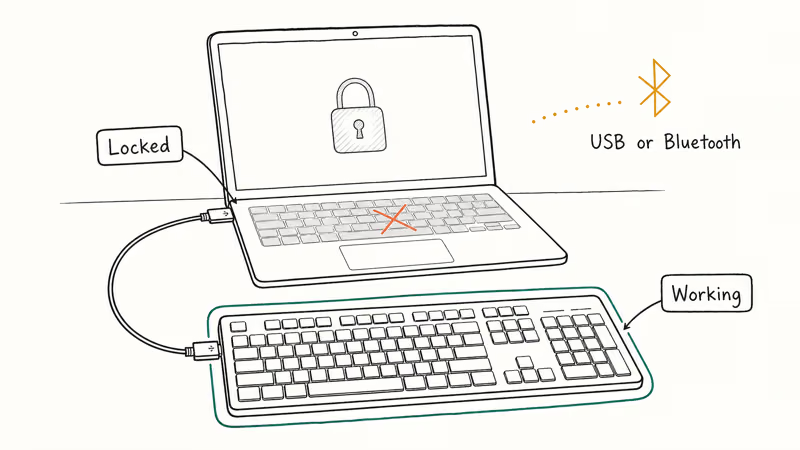
A USB or Bluetooth keyboard works immediately on most Dell laptops without any driver installation. Plug it in and you can keep working while you troubleshoot the built-in keyboard. This is especially helpful if you need to type commands in Device Manager or navigate BIOS settings during the repair process.
#Is It a Hardware or Software Issue?
Boot your Dell into BIOS by pressing F2 at startup. If the keyboard works there, the problem is software. Doesn’t respond in BIOS? Hardware issue.
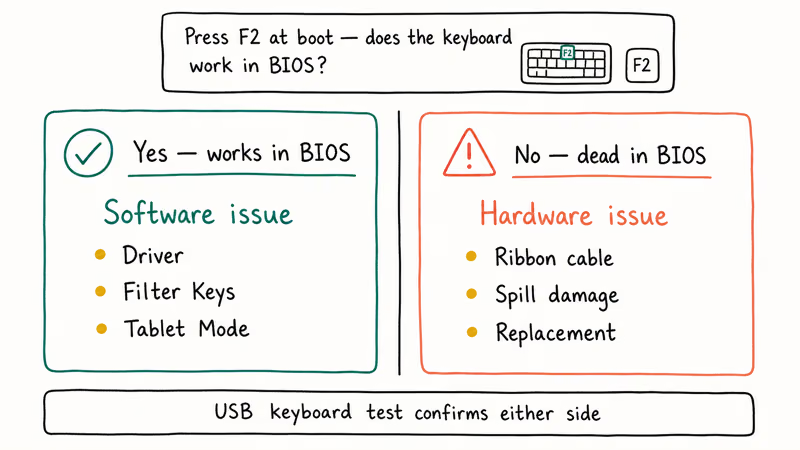
You can also plug in a USB keyboard to test. If the external keyboard works but the built-in one doesn’t, you’re dealing with a hardware problem or a loose ribbon cable connection rather than a Windows setting or driver issue.
A Windows 10 PIN not working problem at the login screen mimics a dead keyboard.
#Bottom Line
Start with Fn + Esc. That one toggle fixes the keyboard on most Dell laptops in under 5 seconds. If it doesn’t work, check Num Lock and Filter Keys next.
For persistent issues, reinstalling the driver through Device Manager or running Dell SupportAssist diagnostics will get you to the root cause. Save the BIOS reset for last since it’s the nuclear option that covers everything else.
#Frequently Asked Questions
What is the keyboard lock key on a Dell laptop?
Most Dell laptops don’t have a dedicated “lock” key. The Fn + Esc combination toggles the function key lock, which is what people usually mean when they say their keyboard is “locked.” On some models, there’s a padlock icon printed on the Esc key to indicate this function.
Can a Windows update lock my Dell keyboard?
Yes, though it’s uncommon. A Windows update can sometimes install an incompatible keyboard driver that causes the keyboard to stop responding. If your keyboard stopped working right after an update, roll back the driver through Device Manager or use System Restore to undo the update.
Does Dell offer on-site keyboard repair?
It depends on your service plan. ProSupport plans include on-site repair. Basic warranty requires shipping the laptop in. Check your status at dell.com/support with your Service Tag.
How do I type if my Dell keyboard is completely locked?
Use the Windows on-screen keyboard. Search for “osk” in the Start menu, or go to Settings > Accessibility > Keyboard and toggle on the on-screen keyboard. This gives you a clickable virtual keyboard you can use with your touchpad or mouse to log in and troubleshoot the physical keyboard.
Can malware lock a Dell laptop keyboard?
It’s rare, but certain types of malware can interfere with keyboard drivers or system settings. If you suspect malware, boot into Safe Mode (press F8 or Shift + Restart, then select Safe Mode) and run a full scan with Windows Defender. In Safe Mode, most malware can’t load, so your keyboard should work normally during the scan.
Will a factory reset fix a locked Dell keyboard?
A factory reset will fix software-caused keyboard issues, but it’s overkill for most cases. You’ll lose all your files and installed programs.
Try the nine methods above first. A factory reset should only be your last resort after everything else, including a BIOS reset, has failed. If the problem is hardware-related, a factory reset won’t help at all.
How do I unlock my Dell keyboard after a BIOS update?
If your keyboard stopped working after a BIOS update, reset the BIOS to default settings using Fix 9 above. You’ll need a USB keyboard to get into BIOS if the built-in keyboard isn’t responding. Once defaults are restored, the keyboard should work again after a restart. Dell recommends keeping BIOS updated to the latest version to prevent compatibility issues.

Best Laptop for Running LLMs in 2026: Memory Comes First
The best laptop for running LLMs is a memory purchase first. Compare MacBook unified memory against NVIDIA laptop VRAM, and see what each tier really runs.

How to Run a Local LLM on Windows: A 2026 Setup Guide
Run a local LLM on Windows with LM Studio or Ollama. Pick a model that fits your GPU memory, keep every prompt offline, and skip the monthly bill.

Bluetooth Not Working on Snapdragon X? Fixes for 2026
Bluetooth not working on your Snapdragon X Copilot+ PC? Generic audio, mice, and keyboards work, but vendor apps often lack an ARM build. Fixes inside.

Docker Desktop and WSL2 Not Working on Snapdragon X? Fix It
WSL2 runs fine on Snapdragon X, but Docker Desktop ARM is Early Access and throws WSL errors. Use WSL2 plus native ARM64 Ubuntu and Docker Engine.