How to Use NotebookLM: Guide to Sources and Audio Overviews
Learn to use NotebookLM: upload sources, ask citation-backed questions, and generate Audio Overviews. Practical guide for students and researchers.
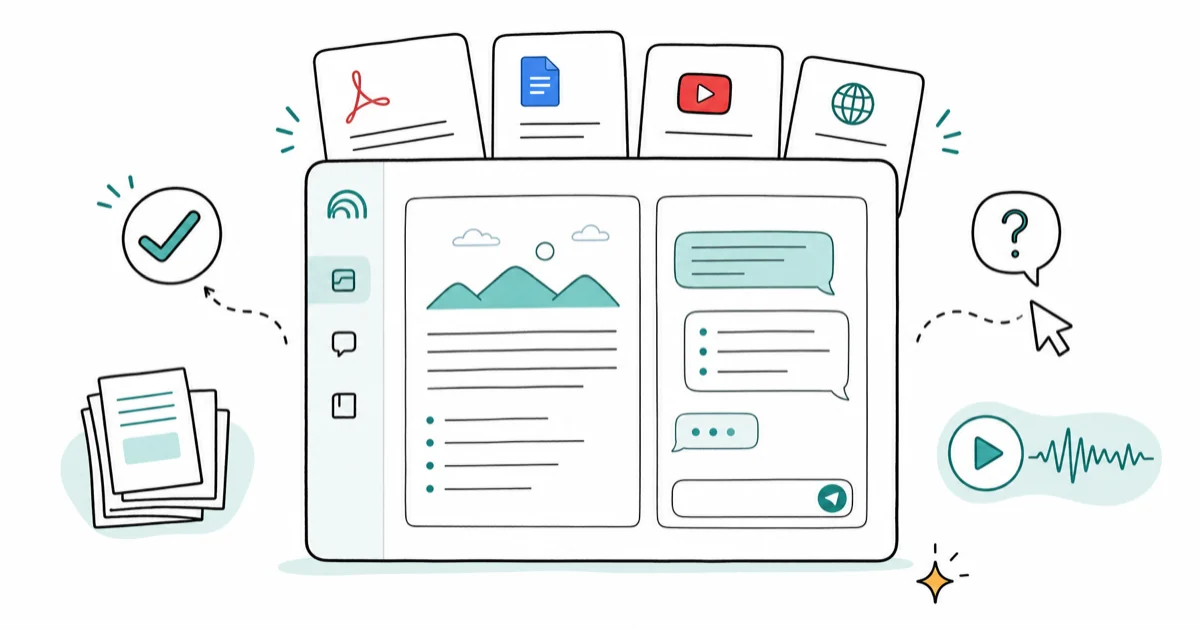
Quick AnswerGo to notebooklm.google, create a notebook, upload your PDFs, Google Docs, YouTube links, or websites, then ask questions in the chat panel. NotebookLM answers only from your sources and shows citations for every claim.
NotebookLM is Google’s AI research tool that answers questions based exclusively on the sources you upload, not the open web. It’s built for research papers, podcast transcripts, lecture slides, and other source-heavy material where citations matter.
- NotebookLM supports up to 50 sources per notebook, including PDFs, Google Docs, YouTube videos, audio files, and websites
- Every answer in the chat panel cites the exact source and passage it drew from, so you can verify claims instantly
- Audio Overview generates a two-host podcast-style conversation from your sources in about two minutes
- Free accounts get 50 chat queries per day and 3 audio generations; upgrading removes these daily limits
- NotebookLM works best for research, studying, and summarizing long documents; ChatGPT or Gemini handle general knowledge questions better
#How Do You Add Sources to NotebookLM?
Go to notebooklm.google and sign in with your Google account. Click “New notebook,” then use the sources panel on the left to add your files.
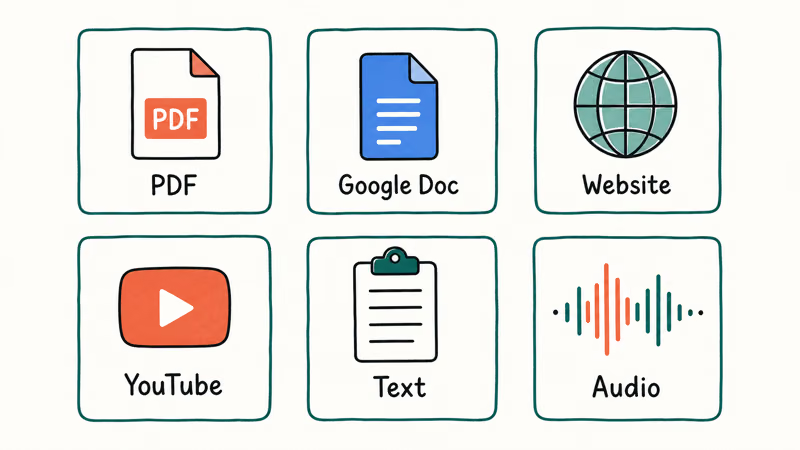
According to Google’s NotebookLM source documentation, supported formats include PDFs, Google Docs, Google Slides, Microsoft Word files, text files, Markdown files, audio files (MP3, WAV), YouTube URLs, and website links. The documentation states that each source can hold up to 500,000 words or 200MB, and you can add up to 50 sources per notebook.
PDF uploads process inside the notebook after you add them. YouTube links can take longer since NotebookLM pulls the video transcript, not the video itself. The video must have captions (user-uploaded or auto-generated).
A few practical tips:
- Name your sources clearly. When you have 15+ sources, descriptive names like “Smith 2024 Climate Study” let you ask questions like “What did Smith 2024 say about methane?” and get sharper answers.
- Group related projects in separate notebooks. NotebookLM treats each notebook as its own knowledge universe and can’t pull from two notebooks at once.
- Paste website URLs directly. You don’t need to save a page as PDF first. Paste the URL and NotebookLM fetches the text.
#Asking Questions in the Chat Panel
Once your sources are loaded, ask anything in the chat box on the right side. NotebookLM answers strictly from your uploaded material and shows inline citations you can click to jump to the exact passage.
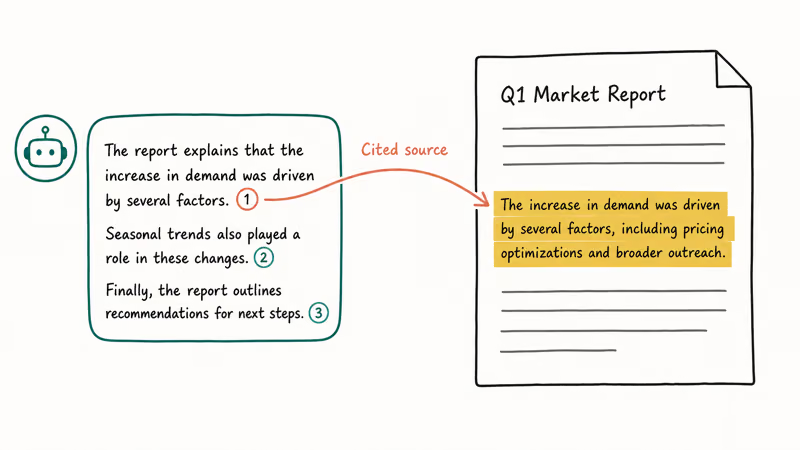
This is where NotebookLM separates from Gemini Gems or ChatGPT Projects: it doesn’t blend in outside knowledge. If your sources don’t cover the answer, it says so instead of guessing.
Some prompts that work well in practice:
- “Summarize the main arguments from all sources” (produces a cross-source synthesis)
- “What does [Source Name] say about X?” (pins the answer to a single document)
- “Compare the methodology in Document A and Document B” (useful when reviewing competing studies)
- “Generate a study guide for Chapter 3” (outputs a structured outline with key terms and questions)
A study guide prompt can turn a long source into a structured outline with page-specific citations.
#Using the Studio Panel for Structured Outputs
The Studio panel (center column in the interface) gives you one-click output formats: study guides, briefing documents, FAQs, timelines, and mind maps. These are faster than building custom prompts from scratch when you need a standard format.
You can also save anything you generate as a note. Notes stack up in the studio and you can export them to Google Docs with a single click. That’s helpful if you’re using NotebookLM alongside Gemini in Google Docs for final drafts.
#Using the Audio Overview Feature
Audio Overview turns your sources into a two-host conversation. Open the Studio panel, click “Generate” under Audio Overview, and NotebookLM produces a podcast-style discussion in about two minutes.
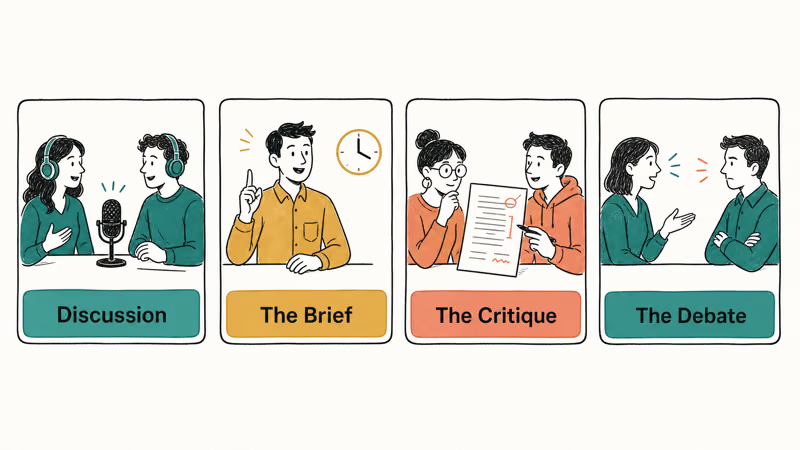
Google’s Audio Overviews help page confirms that three additional formats are available beyond the standard discussion:
- The Brief: one speaker, under two minutes, key takeaways only
- The Critique: two hosts give critical feedback on an essay or design document
- The Debate: two hosts argue opposing sides of a topic
You can customize the output before generating: choose a language (80+ supported), pick a length (Shorter, Default, or Longer), and add a prompt to focus on specific angles. The Critique format is designed to produce objections and feedback, not just a summary.
AI-generated voices can glitch. Good for commutes, not for accuracy-critical work.
#Is NotebookLM Better Than ChatGPT for Studying?
It depends on the task. NotebookLM wins for source-locked work. If you’re reviewing for an exam using your own lecture notes and assigned readings, every answer traces back to your material and you can spot-check each citation in seconds. That’s hard to replicate with a general chatbot.
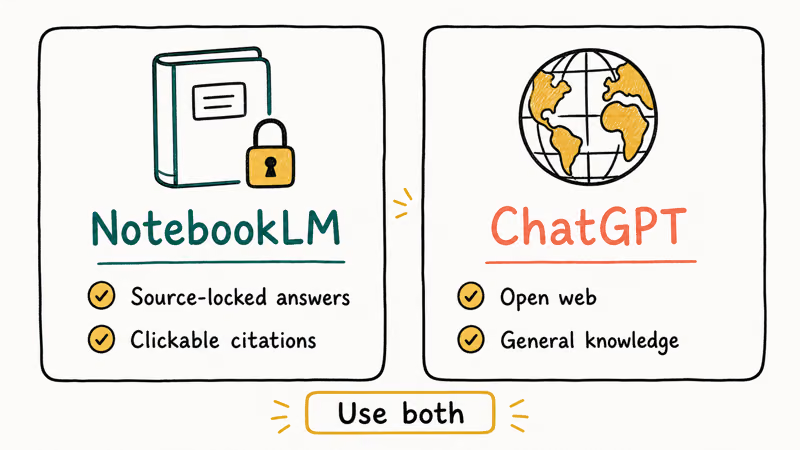
ChatGPT and Gemini are better for open-ended research, general knowledge questions, or tasks that need access to the broader web. Using ChatGPT to study works well for practice problems and explanations, while NotebookLM works better for source-based comprehension and synthesis.
Use both. That’s the practical answer for most students.
#NotebookLM vs. Gemini
NotebookLM uses Gemini’s reasoning under the hood, but the experience is intentionally constrained. Gemini Live can browse the web and answer real-time questions. NotebookLM deliberately can’t do that.
That tradeoff is a feature. Reviewing a fixed document set means citation-backed answers with no hallucinated web facts.
See our guide to the best AI for coding for a breakdown of Gemini, ChatGPT, and Claude strengths.
#NotebookLM Workflow for Research Projects
Here’s a practical workflow for multi-source research:
- Create a notebook per project topic, not per document. One notebook for “Thesis Chapter 2: Supply Chains” keeps everything scoped correctly.
- Upload primary sources first. PDFs, papers, and official reports become the foundation.
- Add supporting sources. YouTube lectures, podcast transcripts, and relevant web articles fill out the picture.
- Ask synthesis questions. “What are the three most common arguments across all sources for X?” surfaces themes you might have missed reading individually.
- Generate a briefing document. Use the Studio panel to create a structured briefing. This works well as a starting draft before you write.
- Export notes to Google Docs. Once you have useful summaries and quotes, export them to Google Docs for writing.
Job searching works well with this approach too. Upload a company’s annual report, recent news articles, and their website before an interview. NotebookLM synthesizes it faster than reading each source individually. Pair it with AI to help with your resume for the full prep workflow.
According to Google’s NotebookLM FAQ, free accounts get 100 notebooks, 50 sources each, 50 chat queries per day, and 3 audio generations per day. The source notes that upgrading through Google AI Plans or qualifying Workspace subscriptions removes daily chat and audio limits.
#NotebookLM Limitations to Know Before You Start
Questions about topics outside your uploaded sources get a direct “I don’t have information on that in your sources” response. No guessing.
The 50-chat-query daily limit bites researchers who go deep on a single session. Fifty queries sounds like a lot until you’re cross-referencing 20 sources and asking follow-up questions. The paid upgrade removes daily caps.
Source freshness is another gap. NotebookLM doesn’t sync automatically with connected Google Docs or websites. If a source changes after you add it, you need to re-add it manually to get the updated version. Keep this in mind for anything you’re using for fast-moving topics.
#Bottom Line
Upload two or three familiar documents and ask for a summary. Check the citations.
NotebookLM is the strongest AI tool for source-locked research and studying. Its cited answers make it more trustworthy than general-purpose chatbots for document analysis, and the Audio Overview feature is useful for reviewing material on the go. For open-ended questions and real-time information, pair it with Gemini or ChatGPT.
AI Tools Guide
#Frequently Asked Questions
Is NotebookLM free to use?
Yes, with a Google account. Free accounts get 100 notebooks, 50 sources each, 50 chat queries per day, and 3 audio generations per day. The paid upgrade through Google AI Plans removes those daily caps and adds higher source limits.
What file types can you upload to NotebookLM?
PDFs, Google Docs, Google Slides, Word, text files, Markdown, CSV, PowerPoint, audio (MP3, WAV), YouTube URLs, and website links. Each source caps at 200MB or 500,000 words.
Can NotebookLM access the internet?
No. NotebookLM only draws on sources you’ve uploaded to that specific notebook. It won’t browse the web or pull in outside knowledge. For web-aware AI, use Gemini or ChatGPT instead.
How accurate is NotebookLM?
For source-based questions, it’s highly accurate because every answer is cited and you can verify it immediately. It won’t fabricate details from outside your sources. Audio Overviews are the exception: AI-generated voices can have occasional errors, so verify important claims directly in the source documents before relying on them.
Does NotebookLM work on mobile?
Yes. The mobile app runs on Android 10+ and iOS. It covers the core features: chat, Audio Overviews, flashcards, quizzes, and source management. The desktop version has more interface options, but the app handles most research and review workflows without issue.
Can I share my NotebookLM notebooks with others?
Yes. Share with specific people or make the notebook public with a link. Viewers can read notes and play Audio Overviews but can’t edit. Your generated Audio Overviews are playback-only for viewers.
How many sources can I add to NotebookLM?
Each notebook holds up to 50 sources and you can mix types freely—PDFs, YouTube links, Google Docs, audio files, and websites all in one notebook. When you have five or more sources loaded, NotebookLM can auto-categorize them by topic, which makes larger research collections easier to navigate.
ChatGPT Conversation History Missing? How to Get It Back
ChatGPT conversation history missing? Fix it fast with these proven steps: check archived chats, re-enable data controls, verify your account, and more.
ChatGPT Voice Mode Not Working? 7 Fixes That Actually Work
Fix ChatGPT Voice Mode fast. Covers mic permissions, app updates, network fixes, account tier checks, and reinstall steps for iOS and Android.
ChatGPT vs Claude vs Gemini: Which AI to Use in 2026
ChatGPT vs Claude vs Gemini compared side-by-side for writing, coding, research, and everyday tasks. Find out which AI to use and when in 2026.

Claude vs ChatGPT for Writing: Which AI Is Better?
Claude wins on tone and long-form coherence. ChatGPT is faster for brainstorming and short copy. A side-by-side comparison for writers in 2026.