How to Use Gemini Live: Camera, Voice, and Screen Sharing
Use Gemini Live for voice, camera, and screen sharing on Pixel and Android. Setup, supported phones, free vs Advanced, and the buttons people miss.
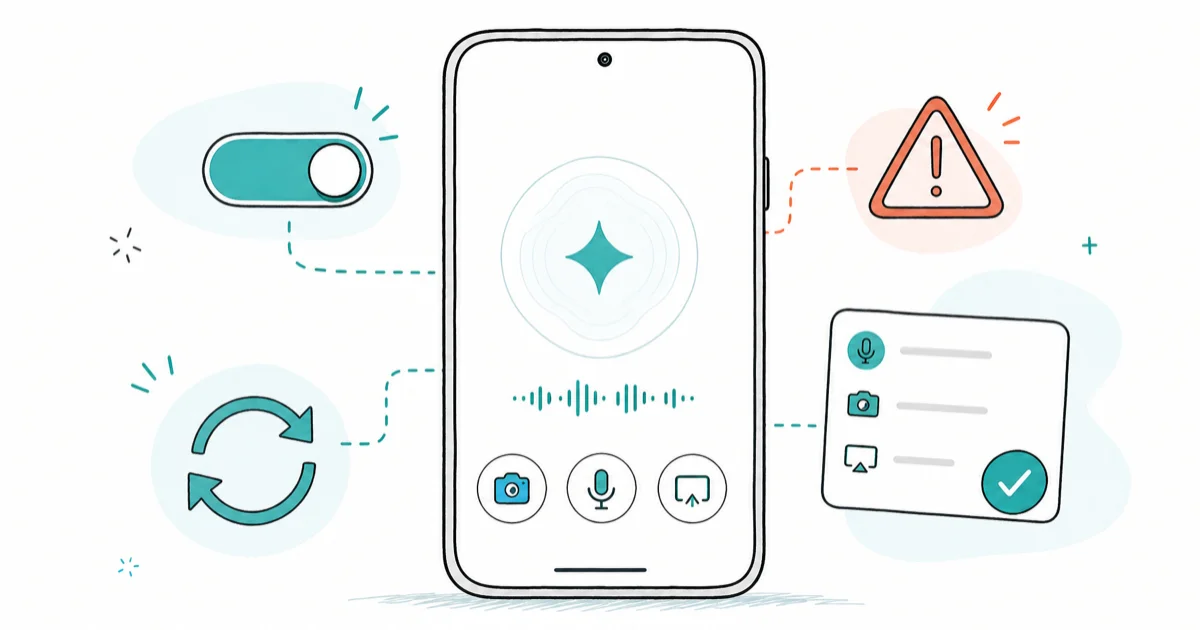
Quick AnswerOpen the Gemini app, tap the Live button at the bottom right, accept the voice setup, then talk. Tap the camera icon to show Gemini what you see.
Gemini Live is the real-time voice and camera mode inside the Gemini app. You talk, you point the camera, you share the screen, you interrupt mid-sentence. It runs on Pixel and Galaxy phones as well as most other Android devices.
- Gemini Live runs inside the Gemini mobile app, not the Google app, with the round Live icon at the bottom right of the chat screen
- Camera mode lets you point the phone at anything and ask questions; screen sharing lets Gemini see whatever app is open
- Gemini Live is free for everyone on Android 10 or newer with at least 2 GB of RAM, no Advanced subscription needed for voice
- You can interrupt Gemini while it’s talking by speaking, or tap the screen if the interrupt-on-voice setting is off
- The camera auto-shuts off when you leave the Gemini app or lock the screen, which is the privacy default, not a bug
#What Is Gemini Live?
Gemini Live is Google’s real-time conversational mode for the Gemini app. Regular Gemini chat is text in, text out, like ChatGPT. Live is voice in, voice out, with optional camera and screen sharing.
According to Google’s Gemini Live help page, the feature is built for natural back-and-forth conversation, not single-shot questions. That’s a real difference in practice.
Asking Gemini Live “what’s the weather” is a waste. Asking it to walk you through fixing a cabinet hinge while you hold the phone is the use case. Live earns its keep in hands-free situations: cooking with a sticky thumb, lifting a stroller back into a car, looking at a plant in the yard. For research, writing, or anything you need to copy-paste, regular Gemini chat still wins.
#Which Phones Support Gemini Live?
According to Google, Gemini Live requires Android 10 or newer with at least 2 GB of RAM, per the Gemini mobile app help page. That covers almost any phone from the last six years, including budget devices. Live is also available on iPhone through the Gemini iOS app.
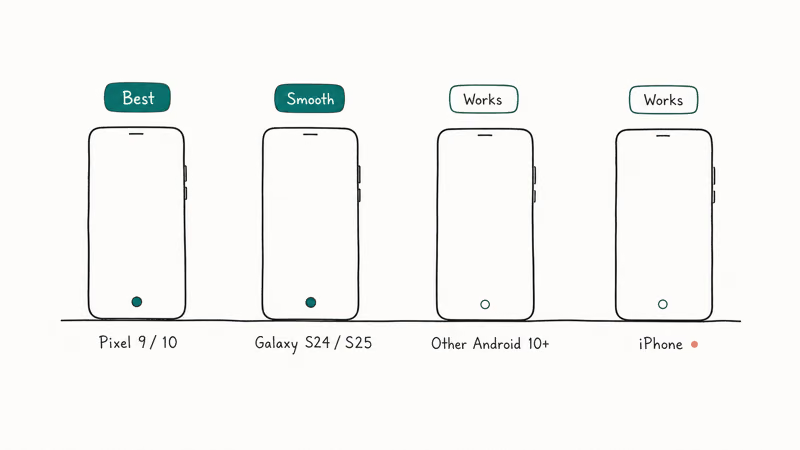
The experience scales with the phone. Here’s how the tiers compare.
| Phone tier | Example | Live experience |
|---|---|---|
| Pixel 9 / 9 Pro / 10 series | Default assistant, deepest integration | Best, Live replaces Google Assistant entirely |
| Galaxy S24 / S25 | Gemini Live preinstalled, system assistant on S25 | Smooth, with Bixby still available as fallback |
| Other Android (2 GB+, Android 10+) | Older Pixels, mid-range Android | Works through the Gemini app install, more taps to launch |
| iPhone | iPhone 13 or newer recommended | Works in the Gemini iOS app, screen sharing varies by iOS version |
If you have a Pixel 9 or newer, Gemini is your default voice assistant out of the box.
On older Android phones you may need to install the Gemini app from the Play Store first, then optionally set it as the default assistant. On Samsung, Gemini ships alongside Bixby and you pick which one runs. If you previously turned off Google Assistant on a Pixel, you’ll want to re-enable the assistant button or remap your power button to launch Gemini directly instead.
#Starting Gemini Live on Your Phone
The launch path is short. The hard part is knowing which button is “Live” because Google has moved it.
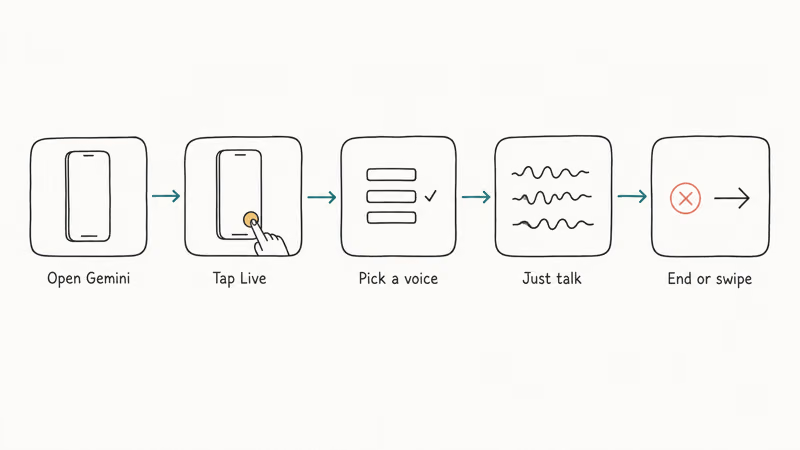
- Open the Gemini app. On Pixel 9 or newer, long-press the power button to summon Gemini.
- Look at the bottom of the screen. The big round icon on the right is the Live button.
- Tap Live. The first time, pick a voice from the list of about ten options and accept the microphone permission.
- Start talking. There’s no press-to-record button; Gemini listens until it detects you’ve finished, then replies in voice.
- To stop, tap End or swipe right. To go back to text chat, swipe left or tap the chat icon.
On a Pixel with Pixel Buds Pro, you can also say “Hey Google, let’s talk” to start a Live session hands-free. That bypasses the unlock step and is the fastest path if you’re driving or your hands are full.
If the Live button doesn’t show up, your Gemini app is out of date. Open the Play Store, search for Gemini, and update. The Live feature is now rolled out everywhere Gemini itself is available.
#Using the Camera and Screen Sharing
This is where Live becomes useful instead of just impressive. There are two modes for showing Gemini what you’re looking at.
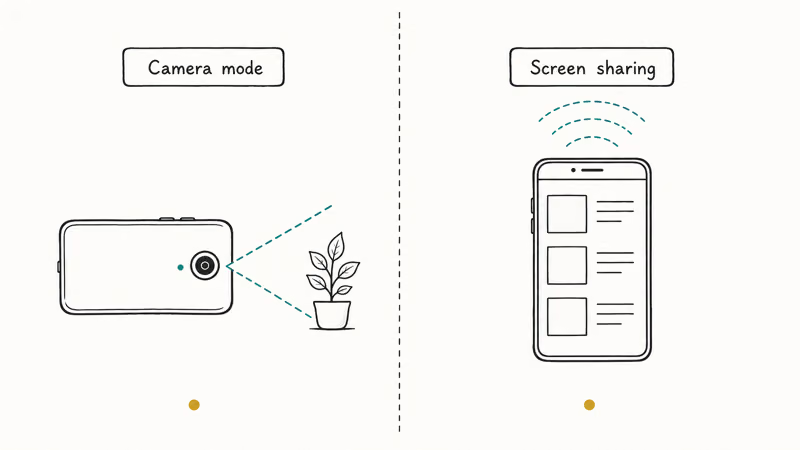
Camera mode turns on the rear camera by default, with a small toggle to flip between rear and front. You point it at anything: a plant, a wiring diagram, a recipe, a board game box, and just talk. “What is this?” works. So does “How do I install this faucet?” or “What’s wrong with this code on the screen?”
The camera, according to Google’s Gemini Live help, turns off automatically in three situations: when you put the Live session on hold, when you leave the Gemini app entirely, or when the screen locks.
That’s the privacy default, and it catches a lot of first-time users.
The camera only resumes automatically when you resume a paused Live session. If you minimized the app or locked the phone, you have to re-enable the camera by hand when you come back.
Screen sharing is the second mode. Instead of pointing the camera at the world, you share whatever’s on your screen. This needs notifications enabled for Gemini Live on your device. The app prompts for this the first time you try it.
Once on, screen sharing lets Gemini answer questions about an open app. With the YouTube app open, Gemini can answer “summarize what this video is about” using the live captions. It also works on a recipe page in Chrome and on the camera roll in Google Photos. Because the feature reads whatever is on the display rather than one app’s data, you can switch between apps mid-session and keep asking questions across a browser, a settings screen, or a chat.
Screen sharing on Android works system-wide and isn’t limited to Google apps. On iOS, the same feature exists but works inside fewer apps because of how iOS handles cross-app permissions.
#Interrupting, Muting, and Ending a Session
Most people don’t realize how much Live’s design rewards interrupting it.
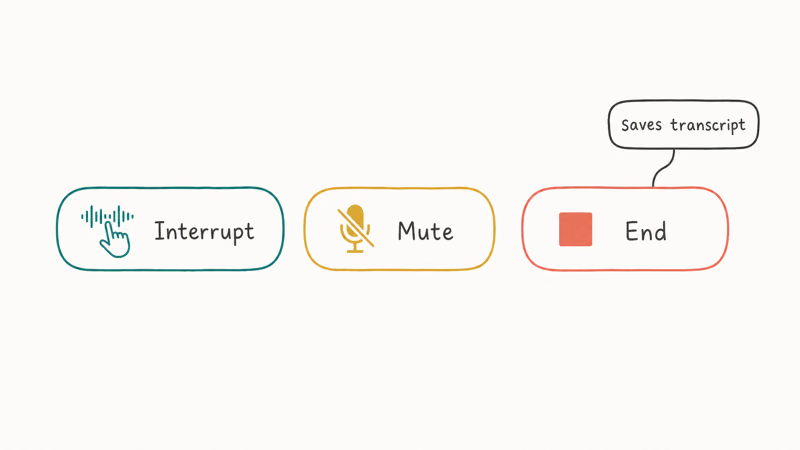
While Gemini is talking, just start speaking and the model stops to listen. This is the single biggest difference from old voice assistants, since you don’t need to wait for a “ding” or for Gemini to finish a sentence. If you’d rather interrupt by tap, turn off “interrupt with voice” in Settings, then tap the screen to cut Gemini off.
Muting is different from ending. Mute silences your microphone but keeps the Live session active. Gemini stops listening, but it can still talk.
Ending the session, by contrast, closes the chat and gives you a text transcript you can scroll through later. According to Google’s Talk naturally with Gemini Live help, the transcript is searchable in your Gemini activity history.
To resume a previous Live session, open that chat from your history and tap Live again. Gemini picks up where you left off with the same context. Handy for projects that span more than one sitting.
#Free Tier vs. Advanced
Gemini Live is free for all Gemini users on Android and iOS. You don’t need a Google One AI Premium plan to use voice mode, camera mode, or basic screen sharing. The Google Store’s Real-Time Voice AI Assistant page confirms Live is the default voice experience for the Gemini app, not a paywalled tier.
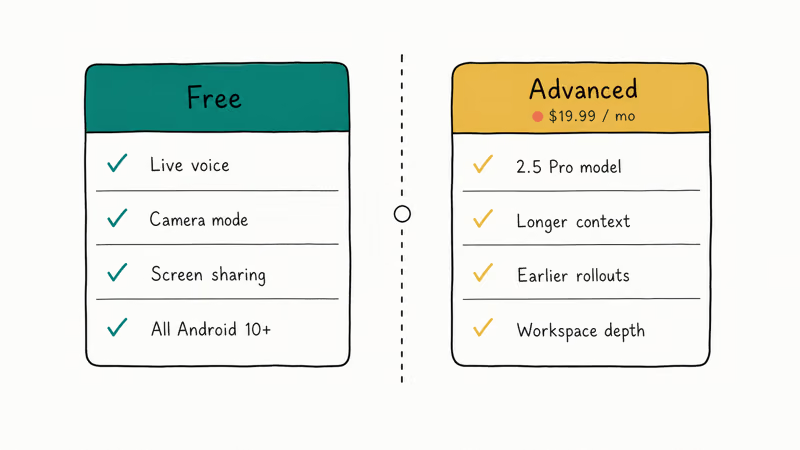
What Advanced unlocks is depth, not access. Google One AI Premium subscribers ($19.99 per month) get the newer Gemini 2.5 Pro models, longer context, and earlier Project Astra rollouts.
For everyday use, the free tier is plenty.
If you’re already paying for Google One for storage, the AI Premium upgrade is a smaller delta. If not, start with free and only upgrade if you bump into limits.
For other AI assistants you might compare, ChatGPT Projects covers ongoing AI workspaces, and Gemini Gems handles custom-instructed Gemini personas. Live is the only one of the three built around real-time voice plus camera.
#Bottom Line
Use Gemini Live when your hands are busy, when you need to point the camera at something, or when you want to share your screen and ask a question without screenshotting. Voice plus vision is the killer combo, and it’s free on any Android 10+ phone.
Open the Gemini app, tap Live at the bottom right, and try a real task.
Pair it with Quick Share for moving files and Find My Device for tracking, and the Gemini app starts feeling like the center of your Android setup.
AI Tools Guide
#Frequently Asked Questions
What is Gemini Live?
Gemini Live is the real-time voice and camera mode inside Google’s Gemini mobile app. You talk to Gemini, optionally show it your camera feed or screen, and have a back-and-forth conversation instead of typing prompts. The feature shipped to all Gemini users at no extra cost during 2025.
How do I start Gemini Live on my Pixel?
Open the Gemini app, look for the round Live icon at the bottom right of the chat screen, and tap it.
On Pixel 9 or newer, you can also long-press the power button or say “Hey Google, let’s talk” with Pixel Buds Pro paired. The first launch asks you to pick a voice and accept a microphone permission.
Can Gemini Live see my screen or camera?
Yes, both. Only when you explicitly turn them on inside a Live session. Tap the camera icon to share what your phone camera sees, or use the screen sharing option to let Gemini see whatever app is open. The camera shuts off automatically when you leave the Gemini app or lock the screen, which is the privacy default Google ships.
Which phones support Gemini Live?
Any Android phone running Android 10 or newer with at least 2 GB of RAM supports Gemini Live through the Gemini app. Pixel 9 and newer have Gemini as the default assistant out of the box. Samsung Galaxy S25 also integrates Gemini Live deeply at the system level. iPhone users get Live through the Gemini iOS app, though some integrations like screen sharing depend on the iOS version.
Is Gemini Live free?
Yes. Gemini Live’s voice, camera, and screen sharing modes work on the free Gemini tier. The Google One AI Premium subscription at $19.99 per month adds advanced underlying models, longer context, and deeper Workspace integration, but you don’t need it for Live itself.
Can I interrupt Gemini Live while it’s talking?
Yes.
By default you can just start speaking and Gemini will stop and listen. If you’ve turned off the “interrupt with voice” setting, tap the screen to cut it off instead. This is the biggest behavior difference from the older Google Assistant.
Does Gemini Live work without an internet connection?
No. Gemini Live processes your voice and any camera or screen content on Google’s servers, so it needs an active data or Wi-Fi connection. On a weak connection the voice quality drops or the session may pause until you reconnect, especially in camera mode where more data streams over the network.
ChatGPT Conversation History Missing? How to Get It Back
ChatGPT conversation history missing? Fix it fast with these proven steps: check archived chats, re-enable data controls, verify your account, and more.
ChatGPT Voice Mode Not Working? 7 Fixes That Actually Work
Fix ChatGPT Voice Mode fast. Covers mic permissions, app updates, network fixes, account tier checks, and reinstall steps for iOS and Android.
ChatGPT vs Claude vs Gemini: Which AI to Use in 2026
ChatGPT vs Claude vs Gemini compared side-by-side for writing, coding, research, and everyday tasks. Find out which AI to use and when in 2026.

Claude vs ChatGPT for Writing: Which AI Is Better?
Claude wins on tone and long-form coherence. ChatGPT is faster for brainstorming and short copy. A side-by-side comparison for writers in 2026.