How to Use Claude Artifacts: A Plain-English 2026 Guide
Trigger Claude Artifacts, edit and iterate in the side panel, publish a shareable link, and download the code, all from one plain-English walk-through.
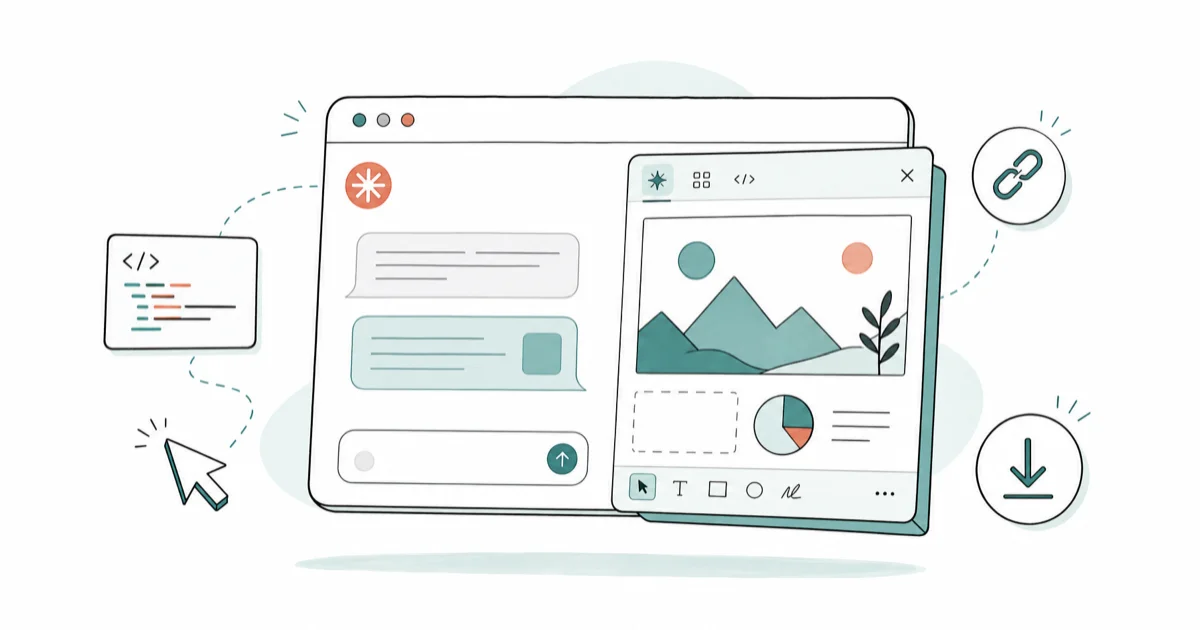
Quick AnswerOpen claude.ai and ask Claude to build something visual. Artifacts opens a side panel where you can edit, iterate, publish, or download the result.
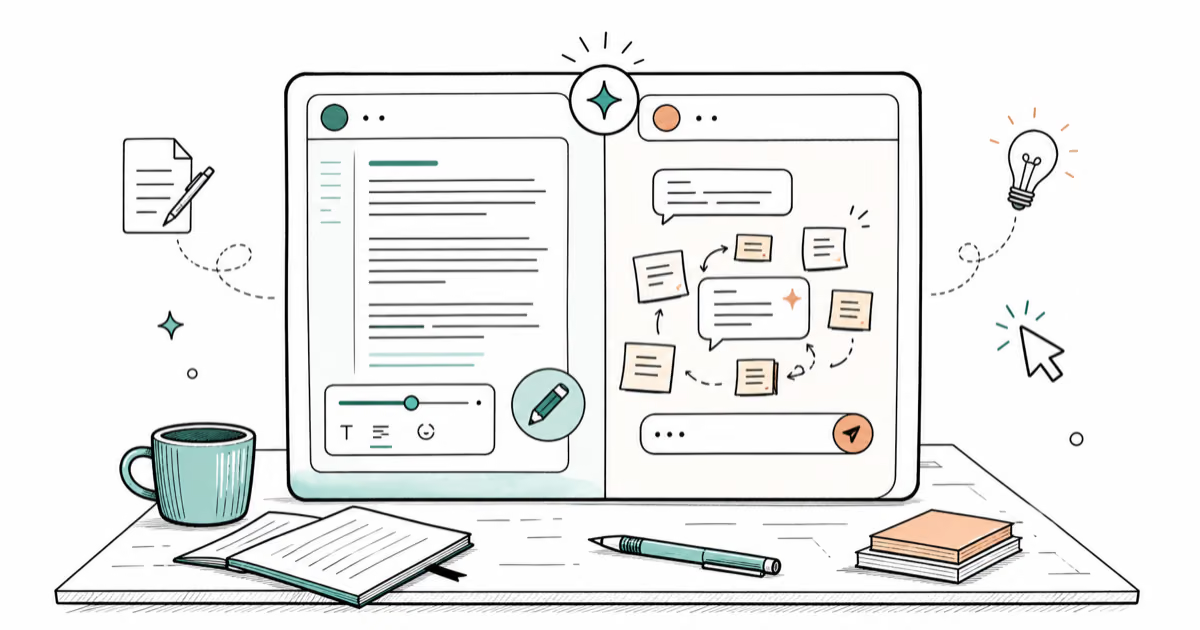
Claude Artifacts is the live preview panel that opens to the right of the chat. Most casual users never see it because they only ask Claude questions. It’s available across Claude plans and is built for visual or interactive output.
This guide covers what an Artifact is, what triggers one, how the panel works, how to iterate on it, and how to publish, share, or download the result.
- An Artifact is a side panel Claude opens to render visual or interactive output like a one-page card, a chart, an SVG icon, a small React app, or a Mermaid diagram
- Claude opens an Artifact when content is self-contained and over roughly fifteen lines, so a single sentence stays in chat but a one-page card moves to the panel
- The panel has a Preview and Code toggle, and you can highlight any region to ask for a targeted edit instead of regenerating the whole thing
- Artifacts work on every Claude plan including the free tier, and you can publish a shareable link or download the raw file
- Reach for Artifacts when you want to iterate visually, and stay in plain chat when you just want an answer or text you’ll paste somewhere else
#Claude Artifacts in One Minute
An Artifact is a second window that opens to the right of your Claude chat.
The chat stays on the left. The Artifact panel shows a live render of whatever Claude built. Open the panel and you see the result, like a page, a chart, an SVG, or a flowchart, instead of a wall of code in the message. Close it and you’re back to a normal conversation with no panel.
Prompts like “Build a one-page biography card for Ada Lovelace,” “Draw an SVG icon of a coffee cup,” and “Build me a Pomodoro timer” are the kind of self-contained visual requests that belong in Artifacts.
The point is scope: a finished object usually moves to the panel, while a short answer stays in chat.
If you haven’t set up Claude yet, our Claude account setup guide covers the signup flow first. Artifacts assumes you’re already in a chat at claude.ai.
The panel is the same idea Google ships in Gemini’s canvas surface and OpenAI ships in ChatGPT Canvas. What Claude does differently is how aggressive the renderer is, and how many file types it handles directly without forcing you to copy code somewhere else to see what it does. According to Anthropic’s Artifacts help article, the panel handles 5 main content types directly: HTML web pages, SVG graphics, Mermaid diagrams, interactive React components, and formatted Markdown documents.
Five formats, one panel.
#What Triggers Claude to Open an Artifact?
Claude decides whether your prompt deserves a panel or a plain reply. The rule is loose but consistent. Anthropic’s help page states that the panel opens at roughly 15 lines, when content is significant and self-contained, and looks like something you’d want to keep around.
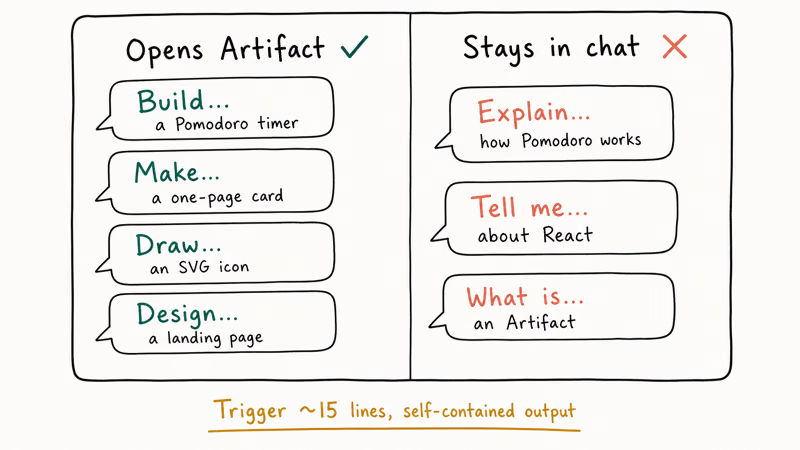
A two-sentence answer about how a feature works stays inline. A one-page article, a chart, an interactive tool, or a code snippet that runs end-to-end moves to the panel.
Three patterns reliably trigger one. Ask Claude to “build,” “make,” “draw,” or “design” something instead of “explain” or “tell me about.” Ask for an output file type by name, like an SVG, a Markdown doc, or a one-page HTML site. Or ask for something you’d obviously want to keep around for later, like a finished slide outline or a downloadable cheat sheet.
Three patterns don’t trigger one. A question with a short answer. A bullet list of tips. A back-and-forth where each reply is two sentences.
A short “explain Pomodoro” prompt usually stays in chat. A “build me a Pomodoro timer” prompt usually belongs in an Artifact.
The verb flipped the behavior.
If Claude misreads your intent and dumps a long block of code into the chat, you can correct it by replying “open this in an Artifact” or “give me this as an HTML file.” It re-renders the same content into the panel without losing the conversation context.
#Inside the Artifact Panel
The Artifact panel has three controls worth knowing on day one. None of them are buried in a menu, but two are easy to miss because they only show up after you select something.
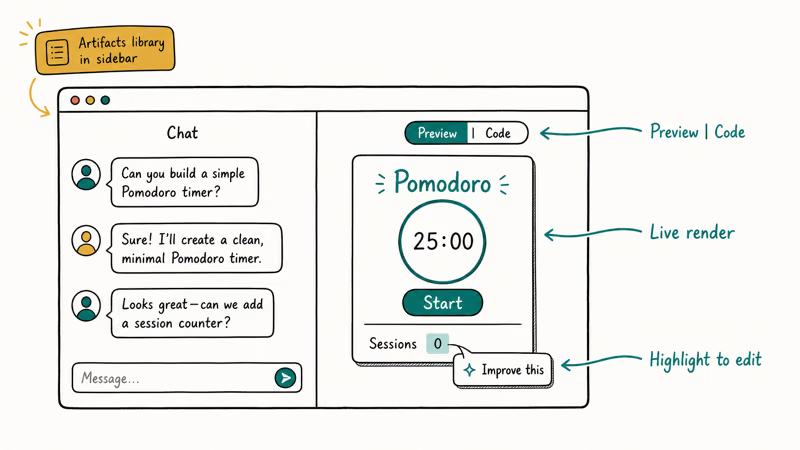
At the top you’ll see a toggle between Preview and Code. Preview shows the rendered result the way an end user would see it. Code shows the underlying file, whether that’s HTML, JSX, SVG, or Markdown. The toggle is one click and stays where you left it for the next Artifact in the same chat.
Below that, the panel renders the live result, and the render is interactive end-to-end. Buttons work, input fields accept text, SVG icons scale with the panel width, and a Mermaid diagram is fully zoomable.
Narrowing the panel doesn’t stop the rendered Artifact; interactive components keep running as long as the Artifact remains active.
The third control is the most useful one and the easiest to miss. You can highlight a region of the rendered Artifact (or the code), and a small “Improve” prompt floats next to the selection so you can describe a change. Type the change, and Claude edits only the highlighted part instead of rewriting the whole file. Tom’s Guide’s coverage of the highlight-and-edit feature update confirms this is the deliberate inpainting workflow.
A button-color edit can target only the selected button instead of the whole Artifact.
It’s roughly the same idea as inline edit in ChatGPT custom instructions for tone, except this acts on visible output, and you see the change in the same second you describe it.
There’s also an Artifacts library accessible from the Claude sidebar. Every Artifact you’ve created in any chat is listed there with a search bar, so you can find the chart you built three weeks ago without scrolling through old conversations.
#How Do You Iterate on an Artifact?
Iteration is what makes Artifacts feel different from a normal chat reply.
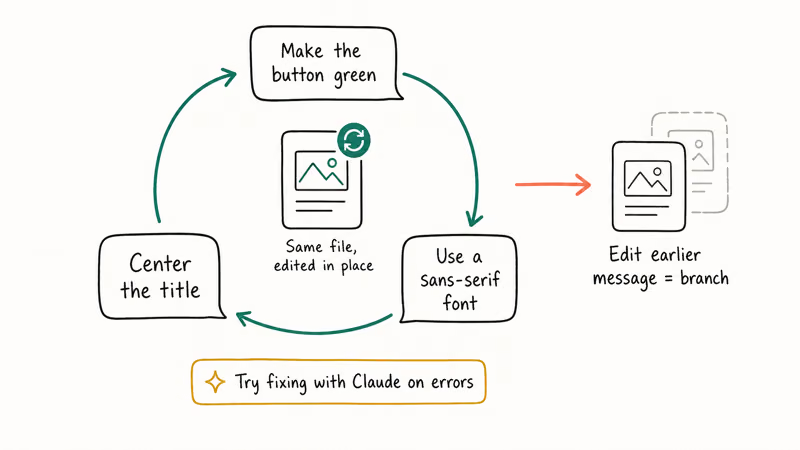
You don’t re-prompt from scratch and hope. You tell Claude what to change, and it edits the same file in place.
The pattern is short imperatives. “Make the button green.” “Use a sans-serif font.” “Add a column for the date.” “Center the title.” Each one triggers an edit to the Artifact already in the panel, not a brand new Artifact. The panel re-renders in place, and the chat thread shows a one-line confirmation of what changed.
For more structural changes, you can be looser with the request. A prompt like “rewrite this as a vertical card instead of horizontal” can rebuild the layout while preserving the content. A prompt like “make this work on mobile” can ask Claude to add responsive CSS.
Neither prompt needs line-by-line direction.
If an edit breaks the Artifact, the panel shows the error inline. There’s a “Try fixing with Claude” button that copies the error text into a new message for you, sends it, and Claude pushes a fix back into the same Artifact.
One quirk worth knowing.
Editing a prior message in the chat creates a branched conversation with its own Artifacts. So if you want to explore a totally different design direction without losing the current one, scroll up, edit the message that created the Artifact, and the panel rebuilds in a parallel branch. The original branch stays accessible from the chat history any time you want to come back to it.
#Publishing, Sharing, and Downloading
When an Artifact is in a state you’re happy with, three options sit at the top of the panel. Publish turns the Artifact into a public URL anyone can open in a browser. Download saves the file or a zip of files to your computer. Remix lets someone with the link clone the Artifact into their own Claude account as a starting point for their own version of it.
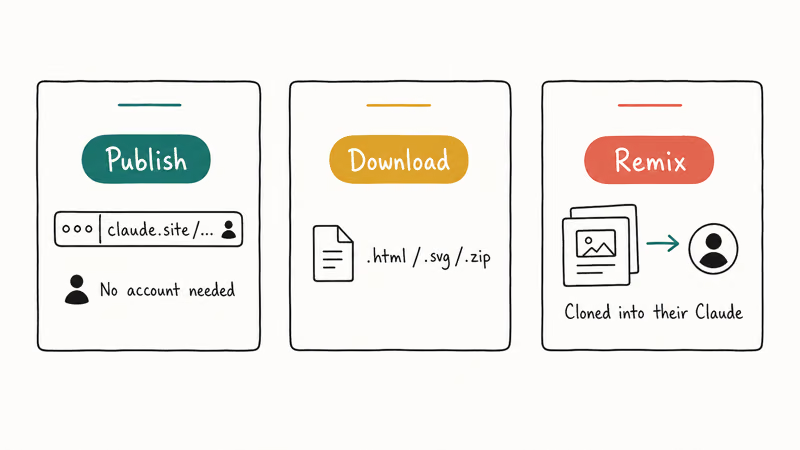
Publish is the option most people miss.
Click it, confirm, and you get a claude.site link you can paste into Slack, an email, or a doc. Anyone who opens the link gets the live rendered Artifact in their browser without a Claude account at all, which is the part that surprises most people the first time they share one.
Download is straightforward and works on every plan.
The file stays standalone offline.
That matters if you built a small calculator and want to send it as an email attachment rather than a link, because the recipient doesn’t need a browser tab to claude.site to use it.
Remix is the social piece. Anthropic publishes a community catalog of Artifacts other people have built, linked from the Artifacts library sidebar. Remix on any of those puts the file straight into your account so you can adapt it without starting from scratch.
One more wrinkle on cost: if you share an AI-powered Artifact that calls Claude under the hood, the people who use it get charged against their own Claude subscription, not yours, so you can ship a small tool to a hundred users without paying a hundred times for the inference cost.
#Artifacts vs a Normal Chat Reply
The decision rule is simpler than it sounds.
Reach for Artifacts when the output is something you’ll iterate on visually, and stay in plain chat when the output is text you’ll read, copy, or paste somewhere else without changing it.
Here’s the side-by-side rule:
- Draft email → chat
- Draft landing page → Artifact
- Meeting talking points → chat
- One-page printable agenda → Artifact
- Python snippet for the terminal → chat
- Working interactive web app → Artifact
If you’re already a best AI for coding comparison reader and you build apps daily, you’ll live in Artifacts. Writers iterating on tone usually find chat faster.
People sometimes ask how Artifacts compares to OpenAI’s Canvas or Gemini’s similar surface, and the answer is that they’re conceptually the same idea: a side panel for richer output. If you already use Gemini Gems or ChatGPT Projects you’ll find the panel familiar within five minutes.
Claude renders a wider range of file types directly in the preview, which matters most for SVG, Mermaid, and React. For plain markdown documents, all three feel similar.
If you need to polish Artifact output that came out a bit robotic, our humanizing AI text guide covers the cleanup pass for first-person writing.
#Bottom Line
Use Artifacts the moment your next message is going to be “now change the color” or “make it bigger.” Anything you want to iterate on visually, render live, or share as a link belongs in the panel. Stay in plain chat when you just want an answer to read, a list to copy, or text to paste somewhere else.
The mental check is the verb. “Build me,” “design me,” “draw me,” or “make me” almost always opens an Artifact. “Explain,” “summarize,” “tell me,” or “what is” almost never does.
For most non-developers, the Pomodoro test is the easiest first try. Ask Claude to build you a Pomodoro timer, watch the panel open, then ask it to change the background to dark mode. The whole feature clicks in about two minutes after that.
AI Tools Guide
#Frequently Asked Questions
What are Claude Artifacts in plain English?
A side panel for things you’d want to look at.
Artifacts opens to the right of the chat when Claude builds something visual: a one-page card, a chart, an SVG icon, or a small interactive app. The chat stays on the left, and the panel renders the live result so you can edit, iterate, publish, or download from there.
How do I create an Artifact on purpose?
Ask Claude to build, make, draw, or design something instead of asking it to explain or summarize. Naming an output file type helps too. Ask for “an SVG icon,” “a one-page HTML site,” or “a Mermaid flowchart” and Claude almost always opens an Artifact. If it doesn’t, reply “open this in an Artifact” and it re-renders.
Can I edit an Artifact after Claude makes it?
Yes, in two ways.
Type a short imperative in the chat (“make the button green”) and Claude rewrites the file in place. Or highlight a region in the rendered preview, describe the change in the floating “Improve” prompt, and Claude edits only that region without touching the rest of the layout.
Can I share or publish an Artifact?
Yes. Click Publish for a public claude.site URL anyone can open without a Claude account, click Download to save the file (or zip) locally, or click Remix to let someone clone your Artifact into their own Claude account. Publishing stays free regardless of traffic.
Do I need Claude Pro to use Artifacts?
No. Anthropic’s Intro to Artifacts tutorial confirms that Artifacts ship on all 5 plans (Free, Pro, Max, Team, Enterprise).
Artifacts vs Canvas, what’s the difference?
Artifacts is Claude’s side panel, and Canvas is ChatGPT’s analogous surface. The core idea is the same: a live preview window for richer output. Claude renders a wider range of file types directly (SVG, Mermaid, and React run interactively), while Canvas leans more on document editing and inline writing collaboration. For visual builds and tiny apps, Artifacts is faster.
Can I download the Artifact as a file?
Yes. Download is one of the three buttons at the top of the panel, and the file type matches what Claude built. An SVG comes out as .svg, an HTML page as a standalone .html that runs offline, and a multi-file React app as a .zip you can unzip and open locally.
ChatGPT Conversation History Missing? How to Get It Back
ChatGPT conversation history missing? Fix it fast with these proven steps: check archived chats, re-enable data controls, verify your account, and more.
ChatGPT Voice Mode Not Working? 7 Fixes That Actually Work
Fix ChatGPT Voice Mode fast. Covers mic permissions, app updates, network fixes, account tier checks, and reinstall steps for iOS and Android.
ChatGPT vs Claude vs Gemini: Which AI to Use in 2026
ChatGPT vs Claude vs Gemini compared side-by-side for writing, coding, research, and everyday tasks. Find out which AI to use and when in 2026.
Claude vs ChatGPT for Writing: Which AI Is Better?
Claude wins on tone and long-form coherence. ChatGPT is faster for brainstorming and short copy. A side-by-side comparison for writers in 2026.