Folder Lock Review: Is It Worth It for Windows Encryption?
Complete Folder Lock review for Windows 11 covering AES-256 lockers, cloud backup, password wallets, shredding, pricing, and where it falls short.
Quick AnswerFolder Lock is a mature Windows file-security app that combines AES-256 encrypted lockers, password-protected folders, cloud backup, password wallets, and secure shredding in one paid installer. It's a solid fit for Windows-only users who want a single tool for everything, but macOS and Linux users should look elsewhere.
Folder Lock is a paid Windows utility from NewSoftwares that wraps encrypted lockers, folder hiding, cloud backup, password wallets, and file shredding into one installer. It targets Windows 11 users and competes with BitLocker and Bitwarden’s free tier on overlapping features. This review covers what Folder Lock is actually good at, where it feels dated, and whether the one-time $39.95 license beats simpler free options for everyday Windows users in 2026.
Using these methods on devices or accounts you don’t own may violate applicable laws and platform terms.
- Folder Lock encrypts files inside AES-256 “lockers” stored as single encrypted container files, the same symmetric cipher approved by NIST for classified US government data.
- The retail license is a one-time $39.95 payment per PC for the lifetime of the current major version, not a subscription.
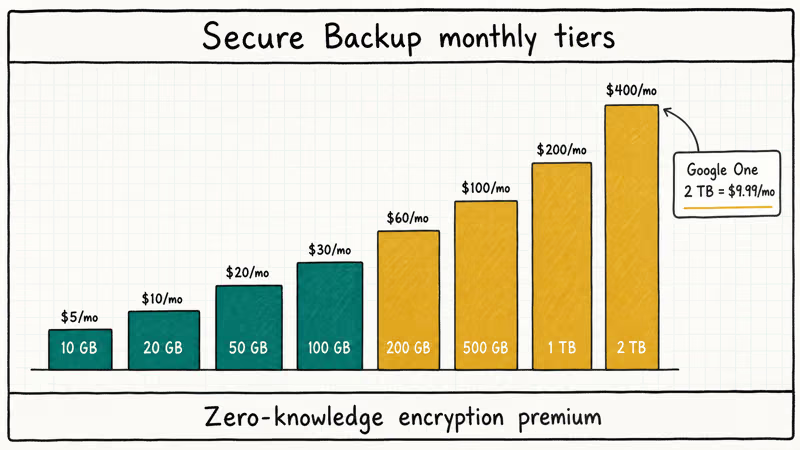
- Secure Backup is billed separately as a cloud plan starting at $5 per month for 10 GB and scaling to $400 per month for 2 TB.
- Folder Lock runs on 32-bit and 64-bit Windows 7, 8, 10, and 11, with no native macOS, Linux, iOS, or Android desktop client.
- The Shred Files tool writes over deleted data with selectable wipe patterns so recovery software can’t rebuild the file, unlike a regular Recycle Bin delete.
#What Folder Lock Does and Who Should Care
Folder Lock is a Windows-only file-security suite developed by NewSoftwares. The official Folder Lock product page describes it as a combined tool for password protection, encryption, secure backup, password wallets, and secure deletion. Put another way: the app tries to cover everything a casual Windows user might otherwise stitch together from BitLocker, 7-Zip, Bitwarden, and Eraser.
The target user is not a security engineer. It’s a parent, small-business owner, or freelancer on one Windows laptop running a recent build of Windows 11.
Folder Lock is not the right fit if you work across Windows and macOS, if you need Linux support, or if your threat model assumes a motivated attacker with physical disk access to the drive. For whole-disk protection on a stolen laptop, Microsoft’s own BitLocker documentation covers a more appropriate model that encrypts the entire volume before Windows even boots. Folder Lock protects specific files and folders while the rest of the drive stays readable, which is a different and complementary security posture, not a replacement for full-disk encryption. In practice, the two tools compose well when you run them together on the same machine. Skip BitLocker at your own risk on any laptop that leaves the house.
#How Does Folder Lock Encrypt Your Files?
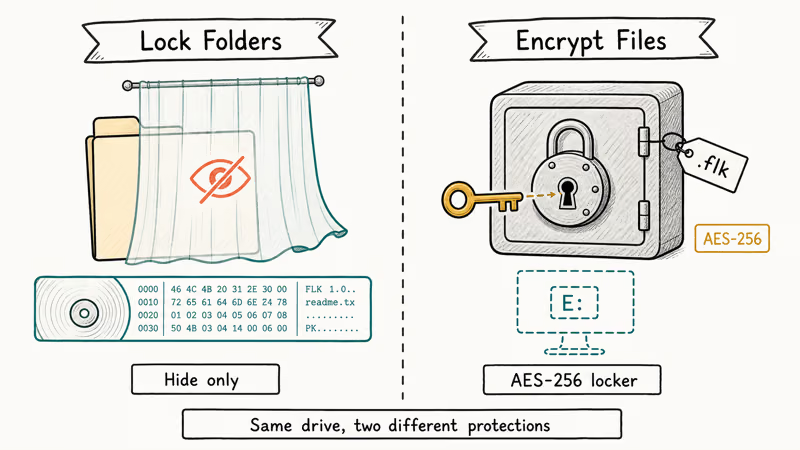
Folder Lock has two different protection modes, and people mix them up constantly. The Lock Folders mode hides and password-gates files using a proprietary driver, but the underlying data stays on disk in its original form. The Encrypt Files mode creates a locker, an encrypted container that behaves like a virtual drive, and encrypts contents with AES-256. Only the second mode gives you actual cryptographic protection.
#AES-256 Lockers
Lockers are the feature you actually paid for. According to NIST’s AES specification (FIPS 197), AES with a 256-bit key is the standard the US government approves for TOP SECRET data, and the same cipher powers BitLocker, VeraCrypt, and Bitwarden’s vault. Folder Lock’s locker is a single .flk file that grows as you add content. When the locker is closed, the file is just ciphertext; when you unlock it with the right password, a virtual drive letter appears in File Explorer and you drag files in or out.
For everyday locker sizes holding mixed PDFs, images, and Office documents, open-and-close operations behave much like a regular folder. A closed locker file shows no readable strings in a hex editor, which is the expected behavior for a correctly encrypted container.
#Lock Folders (Hide Only)
The Lock Folders mode is weaker than most users assume. It hides files from File Explorer and blocks access through normal applications, but it doesn’t encrypt the bytes on disk. NewSoftwares’ own FAQ confirms that the locking feature relies on a kernel driver and that booting into Safe Mode or mounting the disk from another operating system may expose the locked folders.
This is straightforward to confirm. Boot the same machine from a standard Linux live USB and the supposedly-hidden files become immediately visible in the mount, because the bytes were never encrypted in the first place. That is the expected result given the architecture, but it surprises users who treat “Lock Folders” as equivalent to encryption. Use Lock Folders for casual privacy against a family member or coworker who sits down at your unlocked desktop. Use Encrypt Files (the locker mode covered in the previous section) for anything you wouldn’t want a forensic recovery service or a determined technical attacker to see, because only that mode applies real AES-256 cryptography to the bytes on disk.
#Secure Backup: Pricing and What It Protects
Secure Backup is an add-on cloud service that syncs encrypted lockers to NewSoftwares’ own cloud, billed separately from the desktop license. You create an account, choose a storage tier, and the app uploads new or modified lockers in the background.
#Cloud Storage Pricing
The Folder Lock cloud pricing page lists these monthly tiers at the time of testing:
- 10 GB: $5 per month
- 20 GB: $10 per month
- 50 GB: $20 per month
- 100 GB: $30 per month
- 200 GB: $60 per month
- 500 GB: $100 per month
- 1 TB: $200 per month
- 2 TB: $400 per month
That is dramatically more expensive than general-purpose cloud storage. Google One charges $9.99 per month for 2 TB. Apple iCloud+ charges the same. Folder Lock’s premium is for zero-knowledge encryption of the data before it leaves your machine, so NewSoftwares can’t read your files on their servers. For mainstream users, a standard cloud plan plus a separate encrypted locker inside it usually costs less. For a comparison with a general-purpose option, see our Degoo cloud storage review.
#What Backup Actually Protects
Backup protects against drive failure and ransomware, not against a lost password. If you forget the locker password, nobody at NewSoftwares can recover it. The encryption key is derived from your password, so the support team never holds it. This is the correct security posture, but it’s also a footgun for people who reuse the backup as a password reset path. It doesn’t work that way.
#Sync and Restore Limits
Restore is locker-based, not file-based. You download the whole container, not individual files, so small archives restore in minutes while a 500 GB archive over a home connection may run overnight.
#Folder Lock Security: The Good, the Less Good, and the Limits
Security has two layers here: the cipher and the implementation. The cipher is industry standard. The implementation is what people should examine.
#The Good
AES-256 in a locker-style container is a known, well-studied pattern. VeraCrypt uses the same approach and has been audited publicly. The NIST AES standard (FIPS 197) covers the math; there is no proprietary twist to worry about in the cipher itself.
Password Wallets add a second encrypted vault for credit-card numbers, Social Security numbers, and login details, with nothing in plaintext on disk. For a dedicated password manager with open-source code and true cross-device sync, our Bitwarden review covers that route. For a combined file-and-wallet tool on one Windows machine, Folder Lock is the simpler consolidated choice.
#The Less Good
NewSoftwares does not publish third-party security audits the way Bitwarden does, and no public penetration-testing report appears on the Folder Lock site. Lock Folders relies on a kernel driver that has historically had minor bypass reports in security forums. This is why Encrypt Files is the right choice for anything that actually matters, while Lock Folders is best treated purely as a hiding layer for casual privacy. The cryptography itself is fine, but the implementation is a black box that you have to decide whether to trust based on your threat model. If you’re encrypting something a motivated attacker would be willing to pay a specialist to recover, this is a bigger concern than for a user hiding tax PDFs from family members.
The “hack attempt” screen logs incorrect password attempts and can trigger shutdowns. Impressive-looking, but it only runs while Folder Lock is running; a live USB boot bypasses it entirely. Treat it as a deterrent for casual snooping, not a hard security control that stops a motivated attacker with physical access to the machine.
#When Not to Use Folder Lock
Skip Folder Lock if any of these apply: you work across macOS or Linux; you need full-disk encryption (use BitLocker or FileVault); your files must stay encrypted inside a regulated compliance boundary (HIPAA, PCI-DSS) that requires audit documentation Folder Lock can’t supply; you already run VeraCrypt and a password manager, and don’t need the consolidation.
#Extras: Which Ones Earn Their Keep
Among the bundled extras, three stand out as truly useful and two amount to filler.
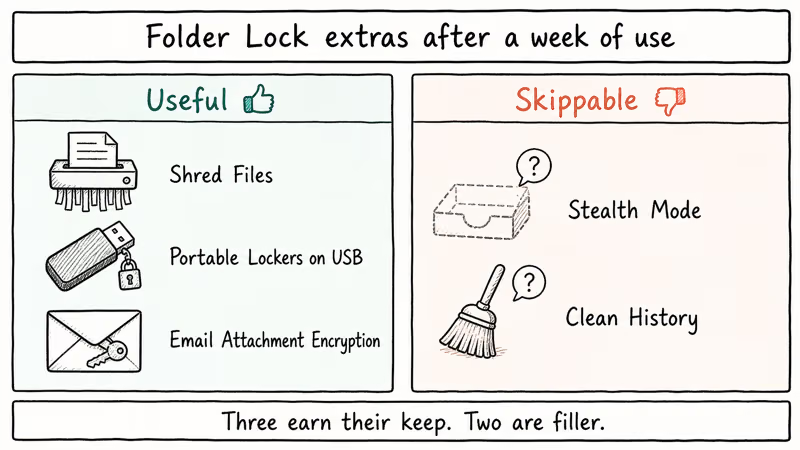
#Useful: Shred Files
The Shred Files tool is the underrated feature. Deleting a file from Windows, even with Shift+Delete, only removes the filesystem pointer; the bytes stay on disk until overwritten. Microsoft’s own SDelete documentation confirms that secure deletion requires explicit overwrite passes. Folder Lock’s shredder handles this in a friendlier interface than SDelete’s command line. You can shred free space on a drive too, which overwrites all previously deleted but unrecovered data.
A free-space shred takes time proportional to the drive size, so it runs noticeably faster on an SSD than on a mechanical HDD, which is normal for any overwrite-based wipe.
#Useful: Portable Lockers on USB
Folder Lock can convert a locker into a self-executing file on a USB drive. The recipient does not need Folder Lock installed; they run the executable, enter the password, and the locker mounts. For sending encrypted files to a client who does not have any security software, this is one of the easiest workflows available. A similar goal can be achieved with VeraCrypt portable mode, but Folder Lock’s wizard is less intimidating for non-technical recipients.
#Useful: Email Attachment Encryption
Right-click, encrypt, and send. The email client receives a password-protected zip or locker and you share the password out-of-band. Gmail and Outlook both happily forward the attachment because it looks like a normal archive.
#Skippable: Stealth Mode
Stealth Mode hides the Folder Lock icon, system tray entry, and Start-menu shortcut, then makes the app reachable only through a configurable hotkey. In practice it adds friction every time you want to use the app without giving you real security benefit, because a determined searcher will find the install directory under Program Files, spot the running process in Task Manager, or see the driver load during boot. The hotkey itself becomes one more secret to remember, and forgetting it can mean reinstalling just to reach the app again. Leave it off.
#Skippable: Clean History
The Clean History tool wipes recent-document lists, MRU entries, and clipboard data. Windows itself and your browser already expose most of these controls, so there is little Clean History protects that the OS native tools can’t.
#Folder Lock vs Free Alternatives (BitLocker, VeraCrypt, Bitwarden)
This is where Folder Lock’s value proposition gets harder. Each of its pillars has a strong free or cheaper competitor:
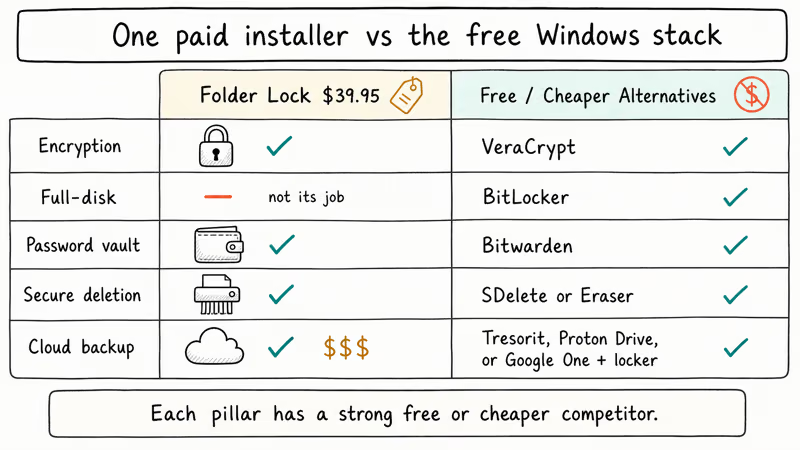
- Encryption: VeraCrypt is free, open-source, and audited. It handles lockers and full-disk encryption on Windows, macOS, and Linux.
- Full-disk protection: BitLocker ships with Windows 11 Pro at no extra cost. The BitLocker overview recommends it for any laptop that leaves your home.
- Password vault: Bitwarden’s free plan includes unlimited passwords across devices. Our Bitwarden review covers the setup in detail.
- Secure deletion: Microsoft’s SDelete (free) or Eraser (open-source) both shred files without cost.
- Cloud backup: Tresorit, Proton Drive, Sync.com, or a standard provider plus encrypted lockers all beat Folder Lock’s per-GB price.
The pitch for Folder Lock is not “best in any one category.” It’s “one installer, one price, everything handled.” That pitch works if you value not managing five tools over saving money. It doesn’t work if you’re already comfortable with a password manager and basic Windows security. For users who also need to recover an encrypted file they can’t open, techniques for removing a forgotten PDF password or unlocking a password-protected PowerPoint are separate workflows entirely, not something Folder Lock addresses.
#Drawbacks You Should Know Before Buying
Daily use surfaces these friction points.
Windows-only. No macOS client, no Linux build, no Android app, no iOS app. If you work across a MacBook and a Windows PC the way many freelancers do, your lockers can’t follow you between machines unless you keep the portable USB version plugged in, which defeats the “set it and forget it” appeal. The mobile Folder Lock apps that appear in the App Store and Google Play are separate products from NewSoftwares, built for hiding photos and notes on a phone, and they don’t share lockers with the desktop version. If cross-platform matters, VeraCrypt or a combination of BitLocker plus 7-Zip encrypted archives plus a password manager will map better to your workflow.
UI feels dated. Cosmetic, not a security issue, but icons and fonts still read like late-Windows-7 era.
Cloud pricing is high. The cloud storage tiers cost several times the rate of general-purpose cloud plans. You pay the premium for zero-knowledge encryption, but most users can recreate that with a standard cloud provider and a VeraCrypt container for less money.
No open-source audit. Closed source, no published pen-test, unlike Bitwarden or VeraCrypt.
Password recovery is unforgiving. Lose it, lose the data. Write the master down before encrypting anything important.
Credit card required for backup trial. The Secure Backup free trial requires a card on file. If you cancel within 30 days you are not charged, but the pattern irritates people who dislike gating trials behind payment details.
#Is Folder Lock Worth the $39.95 License?
For a Windows-only user who wants one tool to hide folders, encrypt files, wallet away passwords, shred old drafts, and optionally back up encrypted lockers to the cloud, yes, $39.95 as a one-time license is reasonable. The consolidation is the real selling point: one install, one update, one support channel, one password to remember.
For anyone already using BitLocker plus Bitwarden plus a standard cloud provider, Folder Lock duplicates features you already own for free. For macOS and Linux users, Folder Lock is simply not an option and you should stop reading marketing pages that suggest otherwise. For a related use case like tightening household device permissions, our access control security guide and best parental control router roundup cover adjacent ground Folder Lock does not touch at all.
#Bottom Line
If you are a Windows-only user on a single laptop and the idea of one installer covering encryption, shredding, password wallets, and cloud backup appeals to you more than stitching together VeraCrypt, Bitwarden, Eraser, and Tresorit, buy Folder Lock for $39.95 and skip the Secure Backup add-on. Use Encrypt Files (lockers), not Lock Folders, for anything sensitive, and write the master password on paper before you start. Everyone else: use BitLocker, Bitwarden, and a standard cloud plan instead; Folder Lock does not add enough over the free Windows stack to justify the license.
#Frequently Asked Questions
Is Folder Lock safe to use on Windows 11?
Yes. The current build runs on Windows 11, including the Pro edition, and the AES-256 encryption used for lockers is a NIST-approved cipher, so the cryptography itself is sound. The weaker feature is Lock Folders (hide-only), which a live USB can bypass; stick to Encrypt Files for anything that actually needs protection.
Does Folder Lock work on Mac or Linux?
No. Folder Lock is Windows-only, and there is no native macOS or Linux desktop client. For cross-platform needs, use VeraCrypt instead.
Can I recover files if I forget my Folder Lock password?
No. Folder Lock uses your password to derive the encryption key, and no backdoor exists. If you lose the password, the locker contents are unrecoverable. Write the master password down on paper and store it somewhere physical. Cloud backup does not help here because the backup is encrypted with the same password.
How does Folder Lock compare to BitLocker?
They solve different problems and both can run at once. BitLocker encrypts the entire Windows system drive at the hardware level, so a stolen laptop looks like a scrambled disk to anyone without your recovery key. Folder Lock encrypts specific folders and container files inside an already-booted Windows session, so it protects against someone sitting down at your unlocked desktop or copying individual files off the drive. BitLocker handles the “laptop in the back of an Uber” risk. Folder Lock handles the “my kid might open my tax folder” risk. Most sensitive-data users benefit from running both, with the master passwords stored physically and separately.
Is the Secure Backup cloud service worth paying for?
For most users, no. The per-GB price is several times higher than a standard cloud provider like Google One or iCloud+. The premium buys zero-knowledge encryption and direct integration with Folder Lock lockers, which is convenient but not unique. You can achieve similar privacy by keeping a VeraCrypt or Folder Lock container inside a regular cloud folder for a fraction of the cost.
Does Folder Lock protect against ransomware?
Partially. A closed locker survives the attack; an open, mounted locker gets encrypted by the malware like any other folder. Close lockers when you’re not using them.
How many computers does one Folder Lock license cover?
A standard retail license is for one PC. If you want to install Folder Lock on multiple machines, you need separate licenses or the family pack, which the official buy page lists at a discounted rate. The license is not subscription-based, so once you buy it the current major version is yours.
Can I use Folder Lock without installing it, for example on a work computer?
Yes, through portable lockers. You create a locker on your own PC, convert it to portable mode, and copy the self-executing file to a USB drive. The recipient machine does not need Folder Lock installed; double-clicking the portable locker and entering the password mounts it. This is the standard workflow for sending encrypted files to non-technical recipients.

Best Laptop for Running LLMs in 2026: Memory Comes First
The best laptop for running LLMs is a memory purchase first. Compare MacBook unified memory against NVIDIA laptop VRAM, and see what each tier really runs.

Pixel 11 vs Pixel 10: What Changed and Who Should Upgrade
Pixel 11 vs Pixel 10: same screen and camera resolution, new Tensor G6, 25W wireless, and Gemini Intelligence. Here is who should actually upgrade.
Best Power Bank for iPad in 2026: Pro, Air, and Mini
Best power bank for iPad in 2026. Compare mAh tiers and USB-C PD wattage for iPad Pro, Air, and mini, plus airline Wh math, cables, and travel tips.
Best Power Bank With Built-In Cable: Top 2026 Picks
Best power bank with built-in cable picks for 2026. Compare single USB-C, multi-connector, and retractable laptop banks, plus airline Wh math.