Best Monitor for MacBook Pro: 7 Desk Picks for 2026
Best monitor for MacBook Pro in 2026. Pick a 32-inch 4K USB-C display for most desks, or go Thunderbolt for cleaner charging, docking, and cable control.
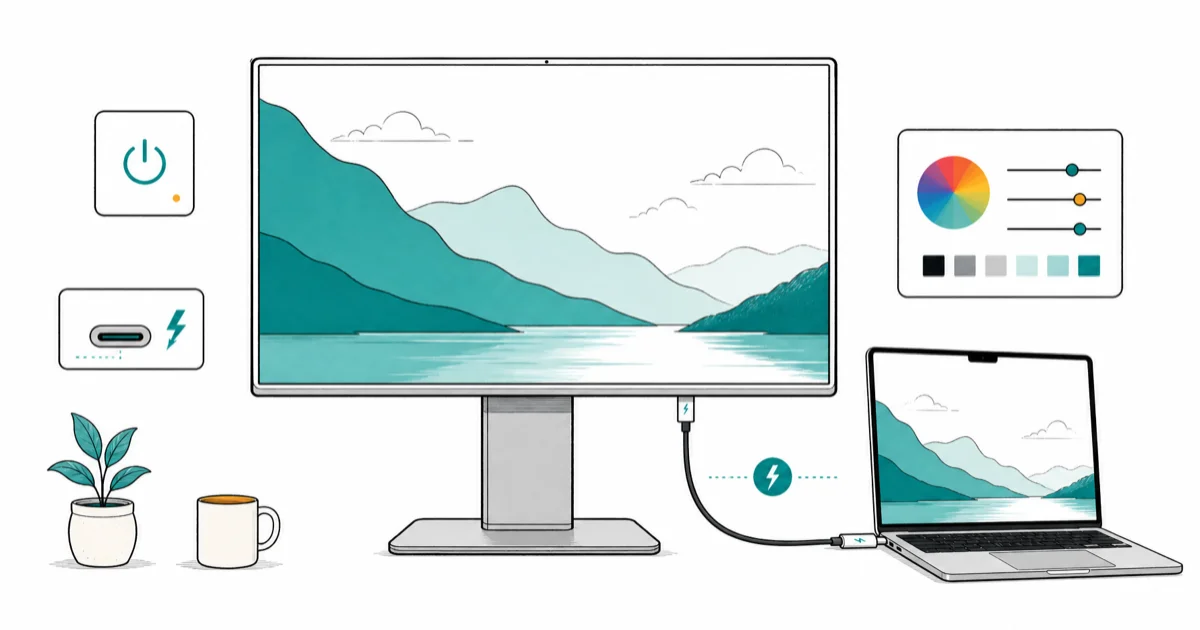
Quick AnswerThe best monitor for a MacBook Pro is a 32-inch 4K USB-C or Thunderbolt display with 90W or higher power delivery.
The best monitor for MacBook Pro is a 32-inch 4K USB-C display for most desks. Start by matching each pick to Mac display limits, port type, charging power, and desk use.
Start with sharpness.
- A 32-inch 4K panel is the safest MacBook Pro size because text stays sharp without forcing tiny UI scaling
- Choose 90W or higher USB-C power delivery if you want one cable for video and charging
- Thunderbolt monitors cost more, but they add cleaner docking, daisy-chain options, and better hub behavior
- Creative users should prioritize color modes and factory calibration before refresh rate
- Portable screens work best as a travel second display, not as your main editing monitor
#Our MacBook Pro Monitor Picks for 2026
For most MacBook Pro owners, the best pick is a 32-inch 4K monitor with USB-C or Thunderbolt input and enough power delivery to keep the laptop charged. That gives you readable text, room for two full-size windows, and one cable from desk to Mac.
Shopping beyond Mac desks? Our best monitor hub carries the wider shortlist.
Best overall: Dell UltraSharp U3225QE. It has 4K resolution, 120Hz refresh, Thunderbolt 4, built-in Ethernet, and up to 140W power delivery. The U3225QE user guide confirms that the monitor has 99% DCI-P3 color coverage and a Thunderbolt 4 upstream port with up to 140W power delivery.
That’s the desk filter.
Best creator pick: BenQ PD3226G. It costs more, but it fits a MacBook Pro desk that mixes editing and gaming. Tom’s Guide’s BenQ PD3226G review found that the 31.5-inch 4K IPS panel runs at 144Hz and includes two Thunderbolt 4 ports.
Best budget move: buy a 27-inch 4K USB-C display before you buy a bigger but softer 32-inch 1440p panel. Mac text rendering rewards pixel density.
#Which Monitor Fits a MacBook Pro Best?
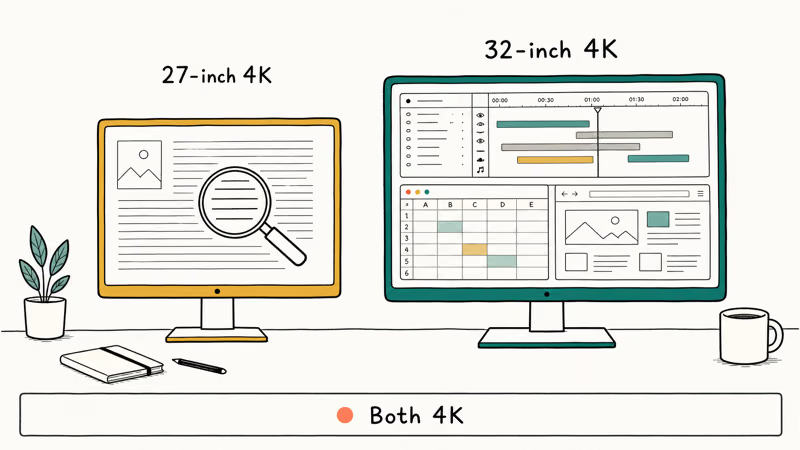
A MacBook Pro fits best with 4K at 27 or 32 inches. The 27-inch size gives sharper text; 32 inches gives more space for timelines, spreadsheets, and side-by-side browser windows. Don’t buy a 32-inch 1440p monitor unless gaming matters more than reading.
According to Apple’s MacBook Pro display guide, an M5 MacBook Pro can drive up to two external displays at 6K 60Hz or 4K 144Hz. That number matters because a 4K 120Hz or 144Hz monitor is inside the support envelope on current hardware.
Check the chip first.
Treat the display limit as the first filter. A monitor that needs awkward adapters, weak charging, or a lower refresh mode over USB-C belongs behind a cleaner one-cable setup.
Skip adapter chains.
#Best Overall: Dell UltraSharp U3225QE
The Dell UltraSharp U3225QE is the easiest premium pick for a MacBook Pro desk. It gives you a 32-inch 4K canvas, 120Hz motion, Thunderbolt 4, a KVM, Ethernet, and enough power delivery for a 16-inch MacBook Pro.
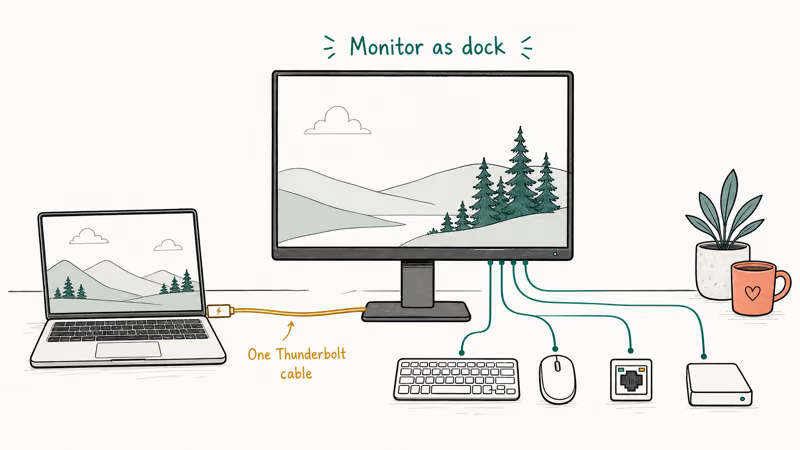
The reason it leads is boring, which is good. You plug in one Thunderbolt cable and the display becomes your dock. Keyboard, mouse, Ethernet, and storage can stay on the monitor instead of hanging from the laptop.
That saves daily friction.
The trade-off is price. If you only need a sharp screen and don’t care about hub ports, a cheaper 27-inch 4K USB-C monitor makes more sense. If your desk already uses a separate dock, our best Thunderbolt 4 dock for Mac guide may save you from paying twice for the same ports.
Pay for ports once.
#Best Creator Pick: BenQ PD3226G
The BenQ PD3226G is the better fit if your MacBook Pro handles design work, video timelines, and games after hours. It combines 4K resolution with 144Hz refresh, which keeps motion smooth without dropping the sharpness Mac users expect.
Tom’s Guide’s PD3226G testing states that the monitor has 10-bit color, 140 DPI, HDMI 2.1, DisplayPort 1.4, and two Thunderbolt 4 ports. That port set is why the BenQ feels less like a plain monitor and more like a desk control point.
Color still comes first.
For strict video color work, check our best monitor for color grading picks before you buy. The PD3226G is strong for mixed creative use, but a grading-first display should prioritize color workflow over 144Hz.
Don’t chase Hz first.
#Best Portable Second Screen
A portable monitor is a second-screen tool for travel, not a replacement for a main 4K desk display. It helps when you want Slack, notes, or a preview window beside a MacBook Pro in a hotel room.
The sweet spot is a 16-inch USB-C portable screen that runs from one cable and doesn’t need a wall adapter. Avoid low-brightness panels if you work near windows; small portable screens already have less room to fight glare.
Use it for travel.
Our best portable monitor for MacBook Pro guide covers the travel picks in more detail. For a permanent desk, put the money into a bigger 4K monitor first.
#Docking, Ports, and Cable Checks
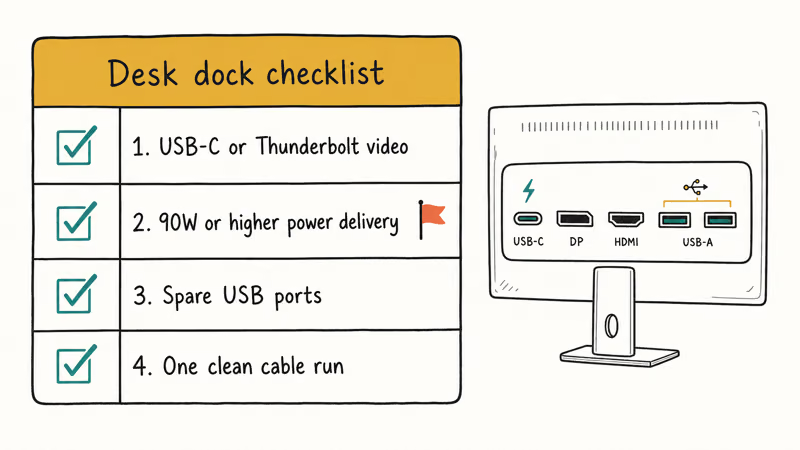
Ports matter more on a MacBook Pro than they do on a desktop PC because the monitor often replaces a dock. You want USB-C or Thunderbolt video, enough power delivery, and spare downstream ports for daily accessories.
Apple’s Mac port guide states that 14-inch MacBook Pro models with M1 Pro, M2 Pro, M3 Pro, M1 Max, M2 Max, M3 Max, M4, or M5 chips introduced in 2021 or later have Thunderbolt 4 ports. It also confirms that Thunderbolt 4 can connect displays, accessories, and a USB-C charge cable.
Cables decide the setup.
A monitor passes the cable check when the setup fits in one sentence: one cable to the Mac, one power cable to the wall, and no mystery adapter in the middle.
That rule catches clutter.
#When Should You Buy 4K, Color, or Ultrawide?
Buy 4K first if you write, code, edit photos, or read all day. A 27-inch or 32-inch 4K panel gives macOS enough pixels to scale text cleanly, and our best 4K monitor 2026 guide covers the broader shortlist.
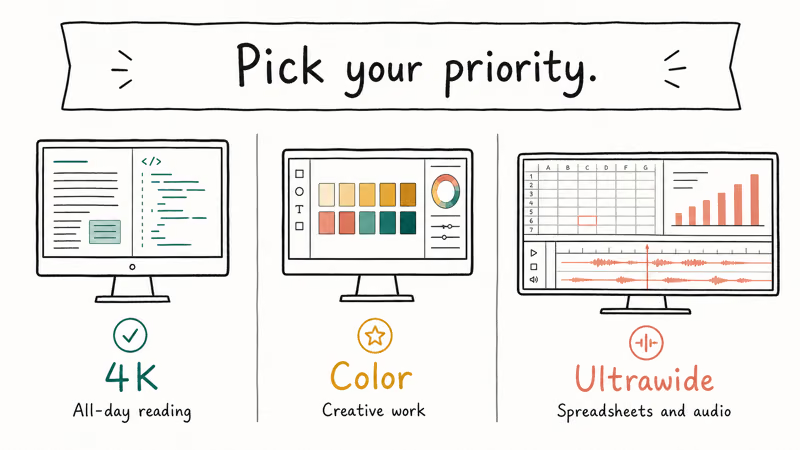
Buy color accuracy first if your work leaves your screen. Photographers, designers, and video editors should check factory calibration, DCI-P3 coverage, and preset behavior before they care about refresh rate.
Width is a trade.
Buy an ultrawide only if horizontal space beats pixel density for your work. Coding, audio timelines, and spreadsheets benefit from width, but many ultrawides look softer than a 4K panel at normal Mac scaling. Our best ultrawide monitor guide explains that trade-off.
#Bottom Line
Buy the Dell UltraSharp U3225QE if you want one premium MacBook Pro monitor that also works as a desk dock. Pick the BenQ PD3226G if you want stronger mixed creative and high-refresh behavior. Choose a cheaper 27-inch 4K USB-C monitor if budget matters more than Thunderbolt ports. Keep the setup simple: sharp panel, enough charging power, and one cable you trust.
#Frequently Asked Questions
What size monitor is best for a MacBook Pro?
A 32-inch 4K monitor is best for most MacBook Pro desks. It gives you more workspace than 27 inches while keeping text sharp enough for all-day reading. Choose 27 inches if your desk is shallow or you sit close to the screen.
Measure your viewing distance.
Is 4K enough for MacBook Pro text?
Yes, 4K is enough for most MacBook Pro users. macOS scaling looks clean on 27-inch and 32-inch 4K panels, especially for writing, coding, browser work, and light creative editing. A 5K display is sharper, but it also costs much more.
4K is the value line.
Do I need Thunderbolt or is USB-C fine?
USB-C is fine if you only need video, charging, and a few USB ports. Thunderbolt is better when you want a cleaner dock, faster storage, Ethernet, or daisy-chain behavior. Check the monitor’s power delivery rating before you assume one cable will charge your MacBook Pro.
Can a MacBook Pro run two external monitors?
Yes, many MacBook Pro models can run two or more external displays, but the exact limit depends on the chip. Base chips support fewer displays than Pro and Max chips. Check Apple’s display support page for your model before buying two matching screens.
Model year matters.
Is OLED a good MacBook Pro monitor choice?
OLED is excellent for games and movies, but it isn’t the safest all-day Mac desktop choice. Static menus, browser tabs, and toolbars can raise burn-in risk over time. If your screen shows documents and apps for 8 hours a day, IPS Black or mini-LED is the lower-stress pick.
Static work changes the answer.
Should I buy an Apple Studio Display instead?
Buy the Apple Studio Display if you want 5K sharpness, Apple styling, speakers, and a built-in camera in one package. Skip it if you want 120Hz, Thunderbolt hub ports, a KVM, or better value. A good 4K USB-C monitor costs far less.
What power delivery should a monitor have for MacBook Pro?
Aim for 90W or higher. A 14-inch MacBook Pro can live with less in light use, but a 16-inch model under load benefits from more headroom. A 140W Thunderbolt monitor is ideal if you want the display to replace the charger on your desk.

Best Laptop for Running LLMs in 2026: Memory Comes First
The best laptop for running LLMs is a memory purchase first. Compare MacBook unified memory against NVIDIA laptop VRAM, and see what each tier really runs.

Pixel 11 vs Pixel 10: What Changed and Who Should Upgrade
Pixel 11 vs Pixel 10: same screen and camera resolution, new Tensor G6, 25W wireless, and Gemini Intelligence. Here is who should actually upgrade.
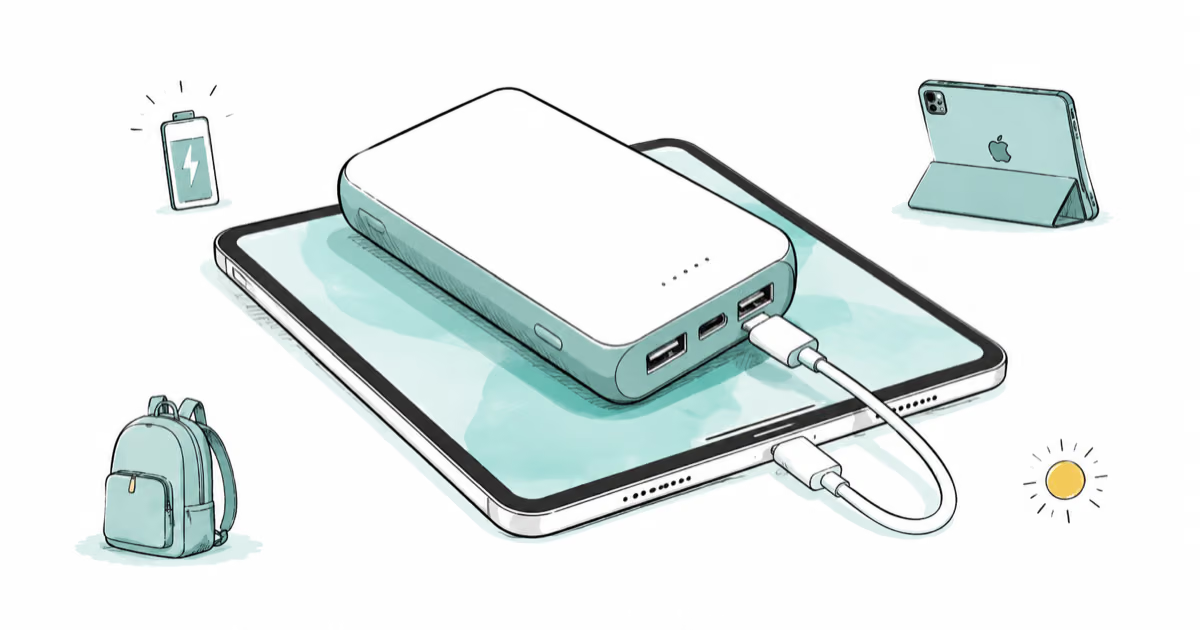
Best Power Bank for iPad in 2026: Pro, Air, and Mini
Best power bank for iPad in 2026. Compare mAh tiers and USB-C PD wattage for iPad Pro, Air, and mini, plus airline Wh math, cables, and travel tips.
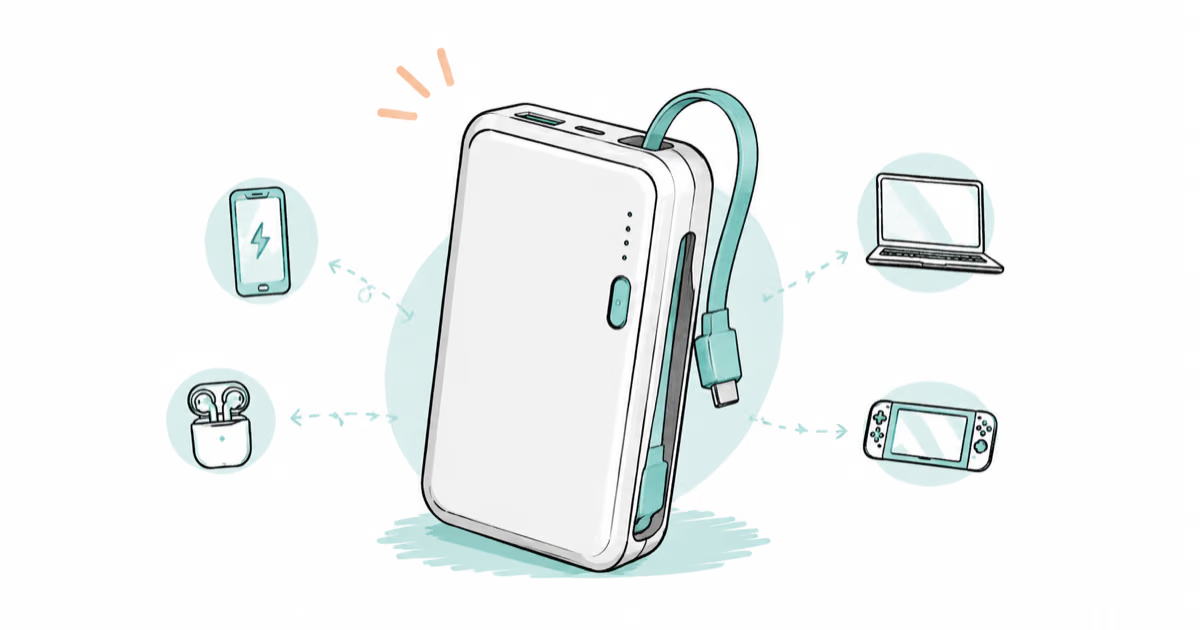
Best Power Bank With Built-In Cable: Top 2026 Picks
Best power bank with built-in cable picks for 2026. Compare single USB-C, multi-connector, and retractable laptop banks, plus airline Wh math.