Apple Passwords vs 1Password: Which Should You Use in 2026?
Apple Passwords vs 1Password compared for 2026: passkeys, family sharing, cross-platform support, recovery, and which password manager fits you.
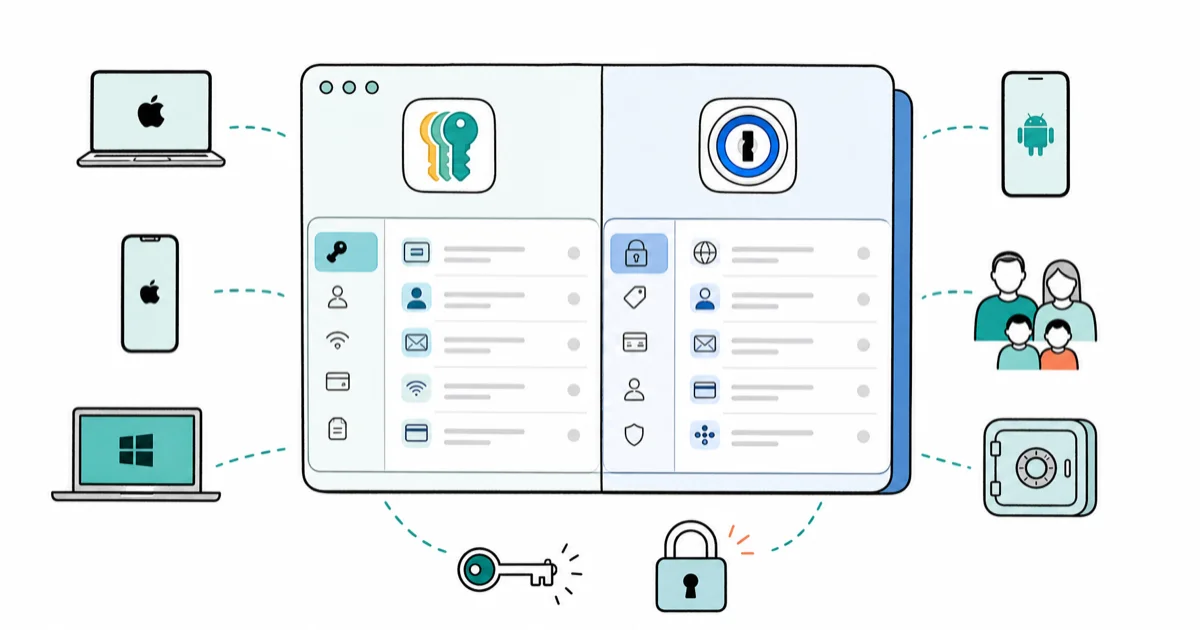
Quick AnswerApple-only users and families can rely on the free Apple Passwords app. Pick 1Password if you mix Windows, Android, and Apple devices or share vaults outside your family.
Apple Passwords vs 1Password comes down to one question: do you live entirely inside Apple’s world, or do you bounce between an iPhone, a Windows laptop, and an Android tablet? Apple’s standalone Passwords app is free and built into iOS, iPadOS, and macOS. 1Password costs money but goes everywhere. The choice turns on platform reach, sharing, recovery, and whether you need non-login item types.
- Apple Passwords is free with any Apple device and now stores passkeys, Wi-Fi passwords, and verification codes
- 1Password starts at a paid monthly plan but runs on Windows, Android, Linux, and every major browser
- Apple Passwords syncs through iCloud Keychain with end-to-end encryption tied to your Apple Account
- 1Password adds secure notes, payment cards, document storage, and sharing with people outside your family
- Both support passkeys, so phishing-resistant sign-in works either way
#Apple Passwords vs 1Password: The Real Difference
The split is simple. Apple Passwords is a free, Apple-only vault. 1Password is a paid, cross-platform vault with extra item types.
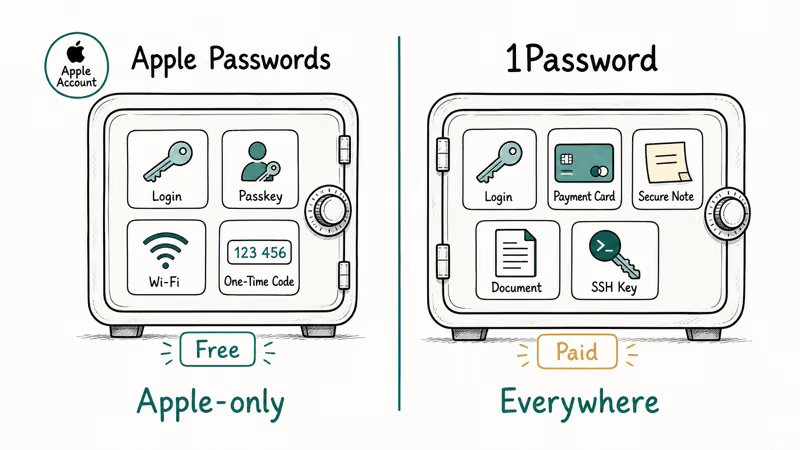
Apple turned its long-buried Keychain into a standalone app in 2024. It now holds logins, passkeys, Wi-Fi passwords, and one-time verification codes, syncing across your Apple devices through iCloud. According to Apple’s Passwords app documentation, the app organizes your saved passwords, passkeys, and codes, and it shares them with people you choose. It’s free as long as you own an Apple device.
1Password is a subscription product that stores far more than logins. Payment cards, secure notes, software licenses, scanned documents, and SSH keys all live in the same vault. According to 1Password’s pricing page, the individual plan covers unlimited items and runs on Mac, iOS, Windows, Android, Linux, ChromeOS, and the major browsers. That breadth is the whole reason to pay.
Apple Passwords vs 1Password at a glance
| Feature | Apple Passwords | 1Password |
|---|---|---|
| Price | Free with Apple device | Paid subscription |
| Platforms | iPhone, iPad, Mac | Windows, Android, Linux, Apple, browsers |
| Item types | Logins, passkeys, Wi-Fi, codes | Logins, cards, notes, documents, keys |
| Passkeys | Yes | Yes |
| Sharing outside family | No | Yes |
If you have never paid for a password manager and want a starting point, our 1Password vs Bitwarden breakdown explains how paid managers compare with each other.
#Which One Handles Passkeys Better?
Both handle passkeys well, but the experience differs by where you sign in. A passkey is a phishing-resistant credential tied to your device biometrics instead of a typed password.
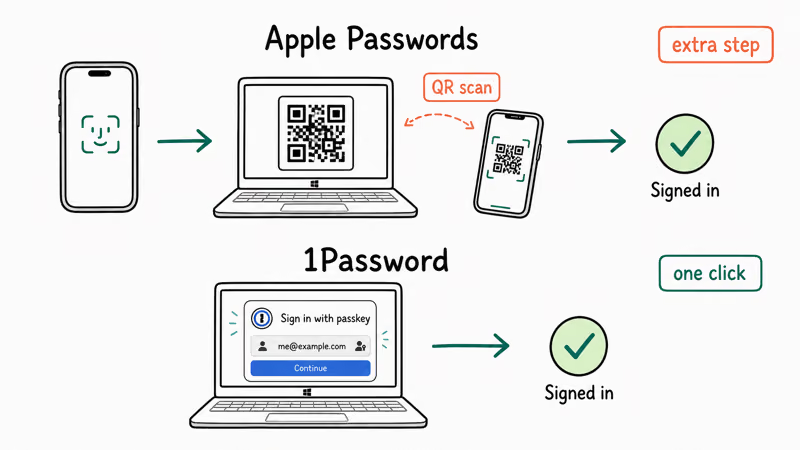
Apple Passwords stores passkeys in iCloud Keychain and syncs them across your Apple devices automatically. When a site offers a passkey, Face ID or Touch ID approves the sign-in. The catch is reach: those passkeys are easiest to use inside Apple’s ecosystem. Sign in on a Windows PC and you scan a QR code with your iPhone to borrow the passkey, which works but adds a step every single time.
1Password stores passkeys too. Because it runs everywhere, the same passkey works natively on Windows and Android without the QR-code hop. According to 1Password’s passkey guide, the app saves passkeys and signs you in across supported browsers and devices. On Windows, Apple passkeys commonly involve the iPhone QR-code flow, while 1Password passkeys can work natively through its browser extensions and apps.
If you are still deciding whether passkeys are worth it at all, our passkey vs password vs 2FA guide lays out the security tradeoffs in plain terms. For step-by-step setup on Apple hardware, see how to set up passkeys on iPhone.
#Family Sharing and Vault Sharing
This is where the two products diverge sharply. Apple Passwords lets you create shared groups, but only with people in your Apple ecosystem. 1Password lets you share with anyone.
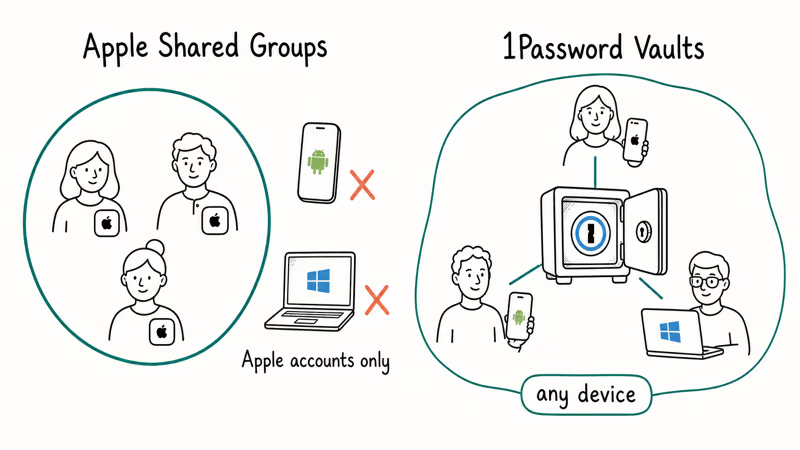
Apple’s Shared Groups feature lets family members or trusted contacts see a chosen set of logins. Everyone in the group needs an Apple Account. Creating a shared group is an Apple-account workflow, so both people need to be signed in before sharing works.
1Password uses a different model. Family and team plans let you share specific vaults with any 1Password user, regardless of their device. That makes it the better pick if you share logins with a partner on Android or a roommate on Windows.
#How Does Account Recovery Differ?
Recovery is the part people forget about until they’re locked out, and the two apps handle it very differently.
Apple Passwords has no separate “emergency kit” document. Recovery flows through your Apple Account and its recovery contacts, which is friendly because it reuses the recovery path you already set up.
1Password gives each account an Emergency Kit, a printable document with your account address and Secret Key that you store somewhere safe. The honest warning: losing your Secret Key with no Emergency Kit and no logged-in device means you can be locked out permanently. Only ever recover an account you legally own, and store recovery documents where no one else can read them, since password vaults sit under each provider’s privacy policy.
#Windows, Android, and Browser Support
If any device in your life is not made by Apple, this section decides it for you.
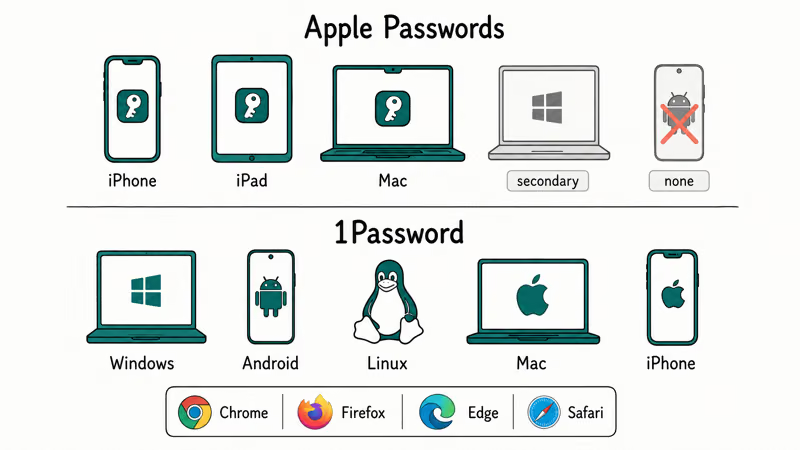
Apple Passwords has a Windows path through the iCloud for Windows app and a Chrome extension, but there is no Android app at all. Android users are out of luck. The Windows experience also feels secondary, since the app was clearly built for Apple platforms first.
1Password treats every platform as a first-class citizen, with dedicated apps for Windows, Android, Linux, and ChromeOS, plus browser extensions for Chrome, Firefox, Edge, Safari, and Brave. The autofill behaves the same everywhere. For anyone who carries an iPhone but works on a Windows machine, this consistency is hard to give up once you have it. If hardening the iPhone itself is also on your list, our iPhone privacy settings checklist walks through the rest.
Bottom line on platforms: all-Apple households can ignore this entirely; mixed households should lean 1Password.
#How to Choose the Right Password Manager
Pick based on your devices and your sharing needs, not on brand loyalty.
Choose Apple Passwords if everything you own is Apple, you share only within your family, and you want a free vault that disappears into the system. It covers the basics, stores passkeys, and costs nothing.
Choose 1Password if you use Windows or Android alongside Apple gear, you share vaults with people outside your family, or you want cards, documents, and notes in one place. The subscription buys reach the free Apple app can’t match.
Worried your old logins already leaked? Our guide on how to tell if your email is on the dark web pairs well with either manager.
#Bottom Line
Start with the free Apple Passwords app if you’re all-in on Apple and share only with family. It does everything most solo users and families need, including passkeys. The moment a Windows laptop or Android phone enters the picture, 1Password earns its subscription with native cross-platform apps and broader item storage. Try the free option first, then upgrade only when a real cross-platform gap shows up.
#Frequently Asked Questions
Is Apple Passwords as secure as 1Password?
Both use strong end-to-end encryption. Apple Passwords encrypts your vault through iCloud Keychain tied to your Apple Account, while 1Password protects your vault with a Secret Key plus your account password. For everyday use, the encryption is comparable. The real difference is features and reach, not raw cryptographic strength, so you should pick based on devices rather than fear about one being weaker.
Can I use Apple Passwords on Android?
No. There’s no Android app for Apple Passwords. If you need Android, 1Password is the practical choice.
Does Apple Passwords cost anything?
It’s free with any Apple device. You don’t pay a separate fee, and it’s built into iOS, iPadOS, and macOS. The only requirement is owning Apple hardware and signing in with your Apple Account.
What happens if I forget my 1Password credentials?
1Password gives you an Emergency Kit with your account address and Secret Key when you sign up. If you lose both that document and access to every signed-in device, you can be permanently locked out, since 1Password can’t reset your account for you the way a normal website resets a password. Print the Emergency Kit and store it somewhere safe like a fireproof box.
Do both apps support passkeys?
Yes, both store passkeys. The practical difference is that 1Password passkeys work natively on Windows and Android, while Apple passkeys are smoothest inside Apple’s ecosystem.
Can I move my passwords from Apple Passwords to 1Password?
Yes. You can export passwords from the Apple Passwords app and import the file into 1Password in a few minutes. One caveat worth planning for: passkeys don’t always transfer cleanly between managers, so expect to re-create a handful of passkeys on the sites that offer them after you switch.

Best Laptop for Running LLMs in 2026: Memory Comes First
The best laptop for running LLMs is a memory purchase first. Compare MacBook unified memory against NVIDIA laptop VRAM, and see what each tier really runs.

Pixel 11 vs Pixel 10: What Changed and Who Should Upgrade
Pixel 11 vs Pixel 10: same screen and camera resolution, new Tensor G6, 25W wireless, and Gemini Intelligence. Here is who should actually upgrade.
Best Power Bank for iPad in 2026: Pro, Air, and Mini
Best power bank for iPad in 2026. Compare mAh tiers and USB-C PD wattage for iPad Pro, Air, and mini, plus airline Wh math, cables, and travel tips.
Best Power Bank With Built-In Cable: Top 2026 Picks
Best power bank with built-in cable picks for 2026. Compare single USB-C, multi-connector, and retractable laptop banks, plus airline Wh math.