Bitwarden Review: Best Free Password Manager (2026)
Bitwarden review covering features, pricing, security, and how it compares to 1Password and LastPass. Free plan includes unlimited passwords and sync.
Quick AnswerBitwarden is the best free open-source password manager, offering unlimited vault storage, cross-device sync, and end-to-end encryption at no cost. The premium plan adds 2FA hardware key support and 1 GB encrypted storage for $10 per year.
The average person manages over 80 passwords. This Bitwarden review covers whether the free, open-source password manager can replace paid options like 1Password and LastPass across Windows, macOS, iOS, and Android.
- Bitwarden’s free plan includes unlimited vault entries, cross-device sync, and a password generator with no time limits.
- The open-source codebase means anyone can audit the security, and Bitwarden publishes third-party audit reports on its website.
- Premium costs just $10 per year and adds hardware 2FA support, 1 GB encrypted file storage, and vault health reports.
- Auto-fill is reliable in Chrome and Firefox, though Safari on macOS can be less consistent depending on the version.
- Bitwarden’s password sharing is limited to 2 users on the free plan, making it less ideal for large families without upgrading.
#Why Choose Bitwarden Over Other Password Managers?
Bitwarden is open-source, which means anyone can inspect the code for security flaws. According to CNET’s password manager comparison, Bitwarden is one of the top-rated free options available. When a vulnerability is found, the community patches it quickly.
Your passwords are encrypted on your device before they’re uploaded to the cloud. Bitwarden uses AES-256 bit encryption with PBKDF2 key derivation. This means even Bitwarden’s own servers can’t read your vault contents.
The app works on iOS, Android, Linux, Windows, macOS, and has extensions for Chrome, Firefox, Edge, Safari, and Brave. You can also self-host the entire password database on your own server if you don’t want to use Bitwarden’s cloud.
Other highlights: two-factor authentication (2FA), one-click import from 1Password, LastPass, Dashlane, and KeePass, plus password sharing with up to 2 users on the free plan. If you need to see your Wi-Fi password on Android, that’s a separate process, but Bitwarden can store it for you once you have it.
#Bitwarden Features Breakdown
Bitwarden handles all standard password management tasks and adds a few extras. Here’s a breakdown of the key features:
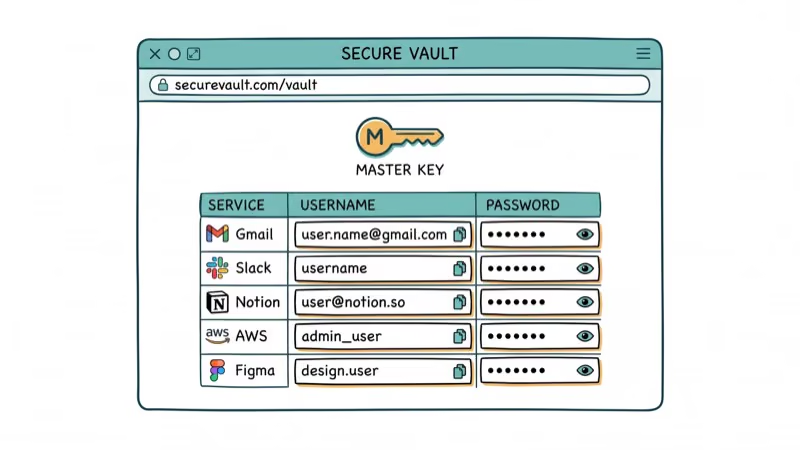
#1. The Main Window
You will see a three-column layer on Bitwarden’s main window, which can be seen commonly in many password managers. On the left, you can choose the data type or folder, while the middle one will display all the matching items. The remaining part of the window will display the details of the selected items.
#2. Online vault
A certain Bitwarden review states that the Online Vault is the space that allows you to access all your data. All you need to do to access the vault is to log in to your Bitwarden. A lot of actions, such as importing data from other password managers, are done here at the online vault.
#3. Update the password
Whenever you update your password, create an account, or simply log in, Bitwarden will slide in a banner on the top of the page and will offer to save your details.
#4. Available passwords
The toolbar icon of Bitwarden will show the number of logins that match the current page. If you want to log in automatically, you need to click the button and enter the desired login details.
#5. Password Generator
Bitwarden generates a password by default that consists of 14 alphanumeric passwords. It is advisable that you raise the length of the password to at least 16 and keep checking the box to include special characters as well.
#6. Two-Factor Authentication (2FA)
Bitwarden can be two-factor authenticated via mail sent to your registered email address or generated by Google Authenticator. The other option requires you to choose a premium account.
#7. Identification and cards
You are allowed to store any number of personal data identities and credit cards as you wish to. If you wish to fill in the web form, you can do so by clicking the toolbar button and choosing the desired card, identity, or both.
#8. New organization
Bitwarden lets you share files securely by creating an organization. You’ll need to set up the organization first, then invite members. It supports two shared collections on the free plan.
#9. Invite the user
When inviting a new user, you can pick from four access levels. For home use, you’ll likely make the other person a co-owner.
#10. Fingerprint Phrase
If you are paranoid about a man-in-the-middle attack that can subvert your sharing, Bitwarden also offers the option of comparing fingerprints via text messages or on-call.
#11. Bitwarden on Android
Android users get the full range of Bitwarden features plus mobile-specific bonuses like fingerprint authentication and auto-fill integration.
#12. Bitwarden on iOS
Sadly, the iOS app for Bitwarden is a bit behind the Android app, as stated by a Bitwarden review. There is quite a number of features missing from the iOS app, and the only possible way to view a list of everything available is shown below:
#Setting Up Bitwarden
Sign up for free at bitwarden.com. You’ll create a master password that encrypts your vault. Make it long and memorable since there’s no way to recover it if you forget it.
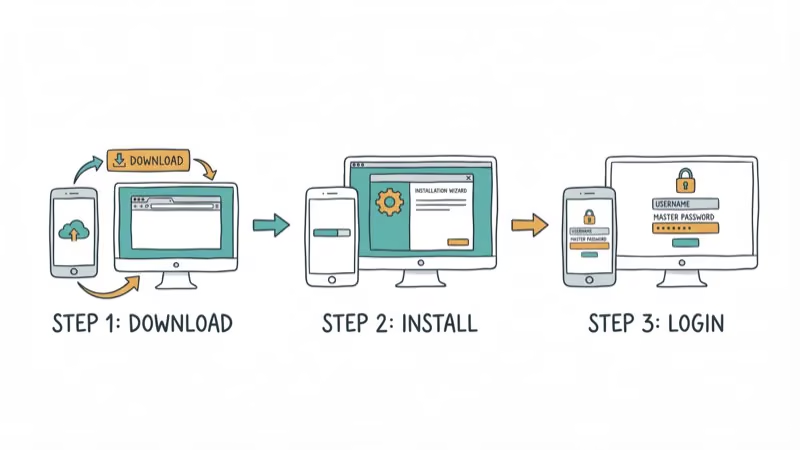
After creating your account, install the browser extension for Chrome, Firefox, Edge, Safari, Brave, Vivaldi, or Opera. The setup takes about 2 minutes. PCMag’s Bitwarden review recommends enabling 2FA immediately after account creation for maximum security.
#Using Bitwarden Day to Day
Once you’ve installed the extension, Bitwarden asks to save your login whenever you sign into a website. Click Yes, Save Now and the credentials go straight to your vault.
Next time you visit that site, click the Bitwarden icon in your toolbar and select the login. It fills in your username and password automatically. You can also enable auto-fill on page load under Settings > Options for hands-free login.
#Importing Passwords From Another Manager
Switching from 1Password, LastPass, or KeePass is straightforward. Export your passwords as a CSV or JSON file from your current manager, then go to Tools > Import Data in Bitwarden’s web vault.
Select your source application, upload the file, and click Import. The process takes under 30 seconds even with hundreds of entries. Delete the export file immediately afterward since it contains your passwords in plain text. If you arrived here after a breach scare (for example, learning how to tell if your WhatsApp is hacked), rotate the affected logins inside Bitwarden right after the import finishes.
#How Secure Is Bitwarden?
Bitwarden uses AES-256 encryption, the same standard used by governments and banks. Your vault is encrypted locally before syncing, so Bitwarden’s servers never see your plain-text passwords. Pair it with a trusted VPN if you log in over public Wi-Fi, and check our explainer on what a VPN does on iPhone to understand the layer it adds. Readers comparing providers can also read our TigerVPN review for a hands-on look at one budget option.
You should create a strong master password (at least 14 characters) and enable 2FA. Bitwarden’s security audit by Cure53 found that the platform’s architecture is sound, and all identified issues were resolved promptly.
We’d recommend storing all passwords in Bitwarden, including financial ones. The encryption is strong enough. That said, always use 2FA on your bank accounts as a separate layer of protection.
#Bitwarden Pricing: Free vs Premium
The free plan includes everything most people need: unlimited vault entries, cross-device sync, password generator, 2FA via email/authenticator app, and browser extensions for all major browsers. You don’t hit any time limits or entry caps.
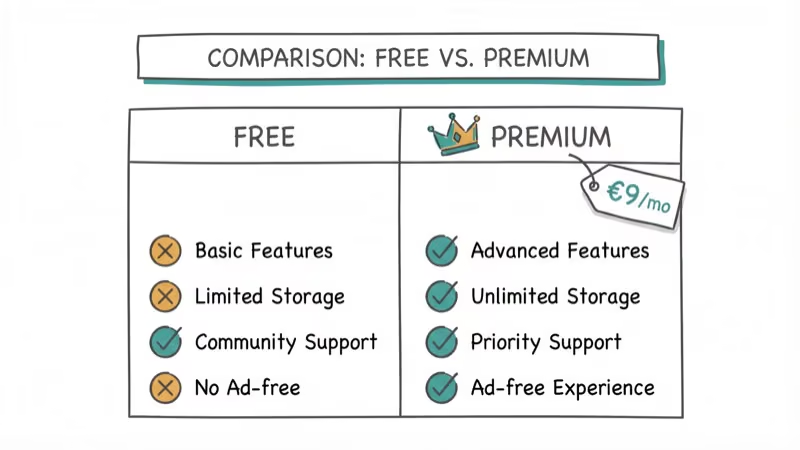
The Premium plan costs $10/year and adds:
- Hardware key 2FA (YubiKey, FIDO U2F)
- TOTP authenticator key storage
- Vault health and password hygiene reports
- 1 GB encrypted file storage
- Priority customer support
For families, the $40/year plan covers up to 6 users with shared collections. Businesses pay $3-5 per user per month depending on features needed.
#Pros and Cons of Bitwarden
What works well:
- Open-source code that’s been audited by third-party security firms
- Unlimited vault entries on the free plan with cross-platform sync
- Self-hosting option for maximum data control
- Fast import from 1Password, LastPass, KeePass, and others
What could be better:
- Requires an internet connection for initial sync (offline access works after first sync)
- Can’t store images or scanned documents (only text entries and file attachments on premium)
- Safari auto-fill tends to be less reliable than Chrome or Firefox
#Bottom Line
Bitwarden is the best free password manager available. If you’re switching from LastPass after their free-tier restrictions, Bitwarden gives you everything LastPass removed and more. The $10/year premium plan is worth it for the vault health reports alone. For related security topics, check our guide on how to find Wi-Fi passwords on iPhone.
#Frequently Asked Questions
Does Bitwarden work on all devices?
Yes. Bitwarden runs on Windows, macOS, Linux, iOS, and Android. It also has browser extensions for Chrome, Firefox, Edge, Safari, Brave, and Opera.
How secure is Bitwarden compared to 1Password?
Both use AES-256 encryption. The key difference is that Bitwarden is open-source and publishes independent audit results, while 1Password’s code is proprietary. Both are considered highly secure.
Can I import passwords from LastPass to Bitwarden?
Yes. Export your LastPass vault as a CSV file, then use Bitwarden’s import tool. The whole process takes under a minute.
Is the free plan really unlimited?
Yes. There’s no cap on vault entries, device sync, or usage duration. The free plan covers everything most individuals need for personal password management.
Can I share passwords with my family?
On the free plan, you can share with 1 other person. The $40/year family plan supports up to 6 users with unlimited shared collections.
What happens if I forget my master password?
You can’t recover it. Bitwarden uses zero-knowledge encryption, which means they don’t have access to your vault. Set up an emergency access contact or use a master password hint as a safety net.
Does Bitwarden work offline?
Yes, after the initial sync. Your vault is cached locally so you can access passwords without an internet connection. Changes sync the next time you’re online.

Google Messages Error 3100: Why RCS Is Broken on Galaxy
Google Messages RCS error 3100 hits Galaxy owners after phone or carrier switches. Google told 9to5Google a fix is coming. Here's what actually helps.

Is This Bank App Real? Spot a Fake App on Your Home Screen
A bank app can land on your home screen from a web page with no install warning. Learn the checks that tell a real banking app from a phishing web app.

Apps Crashing After iOS 27 Update? Fix Order (2026)
Apps crashing after the iOS 27 update? Update the app in the App Store first, then offload and reinstall to clear stale cache, then restart. The fix order.

Do AI Translation Earbuds Work Offline? What to Know
Do AI translation earbuds work offline? A few do with downloaded language packs, but most need the cloud. Here's what works offline and what you give up.