Best Parental Control Routers for Your Home Network
Compare three current parental control routers for 2026: Gryphon AX, ASUS RT-AX86U Pro, and TP-Link Archer AX55, including limits and subscriptions.
Quick AnswerGryphon AX is the strongest fit for dedicated parental controls. ASUS RT-AX86U Pro adds gaming and security tools, while TP-Link Archer AX55 covers basic profiles and schedules.
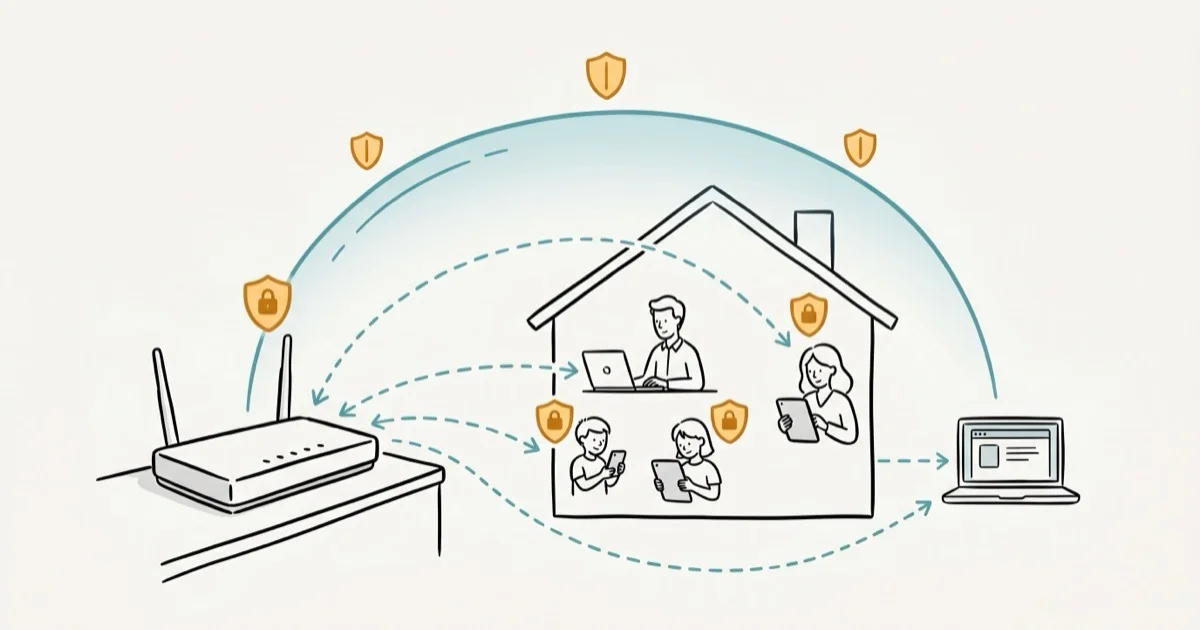
Parental control routers apply profiles and schedules across home Wi-Fi. This guide compares three supported models using vendor-documented features and support status, not lab filtering rates. Unauthorized monitoring may violate law or platform terms.
- Gryphon AX puts family profiles and router-level controls at the center of its design
- ASUS RT-AX86U Pro combines parental controls with gaming and network-security features
- TP-Link Archer AX55 includes free basic HomeShield controls; advanced features depend on a paid plan
- Router-level filtering covers every device on your network, including game consoles and smart TVs
- Pair your router with device-level controls for coverage outside the home
#What Makes a Good Parental Control Router?
Not every router labeled “parental controls” does the job well.
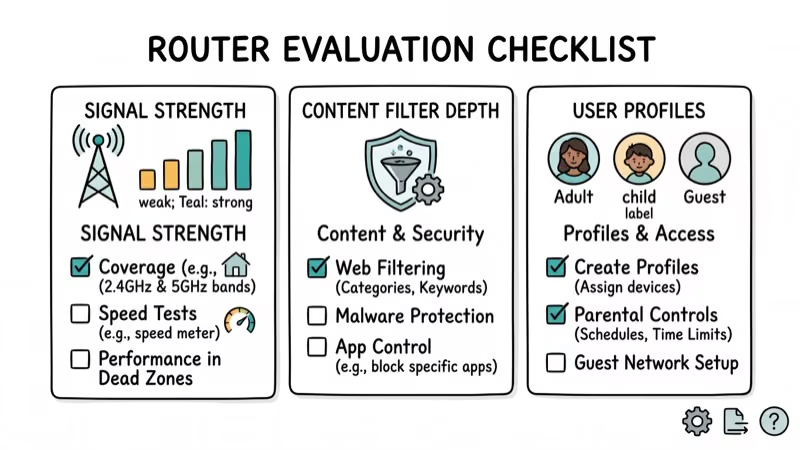
Filtering depth. Basic routers block websites by URL. More capable systems add content categories, SafeSearch, schedules, and app controls, though the exact feature set can depend on firmware or a subscription.
Per-user profiles matter. A 7-year-old and a 13-year-old need completely different rules.
Coverage and speed. Treat vendor coverage figures as estimates. Wall materials, router placement, neighboring networks, and your internet plan all affect real performance. If you’re dealing with Wi-Fi password issues on your iPhone, fix the connection problem before assuming new hardware is necessary.
Support status. Check the model’s current support page before buying. The former ASUS RT-AC3100 is now on ASUS’s end-of-life list, which is why it no longer belongs in a 2026 recommendation.
#Which Parental Control Router Should You Buy?
These picks cover three different approaches. They aren’t ranked by an unsupported catch rate.

#Gryphon AX: Best for Dedicated Family Controls
According to Gryphon’s current AX product page, the AX is a tri-band Wi-Fi 6 mesh router with family profiles, parental controls, and network security managed through the Gryphon app. The vendor lists one unit for homes up to 3,000 square feet, but your layout can reduce that range.
Gryphon also sells optional Premium Protection. Its plan page says the subscription extends controls to mobile data and other Wi-Fi networks, so confirm which controls are included before you pay.
Strengths: Family-first app, mesh expansion, and controls designed around individual profiles.
What fell short: App-first administration and an optional subscription for some extended controls.
Pick the Gryphon AX if family controls matter more than gaming-specific tuning. It pairs well with blocking inappropriate websites on phones for layered protection.
#ASUS RT-AX86U Pro: Best for Security and Gaming Controls
According to ASUS’s RT-AX86U Pro page, this current Wi-Fi 6 model includes Safe Browsing, upgraded parental controls, Adaptive QoS, and AiProtection Pro. ASUS says the security signatures update automatically and the security service has no separate subscription fee.
The RT-AX86U Pro supports both the ASUS Router app and a browser-based interface. That makes it a better fit for households that want network controls and gaming options in the same router.
Strengths: Safe Browsing, schedule controls, Adaptive QoS, VPN tools, and a current support page.
What fell short: A network-focused interface that is less family-first than Gryphon’s profile workflow.
Choose it when gaming traffic and network security matter alongside parental controls. Add Android screen time controls on each child’s phone for use away from home.
#TP-Link Archer AX55: Best for Free Basic Controls
TP-Link’s current Archer AX55 support page lists 2026 firmware, while HomeShield’s feature page includes the AX55 family among supported routers. HomeShield’s free tier covers profiles, URL filters, bedtime, internet pause, and activity insights.
Advanced controls may require a HomeShield plan and vary by model. Check before subscribing.
Strengths: Free basic controls and current firmware.
What fell short: The most useful advanced controls can sit behind a recurring plan.
Choose the Archer AX55 when basic home-network schedules and website rules are enough. If price is the main constraint, compare it with our routers under $50 roundup, but verify support status before buying older hardware.
#Setting Up Your Parental Control Router
Keep your old router available until the replacement is online. If your provider supplied a gateway, check whether it needs bridge mode before connecting a separate router. A modem router combo follows a different replacement process.
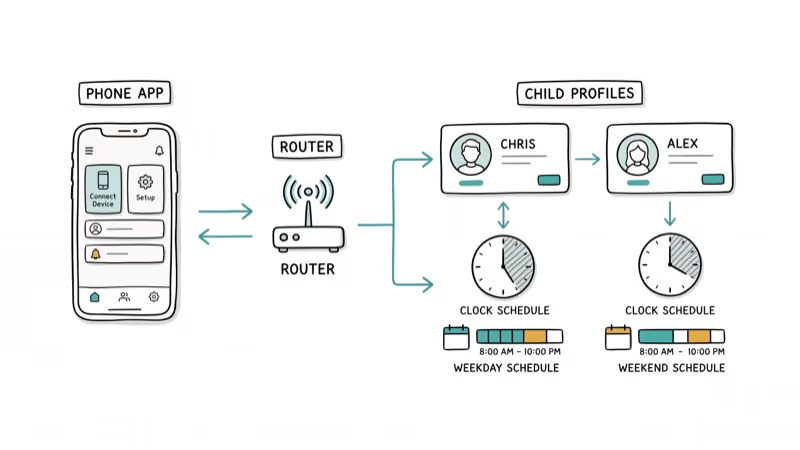
Step 1: Create individual profiles. Set up a separate profile for each child, then review the preset categories instead of accepting every default.
Step 2: Set time schedules. Use a predictable wind-down rather than changing limits without warning. According to the American Academy of Pediatrics, a family media plan should fit each child’s age and the household’s routines. You can also layer on Google Chrome’s parental controls for browser-level rules.
Step 3: Enable the available search controls. SafeSearch and YouTube restrictions vary by router, plan, and firmware. Confirm them with a test profile.
Step 4: Review reports weekly. Check activity reports to spot patterns. If your child’s iPhone has its own screen time restrictions, make sure you haven’t lost your Screen Time passcode or those device-level controls won’t hold up either.
Step 5: Have the conversation. Tell your kids the filters exist and why.
#Router-Level vs. App-Level Parental Controls
Most families benefit from using both approaches together.
A router filters everything on your home network at once, including devices that don’t support parental control apps at all, like game consoles, smart TVs, and IoT gadgets. But router filters stop working the moment your child leaves your home Wi-Fi, which is a significant blind spot for families with teenagers who spend time at friends’ houses or use mobile data on the bus.
Software controls travel with the device. According to Google’s Family Link documentation, device-level controls let you manage app installs and location sharing too.
Set the router as your baseline filter at home, then add Windows 10 parental controls or iOS Screen Time on each child’s personal devices. The family locator apps we’ve reviewed add location tracking as another layer for kids old enough to leave the house alone.
#Real-World Effectiveness of Parental Control Routers
Router-level filters cover the broad home-network layer, but they don’t replace device-level controls.
Every device assigned to a filtered profile can receive the router’s rules without a separate app. Guest networks, encrypted traffic, VPNs, and devices assigned to the wrong profile can still create gaps.
Encrypted apps can limit DNS filtering. Device-level controls can fill that gap.
Check the router app and vendor support page regularly for firmware updates. Automatic installation and alert behavior differ by model, so don’t assume an update applied until the app shows the current firmware.
#Limitations and Workarounds
No parental control router catches everything.
VPNs can tunnel traffic past category filters. Enable VPN controls if your router provides them, but don’t treat that setting as bypass-proof.
Mobile data is another blind spot because router filters only apply to Wi-Fi traffic. Use device-level controls such as Screen Time or Google Family Link, plus carrier account controls where available, and explain their limits. Layered protection and regular conversations remain the best strategy.
#Bottom Line
Gryphon AX is the clearest family-first choice, ASUS RT-AX86U Pro fits homes that also want gaming and network-security controls, and TP-Link Archer AX55 covers free basic HomeShield rules. Pair any of them with device-level controls and open conversations about online safety.
#Frequently Asked Questions
Will a parental control router slow down my internet?
It can. Filtering, traffic inspection, router placement, and hardware limits can all affect speed. Compare a wired baseline before and after setup, then test Wi-Fi from the rooms that matter.
Can I use a parental control router with my existing modem?
Often, but not always. Cable modems may only need a reboot, while fiber or DSL services can require bridge mode, PPPoE credentials, or a provider-specific VLAN. Check your ISP’s replacement instructions before disconnecting the old router.
How do I stop my child from bypassing the router’s filters?
Enable VPN controls if your router supports them, secure the administrator account, review newly connected devices, and add device-level controls. Explain why the rules exist; no router setting is bypass-proof.
How many devices can a parental control router handle?
Use each vendor’s current capacity guidance and count every camera, speaker, console, and IoT device, not just phones and computers. Coverage area and connection capacity are separate specifications.
Are parental control routers worth the extra cost over a regular router?
They can be useful when many shared devices need the same home-network rules. Netgear’s parental controls are another network-level option; for one phone or tablet, iOS Screen Time or Google Family Link may be simpler.
Do parental control routers work with smart home devices?
Yes. Router-level filtering covers every device connected to your Wi-Fi, including smart speakers, streaming sticks, and IoT gadgets that don’t have their own parental control options.
Can each child have different filter settings?
All three systems support individual profiles, but the available schedules, filter categories, and app controls vary by plan and firmware. Review each profile after setup rather than relying on the age preset alone.
How often should I update my parental control router?
Check the app and vendor support page regularly. Install security updates promptly, then confirm that profiles and schedules still behave as expected.

Is This Bank App Real? Spot a Fake App on Your Home Screen
A bank app can land on your home screen from a web page with no install warning. Learn the checks that tell a real banking app from a phishing web app.

Passkeys Not Syncing Between iPhone and Windows? Read This
Passkeys not syncing between iPhone and Windows is by design, not a bug. Here is why iCloud passkeys skip Windows Hello and the three ways to fix it.

VPN Not Working on Snapdragon X? Why It Fails, How to Fix
Your VPN won't install or connect on a Snapdragon X Copilot Plus PC because Windows on ARM can't emulate the network driver. Here are the fixes that work.

How to Check If a Link Is Safe Before You Click It
Learn how to check if a link is safe with official-first steps: read the real domain, use the app instead, and treat scanners as a second opinion only.