Windows 11 Bluetooth Not Working? 9 Fixes That Work
Fix Windows 11 Bluetooth not working with an ordered checklist that separates the missing toggle, driver and service faults, and pairing failures.
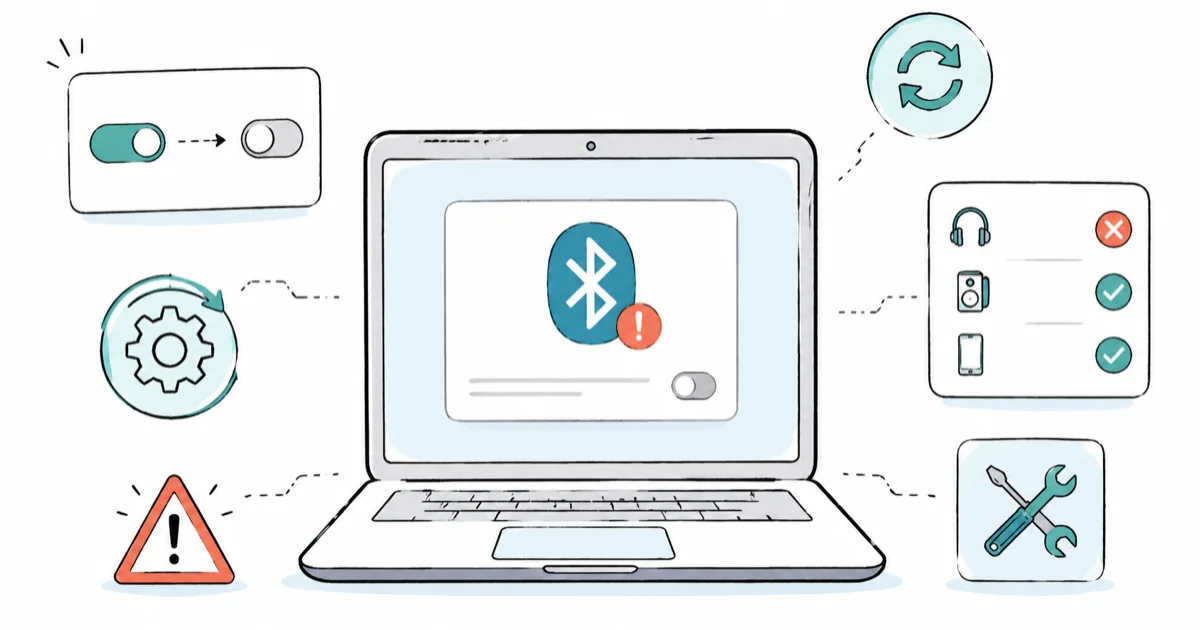
Quick AnswerA missing toggle points to a driver, service, or hardware problem, while a working toggle that won't pair points to the accessory. Run the narrow checks first, then reinstall the driver.
Windows 11 Bluetooth not working splits into two very different problems. Either the toggle is gone and Windows can’t see the radio at all, or the toggle works fine but one headset, mouse, or controller refuses to connect. The first is a driver, service, or hardware fault, while the second is almost always a pairing issue.
- A missing toggle means a driver, service, or hardware fault, while a working toggle that fails to pair means an accessory problem
- Device Manager tells you in seconds whether Windows still sees a Bluetooth adapter at all
- The Bluetooth Support Service must be running, or the toggle vanishes even with a healthy driver
- Remove and re-pair an accessory before you reinstall any driver, since most pairing failures clear that fast
- A desktop with no built-in adapter needs a USB Bluetooth dongle, and no software fix will create a toggle
#Why Is Bluetooth Not Working in Windows 11?
Bluetooth sits on three layers: a hardware radio, a Windows service that manages it, and a driver that connects them. When one layer fails, the outside symptom looks the same, but the fix is completely different. That’s why a single restart so rarely solves it.
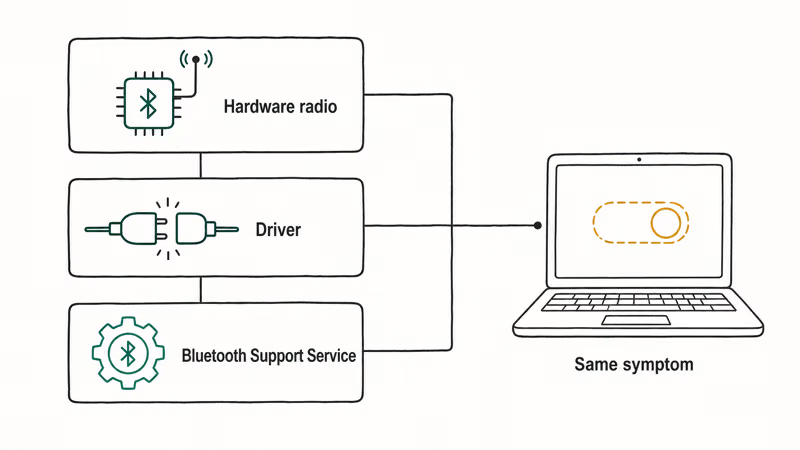
Start with one question. Is the toggle still there? If it’s missing from Settings and Quick Settings, the radio, service, or driver layer broke, but if the toggle is present and a specific device won’t connect, the accessory or its pairing memory is the problem. Sorting this first saves you from reinstalling drivers for a headset that’s simply paired to your phone.
| Symptom | Likely layer | First action |
|---|---|---|
| Toggle gone, Device Manager shows Bluetooth | Stopped service or stuck radio | Restart Bluetooth Support Service |
| Toggle gone, adapter has a warning icon | Corrupt or outdated driver | Reinstall the driver |
| Toggle gone, no Bluetooth in Device Manager | Driver removed or no hardware | Scan for changes, then add an adapter |
| Toggle present, one device won’t pair | Pairing memory or accessory state | Remove and re-pair the device |
| Audio cuts out on a paired headset | Connected to another device | Disconnect it elsewhere first |
The narrow checks below each take a couple of minutes. Most readers fix the problem before reaching the driver section.
#Check the Bluetooth Toggle, Airplane Mode, and Device Manager
Open Settings > Bluetooth & devices and look at the toggle. If it’s off, turn it on. If it’s missing, open Quick Settings in the taskbar corner and confirm airplane mode is off, because airplane mode silently disables the radio while leaving the driver fully installed, which is one of the easiest causes to overlook when the rest of the panel still looks normal.
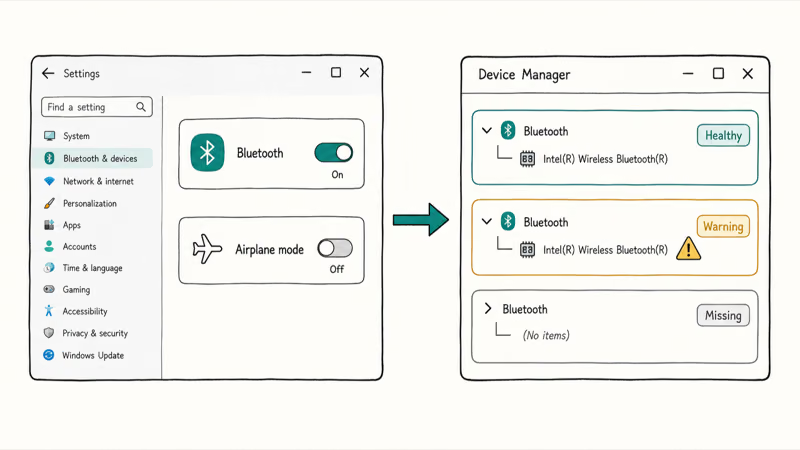
According to Microsoft’s guidance for fixing Bluetooth problems in Windows, cycling airplane mode and the toggle off and on resolves many cases. Try that first.
Now check Device Manager. Right-click Start, open it, and find the Bluetooth section.
The result tells you which layer broke. A cleanly listed adapter means the hardware is alive, so you have a service or radio-state issue. A yellow warning triangle on the adapter points straight at the driver, and no Bluetooth section at all means Windows lost the device entirely. This same Device Manager check anchors our windows 11 bluetooth toggle guide if the toggle never returns.
#Restart Bluetooth Services and Re-Pair the Device
If Device Manager shows a healthy adapter but the toggle still misbehaves, the Bluetooth Support Service has probably stopped. Press Windows + R, type services.msc, and press Enter. Find Bluetooth Support Service, right-click it, choose Restart, then set its startup type to Automatic.
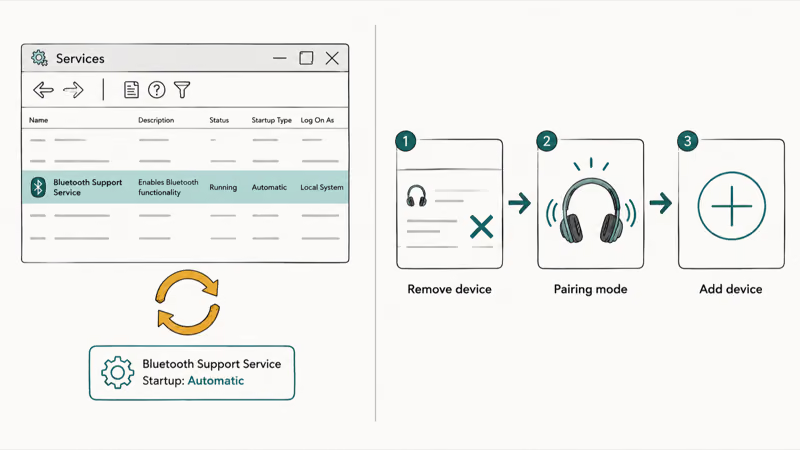
Now the accessory side. If the toggle works but one device won’t connect, go to Settings > Bluetooth & devices, click the three dots next to the stubborn device, and choose Remove device. Put the accessory back into pairing mode, then add it fresh. Microsoft’s pairing guide states that re-adding a device is a 2-step flow, namely select Add device then pick the accessory, which you can follow on the official pair a Bluetooth device in Windows page.
Removing and re-pairing is a low-risk accessory-side fix before driver work. That’s why this step sits ahead of the driver section.
#What If the Bluetooth Toggle Is Missing?
A missing toggle is a hardware-or-driver verdict, not a settings glitch. Back in Device Manager, click Action > Scan for hardware changes if the Bluetooth section is gone. A sleep cycle sometimes only hides it.
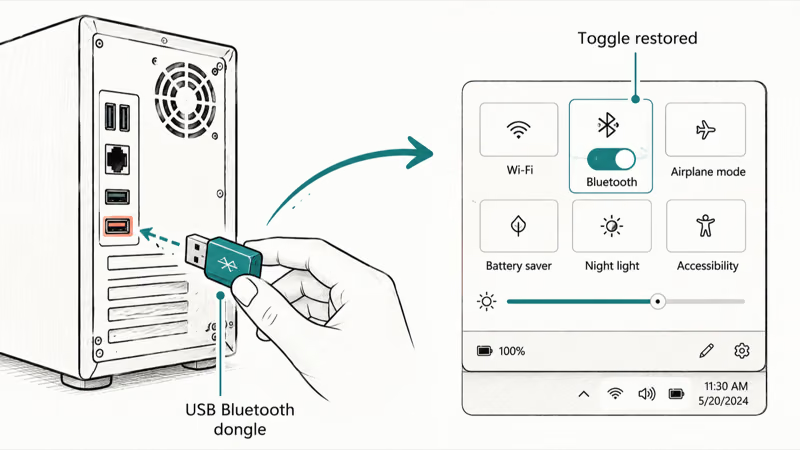
If a scan does nothing and your PC is a desktop, the honest answer may be that it never had Bluetooth hardware at all. Many desktop motherboards ship without a built-in radio, and a fair number of budget towers and older business desktops fall into this group, so check your motherboard’s spec sheet before you spend an hour hunting for a driver that was never going to exist. No registry edit creates a toggle for hardware that isn’t there.
The fix for that case is physical. A small USB Bluetooth dongle plugs into any free port and installs its own driver, which restores the toggle within a minute or two. This is also the cleanest workaround when a laptop’s built-in adapter has actually failed and you’d rather not open the chassis.
#Update, Roll Back, or Reinstall the Bluetooth Driver
When the adapter is present but flagged, the driver is your target. Microsoft’s troubleshooting page states that an outdated or incompatible driver is one of the most common causes of Bluetooth connection problems, so this step matters even when nothing looks obviously broken. Microsoft recommends 3 driver moves you can try in order before giving up on the adapter.
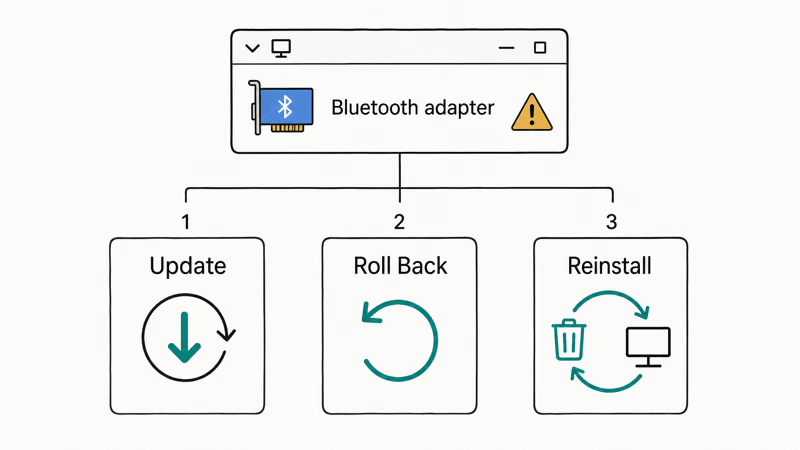
- Update: Right-click the adapter in Device Manager, choose Update driver, and let Windows search automatically. If that finds nothing, Microsoft’s guide on how to update drivers manually in Windows walks through grabbing the latest driver from your laptop maker’s support page.
- Roll back: If Bluetooth broke right after a Windows update, open the adapter’s
Properties>Drivertab and click Roll Back Driver to return to the version that worked. A botched update can stall other ways too, which our windows 11 update stuck guide unpacks. - Reinstall: Right-click the adapter, choose Uninstall device, then restart. Windows reinstalls the driver automatically on reboot, and if it doesn’t,
Action>Scan forhardware changes forces it.
Match the driver move to your trigger: roll back after a bad update, or uninstall and reboot when the current driver looks corrupted.
#Tell a Windows Problem From an Accessory Problem
Test the same accessory on a second device, like a phone or another laptop. If the headset pairs there instantly, your PC has the fault and Windows is where you should focus. If it fails on every device you try, the accessory itself is the problem, not Windows.
It also catches the most common false alarm. Bluetooth headphones hold one audio connection at a time, so a headset still tied to your phone looks dead on the PC. Disconnect it there first.
Sometimes the real complaint is audio routing rather than pairing, and the symptoms blur together when a headset connects but the sound goes to the wrong place or cuts in and out. The input side overlaps with mic faults covered in our windows 11 microphone not guide, while output problems and crackling playback show up in our windows 11 no sound walkthrough, which is the better starting point when the device pairs fine but you simply can’t hear anything.
#Test USB Dongles, BIOS, and Another Adapter
Using a USB dongle? Move it to a different port, ideally one on the motherboard rather than a front-panel or hub port. Cheap dongles fail outright, so testing a known-good adapter rules the hardware in or out.
Laptops add one more trap. A physical wireless switch or a function-key combination can disable the radio, and some models tie Wi-Fi and Bluetooth to the same toggle. If Wi-Fi vanished alongside Bluetooth, that shared switch is a strong lead. The same wireless-stack logic shows up in our windows 11 wifi option guide.
BIOS is the last hardware stop. A few machines expose a wireless-radio entry in firmware that can be disabled, usually after a BIOS reset or update. Don’t go here first. It’s a rare cause, and it’s only worth checking once Device Manager, drivers, and a known-good dongle have all come up empty.
#Bottom Line
If the toggle is gone, treat it as a service, driver, or hardware problem: restart the Bluetooth Support Service, reinstall the driver, and add a USB dongle if Windows can’t find an adapter. If the toggle works but one accessory fails, remove and re-pair it before touching any driver, and confirm the headset isn’t still connected to your phone. Match the fix to the symptom and you’ll skip every step that doesn’t apply.
#Frequently Asked Questions
Why is Bluetooth not working in Windows 11?
The cause depends on the symptom. A missing toggle usually means a stopped Bluetooth Support Service, a corrupt driver, or a PC with no Bluetooth hardware. A working toggle that won’t pair a device usually means the accessory is in the wrong state or still connected somewhere else.
What should I check first?
Look at the toggle first. If it’s missing, open Device Manager to see whether Windows still detects an adapter. If the toggle works but one device fails, remove and re-pair that device instead.
Can a Windows update cause this?
Yes, and it’s a frequent trigger. Updates sometimes swap or break the Bluetooth driver, which is why the toggle can vanish right after one installs. If Bluetooth stopped working immediately after an update, open the adapter’s properties in Device Manager and use Roll Back Driver to return to the version that worked before. This is the single most common cause readers report after a major feature update lands.
Will reinstalling the driver delete my paired devices?
Reinstalling the Bluetooth driver can clear your paired-device list, so you may need to pair accessories again afterward. It doesn’t touch your files or personal data. The reinstall only resets the Bluetooth stack itself, and re-pairing each device takes a few seconds.
When should I contact official support?
Reach out when the hardware itself looks dead. That means Device Manager shows no adapter on a machine that definitely shipped with Bluetooth, or a healthy driver and a known-good USB dongle both fail. At that point you’re likely looking at a hardware fault that needs service from your laptop maker or a Microsoft support agent, and no amount of further software tinkering will bring the radio back on its own.
How do I stop this from happening again?
Set the Bluetooth Support Service startup type to Automatic so it always launches, keep your wireless driver current from the manufacturer rather than only Windows Update, and remember that headphones hold one connection at a time. Disconnecting a headset from your phone before using it on the PC prevents the most common false alarm.

Best Laptop for Running LLMs in 2026: Memory Comes First
The best laptop for running LLMs is a memory purchase first. Compare MacBook unified memory against NVIDIA laptop VRAM, and see what each tier really runs.

How to Run a Local LLM on Windows: A 2026 Setup Guide
Run a local LLM on Windows with LM Studio or Ollama. Pick a model that fits your GPU memory, keep every prompt offline, and skip the monthly bill.

Bluetooth Not Working on Snapdragon X? Fixes for 2026
Bluetooth not working on your Snapdragon X Copilot+ PC? Generic audio, mice, and keyboards work, but vendor apps often lack an ARM build. Fixes inside.

Docker Desktop and WSL2 Not Working on Snapdragon X? Fix It
WSL2 runs fine on Snapdragon X, but Docker Desktop ARM is Early Access and throws WSL errors. Use WSL2 plus native ARM64 Ubuntu and Docker Engine.