AI Webcam Not Detected in Zoom or Teams? How to Fix It
AI webcam not detected in Zoom or Teams? Obsbot and Insta360 cameras need UVC mode, enough USB power, and the right app source. Here's how to fix it.
Quick AnswerAI webcams like Obsbot and Insta360 usually won't appear unless UVC mode is on, the USB port supplies enough power, and the app is pointed at the right camera. Fix those three and it shows up in Zoom or Teams.
An AI webcam that records fine on its own but never appears in Zoom or Teams is one of the most common complaints with Obsbot and Insta360 cameras. The cause is usually specific to these smart cameras, not a broken PC. The fixes below cover those camera-specific causes.
- Most AI webcams have to be switched into UVC mode before any conferencing app will see them as a standard camera
- Underpowered USB ports are a frequent cause, and Insta360 documents that 5V 0.5A is not enough for the Link to run normally
- A stale or corrupted driver can hide the camera, and reinstalling it through Device Manager often brings it back
- The camera can be detected by Windows or macOS yet still blocked inside Zoom or Teams by a permission or a wrong source selection
- If the camera works in another app but not your meeting tool, the problem is the app, not the hardware
#Why Doesn’t Your AI Webcam Show Up in Zoom or Teams?
Smart cameras from Obsbot and Insta360 do far more than a basic webcam, and that extra capability is exactly why they sometimes go missing. Many boot into a recording or streaming mode rather than acting as a plain USB camera, so Zoom and Teams never find a video source to list. They also pull more power and lean on a companion app to expose the feed.
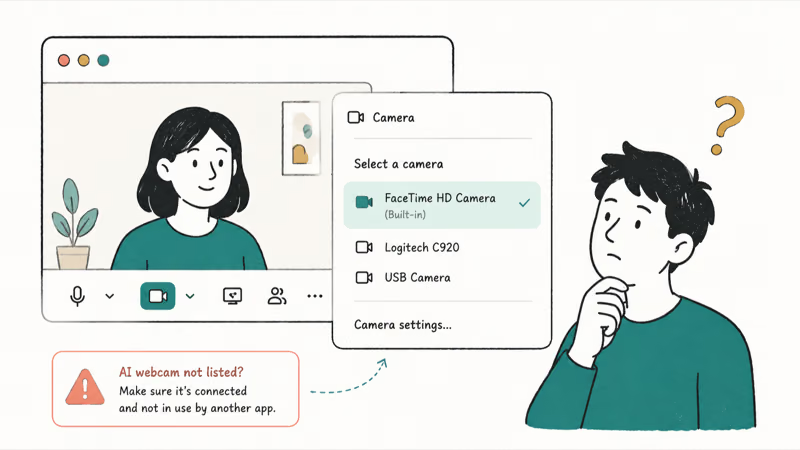
So when detection fails, it’s almost always one of five things: mode, power, driver, permission, or app source.
Got the same blank camera across every device you own? Our guides to Teams camera problems and the Windows 11 camera not working cover the universal checks. The fixes below target what’s unique to AI webcams.
#Fix 1: Switch the Camera Into UVC Mode
This is the single most common fix, and it’s the easiest to miss.
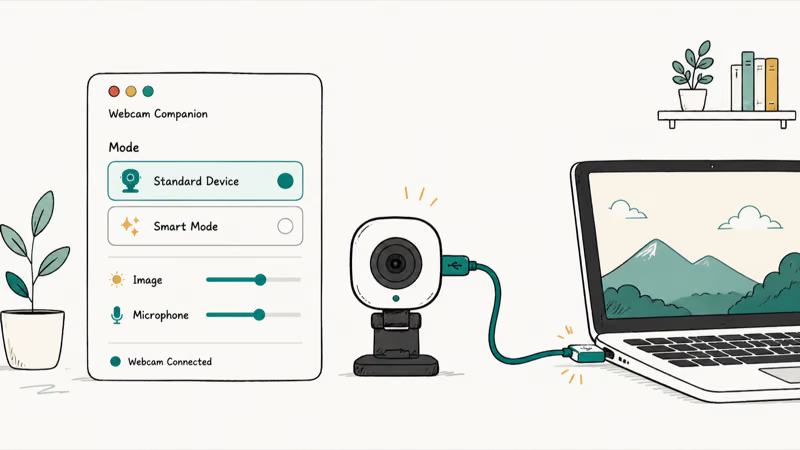
UVC, or USB Video Class, is the standard mode that lets any app treat the camera as a normal webcam. According to Obsbot’s guide to fixing the Zoom camera, these cameras integrate with Zoom and Teams directly once UVC mode is active. You usually toggle it in the companion app or with a button combo on the camera itself.
One trade-off is worth knowing. Turning on UVC mode often disables the camera’s own recording and media-folder features while it acts as a webcam, which is expected behavior rather than a fault. Flip it back when you want to record locally again.
#Fix 2: Give the Camera Enough Power
AI webcams are hungrier than they look.
Plug one into a weak port or an unpowered hub and it may not enumerate at all, which looks identical to the camera being dead. Insta360’s compatibility manual states that 5V 0.5A is not enough for the Link to perform normally. Connect the camera straight to a USB port on the computer, or to a hub that has its own power supply rather than one that draws from the laptop.
Skip the cheap extension cable too. A long or thin extension cable can drop voltage enough to keep the camera from appearing, so use the short cable from the box or a known-good powered connection.
#Fix 3: Update or Reinstall the Driver
Windows handles most UVC cameras without a separate driver, but a corrupted entry can still hide the device. Reinstalling clears it.
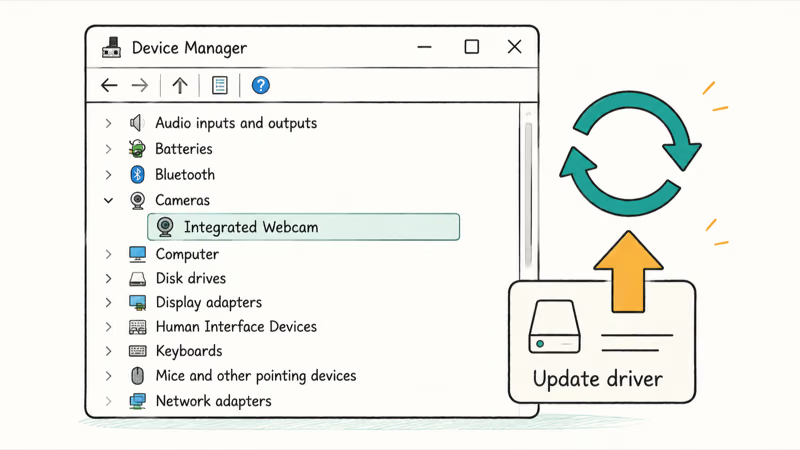
- Right-click Start and open Device Manager
- Expand Cameras (or Imaging devices)
- Right-click your AI webcam and choose Uninstall device
- Unplug the camera, restart the PC, then plug it back in so Windows reinstalls it clean
On a Mac there’s no driver to reinstall, so a restart with the camera connected does the equivalent reset. Our Mac camera not working guide covers the macOS side if the camera is missing there too.
#Fix 4: Fix Permissions and Close Rival Apps
A camera can show up at the system level and still be blocked inside your meeting app. Two things cause this, and both take seconds to rule out.
According to Microsoft’s camera permission guidance, camera access has to be on at the system level and again for the individual app under Settings, Privacy and security, Camera. On a Mac, the matching toggle lives in System Settings, Privacy and Security, Camera.
The second cause is a turf war. Only one app can hold the camera at a time on many setups, so if OBS, the Obsbot app, or another tool grabbed it first, Zoom finds nothing. Close every other app that might use the camera, then reopen your meeting tool.
#Fix 5: Select the Right Camera in Zoom or Teams
When the hardware is fine but the picture is still black, the app is usually looking at the wrong source.
AI webcams sometimes register as two entries, and the conferencing app may default to the wrong one. In Zoom, open Settings, Video and pick the camera by name from the dropdown. In Teams, go to Settings, Devices and set the camera there. If two similar entries appear, try each, since only the correct one shows a live preview.
#What if Your AI Webcam Still Won’t Appear?
Run one quick test that saves a lot of guessing. Open the built-in Camera app on Windows or Photo Booth on a Mac.
If the camera shows there, the hardware and drivers are fine, so the problem lives inside Zoom or Teams. Reinstall that app or clear its cache. If it’s missing even in the system camera app, update the firmware from the maker’s app, then try a different port and cable before you suspect hardware.
Once the camera is detected but the AI framing won’t lock onto you, that’s a separate problem with its own fixes, walked through in our guide on why AI webcam auto-framing stops working.
Shopping for a replacement instead? Our best webcam guide for 2026 and best webcam for Zoom meetings compare current AI models.
#Bottom Line
An AI webcam that won’t show up in Zoom or Teams is rarely broken. Nine times out of ten it isn’t in UVC mode, isn’t getting enough power, or the app points at the wrong source. Switch on UVC mode, plug into a powered port with the included cable, then confirm permissions and pick the right camera. Test in the system camera app to separate a hardware fault from an app problem before giving up.
#Frequently Asked Questions
What is UVC mode on an AI webcam?
UVC stands for USB Video Class, the standard that lets any app use a camera as a plain webcam without a special driver. Obsbot and Insta360 cameras often need it switched on before Zoom or Teams will list them. You toggle it in the companion app or with a button combo on the camera.
Why does my Obsbot or Insta360 work for recording but not in Zoom?
Those cameras boot into a recording or streaming mode by default, which isn’t the same as a webcam feed. Until you enable UVC mode, conferencing apps have no source to show. Switching modes usually fixes it, though it pauses the local recording feature while active.
Can a USB hub stop my AI webcam from being detected?
Yes. An unpowered hub splits limited power across every device, and an AI webcam can need more than it gets. Insta360 notes the Link needs more than 5V 0.5A. Use a powered hub or plug the camera directly into the computer.
Does the AI webcam need a driver on Windows?
Most work through the built-in UVC driver, so no separate download is required. If the camera still won’t appear, a corrupted driver entry can hide it, and uninstalling the device in Device Manager then reconnecting forces a clean reinstall.
My webcam shows in Windows Camera but not Teams. What now?
That split means the hardware is fine and the issue is inside Teams. Check that Teams has camera permission, close any other app holding the camera, and select the right device under Settings, Devices. Reinstalling Teams clears a stubborn cache.
Why is my AI webcam picture black even though it’s detected?
A black feed with the camera detected usually means the app picked the wrong source or another app is using the camera. Pick the camera by model name in your video settings, and close rival apps like OBS or the maker’s software first.
Will firmware updates fix detection problems?
Often, yes. Makers ship firmware fixes for compatibility through their companion apps, so updating is worth doing before you assume a hardware fault. Run the update with the camera connected and well powered so it doesn’t drop mid-flash.

Bluetooth Not Working on Snapdragon X? Fixes for 2026
Bluetooth not working on your Snapdragon X Copilot+ PC? Generic audio, mice, and keyboards work, but vendor apps often lack an ARM build. Fixes inside.

Docker Desktop and WSL2 Not Working on Snapdragon X? Fix It
WSL2 runs fine on Snapdragon X, but Docker Desktop ARM is Early Access and throws WSL errors. Use WSL2 plus native ARM64 Ubuntu and Docker Engine.
Does iTunes Work on Snapdragon X? ARM Windows 11 Guide
Yes, iTunes runs on Snapdragon X laptops through Prism emulation, but the Apple Devices app is the smoother route. Here is what to install on ARM.

Does OBS Studio Work on Snapdragon X? ARM64 Build Guide
Yes, OBS Studio has an experimental ARM64 build since version 31.1, but x64 plugins won't load and hardware encoding is missing. Here is what works.