Best Webcam for Zoom Meetings 2026: 4 Proven Picks
Best webcam for Zoom meetings 2026. Compare 4 conference cameras for auto-framing, backlight correction, built-in mics, Teams calls, and value.
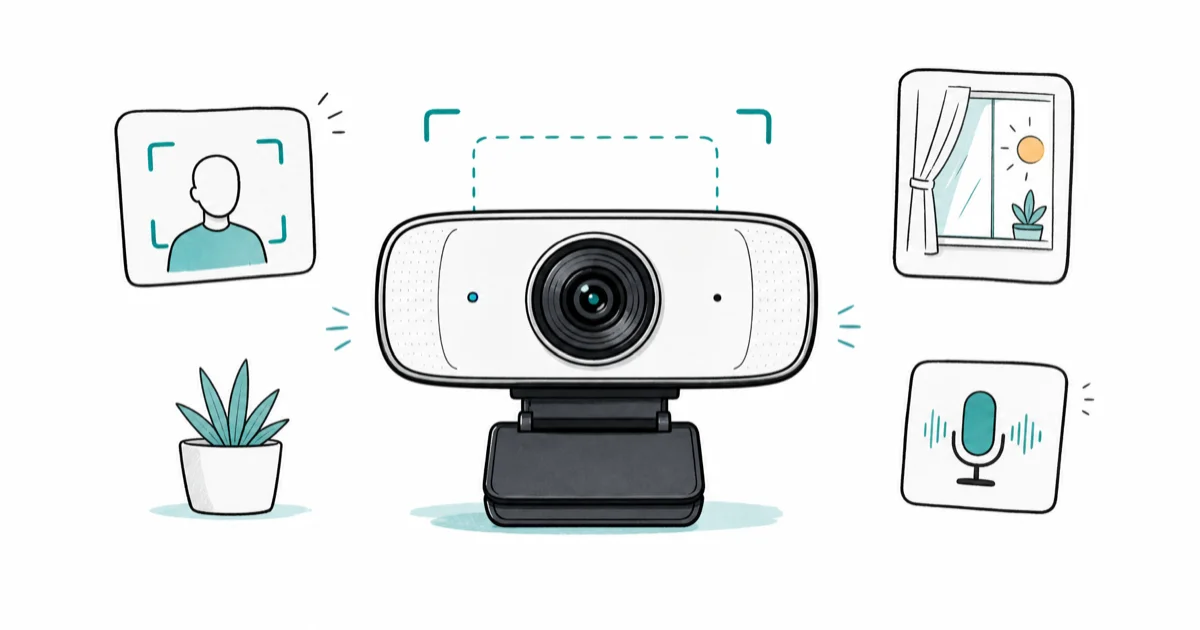
Quick AnswerThe Logitech Brio 500 is the best Zoom webcam: Show Mode auto-frames you when you move, RightLight 4 corrects backlit windows, and dual mics handle short calls.
A laptop’s built-in camera tops out at 1080p with a fixed lens that collapses your face into a silhouette against any office window. For Zoom meetings that look composed instead of hostage-video, a conference-grade webcam fixes framing, exposure, and the mic at the same time.
- The four picks below all include built-in mics rated for a 6-8 foot meeting room, so a separate headset is optional rather than required for short calls
- Auto-framing keeps your head centered when you lean back or move toward a whiteboard, which matters more on a 25-person Zoom grid than raw resolution
- Backlight correction is the single biggest visible upgrade over a built-in laptop camera for anyone calling from a window-facing desk
- Zoom and Microsoft Teams both cap participant feeds at 1080p, so a 2K or 4K sensor pays off through cleaner downscaling rather than higher transmitted resolution
- A physical privacy shutter is now standard on every pick, since the LED indicator only confirms recording status, not that the lens is actually covered
#What Separates a Zoom Webcam From a Streaming One
A meeting camera is not the same product as a streaming camera. Streamers chase low-light bokeh; meeting participants want a backlit window handled and a face framed cleanly at 9 AM.
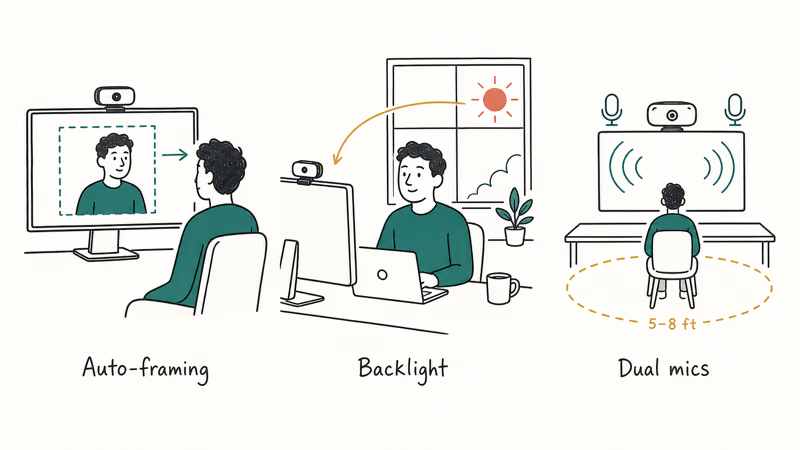
Three features matter more than peak resolution for daily Zoom and Teams calls. Auto-framing follows you when you move so the lens crop stays centered on your head and shoulders. Light correction reads the scene before white-balance and exposure have time to fight each other against a bright window. Dual mics with directional pickup let the camera double as a conference mic for a small meeting room without a separate USB microphone.
If your camera works but Zoom keeps freezing or crashing on a Mac, our computer crashes during Zoom guide covers the macOS-side fixes that aren’t about the hardware. For Mac users whose built-in FaceTime camera stopped working entirely, our Mac camera not working guide covers permission and driver troubleshooting first; external Zoom cameras sidestep most of those failure modes since they show up as a fresh UVC device on every connect.
#Best Webcam for Zoom Meetings: Logitech Brio 500
Top pick for most Zoom desks. Show Mode auto-framing and RightLight 4 exposure are the two features Zoom participants notice on the other side of the call, and the Brio 500 lands both at $130 instead of premium 4K money.
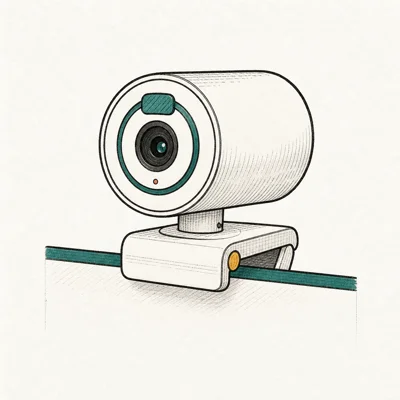
- RightLight 4 nails exposure in a backlit window without tweaking
- USB-C plus a real privacy shutter at $130
- Three FOV presets cover headshot through whiteboard
Last updated on May 27, 2026
As an Amazon Associate fone.tips earns from qualifying purchases. Prices and availability on Amazon are accurate as of the date above and subject to change.
The Brio 500’s main advantage over a laptop camera is backlight handling. RightLight 4 reads the scene before the white-balance fight begins, which matters for window-facing desks.
RightLight 4 reading the scene before the white-balance fight begins is the only spec on the sheet that translates directly to how composed the call looks on the other side. According to Logitech’s Brio 500 product page, the three FOV presets at 65, 78, and 90 degrees switch with a Logi Tune profile or the FOV button on the camera body.
Show Mode is the underrated meeting feature.
A small tilt of the camera body flips framing to a desk-view crop. That’s useful mid-call for a printed agenda, a quick hardware demo, or a sketched whiteboard. The dual noise-reducing mics fit a single participant at a desk; for a two-person huddle in a small room, a dedicated speakerphone is still safer.
#Best Value Webcam for Zoom: Anker PowerConf C200
For sub-$80 Zoom upgrades from a laptop camera, the PowerConf C200 delivers a 2K sensor at the price most competitors charge for 1080p. AI noise-cancel mics handle dishwasher and HVAC noise that ruins remote-work calls.
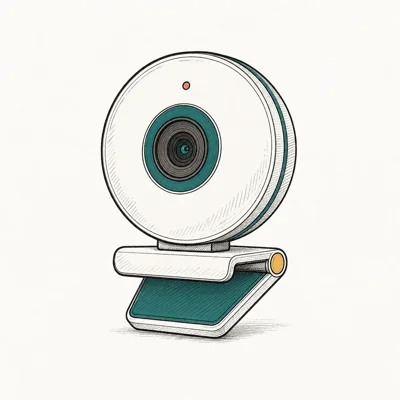
- 2K resolution at the price of competitor 1080p cams
- Three FOV presets without opening sketchy software
- Real sliding privacy cover, not a sticker
Last updated on May 27, 2026
As an Amazon Associate fone.tips earns from qualifying purchases. Prices and availability on Amazon are accurate as of the date above and subject to change.
The C200’s 2K source can be downscaled to 1080p by Google Meet and Zoom, giving it more capture headroom than a native-1080p camera at the same price. The sensor oversamples, so the remote participant can see a sharper headshot at the same uploaded resolution.
According to Anker’s PowerConf C200 product page, the AI noise-cancel pipeline runs on the camera hardware rather than in driver software, keeping CPU load off the host laptop during long calls.
Three FOV presets switch with a button on the unit, no software dance required.
The privacy cover is a slide-over plate rather than the lens-protecting shutter on the Brio 500, but it physically blocks the lens during off-hours.
Build is the trade-off. Plastic body instead of aluminum, no Show Mode tilt, no AI exposure pipeline like the higher Logitech tier. None of those omissions show up on the actual Zoom or Teams feed during a regular meeting call from a normal desk. For $60, that trade is fair for anyone replacing a laptop’s built-in camera for daily remote-work calls and the occasional client demo.
#Premium 4K Conference Pick: Logitech MX Brio
For Zoom users who also record interviews or want crop and zoom headroom in OBS, the MX Brio moves up to 4K capture and an 8.5MP Sony Starvis sensor.

- Aluminum build feels at home next to a MacBook
- Show Mode tilts to a desk view without a second camera
- 8.5MP sensor outclasses Brio 500's older silicon
Last updated on May 27, 2026
As an Amazon Associate fone.tips earns from qualifying purchases. Prices and availability on Amazon are accurate as of the date above and subject to change.
MX Brio overlaps with the Brio 500 on auto-framing and Show Mode but moves the sensor up a tier. The 8.5MP sensor gives more crop and exposure headroom than a mainstream 1080p webcam. According to Logitech’s MX Brio product page, the on-camera AI processor handles white balance and exposure before the frame leaves the cable, which keeps Zoom and Teams from second-guessing the picture during a backlit call.
Headroom matters at edit time. Most video apps cap upload at 1080p, but recording locally in QuickTime or OBS at full 4K gives crop and pan latitude that 1080p source can’t match. For pure Zoom calls the MX Brio is overkill; for a record-plus-stream workflow, it’s the cleanest single-camera solution.
#Reliable Backup Camera: Logitech C920x HD Pro
Decade-proven and still shipping in 2026, the C920x is the 1080p workhorse Zoom support docs assume you have when troubleshooting a feed. It uses USB-A rather than USB-C, so plan for a hub on a USB-C-only laptop.
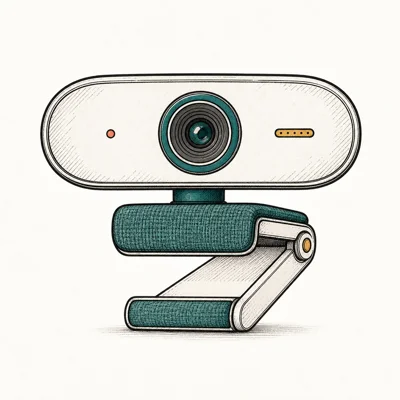
- Sub-$70 entry point with proven Zoom/Teams compatibility
- Dual mics surprisingly usable for a budget cam
- Plug-and-play on macOS / Windows / ChromeOS
Last updated on May 27, 2026
As an Amazon Associate fone.tips earns from qualifying purchases. Prices and availability on Amazon are accurate as of the date above and subject to change.
Most Zoom support docs assume you have the C920x when troubleshooting a feed. Stock often runs thin in 2026 since the product is over a decade old, so verify the listing before counting on it. If a USB-A dongle on your laptop is already a no-go, jump straight to the Brio 500 or PowerConf C200 instead and skip the adapter math entirely.
Dual mics on a budget camera are useful for close desk calls. They won’t replace a real USB conference mic, but they’re a clear step up from many muffled built-in laptop arrays. Plug-and-play on macOS, Windows, and ChromeOS means the C920x is the camera that just works when a colleague drops by with an unfamiliar laptop and a Zoom invite.
For hybrid creators recording from the same desk, our best 4K webcam for streaming roundup covers the recording side.
#Does a Webcam Replace a Headset for Zoom Calls?
Built-in webcam mics have improved enough that a dedicated headset is now optional for short calls in a quiet home office. All four picks on this list include dual noise-reducing mics, but noisy rooms still favor a headset.
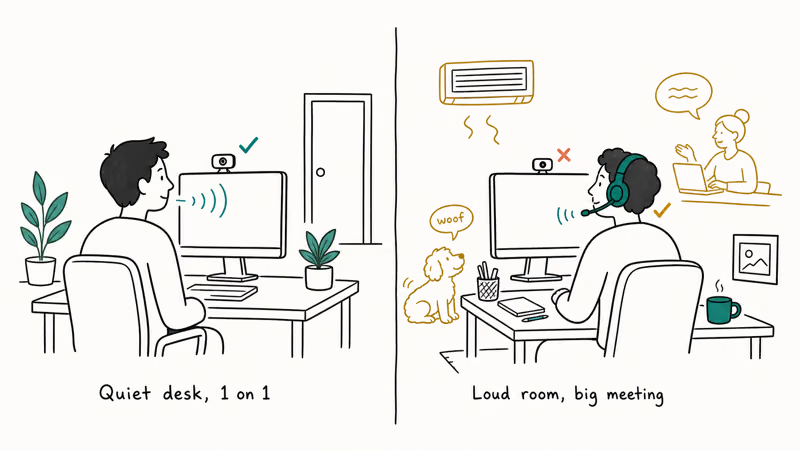
The split is cleaner than it sounds. For a one-on-one call from a desk in a quiet room, the camera mic is fine and often preferred since it leaves your ears free.
For a 30-person Zoom on a meeting day with HVAC noise, dog noise, or anyone else talking in the same room, a headset still wins on voice isolation and intelligibility. Anker’s AI noise-cancel pipeline and Logitech’s noise-reducing dual mics cut keyboard and HVAC noise enough that the call sounds clean, but neither replaces a directional headset mic in a loud space.
A second factor: meeting fatigue. The headset removes ambient room reverb from your voice, which the listener’s brain processes as less effortful even if they can’t articulate why. For four-hour meeting days, headsets win on the listener’s behalf, not yours.
#How Do You Pick the Right Resolution for Zoom and Teams?
Temptation says buy the highest resolution the budget allows. Most video apps cap participant streams at 1080p regardless of source camera, which makes a 4K webcam’s headline number partially academic for live calls.
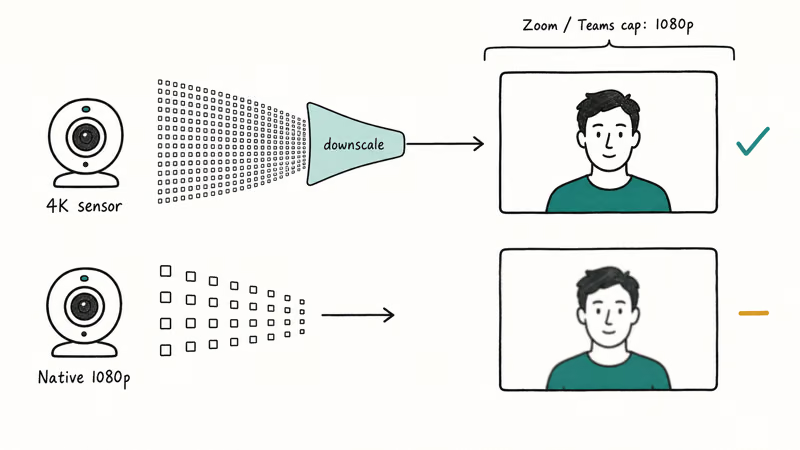
Zoom and Microsoft Teams both cap participant feeds at 1080p for the foreseeable future. According to Zoom’s system requirements documentation, HD 1080p sending requires a paid plan and is the ceiling for live participant video. A 4K webcam still helps because the camera oversamples and downscales, producing a cleaner 1080p than any native-1080p sensor at the same price.
Where 4K capture pays off is local recording. Recording interview footage in QuickTime, OBS, or Final Cut at native 4K gives crop and pan room in post that 1080p source can’t match. For pure live Zoom calls, 1080p is the sweet spot; for record-plus-stream workflows, 4K wins.
As noted in Microsoft Teams’ video device documentation, Teams Rooms certifies cameras at the 1080p tier for participant streams. Source sensor resolution affects downscaled quality more than the upload spec itself.
#Bottom Line
Most Zoom and Teams users want the Logitech Brio 500.
Show Mode auto-framing and RightLight 4 backlight correction are the two features that show up cleanly on the other side. At $130 with USB-C and a real privacy shutter, the Brio 500 hits the meeting sweet spot.
Value-conscious meeting buyers should pick the Anker PowerConf C200 at roughly $60, which delivers a 2K sensor and AI noise-cancel mics at the price most cameras charge for 1080p USB-A. The build is plastic and there’s no Show Mode tilt, but for replacing a laptop’s built-in camera on remote work calls it’s the honest pick.
Premium buyers stepping up to 4K for hybrid record-and-stream workflows pick the Logitech MX Brio, where the 8.5MP Sony sensor gives cleaner shadow detail and recording headroom that 1080p source can’t match. For a complete desk setup, our best webcam for MacBook roundup covers Mac-side picks, and our best budget webcam under 100 guide handles the lower-priced tier.
#Frequently Asked Questions
Do I need to install a driver for these webcams on Zoom?
No. All four picks register as standard UVC class devices on macOS, Windows, and ChromeOS the moment they’re plugged in. Zoom and Teams pick them up automatically in the camera-source dropdown.
Will a 4K webcam look better in Zoom than a 1080p one?
Sometimes. Zoom caps participant streams at 1080p, so a 4K source gets downscaled before transmission. The downscaled feed usually looks cleaner than a native 1080p camera at the same price because the sensor is larger and the optics are better, but the resolution number on the stream is identical to what the cheaper camera sends.
Does the built-in mic on these cameras replace a headset?
For short, one-on-one calls from a quiet desk, yes. The dual mics on the Brio 500 and the AI-noise-cancel mics on the PowerConf C200 are clean enough on their own.
Will auto-framing work in Microsoft Teams the same way it does in Zoom?
Yes. Auto-framing happens on the camera hardware before the feed leaves the USB cable, so any app that accepts the camera as a UVC source gets the same auto-framed output. Teams, Zoom, Google Meet, FaceTime, and OBS all see the same framed feed.
Can I use one of these webcams in a small meeting room?
Yes, with limits. The Brio 500’s dual mics make sense for one participant at a desk or a close two-person huddle. For a full meeting room with 4 or more people, a dedicated USB conference speakerphone alongside the camera is still the right call.
Is the C920x still worth buying in 2026?
For Zoom troubleshooting scenarios, yes; stock allowing. Most new buyers should pick the Brio 500 or PowerConf C200 since USB-C skips the dongle.
Does Show Mode work without Logi Tune installed?
No. Show Mode requires Logi Tune on macOS or Windows to enable the desk-view tilt detection. Once configured, the camera remembers the setting and the tilt works on any Zoom or Teams call without Logi Tune running in the foreground.

Pixel 11 vs Pixel 10: What Changed and Who Should Upgrade
Pixel 11 vs Pixel 10: same screen and camera resolution, new Tensor G6, 25W wireless, and Gemini Intelligence. Here is who should actually upgrade.

Best Power Bank for iPad in 2026: Pro, Air, and Mini
Best power bank for iPad in 2026. Compare mAh tiers and USB-C PD wattage for iPad Pro, Air, and mini, plus airline Wh math, cables, and travel tips.
Best Power Bank With Built-In Cable: Top 2026 Picks
Best power bank with built-in cable picks for 2026. Compare single USB-C, multi-connector, and retractable laptop banks, plus airline Wh math.

Best Apple Watch Band for Working Out: Proven Picks
The best Apple Watch band for working out handles sweat and stays put on your wrist. Compare silicone, nylon, and titanium picks for runs and lifts.