Microsoft Teams Camera Not Working? 8 Proven Fixes (2026)
Microsoft Teams camera not working? Learn 8 proven fixes covering permissions, drivers, browser settings, and conflicts on Windows, Mac, and mobile.
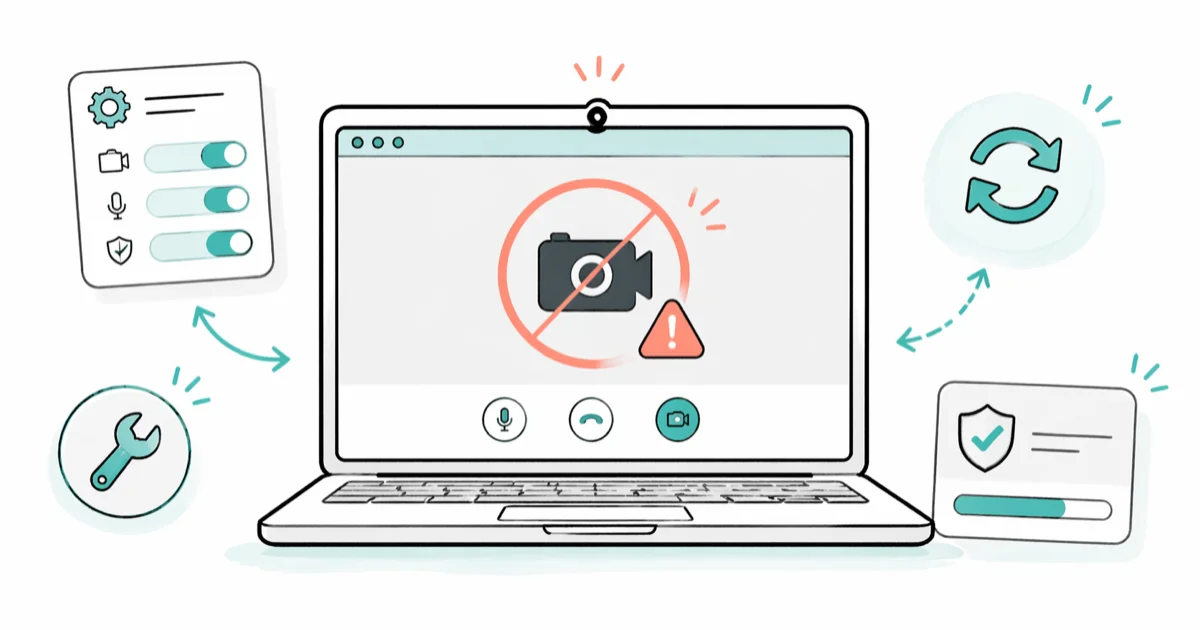
Quick AnswerMost Teams camera failures come from blocked OS permissions, an outdated client, or another app holding the webcam. Restart Teams, grant camera access in Windows or macOS settings, close conflicting apps, and run a Teams test call to confirm the fix.
A Microsoft Teams camera not working five minutes before a client call is the kind of problem that makes you stare at a black tile and refresh hopelessly. Nine times out of ten, the cause is boring: a privacy toggle, a stuck driver, or another app that already grabbed the webcam.
The fixes below cover Windows 11 and macOS. Work through them in order.
- The Teams test call confirms whether the issue is hardware, driver, or app-level in under 60 seconds.
- Camera privacy toggles in Windows 11 and macOS block Teams even when other apps work, so check them first.
- Only one app can hold the webcam at a time, which is why closing OBS, Zoom, or Chrome usually fixes a black tile.
- Outdated Teams clients lose camera access after major Windows or macOS updates, so update before reinstalling.
- A Teams reset on Windows or container delete on Mac clears corrupted device settings without removing your chats.
#Why Is Your Microsoft Teams Camera Not Working?
Teams treats your camera as a shared device. That means it has to negotiate access with the operating system, the driver, and any other app that wants the same hardware. When one link in that chain refuses, the preview goes black.
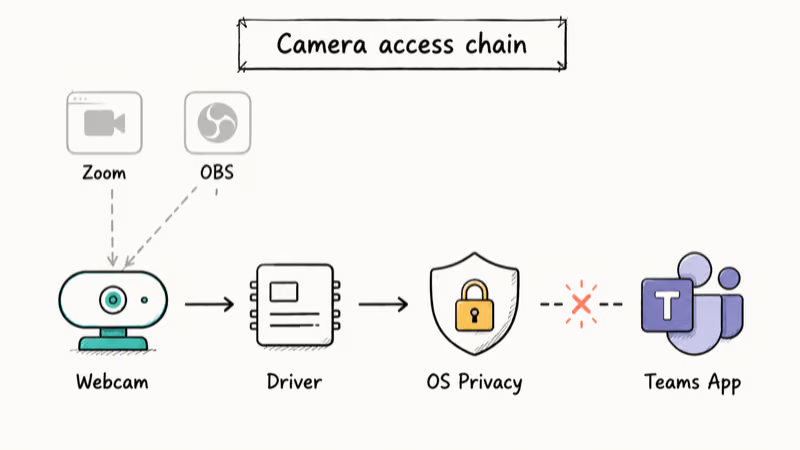
The most common culprits behind a black Teams tile:
- The Windows or macOS camera privacy toggle is off.
- An outdated Teams build lost permission after an OS update.
- A webcam driver needs reinstalling.
- Zoom, OBS Studio, or Chrome grabbed the device first.
According to Microsoft’s Teams camera troubleshooting page, the fastest first step is closing every other video app, restarting Teams, and running a test call before changing any settings. That sequence catches most temporary conflicts without touching the OS, which is why it sits at the top of the official flowchart and at the top of this guide.
If the camera also fails on Apple hardware in other apps, the cause might be physical sensor damage rather than software. Our walkthrough on the TrueDepth camera not working on iPhone explains how to confirm that.
#Quick Checks Before You Dive Into Settings
Run through these four micro-fixes first. They take under five minutes and resolve most cases.
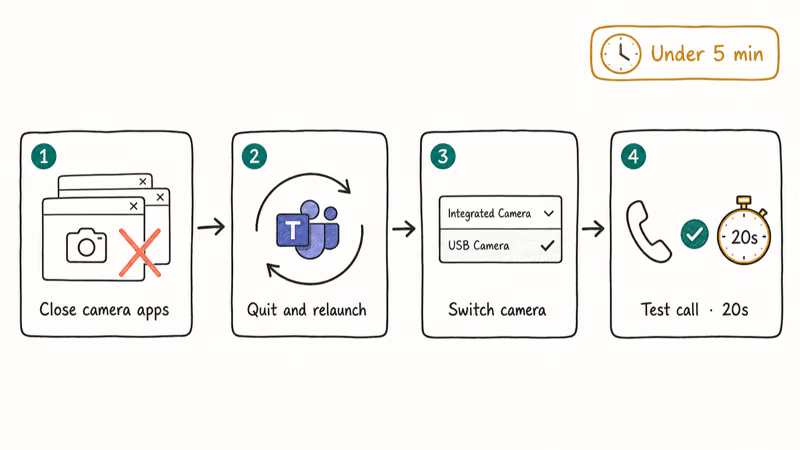
- Close every other camera app. Zoom, Google Meet, OBS, Snap Camera, Discord, and Chrome tabs with
meet.google.comopen all hold the webcam exclusively. - Quit and relaunch Teams. On Windows, right-click the Teams tray icon and choose Quit, not just Close. On Mac, use Cmd + Q in the menu bar.
- Try a different camera in the meeting bar. During a call, click the three-dot menu, choose Device settings, and pick another option from the Camera dropdown.
- Run the Teams test call. Click your profile picture, then Settings, Devices, and Make a test call. The Eco Assistant takes about 20 seconds and reports back which device is failing.
A common pattern: the test call surfaces a stale “USB Video Device” entry that Windows didn’t refresh after a dock disconnect, and a single relaunch fixes the preview. Microsoft’s camera troubleshooting guide recommends closing apps that hold the camera and reconnecting an external camera, which is the supported workaround when a webcam handle stays locked after a sleep or dock event.
#How Do You Fix Teams Camera Permissions on Windows?
Windows 11 has a system-level camera privacy toggle that overrides every app. If that toggle is off, no permission tweak inside Teams will help.
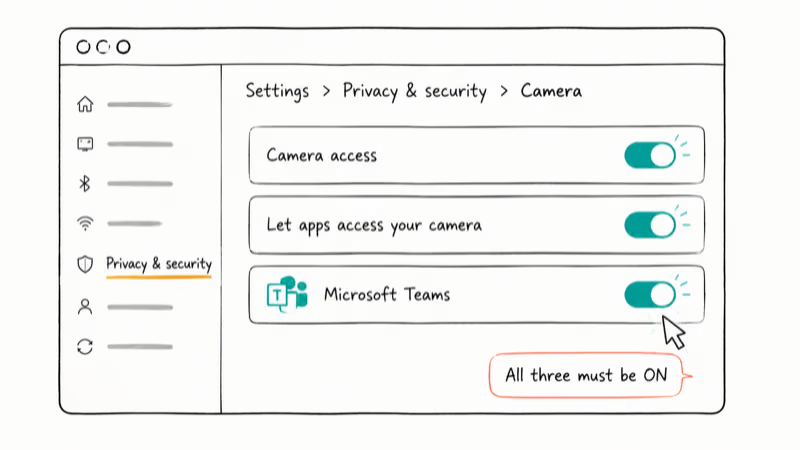
- Press Windows + I to open Settings.
- Click Privacy & security in the sidebar, then scroll to App permissions and choose Camera.
- Make sure Camera access at the top is On.
- Make sure Let apps access your camera is On.
- Scroll the list and confirm Microsoft Teams is On. If you use Teams in a browser, also confirm Edge or Chrome is On.
- Restart Teams.
Microsoft’s Windows camera permission guide recommends toggling these settings off and on again if Teams was installed before the camera was first plugged in, because Windows may have skipped the consent prompt.
A frequent scenario is Teams working everywhere except in meetings. In those cases the toggle is often simply stuck off after a recent OS update, and re-enabling it brings the preview back on the next launch.
If the slider is greyed out, you’re probably on a managed work device. Group Policy can lock the camera privacy switch, and only your IT admin can change that. Send them a screenshot of the greyed setting and ask whether the Allow Use of Camera policy is enforced.
#Granting Camera Access on Mac and Browser
macOS handles permissions per app rather than globally, so even a freshly installed Teams build can be silently blocked.
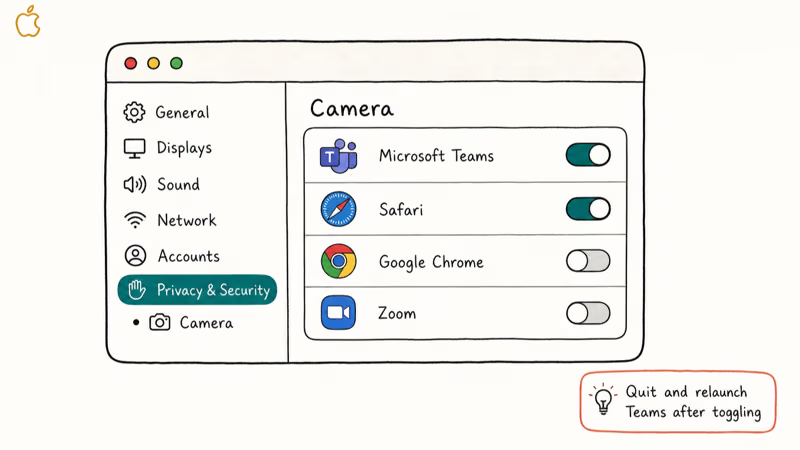
- Open the Apple menu and choose System Settings (System Preferences on macOS Monterey and earlier).
- Click Privacy & Security, then Camera.
- Toggle Microsoft Teams on. If you also use Teams in a browser, toggle Safari, Chrome, or Edge on.
- Quit Teams completely with Cmd + Q and reopen it. macOS only applies new camera permissions on next launch.
On Apple silicon Macs, Teams sometimes keeps the privacy prompt suppressed after a point update, and the toggle simply doesn’t appear in the list until you force a relaunch. Apple’s Mac camera privacy guide states that apps installed before the privacy framework was updated need a manual relaunch to register, which explains the behavior.
For Teams in a browser, click the padlock icon in the address bar, open Site settings, and set Camera to Allow for teams.microsoft.com. If you previously denied the prompt, Chrome and Edge won’t ask again until you flip this manually. The same browser-permission edge case breaks calls in other apps, and our walkthrough on WhatsApp video call not working covers the pattern in detail.
#Update Teams, Drivers, and Your Operating System
A surprising share of “Teams camera not working” tickets boil down to mismatched versions. Teams expects a recent webcam driver and a current OS build. One outdated link breaks the whole pipeline.
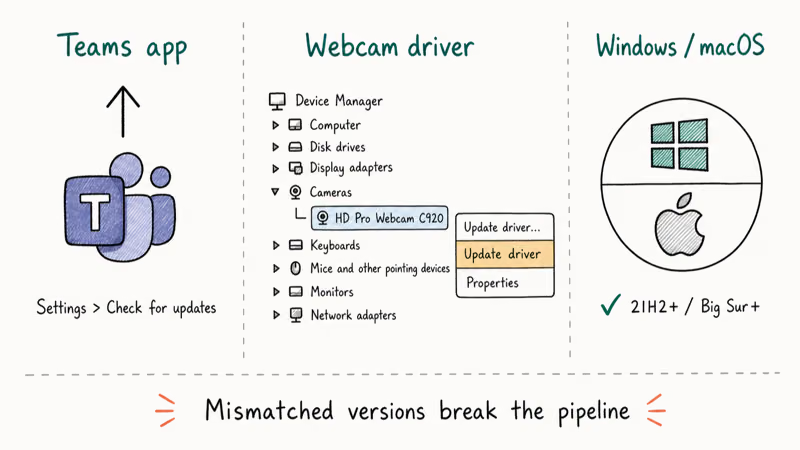
Update Teams. On Windows, click your profile picture, then Settings and more, then Check for updates. On Mac, use Microsoft AutoUpdate from the Help menu. Mobile users should update through the App Store or Play Store.
Teams desktop usually self-updates, but a paused update from a corporate WSUS server can keep you on a build that lost camera support.
Update camera drivers on Windows. Press Windows + X, choose Device Manager, expand Cameras (or Imaging devices on older builds), right-click your webcam, and choose Update driver. Pick Search automatically.
If Windows says you have the best driver, choose Uninstall device instead. Then unplug and replug the webcam, or restart the laptop for an internal camera. Windows reinstalls a fresh driver on next detection.
The Uninstall device path often fixes a camera that stopped working after a cumulative Windows update, a common trigger on machines like the Dell XPS 13 and other Windows laptops with integrated webcams. Removing the device forces Windows to pull a fresh driver the next time it detects the camera, which usually clears whatever the update left in a half-broken state. The clean reinstall takes about a minute and restores the preview without any other changes.
Update macOS or Windows. Microsoft’s Teams system requirements page confirms that the latest Teams desktop client only guarantees camera support on Windows 10 21H2 and later or macOS Big Sur and later. Older builds work most of the time but lose features quickly. Run Windows Update or macOS Software Update if you’ve skipped a recent release.
#Advanced Fixes When Teams Still Can’t See Your Camera
If you’re past permissions, drivers, and updates, the issue is usually inside Teams itself or on the hardware side. Work through these four checks.
Switch the camera dropdown inside Teams. Open Teams, click your profile picture, go to Settings, then Devices. The Camera dropdown sometimes lists ghost entries from removed USB devices. Pick your real webcam by name and watch for the live preview.
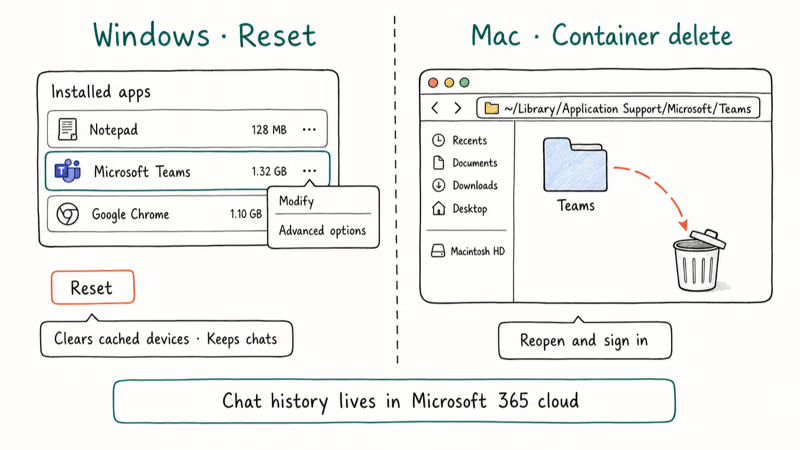
Reset Teams on Windows. Open Settings, then Apps, then Installed apps. Find Microsoft Teams, click the three-dot menu, choose Advanced options, and click Reset. This wipes cached device settings without deleting your chat history, because messages live in the Microsoft 365 cloud rather than the local app.
Delete the Teams container on Mac. Quit Teams, trash the ~/Library/Application Support/Microsoft/Teams folder, then reopen and sign in.
Try a hardware swap. Plug an external webcam into a different USB port (preferably USB-A directly on the laptop, not a hub). If the external camera works in Teams, the internal one is the problem. Microsoft’s Camera app troubleshooting guide recommends the built-in Camera app on Windows as a quick health check: if that app also fails, the problem is hardware or driver, not Teams.
If the camera fails across every app and every meeting platform, walking through a broader video-call diagnostic helps. A few follow-up reads, depending on where the trouble actually sits:
- Computer crashes during Zoom covers the deeper hardware and overheating angle.
- iPhone camera black screen is the right next stop if the issue is on iOS rather than desktop.
- Out-of-office in Teams is a useful bookmark for rescheduling the calls you missed once the camera is back.
#Bottom Line
For nine out of ten stuck Teams cameras, the answer is the four-step quick check (close other apps, relaunch Teams, switch the camera dropdown, run a test call) followed by the Windows or macOS privacy toggle.
Run the test call first every single time. It tells you in 20 seconds whether you’re chasing a permission problem, a driver problem, or hardware. If the test call fails on a different app too (like the Windows Camera app on PC or Photo Booth on Mac), stop fixing Teams and start fixing the OS or driver, because Teams isn’t the bottleneck.
If the test call works but a real meeting still shows a black tile, reset the Teams app on Windows or delete the container on Mac before reinstalling. Reinstalling alone rarely clears the cached device settings that cause this issue.
#Frequently Asked Questions
Why is my Teams camera not working when other apps work fine?
Teams keeps its own list of allowed devices and can lose that list after an OS update, even when Zoom, FaceTime, or the built-in Camera app still see the webcam. Open Teams Settings, click Devices, and pick your camera from the dropdown by name rather than letting Teams auto-select. If the camera is missing from that dropdown, restart the app and unplug-replug the webcam.
Can I use Teams without giving it camera access?
Yes. Click the camera icon before joining to enter audio-only mode. Microphone, screen sharing, and chat all still work.
Why is my Teams camera black during meetings only?
A black tile during meetings almost always means another app grabbed the webcam between when Teams launched and when the call started. Usual suspects on Windows: Snap Camera, OBS Studio, a leftover Chrome tab on meet.google.com, and Windows Hello facial recognition. On Mac: Photo Booth, FaceTime, and stale browser tabs. Quitting these apps and relaunching Teams clears the lock without a full restart.
How long should the Teams test call take?
About 20 seconds on broadband. If it spins past one minute, your firewall is blocking media servers, not your camera.
Will reinstalling Teams fix camera issues?
Sometimes, but Reset on Windows or container delete on Mac fixes the same cached device-settings problem without redownloading the client. Both paths preserve chat history because conversation data lives in the Microsoft 365 cloud. Reinstall only if Reset and container delete both fail.
Is the new Teams client different from classic Teams here?
The new Teams (2024+) uses Microsoft Edge WebView2, so check Edge’s site permissions for teams.microsoft.com even if you never open it in a browser.
What should I do if the privacy toggle is greyed out on my work laptop?
That’s a Group Policy or Intune lock applied by your IT admin, not something you can change from your user account. Send them a screenshot of the greyed Camera setting and ask whether the Allow Use of Camera policy is enforced.
While you wait, the Teams mobile app on your phone is a workable backup camera if you absolutely need video for a single call.
#Source Notes
The steps in this guide apply to current Teams desktop builds on Windows 11 and recent macOS releases, and they cover both the new Teams client built on Edge WebView2 and the classic Teams client that many organizations still deploy. Where the menu paths differ between the two clients, or between Windows and macOS, the guide calls out the platform-specific route inline so you can follow the version you actually have installed.
Microsoft’s official Teams troubleshooting documentation, the Windows camera permission guide, and Apple’s Mac camera privacy guide were the primary external references and are linked inline above.

Google Messages Error 3100: Why RCS Is Broken on Galaxy
Google Messages RCS error 3100 hits Galaxy owners after phone or carrier switches. Google told 9to5Google a fix is coming. Here's what actually helps.

Is This Bank App Real? Spot a Fake App on Your Home Screen
A bank app can land on your home screen from a web page with no install warning. Learn the checks that tell a real banking app from a phishing web app.

Apps Crashing After iOS 27 Update? Fix Order (2026)
Apps crashing after the iOS 27 update? Update the app in the App Store first, then offload and reinstall to clear stale cache, then restart. The fix order.

Do AI Translation Earbuds Work Offline? What to Know
Do AI translation earbuds work offline? A few do with downloaded language packs, but most need the cloud. Here's what works offline and what you give up.