Windows 11 Camera Not Working? 8 Fixes Fast (2026)
Webcam not working on Windows 11? Check the shutter, fix privacy permissions, update drivers, and decode error 0xA00F4244. 8 proven fixes for 2026.
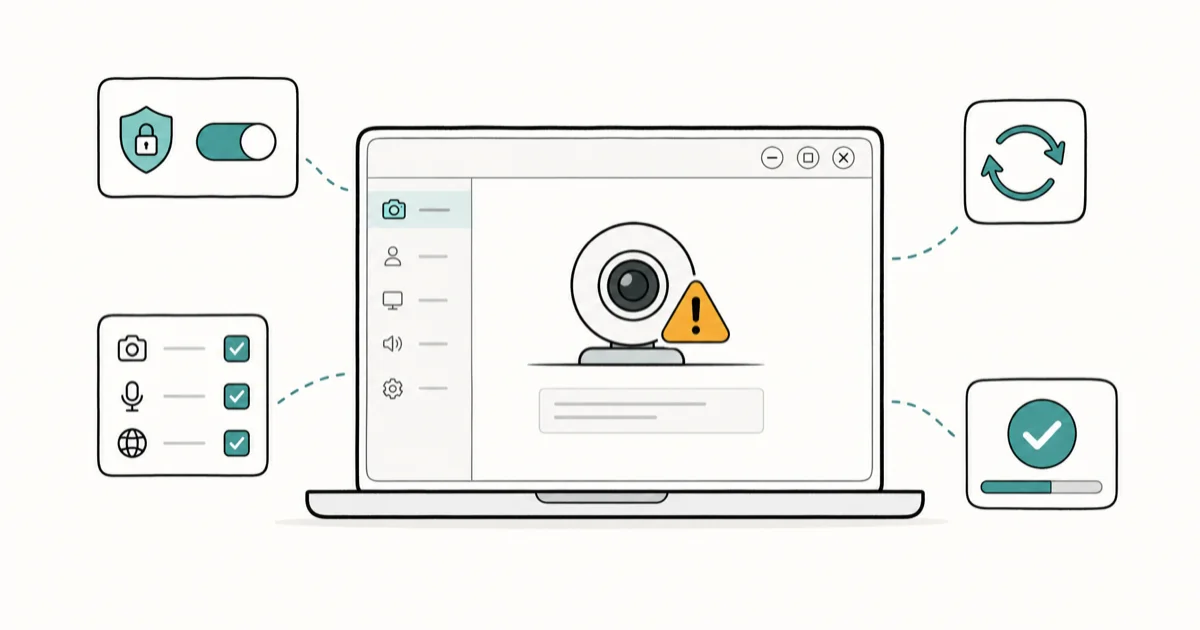
Quick AnswerCheck the physical privacy shutter first, then turn on camera access in Settings. If the camera is not even listed in Device Manager, the fix is the BIOS or connection, not app settings, and error 0xA00F4244 means Windows found no camera.
A Windows 11 camera not working tends to surface at the worst moment, usually as a black square in Teams while the meeting waits. Sometimes Windows shows error 0xA00F4244, sometimes just a dark screen, and sometimes the camera isn’t listed anywhere. The fix depends entirely on whether Windows can even see the camera.
The order below starts with a quick physical check and moves toward the BIOS only when the camera truly isn’t detected.
- A physical privacy shutter or a camera toggle key mimics a software failure, so check it before changing any settings
- Camera privacy permissions being off is the most common software cause, and Teams and Edge need a separate desktop-apps toggle
- Device Manager is the key diagnostic: if the camera is not listed there, stop changing app settings and check the BIOS or connection
- Error 0xA00F4244 means Windows found no camera attached, which points to detection, not permissions
- Some laptops disable the webcam at the hardware level, so a missing camera can be a BIOS setting rather than a fault
#Why Is Your Windows 11 Camera Not Working?
A camera failure on Windows 11 splits into two completely different problems, and telling them apart saves a lot of wasted time.
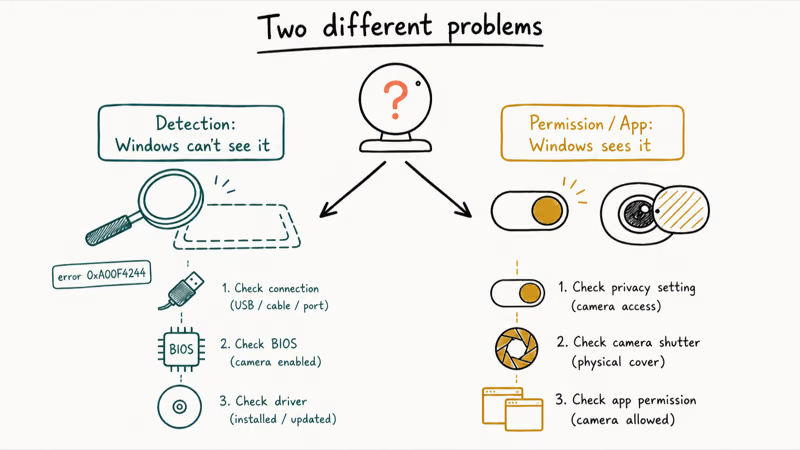
The first is a detection problem: Windows can’t find the camera at all, which points to a physical connection, a disabled device, a missing driver, or a BIOS setting. The second is a permission or app problem: Windows sees the camera fine, but a privacy toggle, a covered lens, or an app conflict stops the image. Error 0xA00F4244 is the classic detection signal, while a black screen with the camera light on is usually a permission issue.
The fastest way to know which camp you’re in is Device Manager, covered below. Before that, rule out the physical causes that fake a software failure.
#Check the Privacy Shutter and Run the Troubleshooter
Start with the physical layer, because a covered or toggled-off camera looks exactly like a broken one.
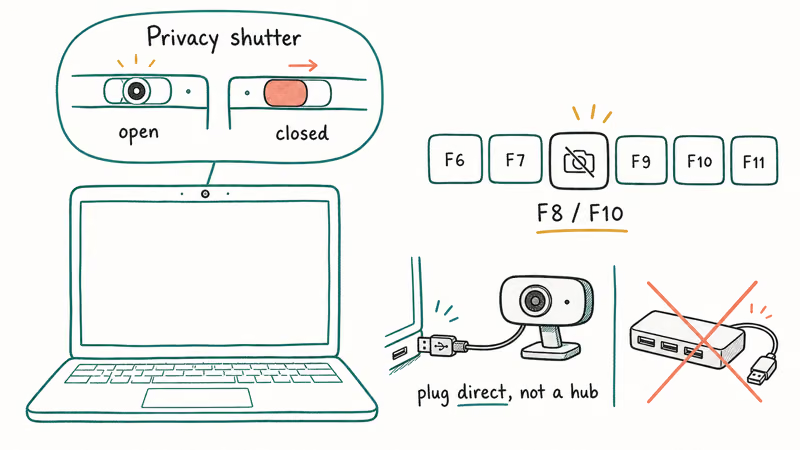
Many laptops have a physical privacy shutter that slides over the lens, or an F-key (often F8 or F10) that disables the camera. Check the lens for a sliding cover and look along the function row for a camera key with a line through it. A covered lens is easy to mistake for a broken webcam. For a USB webcam, reseat it in a port directly on the PC, not a hub.
Once the lens is open, run the built-in helper. Open the Get Help app and run the camera troubleshooter, which checks permissions, drivers, and the device state automatically. According to Microsoft’s camera-doesn’t-work page, checking permissions and running the troubleshooter is the recommended starting point before deeper steps.
#Fix Camera Privacy Permissions
If the lens is open and the camera is detected, permissions are the most likely cause.
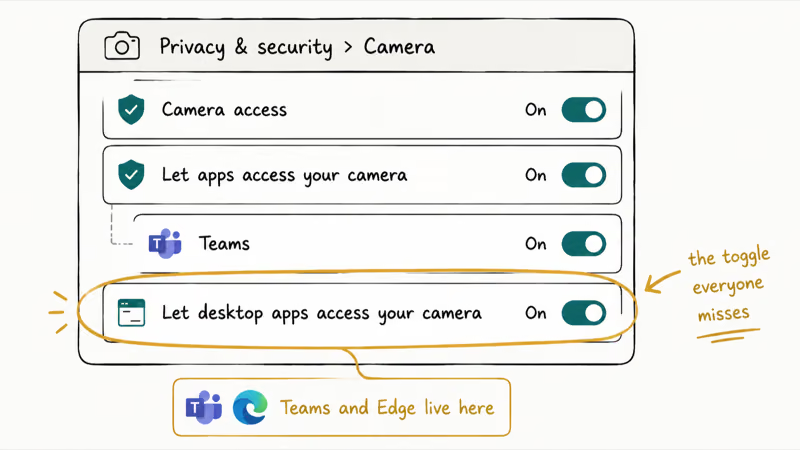
Go to Settings > Privacy & security > Camera and turn on Camera access at the top, then Let apps access your camera below it. Scroll down and confirm the specific app, like Teams or Zoom, has its own toggle enabled, since these get switched off after some updates.
The gotcha that catches everyone: Teams (desktop) and Edge count as “desktop apps,” not Store apps. Scroll to the bottom of the same Camera settings page and turn on “Let desktop apps access your camera,” or those programs get a black screen even when every other toggle is on. This toggle is a common cause of Teams black-screen cases because desktop apps can be blocked separately from Store apps.
The pattern mirrors how mic permissions trip people up, which Windows 11 microphone not working covers in detail.
#Is the Camera Even Detected in Device Manager?
This is the most useful diagnostic in the whole process, so don’t skip it.
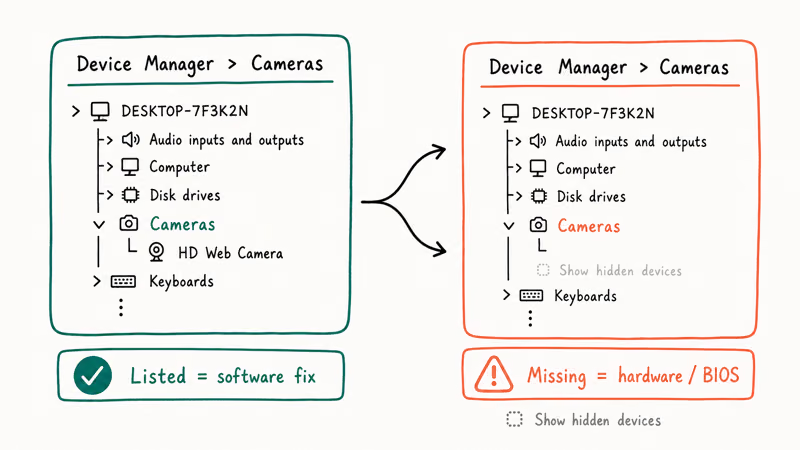
Press Win + X, open Device Manager, and look under the Cameras category (or Imaging devices). If your webcam is listed there, the hardware is fine and your problem is permissions, drivers, or an app, so stay in the software fixes. If the camera isn’t listed anywhere, Windows can’t see it at all, and no amount of app-setting tinkering will help.
A camera that’s missing from Device Manager points to a connection problem, a disabled device, or a BIOS-level disable. Right-click within Device Manager and choose “Show hidden devices” to catch a disabled entry. The TweakTown Windows 11 webcam fixes guide states that a webcam absent from Device Manager is a detection issue needing a driver reinstall or a hardware check, not a permissions change. This is the fork in the road: detected means software, missing means hardware or BIOS.
#Update Drivers, Reset the Camera App, and Check Antivirus
If the camera is detected but still won’t show an image, work through drivers and software conflicts.
In Device Manager, right-click your camera under Cameras, choose Update driver, and let Windows search. If that finds nothing, uninstall the device, then restart so Windows reinstalls a clean driver on boot. For an external webcam like a Logitech C920, Logitech’s support site recommends installing its driver and software for your exact model.
If a driver problem caused crashes too, Windows 11 driver fixes covers recovery. A camera failure often travels with audio issues, which Windows 11 no sound addresses.
Next, reset the Camera app: go to Settings > Apps > Installed apps > Camera > Advanced options > Reset. This clears a corrupt app state without touching the driver. Finally, temporarily disable third-party antivirus, since some security suites block camera access as a privacy feature.
If the camera broke right after an update that won’t finish, Windows 11 update stuck covers a half-applied update that can leave the camera driver in a bad state.
#Enable the Camera in BIOS if It’s Still Missing
If Device Manager shows no camera at all, the webcam may be disabled at the hardware level.
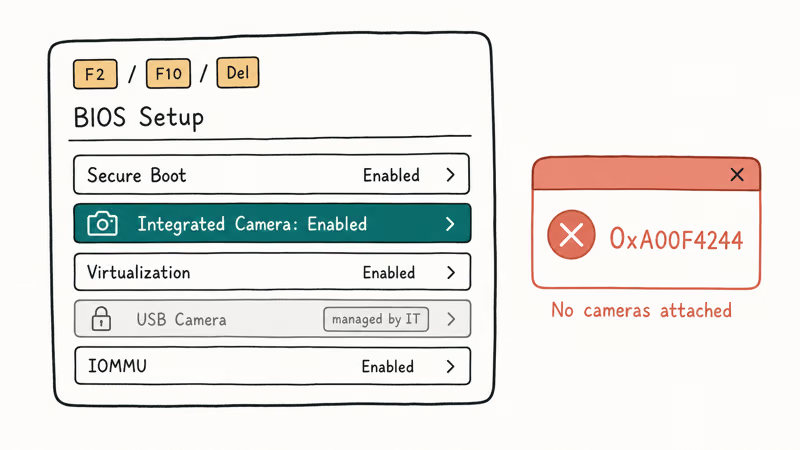
Some business laptops and Surface devices disable the integrated camera in the BIOS as a security policy. Restart, enter BIOS by tapping F2, F10, or Delete during boot, find the security or device section, and make sure the integrated camera is enabled. A managed work laptop may have this locked by IT.
For error 0xA00F4244, the message decodes to “NoCamerasAreAttached,” meaning Windows found no camera at all. That always points to detection: a disabled BIOS setting, an unplugged or failed USB webcam, or a missing driver, not a permission. If the camera is internal, detected nowhere, and BIOS shows it enabled, the hardware has likely failed. A connection that keeps dropping can also disrupt a wireless capture device, which Windows 11 Wi-Fi keeps disconnecting can help with.
#Bottom Line
Check the physical shutter and camera key first, since a covered lens mimics a software failure. If the lens is open, the cause is almost always privacy permissions, so turn on camera access and, for Teams and Edge, the separate “let desktop apps access your camera” setting. The most useful diagnostic is Device Manager: if the camera isn’t listed, check the BIOS or connection instead of app settings. Error 0xA00F4244 means Windows found no camera, which points to detection.
#Frequently Asked Questions
What does camera error 0xA00F4244 mean?
It decodes to “NoCamerasAreAttached,” which means Windows could not find any camera. That points to a detection problem, not a permission one. Check the USB connection, look in Device Manager to see if the camera is listed, and confirm it’s enabled in the BIOS. If it’s missing everywhere, the hardware or driver is the issue.
Why is my camera black even though it’s “on”?
A black image with the camera indicator lit usually means a permission or app conflict, not a dead camera. The most common cause is the privacy shutter still covering the lens, or another app already using the camera. Close other apps that might hold it, check the shutter, and confirm the app has camera permission.
How do I let Teams or Edge use my camera?
Teams desktop and Edge are “desktop apps.” In Settings > Privacy & security > Camera, scroll to the bottom and turn on “Let desktop apps access your camera.”
How do I know if Windows even detects my webcam?
Open Device Manager, expand the Cameras category, and look for your webcam. If it’s listed, the hardware is fine and your issue is software. If it’s missing, choose “Show hidden devices” to catch a disabled entry, and if it’s still absent, the problem is the connection, driver, or BIOS.
Can antivirus block my camera?
Yes. Some third-party security suites include webcam protection that blocks apps from accessing the camera. Temporarily disable the antivirus or find its webcam-protection setting and whitelist the app you need. Turn protection back on once you’ve confirmed the camera works again.
Why is the camera disabled at the BIOS level?
Many business laptops and Surface devices let you disable the integrated camera in the BIOS as a security control, and IT departments sometimes lock it that way. Restart into the BIOS, find the security or device section, and enable the integrated camera. If the setting is greyed out, your device is managed, so your administrator has to change it, and there is no software workaround on your end.

Best Laptop for Running LLMs in 2026: Memory Comes First
The best laptop for running LLMs is a memory purchase first. Compare MacBook unified memory against NVIDIA laptop VRAM, and see what each tier really runs.

How to Run a Local LLM on Windows: A 2026 Setup Guide
Run a local LLM on Windows with LM Studio or Ollama. Pick a model that fits your GPU memory, keep every prompt offline, and skip the monthly bill.

Bluetooth Not Working on Snapdragon X? Fixes for 2026
Bluetooth not working on your Snapdragon X Copilot+ PC? Generic audio, mice, and keyboards work, but vendor apps often lack an ARM build. Fixes inside.

Docker Desktop and WSL2 Not Working on Snapdragon X? Fix It
WSL2 runs fine on Snapdragon X, but Docker Desktop ARM is Early Access and throws WSL errors. Use WSL2 plus native ARM64 Ubuntu and Docker Engine.