AI Webcam Auto-Framing Not Working? How to Fix It Fast
AI webcam auto-framing not working? Tracking gets toggled off by a gesture or a closed app. Here's how to re-enable it on Obsbot and Insta360 cameras.
Quick AnswerAI webcam auto-framing usually stops because tracking got switched off by a gesture, the companion app isn't running, or the firmware is stale. Re-enable tracking in OBSBOT Center or the Insta360 app, then update and restart.
An AI webcam that won’t keep you centered is confusing: the camera still records, the auto-framing just stops following you. Auto-framing lives in the camera’s AI tracking, and that feature can be switched off without you realizing it. The fixes below focus on the tracking settings used by Obsbot and Insta360 models.
- A raised open palm is a start/stop tracking gesture on many Obsbot cameras, so it’s easy to disable auto-framing by accident
- Auto-framing runs through the companion app, OBSBOT Center or the Insta360 app, so the tracking controls go quiet if that software isn’t open
- In plain UVC mode some AI tracking features are limited until the maker’s app is running alongside your meeting tool
- Outdated firmware is a common cause of tracking that stutters or quits, and updates ship through the companion app
- Poor lighting and sitting too far from the lens both starve the AI of the face it needs to follow
Camera missing entirely instead of just not tracking? Start with our Teams camera not working and Windows 11 camera not working guides. This one assumes the camera shows up and simply stopped following you.
#Why Has Your AI Webcam Stopped Auto-Framing?
Auto-framing isn’t a mechanical motor on most webcams. It’s software: the camera’s AI spots a face or body, then crops and zooms the sensor to keep that subject centered. So when framing stops, the lens is fine, the tracking logic just isn’t running or has lost its target.
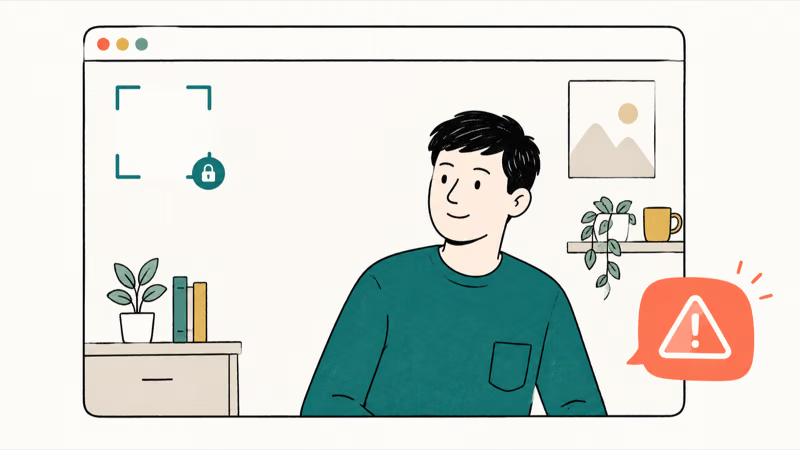
Four things cause nearly every case. Tracking got switched off, the companion app isn’t running, the firmware is stale, or the scene is too dark for the AI to lock on. Work them in that order and you’ll fix the vast majority without touching the hardware.
#Fix 1: Re-Enable AI Tracking in the Companion App
Start in the software that controls the camera, since that’s where tracking is turned on and off.
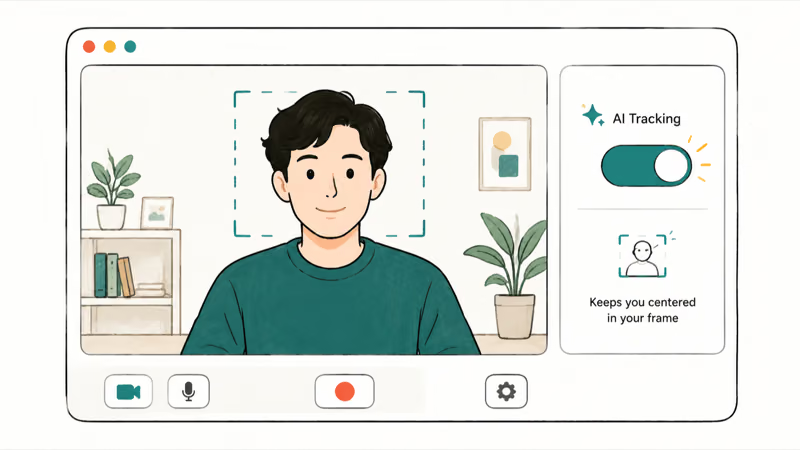
Open OBSBOT Center for an Obsbot camera, or the Insta360 Link Controller for an Insta360, and confirm AI tracking is actually enabled. OBSBOT’s Meet 2 product page states that the camera’s advanced tracking and framing controls run through OBSBOT Center, so the feature can sit switched off there while the camera still streams a flat, static shot. Toggle tracking on and pick a framing mode like auto or upper body.
Re-enabling tracking in OBSBOT Center can take effect without a reboot. If the app itself won’t open or load the camera, close it fully and relaunch before you try anything else.
#Fix 2: Check for an Accidental Gesture Toggle
Here’s the sneaky one. Many AI webcams watch for hand gestures, and one of those gestures starts or stops tracking.
Many AI webcams offer gesture control — according to Insta360’s Link product page, a simple hand gesture can toggle AI tracking on or off, which is great until you trigger it by accident. A wave, a stretch, or reaching for your coffee can read as the stop gesture, and the camera quietly parks itself. A stray movement can therefore switch off tracking without any app error.
The fix is quick. Re-enable tracking with the same gesture or the in-app toggle, then turn gesture control off in the settings if you keep bumping it. That trades a little convenience for a camera that stops second-guessing your movements.
#Fix 3: Update the Camera Firmware
If tracking is on but behaves erratically, drifting, lagging, or dropping the subject, the firmware is the next suspect.
Makers push tracking and stability fixes through firmware, and you install it from the companion app while the camera is connected. Run the update on a steady connection and don’t unplug the camera partway, since an interrupted flash can leave it worse off than before. After it finishes, reconnect the camera and reopen your meeting tool.
This is also the moment to update the app itself. An old build of OBSBOT Center or the Insta360 software can misread a newer camera, so bring both current at the same time. On a Mac the same companion-app rule applies, and if the camera goes missing there entirely, our Mac camera not working guide picks up the macOS side.
#Fix 4: Fix Lighting, Distance, and the Tracking Zone
AI tracking needs to see you clearly, and three things in your setup can break that.
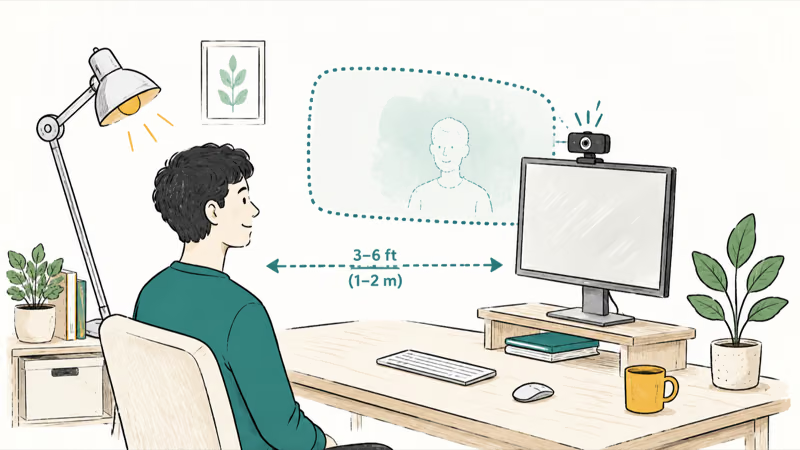
Lighting comes first. In a dim room the camera can’t pick a face out of the murk, so auto-framing wanders or gives up. Add a light facing you rather than behind you, and the tracking usually steadies. Sitting too far back hurts too, because a tiny figure in a wide shot gives the AI little to lock onto.
The third culprit is the tracking zone. Some apps let you box off where the camera looks or how tightly it crops, and a bad setting strands you outside the active area. Reset the zone to full frame and set framing back to auto. Microsoft’s camera troubleshooting guide recommends reconnecting the camera and restarting the PC to clear glitches that survive a settings change, so do that if the framing still misbehaves.
#Does UVC Mode Limit Auto-Framing?
Sometimes the camera tracks fine in its own preview but freezes in Zoom, and UVC mode is the reason.
UVC, the plug-and-play webcam standard, lets any app use the camera without a driver, but it exposes only a basic feed. The richer AI framing then leans on OBSBOT Center or the Insta360 app running in the background. So if framing works in the maker’s window but locks up in your meeting app, keep that companion app open during calls. Our guide to an AI webcam not detected in Zoom or Teams covers the related UVC and power gotchas.
If your camera is an older model without dependable tracking, our roundups of the best webcams for 2026 and the best webcam for Zoom meetings compare current AI auto-framing cameras.
#Bottom Line
Auto-framing that quits is almost never broken hardware. The usual culprit is tracking switched off, by a stray gesture or a closed companion app, so open OBSBOT Center or the Insta360 app first and turn tracking back on. From there, update the firmware, light your face, and reset framing to auto. Keep that companion app running during calls so UVC mode doesn’t strip the AI features, and switch gesture control off if your hands keep parking the camera.
#Frequently Asked Questions
Why did my AI webcam stop following me?
The most likely reason is that tracking got switched off. A hand gesture or a closed companion app can both stop auto-framing while the camera keeps streaming a static shot. Open OBSBOT Center or the Insta360 app and confirm AI tracking is on before you suspect anything else.
How do I turn auto-framing back on?
Open the camera’s companion software, OBSBOT Center for Obsbot or the Insta360 Link Controller for Insta360, and toggle AI tracking on. Then pick a framing mode such as auto or upper body. The change usually takes effect at once, without a restart.
Can a hand gesture switch off camera tracking?
Yes, and it catches a lot of people out. Obsbot and similar cameras use gesture control to start and stop tracking, so an everyday wave or stretch can read as the stop signal. If framing dies for no clear reason, a stray gesture is a strong suspect, and you can disable gesture control in the settings.
Does auto-framing work in Zoom and Teams?
It does, but the camera often needs its companion app open to drive the AI framing during a call. In plain UVC mode the meeting app may see only a basic feed. Keep OBSBOT Center or the Insta360 app running in the background so tracking keeps working inside Zoom or Teams.
Why does my Obsbot track in its own app but not in my meeting?
That split points to UVC mode. The maker’s preview window talks to the camera directly, while your meeting app receives a simpler stream. Leaving the companion app open during calls usually restores the tracking, since it keeps feeding the AI framing to the camera.
Will a firmware update fix tracking problems?
Often it will. Camera makers ship tracking and stability fixes through firmware, delivered from the companion app. Run the update with the camera connected and well powered so it doesn’t fail partway, then reconnect and test again.
Does lighting affect AI auto-framing?
A lot. The AI has to see your face to follow it, so a dark or backlit room makes the framing drift or quit. Add a light facing you rather than behind you, and sit close enough that you fill a reasonable part of the frame for steadier tracking.

Bluetooth Not Working on Snapdragon X? Fixes for 2026
Bluetooth not working on your Snapdragon X Copilot+ PC? Generic audio, mice, and keyboards work, but vendor apps often lack an ARM build. Fixes inside.

Docker Desktop and WSL2 Not Working on Snapdragon X? Fix It
WSL2 runs fine on Snapdragon X, but Docker Desktop ARM is Early Access and throws WSL errors. Use WSL2 plus native ARM64 Ubuntu and Docker Engine.
Does iTunes Work on Snapdragon X? ARM Windows 11 Guide
Yes, iTunes runs on Snapdragon X laptops through Prism emulation, but the Apple Devices app is the smoother route. Here is what to install on ARM.

Does OBS Studio Work on Snapdragon X? ARM64 Build Guide
Yes, OBS Studio has an experimental ARM64 build since version 31.1, but x64 plugins won't load and hardware encoding is missing. Here is what works.