Best 2FA Authenticator Apps: Our 5 Top Picks for 2026
The best 2FA authenticator apps by use case: Authy, Google Authenticator, Microsoft Authenticator, Aegis, and 2FAS. Find the right one for your setup.
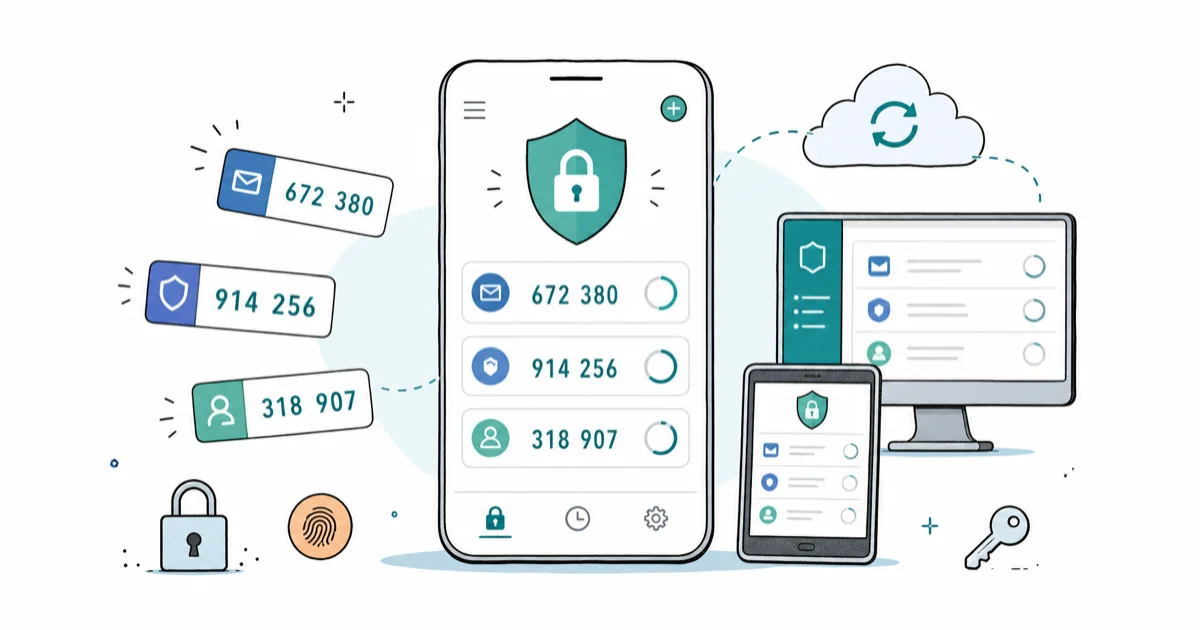
Quick AnswerAuthy is the best all-around 2FA authenticator for most people because it backs up your codes to the cloud and works across phone, tablet, and desktop. If you want open-source privacy on Android, Aegis is the stronger pick.
Two-factor authentication is one of the fastest security upgrades you can make, but the authenticator app you choose matters more than most guides admit. The five apps here are compared across iOS and Android on the two moments that actually break people: switching phones and recovering from a lost device.
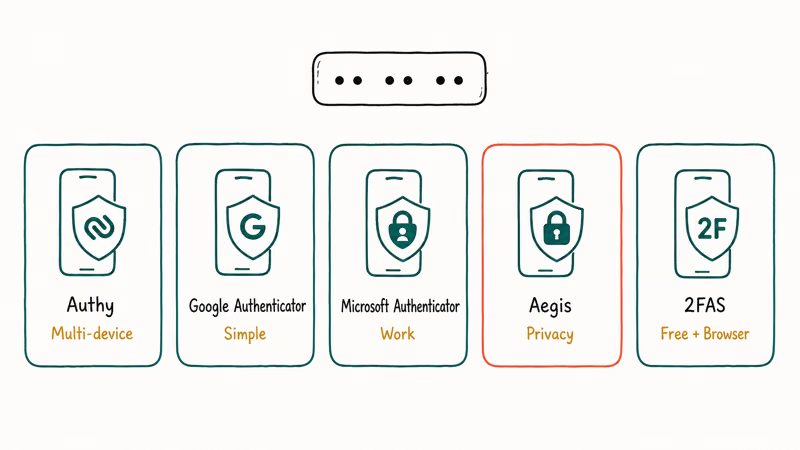
- Authy stores encrypted backups in the cloud and works across multiple devices, making it the easiest to recover when you lose your phone.
- Google Authenticator added cloud sync, but it does not use end-to-end encryption, which means Google holds the decryption keys for your 2FA secrets.
- Microsoft Authenticator is the top choice for work accounts secured with Microsoft 365 or Azure Active Directory.
- Aegis is the best pick for Android users who want open-source code, encrypted local backups, and zero reliance on a third-party server.
- 2FAS syncs within the same platform (iOS via iCloud, Android via Google Drive) but does not offer automatic cross-platform sync between iOS and Android.
#Why Does Your Authenticator App Matter?
Not all 2FA apps handle backups, exports, or recovery the same way. Lose your phone with Google Authenticator on it and no sync enabled, and you’re locked out of every account that used a one-time code from that app. That’s not a hypothetical. It’s the most common 2FA horror story on forums like r/techsupport.
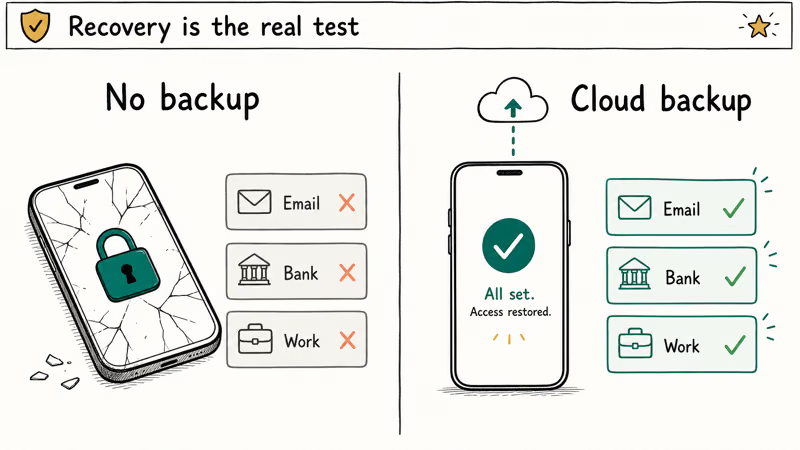
Across these apps, backup behavior is the biggest differentiator.
This roundup is a use-case guide, not a single winner declaration. The best app depends on whether you’re managing personal accounts, a work setup, or a privacy-sensitive environment. Before diving in, it’s worth knowing how passkeys differ from passwords and 2FA. They’re not the same thing, and understanding the difference helps you make a smarter choice.
#The 5 Best 2FA Authenticator Apps
#Authy (Best for Multi-Device Sync and Recovery)
Authy, made by Twilio, is the standard recommendation when someone asks what to install on a fresh phone. Its core advantage is cloud backup with multi-device sync: your 2FA codes are accessible on your phone, a second phone, a tablet, and a desktop app on macOS, Windows, or Linux. Most authenticators tie codes to a single device. Authy treats sync as the default rather than an afterthought.
Switching from an old Android to a new one with Authy takes just a few minutes. Set a backup password, download Authy on the new device, verify your phone number, and your codes are back. No manually scanning each account again.
Backups are AES-256 encrypted before leaving your device. According to Twilio’s security documentation, Authy never sees your plaintext secrets.
Use a strong backup password. That’s the only real vulnerability in the chain.
What to watch for: Authy is closed-source and owned by a company, which means you’re trusting Twilio’s infrastructure. A 2024 data incident exposed phone numbers (not 2FA secrets) of registered users. The risk is that phone numbers can be used in SIM-swap attacks, so pairing Authy with SIM-swap prevention steps is a smart move.
Disable multi-device mode after setup. It stops new devices from registering without your permission.
Best for: Most people who want reliable recovery and cross-device access without managing backups manually.
#Google Authenticator (Best for Simplicity on Android)
Google Authenticator is the default recommendation from most services when they say “download an authenticator app.” It’s familiar, lightweight, and gets the job done for basic TOTP generation.
Starting with version 6.0 on Android and version 4.0 on iOS, Google added optional cloud sync tied to your Google account. Once sync is enabled, codes appear on a second Android phone within seconds of signing in. The transfer is fast.
But the sync has a well-documented caveat. According to PCWorld’s coverage of Google Authenticator’s cloud backup feature, Google encrypts the data in transit and at rest but retains the decryption keys. The backup is not end-to-end encrypted. Google has said E2EE is on the roadmap, but it has not shipped yet.
Without sync, use “Export accounts” to generate a transfer QR. The cap is ten accounts per QR.
What to watch for: No export to third-party apps. No desktop version. If you rely on Google Authenticator and lose your phone before enabling sync, recovery requires backup codes from each service you set up.
Best for: Android users deeply embedded in the Google ecosystem who want the simplest possible setup.
#Microsoft Authenticator (Best for Work Accounts)
Microsoft Authenticator is built for organizations on Microsoft 365, Azure AD, or Entra ID. No third-party app replicates its push-approval and passwordless sign-in flow.
The integration goes beyond TOTP codes. When your IT team sets up conditional access policies or requires device compliance checks, Microsoft Authenticator is the only app that works out of the box. Third-party apps handle TOTP but not the broader identity handshake.
With a Microsoft work account, the push approval flow is nearly instant from notification to access granted. That’s faster than typing a code manually. It’s the flow most corporate IT departments configure by default, and for good reason: the push prompt shows the app, location, and device requesting access, which lets you catch unauthorized login attempts in real time before they succeed.
For personal accounts, it works as a standard TOTP generator. iOS now backs up via iCloud Keychain, Android via a Microsoft account. Cross-platform restore is not supported per Microsoft’s documentation.
You can’t export TOTP secrets to another app. Switching later means re-enrolling everything.
What to watch for: The lock-in. Great for work accounts where IT controls the setup, but less flexible for personal use where you might want to switch apps later.
Best for: Anyone with a Microsoft 365 account, corporate identity requirements, or a Windows-centric workflow.
#Aegis (Best for Privacy-First Android Users)
Aegis is an open-source authenticator for Android only, available on the Google Play Store and F-Droid. If you want to see exactly what your 2FA app does with your data, Aegis is the only app on this list where you can check the source code yourself. According to Aegis’s GitHub repository, the app is licensed under GPL v3, fully auditable, and requires only minimal permissions.
Your codes live in an encrypted local vault, unlocked with a PIN, password, or biometrics. No server. No account required. Backups export as encrypted files you control: save them to Google Drive, Nextcloud, or a USB drive.
The encrypted export file opens in Aegis on a second Android device once you enter the backup password. The whole process takes only a couple of minutes. Confirm the vault is intact and all codes generate correctly before deleting the source device’s copy.
The app supports TOTP and HOTP, custom icons, grouping, and themes. It’s actively maintained, with a recent update fixing a compatibility issue with Android 16.
What to watch for: Android only. No cloud sync, no multi-device real-time access, no desktop version. If you need codes on multiple devices simultaneously, Aegis requires manual backup transfers.
Best for: Android users who want maximum control over their 2FA data and don’t need cloud sync.
#2FAS (Best Free Option With Browser Integration)
2FAS is free, open-source, and available on both iOS and Android. Its standout feature beyond the mobile app is a browser extension for Chrome, Firefox, Safari, and Edge that lets you approve a login directly from the extension without unlocking your phone.
With a Gmail login, the browser extension detects the 2FA prompt and sends a notification to your phone. Tapping “Approve” fills the code into the browser field automatically, so you never have to unlock your phone, open the app, find the right token, and copy a six-digit code by hand. It’s the closest thing to a frictionless TOTP workflow without buying a hardware key.
Within the same ecosystem, sync is straightforward. According to 2FAS’s support documentation, iOS uses iCloud and Android uses Google Drive, with multiple phones on the same cloud account staying in sync automatically.
Cross-platform sync between iOS and Android is not automatic. It requires manually exporting a backup file from one device, copying it to the other, and importing it in 2FAS. Changes made after that export (adding or removing accounts) don’t carry over automatically, so you’d need to repeat the process whenever your token list changes.
What to watch for: Cross-platform iOS/Android sync needs manual backup transfers. No desktop app.
Best for: Desktop users who want browser-integrated 2FA for free.
#2FA App Comparison by Use Case
Here’s the quick decision matrix:
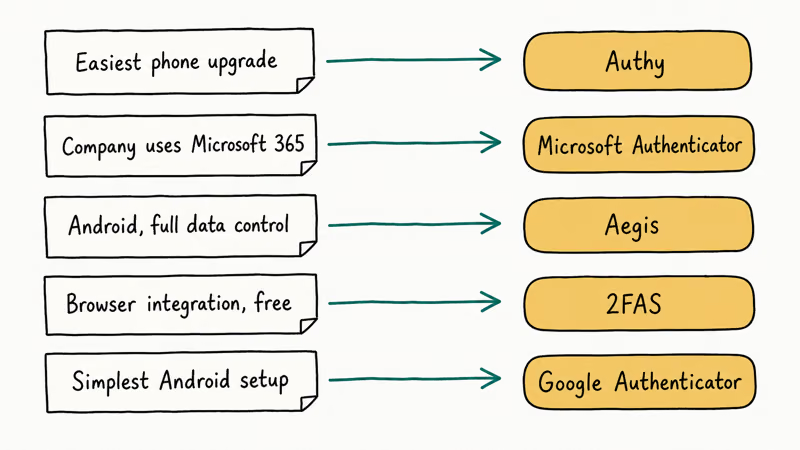
Comparison of 2FA authenticator apps by use case
| Situation | Best pick |
|---|---|
| You want the easiest phone upgrade experience | Authy |
| Your company uses Microsoft 365 | Microsoft Authenticator |
| You use Android and want full data control | Aegis |
| You want browser integration for free | 2FAS |
| You want the simplest setup on Android | Google Authenticator |
#2FA and Passkeys: How They Work Together
Passkeys are replacing passwords on many major sites, and they’re more phishing-resistant than any TOTP code. But most services still offer 2FA as a fallback or require it for account recovery. Understanding how to set up passkeys on iPhone is worth doing alongside keeping a 2FA app around. The two work together during the current transition period.
2FA via an authenticator app is still far better than SMS-based 2FA, which is vulnerable to SIM-swapping. If SMS 2FA is what you’re currently using, switching to an authenticator app is an immediate improvement. Pairing a good authenticator with a reliable VPN for iPhone covers two of the most common attack vectors on mobile devices.
#Switching Apps Without Getting Locked Out
Don’t uninstall your current authenticator until you’ve confirmed the new one works. Install the new app, import your codes, test a few logins, then remove the old app.
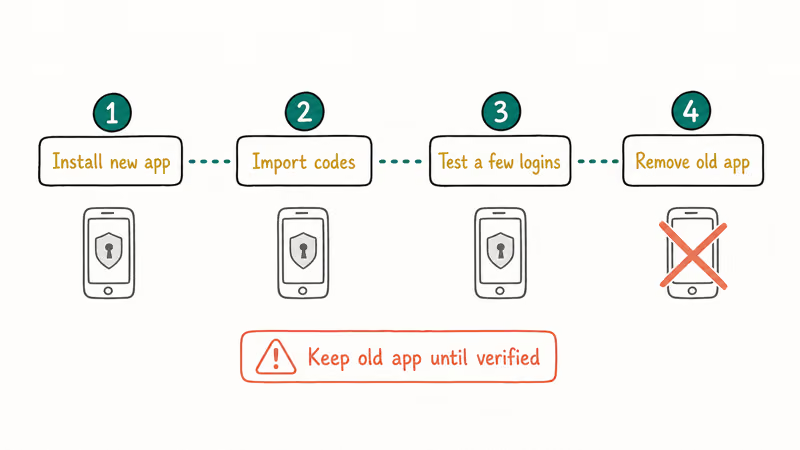
Re-enable backup on the new app before logging out. Some services have a short re-scan window if something goes wrong.
After switching, update your recovery method on each account. Some services let you refresh the TOTP setup without disabling 2FA entirely.
#What Are Backup Codes and When Do You Need Them?
Every service that offers 2FA also generates backup codes when you first enroll. Print them or store them in a password manager. They’re your last resort if you lose your phone and your authenticator app can’t recover.
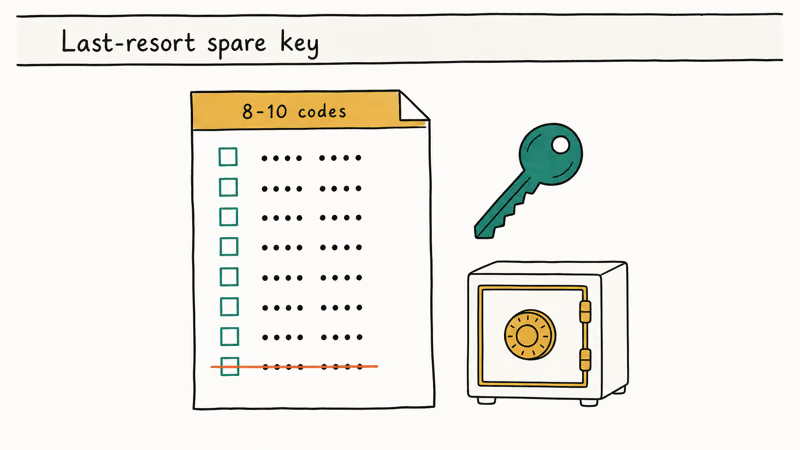
These codes are single-use and typically come in sets of 8-10, so treat them like a spare key: keep them somewhere secure. If you’ve ended up locked out of your Apple account specifically, our guide on what to do when Apple ID is locked walks through the recovery steps.
After you install a new authenticator app, use those backup codes to re-enroll any account where you can’t do a cloud restore. It’s tedious, but it works.
#Bottom Line
Start with Authy if you’re not sure. It handles the two biggest problems (phone loss and multi-device access) better than any other free option, and setup takes under five minutes.
If you’re on Android and want zero cloud dependency, Aegis is the stronger technical choice. For work accounts, Microsoft Authenticator is the practical pick because your IT department almost certainly expects it. Whichever app you choose, enable the backup feature before you need it.
#Frequently Asked Questions
Can I use more than one 2FA authenticator app at the same time?
Yes. Many services let you enroll multiple authenticators. You can register both Authy and 2FAS for the same account, and both generate valid codes.
It’s a smart recovery strategy. If one app becomes inaccessible, the other still works without any re-enrollment.
What happens if I lose my phone and don’t have a backup?
You’ll need to use the backup codes you saved when you first set up 2FA on each service. If you don’t have those, most services have an account recovery process that involves verifying your identity via email or phone. The process varies by platform and can take a few days.
Is SMS 2FA or an authenticator app more secure?
Authenticator apps are significantly more secure. SMS codes can be intercepted through SIM-swapping, where an attacker convinces your carrier to transfer your number to their SIM card. Authenticator app codes are generated on-device and never sent over a network, so they’re not vulnerable to that attack.
Do authenticator apps work offline?
Yes. All five apps generate codes without an internet connection. Backup and sync features still need connectivity, but code generation itself is fully offline.
Can I migrate from Google Authenticator to another app?
Yes, and Aegis and 2FAS both support importing directly from Google Authenticator’s export QR code. Go to the three-dot menu in Google Authenticator, select “Transfer accounts,” then “Export accounts,” and scan that QR with the new app. Your accounts transfer in bulk in one scan.
The main catch: Google Authenticator caps each export QR at ten accounts, so you’ll need multiple rounds if you have more than that. After confirming all accounts work in the new app, disable Google Authenticator’s sync to avoid duplicate entries.
Is Authy safe after the 2024 data incident?
Your 2FA codes were not compromised. Phone numbers were exposed, not secrets.
Are open-source authenticators actually more trustworthy?
Open-source code can be audited by anyone, which means security researchers can verify that the app does what it claims. Aegis and 2FAS are both open-source. This doesn’t automatically make them invulnerable, but their behavior is transparent, which is a meaningful advantage over closed-source apps for security-sensitive use cases.

Is This Bank App Real? Spot a Fake App on Your Home Screen
A bank app can land on your home screen from a web page with no install warning. Learn the checks that tell a real banking app from a phishing web app.
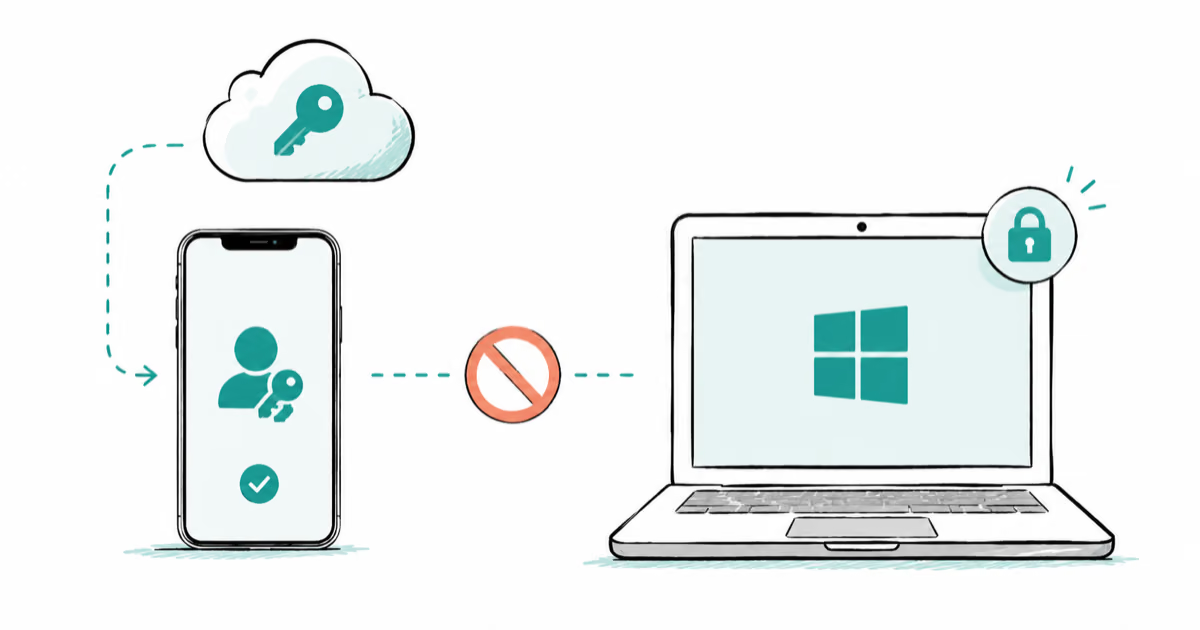
Passkeys Not Syncing Between iPhone and Windows? Read This
Passkeys not syncing between iPhone and Windows is by design, not a bug. Here is why iCloud passkeys skip Windows Hello and the three ways to fix it.
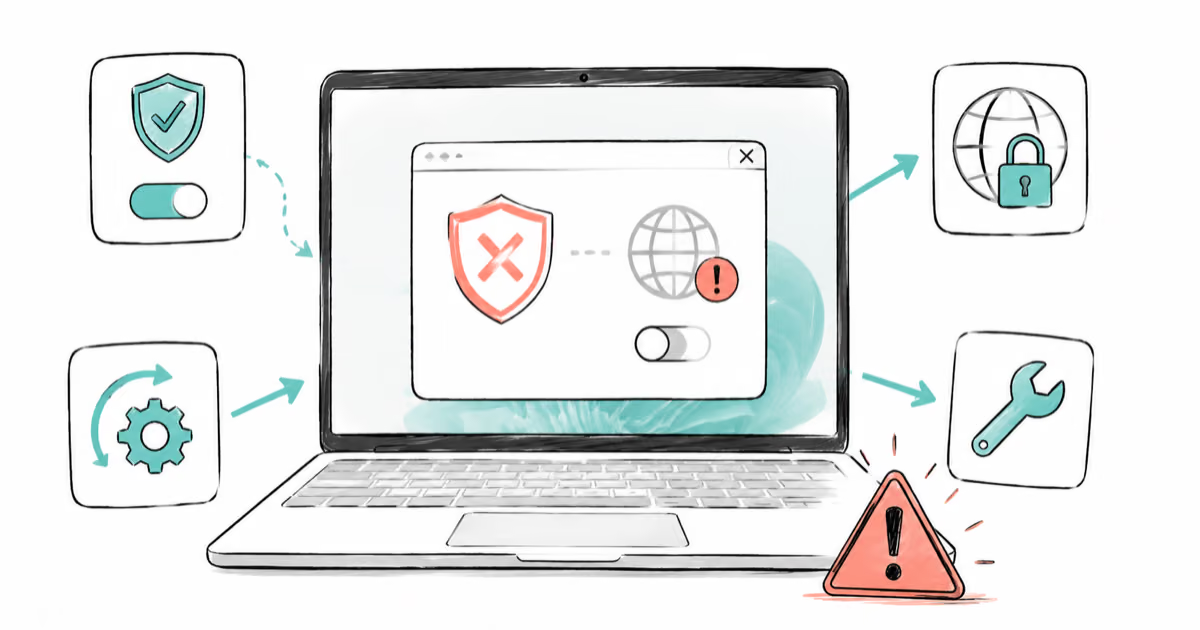
VPN Not Working on Snapdragon X? Why It Fails, How to Fix
Your VPN won't install or connect on a Snapdragon X Copilot Plus PC because Windows on ARM can't emulate the network driver. Here are the fixes that work.
How to Check If a Link Is Safe Before You Click It
Learn how to check if a link is safe with official-first steps: read the real domain, use the app instead, and treat scanners as a second opinion only.