Fix Outlook Error 0x80042109: SMTP Sending Fix Guide
Outlook error 0x80042109 blocks outgoing email. Fix it by switching to port 587 with TLS, checking your firewall, and repairing your profile.
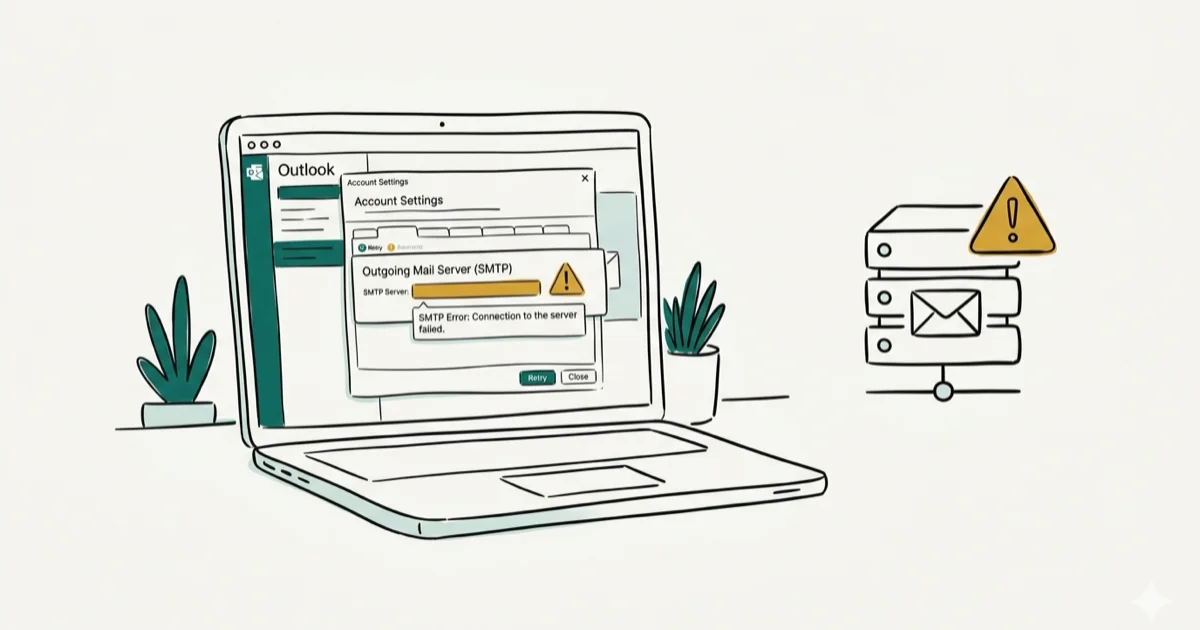
Quick AnswerOutlook error 0x80042109 means Outlook can not connect to the outgoing SMTP server. Switch the SMTP port to 587 with TLS, confirm your firewall allows Outlook, and re-add your email account if needed.
Outlook error 0x80042109 stops you from sending emails while receiving still works. Across Outlook 2021 and Microsoft 365 on Windows 11, the port switch to 587 is the fix that resolves it in most cases.
- Error 0x80042109 blocks outgoing SMTP connections while IMAP and POP3 receiving keeps working normally
- Switching the SMTP port from 25 to 587 with TLS fixes this error for most users because ISPs block port 25 to reduce spam
- Temporarily disabling antivirus or firewall software pinpoints whether security apps are blocking Outlook’s outgoing connection
- Removing and re-adding your email account rebuilds the profile and clears configuration corruption that settings edits alone miss
- If the error continues after all software fixes, your email provider’s server may be down and their status page will confirm it
#What Causes Outlook Error 0x80042109?
Error 0x80042109 triggers when Outlook can’t reach the outgoing SMTP server. You’ll see the message “Outlook can’t connect to your outgoing (SMTP) e-mail server.” Sending fails, but receiving, calendar access, and contacts keep working.
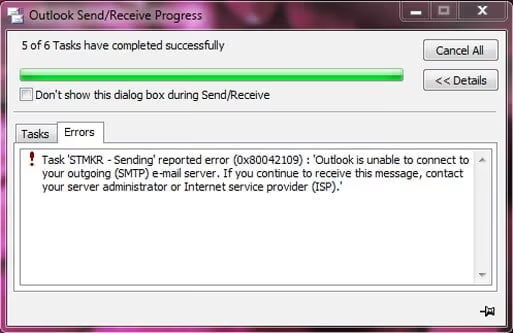
The number one cause is port 25 being blocked. Most ISPs now block port 25 to fight spam, and Outlook’s default config sometimes still uses it. Other common triggers include wrong SMTP server addresses, firewall interference, and corrupted Outlook profiles.
Can receive but can’t send? That’s your SMTP settings. When both directions fail, check our Outlook disconnection guide instead.
#How Do You Fix SMTP Settings for Error 0x80042109?
Wrong SMTP settings cause this error more than anything else. Here’s what to check:
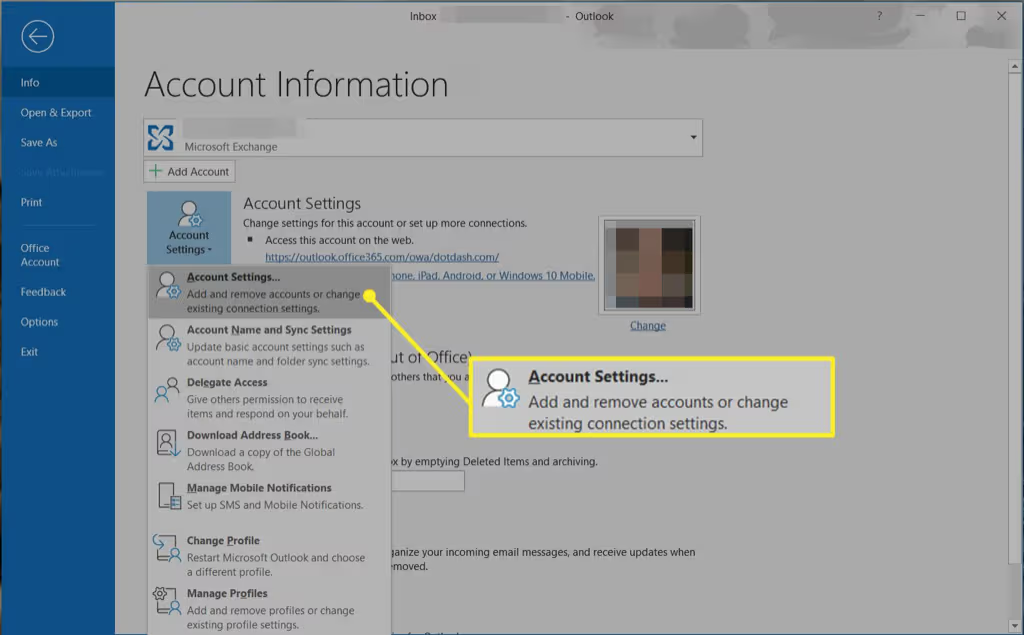
- Open Outlook and go to
File>Account Settings>Account Settings. - Select your email account and click Change.
- Verify the outgoing mail server (SMTP) address matches your provider’s documentation.
- Click More Settings and open the Outgoing Server tab.
- Check the box for My outgoing server (SMTP) requires authentication.
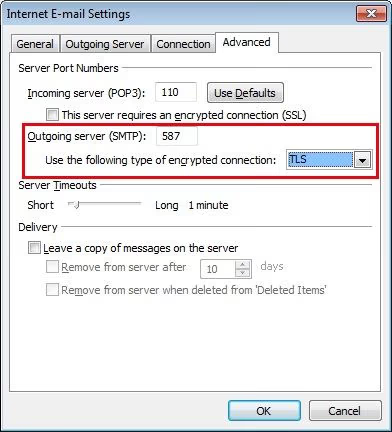
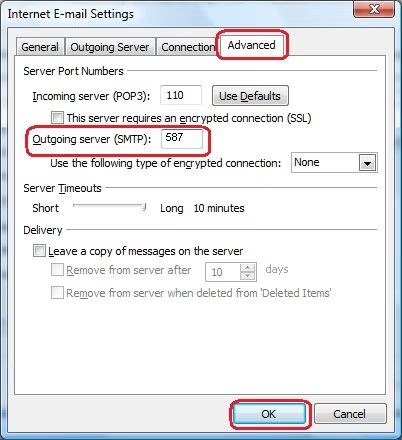
- Go to the Advanced tab and set the SMTP port to 587 with TLS encryption.
The recommended outgoing port for most providers is 587 with STARTTLS. Port 465 with SSL works as an older alternative for some providers. On hosts like GoDaddy, port 465 sometimes connects when port 587 times out, so it is worth trying as a fallback.
#Firewall and Antivirus Interference
Security software is the second most common cause. Your firewall or antivirus might block Outlook’s outgoing connection on port 587 without any visible warning.
To test this:
- Temporarily disable your antivirus real-time scanning.
- Turn off your Windows Firewall (go to
Windows Security>Firewall &network protection). - Try sending a test email from Outlook.
If the email sends successfully, your security software is the culprit. Re-enable your firewall and add Outlook.exe as an allowed application. In Windows Defender Firewall, go to Allow an app through firewall and check both Private and Public for Microsoft Outlook.
A PCMag guide on Outlook issues lists firewall interference as a common cause of send failures, so a blocking firewall is worth ruling out early.
#Advanced Fixes When Basic Steps Don’t Work
If changing the port and checking your firewall didn’t help, try these deeper fixes.
#Remove and Re-Add Your Email Account
Corrupted account profiles don’t always show obvious symptoms. Removing and re-adding the account rebuilds the entire profile:
- Go to
File>Account Settings>Account Settings. - Select your account and click Remove.
- Restart Outlook and go to
File>Add Account. - Enter your email address and follow the setup prompts.
This often fixes the error on accounts migrated from Outlook 2016 to Microsoft 365, where the old profile carries over a corrupted SSL certificate cache that blocks SMTP authentication.
#Run Outlook in Safe Mode
Add-ins can interfere with SMTP connections. Safe Mode disables all of them:
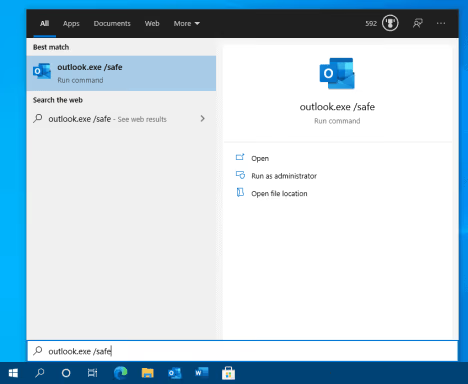
- Press Win + R, type
outlook.exe /safe, and press Enter. - If Outlook sends emails in Safe Mode, go to
File>Options>Add-Ins. - Select COM Add-ins and click Go.
- Uncheck all add-ins, click OK, and restart Outlook normally.
- Re-enable them one at a time to find the problem add-in.
#Repairing Data Files and Office Installation
If the account rebuild and Safe Mode tests didn’t help, the problem might be deeper in your data files or Office installation.
#Repair Outlook’s Data Files
Corrupted PST files can trigger 0x80042109 alongside other errors like 0x800408fc and 0x800ccc67. Microsoft’s built-in Inbox Repair Tool fixes these:
- Close Outlook completely.
- Open File Explorer and go to
C:\Program Files\Microsoft Office\root\Office16\. - Run SCANPST.EXE.
- Browse to your PST file location and click Start.
If your PST file is severely damaged, you may need to find the file or rebuild it. The repair tool handles minor corruption but won’t recover a missing file.
#Repair or Reinstall Office
As a last resort, repair the Office installation:
- Open
Control Panel>Programs and Features. - Find Microsoft Office, right-click, and select Change.
- Choose Online Repair (not Quick Repair) and follow the prompts.
According to Microsoft Office repair guidance, this process can also resolve other Outlook errors like error 0x8004060c.
#Preventing Error 0x80042109 From Returning
Once you’ve fixed the error, these habits keep it from returning:
- Keep Outlook updated. Microsoft patches SMTP-related bugs in monthly updates. Go to
File>Office Account>Update Options>Update Now. - Add Outlook to your firewall’s allowlist permanently. This prevents future updates from resetting firewall rules.
- Back up your PST files weekly. Copy them to an external drive or cloud storage. A corrupted PST is harder to fix than a backed-up one is to restore.
- Write down your SMTP settings. If you change ISPs or email providers, you’ll need the correct server address, port, and encryption type. Most providers list these on their support pages.
If you’re also having trouble with Gmail not sending emails, the problem might be your ISP or network rather than Outlook specifically. Testing with another email client narrows it down.
#Bottom Line
Start by switching your SMTP port to 587 with TLS. That one change fixes this error for most people. If it doesn’t work, check your firewall, remove and re-add your account, and run SCANPST.EXE on your data files. The port switch plus a firewall allowlist is the combination that clears this error for most people. If none of these work, contact your email provider because the problem is likely on their end.
#Frequently Asked Questions
Does error 0x80042109 affect receiving emails?
No. This error only blocks outgoing SMTP connections. You’ll still receive emails through IMAP or POP3. If receiving also fails, that’s a separate issue covered in our Outlook not receiving emails guide.
Can a VPN cause error 0x80042109?
Yes. VPNs route traffic through different servers, and some providers block SMTP ports to prevent spam abuse. Disconnecting the VPN usually fixes it instantly. If you need the VPN active, check your provider’s docs for SMTP port forwarding.
Which SMTP port should you use for Outlook?
Use port 587 with STARTTLS encryption. This is the standard recommended by the IETF in RFC 6409. Port 465 with SSL works as a fallback. Avoid port 25 entirely because most ISPs now block it.
Is it safe to use third-party PST repair tools?
Stick with Microsoft’s built-in SCANPST.EXE first. It’s free and handles most corruption cases without any risk. Third-party tools like Stellar Repair for Outlook exist for severe damage, but always download them from the official vendor site. Tools like Stellar Repair can recover most of the data from a large corrupted PST file, though the process can take a while to complete.
How do you check if your ISP blocks port 25?
Open Command Prompt and type telnet smtp.yourdomain.com 25. If the connection times out, your ISP blocks that port. Then try telnet smtp.yourdomain.com 587 to confirm the alternative works.
Can a corrupted Outlook profile cause 0x80042109?
Yes. Profile corruption breaks the stored SMTP configuration even when server settings look correct in the UI. Remove the account from File > Account Settings, restart Outlook, and add the account fresh. This rebuilds the profile with clean connection data and takes about 2 minutes.
Does reinstalling Office always fix this error?
Not always. Reinstalling helps when Office files themselves are corrupted, but it won’t fix ISP port blocks, wrong SMTP settings, or firewall rules. Try the simpler fixes first.
What if the error appears only on one computer?
That points to a local cause: firewall rules, antivirus interference, or a corrupted profile on that specific machine. Test the same email account on another computer or through Outlook Web Access at outlook.com. If it sends fine there, the problem is local. Check your firewall allowlist, disable antivirus temporarily, and try removing and re-adding the account on the affected machine.

Best Laptop for Running LLMs in 2026: Memory Comes First
The best laptop for running LLMs is a memory purchase first. Compare MacBook unified memory against NVIDIA laptop VRAM, and see what each tier really runs.

How to Run a Local LLM on Windows: A 2026 Setup Guide
Run a local LLM on Windows with LM Studio or Ollama. Pick a model that fits your GPU memory, keep every prompt offline, and skip the monthly bill.

Bluetooth Not Working on Snapdragon X? Fixes for 2026
Bluetooth not working on your Snapdragon X Copilot+ PC? Generic audio, mice, and keyboards work, but vendor apps often lack an ARM build. Fixes inside.

Docker Desktop and WSL2 Not Working on Snapdragon X? Fix It
WSL2 runs fine on Snapdragon X, but Docker Desktop ARM is Early Access and throws WSL errors. Use WSL2 plus native ARM64 Ubuntu and Docker Engine.