How to Boot Windows 11 Into Safe Mode: 4 Easy Ways
Boot Windows 11 into Safe Mode from Settings, Shift+Restart, msconfig, or recovery when Windows won't start, plus how to exit Safe Mode and use it.
Quick AnswerIf Windows starts, open Settings, go to System then Recovery, choose Restart now under Advanced startup, then pick Troubleshoot, Advanced options, Startup Settings, Restart, and press 4. If Windows won't start, force-shut down three times to reach recovery.
To boot Windows 11 into Safe Mode, you steer the PC into the recovery environment and pick a numbered startup option. There are four ways in: through Settings, with Shift and Restart, through the msconfig tool, and a fallback for when Windows won’t boot at all. Each route converges once you reach the Startup Settings menu.
- Safe Mode loads Windows with a minimal set of drivers and services, so a misbehaving driver or app often stops causing trouble there
- The fastest route when Windows works is Settings, System, Recovery, Restart now under Advanced startup
- Press 4 for plain Safe Mode or 5 for Safe Mode with Networking on the Startup Settings screen
- If Windows won’t start, interrupting the boot three times forces the recovery menu to appear on its own
- If you used msconfig to enter Safe Mode, you must uncheck Safe boot to leave it, a normal restart isn’t enough
#What Is Safe Mode and When Should You Use It?
Safe Mode is a diagnostic startup state. Microsoft’s Safe Mode guide states that option 4 will “start Windows in a basic state, using a limited set of files and drivers.” That stripped-down environment is the whole point.
When a problem vanishes in Safe Mode, you’ve learned something. The cause is a third-party driver, service, or app, not Windows itself. That makes Safe Mode the right first move for a PC that crashes on the desktop, freezes after login, or shows a persistent blue screen you can’t get past normally.
There are two flavors worth knowing before you start. Plain Safe Mode loads almost nothing at all. Microsoft’s Startup Settings reference confirms that option 5, Safe Mode with Networking, “adds the network drivers and services you’ll need to access the internet,” which matters when you need to download a fix. Use plain Safe Mode unless you specifically need to be online.
#How Do You Boot Into Safe Mode From Settings?
This is the cleanest method when Windows still loads. Open Settings, go to System, then Recovery, and click Restart now next to Advanced startup. Your PC reboots into a blue recovery menu.
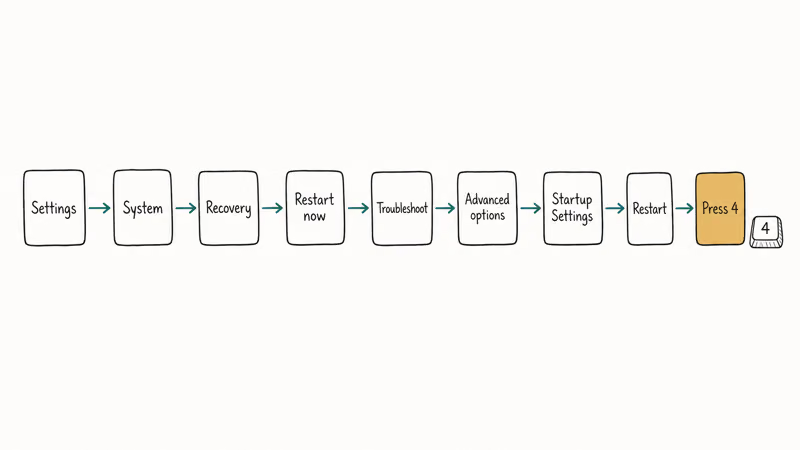
From there the path is fixed: Troubleshoot, Advanced options, Startup Settings, Restart. After the reboot you’ll see a numbered list, and pressing 4 gives you Safe Mode while 5 gives you Safe Mode with Networking.
The menu depth surprises first-timers. Just remember the chain ends at Startup Settings, and the number keys do the rest.
#The Shift + Restart and msconfig Methods
Two shortcuts cover specific situations. Hold Shift while you click Restart from the Start menu power button or the sign-in screen, and Windows boots straight into the same recovery menu, skipping the trip through Settings before you follow the identical Troubleshoot, Advanced options, Startup Settings path to the number keys.
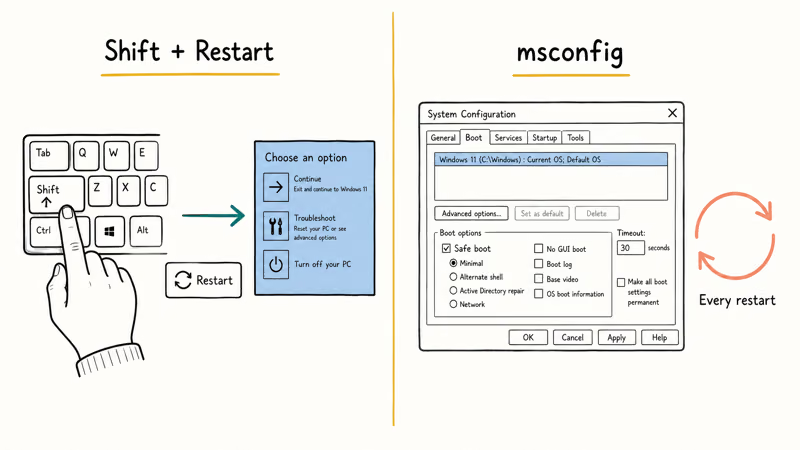
The msconfig method makes Safe Mode sticky, which is exactly what you want when you plan to reboot several times during testing. Press Windows plus R, type msconfig, open the Boot tab, tick Safe boot, and restart. The PC then boots into Safe Mode every time until you change it back, so you can swap drivers, reboot, and stay in the diagnostic environment without repeating the recovery dance on each pass.
That stickiness is the classic trap. People panic when the PC keeps returning to Safe Mode, sure it’s broken, when the fix is just clearing that one checkbox.
#Booting Safe Mode When Windows Won’t Start
This is the method that saves you when the desktop never appears. Windows watches for failed boots, and three interrupted attempts trigger the recovery environment on their own.
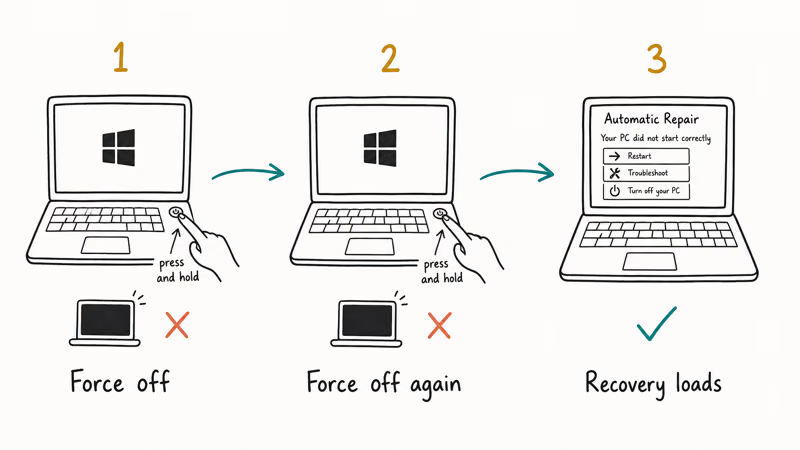
Power on, and the moment you see the Windows logo or spinning dots, hold the power button until the PC shuts off. Do it twice more. Dell’s Safe Mode walkthrough recommends exactly this, instructing users to “press and hold the power button until the PC turns off” and “repeat this process two more times” so the recovery menu loads. On the third boot, Windows gives up and shows Automatic Repair, where Advanced options leads to the same Startup Settings menu.
It feels wrong to force-kill the PC mid-boot. Even so, it’s the documented path into recovery on an unbootable machine. Once you’re in, press 4 and start diagnosing.
#What to Do Once You Are in Safe Mode
Inside Safe Mode, the words “Safe Mode” sit in all four corners of the screen, and the desktop looks plain because the graphics driver runs in a basic mode. This is your window to undo whatever broke things. Uninstall a driver or app you added right before the trouble started, run an antivirus scan, or roll back a recent update from Settings.
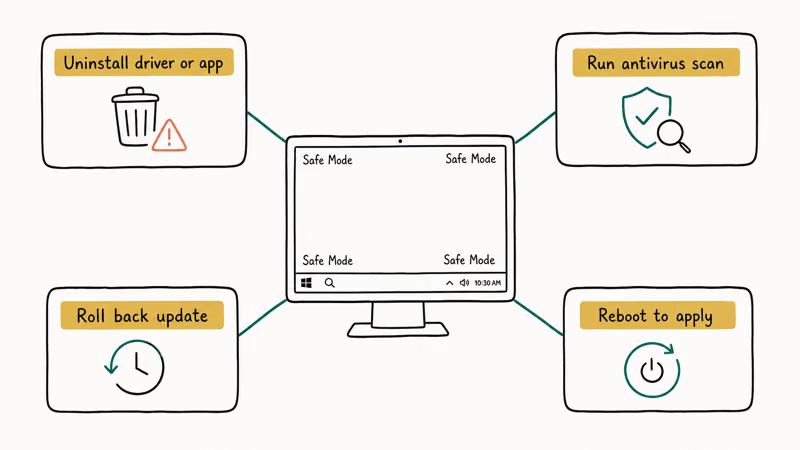
The logic is simple. Whatever you change here takes effect when you return to normal Windows. If a stuck Windows update triggered the mess, Safe Mode is a calm place to retry or pause it. A peripheral that died after a bad driver, like a camera that stopped working, is another thing you can roll back here without other software interfering.
#Exiting Safe Mode Without Getting Stuck
Exiting depends on how you got in. A normal restart returns you to standard Windows if you used Settings, Shift+Restart, or the recovery menu. If you used msconfig, you must reopen it and clear Safe boot first, or the loop continues.
After a clean exit, a PC that still struggles to power down is a separate issue, and the guide to why Windows won’t shut down walks through it. A display that stays in low resolution usually just needs the graphics driver reloaded, which is also covered in the fix for a second monitor that isn’t detected.
#Bottom Line
For a PC that still reaches the desktop, memorize the Settings route: System, Recovery, Restart now, then Troubleshoot to Startup Settings, press 4. Keep the three-interrupted-boots trick for the day Windows won’t load at all. Reach for msconfig only when you need Safe Mode to persist across several reboots, and uncheck Safe boot the moment you’re done.
#Frequently Asked Questions
Why does my PC keep booting into Safe Mode?
You almost certainly enabled Safe boot in msconfig and forgot to turn it off. Press Windows plus R, type msconfig, open the Boot tab, clear the Safe boot checkbox, and restart.
What’s the difference between Safe Mode and Safe Mode with Networking?
Plain Safe Mode loads the bare minimum and gives you no internet access at all. Safe Mode with Networking adds the network drivers so you can download a tool or look up a fix while you work. Pick plain Safe Mode unless you actually need to be online, since fewer drivers means fewer variables in your diagnosis, and a cleaner result if the problem disappears. The moment networking is loaded, a network driver becomes a possible suspect again.
How do I force Safe Mode if Windows won’t boot?
Interrupt the boot three times. Power on, and when you see the logo or spinning dots, hold the power button to force a shutdown. After the third failed attempt, Windows loads Automatic Repair, where Advanced options leads to Startup Settings and the number keys.
Will Safe Mode delete my files?
No. Safe Mode only changes which drivers and services load at startup. Your documents, photos, and installed programs are untouched, so it’s purely a diagnostic environment.
Can I fix a blue screen in Safe Mode?
Often, yes. If the crash comes from a bad driver or app, Safe Mode usually boots without crashing, letting you uninstall the culprit or roll back the change. If the blue screen still appears even in Safe Mode, the problem is deeper and points to hardware or core system files.
How do I get out of Safe Mode?
Restart the PC normally if you entered through Settings, Shift+Restart, or recovery. If you used msconfig, reopen it, clear the Safe boot box on the Boot tab, then restart. Forgetting that last step is the single most common reason a PC seems trapped in Safe Mode.

Best Laptop for Running LLMs in 2026: Memory Comes First
The best laptop for running LLMs is a memory purchase first. Compare MacBook unified memory against NVIDIA laptop VRAM, and see what each tier really runs.

How to Run a Local LLM on Windows: A 2026 Setup Guide
Run a local LLM on Windows with LM Studio or Ollama. Pick a model that fits your GPU memory, keep every prompt offline, and skip the monthly bill.

Bluetooth Not Working on Snapdragon X? Fixes for 2026
Bluetooth not working on your Snapdragon X Copilot+ PC? Generic audio, mice, and keyboards work, but vendor apps often lack an ARM build. Fixes inside.

Docker Desktop and WSL2 Not Working on Snapdragon X? Fix It
WSL2 runs fine on Snapdragon X, but Docker Desktop ARM is Early Access and throws WSL errors. Use WSL2 plus native ARM64 Ubuntu and Docker Engine.