Android Keyboard Not Showing? 8 Fixes to Get Typing Again
Android keyboard not showing when you tap a text field? Reselect the default keyboard, fix Gboard crashes, and disconnect hardware keyboards.
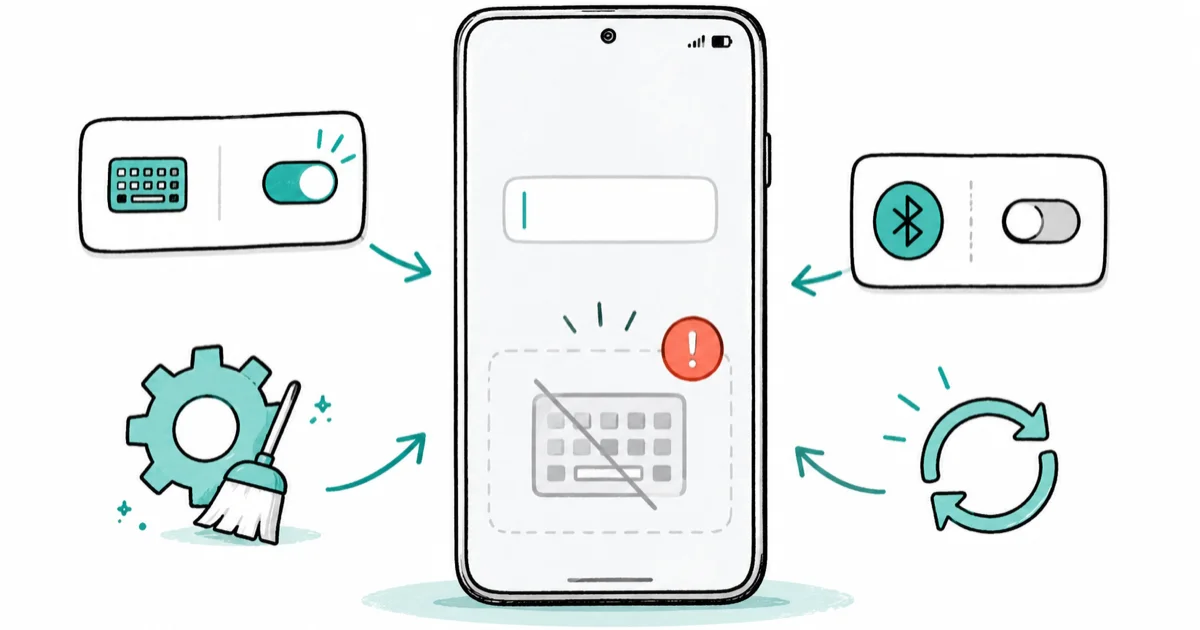
Quick AnswerAn Android keyboard usually fails to appear because the default input method got switched off, a Bluetooth keyboard is connected, or the keyboard app crashed. Reselect your default keyboard first, then disconnect any hardware keyboard, then clear the keyboard app cache.
Android keyboard not showing when you tap a text field is one of the more alarming glitches, because you can’t even search Settings to fix it. The good news: it’s almost always a software state, not a broken screen. This guide walks you back to a working keyboard without a factory reset, starting with the fastest fix.
The phone and accounts here are assumed to be your own.
- The most common cause is the default keyboard getting deselected or a keyboard app crash
- A connected Bluetooth or USB keyboard can hide the on-screen keyboard, since Android assumes you’ll type on the hardware
- Voice typing and the Settings search bar give you input even while the keyboard is broken
- Clearing the keyboard app’s cache fixes most crashes without deleting your saved words or settings
- A factory reset is never an early step for a missing keyboard, since the fix is usually one setting deep
#Why Is Your Android Keyboard Not Showing?
A missing keyboard comes from a short list of causes. The most common is the default input method getting switched off or pointed at a keyboard that’s no longer installed. Next is a crash in Gboard or Samsung Keyboard, where the app dies the instant it tries to open.
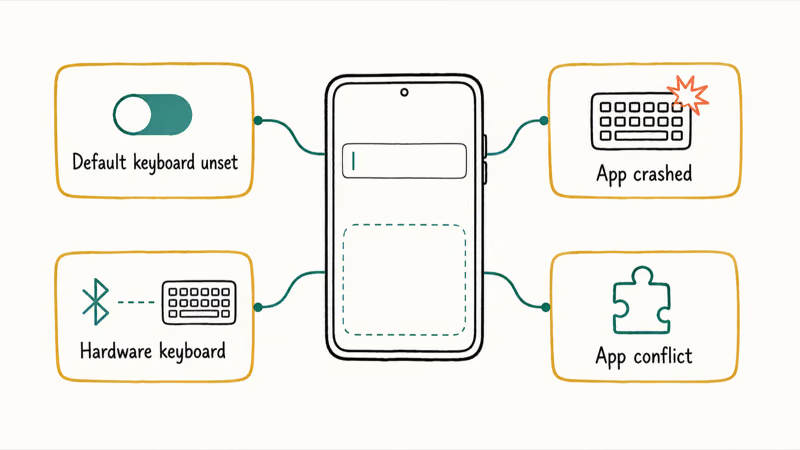
A subtler cause is a hardware keyboard. When a Bluetooth or USB-C keyboard is paired, Android can suppress the on-screen one, assuming you’ll type on the physical keys.
The last group is app conflicts and floating-mode confusion. A third-party keyboard you installed can misbehave, or you may have nudged the keyboard into a one-handed or floating layout that’s docked off-screen. Each cause has a distinct fix, so identify yours before you start tapping settings blindly.
#Switch Back to the Default Keyboard
If no keyboard appears at all, your default input method may be unset. You don’t need a keyboard to fix this, since Settings uses menus and toggles.
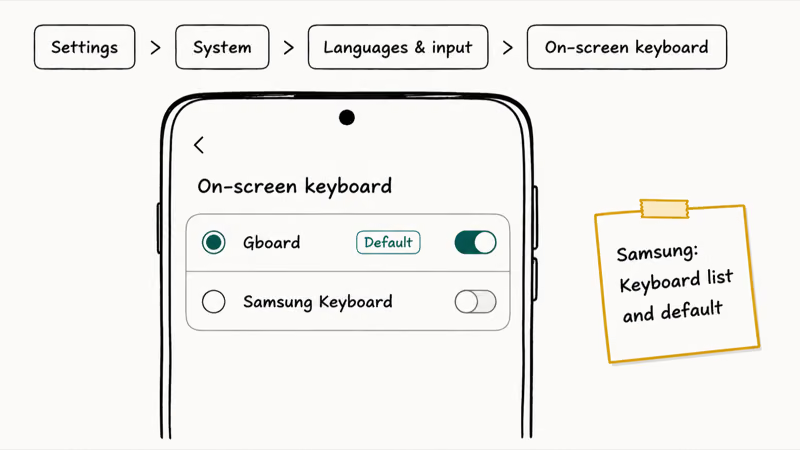
Go to Settings > System > Languages & input > On-screen keyboard. On a Samsung Galaxy, the path is Settings > General management > Keyboard list and default. Confirm a real keyboard, like Gboard or Samsung Keyboard, is set as the default and is toggled on in the list of available keyboards.
While you’re here, use the Settings search bar to test input. Tap it. If the keyboard pops up there but not in your messaging app, the problem is app-specific rather than system-wide.
That single test saves a lot of wasted effort. If text-related apps are misbehaving more broadly, our guide to Android not receiving texts covers the messaging side, and a phone that also drains fast may be killing background services, which our Samsung battery draining fast guide addresses.
#Fix Gboard or Samsung Keyboard Crashes
When the keyboard flashes and vanishes, clear the keyboard cache first: Settings > Apps > Gboard (or Samsung Keyboard) > Storage > Clear cache.
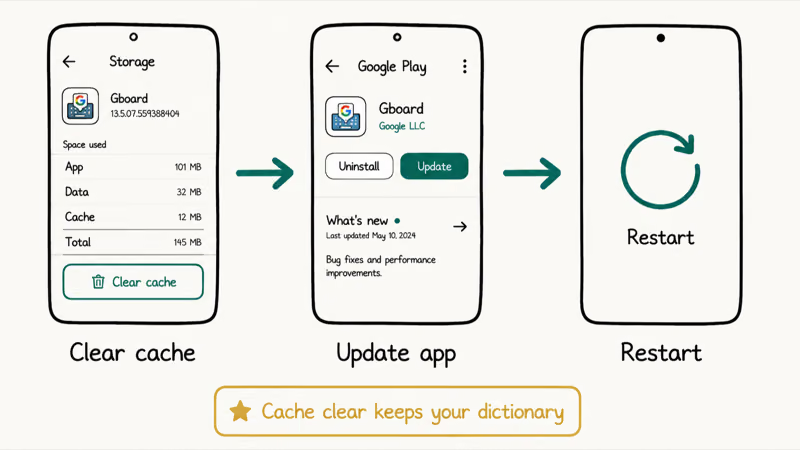
If clearing cache doesn’t hold, update the app through the Google Play Store, then restart the phone. According to Google, fixing an Android app that won’t work follows 3 escalating steps: force-stop it, clear its cache and data, then update or reinstall, with a restart after each. The official app troubleshooting guide lays out that exact order, so follow it rather than jumping straight to a reinstall.
A crashing keyboard often points to a corrupt update. Clearing the cache plus updating the keyboard through the Play Store or Galaxy Store is the targeted fix before a reinstall. The pattern mirrors other system app crashes, like when Samsung Keyboard keeps stopping with an explicit error, or the older Samsung Keyboard has stopped issue.
#What If a Bluetooth Keyboard Is Hiding the On-Screen Keyboard?
If you’ve ever paired a Bluetooth keyboard, Android may still think you want to type on it. When a physical keyboard is connected, the system hides the soft keyboard by default to avoid covering the screen unnecessarily.
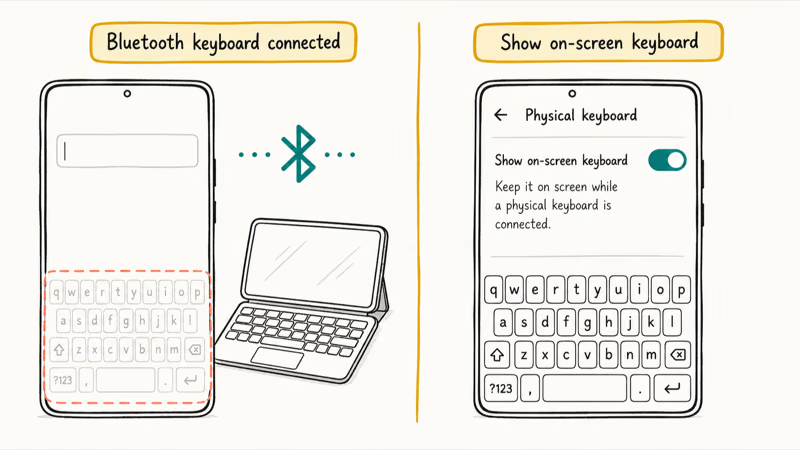
In Settings > System > Languages & input > Physical keyboard, turn on Show on-screen keyboard.
Then confirm no stray Bluetooth device is connected under Settings > Connected devices. A keyboard case, a tablet dock, or even a paired game controller can trigger this. Disconnect anything you’re not using and the on-screen keyboard should return.
#Clear Keyboard Cache and Update the App
When sound and pairing aren’t the issue, the keyboard’s language or input setup may be the culprit. Gboard in particular relies on having at least one language enabled. According to Google’s Gboard setup guide, you manage keyboards under Settings > System > Keyboard > On-screen keyboard > Gboard > Languages, where you add and enable a language layout.
Make sure at least one language is active. If the list is empty, add your language and enable its layout, then tap Done. An empty language list can leave the keyboard unable to render.
Google’s broader Gboard settings reference confirms that input, languages, and layout all live in the same keyboard settings area, so a missing layout is a likely cause of a blank keyboard. If Gboard is still unstable, clear its storage as a last resort within the app, knowing it will reset your learned words. A reinstall from the Play Store is the next step.
#Use Safe Mode for App Conflicts
When a downloaded keyboard or another third-party app interferes, Safe Mode isolates it. Safe Mode boots the phone with only the built-in apps loaded, so if the keyboard works there, a downloaded app is the cause. This is the same isolation technique used to chase down problems like Android Bluetooth dropping.
To enter Safe Mode on most phones, press and hold the power button, then press and hold the “Power off” option until the Safe Mode prompt appears. Test typing in a built-in app.
If the keyboard behaves in Safe Mode, restart normally and uninstall recently added apps one at a time, especially other keyboards or accessibility tools. Avoid installing unknown keyboard APKs from outside the Play Store, since they’re a common source of input bugs and a real privacy risk for everything you type.
#Bottom Line
Recover the default keyboard first, then fix the app. If Gboard or Samsung Keyboard crashes, clear its cache and update it; if a Bluetooth keyboard is connected, enable the on-screen keyboard toggle. Use voice typing or the Settings search bar to keep working while you troubleshoot, and never download an unknown keyboard APK just to regain typing.
#Frequently Asked Questions
Why is my Android keyboard not showing?
Usually the default input method got switched off, the keyboard app crashed, or a Bluetooth keyboard is hiding it. Reselect your default keyboard and check for connected hardware first.
What should I check first?
Test the Settings search bar. If the keyboard appears there but not in your app, the problem is app-specific. If it appears nowhere, your default input method is likely unset or the keyboard app has crashed and needs a cache clear.
Can a software update cause the keyboard to disappear?
Yes. A system update or a botched keyboard app update can reset input settings or corrupt the app’s cache, which makes it crash on launch. After any major update, clear the keyboard app’s cache and confirm your default keyboard is still selected in the input settings.
Will clearing the keyboard cache delete my saved words or settings?
Clearing the cache won’t, since cache is only temporary data that rebuilds itself. Clearing storage or data is different: it resets your dictionary, learned words, and preferences, so treat that as a last resort. Reinstalling the keyboard app also wipes learned words, but your typed history is never lost, only the app’s local personalization. Back up any custom text shortcuts you rely on before doing either.
When should I contact official support?
Reach out to Google or Samsung if no keyboard works after you’ve reselected the default, cleared the cache, updated the app, and tested in Safe Mode. A keyboard that fails across every app and survives a clean Safe Mode boot may signal a deeper system fault.
How do I prevent this from happening again?
Keep your keyboard app updated, avoid installing keyboard APKs from outside the Play Store, and remember the Bluetooth keyboard toggle if you use a hardware keyboard. Knowing the voice-typing fallback means a missing keyboard is never a true dead end.

Pixel 11 vs Pixel 10: What Changed and Who Should Upgrade
Pixel 11 vs Pixel 10: same screen and camera resolution, new Tensor G6, 25W wireless, and Gemini Intelligence. Here is who should actually upgrade.

Verizon Not Receiving Texts? How to Fix It in 9 Steps
Verizon not receiving texts? Fix it in 9 steps: check Message Blocking in My Verizon, reset network settings, deregister iMessage, and call support.

Pixel Battery Drain: What Google's July Fix Really Covers
Google marked the Pixel idle battery drain bug fixed in July, but only some phones got the patch. Here is who is covered, who is not, and what to try.

iPhone Stuck on EDGE? How to Get 5G or LTE Back (2026)
iPhone stuck on EDGE with crawling data? Here's why the E icon appears, which settings force 5G or LTE back, and when the problem is your carrier.