Android Alarm Not Going Off? 8 Fixes That Actually Work
Android alarm not going off? Fix a missed alarm by checking sound, Do Not Disturb, and battery limits in order before you trust it overnight again.
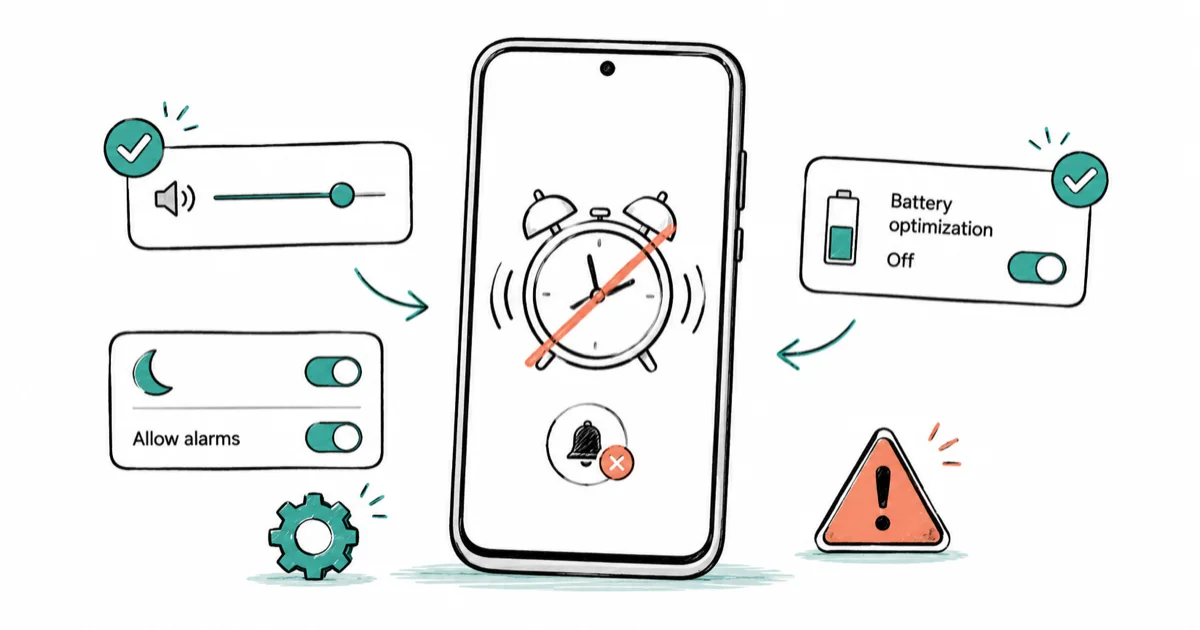
Quick AnswerAn Android alarm usually fails to ring because its sound is silent, vibration is off, or Do Not Disturb is blocking it. Check the alarm volume and sound first, then make sure Do Not Disturb allows alarms, then remove battery limits from Clock.
Your Android alarm not going off is almost never a broken clock. The phone tried to wake you, but something muted it. This guide checks the real causes in the order that catches the most missed alarms, so you stop guessing.
The phone and apps here are assumed to be your own.
- A missed alarm is usually a sound or DND problem, not a hardware fault
- Alarm volume is a separate slider from media and ringer volume on most Galaxy and Pixel phones
- An alarm set to a silent sound with vibration off makes no noise, which is the single most common cause
- Battery optimization can freeze the Clock app overnight, so set it to Unrestricted on phones that manage background apps aggressively
- Always set a backup alarm a few minutes after your main one before you trust the phone for an important morning
#Why Did Your Android Alarm Not Go Off?
A missed alarm comes from one of four layers. The first is sound, where the alarm has no audible tone or alarm volume is down. The second is “Do Not Disturb”, Bedtime, or Sleep mode silencing the phone on a schedule. The third is the system suspending the Clock app to save battery, and the fourth, rarest one is a Clock app glitch.
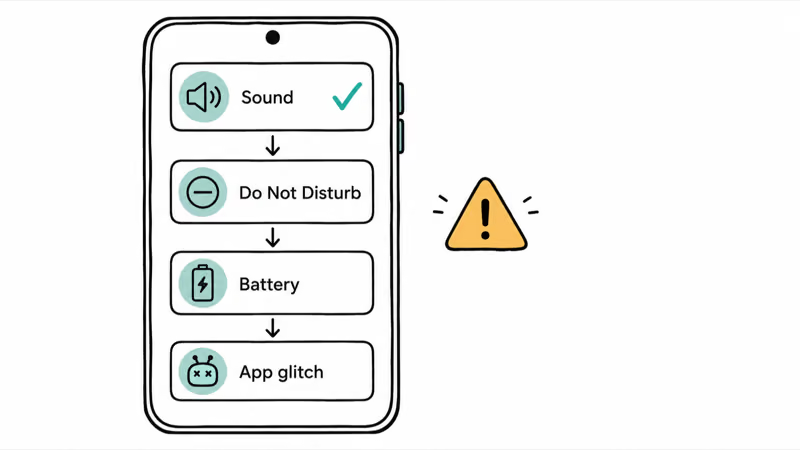
Start at the top. Most missed alarms die at the sound layer.
The one question that splits the diagnosis: did the alarm fire silently, or never fire at all? A silent alarm points to volume, sound, and DND. An alarm that never fired points to a battery restriction or a schedule that disabled it overnight.
#Check Alarm Volume, Sound, and Vibration First
Alarm volume is its own control, separate from the ringer and media sliders. On a Pixel, go to Settings > Sound & vibration and find the alarm volume slider. On a Samsung Galaxy, it’s Settings > Sounds and vibration > Volume. If that slider sits at the bottom, the alarm plays at near-zero even when your music is loud.
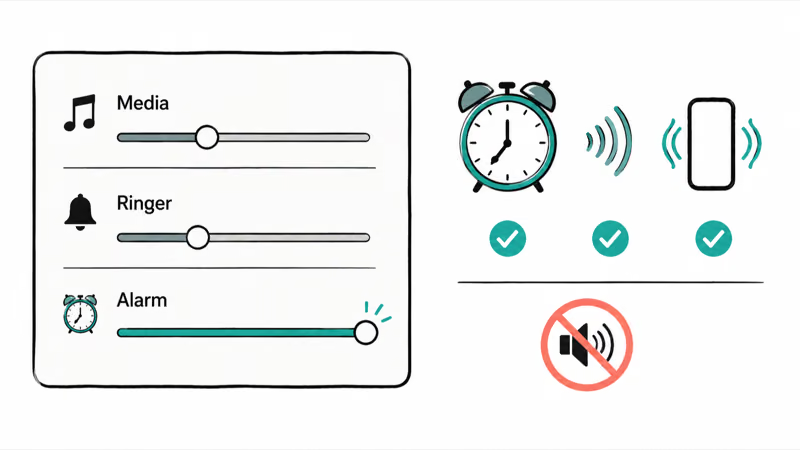
Now confirm the alarm has a real sound. According to Google’s guide to setting alarms, if your alarm ringtone is set to silent and vibration is off, your alarm won’t go off at all. That one sentence explains a huge share of missed alarms. Tap the alarm in the Clock app, check the sound, and pick a device tone you can actually hear.
Watch for vibration-only setups. People who keep the phone face-down turn vibration on and sound off, then wonder why nothing woke them.
Set both for important alarms. And confirm a Bluetooth speaker or earbuds aren’t quietly grabbing the audio and routing the alarm somewhere you can’t hear it. The same background-power behavior shows up when Android Bluetooth keeps disconnecting, so a flaky audio route is worth ruling out.
#Will Do Not Disturb Block Your Alarms?
DND is the second most common alarm killer. People assume it only silences calls and texts. Its defaults can mute much more.
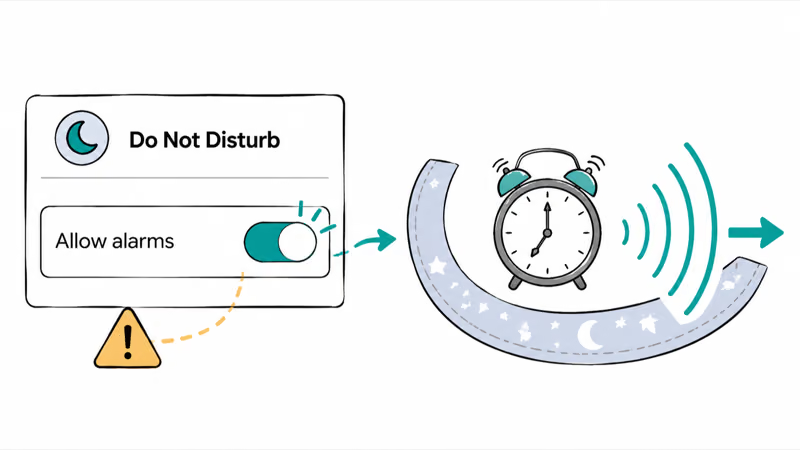
According to Google, on Android 10 and newer the “Alarms & other interruptions” category controls whether alarms, media, and reminders ring through, and you set those exceptions yourself. The official interruptions documentation lays out each category. Open Settings, find the DND schedules section, and make sure alarms are allowed.
That is the trap with sleep schedules. They mute the world while you sleep, which is exactly when the alarm needs to break through. Samsung’s Bedtime mode and Modes and Routines can behave the same way, so check that any sleep schedule lists alarms as an allowed sound before you rely on it.
#Remove Battery Restrictions From the Clock App
If the alarm never fired at all, suspect battery optimization. Recent Android versions suspend background apps to save power, and an over-eager setting can freeze the Clock app so its scheduled alarm never triggers.
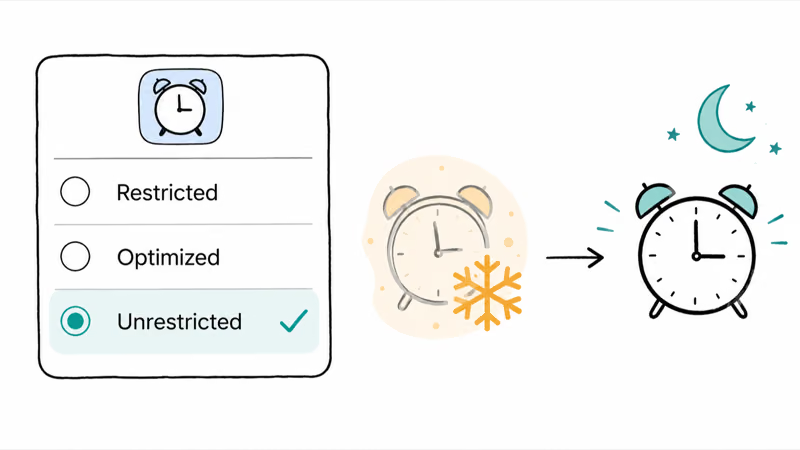
Go to Settings > Apps > Clock > Battery and set it to Unrestricted.
Google’s advice on app battery usage recommends restricting apps with high battery use, but the Clock app is the one you want left alone, because a frozen clock can’t wake you. On heavy power-management phones, this single change is often the difference between a working alarm and a silent one.
Battery drain and battery management interact here. If the phone is also losing charge fast, our guide to Android system battery drain covers the broader settings, and Galaxy owners can check why a Samsung battery drains so fast for device-specific toggles.
A phone that struggles to hold a charge, covered in why an Android won’t charge, can quietly compound the problem by triggering even more aggressive power saving overnight.
#Fix Samsung Clock and Google Clock App Glitches
When sound, DND, and battery all check out but the alarm still misfires, the Clock app may be glitching. Clear its cache first. Go to Settings > Apps > Clock > Storage and tap Clear cache, which rebuilds temporary data without deleting your alarms.
If that doesn’t help, update the app through the Google Play Store, then restart. Google’s app troubleshooting steps confirm the order: force-stop, clear cache, update, and restart after each step.
To rule out a third-party clock app, boot into Safe Mode, which loads only built-in apps. Samsung’s Safe Mode guide explains how to restart a Galaxy phone with downloaded apps disabled. If your alarm works in Safe Mode, a downloaded app is the culprit.
A persistent app crash, like when Samsung Keyboard keeps stopping, often shares the same cache-and-update fix.
#Set a Backup Alarm Before Testing Overnight
Don’t trust the phone the morning after a fix until you’ve tested it.
Set a backup alarm for two or three minutes after your main one. If the first fires and the second is there as insurance, you’ve confirmed the fix without risking an important wake-up.
For anything truly critical, like a flight or an interview, use a second device or a smart speaker as a redundant alarm. One phone, one alarm, and full confidence is a fragile setup. Redundancy costs nothing.
#Bottom Line
Treat a missed Android alarm as a reliability problem, not just a volume problem. Confirm the alarm has a real, audible sound and that DND allows it through, then set the Clock app to Unrestricted so battery optimization can’t freeze it overnight. Test with a near-term backup alarm before you trust the phone again, and keep a second alarm running for any morning you can’t afford to miss.
#Frequently Asked Questions
Why did my Android alarm not go off?
Usually a silent alarm sound, vibration turned off, low alarm volume, or DND blocking it. A frozen Clock app is the next suspect if the alarm never fired at all.
What should I check first?
Check the alarm’s sound and the alarm volume slider, which is separate from your ringer and media volume. An alarm set to a silent tone with vibration off makes no noise. This one check resolves a large share of missed alarms in seconds.
Can a software update cause my alarm to stop working?
Yes. A major Android update can reset notification or battery settings, and occasionally re-enables aggressive power management that suspends the Clock app. After any big update, reconfirm that the Clock app is on Unrestricted battery and that your Bedtime or DND schedule still allows alarms through.
Will resetting settings delete my alarms or data?
Clearing the Clock app’s cache won’t delete your alarms, since cache is just temporary connection data that the app rebuilds on its own. Clearing storage or data is different, because it can remove saved alarms and preferences, so use that only as a genuine last resort. A full system settings reset doesn’t erase personal files like photos or documents, but it can wipe app-level customizations and Wi-Fi passwords, so back up anything you can’t easily recreate before you run it.
When should I contact official support?
Reach out to Google or Samsung support if the alarm still fails after you’ve fixed the sound, DND, and battery settings and tested in Safe Mode. Persistent failure across multiple apps can point to a deeper system or hardware issue that support is better placed to diagnose.
How do I stop this from happening again?
Set important alarms with both sound and vibration, keep the Clock app on Unrestricted battery, and add a backup alarm a few minutes later. For high-stakes mornings, use a second device. These habits turn an unreliable alarm into one you can depend on.

Pixel 11 vs Pixel 10: What Changed and Who Should Upgrade
Pixel 11 vs Pixel 10: same screen and camera resolution, new Tensor G6, 25W wireless, and Gemini Intelligence. Here is who should actually upgrade.

Verizon Not Receiving Texts? How to Fix It in 9 Steps
Verizon not receiving texts? Fix it in 9 steps: check Message Blocking in My Verizon, reset network settings, deregister iMessage, and call support.

Pixel Battery Drain: What Google's July Fix Really Covers
Google marked the Pixel idle battery drain bug fixed in July, but only some phones got the patch. Here is who is covered, who is not, and what to try.

iPhone Stuck on EDGE? How to Get 5G or LTE Back (2026)
iPhone stuck on EDGE with crawling data? Here's why the E icon appears, which settings force 5G or LTE back, and when the problem is your carrier.