How to Manage Startup Programs in Windows 11 (2026)
Speed up boot by disabling startup programs in Windows 11. Use Settings, Task Manager startup impact ratings, and the Startup folder, plus what to keep on.
Quick AnswerOpen Settings, go to Apps then Startup, and toggle off programs you don't need at boot. Or open Task Manager's Startup apps tab to disable items and read their Startup impact rating. This speeds up startup without uninstalling the apps.
The fastest way to manage startup programs in Windows 11 is to switch them off in Settings or Task Manager so fewer apps load when you sign in.
Every program that launches at boot competes for your CPU and disk during the slowest moment of the day. Disabling unneeded auto-starting apps can make the desktop feel usable sooner.
- Disable startup apps under Settings, Apps, Startup, or in Task Manager’s Startup apps tab
- Task Manager rates each app’s Startup impact as Low, Medium, or High, so you know which ones cost the most
- High-impact items use more than one second of CPU time or over 3 megabytes of disk at boot, per Microsoft
- Disabling a startup app does not uninstall it, the program still opens normally when you launch it
- Some auto-starters hide in the Startup folder rather than the Settings list, reachable with shell
#Why Do Startup Programs Slow Down Your PC?
Every startup program adds work to the boot sequence. When you sign in, Windows has to load the system and then each of these apps at once, and a long list turns the first minute into a traffic jam of competing CPU and disk requests.
Microsoft’s guide to configuring startup applications states that the applications running at boot “can impact both the speed of your startup and the overall performance of your system.” That second part matters: some of these apps keep running in the background long after boot finishes, so they cost you all day. They can drag everything from the taskbar’s responsiveness to general snappiness.
The fix isn’t drastic. You don’t uninstall anything, you simply tell the worst offenders not to launch automatically. They still open the instant you click them, you’ve just reclaimed the boot.
#How Do You Disable Startup Apps in Settings?
This is the simplest route. Open Settings, go to Apps, then Startup. You’ll see a list of programs with toggles, each marked with its rough startup impact.
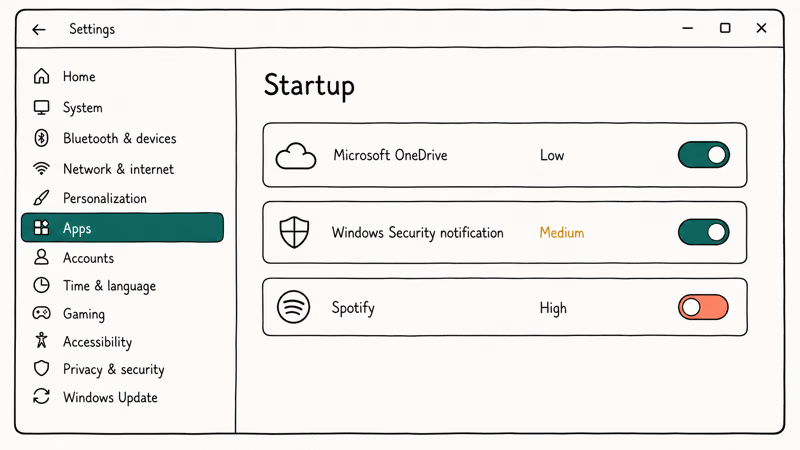
Flip off the toggle for anything you don’t need ready the moment you log in. A chat app, a music player, or a hardware updater rarely needs to launch before you do. Microsoft’s startup apps walkthrough confirms you simply “set the toggle to Off to prevent the app from starting automatically,” which covers the majority of what clutters a typical PC.
Switching off unneeded startup utilities can shorten the wait for a responsive desktop without removing the apps, since each one still opens normally on demand afterward.
#Using Task Manager and Startup Impact Ratings
Task Manager gives you the same list with more detail. Right-click Start, open Task Manager, and select the Startup apps tab. Each entry shows an impact rating, which is the number you actually want.
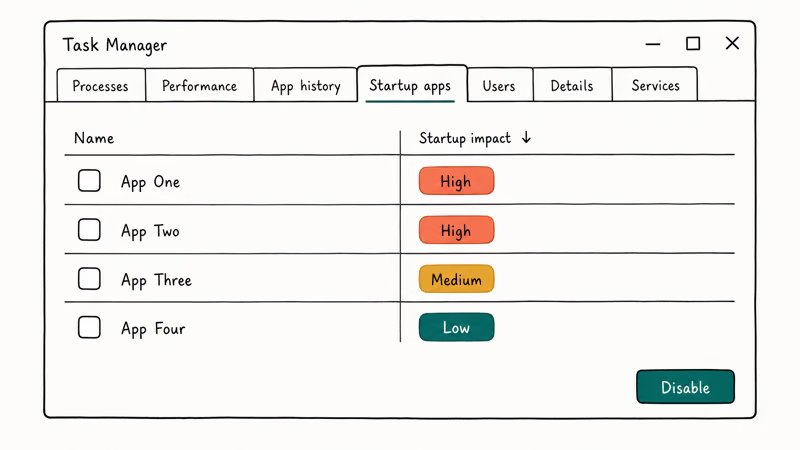
According to Microsoft’s startup documentation, a High impact app uses “more than 1 second” of CPU time or “more than 3 megabytes” of disk at startup, while Low impact apps use under 300 milliseconds of CPU and under 292 kilobytes of disk. Sort by impact and target the High entries first. Select an app and click Disable to stop it launching, or Enable to bring it back.
This is the smarter way to prioritize. High-impact updaters and helper apps are usually the first place to look, because disabling the obvious offenders can recover startup time while everything else stays untouched. If a startup driver is actually crashing the system rather than just slowing it, that’s a different problem, and the blue screen fix guide covers it.
#The Startup Folder and Hidden Auto-Starters
Some programs never appear in the Settings or Task Manager lists because they auto-start a different way. They sit in the Startup folder, a leftover mechanism Windows still honors.
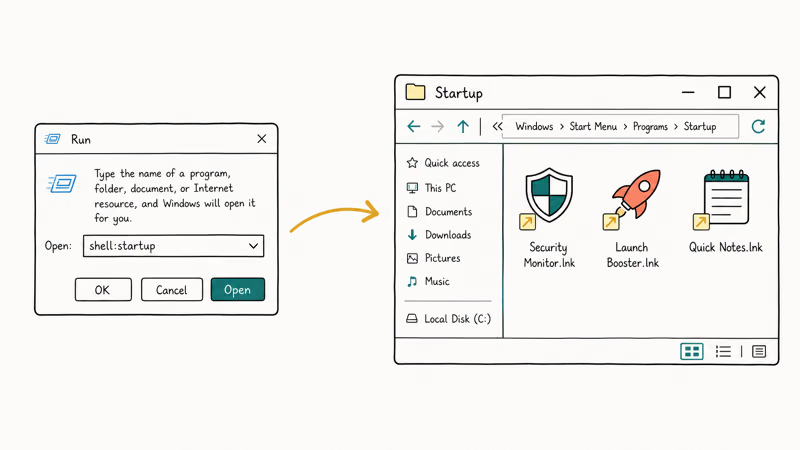
To see it, press Windows plus R, type shell
, and press Enter to open your personal Startup folder. Anything in here launches at login, so deleting a shortcut stops that program, and shell startup opens the version that affects every account on the PC rather than just yours, which is where shared utilities sometimes hide.#Tracking Down a Stubborn Auto-Starter
There are deeper auto-starters too, like scheduled tasks and services, but those are rarely worth touching for everyday speed. For most people the Settings list, Task Manager, and the Startup folder cover everything.
If a stubborn process keeps loading and you can’t find it, the guide to booting into Safe Mode gives you a clean environment to investigate.
The same crowd can leave a PC that won’t shut down cleanly. A stuck pen-input feature is one background extra you may want gone.
If a nonessential app keeps recreating its startup entry after you disable it, remove the app through Windows first; if that uninstall fails, IObit Uninstaller can check for leftover files and startup entries before you approve deletion.
Some links on this page are affiliate links, which means fone.tips may earn a commission at no extra cost to you.
#Which Startup Programs Are Safe to Disable
The safe-to-disable list is longer than people expect. Most third-party apps you rarely use can be switched off without harm, including chat clients, media players, game launchers, manufacturer updaters, and sync helpers for cloud services you barely touch, since none of them need to be running the second you reach the desktop. Adobe’s AcroTray helper is a common High-impact example you can turn off without breaking PDF viewing.
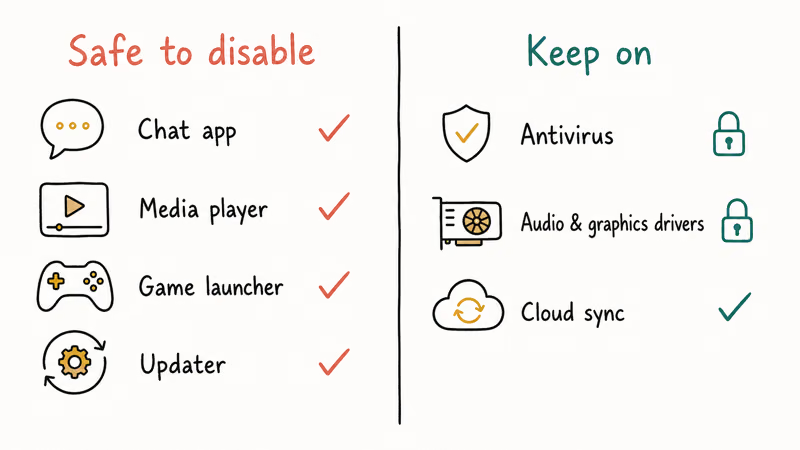
Leave the essentials running. Keep your antivirus, your audio and graphics drivers, and the sync client for the cloud service you actually depend on. When you’re unsure about a name you don’t recognize, disable it, restart, and confirm nothing broke before the next one.
This careful approach beats a blanket purge. A reckless sweep can disable a driver helper or a security component and create new problems, whereas a measured pass through the High-impact entries delivers the speed without the risk. Microsoft’s clean boot guide recommends, when chasing a specific conflict, that you “test half of them at a time, thus eliminating half of the items as the potential cause with each reboot,” restarting between batches to pinpoint the culprit.
#Bottom Line
Open Task Manager’s Startup apps tab, sort by impact, and disable the High-impact third-party apps you don’t need ready at sign-in, since that single move recovers most of the lost boot time. Keep your security tools, drivers, and the cloud sync you actually use switched on, and check the shell
folder for the sneaky extras that skip the normal list. If you disable something and a feature you wanted stops working, just re-enable it, nothing here is permanent or destructive.#Frequently Asked Questions
Does disabling a startup program uninstall it?
No. Disabling a startup item only stops it launching automatically when you sign in. The program stays fully installed and opens normally whenever you click it. You’re changing one preference, not removing anything.
What does Startup impact High mean in Task Manager?
It means the app is one of the heavier loads on your boot. Microsoft defines High impact as using more than one second of CPU time or over three megabytes of disk activity during startup. These are the items worth disabling first, since they cost the most time at the slowest moment.
Should I disable all startup programs?
No. Disable the third-party apps and updaters you don’t need ready immediately, but leave security software, audio and graphics drivers, and the cloud sync you depend on running.
Where is the Startup folder in Windows 11?
Press Windows plus R, type shell
, and press Enter to open your personal Startup folder. Anything with a shortcut here launches at login, so deleting that shortcut stops it. Use shell startup for the all-users version.Will managing startup apps fix a slow computer?
It fixes a slow startup, and often improves general responsiveness when those apps kept running in the background. If your PC stays slow well after boot even with a trimmed startup list, the cause is more likely storage pressure, low memory, or one misbehaving program, so look at your running processes and free disk space next.
Why do disabled programs come back at startup?
A few apps re-add themselves to startup when you update or relaunch them, especially aggressive updaters and sync tools. If one keeps returning, check its own settings for a “launch at startup” option and turn it off there, which is more durable than disabling it again in Task Manager each time.

Best Laptop for Running LLMs in 2026: Memory Comes First
The best laptop for running LLMs is a memory purchase first. Compare MacBook unified memory against NVIDIA laptop VRAM, and see what each tier really runs.

How to Run a Local LLM on Windows: A 2026 Setup Guide
Run a local LLM on Windows with LM Studio or Ollama. Pick a model that fits your GPU memory, keep every prompt offline, and skip the monthly bill.

Bluetooth Not Working on Snapdragon X? Fixes for 2026
Bluetooth not working on your Snapdragon X Copilot+ PC? Generic audio, mice, and keyboards work, but vendor apps often lack an ARM build. Fixes inside.

Docker Desktop and WSL2 Not Working on Snapdragon X? Fix It
WSL2 runs fine on Snapdragon X, but Docker Desktop ARM is Early Access and throws WSL errors. Use WSL2 plus native ARM64 Ubuntu and Docker Engine.