Word Password Remover: Unlock Your Own Document (2026)
Lost the password to your own Word document? Here's what a Word password remover does, when Microsoft can help, and the recovery steps that work in 2026.
Quick AnswerIf you still know the password, open the file, go to File > Info > Protect Document > Encrypt with Password, clear the box, and save. If you forgot the password on a document you own, you need a Word password recovery tool because Microsoft cannot recover the file for you.
A Word password remover only matters in one situation: you own the document, you forgot the password, and Microsoft Word won’t budge. The right move depends on whether the password blocks opening the file or only blocks editing it. This guide walks through both, with the official Microsoft path first and a paid recovery tool as a last resort.
- Modern Word files (Word 2013 and newer) use AES-256 encryption, so there’s no hidden Microsoft master key.
- If you know the password, removing it takes 4 clicks inside Word and zero extra software.
- A forgotten “open” password on a .docx requires brute-force or dictionary recovery on your own machine.
- A “Restrict Editing” password is different. It only blocks edits, and you can usually strip it by editing the file’s XML.
- Recovery time ranges from under a minute for short numeric passwords to days for long mixed-case strings.
#How Does Word Password Protection Actually Work?
Word ships with two locks that behave nothing alike.
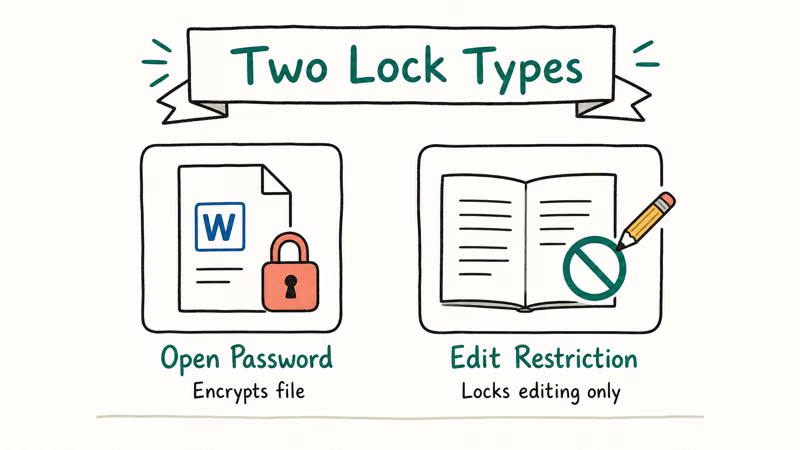
The first is the open password, set under File > Info > Protect Document > Encrypt with Password. The file gets encrypted with AES, and without the password the bytes on disk look like noise.
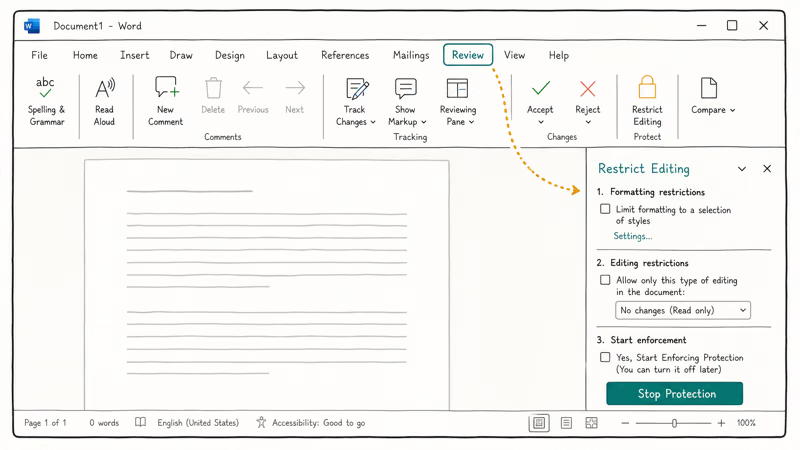
The second lock is Restrict Editing, set under the Review tab. The document isn’t encrypted at all. The password only stops Word’s UI from letting you change content, and that detail is why an editing lock is far easier to remove than an open lock.
Microsoft’s Word support documentation confirms that modern Office files use strong encryption and recommends keeping a backup of any password you set. According to Microsoft, lost passwords on encrypted Office files can’t be recovered by Microsoft support, because the company doesn’t store user passwords or master keys for personal documents. That’s why third-party “Word password remover” tools exist at all.
A quick history note matters here. Word 95 and Word 97 used weak XOR scrambling that any old utility could break in seconds. Word 2007 moved to AES-128.
According to the NIST FIPS-197 standard, AES supports 128-bit, 192-bit, and 256-bit key sizes, and Word 2013 and newer pick AES-256 for .docx files. That’s the same algorithm protecting classified-grade U.S. government data. A slow key-derivation function sits on top of it, which is why a short numeric password on a Word 2010 file falls in under a minute, while a long mixed password on a Word 2019 file can take weeks of GPU time.
#How to Remove a Word Password You Still Remember
This is the boring case and also the most common one. Use this method on any .docx or .doc file you can already open. It takes under a minute and needs nothing besides Word itself.
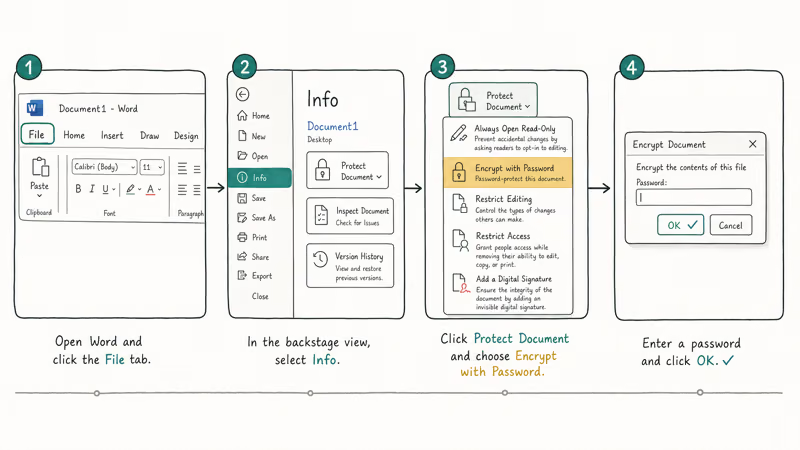
- Open the document and type the password to unlock it.
- Click File in the top-left, then Info.
- Click the Protect Document button and choose Encrypt with Password.
- Clear the password field so it’s empty, then click OK.
- Press Ctrl+S (or Cmd+S on Mac) to save. The file is now unprotected.
After you clear the password field and save, Word removes the open-password prompt. Next time you open the file there’s no password prompt at all.
If your goal is to keep the document protected but rotate the password, type a new password in step 4 instead of leaving the box empty. Microsoft’s Office support documentation states that the password field is case-sensitive and that long passphrases with mixed character classes are far more resistant to recovery than short numeric ones. Two extra characters can multiply recovery time by 10,000x or more.
A small warning. Some shared documents come with both an open password and a Restrict Editing password, and removing one doesn’t remove the other.
After clearing the open password, check the Review tab. If you see Stop Protection highlighted, there’s a second lock to deal with, and the editing-restrictions section below covers it.
#What if You Forgot the Open Password on Your Own Document?
Here’s where the truth gets uncomfortable. There’s no built-in Word feature to recover a forgotten open password. No Microsoft support ticket unlocks a personal .docx. The only paths are guessing or brute-forcing, and both run on your own computer with a recovery tool.
Before reaching for software, try the obvious first.
Old passwords often follow a pattern. Check your password manager, search your email for any draft where you typed the password, and look for a printed sticky note. Re-test variants with different capitalisation, with and without trailing digits, and with common substitutions (3 for E, 0 for O).
Don’t skip the low-tech search. Old passwords often sit in browser-saved notes, password-manager entries, email drafts, or printed reminders.
If none of that works and the document truly matters, a paid Word password recovery tool is the practical option. PassFab for Word runs locally on Windows, never uploads your file, and supports three recovery modes:
Some links on this page are affiliate links, which means fone.tips may earn a commission at no extra cost to you.
- Dictionary attack: uses a wordlist of common passwords. Fastest mode. Good for human-memorable passwords like
summer2019!. - Brute-force with mask: useful when you remember part of the password. You define which characters appeared and the tool tries every variant.
- Brute-force attack — tries every combination. Slowest, and the only path when you remember nothing.
It’s the same family of tool as WinRAR password recovery and PowerPoint password recovery.
Dictionary mode is usually fastest for human-memorable passwords, brute-force with mask sits in the middle, and full brute force gets slow quickly as length and character variety rise. GPU acceleration can help, but the laws of probability don’t bend: every extra character expands the search space sharply.
Anyone selling “instant” decryption of a modern .docx is selling vapor.
#How to Remove Restrict Editing on a Document You Own
The Restrict Editing password is the easier of the two locks. The file isn’t encrypted at all. Only the editing UI is gated. If the document is yours and you’ve lost the password, two practical methods exist.
#Method A: Save-As to a New Format
Sometimes the lock doesn’t survive a format roundtrip. Open the file in read-only mode, click File > Save As, and save it as .rtf (Rich Text Format). Close Word, reopen the .rtf, and save back to .docx.
On older Office versions this drops the editing protection because .rtf doesn’t carry the protection metadata. The Microsoft Word support pages note that not all protection settings transfer through file conversions, which is exactly the loophole this method uses. It doesn’t always work on Word 2019+ where the conversion preserves more metadata.
#Method B: Edit the XML Directly
A .docx is a ZIP archive with XML inside. The Restrict Editing flag lives in word/settings.xml. Removing the flag removes the editing lock without touching the actual content.
- Make a copy of your file first. Always work on the copy.
- Rename
mydoc.docxtomydoc.zip. - Open the ZIP with Windows Explorer, macOS Finder, or 7-Zip.
- Browse to the
word/folder inside. - Open
settings.xmlin a plain-text editor (Notepad on Windows, TextEdit on Mac in plain-text mode). - Find any
<w:documentProtection ... />tag and delete the entire tag. - Save the file back into the ZIP.
- Rename the ZIP back to
.docx. - Open in Word. The editing restriction is gone.
After the protection tag is removed correctly, the document opens fully editable. This works because, as noted earlier, the editing password never encrypts content. It just tells Word, “Don’t let the user type.”
If your file uses the older binary .doc format, the XML trick won’t work. The fix there is to open the file and use Save As > Word Document (.docx), then apply Method A or B on the resulting .docx.
#Open vs. Edit Restrictions: Why It Matters
Knowing which lock you’re dealing with saves hours. Here is the field-level difference.
| Property | Open password (Encrypt with Password) | Restrict Editing password |
|---|---|---|
| File contents on disk | AES-encrypted ciphertext | Plain XML inside ZIP |
| Where to find it | File > Info > Protect Document | Review tab > Restrict Editing |
| Removable without password | No (requires recovery tool) | Yes (XML edit or format roundtrip) |
| Recovery time | Minutes to weeks depending on length | Under 5 minutes |
| Microsoft can help | No | No, but you don’t need them to |
Comparison: how the two Word document locks differ in encryption strength and recovery difficulty.
The practical takeaway is brutal but simple. If a file you own opens and prompts only when you try to edit it, you can almost certainly free it in under 10 minutes with the XML method. If a file you own asks for a password before showing any content, the only legitimate path is patient recovery on your own hardware.
#Common Mistakes That Waste Hours
The same handful of bad moves waste time when people try to remove a Word password.
Mistake 1: Uploading the file to a free online “remover.” Don’t. Run recovery locally instead, on hardware you control.
Mistake 2: Confusing the two lock types. Running brute force on a file that only has Restrict Editing enabled wastes time. Try opening the file first. If it opens and only prompts on edit, use the XML method.
Mistake 3: Trying to “remove the password” from Word 95 era files with a modern tool. Old binary .doc files use weak protection but require a different tool path. A modern Word password remover often refuses them or falls back to slow brute force when an instant break is available.
Mistake 4: Skipping the backup. Renaming a .docx to .zip and editing XML can corrupt the file if you save the ZIP with bad metadata. Always work on a copy.
Mistake 5: Setting a new password you can’t remember either. After all this trouble, save the new password in a real password manager. Microsoft recommends keeping a written backup of any password used to encrypt important Office documents, and that advice is in the official protection guidance for good reason.
If your unlocked file then refuses to behave normally, the wider category of Word document fixes and the winword.exe error guide cover the most common follow-on issues.
#Bottom Line
For your own Word document where you still know the password, skip every tool and do it in Word itself. File > Info > Protect Document > Encrypt with Password > clear the box > save. That’s the only “Word password remover” you need.
For your own document where you forgot the open password, accept the math: try your password manager and old notes first, and if those fail and the file matters, reach for a paid recovery tool that runs locally on your machine. PassFab for Word is a working option. Set realistic expectations because short or human-memorable passwords fall fast, while long random ones may not fall at all, and no amount of money buys around that limit.
For your own document with Restrict Editing only, do the XML trick. It’s free, it’s fast, and it works because the lock was never real encryption to begin with. If you handle other locked Office files often, the same playbook applies to Excel spreadsheet passwords and forgotten PDF passwords with their respective tools.
#Frequently Asked Questions
Can Microsoft recover my Word password if I forget it?
No. The encryption key is derived from your password and never sent to Microsoft.
Is using a Word password remover legal?
Removing a password from a document you own or that you have permission to edit is legal in most jurisdictions. Using these tools on files belonging to other people without authorisation isn’t. Every reputable Word password recovery tool, including PassFab for Word, ships with a license agreement that explicitly limits use to documents the user owns or is authorised to access.
Why does the same recovery tool finish in 2 minutes for one file and not finish for another?
Password length and character variety. A 4-digit numeric password has 10,000 combinations, while an 8-character mixed-case alphanumeric password has 218 trillion. Each extra character pushes the keyspace up by roughly two orders of magnitude, and the brute-force time pushes up with it. The math, not the tool, is what changes the recovery time, and that math is the reason a recovery utility that breezes through one file might never finish another.
Does removing a Word password damage the document?
No. Clearing the open password through Word or removing Restrict Editing metadata shouldn’t change the document content. Still, work from a copy before editing XML.
Can I remove a password from a Word document on a Mac?
Yes. Use File > Passwords (or File > Info > Protect Document on newer Word for Mac), clear the field, and save. PassFab also offers Mac builds for forgotten passwords, though Windows builds are usually faster and ship with better wordlists.
What is the difference between password to open and password to modify in Word?
Password to open encrypts the file. Password to modify (Restrict Editing) doesn’t. Only the open password needs brute-force tooling.
Are there free Word password remover tools that actually work?
A few open-source tools exist for older Office formats and for Restrict Editing locks, and the XML method covered above costs nothing. For a forgotten open password on a Word 2013+ file, free tools exist but usually run far slower than paid options because they lack GPU acceleration. Anyone advertising free “instant” decryption of a modern .docx is misleading users.
What should I do once the password is removed to avoid this happening again?
Store any new password in a dedicated password manager like 1Password, Bitwarden, or Apple Passwords. Microsoft recommends keeping a separate written backup of passwords used on important Office documents. Treat the document password the same way you’d treat a TLS private key. Losing it has real consequences and the only safety net is your own discipline.

Google Messages Error 3100: Why RCS Is Broken on Galaxy
Google Messages RCS error 3100 hits Galaxy owners after phone or carrier switches. Google told 9to5Google a fix is coming. Here's what actually helps.

Is This Bank App Real? Spot a Fake App on Your Home Screen
A bank app can land on your home screen from a web page with no install warning. Learn the checks that tell a real banking app from a phishing web app.

Apps Crashing After iOS 27 Update? Fix Order (2026)
Apps crashing after the iOS 27 update? Update the app in the App Store first, then offload and reinstall to clear stale cache, then restart. The fix order.

Do AI Translation Earbuds Work Offline? What to Know
Do AI translation earbuds work offline? A few do with downloaded language packs, but most need the cloud. Here's what works offline and what you give up.