Wondershare Helper Compact: Safe to Remove? Cleanup Guide
Wondershare Helper Compact is a background updater bundled with UniConverter and Filmora. Learn what it does and how to remove it cleanly on Windows.

Quick AnswerWondershare Helper Compact (WSHelper.exe) is a legitimate background updater bundled with UniConverter, Filmora, and Recoverit, but most users treat it as bloatware. You can remove it safely by uninstalling every Wondershare product through Settings, deleting leftover folders under Program Files (x86) and AppData, and clearing related registry keys.
Wondershare Helper Compact is the small background process you’ll see running as WSHelper.exe after installing UniConverter, Filmora, or Recoverit on Windows. It isn’t a virus, but it doesn’t pull its weight either: the helper checks for updates, displays promo popups for other Wondershare products, and quietly consumes RAM long after you’ve closed the main app. This guide walks through what the process does, why it lingers, and how to remove it cleanly on Windows 11 and Windows 10.
- Wondershare Helper Compact ships as WSHelper.exe under
C:\Program Files (x86)\Common Files\Wondershare\Wondershare Helper Compact\. - The process is not malware, but Malwarebytes classifies similar update-and-upsell helpers as PUPs (potentially unwanted programs).
- Uninstalling only WSHelper without removing the parent product (UniConverter, Filmora, Recoverit) usually causes it to reinstall on next launch.
- Full removal needs three passes: Settings uninstall, manual folder cleanup under Program Files (x86) and AppData, and a registry sweep for “Wondershare” keys.
- A clean restart and a Malwarebytes scan confirm the executable is gone and no residual files trigger startup tasks.
#What Is Wondershare Helper Compact and Where Does It Come From?
Wondershare Helper Compact is a small companion service bundled with Wondershare’s consumer apps. The binary is named WSHelper.exe and sits in the Common Files folder rather than under the parent app’s directory, which is why uninstalling Wondershare UniConverter or Filmora through the wizard doesn’t always pull it out.
Its declared job covers three things: silent update checks for installed Wondershare apps, license verification, and “tips” popups that promote other paid Wondershare products. WSHelper.exe can hold working-set memory at idle and may respawn after being killed via Task Manager while the parent Wondershare app remains installed.
Wondershare’s UniConverter product page states that the converter handles more than 1,000 audio and video formats and ships with the Helper Compact installer as a bundled component.
That last part is the source of most cleanup headaches.
The process predates the modern Wondershare installer rewrite. Customers who installed UniConverter (formerly Video Converter Ultimate) between 2019 and 2022 are far more likely to have a standalone Helper Compact entry in Apps & Features, while newer 2024-2025 installers fold the helper into the parent product’s uninstaller. As a rule of thumb, one uninstall clears it on modern packages, but anything from the legacy era usually leaves residue.
If you bought UniConverter, Filmora, or Recoverit through a third-party bundle site, the helper is also more likely to ship as a separate scheduled task that needs manual cleanup. That’s the worst case, because both Settings and Control Panel will miss it.
#Wondershare Helper Compact Risk Profile: PUP, Not Malware
No, Wondershare Helper Compact is not a virus, but it sits on the border between legitimate software and what the security industry calls a PUP (potentially unwanted program). The distinction matters because antivirus tools handle the two categories differently: viruses get quarantined silently in the background, while PUPs trigger a removal prompt asking the user how to proceed. That’s why the helper shows up in security scan reports without being flagged as a true threat.
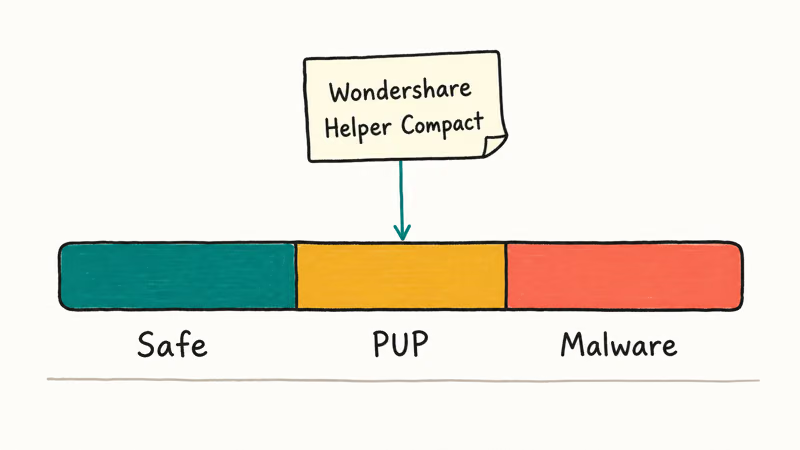
A real virus or trojan is built to harm, exfiltrate, or persist without consent. WSHelper.exe does none of those things. The binary is digitally signed by Wondershare Technology Co., Ltd., it’s documented in the product EULA, and it doesn’t modify system files outside its own install paths.
Annoying is not the same as malicious.
Malwarebytes’ definition of PUPs states that bundled software which installs without clear opt-in, displays advertisements, or resists uninstall qualifies as a PUP even when it’s otherwise legitimate. Helper Compact meets two of those three criteria for many users (bundled install, upsell popups), which is why some security suites flag it on detection rather than quarantine it. The verdict isn’t “delete this immediately,” it’s “be aware of what you installed.”
For comparison, similar Windows companion processes like Yourphone.exe and TiWorker.exe are also safe by default but get removed routinely when they over-consume CPU. Helper Compact falls in the same category.
Compared with truly protected system processes like TrustedInstaller, it has no system-critical role and can be removed without breaking Windows.
The practical answer is short. It’s safe to keep if you actively use UniConverter and want automatic updates. It’s safe to remove if you don’t.
#Why Is Wondershare Helper Compact Slowing Down My PC?
The helper itself is small, but the cumulative effect on a low-RAM machine is real.
WSHelper.exe can hold a modest amount of memory, open network connections to Wondershare services, and register scheduled tasks for update checks. Modest in isolation, but stacked with other bundled helpers (Adobe, Google, Razer Synapse, OEM crapware), background utilities can make a low-RAM machine feel slower before any user app launches.
The bigger complaint is popups. The helper occasionally displays in-app banners that promote DemoCreator, MobileTrans, or Recoverit. Windows Focus Assist doesn’t block them because they run inside the Wondershare process rather than as Windows notifications. Users who only wanted UniConverter find this intrusive, and there’s no setting in the Wondershare UI to silence them.
Banners aside, here’s the bigger picture.
If your machine feels generally sluggish after installing several Wondershare products, removing Helper Compact alone won’t fix it. The broader playbook for a slow Windows 10 PC is more effective: trim startup entries, remove unused helpers, and reset network adapters.
If you’d rather keep UniConverter but kill the upsell behavior, the only sustainable answer is to remove Helper Compact and let UniConverter run without auto-update. You lose silent updates and the occasional reminder about new versions, but you keep the converter intact and the upsell banners disappear. Manual updates are a fair trade for an idle process that no longer holds onto memory or pings home in the background.
#How to Remove Wondershare Helper Compact Through Windows Settings
Settings is the modern path on Windows 11 and Windows 10 22H2 or later. According to Microsoft’s uninstall or remove apps guide, apps installed via standard MSI or EXE packages can be removed from Apps & features without admin elevation, provided the user owns the install.
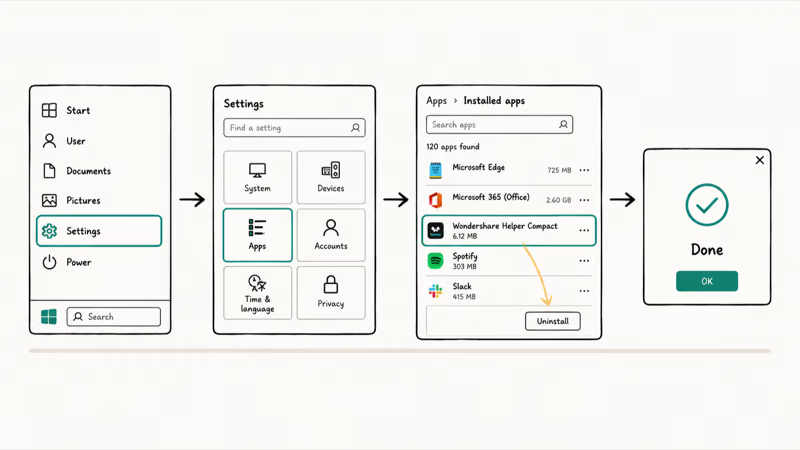
- Press
Windows + Ito open Settings. - Go to Apps then Installed apps (Windows 11) or Apps & features (Windows 10).
- Type “Wondershare” in the search box.
- For each result, click the three-dot menu and choose Uninstall. Start with Wondershare Helper Compact, then move to UniConverter, Filmora, or Recoverit if listed.
- Restart the computer.
Reboot is non-optional. The helper registers a “RunOnce” key that re-creates a stub on the next login if the system isn’t restarted between uninstall steps.
#Use Control Panel If Settings Misses It
If Settings hangs or the Wondershare entry is missing there, the legacy Control Panel route still works. This is the same uninstall path used for older installers from 2019 to 2021 that never registered with the modern Apps API.
- Press
Windows + R, typeappwiz.cpl, and hit Enter. - Locate every entry that starts with “Wondershare” in the program list.
- Right-click each one and choose Uninstall.
- Accept any UAC prompts that appear.
- Restart and check Apps & features again to confirm.
If this same approach worked when you needed to uninstall Spotify on Mac or Windows, the steps here mirror that flow: uninstall the parent, then clean the residue. The pattern works for almost any bundled helper because Windows installers scatter shared resources across Program Files (x86), AppData, and the registry. Wizard uninstallers leave some of that residue behind, which is why the manual cleanup step matters more than the wizard itself.
#How to Find and Delete Leftover Wondershare Files
Wondershare installers can leave files in several locations. The standard uninstaller catches most of them, but the Common Files Wondershare folder is a common leftover when shared helper components are installed separately. Sign in as a user with admin rights before continuing.
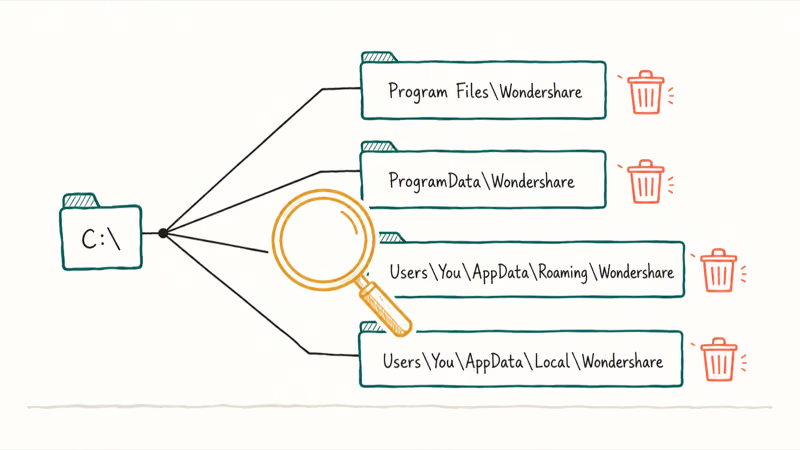
Open File Explorer and check each path:
C:\Program Files (x86)\Common Files\Wondershare\C:\Program Files (x86)\Wondershare\C:\ProgramData\Wondershare\C:\Users\<YourName>\AppData\Roaming\Wondershare\C:\Users\<YourName>\AppData\Local\Wondershare\C:\Users\<YourName>\Documents\Wondershare\C:\Users\<YourName>\Downloads\(look for anywondershare*.exeormobile-transfer*.exeinstaller leftovers)
Delete only the Wondershare-named folder at each path. Don’t delete the parent Common Files or AppData\Roaming folder itself, because that breaks unrelated software. The first path is the one that matters most. WSHelper.exe lives there, so removing the folder eliminates the binary even when Apps & features has lost track of it.
After deleting, empty the Recycle Bin and restart. A fresh boot ensures any open file handles on those paths get released before the next removal step.
#How to Clear Wondershare Registry Entries Safely
Registry residue is what causes the helper to seem to “come back” after a clean uninstall and reboot. The Wondershare installer writes keys under HKEY_CURRENT_USER, HKEY_LOCAL_MACHINE, and HKEY_CLASSES_ROOT, and not all of them get cleaned up.
NirSoft RegScanner is a free portable tool that finds and bulk-deletes keys by string match. NirSoft recommends exporting the registry before any bulk deletion, because deleting the wrong key can prevent Windows from booting. Treat that export as mandatory before cleanup.
- Download RegScanner from the official NirSoft page and extract it to a folder on the desktop.
- Right-click
regscanner.exeand choose Run as administrator. - In the search dialog, type
Wondershareand check Find Also In Key Names and Find Also In Data. - Click Scan and wait for the full results list.
- Before deleting anything, open Registry Editor (
regedit), select File then Export, name the filepre-wondershare-cleanup.reg, and save it somewhere safe. - In RegScanner, sort results by Key, select only entries whose Key path or Value contains “Wondershare” plainly, and press Delete.
- Skip any key whose path includes another vendor name (Adobe, Microsoft, NVIDIA, Razer) that mentions Wondershare in a data field.
- Restart and run a system search for
WSHelper.exeto confirm the executable is gone.
Should you ever delete the wrong key and Windows starts misbehaving, the exported .reg file imports back in under a minute.
Some Wondershare downloads from third-party mirror sites bundle adware loaders that survive every step above. A full Malwarebytes scan picks those up. Malwarebytes’ PUP policy page confirms that PUP detection runs by default in both the free and paid versions, so you don’t need a license to clean up after Wondershare. Choose Threat Scan rather than Quick Scan because Quick Scan skips the Common Files tree.
#Use System Restore as a Last Resort
If you’ve tried every step above and Helper Compact still reappears, the cleanest reset is to roll the OS back to a restore point predating the Wondershare install. Microsoft’s recovery options guide states that System Restore reverts system files, the registry, and installed apps to a saved checkpoint without touching personal files in Documents, Pictures, or Downloads.
- Back up anything outside the user folders (custom config files, exported app data) before starting.
- Press
Windows + S, type “Create a restore point”, and open the System Properties dialog. - Click System Restore, then Next.
- Pick a restore point with a date before you first installed any Wondershare product.
- Confirm and allow the system to reboot.
System Restore takes 10-25 minutes on an SSD. Once it finishes, run the Settings uninstall once more to catch any new Wondershare install that may have come along with restored apps.
#How to Stop Wondershare Helper Compact From Coming Back
Removal is half the battle. The helper reinstalls every time you reinstall any Wondershare product, so the real question is whether you actually need the parent app.
If you do need UniConverter or Filmora, the cleanest workaround is to install through the official wondershare.com download (not third-party mirrors), then immediately disable the helper’s scheduled task. Open Task Scheduler, find the entry called “WondershareUpgradeChecker” or similar, and disable it. That stops the auto-update behavior but leaves the converter usable.
When you don’t actively use any Wondershare product, the durable answer is to keep it uninstalled and switch to alternatives. HandBrake handles video conversion for free, VLC covers most playback and basic conversion, and the built-in Photos app on Windows 11 handles light editing.
Browser-based services like CloudConvert run one-off jobs without any install at all. None of these ship a Helper Compact equivalent.
For users who landed here after a system slowdown, this is also a good moment to audit other bundled background processes like GoogleUpdate.exe and disable the ones you don’t need. The pattern is the same: identify the helper, kill the scheduled task, remove the parent.
#Bottom Line
For most users, the right call is to uninstall Wondershare Helper Compact along with whichever Wondershare product brought it in. The helper provides no functionality you can’t get by manually updating the parent app once a quarter, and the popup behavior alone justifies removal. The one edge case is power users who chain-convert hundreds of files every week and want silent updates without manual intervention, but they’re the exception rather than the rule for the typical home user.
Use the Settings uninstall first, then run the manual folder cleanup to catch the Common Files leftover. Escalate to RegScanner only when the executable keeps coming back.
If you truly depend on UniConverter for batch conversions, keep the parent app but disable the WondershareUpgradeChecker scheduled task to stop the helper’s auto-restart loop.
#Frequently Asked Questions
Is Wondershare Helper Compact a virus?
No, but it sits on the edge of what counts as legitimate software. WSHelper.exe is a digitally signed background process from Wondershare Technology that ships with UniConverter, Filmora, and Recoverit; it doesn’t modify system files outside its own install paths. Most antivirus engines either ignore it or classify it as a PUP because of bundled-install behavior and upsell popups, not as malware. If you actively use the parent app, the helper is fine to keep.
Why does Wondershare Helper Compact keep reinstalling itself?
Leftover registry entries plus the parent Wondershare product (UniConverter, Filmora, or Recoverit) still being installed cause the helper to respawn. Remove the parent product, clear the registry keys with RegScanner, and reboot before checking again.
Can I remove Wondershare Helper Compact without uninstalling UniConverter?
You can, but it usually comes back on the next launch. The cleaner approach is to keep UniConverter and disable the helper’s scheduled task through Windows Task Scheduler. Look for an entry named WondershareUpgradeChecker or similar and set it to Disabled.
Will deleting Wondershare files break my installed Wondershare apps?
Yes, deleting the Common Files Wondershare folder breaks any still-installed UniConverter or Filmora.
Does Wondershare Helper Compact exist on Mac?
No, the Helper Compact executable is Windows-only. On macOS, Wondershare apps include a similar updater but it’s bundled inside the .app package and removed cleanly when you drag the parent app to the Trash. There is no equivalent standalone “Helper Compact” entry to chase on Mac. The single uninstall-by-drag pattern that macOS uses for most apps is what makes the platform less prone to the leftover-process problem that plagues Windows installs.
How much RAM does Wondershare Helper Compact actually use?
Idle, the process can hold a moderate amount of working-set memory, and active update checks can briefly push it higher. That’s small in absolute terms but adds up on machines with 8 GB or less of total RAM.
Is it safe to delete every key RegScanner finds for “Wondershare”?
Mostly yes, but export the registry first as insurance. The real risk isn’t deletion of Wondershare-specific keys; it’s accidentally deleting an unrelated key whose data field happens to mention Wondershare. Sort results by Key path, double-check unfamiliar entries before any bulk delete, and keep the exported REG file on hand for one-click rollback. If the system misbehaves after cleanup, that single safety net restores the affected keys within seconds.

Best Laptop for Running LLMs in 2026: Memory Comes First
The best laptop for running LLMs is a memory purchase first. Compare MacBook unified memory against NVIDIA laptop VRAM, and see what each tier really runs.

How to Run a Local LLM on Windows: A 2026 Setup Guide
Run a local LLM on Windows with LM Studio or Ollama. Pick a model that fits your GPU memory, keep every prompt offline, and skip the monthly bill.

Bluetooth Not Working on Snapdragon X? Fixes for 2026
Bluetooth not working on your Snapdragon X Copilot+ PC? Generic audio, mice, and keyboards work, but vendor apps often lack an ARM build. Fixes inside.

Docker Desktop and WSL2 Not Working on Snapdragon X? Fix It
WSL2 runs fine on Snapdragon X, but Docker Desktop ARM is Early Access and throws WSL errors. Use WSL2 plus native ARM64 Ubuntu and Docker Engine.