GoogleUpdate.exe: What It Is and How to Disable It
GoogleUpdate.exe manages automatic updates for Chrome and Google apps. Learn what it does, whether it is safe, and 4 ways to disable it on Windows.
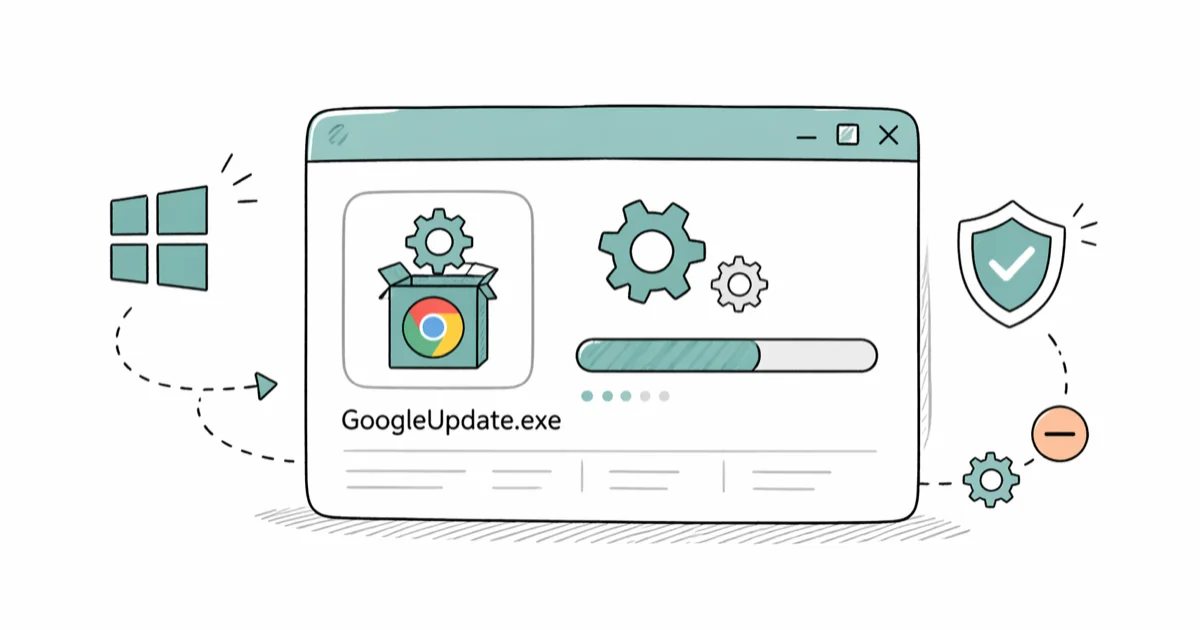
Quick AnswerGoogleUpdate.exe is a background process that keeps Google Chrome and other Google apps updated on Windows. You can safely disable it through Windows Services by setting Google Update Service (gupdate) to Disabled, but you will need to update Chrome manually afterward.
GoogleUpdate.exe runs quietly in the background on every Windows PC that has Chrome installed. It checks for updates roughly once per hour, downloads patches, and applies them without asking. During normal operation, the process should use little CPU unless an update is actively downloading or installing.
- GoogleUpdate.exe lives at C:\Program Files (x86)\Google\Update and idles at under 3 MB RAM
- Disabling the service stops all automatic updates for Chrome and other Google apps on your PC
- A file named GoogleUpdate.exe outside its default folder or using heavy CPU could be malware
- You can disable it via Windows Services, Task Scheduler, or the Registry without breaking Chrome
- After disabling, update Chrome manually via
Help>About Google Chromeat least once a month
#What GoogleUpdate.exe Does
GoogleUpdate.exe is the executable behind Google Update Service. Every time you install a Google product on Windows, this file gets added automatically. Its only job is managing updates.
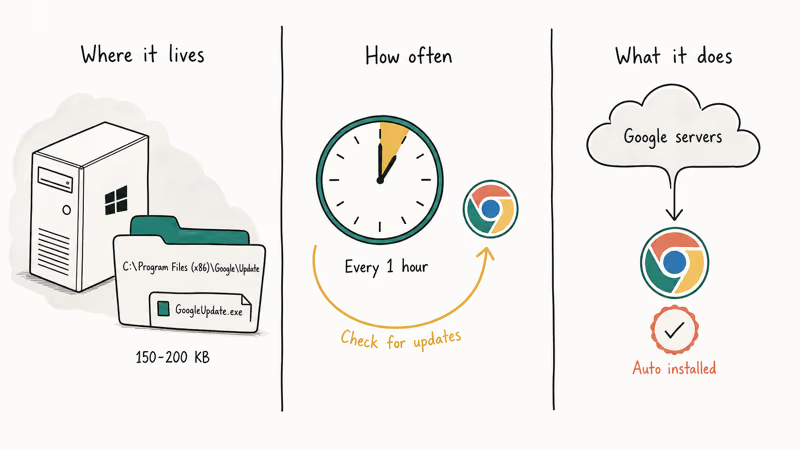
The process runs on a scheduled cycle. According to Google’s Chrome Enterprise documentation, Google Update checks once per hour to see if any tasks need to be performed. When it finds a new Chrome version, it downloads and installs the update silently.
You’ll find the file at one of these paths:
- 64-bit Windows:
C:\Program Files (x86)\Google\Update\GoogleUpdate.exe - 32-bit Windows:
C:\Program Files\Google\Update\GoogleUpdate.exe
Google Update also creates two Windows services (gupdate and gupdatem) and scheduled tasks in Task Scheduler. All of these work together to keep Chrome current. If you’ve ever noticed Chrome updating itself after a restart, that’s GoogleUpdate.exe doing its thing.
The process doesn’t have a visible window. You’ll only spot it in Task Manager or the Services panel. During an update, it may briefly use a small amount of CPU while downloading files, then drop back to near zero shortly after.
#Is GoogleUpdate.exe Safe?
Yes, when it’s sitting in its default folder. The legitimate file is digitally signed by Google LLC and typically weighs between 150 KB and 200 KB.
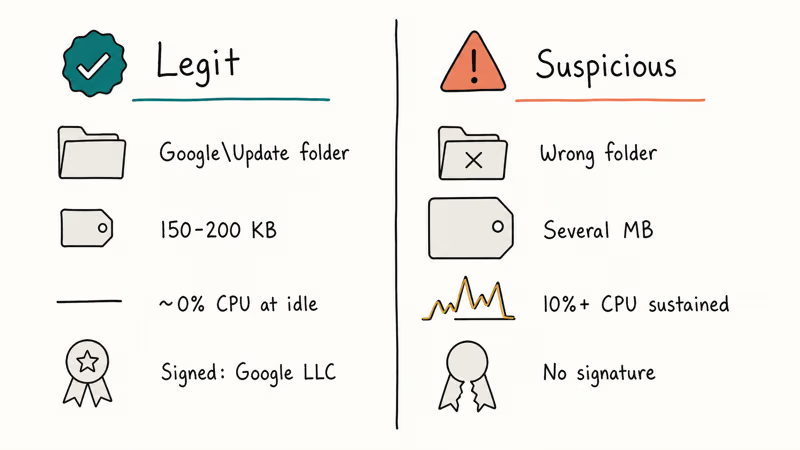
But malware authors sometimes disguise malicious files using the same name. Watch for these red flags:
- Wrong location — the file exists outside its default Google\Update folder
- Unusual file size — several megabytes instead of under 200 KB
- High CPU usage — consistently uses 10%+ CPU for more than a few minutes
- Missing digital signature — right-click the file, go to
Properties>Digital Signatures, and check for “Google LLC”
If something looks off, run a full scan with Windows Defender or Malwarebytes. Based on Malwarebytes’ analysis of GoogleUpdate.exe impersonation, several trojans have historically used this filename to avoid detection.
A fake GoogleUpdate.exe copy that’s several megabytes in size and lacks a Google digital signature should be treated as suspicious. Built-in antivirus tools such as Microsoft Defender can catch many of these impostors without needing third-party software.
#Where to Find GoogleUpdate.exe on Your PC
The default location depends on your Windows architecture. On most modern 64-bit PCs, you’ll find it here:
C:\Program Files (x86)\Google\Update\GoogleUpdate.exe
On older 32-bit systems, check C:\Program Files\Google\Update\ instead. You can also open Task Manager with Ctrl + Shift + Esc, click the Services tab, and look for entries named gupdate or gupdatem.
If you find a file called GoogleUpdate.exe anywhere else on your system, that’s a red flag. Legitimate copies only live inside the Google\Update directory.
#4 Ways to Disable GoogleUpdate.exe
Disabling this service won’t break Chrome. Your browser keeps working normally. The only trade-off: no more automatic updates.
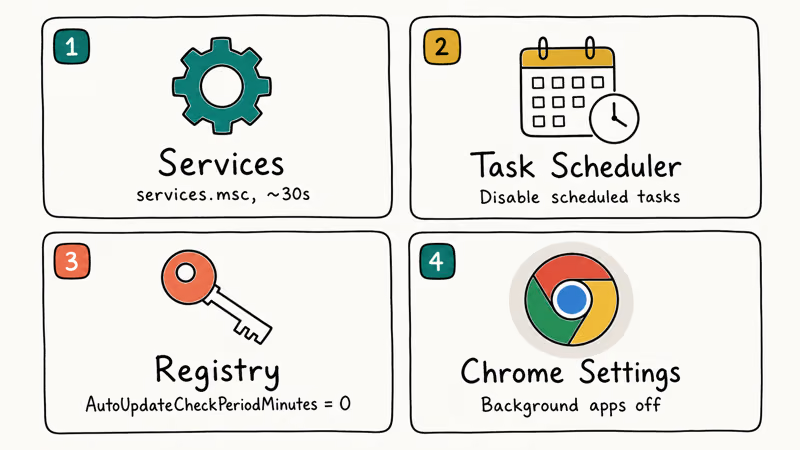
#Method 1: Disable Through Windows Services
Fastest approach. About 30 seconds.
- Press Windows + R, type
services.msc, press Enter - Find Google Update Service (gupdate) and double-click it
- Set Startup type to Disabled, click Stop
Click Apply and OK. Now repeat those exact steps for Google Update Service (gupdatem). Both need disabling.
#Method 2: Remove Scheduled Tasks
Google Update creates two scheduled tasks in Windows Task Scheduler: GoogleUpdateTaskMachineCore and GoogleUpdateTaskMachineUA. These tasks can restart the update service even after you disable it through the Services panel. If you skip this step, you may find GoogleUpdate.exe running again within a day or two.
- Press Windows + S, type Task Scheduler
- Click Task Scheduler Library in the left panel
- Find GoogleUpdateTaskMachineCore and GoogleUpdateTaskMachineUA
Right-click each task and select Disable or Delete.
#Method 3: Edit the Windows Registry
This uses a Google-supported policy key. According to Chromium’s official documentation on disabling auto-updates, setting a specific registry value tells Google Update to stop checking entirely.
- Press Windows + R, type
regedit, press Enter - Go to
HKEY_LOCAL_MACHINE\SOFTWARE\Policies\Google\Update - Create the Google and Update keys if missing
Right-click the right pane, select New > DWORD (32-bit) Value, name it AutoUpdateCheckPeriodMinutes, and set the value to 0. On non-domain-joined PCs, Google may override this with a 77-hour interval, so combine it with Method 1 for the best result.
#Method 4: Disable Background Apps in Chrome
This doesn’t fully stop GoogleUpdate.exe, but it prevents Chrome from running background processes after you close the browser window.
- Open Chrome and go to Settings
- Click System in the left sidebar
- Toggle off Continue running background apps when Google Chrome is closed
Reduces activation frequency. Pair it with Method 1 for full coverage.
#How Do You Update Chrome Manually?
After turning off automatic updates, check for new versions yourself. Google’s support page recommends doing this at least monthly for security patches.
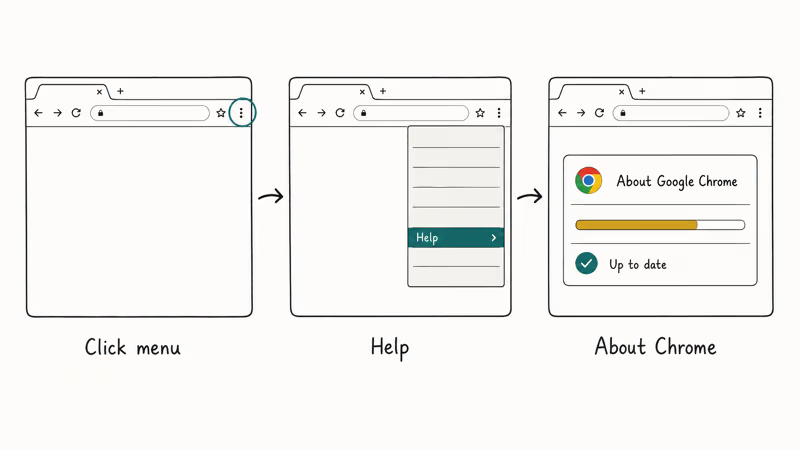
Open Chrome, click the three-dot menu in the top right, and go to Help > About Google Chrome. Chrome connects to Google’s servers, checks your current version against the latest release, and downloads any available update automatically. The whole process takes under a minute on most connections, and you’ll see a progress bar if there’s a large update to install.
If Chrome is severely outdated or corrupted, download a fresh installer from google.com/chrome. A clean install replaces both the browser and GoogleUpdate.exe.
This is the same troubleshooting approach you’d use for Chrome ERR_EMPTY_RESPONSE errors or ERR_ADDRESS_UNREACHABLE.
#Completely Removing GoogleUpdate.exe
Removing GoogleUpdate.exe entirely means uninstalling every Google app from your PC. Once no Google software remains, the update service deletes itself.
If Chrome is your only Google app, uninstalling it through Settings > Apps > Installed apps also removes GoogleUpdate.exe.
Don’t manually delete the file from C:\Program Files (x86)\Google\Update\. Chrome can recreate GoogleUpdate.exe the next time the browser launches, and manual deletion can trigger startup errors. Disabling through Services (Method 1) is cleaner and fully reversible.
For other Google background processes, check out what Google Chrome Helper does on Mac or how GoogleDriveSync.exe works.
#Bottom Line
GoogleUpdate.exe is a legitimate background process that keeps Chrome patched and secure. For most people, leaving it enabled is the right call. If you need to disable it, use Windows Services (Method 1) paired with Task Scheduler cleanup (Method 2). Just remember to check for Chrome updates manually at least once a month so you don’t fall behind on security fixes.
#Frequently Asked Questions
Does disabling GoogleUpdate.exe affect Chrome performance?
No. Chrome runs exactly the same way with or without the update service. Same speed, same features. The only difference is new versions won’t install automatically.
Will GoogleUpdate.exe come back after I disable it?
It can if you only disabled the Windows services but left the scheduled tasks active. Task Scheduler reactivates the services on its own schedule, sometimes within hours. You need to disable both the services (Method 1) and the scheduled tasks (Method 2) to fully prevent this. That two-step combination is why we recommend doing both together rather than picking just one method.
How much CPU and RAM does GoogleUpdate.exe normally use?
Virtually zero CPU at idle, and about 2-3 MB of RAM. When actively downloading updates, CPU briefly spikes to 1-3% for 20-30 seconds. Sustained usage above 10% is a sign of possible malware.
Can I disable GoogleUpdate.exe on both Windows 10 and Windows 11?
Yes. All four methods work identically across both operating systems. The service names, registry paths, and Task Scheduler task names are exactly the same on Windows 10 and 11, so you can follow the same steps regardless of which version you’re running.
Is it safe to delete the GoogleUpdate.exe file directly?
Not recommended. The file regenerates when Chrome launches, and deletion can trigger startup errors. Use Windows Services instead.
What happens if I never update Chrome?
You’ll miss security patches and bug fixes. Google ships a major Chrome update every four weeks.
Does Google Update affect other programs on my PC?
No. Google Update only touches Google’s own software: Chrome, Google Earth, Google Drive, and a handful of smaller tools. Your non-Google applications like Firefox, Spotify, or Microsoft Office have their own independent update mechanisms. That said, if you use Google Drive’s desktop sync tool, disabling the update service does stop Drive from getting patches automatically.
Can I make GoogleUpdate.exe check less frequently instead of disabling it?
Yes. In the Registry at HKEY_LOCAL_MACHINE\SOFTWARE\Policies\Google\Update, create a DWORD called AutoUpdateCheckPeriodMinutes and set it to your preferred interval in minutes. A value of 1440 means once per day instead of the default hourly cycle.

Best Laptop for Running LLMs in 2026: Memory Comes First
The best laptop for running LLMs is a memory purchase first. Compare MacBook unified memory against NVIDIA laptop VRAM, and see what each tier really runs.

How to Run a Local LLM on Windows: A 2026 Setup Guide
Run a local LLM on Windows with LM Studio or Ollama. Pick a model that fits your GPU memory, keep every prompt offline, and skip the monthly bill.

Bluetooth Not Working on Snapdragon X? Fixes for 2026
Bluetooth not working on your Snapdragon X Copilot+ PC? Generic audio, mice, and keyboards work, but vendor apps often lack an ARM build. Fixes inside.

Docker Desktop and WSL2 Not Working on Snapdragon X? Fix It
WSL2 runs fine on Snapdragon X, but Docker Desktop ARM is Early Access and throws WSL errors. Use WSL2 plus native ARM64 Ubuntu and Docker Engine.