Windows Protected Your PC: What It Means and Safe Fixes
Windows Protected Your PC is SmartScreen blocking an unverified file. Learn what it means, how to safely verify the publisher, and when to trust the app.
Quick AnswerWindows Protected Your PC is a Microsoft Defender SmartScreen warning that appears when Windows cannot verify the publisher or reputation of a downloaded file. Treat it as a signal to verify the source, not an obstacle to dismiss.
Seeing the “Windows protected your PC” message means Microsoft Defender SmartScreen flagged a file it can’t confidently verify. The popup isn’t accusing the app of being malware. It’s saying Windows doesn’t yet have enough reputation data, a valid digital signature, or both. The pattern is consistent: SmartScreen is asking you to slow down and verify before you proceed.
- SmartScreen blocks an app when its digital signature is missing, expired, or when Microsoft’s cloud reputation service has few confirmed clean installs on file.
- The warning has two layers: the blue popup with only an OK button, and a hidden More info link that exposes Run anyway after you’ve reviewed the publisher name and file hash.
- Verifying a publisher takes roughly 60 seconds: right-click the installer, open Properties, then check the Digital Signatures tab for a valid certificate chain back to a trusted root CA.
- Windows 10 and 11 ship SmartScreen as part of Windows Security under App and browser control, with three separate toggles for apps, Microsoft Edge, and the Microsoft Store.
- Microsoft accepts false-positive reports through the Microsoft Security Intelligence portal, and signed indie apps usually clear the warning within two to four weeks of submission.
#What Does “Windows Protected Your PC” Actually Mean?
The popup is the user-facing output of Microsoft Defender SmartScreen, a cloud-backed reputation service that ships enabled by default on Windows 8, 8.1, 10, and 11. When you launch a downloaded file, Windows sends the file hash, publisher details, and digital signature data to Microsoft’s reputation servers. The service returns one of three verdicts: known good, known bad, or unknown.
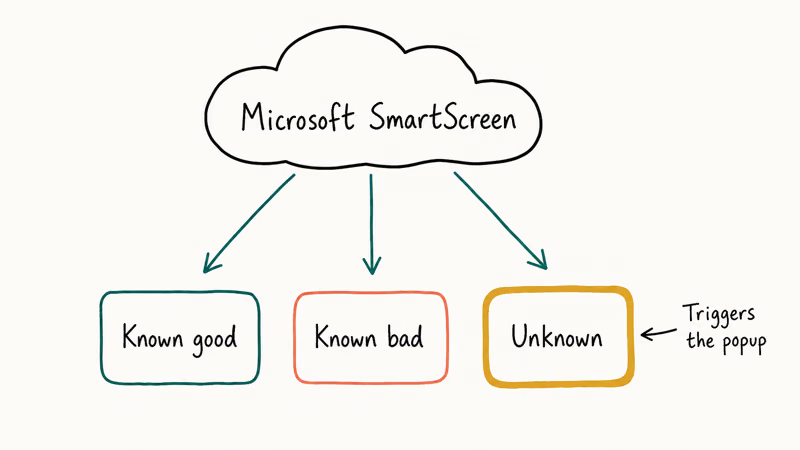
The blue “Windows protected your PC” box is what you see for unknown.
According to Microsoft Learn’s Microsoft Defender SmartScreen overview, SmartScreen evaluates “the URL of the site visited and assesses whether the URL is potentially malicious,” and applies similar reputation checks to executables. The same documentation confirms that an unknown verdict is the default response when an app has not been seen by enough Windows users to establish a clean track record.
This is important. The warning is not the same as detecting malware. Windows Defender Antivirus runs a separate scan against known signatures and heuristics, while SmartScreen layers a reputation check on top. A perfectly legitimate app from a small developer can trigger the warning simply because it’s new or because the developer hasn’t paid for an Extended Validation code-signing certificate.
If you’re seeing other Windows warnings alongside SmartScreen, our notes on your PC ran into a problem and needs to restart and your connection is not private cover the related stop codes and certificate errors you might be juggling.
#Common Triggers for the SmartScreen Block
A small number of well-defined triggers cause the block. Identifying which one applies decides what you should do next.
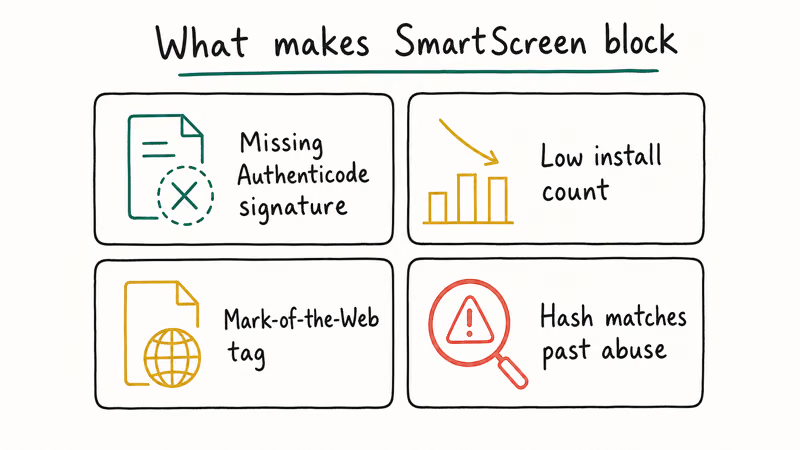
Most common is a missing or invalid Authenticode signature. Microsoft’s Authenticode digital signatures documentation states that Windows requires SHA-256 signing for all new code-signing operations since 2016, when SHA-1 was deprecated. Signed binaries carry a certificate chain that Windows can verify against trusted root authorities baked into the OS image. If the file isn’t signed, or the certificate has expired or been revoked, SmartScreen treats it as low reputation.
A second trigger is low install count.
Microsoft’s reputation service tracks how many Windows users have run a particular file hash without incident. New releases, beta builds, and indie tools often haven’t crossed the internal threshold yet. After enough clean installs accumulate, the warning fades on its own, typically within a few weeks for actively distributed apps.
A third trigger is a Mark-of-the-Web (MOTW) tag. Browsers, email clients, and tools like 7-Zip attach an alternate data stream to files pulled from the internet. SmartScreen reads that tag and applies stricter checks to anything labeled as web-downloaded. Our guide on is 7-Zip safe walks through what the MOTW tag looks like in practice and why removing it manually defeats the entire warning system.
Finally, SmartScreen flags files whose hashes match anything Microsoft has previously seen abused for malware distribution, even if the current copy is clean. In that case the Run anyway path will still be visible, but Microsoft recommends you stop and re-download from the official vendor site instead.
#How Do You Verify an App Before Running Anyway?
These checks apply to software you’re installing on your own computer with the right to run it. This is the part most “bypass” guides skip.
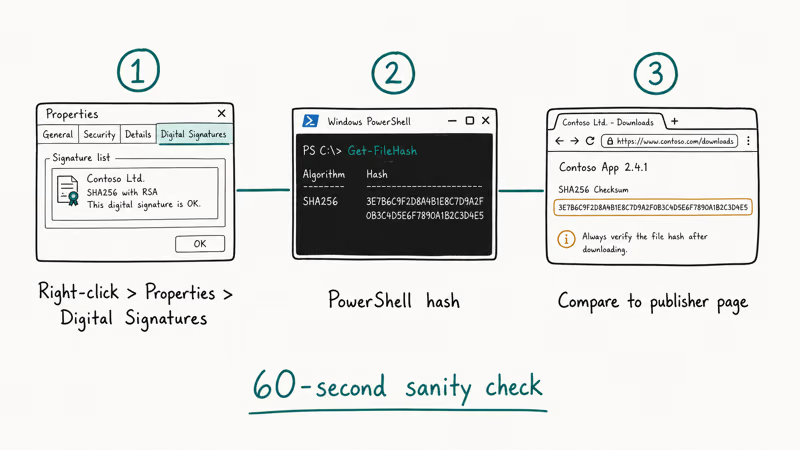
Before you click More info, run a 60-second sanity check.
First, right-click the installer and pick Properties. Switch to the Digital Signatures tab. If you see a signer name (for example, “Microsoft Corporation,” “Adobe Inc.,” or “JetBrains s.r.o.”), highlight it and click Details, then View Certificate. Confirm the certificate chain ends at a trusted root authority and the “Valid from / Valid to” dates cover today.
A missing Digital Signatures tab means the file is unsigned. That alone is reason to pause.
Second, compare the file hash against the publisher’s official download page. Open PowerShell and run:
Get-FileHash -Algorithm SHA256 "C:\Users\YourName\Downloads\installer.exe"Microsoft’s Get-FileHash documentation confirms the cmdlet returns a SHA-256 checksum by default. Compare the returned string against the value published on the vendor’s site.
A match means the file wasn’t altered in transit. A mismatch means stop and re-download.
Third, verify the URL you downloaded from. Look at the browser history for that download. Does it point to the vendor’s actual domain or a typo-squatted lookalike? A large share of SmartScreen complaints trace back to users who clicked a sponsored ad linking to a fake mirror site rather than the genuine project page.
Only after all three checks pass should you click More info and then Run anyway. If any check fails, close the dialog with Don’t run, delete the installer, and download fresh from the official source. For lightweight Windows performance issues that sometimes get blamed on SmartScreen, the fixes in our Windows 10 is slow walkthrough are a safer first step.
#When to Avoid Clicking Run Anyway
There are scenarios where Run anyway is the wrong choice, and recognizing them protects you from real attacks.
Skip the override when the publisher field reads “Unknown” and the file came from email, a chat link, or a forum post. Verified vendors of legitimate Windows software almost always sign their installers because Authenticode signing costs roughly $200 to $400 per year and clears the SmartScreen prompt for paying customers. An unsigned file from an unsolicited source is the highest-risk combination.
Skip it when the file extension surprises you. A document attachment that downloads as .exe, .scr, .vbs, .ps1, .hta, or .msi is masquerading. Microsoft’s Windows Security guidance for businesses recommends treating any executable arriving via email as hostile until proven otherwise.
Watch out for fake popups. Some malware imitates the SmartScreen window with a fake button labeled “Verify” or “Continue setup.” Real SmartScreen has exactly two buttons after More info: Run anyway and Don’t run. Anything else is a phishing surface.
On a work computer, you usually shouldn’t override at all. Corporate environments often configure SmartScreen through Group Policy specifically because their security team wants approvals to flow through IT. Microsoft confirms that the policy setting Configure Microsoft Defender SmartScreen supports a Warn and prevent bypass mode, which removes the override button entirely on managed devices.
#How to Adjust SmartScreen Settings the Safe Way
Microsoft has consolidated SmartScreen controls into the Windows Security app on Windows 10 and 11. The Control Panel paths from earlier Windows versions no longer apply.
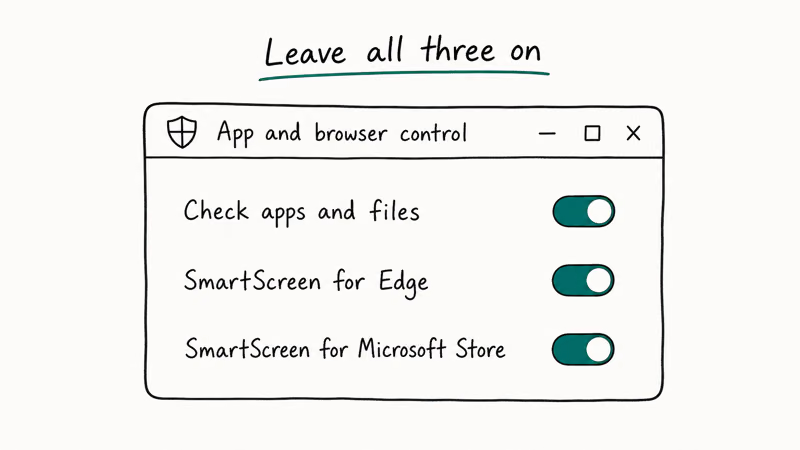
To review your current settings, open the Start menu, type “Windows Security,” and pick App and browser control. Then click Reputation-based protection settings. You’ll see four toggles:
- Check apps and files: controls the desktop “Windows protected your PC” popup.
- SmartScreen for Microsoft Edge: phishing and malware checks in Edge.
- Phishing protection: newer feature that warns when you type your Windows password into untrusted sites.
- SmartScreen for Microsoft Store apps: checks web content used by Store apps.
Microsoft recommends leaving all four enabled.
If you’re a developer testing your own unsigned builds, the better practice is to keep SmartScreen on and use signed test certificates rather than turning protection off system-wide.
On Pro, Enterprise, and Education editions, administrators can configure SmartScreen via Group Policy. The path is Computer Configuration > Administrative Templates > Windows Components > File Explorer > Configure Windows Defender SmartScreen.
The recommended setting is Enabled with the action Warn, which keeps the prompts but allows informed users to proceed. Disabling SmartScreen entirely is supported but isn’t something we’d suggest for any machine that browses the web or installs third-party tools. The same caution applies to other Windows protections covered in our Windows update error 0x800705b4 guide.
#Reporting False Positives to Microsoft
If you’re a developer or you’ve confirmed an app is clean but SmartScreen keeps blocking it, Microsoft has a published channel for this.
Submit the file to the Microsoft Security Intelligence submission portal. Pick Microsoft Defender SmartScreen as the product, upload the installer, and include the SHA-256 hash plus the publisher URL. Microsoft’s submission documentation states that analysts review most low-volume submissions within 1 to 3 business days. For software with active distribution, reputation usually clears within 2 to 4 weeks as install counts grow.
Two things help submissions clear faster.
First, sign the installer with a valid Authenticode certificate, even a standard one. Microsoft’s code-signing guidance confirms that signed apps build reputation independently of file hash, so re-signing a new build doesn’t reset the clock.
Second, ship from one canonical download URL.
For non-developers stuck with a legitimate-but-blocked tool, contact the vendor’s support and ask whether they’ve submitted the file to Microsoft. Most reputable software companies handle SmartScreen submissions internally as part of release engineering. If they haven’t, that’s a useful data point about the maturity of the vendor itself.
#Bottom Line
The “Windows protected your PC” popup is doing its job. It pauses execution of any file whose signature or reputation Microsoft can’t confirm.
The right response isn’t to memorize the click path to Run anyway. Spend a minute checking the digital signature, comparing the SHA-256 hash against the vendor’s official page, and confirming you downloaded from the real source rather than a copycat domain.
For your own builds, sign with Authenticode and submit through the Microsoft Security Intelligence portal. That’s the documented path to clear the prompt for every Windows user, not just yourself.
#Frequently Asked Questions
What does the “Windows protected your PC” message actually mean?
It means Microsoft Defender SmartScreen couldn’t confirm the file’s publisher or reputation against its cloud database. The file might still be safe, but Windows is asking you to verify the source before proceeding. The warning is separate from antivirus detection, since SmartScreen handles reputation while Windows Defender handles signature-based malware scanning.
Is it safe to click Run anyway?
Only after you verify the publisher and hash.
If you downloaded the installer from the vendor’s official website, the digital signature is valid, and the SHA-256 hash matches what the publisher lists, Run anyway is reasonable. If the file came from an email attachment, a forum link, or an unfamiliar mirror site, close the dialog and re-download from the genuine source.
Why does SmartScreen flag legitimate apps from small developers?
Reputation is install-count gated.
Indie apps and beta builds haven’t crossed Microsoft’s internal install threshold yet, so they show up as unknown. The flag usually clears within a few weeks of steady downloads, or sooner if the developer signs the binary with an Extended Validation certificate.
How do I check a file’s digital signature on Windows?
Right-click the file, choose Properties, then open the Digital Signatures tab. You’ll see the signer’s name and a Details button. Click Details, then View Certificate, and confirm the certificate chains up to a trusted root authority. If the Digital Signatures tab is missing entirely, the file is unsigned and deserves extra scrutiny before you launch it.
Can I turn SmartScreen off permanently?
Not entirely. Windows reloads the SmartScreen service on every sign-in regardless of the toggle state.
How do I report a false positive to Microsoft?
Visit the Microsoft Security Intelligence file submission portal, pick Microsoft Defender SmartScreen as the product, and upload the file with its SHA-256 hash and publisher URL. Microsoft’s analysts typically respond within one to three business days, and apps with active distribution build clean reputation within two to four weeks once enough installs accumulate.
Does Windows SmartScreen work without an internet connection?
SmartScreen needs internet access to query Microsoft’s reputation servers. Offline, Windows falls back to local Authenticode signature validation and Microsoft Defender’s cached virus definitions. A file you launched without issue offline can still trigger the prompt the next time you open it after reconnecting, because the reputation lookup now succeeds and finds an unknown verdict.
For fleets that frequently run offline, Microsoft recommends pre-staging known-good binaries through Group Policy or AppLocker rather than relying on SmartScreen alone.

Best Laptop for Running LLMs in 2026: Memory Comes First
The best laptop for running LLMs is a memory purchase first. Compare MacBook unified memory against NVIDIA laptop VRAM, and see what each tier really runs.

How to Run a Local LLM on Windows: A 2026 Setup Guide
Run a local LLM on Windows with LM Studio or Ollama. Pick a model that fits your GPU memory, keep every prompt offline, and skip the monthly bill.

Bluetooth Not Working on Snapdragon X? Fixes for 2026
Bluetooth not working on your Snapdragon X Copilot+ PC? Generic audio, mice, and keyboards work, but vendor apps often lack an ARM build. Fixes inside.

Docker Desktop and WSL2 Not Working on Snapdragon X? Fix It
WSL2 runs fine on Snapdragon X, but Docker Desktop ARM is Early Access and throws WSL errors. Use WSL2 plus native ARM64 Ubuntu and Docker Engine.