Your Connection Is Not Private Error: 8 Chrome Fixes 2026
Fix Your Connection Is Not Private in Chrome with 8 proven methods. Covers SSL certificates, system clock, captive Wi-Fi, and DNS troubleshooting.
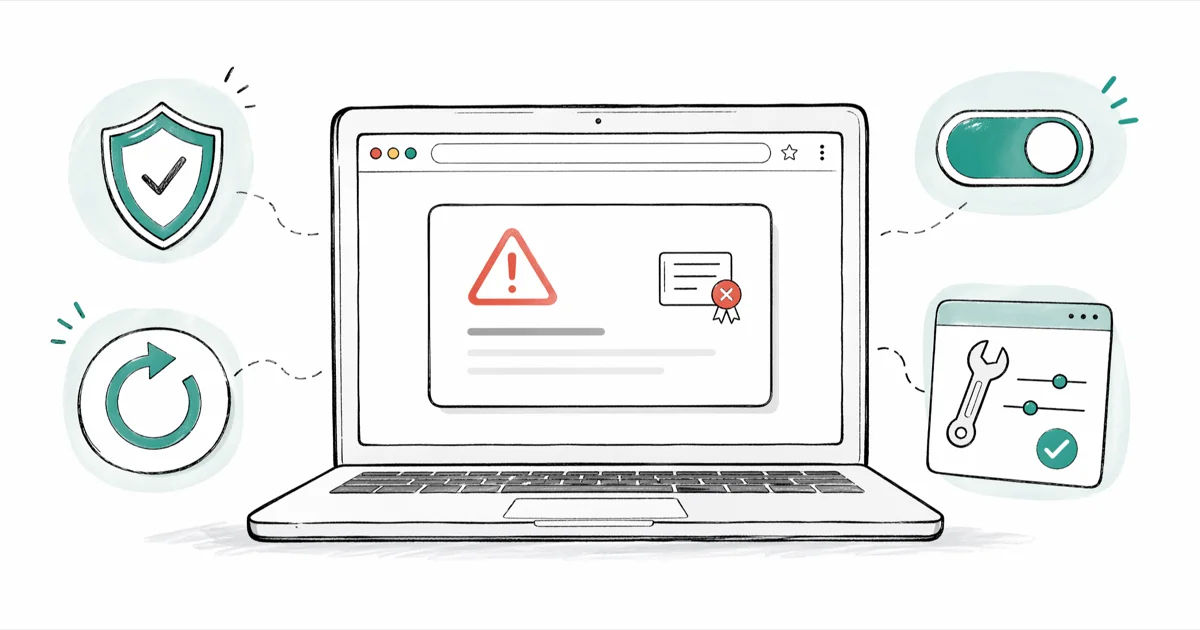
Quick AnswerThe Your Connection Is Not Private error in Chrome usually comes from a wrong system clock, an expired SSL certificate, or a captive Wi-Fi portal blocking secure traffic. Fix the clock, switch networks, and clear Chrome cache to resolve it in under 5 minutes.
The “Your Connection Is Not Private” error in Chrome blocks pages when the browser can’t trust the site’s SSL certificate. Most of the time it’s a fixable client-side problem: a wrong system clock, a captive Wi-Fi page hijacking your connection, or a stale Chrome cache. The fixes below focus on the common causes Chrome exposes through its certificate warning codes.
- Most cases come from a wrong system clock or a public Wi-Fi captive portal, both fixable in under 60 seconds.
- The NET::ERR_CERT code on the Advanced screen tells you what broke (date, authority, name mismatch, or revocation).
- Incognito mode isolates extension and cache issues without changing any browser settings.
- Bypass the warning only on sites where you don’t enter passwords or payment data.
- Chrome no longer trusts certain legacy certificate authorities, so older HTTPS sites can break even when your setup is fine.
#What the “Your Connection Is Not Private” Error Means
Chrome shows this warning when the TLS handshake between your browser and the website fails security validation. It stops before loading the page.
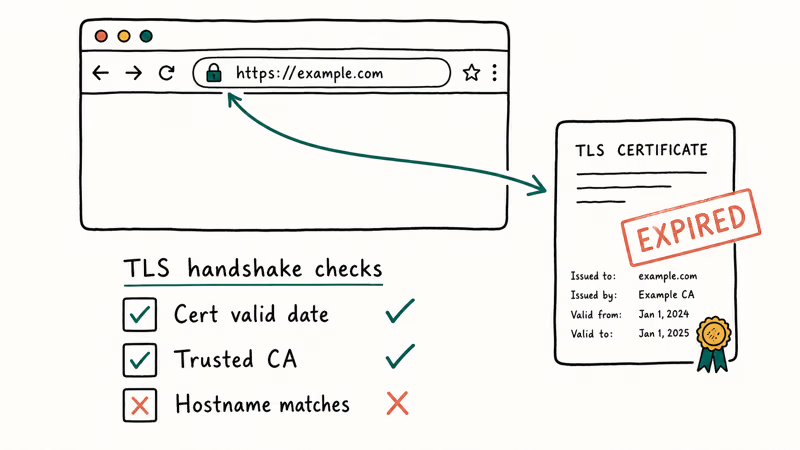
According to Google’s Chrome Help article on privacy errors, the warning means Chrome can’t confirm the page is the real site or that the data hasn’t been tampered with. The browser refuses to load the page rather than risk sending your traffic over an untrusted connection.
The exact certificate code is your diagnosis. Open Advanced on the warning page and look for the line starting with NET::ERR_CERT.
Table: NET::ERR_CERT codes Chrome shows on the privacy error page and what each one means
| Code | What broke | Most likely cause |
|---|---|---|
DATE_INVALID | Clock skew | Wrong system date or expired certificate |
AUTHORITY_INVALID | Untrusted issuer | Self-signed cert, corporate proxy, antivirus injection |
COMMON_NAME_INVALID | Hostname mismatch | Wrong domain on cert (often www vs root) |
REVOKED | Cert revoked by CA | Site owner needs to reissue |
WEAK_SIGNATURE_ALGORITHM | Outdated signature | Site still uses SHA-1 |
SYMANTEC_LEGACY | Distrusted Symantec cert | Site owner needs to reissue with another CA |
If you see DATE_INVALID, our ERR_CERT_DATE_INVALID guide walks through the clock fix in detail.
#Why Does Chrome Block This Page Instead of Loading It?
Older browsers showed a warning you could click past. Chrome’s modern behavior is stricter because most sites now ship valid HTTPS by default, and the Chromium team treats any cert mismatch as a possible man-in-the-middle attempt. The Chromium project’s root CA policy confirms that Chrome maintains its own root store and actively distrusts certificate authorities that fail security audits.
Two extra mechanics make the block stick:
- HSTS (HTTP Strict Transport Security): Sites can register on Chrome’s preload list, which forces HTTPS-only access and removes the bypass button entirely. Mozilla’s HSTS reference states that browsers must refuse insecure connections to listed domains for the duration of the policy.
- Certificate Transparency: Chrome requires every public cert to appear in a public CT log. A missing CT entry triggers the same privacy error even when the cert itself is technically valid.
Knowing which mechanic is in play tells you whether the fix is on your side or the site owner’s.
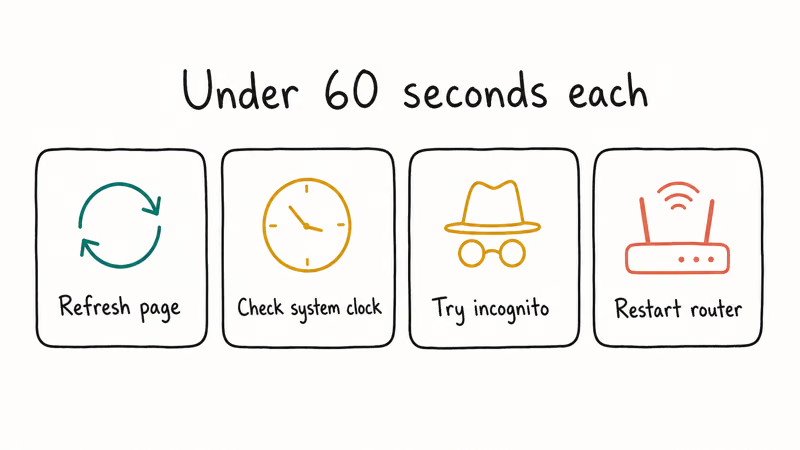
#Quick Fixes That Work in Under a Minute
Run these three first. They address the usual client-side causes: a clock skew, a stale cache, or a temporary connection problem rather than a server-side certificate failure.
#Refresh and Reopen the Tab
Press F5 once. If the cert just rotated mid-handshake, a reload picks up the new one. If a soft refresh fails, close the tab and reopen it from history (Ctrl+Shift+T on Windows, Cmd+Shift+T on Mac), which forces Chrome to renegotiate the TLS connection from scratch. As a last quick step, hard-refresh with Ctrl+Shift+R (Windows) or Cmd+Shift+R (Mac) to bypass the local cache and re-fetch every resource, including the certificate chain.
#Set Your System Clock to Automatic
A clock that’s even a day off makes valid certificates look expired. This is one of the most common client-side causes of Chrome privacy warnings.
- Windows 11: Right-click the clock, choose Adjust date and time, toggle on Set time automatically and Set time zone automatically.
- macOS: Open
System Settings>General>Date & Time, switch on Set time and time zone automatically. - Android: Open
Settings>System>Date &time, enable Use network-provided time.
After the clock corrects, refresh the page. If the error was caused by local clock skew, Chrome should stop treating otherwise valid certificates as expired.
#Open the Page in Incognito Mode
Press Ctrl+Shift+N (Windows) or Cmd+Shift+N (Mac) to open a fresh Incognito window. Incognito starts with every extension disabled and an empty cache, which is exactly the lab condition you want for cert diagnosis. If the page loads in Incognito but not in your normal Chrome window, the cause is an extension you have installed, a corrupted cache entry on disk, or a corporate policy pushed through your enterprise profile.
#How Do I Fix the Error on Public Wi-Fi?
Coffee-shop and hotel Wi-Fi networks intercept your first HTTPS request to show a sign-in page. Chrome treats that interception as a privacy error because the captive portal serves its own certificate.
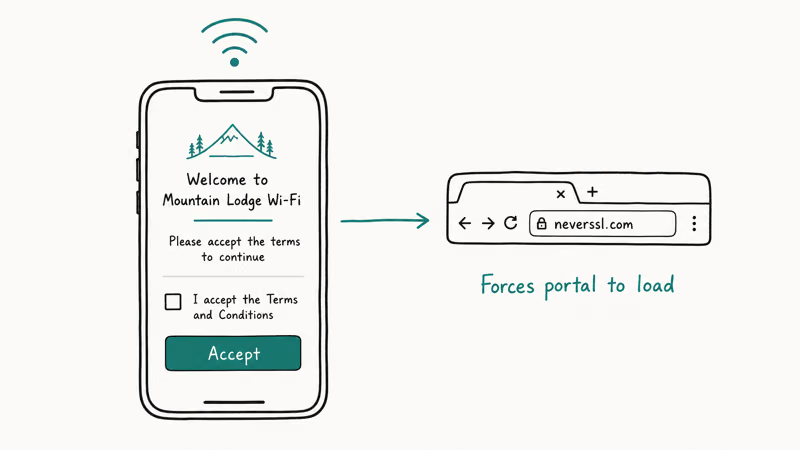
Force the captive portal to open by visiting an HTTP-only URL. We use http://neverssl.com because it’s built exactly for this. Once the sign-in page appears, accept the terms, then retry your original site.
If the captive portal still doesn’t appear:
- Forget and rejoin the Wi-Fi network so Windows or macOS triggers its own captive-portal detector.
- Switch DNS for that connection to
1.1.1.1(Cloudflare) so the resolver doesn’t cache a spoofed result. - As a last resort, tether to your phone’s mobile data to confirm the issue is the network, not the site.
A consumer VPN can also bypass a captive portal block once you’re connected, but you must complete the captive sign-in first. For more on VPN setup on iOS, see our iPhone VPN guide.
#Browser-Side Fixes (Cache, Extensions, Chrome Update)
If the page still won’t load on your usual network, work through Chrome’s local state.
#Clear the SSL State and Cached Cert
Chrome caches certificate decisions during your browser session. To force a fresh handshake:
- Open
chrome://settings/clearBrowserData. - Set Time range to All time.
- Check Cookies and other site data and Cached images and files.
- Click Clear data.
On Windows, you can also clear the OS-level SSL slate: open Control Panel > Internet Options > Content tab and click Clear SSL state. macOS handles this automatically per request.
#Update Chrome to the Latest Stable
Old Chrome builds carry an outdated trust list. The Chromium team recommends staying on the latest stable channel because revoked CAs can take effect within hours of a release.
- Open
chrome://settings/help. - Chrome auto-checks and downloads the update.
- Click Relaunch.
If Chrome feels sluggish after the update, our Chrome being slow guide covers the cleanup steps that actually move the needle.
#Disable Extensions One by One
Ad blockers, antivirus add-ons, and corporate “secure browsing” extensions can intercept HTTPS and trip the privacy error. Open chrome://extensions/, toggle them all off, then reload the page. Re-enable them one at a time to find the offender. The Google Chrome Helper process often spikes when an injecting extension misbehaves.
#Reset Chrome Flags and Profile
Type chrome://flags and click Reset all at the top. If a coworker or older guide had you enable an experimental network flag, this reverts it.
If nothing else works, try a clean Chrome profile: open chrome://settings/manageProfile and add a new person. A clean profile rules out a corrupted profile cache. Just back up bookmarks first, especially if you’ve already seen Chrome bookmarks disappear on your machine.
#Network and DNS Fixes
When the cert is fine but your network is mangling traffic, you’ll see AUTHORITY_INVALID even on big sites like Google or YouTube.
#Switch to a Clean DNS
ISPs and corporate DNS sometimes hijack name resolution and inject their own pages. Switching to a public resolver removes that variable.
Table: Public DNS resolvers that work without injection
| Provider | Primary | Secondary |
|---|---|---|
| Cloudflare | 1.1.1.1 | 1.0.0.1 |
| 8.8.8.8 | 8.8.4.4 | |
| Quad9 | 9.9.9.9 | 149.112.112.9 |
Set both fields under Settings > Network > DNS on your OS. After switching, run ipconfig /flushdns (Windows) or sudo dscacheutil -flushcache (macOS).
#Pause Antivirus HTTPS Scanning
ESET, Kaspersky, Bitdefender, and Avast all ship features that decrypt HTTPS by injecting their own root certificate. When the injection fails, you get the privacy error on every site at once.
Open your antivirus settings and disable HTTPS scanning, SSL filtering, Encrypted connection scanning, or whatever the vendor calls it (the names vary, but the underlying behavior is identical). Reload the site. If it loads, leave the feature off until the vendor ships a patch, because each new browser update can break the antivirus injection in different ways, and re-enabling it before the patch lands will trigger the exact same privacy warning all over again on every HTTPS site you visit.
#Disable or Reconfigure Your VPN
A VPN forces traffic through a tunnel and a different egress IP. If the destination site blocks that IP range or the VPN’s certificate expires, every page you open shows the privacy error. Disconnect the VPN to test, and if that’s the cause, switch servers or update the client.
#Check the Router
Reboot the router. Cheap routers occasionally inject ad pages or cache stale DNS. If you suspect router-level meddling, plug a laptop directly into the modem and retry. A working direct connection points the finger at the router.
#When the Site Itself Is the Problem
Sometimes the cert really is broken on the server side. You can’t fix that, but you can confirm it before reporting the issue.
Run the site through Qualys’ SSL Server Test. The tool grades the certificate, the chain, and the server configuration on a scale from A+ down to F. Anything below a B usually triggers Chrome’s privacy warning, and the detail tabs on the report tell you exactly which protocol version or cert chain link broke. Look for these flags in the report:
- Chain issues: Incomplete: The site forgot to send intermediate certificates.
- Certificate expired: The site owner needs to renew.
- Subject Alternative Name does not match: The cert covers
www.example.combut you’re visitingexample.com. - Trust issues: A distrusted CA issued the cert.
Email the site owner with the SSL Labs report attached. Most admins fix the issue within 24 hours once you give them a specific finding. While you wait, our SSL error fix guide covers the workarounds you can try locally.
#Bypassing the Warning Safely
Only do this on your own device, when you trust the site, and only if you aren’t sending sensitive data. Click Advanced, then Proceed to [domain] (unsafe). Chrome remembers your decision for that domain for the rest of the session.
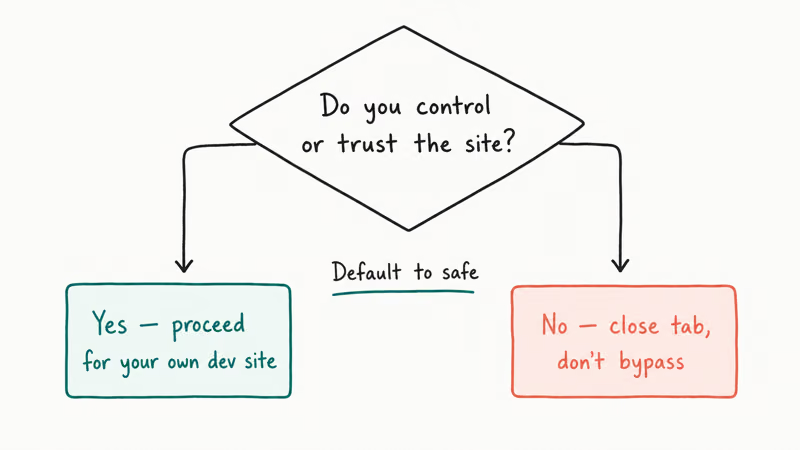
Skip the bypass entirely on:
- Banking, payment, and government sites.
- Email and cloud storage logins.
- Any site asking for a password you reuse elsewhere.
For HSTS-preloaded domains, Chrome won’t show the bypass button at all. That’s by design and means the only safe fix is to clear the actual cause, not work around it.
#Bottom Line
Start with the system clock and Incognito mode. Those two checks cover the most common local causes before you change network or browser settings. If the warning persists across networks and devices, the cert is broken on the server side; email the owner with an SSL Labs report. Test cross-browser too: if Safari loads the page while Chrome blocks it, the cert chain is incomplete, which our Safari secure connection guide addresses from the other side.
#Frequently Asked Questions
Can I ignore the warning safely?
Only on test sites you control. Never on banking, email, or any login that holds personal data.
Why does this error appear on sites I’ve visited before?
Certificates expire on a fixed schedule, usually every 90 to 398 days depending on the issuer. If you visit a site right after its cert expires and before the owner renews, the warning appears even though the site worked yesterday. Other triggers include CA revocations after a security incident, the site rotating to a new domain, and Chrome dropping trust in a CA after a Chromium update.
Does incognito mode always fix the issue?
No. Incognito only rules out extensions and cache. Clock errors, captive portals, antivirus interception, and broken server certificates all still trigger the warning.
Can malware cause the connection-not-private error?
Yes. Some malware installs its own root certificate authority and proxies your HTTPS traffic to inspect it. When that certificate expires or the malware misbehaves, every HTTPS site shows the warning at once. Run a full scan with Microsoft Defender or Malwarebytes, then reset Chrome from chrome://settings/reset and check Settings > Privacy and security > Security > Manage certificates for unknown root CAs.
Is it safe to enter passwords on a site with this error?
No. Chrome can’t verify who’s on the other end. Anyone in between could read what you type.
How do I fix NET::ERR_CERT_AUTHORITY_INVALID specifically?
This code points at the issuer rather than the site. Common fixes: switch DNS to Cloudflare or Google, disable antivirus HTTPS scanning, and check whether your machine has a corporate proxy installed. If only one network shows the error and other devices on the same network work fine, the issue is likely a stale root cert on your machine.
Why do I see the error only on my work laptop?
Your company’s TLS-inspection proxy expired or rotated its root certificate. Open a ticket with IT and quote the AUTHORITY_INVALID code so they know it’s the appliance, not your browser.

Best Laptop for Running LLMs in 2026: Memory Comes First
The best laptop for running LLMs is a memory purchase first. Compare MacBook unified memory against NVIDIA laptop VRAM, and see what each tier really runs.

How to Run a Local LLM on Windows: A 2026 Setup Guide
Run a local LLM on Windows with LM Studio or Ollama. Pick a model that fits your GPU memory, keep every prompt offline, and skip the monthly bill.

Bluetooth Not Working on Snapdragon X? Fixes for 2026
Bluetooth not working on your Snapdragon X Copilot+ PC? Generic audio, mice, and keyboards work, but vendor apps often lack an ARM build. Fixes inside.

Docker Desktop and WSL2 Not Working on Snapdragon X? Fix It
WSL2 runs fine on Snapdragon X, but Docker Desktop ARM is Early Access and throws WSL errors. Use WSL2 plus native ARM64 Ubuntu and Docker Engine.