Windows Hello Fingerprint Not Working: The Fix Ladder
Windows Hello fingerprint stopped working? Re-enroll first, then reinstall the biometric driver, then check policy. Greyed-out toggles are driver issues.
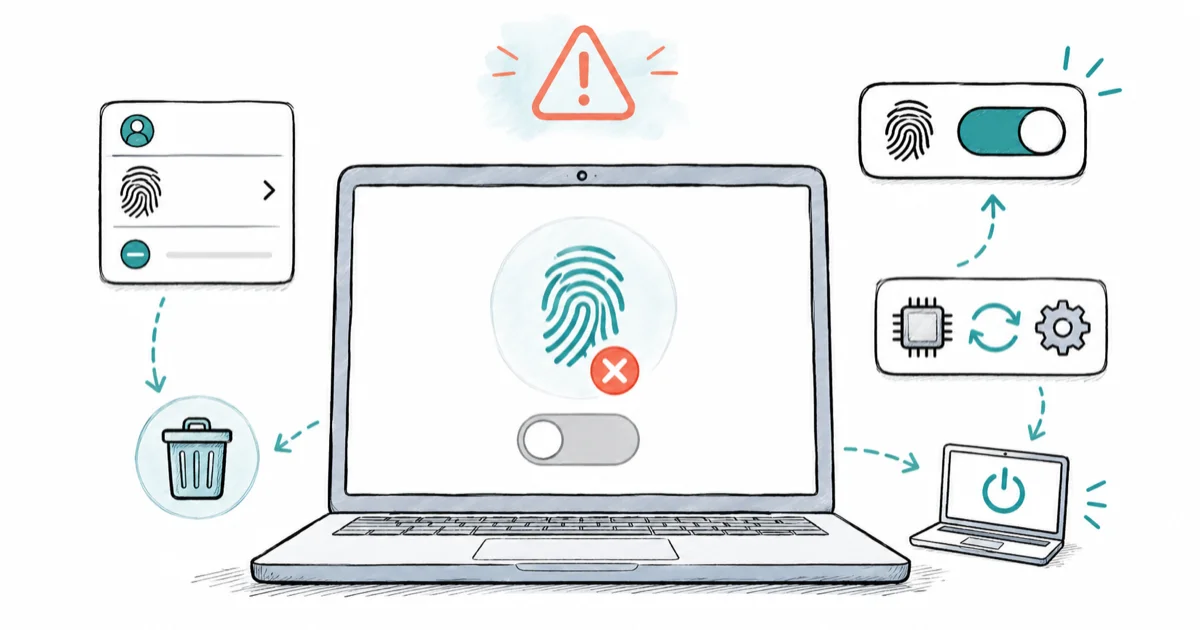
Quick AnswerOpen Settings > Accounts > Sign-in options, remove your fingerprints under Fingerprint recognition, then add them again. If the toggle is greyed out, reinstall the biometric driver in Device Manager and reboot.
Windows Hello fingerprint not working is almost always one of four things: a flaky enrollment, a broken biometric driver after a Windows Update, a group-policy lock, or a sensor that has actually failed. The fix is to work through them in order, not to wipe the laptop. A “this option is currently unavailable” toggle usually points to the biometric driver path before it points to Windows itself.
No reset. No recovery media. Work through the ladder below from the easiest fix to the hardware checks.
- Re-enrolling fingerprints is fast, free, and worth trying before driver work.
- A greyed-out “Fingerprint recognition (Windows Hello)” toggle is almost always a missing or broken biometric driver, not a group policy.
- Microsoft’s fix for a post-update breakage is to reinstall device drivers from Device Manager, then reboot before retrying.
- Your PIN keeps working even when the fingerprint reader fails, so you’re not locked out and don’t need recovery media.
- If the sensor is invisible in Device Manager under Biometric devices on a clean Windows install, the hardware itself has failed.
#Why Did Windows Hello Fingerprint Stop Working After an Update?
The pattern almost everyone hits is the same. You signed in with your finger yesterday, Windows installed a cumulative update overnight, and this morning the reader either does nothing, throws “We couldn’t find a fingerprint reader compatible with Windows Hello,” or the entire Fingerprint recognition section is greyed out.
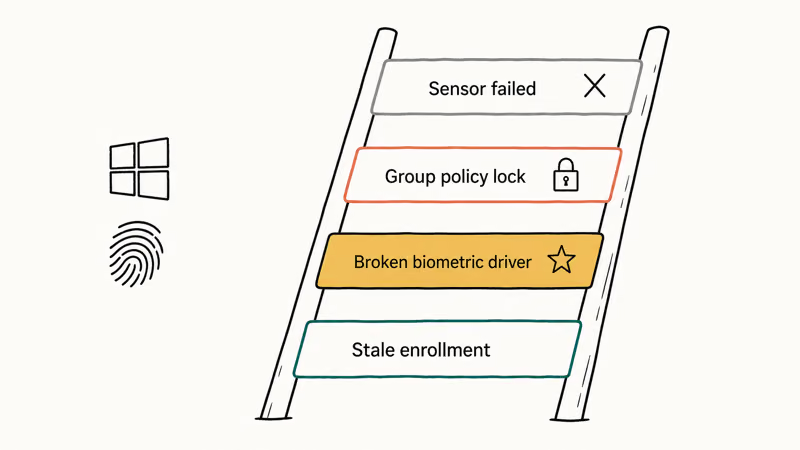
What’s broken is rarely Windows Hello itself. Cumulative updates occasionally ship a Plug and Play package that supersedes your OEM biometric driver, or the existing driver’s signature gets invalidated and the service refuses to load it.
Your reader hardware is fine. The software path from sign-in to sensor is broken.
There’s a second flavor people confuse with a failure: KB5028763, the “Choose if you want to keep signing in with your face or fingerprint” prompt. According to Microsoft’s KB5028763 advisory, this prompt appears after specific updates and is expected behavior. Click Keep using and your enrollments survive intact.
For everything else, work the ladder.
#Step 1: Remove and Re-Add Your Fingerprint
This is the boring fix, and it works often enough that it’s worth trying first. Go to Settings > Accounts > Sign-in options, expand Fingerprint recognition (Windows Hello), and click Remove. Reboot. Come back to the same screen and click Set up, then enroll the same finger again.
Why this clears so many cases: the local enrollment template can drift out of sync with the Windows Biometric Service after a sleep crash or a forced reboot, and removing the entry resets that handshake. According to Microsoft’s Windows Hello troubleshooting page, Microsoft recommends re-registering fingerprints and capturing different angles of your finger when recognition fails, which is exactly what this step does.
Two practical notes help here. Capture more of the finger than the wizard asks for, since rolling the edges gives Windows a better template on dry skin. Add a second finger while you’re in there.
If your hand is wrecked from winter air or hand sanitizer, dab a tiny bit of moisturizer and wait briefly before enrolling. Dry skin can make fingerprint enrollment less reliable.
#Step 2: Reinstall the Biometric Driver in Device Manager
If re-enrollment didn’t fix it, or the Fingerprint recognition section is greyed out entirely, the driver is the next suspect. Many post-update breakages live here.
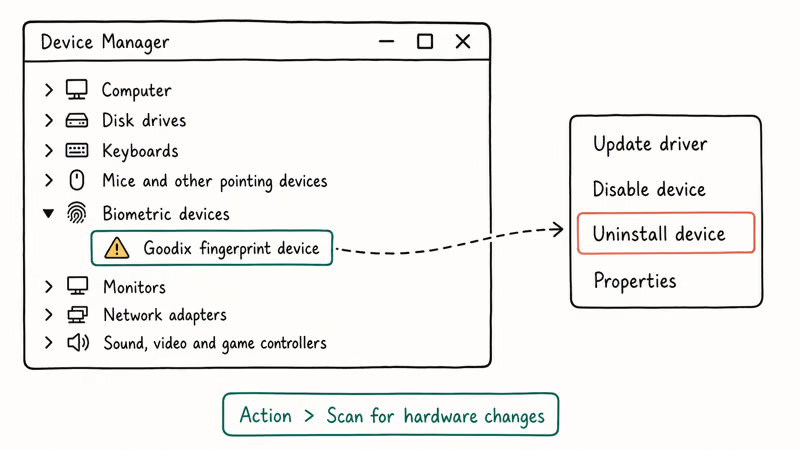
Press Win + X and open Device Manager. Expand Biometric devices. You should see an entry like “Goodix fingerprint device,” “Synaptics WBDI,” “Validity Sensors,” “ELAN WBF Fingerprint Sensor,” or “AuthenTec.” A yellow exclamation mark on the entry confirms the driver is broken.
Right-click the device and choose Uninstall device. Tick Attempt to remove the driver for this device if the box appears, then go to Action > Scan for hardware changes in the menu bar, or just reboot. Windows reinstalls the driver from its driver store on the way back up.
This uninstall-and-reboot sequence often restores a greyed-out fingerprint toggle when the broken piece is the driver. If you’ve also seen DRIVER_POWER_STATE_FAILURE blue screens on the same machine, treat the biometric driver as a possible contributor and try the same uninstall path.
If the generic driver Windows reinstalls is the broken one, you need the OEM package directly.
Go to your laptop maker’s support page, search your exact model, and grab the latest fingerprint or biometric driver. Lenovo lists it under Mouse and Keyboard, Dell calls it Fingerprint Reader, and HP files it under Driver-Keyboard, Mouse and Input Devices. Run the installer, reboot, and re-enroll.
#Step 3: Restart the Windows Biometric Service
Sometimes the driver is fine but the service that talks to it has stalled. This is the fastest single fix to try and it costs nothing.
Press Win + R, type services.msc, and press Enter, then scroll to Windows Biometric Service. If the Status column is blank, right-click and choose Start; if it’s already running, choose Restart. Confirm the Startup type is set to Automatic.
While you’re in services.msc, also restart Windows Hello Setup Service where it appears on your build. On some Windows 11 builds it shows up depending on the cumulative update level. If you don’t see it, that’s fine. The main Biometric Service does the heavy lifting.
This step is quick. Try the fingerprint reader immediately, no reboot required.
#Step 4: Is “Fingerprint Recognition” Greyed Out?
This is the single most-asked subset of the question, so it gets its own section. When Fingerprint recognition (Windows Hello) shows “This option is currently unavailable” or appears dim, the cause usually falls into one of three buckets:
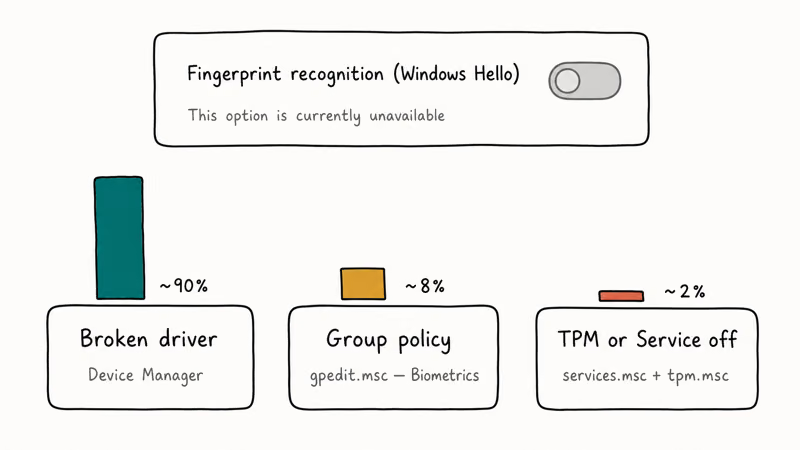
- The biometric driver is missing or broken. Run Step 2 first.
- A group policy disabled biometrics. On managed corporate laptops, IT can disable Windows Hello biometrics via the Allow the use of biometrics policy. Press Win + R, type
gpedit.msc, and go toComputer Configuration>Administrative Templates>Windows Components>Biometrics. If “Allow the use of biometrics” is set to Disabled, that’s your answer, and you need to talk to IT, not fight Windows. - TPM is off or the Windows Biometric Service is disabled. Re-enable both per Step 3, then check the TPM status by running
tpm.mscand confirming “The TPM is ready for use.”
The trap people fall into here is assuming greyed-out means policy and giving up. On any personal Windows 11 install, policy is almost never the cause. It’s the driver. Reinstall it first.
| Symptom | Most likely cause | Where to fix |
|---|---|---|
| Toggle greyed out, says “currently unavailable” | Broken or missing biometric driver | Device Manager > Biometric devices > Uninstall + reboot |
| Reader works but says “fingerprint not recognized” | Stale enrollment or skin condition | Settings > Accounts > Sign-in options > Remove and re-add |
| ”We couldn’t find a fingerprint reader compatible with Windows Hello” | Driver loaded but service stopped | services.msc > Windows Biometric Service > Restart |
| No biometric device listed at all in Device Manager | Sensor hardware failure or BIOS disabled | Check BIOS settings, then call the OEM |
| Works after sleep, fails after restart | TPM not loading early enough | Update BIOS/firmware via OEM utility |
Common Windows Hello fingerprint symptoms and where each one gets resolved.
#Step 5: Roll Back the Driver or Recent Update
If everything above fails and you know an update flipped the switch, you have two cleanish ways out: a driver rollback or uninstalling the offending update. Try the driver rollback first since it’s reversible.
For the driver rollback, open Device Manager, right-click the biometric device, choose Properties, go to the Driver tab, and click Roll Back Driver if the button is enabled. It’s only enabled when Windows has a previous version cached, which is most often the case right after an update. That puts you back on the driver that worked yesterday.
For the update rollback, go to Settings > Windows Update > Update history > Uninstall updates and remove the most recent quality update, then reboot. Microsoft will try to reinstall it within a few days, so this is a stopgap. Use the window to install a current OEM biometric driver before the update comes back. If you keep seeing the same broken update reapply, the guide on deleting Windows Update files can help clean the cache before you retry.
One quick clarification on KB5028763. Microsoft’s advisory confirms that the prompt asking whether you want to keep signing in with your face or fingerprint is a policy-driven re-confirmation for accounts with phone sign-in enabled. Click Keep using. Dismissing it doesn’t break Windows Hello.
#Step 6: When the Hardware Has Actually Failed
If steps one through five all fail, the sensor itself is the suspect.
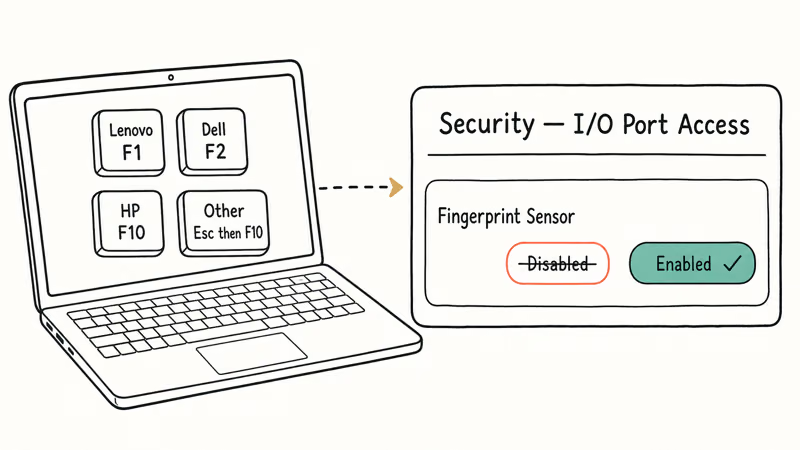
You’re in this zone if Biometric devices still doesn’t show in Device Manager, or it throws Code 10, 19, or 43 on a clean install.
Check BIOS first. Reboot, tap the key that opens setup for your machine (F1 for Lenovo ThinkPad, F2 for Dell, F10 for HP, Esc then F10 on most others), and look under Security or I/O Port Access for a Fingerprint Sensor entry. If it’s set to Disabled, re-enable it.
If it’s enabled and Windows still can’t see the device, you have a hardware fault. Most fingerprint sensors are soldered to the daughterboard or palm rest and aren’t user-replaceable on modern laptops. The repair can cost more than it’s worth on older machines.
Your PIN still works, so the laptop isn’t bricked. You’ve just lost the convenience.
Set a slightly longer PIN if security feels thinner without the fingerprint, and consider a USB security key for higher-stakes logins. If you’ve forgotten the PIN itself, the forgotten laptop password recovery guide covers the supported reset paths.
#Bottom Line
Try re-enrollment first, because it costs nothing and often clears the issue. If the toggle is greyed out, go straight to Device Manager and reinstall the biometric driver, no exceptions. Skip the policy hunt unless you’re on a corporate-managed laptop. And if Biometric devices is empty even after a driver reinstall, the sensor has died, your PIN still works, and a reformat won’t bring it back.
If your Windows machine is showing other post-update weirdness, the 100% disk usage triage guide and the Windows 11 dark mode walkthrough cover common follow-up issues.
#Frequently Asked Questions
Why did Windows Hello fingerprint stop working after an update?
A cumulative update either replaced your OEM biometric driver with a generic one or invalidated its signature. Reinstall the OEM driver from Device Manager, reboot, and re-enroll.
How do I reinstall the fingerprint driver in Windows 11?
Press Win + X, open Device Manager, expand Biometric devices, right-click the fingerprint sensor entry, and choose Uninstall device. Tick the option to remove the driver if it appears, then reboot. Windows reinstalls the driver from its store on the way back up. If that driver is also broken, grab the latest fingerprint driver from your laptop maker’s support page.
Why is “Fingerprint recognition” greyed out in Sign-in options?
Most often, the biometric driver is missing or broken. Reinstall it from Device Manager (Step 2) before anything else.
Does my PIN still work if the fingerprint reader fails?
Yes. Your PIN, password, and any security key are independent sign-in methods, so a broken fingerprint reader doesn’t lock you out of Windows. On the login screen, click Sign-in options under the password field and pick the PIN icon to get in, then troubleshoot the biometric stack from the desktop. If you’ve never set a PIN, fall back to your Microsoft account password instead.
Do I need to reset Windows to fix Windows Hello?
No. A reset wipes apps and settings to fix a problem that almost always lives in the biometric driver. Work through re-enrollment, driver reinstall, and service restart first. A reset should be the last resort, not the first step.
Can I use a USB fingerprint reader if the built-in one died?
Sometimes. Microsoft notes that Windows 11 PCs with Enhanced Sign-in Security enabled may refuse external readers unless the peripheral is specifically certified for ESS. Check the reader’s spec sheet for “Enhanced Sign-in Security support” before buying, or use a hardware security key like a YubiKey instead, which works on every modern Windows build.

Bluetooth Not Working on Snapdragon X? Fixes for 2026
Bluetooth not working on your Snapdragon X Copilot+ PC? Generic audio, mice, and keyboards work, but vendor apps often lack an ARM build. Fixes inside.

Docker Desktop and WSL2 Not Working on Snapdragon X? Fix It
WSL2 runs fine on Snapdragon X, but Docker Desktop ARM is Early Access and throws WSL errors. Use WSL2 plus native ARM64 Ubuntu and Docker Engine.

Does iTunes Work on Snapdragon X? ARM Windows 11 Guide
Yes, iTunes runs on Snapdragon X laptops through Prism emulation, but the Apple Devices app is the smoother route. Here is what to install on ARM.

Does OBS Studio Work on Snapdragon X? ARM64 Build Guide
Yes, OBS Studio has an experimental ARM64 build since version 31.1, but x64 plugins won't load and hardware encoding is missing. Here is what works.