How to Turn On Dark Mode in Windows 11: Full 2026 Guide
Turn on dark mode in Windows 11 in three clicks. Set system and app mode, get File Explorer dark, schedule it at night, and fix it when it will not switch.

Quick AnswerGo to Settings > Personalization > Colors, open the Choose your mode dropdown, and pick Dark. That flips the Start menu, taskbar, Settings, and File Explorer to a dark theme in a few seconds.
Dark mode in Windows 11 lives under Settings > Personalization > Colors, and switching it on takes about three clicks. The dark theme dims the Start menu, taskbar, File Explorer, and the Settings app, which is easier on your eyes after sunset and saves a little power on OLED laptops.
The paths below cover the current Windows 11 Settings layout and the older layout many people still see on 23H2-era systems.
- The toggle is at
Settings>Personalization>Colors>Chooseyour mode > Dark, and it applies without a restart. - Choose your mode has three options: Light, Dark, and Custom. Custom lets you keep a light taskbar while apps go dark, or the reverse.
- File Explorer and the Settings app follow the dark theme automatically; legacy windows like the old Control Panel and Run dialog stay light.
- Windows 11 has no built-in scheduler, so to switch automatically at sunset you need the free Auto Dark Mode app.
- Dark mode changes the interface color; Night Light changes the screen color temperature. They’re separate settings and you can run both at once.
#How Do You Turn On Dark Mode in Windows 11?
Here is the fast path. Right-click the desktop, pick Personalize, then open Colors. Find the row labeled Choose your mode and switch the dropdown from Light to Dark.
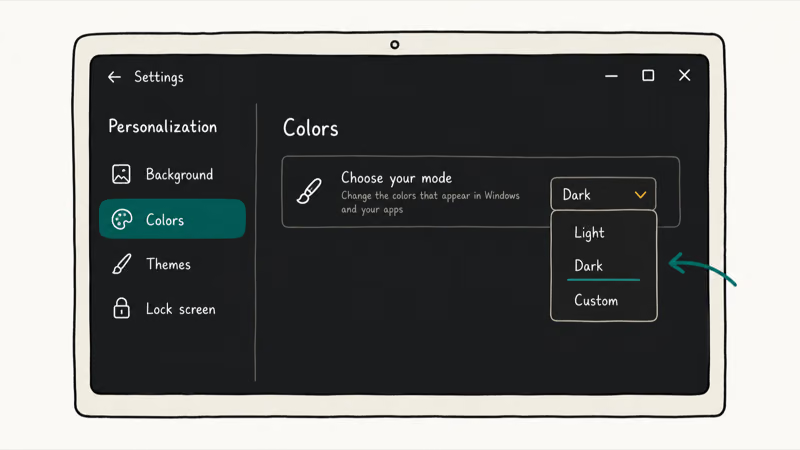
You can also get there from the Settings app:
- Press Windows + I to open Settings.
- Click Personalization in the left sidebar.
- Click Colors.
- Open the Choose your mode dropdown and select Dark.
The change is instant. According to Microsoft’s Personalize your Colors in Windows page, the dark setting recolors the Start menu, taskbar, and notification center for low-light environments.
#What Choose Your Mode Actually Changes
Windows splits the theme into two parts: a Windows mode and an app mode. The single “Dark” preset sets both to dark at once. The third option, Custom, splits them so you can mix and match.
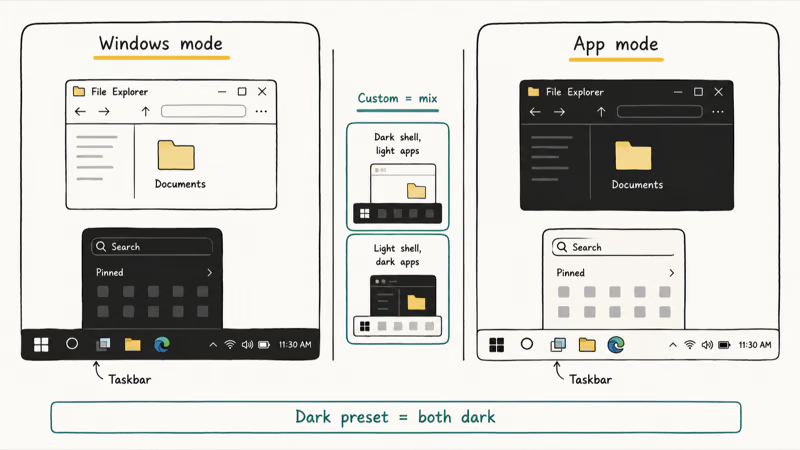
That distinction matters more than it sounds. Set the Windows mode to dark and the app mode to light, and you get a dark taskbar with a white File Explorer. Flip it the other way and your taskbar stays bright while Settings and Mail go dark. Most people want both dark, which is exactly what the Dark preset gives you.
Here is what each surface does when you pick Dark:
| Area | Goes dark? | How |
|---|---|---|
| Start menu and taskbar | Yes | Windows mode = Dark |
| Settings app | Yes | App mode = Dark |
| File Explorer | Yes | App mode = Dark |
| Microsoft Store, Photos, Calculator | Yes | App mode = Dark |
| Notepad, Paint | Yes | Built-in dark theme follows app mode |
| Old Control Panel, Run, Disk Management | No | Legacy UI, no dark theme |
| Browsers (Chrome, Edge, Firefox) | Partly | Each browser has its own theme setting |
The accent color is separate from all of this. Below the mode dropdown you can let Windows pick an accent automatically from your wallpaper or choose your own, then decide whether it shows on the Start menu and taskbar. If you keep a busy wallpaper, a hand-picked accent reads cleaner than the auto pick, since the automatic option sometimes lands on a shade that clashes with the dark surfaces around it.
#Fixing File Explorer When It Stays White
File Explorer is the most common “it didn’t work” complaint, and the cause is almost always the app mode. If you set the Windows mode to dark through a Custom configuration but left the app mode on Light, the taskbar goes dark while Explorer stays white.
The fix is one dropdown: set Choose your mode to Dark, or set app mode to Dark inside Custom.
A few legacy windows ignore the theme no matter what. The classic Control Panel, the Run box, Disk Management, and some older installer dialogs are built on an older interface layer that Microsoft never gave a dark theme. That is expected behavior, not a bug.
#Scheduling Dark Mode to Switch at Night
Not with built-in settings. Windows 11 still has no native scheduler that flips the theme at sunset and back at sunrise, which surprises people coming from a phone where this is automatic.
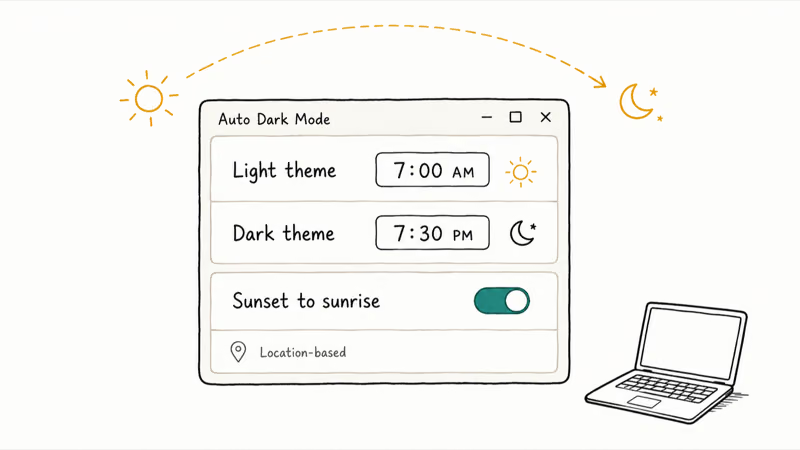
The standard workaround is Auto Dark Mode, a free open-source app. The official Auto Dark Mode project on GitHub states that it switches between the light and dark theme of Windows 10 and Windows 11 on a schedule, including a sunset-to-sunrise mode tied to your location. It can also swap your wallpaper with the theme and skip switching while you game so the screen does not flicker mid-match.
Install it from the Microsoft Store or the GitHub releases page, set your start and end times (or pick the location-based option), and leave it running in the background. It needs no admin rights and uninstalls cleanly if you change your mind.
#Dark Mode vs Night Light: The Real Difference
These two settings get mixed up constantly because both are about a darker screen at night, but they do completely different jobs.
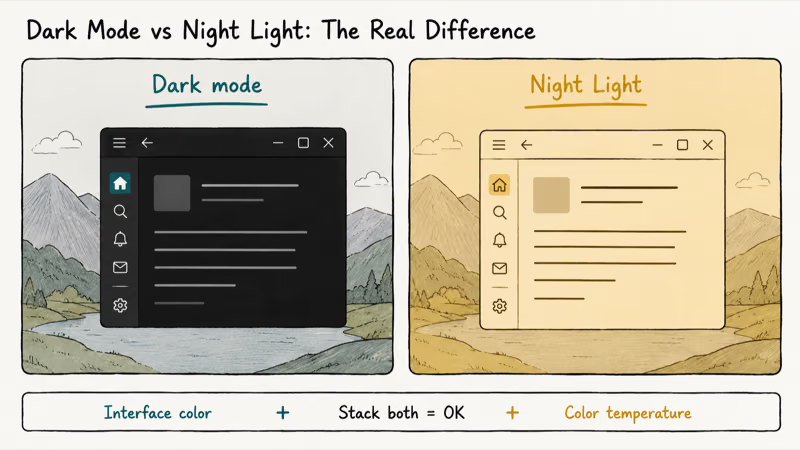
Dark mode changes the interface color. Backgrounds go from white to near-black, text flips to light gray, and the whole theme inverts. It does nothing to the color temperature.
Night Light changes the color temperature, not the theme. It layers a warm orange tint over everything to cut blue light. According to Microsoft’s Night Light support page, warmer colors at night are easier on your eyes, and you can schedule it from sunset to sunrise or set custom hours. It lives under Settings > System > Display > Night light.
You can run both at once: dark theme for the dim interface, Night Light for the warm tint. They stack without conflict. If your white text suddenly looks orange-tinted, that is Night Light doing its job, not dark mode misbehaving.
#Why Won’t Dark Mode Turn On at All?
If the dropdown does nothing or the screen never darkens, work through these in order. Most cases clear up at the first or second step.
- Restart Explorer. Press Ctrl + Shift + Esc, find Windows Explorer in Task Manager, right-click it, and choose Restart. A stuck shell process is the top cause of a frozen theme.
- Check for a high-contrast theme. Go to
Settings>Accessibility>Contrastthemes. If a contrast theme is active, it overrides dark mode entirely. Set it to None. - Confirm Windows is activated. Personalization is locked on unactivated copies. Open
Settings>System>Activationto check. If you are unsure your machine even meets the spec, our guide on how to check if your PC can run Windows 11 walks through the requirements. - Install pending updates. Some early Windows 11 builds shipped a theme bug. Run
Settings>Windows Updateand install everything, then reboot. - Re-pick the mode. Set Choose your mode to Light, wait a few seconds, then set it back to Dark. This forces the theme engine to reapply.
Microsoft’s color page confirms that the mode dropdown is the supported control for this; if it’s missing or grayed out, the activation or contrast-theme cause above is almost always why. Contrast themes override the normal dark-mode control until you set contrast back to None.
Some apps ship their own theme switch. Our walkthroughs for iTunes dark mode and Outlook dark mode cover those in-app toggles, since neither fully follows the system setting.
#Bottom Line
Set Choose your mode to Dark under Settings > Personalization > Colors and you are done in three clicks. That single preset darkens the system and your apps together, which is what almost everyone wants. If you would rather the theme follow the sun, add the free Auto Dark Mode app and set it to sunset-to-sunrise.
And if dark mode refuses to apply, check for an active contrast theme first, then restart Explorer before assuming anything is broken. For a tidier system overall, our guide on clearing recent files in Windows and the one on disabling Windows Ink pair well with a fresh dark setup.
#Frequently Asked Questions
How do I turn on dark mode in Windows 11?
Open Settings with Windows + I, go to Personalization > Colors, then set Choose your mode to Dark. The Start menu, taskbar, and your apps switch in a few seconds with no restart needed.
Why is File Explorer still white after I enabled dark mode?
Your app mode is still set to Light. This happens when you use Custom mode and darken only the Windows mode, which controls the taskbar and Start menu rather than app windows. Set Choose your mode to Dark instead of Custom, or set the app mode line to Dark on its own, and File Explorer turns dark right away. If it still looks white after that, restart Windows Explorer from Task Manager to force the shell to reload the theme.
Can I schedule dark mode to turn on at night?
Not with Windows settings alone. Windows 11 has no built-in theme scheduler. Install the free Auto Dark Mode app, set a start and end time or pick the sunset-to-sunrise option, and it switches automatically in the background.
Does dark mode save battery on a laptop?
Only on OLED panels, where black pixels switch off entirely. On the LCD backlights in most budget laptops, savings are minimal.
Why won’t dark mode turn on?
The usual cause is an active contrast theme under Settings > Accessibility > Contrast themes, which overrides dark mode. Set it to None. If that is not it, restart Windows Explorer from Task Manager, confirm Windows is activated, and install pending updates.
Does dark mode apply to every app?
No. It covers modern apps like Settings, File Explorer, the Microsoft Store, Photos, and Notepad, all of which read the app mode and follow it the moment you switch to Dark. Legacy windows such as the old Control Panel, Run, and Disk Management stay light because they predate the dark theme. Some third-party apps and browsers carry their own theme setting that you toggle separately, so check inside each program if a window refuses to darken.
What’s the difference between dark mode and Night Light?
Dark mode changes the interface color, swapping white backgrounds for near-black. Night Light changes the screen color temperature, adding a warm tint to reduce blue light at night. They’re independent settings, and you can run both at the same time.

Bluetooth Not Working on Snapdragon X? Fixes for 2026
Bluetooth not working on your Snapdragon X Copilot+ PC? Generic audio, mice, and keyboards work, but vendor apps often lack an ARM build. Fixes inside.

Docker Desktop and WSL2 Not Working on Snapdragon X? Fix It
WSL2 runs fine on Snapdragon X, but Docker Desktop ARM is Early Access and throws WSL errors. Use WSL2 plus native ARM64 Ubuntu and Docker Engine.
Does iTunes Work on Snapdragon X? ARM Windows 11 Guide
Yes, iTunes runs on Snapdragon X laptops through Prism emulation, but the Apple Devices app is the smoother route. Here is what to install on ARM.

Does OBS Studio Work on Snapdragon X? ARM64 Build Guide
Yes, OBS Studio has an experimental ARM64 build since version 31.1, but x64 plugins won't load and hardware encoding is missing. Here is what works.