Windows 11 Won't Update? 10 Fixes That Work (2026)
Windows 11 update failing? Run the troubleshooter, free up space, reset Update components, and use SFC and DISM in order, with manual update as a fallback.
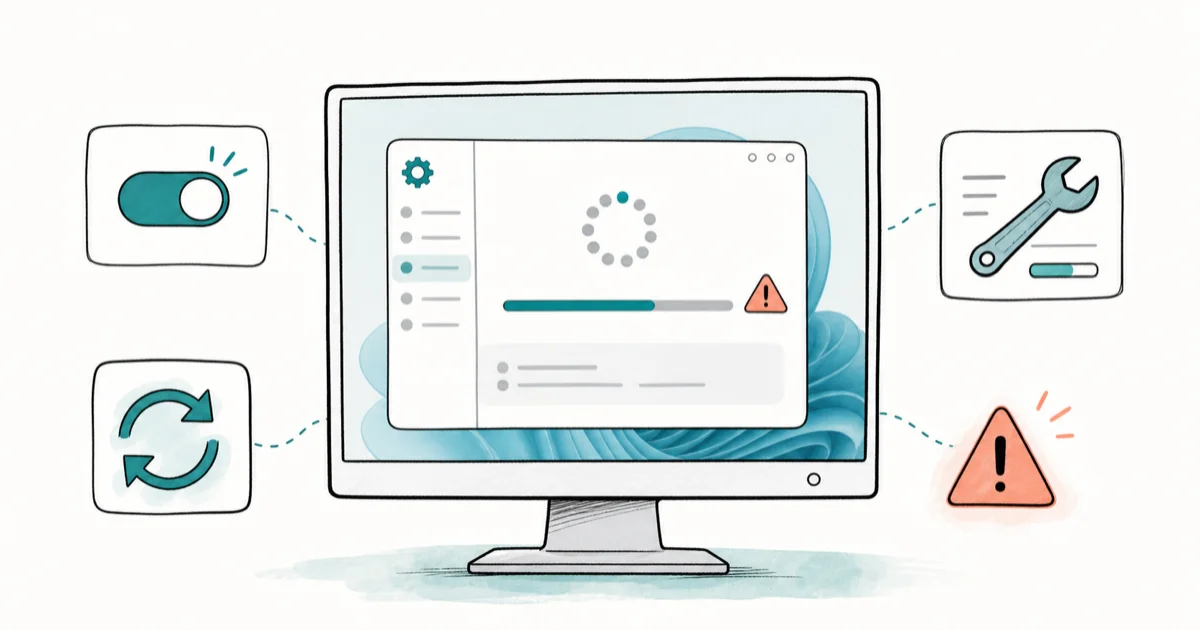
Quick AnswerWhen Windows 11 won't update, start with the built-in Windows Update troubleshooter, make sure you have enough free disk space, and restart your PC. If it still fails, reset the Update components by clearing the SoftwareDistribution folder, then repair system files with DISM and SFC.
A Windows 11 update that refuses to install is one of the most common PC headaches, and it’s almost always fixable without a reinstall. The cause is usually a stuck update cache, low disk space, or a corrupted system file. The fixes below start with quick, safe steps and move toward heavier repairs only when the basics don’t work.
- The built-in Windows Update troubleshooter resolves a surprising number of update failures on its own
- Low disk space is a frequent cause, and a 64-bit update needs at least 20 GB free
- Resetting Update components by renaming the SoftwareDistribution folder clears a stuck cache
- The DISM and SFC commands repair corrupted system files that block updates, and DISM runs first
- The Installation Assistant is a reliable manual fallback when Windows Update itself stays broken
#Why Won’t Windows 11 Update?
Update failures look mysterious, but they cluster into a few causes. The most common are a stuck or corrupted update cache, not enough free disk space, damaged system files, or a temporary glitch a restart would clear.
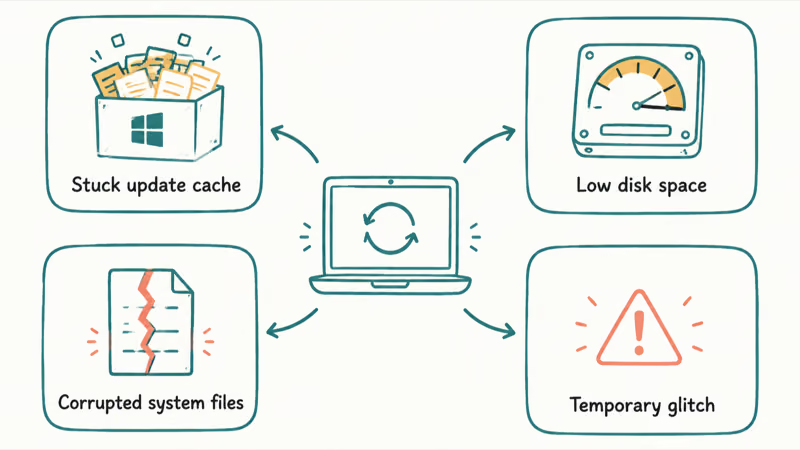
You don’t have to guess which one applies. Working through the fixes in order naturally rules each one out, starting with the easiest.
If your update isn’t failing but instead frozen at a percentage, that’s a slightly different problem covered in the Windows 11 update stuck guide. For an update that errors out or won’t start, the steps below apply.
#First Steps: Troubleshooter, Space, and Restart
Always begin with the three fastest fixes, because they resolve most cases in minutes. Start with the built-in troubleshooter.
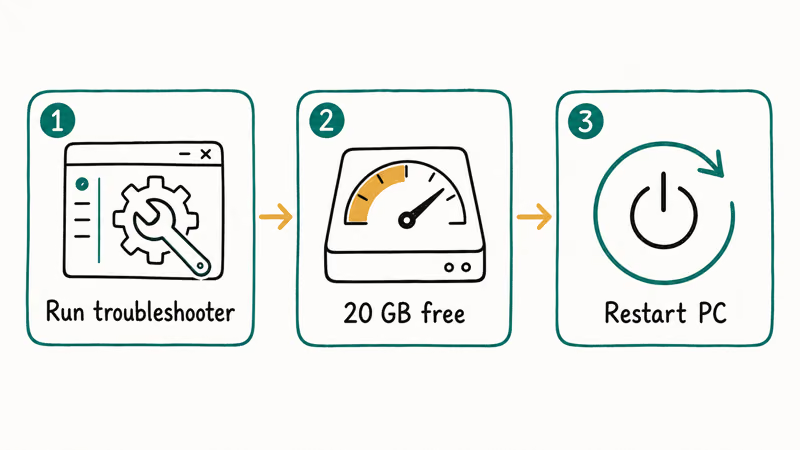
Open Settings, System, Troubleshoot, then Other troubleshooters, and run the one labeled Windows Update. According to Microsoft’s update troubleshooting guide, this tool “will automatically run diagnostics and attempt to fix most of the problems,” then prompts you to restart.
Next, check your free space. Microsoft states that a 64-bit Windows upgrade needs at least 20 GB free, so clear room if you’re tight. Then do a full restart, which alone clears the temporary glitches behind plenty of failed updates. If a specific code appears, like error 0x800705b4, match the fix to that code.
#Resetting Windows Update Components
If the basics don’t work, the update cache itself is probably corrupted. Resetting it forces Windows to download fresh update files from scratch.
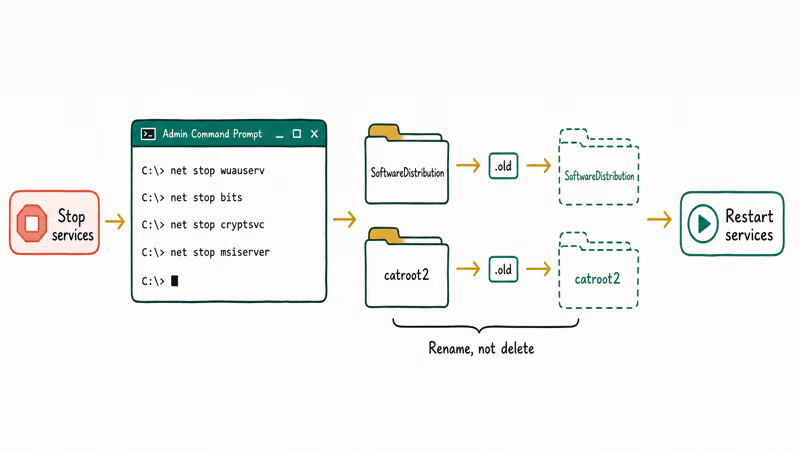
You do this in an elevated Command Prompt by stopping the update services, renaming the SoftwareDistribution and catroot2 folders so Windows rebuilds them, then restarting the services. Renaming rather than deleting keeps a backup just in case.
This single step clears a large share of stubborn update failures, since the corrupted cache is a frequent culprit. A simpler version is to manually delete old Windows update files, which clears the same cache through a friendlier interface if the command line feels intimidating.
#Repairing System Files With SFC and DISM
When the cache reset doesn’t stick, corrupted Windows system files are the next suspect. Two built-in commands fix them, and the order matters.
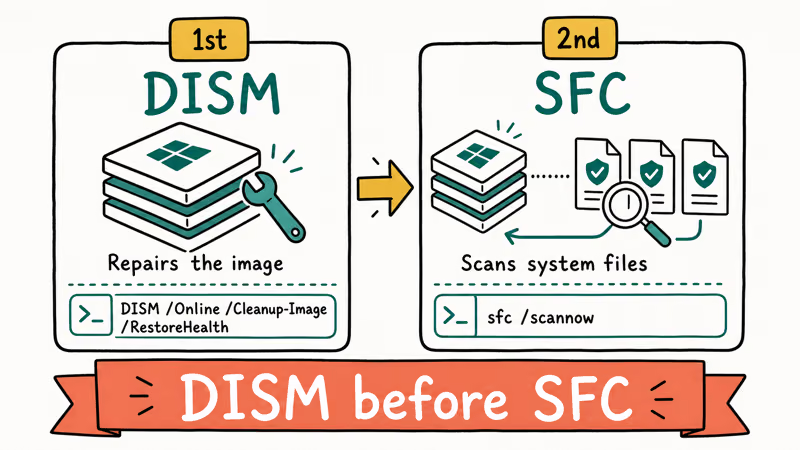
Run DISM first, then SFC. Microsoft confirms that you “should run DISM prior to running the System File Checker,” because DISM repairs the underlying Windows image that SFC then uses as a clean source. In an admin Command Prompt, run DISM.exe /Online /Cleanup-image /Restorehealth, wait for it to finish, then run sfc /scannow.
Let each command run fully before closing the window. The DISM scan can take several minutes, and SFC then replaces any damaged protected files with good copies. Together they repair the deep file corruption that a cache reset alone can’t touch.
#When to Update Manually or Use the Installation Assistant
If Windows Update is too broken to fix itself, you can sidestep it entirely. Microsoft offers manual tools that install the latest version directly.
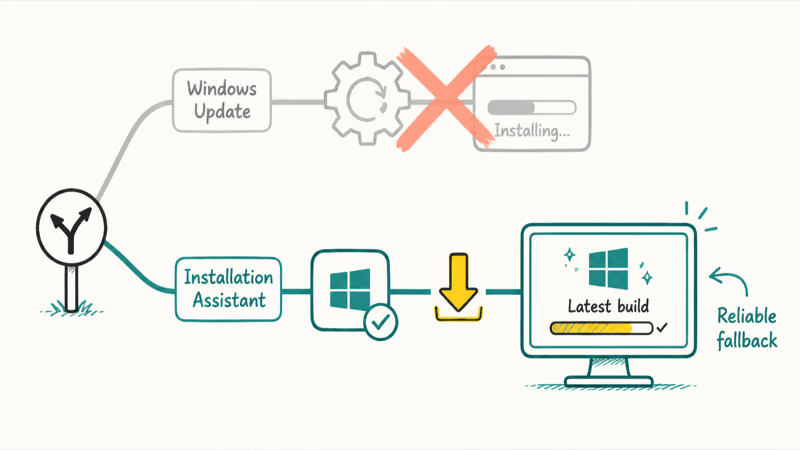
Download the Windows 11 Installation Assistant from Microsoft’s official site, run it, and it upgrades your PC to the current build without relying on the Windows Update pipeline. It’s the most reliable way to force an update through when the normal route keeps failing.
Before you do, confirm your hardware is eligible, since an ineligible PC fails updates for a different reason. The guide on checking whether your PC can run Windows 11 covers the requirements. If even the Installation Assistant struggles, booting into Safe Mode first can clear interfering software.
#Should You Disable Antivirus or a VPN to Update?
Sometimes the thing blocking your update isn’t Windows at all. A third-party antivirus or an active VPN can quietly interfere with the download.
Microsoft’s guide to problems updating Windows recommends two steps here: “Disable VPN: If you’re using a VPN, disable it and try again,” and temporarily disabling any antivirus or firewall that might be blocking the update. If you run either tool, pause it only during the update and re-enable it the moment the update finishes.
Try this before the heavier repairs if you run either tool. It costs nothing and takes seconds.
#Bottom Line
When Windows 11 won’t update, resist the urge to reinstall. Work the list in order: run the Windows Update troubleshooter, free up disk space to at least 20 GB, and restart. If that fails, reset the Update components by renaming the SoftwareDistribution folder, then repair system files by running DISM and then SFC.
Those steps fix the overwhelming majority of update failures for free. Only if the whole Windows Update system stays broken should you reach for the Installation Assistant, which installs the latest build directly and almost always succeeds.
#Frequently Asked Questions
Why does Windows 11 keep failing to update?
Usually a corrupted update cache, low disk space, or damaged system files. Start with the built-in troubleshooter and a restart, then free up space and, if needed, reset the update components and repair system files with DISM and SFC in that order, working from the simplest fix toward the more thorough ones.
How much free space does a Windows 11 update need?
Microsoft recommends at least 20 GB free for a 64-bit upgrade. Clear temporary files and old downloads if you’re tight on space.
What does clearing the SoftwareDistribution folder do?
It wipes the cache of downloaded update files so Windows fetches fresh, uncorrupted copies. If a partial or damaged download was blocking the update, clearing this folder removes it. Renaming the folder instead of deleting it keeps a safe backup while Windows rebuilds a clean version.
When should I run SFC and DISM?
Run them after the troubleshooter, restart, and component reset have all failed. Always run DISM first, then SFC, and let each finish before closing the window.
Can I install a Windows 11 update manually?
Yes. The Windows 11 Installation Assistant from Microsoft’s site installs the latest build directly, bypassing the normal Windows Update process entirely. It’s the most reliable fallback when Windows Update keeps failing, and it keeps your files and apps in place during the upgrade.
Can antivirus block Windows updates?
Sometimes, yes. A third-party antivirus or an active VPN can occasionally interfere with the update download. Temporarily disabling the VPN, or pausing a non-Microsoft antivirus during the update, can let a blocked update through. Re-enable both as soon as the update finishes.

Best Laptop for Running LLMs in 2026: Memory Comes First
The best laptop for running LLMs is a memory purchase first. Compare MacBook unified memory against NVIDIA laptop VRAM, and see what each tier really runs.

How to Run a Local LLM on Windows: A 2026 Setup Guide
Run a local LLM on Windows with LM Studio or Ollama. Pick a model that fits your GPU memory, keep every prompt offline, and skip the monthly bill.

Bluetooth Not Working on Snapdragon X? Fixes for 2026
Bluetooth not working on your Snapdragon X Copilot+ PC? Generic audio, mice, and keyboards work, but vendor apps often lack an ARM build. Fixes inside.

Docker Desktop and WSL2 Not Working on Snapdragon X? Fix It
WSL2 runs fine on Snapdragon X, but Docker Desktop ARM is Early Access and throws WSL errors. Use WSL2 plus native ARM64 Ubuntu and Docker Engine.