How to Check if Your PC Can Run Windows 11: 2026 Guide
Run Microsoft PC Health Check, then check TPM 2.0, Secure Boot, RAM, and CPU manually. Step-by-step Windows 11 compatibility audit, updated 2026.
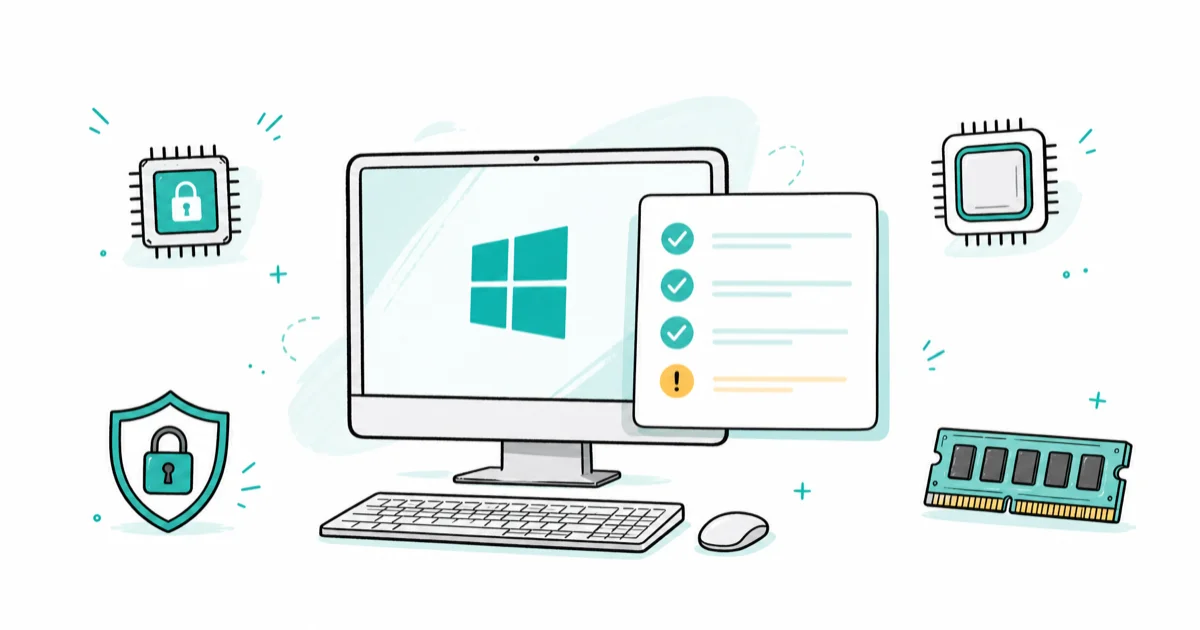
Quick AnswerRun Microsoft's PC Health Check and click Check now. Common blockers: missing TPM 2.0, disabled Secure Boot, an unsupported CPU, or under 4 GB RAM.
Windows 10 left mainstream support in October 2025, and the question on millions of minds is: can my PC run Windows 11? Here’s how to check your own computer using Microsoft’s PC Health Check in under two minutes, plus how to diagnose any fail it reports.
- Microsoft’s PC Health Check is the only official compatibility tool and runs in under two minutes from the Start menu
- The four most common fails are missing TPM 2.0, disabled Secure Boot, an unsupported CPU, and under 4 GB RAM
- TPM 2.0 ships on most motherboards built after 2017 but is usually disabled by default in BIOS under names like Intel PTT or AMD fTPM
- The Intel CPU floor is 8th-generation Core (Coffee Lake, 2017); the AMD floor is Ryzen 2000 series (Zen+, 2018)
- A real CPU fail can’t be fixed by BIOS changes, but Windows 10 PCs can enroll in Microsoft’s free consumer ESU for one more year of security patches
#Windows 11 System Requirements at a Glance
According to Microsoft’s Windows 11 specifications page, the minimum hardware floor is a 1 GHz dual-core 64-bit processor on the approved list, 4 GB of RAM, 64 GB of storage, TPM 2.0, UEFI firmware with Secure Boot capability, a DirectX 12 or WDDM 2.0 graphics chip, and a 9-inch 720p display.
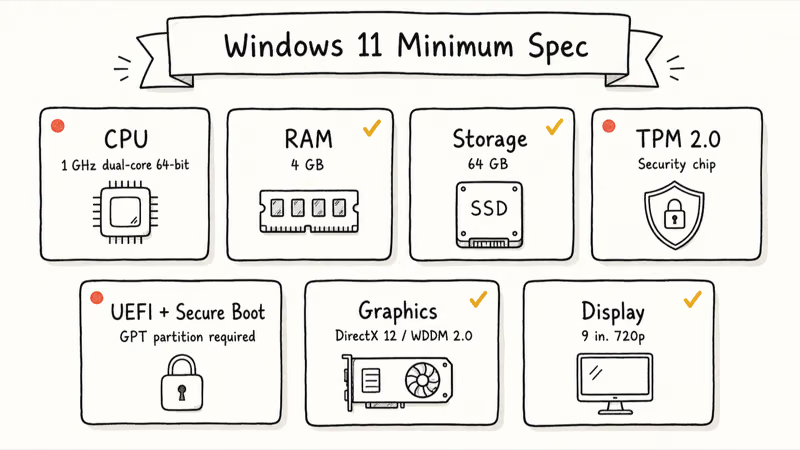
Three of these gates catch most users off guard.
TPM 2.0 is a hardware security chip that exists on almost every motherboard from 2017 onward but ships disabled in BIOS by default. Secure Boot needs the drive to use the GPT partition style and the firmware set to UEFI mode, not legacy BIOS. And the CPU list is exclusive: even a fast 2016 Intel i7 will fail because it predates the 8th-generation Core line that Microsoft drew as its floor.
Other floors are easy to clear on any PC built in the past seven years. A mid-range desktop or laptop from 2018 onward usually has 8 GB of RAM, a 256 GB SSD, and an integrated GPU that satisfies DirectX 12.
Storage is gentler than it sounds. The 64 GB floor covers the install image plus minimal headroom, and Microsoft recommends keeping at least 20 GB free for monthly updates.
#Running Microsoft’s PC Health Check Tool
PC Health Check is Microsoft’s official compatibility scanner. Open Settings, search for it in the Start menu, or download it from the PC Health Check download page if it isn’t already installed. Click the blue Check now button at the top of the app.
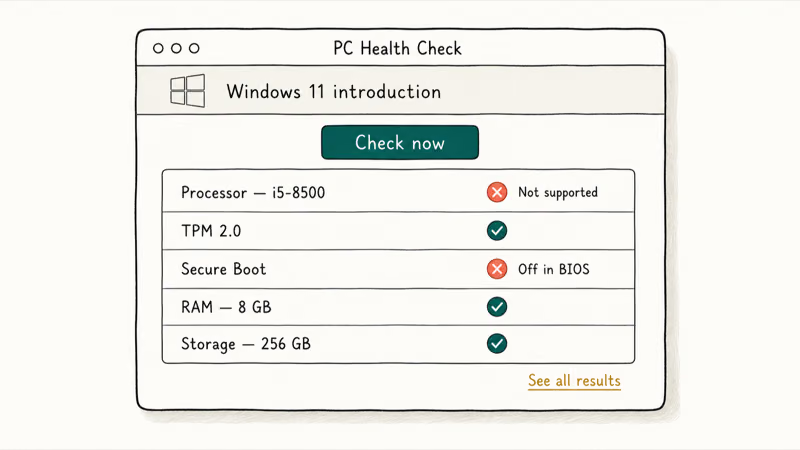
The tool checks every requirement in sequence and reports each one with a green check or red x.
If every line is green, you see a See all results button and a confirmation that your PC meets the requirements. If anything fails, the app expands a details panel that names the specific blocker, such as “The processor isn’t currently supported for Windows 11” or “TPM 2.0 must be supported and enabled on this PC.”
The result depends entirely on the hardware. A 2018-or-newer business desktop typically passes every check on the first run. A laptop built around a 6th- or 7th-generation Intel chip fails permanently on CPU generation, because no BIOS setting can change the processor soldered inside it. And a recent Ryzen tower can still fail Secure Boot on the first scan if its system drive is partitioned with the legacy MBR scheme.
Microsoft confirms that the tool covers every minimum requirement, but the app only diagnoses; it doesn’t auto-fix anything.
#Manual TPM 2.0 and Secure Boot Checks
When the Health Check reports a TPM or Secure Boot fail, run two short manual checks before assuming the hardware is the problem.
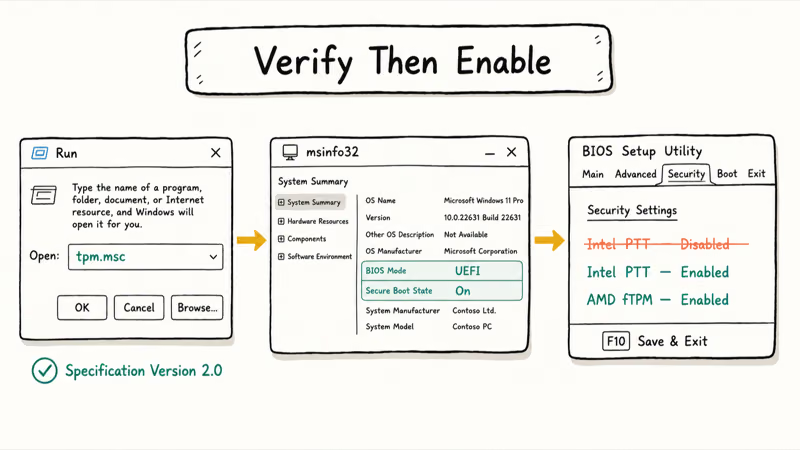
To verify TPM 2.0, press Windows + R, type tpm.msc, and press Enter. If the chip is present and enabled, the Status panel reads “The TPM is ready for use” and the Specifications panel shows Specification Version 2.0.
If the console reports that no compatible TPM was found, the chip almost certainly exists but is switched off in BIOS. Restart, enter UEFI setup with the key your manufacturer specifies (usually F2, F10, F12, or Del), and look for an entry named Intel PTT on Intel boards, AMD fTPM on AMD boards, or Security Device Support on some OEM systems. Set it to Enabled, save, and reboot.
Press Windows + R, type msinfo32, and press Enter to verify Secure Boot and UEFI mode. Under System Summary, two lines tell you everything: BIOS Mode and Secure Boot State. UEFI plus On means you’re ready.
Legacy plus Off usually means the drive is still in MBR format and the firmware in compatibility support mode. Microsoft’s Secure Boot setup guide states that the firmware needs UEFI mode and the drive needs GPT format for Secure Boot to be enabled at all, so converting the drive comes first.
The most common false fail is TPM 2.0.
Most desktop and laptop motherboards from 2017 onward have the chip on the board, but the BIOS often ships with it disabled by default, which is why a perfectly capable machine can report a hard “missing TPM” fail. Enabling it takes a couple of minutes: reboot into UEFI setup, switch the Intel PTT, AMD fTPM, or Security Device Support entry to Enabled, then save and exit. The same Health Check run that failed usually turns into a clean pass afterward.
#Looking Up Your CPU on Microsoft’s Supported Lists
CPU failures are different from TPM and Secure Boot failures. No BIOS toggle adds a missing processor to Microsoft’s approved list, and no software workaround will move you from a 7th-generation chip to an 8th-generation one.
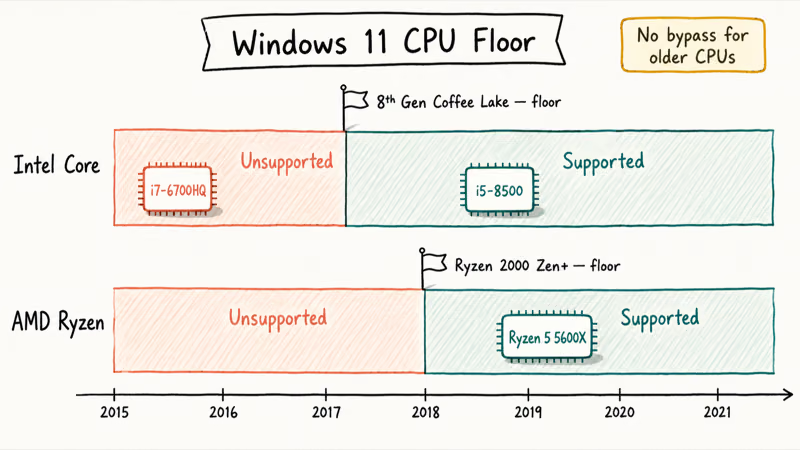
Open Settings, then System, then About, and read the Processor field. It shows the exact model number, for example “Intel(R) Core(TM) i5-8500 CPU @ 3.00 GHz” or “AMD Ryzen 5 5600X 6-Core Processor.”
Match this against Microsoft’s official lists: the supported Intel processor list for Intel chips and the supported AMD processor list for AMD chips.
Microsoft’s supported processor list states that the Intel floor is 8th-generation Core (Coffee Lake) with documented exceptions for select 7th-generation Core X-series and Xeon W parts. The AMD floor is Ryzen 2000 series (Zen+) and newer, with no original Zen or earlier Bulldozer support. Qualcomm Snapdragon 850 and newer ARM chips are also approved, though far rarer in consumer PCs.
If your CPU isn’t on either list, the verdict is final, and software bypass routes lose access to future Windows security updates, which is why this guide doesn’t cover them.
Three paths remain: stay on Windows 10 with consumer ESU, upgrade the CPU and motherboard, or buy a new machine.
#Why Does a Compatible-Looking PC Still Fail?
The most frustrating Health Check result is a fail on a PC you know should pass. Most of these “wrong” fails come down to four causes, all of them fixable.
First is a stale Health Check app. Microsoft updates the tool every few months as new CPUs land on the approved list. If you downloaded it a year ago, uninstall and grab the current version before trusting any fail.
Second is the TPM-disabled-in-BIOS case from the previous section, which accounts for most “missing TPM” reports on hardware that obviously has the chip.
Third is the drive partition style. Windows 11 needs Secure Boot, Secure Boot needs UEFI mode, and UEFI mode needs the drive in GPT format. A PC that booted Windows 10 from an MBR drive will fail Secure Boot in Health Check until you convert with the built-in mbr2gpt command and switch the firmware mode in UEFI setup. Microsoft recommends running mbr2gpt /validate first to confirm the conversion will succeed.
Fourth is a stuck Windows Update cache that prevents the compatibility appraiser from refreshing. When the cache is corrupted, Health Check sometimes reports a fail that vanishes after clearing the stuck Windows Update files and rebooting.
If post-upgrade stability fails, see our repair Windows 10 without a disc and DPC Watchdog Violation guides.
#What Are Your Options When Windows 11 Isn’t Possible?
If Health Check reports a real CPU fail and the manual checks confirm it, you still have several official paths that don’t involve unsupported install workarounds.
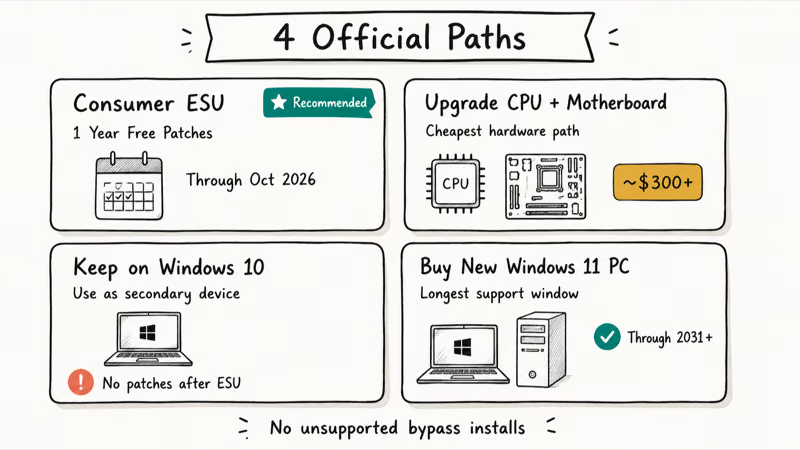
First is the consumer Extended Security Updates program. Microsoft announced this consumer ESU window after Windows 10 reached end-of-support on October 14, 2025, and it gives eligible PCs one extra year of free security patches when you enroll through Settings. It’s the path most users in this situation choose: it costs nothing, takes a couple of minutes, and buys time to plan a hardware refresh without exposing the machine to unpatched threats.
Second is a hardware upgrade. For desktops, swapping the CPU and motherboard for an 8th-generation Intel or Ryzen 2000+ chip is usually the cheapest way to a supported configuration, though the upgrade often pulls in a new PSU and case as well.
Our guide on how to upgrade your PC hardware walks through which parts move the compatibility needle. RAM and SSD upgrades alone never fix a CPU fail.
Third is to keep the machine on Windows 10 as a secondary device after backing up your data. You should still activate Windows 10 legally so it stays in good standing, and consider running a factory reset of Windows 10 without a password if you’re handing the PC off to someone else. Buying a new Windows 11 laptop or desktop is the fourth option and the only one that gives you the longest support window without further migration work.
#Bottom Line
Run PC Health Check first; it takes two minutes and gives the definitive Microsoft-authored verdict for free. If the tool reports any single fail, open tpm.msc and msinfo32 before assuming the hardware is at fault, because most “fails” on 2017-and-newer hardware are BIOS settings that just need flipping (TPM disabled, Secure Boot off, drive in legacy MBR mode).
For PCs older than Intel 8th-generation Core or AMD Ryzen 2000, the CPU fail is permanent. Enroll those machines in the free consumer ESU window for one more year of Windows 10 security updates and budget for a hardware refresh by late 2026, rather than chase unsupported-install workarounds that lock you out of future security patches.
#Frequently Asked Questions
Can I install Windows 11 on an unsupported PC?
Microsoft permits unsupported installation through registry edits, but warns that those PCs may stop receiving updates and lose warranty coverage. The free consumer ESU on Windows 10 is the safer bet.
Why does PC Health Check say my CPU isn’t supported when it’s on the list?
The most common cause is a stale Health Check app from before your CPU was added to the approved list. Uninstall the version on your system, download the current installer from Microsoft, and rerun the check. If it still fails, confirm the exact model number under Settings, System, About, and compare it character-for-character against the Microsoft Learn list, since some CPU model numbers differ by only one digit between supported and unsupported variants.
Do I need to buy a TPM module to run Windows 11?
Almost certainly no. Intel boards from 2017+ include Intel PTT and AMD boards include fTPM, both of which satisfy TPM 2.0 once enabled in BIOS.
How do I enable TPM 2.0 in BIOS?
Restart the PC and press your manufacturer’s UEFI setup key during boot (commonly F2, F10, F12, or Del). Look under Security, Advanced, or Trusted Computing for an entry named Intel PTT, AMD fTPM, or Security Device Support. Set it to Enabled, save and exit, boot back to Windows, run tpm.msc, and confirm that the Specification Version field reads 2.0.
Is Windows 11 free if my PC is eligible?
Yes. Microsoft offers it as a free upgrade for any valid Windows 10 license on compatible hardware, with no extra purchase needed.
What happens to Windows 10 PCs that can’t upgrade?
After Windows 10 reached end-of-support on October 14, 2025, those PCs stopped receiving regular security and feature updates from Microsoft. The consumer ESU program extends critical security patches for one more year on eligible Windows 10 systems, but no new Windows 10 features, drivers, or compatibility improvements will be issued. Most apps and browsers will keep working in the short term, but the security gap widens each month.
Does adding more RAM help my PC pass the check?
Only if your fail is specifically the 4 GB RAM minimum. Extra memory does nothing for CPU, TPM, or Secure Boot fails.
How long will my unsupported PC keep working on Windows 10?
The hardware itself keeps working indefinitely, but the security gap is the real issue. Without monthly patches, vulnerabilities discovered after October 2026 (when consumer ESU ends) will accumulate on the system, which makes the PC progressively less safe for banking, email, or anything tied to a real identity. A common middle path is to demote an unsupported Windows 10 PC to a secondary or offline role rather than retire it outright.

Bluetooth Not Working on Snapdragon X? Fixes for 2026
Bluetooth not working on your Snapdragon X Copilot+ PC? Generic audio, mice, and keyboards work, but vendor apps often lack an ARM build. Fixes inside.

Docker Desktop and WSL2 Not Working on Snapdragon X? Fix It
WSL2 runs fine on Snapdragon X, but Docker Desktop ARM is Early Access and throws WSL errors. Use WSL2 plus native ARM64 Ubuntu and Docker Engine.
Does iTunes Work on Snapdragon X? ARM Windows 11 Guide
Yes, iTunes runs on Snapdragon X laptops through Prism emulation, but the Apple Devices app is the smoother route. Here is what to install on ARM.

Does OBS Studio Work on Snapdragon X? ARM64 Build Guide
Yes, OBS Studio has an experimental ARM64 build since version 31.1, but x64 plugins won't load and hardware encoding is missing. Here is what works.