Windows 11 Update Stuck? 8 Fixes That Work Fast (2026)
Windows 11 update stuck downloading, installing, or at 100%? Learn when to wait, free disk space, check the EFI partition, and reset Windows Update.
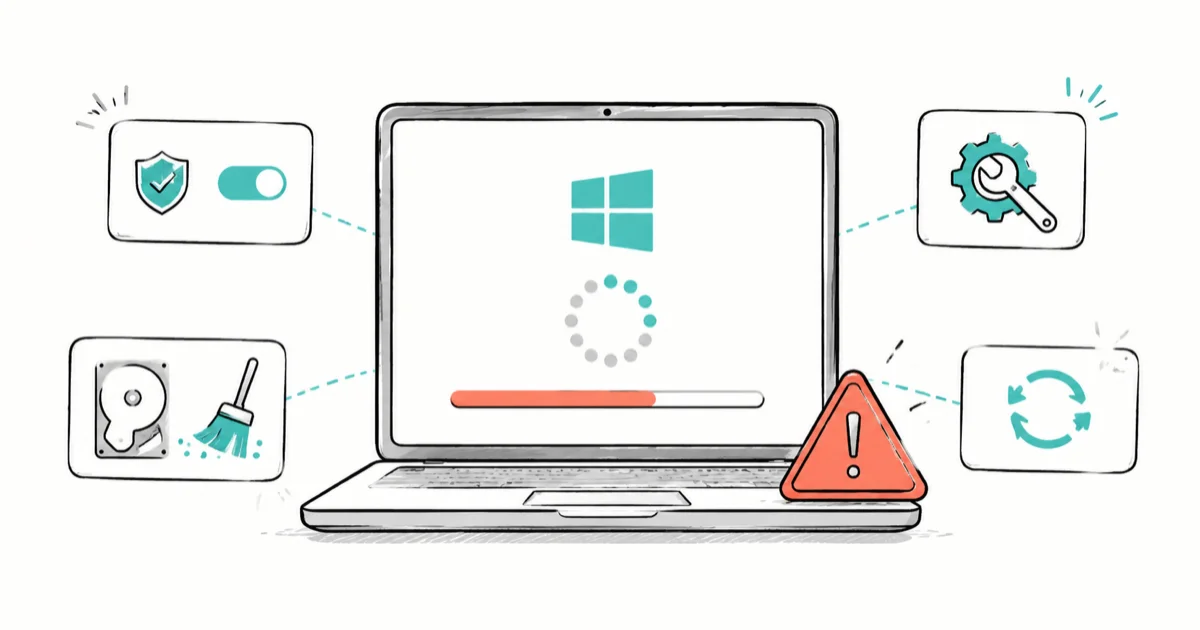
Quick AnswerIf a Windows 11 update is stuck, wait two to three hours first, since the spinning circle is often still working. If nothing changes, run the Update Troubleshooter, free disk space, and disable antivirus.
A Windows 11 update stuck at a frozen percentage is one of the scariest screens a PC can show. The percentage might sit at 0%, 35%, or that maddening 100% that never finishes. The good news is that most stuck updates aren’t actually frozen.
The order of fixes below starts with the safest step, which is waiting, and moves toward last-resort options only when the update is truly dead. Pulling the plug too early is what actually risks the machine, so patience comes first.
- A download or spinning circle that looks frozen is often still working, so wait two to three hours before assuming anything is wrong
- Windows 11 runs background recovery and can reboot several times during one update, which is normal and not a sign of failure
- A stall around 35 percent followed by an “Undoing changes” rollback usually points to the 2026 EFI System Partition bug, fixed by a patched build
- Low disk space on the system partition stalls updates, and freeing several gigabytes clears many install failures
- Forcing a shutdown is a true last resort, since interrupting a write phase is what actually risks damaging the install
#Why Is Your Windows 11 Update Stuck?
A stuck update almost always traces to one of a handful of causes, and knowing which one you have decides what to do next.
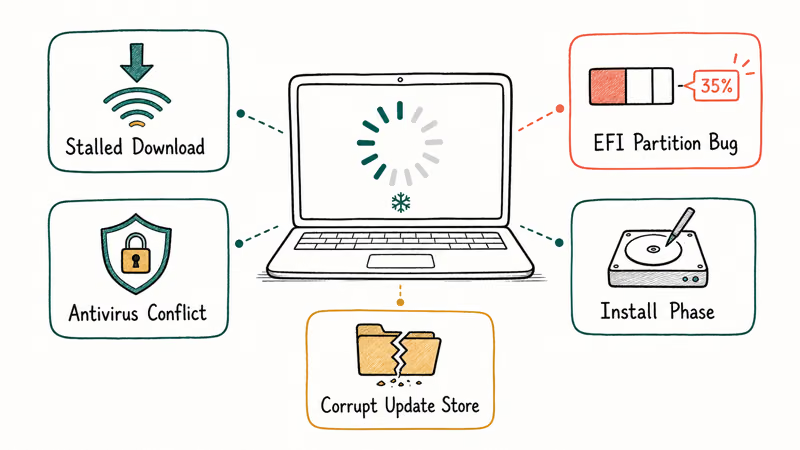
The most common is a stalled download, usually because the system partition is low on space or the network connection dropped mid-transfer. The second is the install phase itself, where Windows is unpacking and writing files during the reboot. A third, newer cause is the 2026 EFI System Partition rollback bug, where an update stalls around 35% and then reverses with an “Undoing changes” message. Antivirus conflicts and a corrupt Windows Update component store round out the list.
None of these mean your PC is broken. They mean the update needs either more time, more space, or a specific fix. The trick is telling a slow update from a dead one, which is the next section.
#Is It Actually Frozen, or Just Slow?
This is the single most important question, because acting too fast is what causes real damage.
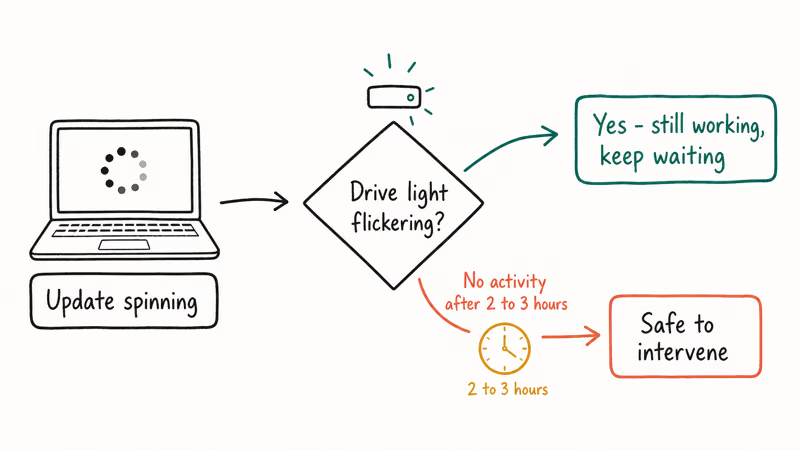
A spinning circle with no percentage can look frozen while Windows works in the background. The clearest signal that an update is still alive is hard-drive activity: if your PC has an activity LED, watch for flickering. According to Microsoft’s update-troubleshooting page, the page recommends leaving the device on, plugged in, and connected to the internet rather than interrupting it.
Windows 11 also runs automatic recovery and can reboot the PC more than twice during one update, which can look alarming but still be normal. As a rule, give a stalled download or spinning circle at least two to three hours before you treat it as truly stuck. If the percentage hasn’t moved at all in that window and there’s zero drive activity, it’s time to intervene.
#Run the Windows Update Troubleshooter and Free Disk Space
Once you’ve decided the update really is stuck, start with the two cheapest fixes.
Open the Get Help app or go to Settings > System > Troubleshoot > Other troubleshooters, then run Windows Update. The troubleshooter resets stuck services and clears common queue errors automatically. Microsoft’s support documentation confirms that the built-in troubleshooter can detect and fix many update problems without manual steps. Run it before anything more involved.
Next, check disk space. Windows updates need several gigabytes of free room on the system partition, and a nearly full drive stalls the process cold. Go to Settings > System > Storage, check the C: drive, then turn on Storage Sense or run Disk Cleanup if you’re tight. The guide to fixing 100% disk usage covers the deeper causes, so free up at least 10 to 20 GB and retry the update.
#Fix the 2026 EFI Partition Rollback Bug
If your update stalls specifically around 35 to 36% and then rolls back with “Undoing changes” and error 0x800f0922, you’re likely hitting the 2026 EFI System Partition bug, not a normal failure.
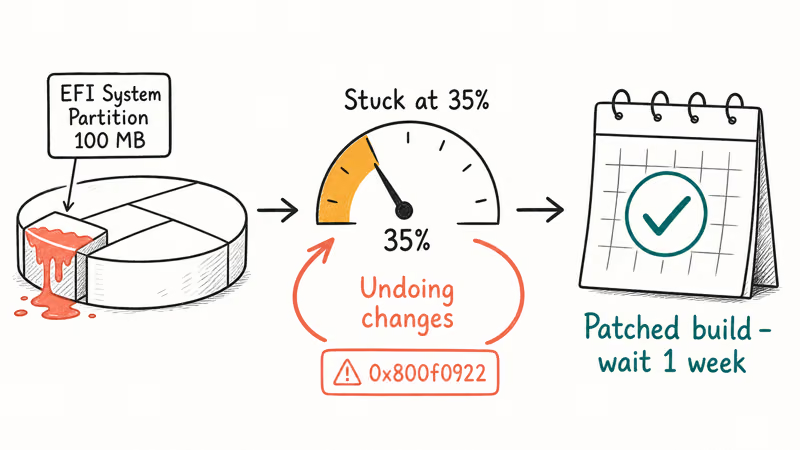
The EFI System Partition is a small, hidden partition that holds boot files, typically around 100 MB on older installs. Some updates this year needed more room there than older partitions provided, so the install ran out of space and reversed itself. According to Windows Latest, 2026 install failures on the affected build were tied to low storage, and Microsoft said it was rolling out an emergency patch, as detailed in its EFI partition report.
The realistic move here is not endless manual troubleshooting. The fix is the patched build, so pause updates for a week and try again once the corrected version arrives. Because this specific stall surfaces as error 0x800f0922, the guide to update error 0x800f0922 walks through the component-level repair path if you’d rather act than wait. Resist the urge to manually resize the EFI partition, since that’s risky and rarely necessary once the patched build lands.
#Disable Antivirus and Reset Windows Update Components
Two stubborn causes remain: third-party security software and a damaged update component store.
Third-party antivirus tools sometimes lock the files Windows needs to write during an install. Temporarily disable your antivirus, retry the update, then turn protection back on the moment it finishes. Windows Defender alone is enough during that short window.
If the update still won’t budge, reset the Windows Update components. Open Command Prompt as administrator and stop the services, clear the SoftwareDistribution cache, then restart the services:
net stop wuauserv
net stop bits
ren C:\Windows\SoftwareDistribution SoftwareDistribution.old
net start wuauserv
net start bits
This forces Windows to redownload a clean copy of the update, and the guide to delete Windows update files completely explains the cache cleanup in more detail. Advanced users can also run chkdsk /f to check the drive for errors that might interrupt writes. If a stuck update has also triggered crash screens, the Windows 11 BSOD fix guide covers what to do when an update leaves the system unstable.
#Manually Install the Update From the Catalog
When Windows Update itself keeps choking on the same patch, bypass it.
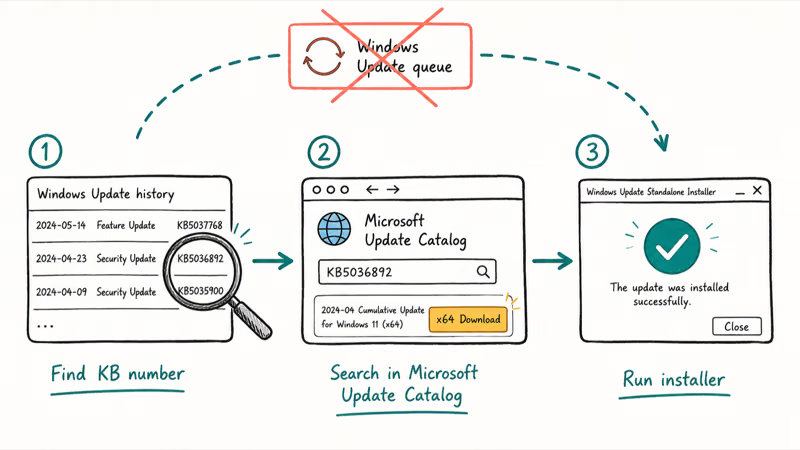
Every cumulative update has a KB number, shown in your update history as the failed entry. Note that number, then open the Microsoft Update Catalog, search for the KB, download the standalone installer that matches your system (x64 for most PCs), and run it directly. This sidesteps the broken Windows Update queue and installs the patch as a regular program.
Manual Catalog install bypasses the Windows Update queue and can break a repeating stall short of a repair install. If the standalone installer also fails, that’s a strong sign the cause is the EFI partition bug or a deeper system issue, not the queue itself.
If your stuck update is tied to a flaky network connection that keeps dropping the download, the guide to a Windows 11 Wi-Fi connection that keeps disconnecting covers the network side of the problem.
#Bottom Line
First, decide whether the update is frozen or just slow. Windows 11 runs background recovery and may reboot several times, so a stuck-looking download is often still working and should be left alone for a few hours. If it stalls around 35% and rolls back with 0x800f0922, that’s the 2026 EFI partition bug, and the patched build is the fix. For other stalls, run the Troubleshooter, free disk space, and disable antivirus before you force a shutdown.
#Frequently Asked Questions
How long should I wait before assuming an update is frozen?
Give it at least two to three hours, especially during a feature update. The spinning circle and stalled percentages are often deceptive because Windows works in the background without updating the display. Watch for drive activity; if the light still flickers, the update is alive. Only treat it as frozen if nothing has changed in hours and there’s no disk activity at all.
Is it safe to force shut down during a stuck update?
It’s risky. Cutting power mid-write during the install phase can corrupt system files and leave the PC unbootable. Wait several hours and confirm zero drive activity first.
Why does my update get stuck around 35 percent and roll back?
A stall near 35 to 36% followed by “Undoing changes” and error 0x800f0922 points to the 2026 EFI System Partition bug, where the small boot partition ran out of room. Microsoft has acknowledged the issue and shipped a fix through Windows Update. Pause updates for a week and wait for the patched build rather than resizing the partition yourself, which risks an unbootable system.
Does low disk space stop Windows updates?
Yes. Updates stage several gigabytes of files on the system partition, so a nearly full C: drive stalls the process. Free at least 10 to 20 GB with Storage Sense or Disk Cleanup, then retry.
Why did my PC reboot more than twice during one update?
That’s normal for Windows 11. The update process runs automatic recovery and can restart the machine several times to apply different components and verify Secure Boot. Multiple reboots in a row look alarming but don’t mean the update failed. Let it run unless it sits frozen for hours between restarts.
Can I install the update manually instead?
Yes, and it’s often the most reliable fix. Find the failed update’s KB number in your update history, search for it in the Microsoft Update Catalog, download the standalone installer for your system type, and run it directly. This bypasses the broken Windows Update queue and installs the patch like a normal program.

Best Laptop for Running LLMs in 2026: Memory Comes First
The best laptop for running LLMs is a memory purchase first. Compare MacBook unified memory against NVIDIA laptop VRAM, and see what each tier really runs.

How to Run a Local LLM on Windows: A 2026 Setup Guide
Run a local LLM on Windows with LM Studio or Ollama. Pick a model that fits your GPU memory, keep every prompt offline, and skip the monthly bill.

Bluetooth Not Working on Snapdragon X? Fixes for 2026
Bluetooth not working on your Snapdragon X Copilot+ PC? Generic audio, mice, and keyboards work, but vendor apps often lack an ARM build. Fixes inside.

Docker Desktop and WSL2 Not Working on Snapdragon X? Fix It
WSL2 runs fine on Snapdragon X, but Docker Desktop ARM is Early Access and throws WSL errors. Use WSL2 plus native ARM64 Ubuntu and Docker Engine.