Windows 11 Sleep Mode Not Working? 8 Fixes That Work
Fix Windows 11 sleep mode not working by checking power settings, using powercfg to find wake sources, and disabling wake timers before driver changes.
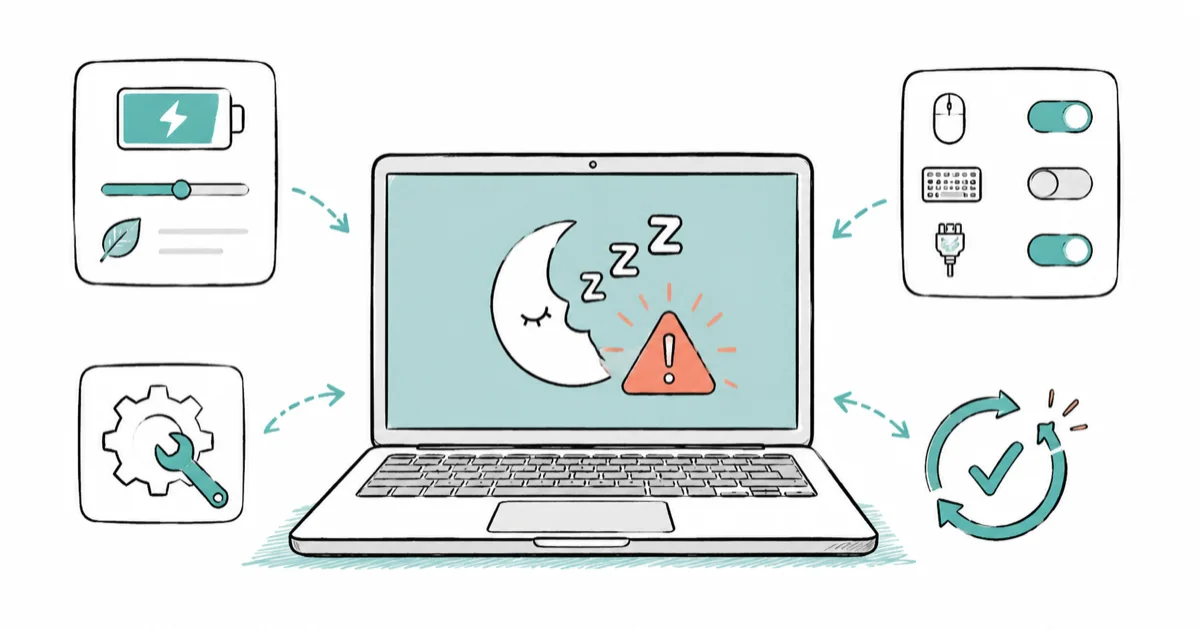
Quick AnswerDon't guess at random power settings. If the PC wakes immediately, use powercfg to name the wake source, then disable that one device or timer instead of changing everything.
Windows 11 sleep mode not working is really three separate problems wearing one symptom. The PC won’t sleep, it sleeps but wakes instantly, or the sleep option is missing entirely. Each needs a different fix, and the worst move is changing random power settings before you know which one you have. The steps below start with the symptom, then use powercfg before any broad driver changes.
- A PC that wakes immediately almost always has a specific wake source, and
powercfg /lastwakenames it - A USB mouse, keyboard, or network adapter is the most common culprit for instant wakes
- Wake timers, like scheduled tasks and updates, can pull the PC out of sleep on a schedule
- A missing or grayed-out sleep option usually means a driver, firmware, or Modern Standby limitation
- Change the named wake source, not every power setting, so you don’t break wake-on-keyboard you actually need
#Why Is Sleep Mode Not Working in Windows 11?
Sleep is a negotiation between Windows, your power plan, and every device that’s allowed to wake the system. When sleep misbehaves, one of those three is the cause, and the symptom tells you which. Guessing wastes time and can disable a wake feature you actually want.
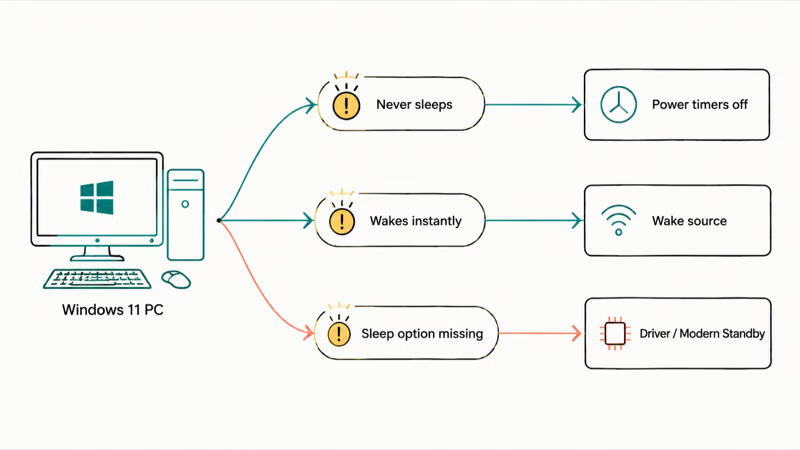
Match your exact symptom to the right starting point before you touch a single setting.
| Symptom | Likely cause | First action |
|---|---|---|
| PC never sleeps on its own | Power plan timers off | Check screen and sleep timers |
| Sleeps, then wakes instantly | A device or wake timer | Run powercfg /lastwake |
| Wakes a few minutes later | Scheduled wake timer | Check powercfg /waketimers |
| Sleep option missing or grayed | Driver or Modern Standby | Check available sleep states |
| Only the monitor won’t sleep | Screen timeout setting | Adjust the screen timeout |
The wake-source commands below turn a frustrating guessing game into a targeted diagnosis.
#Check Power and Screen/Sleep Settings First
Start with the obvious. Open Settings > System > Power & battery > Screen and sleep and confirm the sleep timer isn’t set to Never. A surprising number of “won’t sleep” reports are simply a timer that got switched off.
According to Microsoft’s guidance on how to sleep, shut down, or hibernate your PC, sleep uses very little power and puts you instantly back where you left off, so it’s worth getting working rather than reaching for full shutdowns. Set both the screen and sleep timers to a real value and test.
Also check the power mode. Best performance mode and some manufacturer “gaming” plans push back sleep timers or disable them outright, so switch to Balanced while you troubleshoot.
If only the monitor stays awake while the PC otherwise idles fine, that’s a screen-timeout setting, not a sleep failure. Separate the two before you go deeper.
#Find What Woke the PC With powercfg
When the PC sleeps but wakes instantly or a few minutes later, stop guessing and ask Windows directly. Open Command Prompt as administrator and run powercfg /lastwake. According to Microsoft’s powercfg reference, this command reports exactly what woke the system from the last sleep transition.
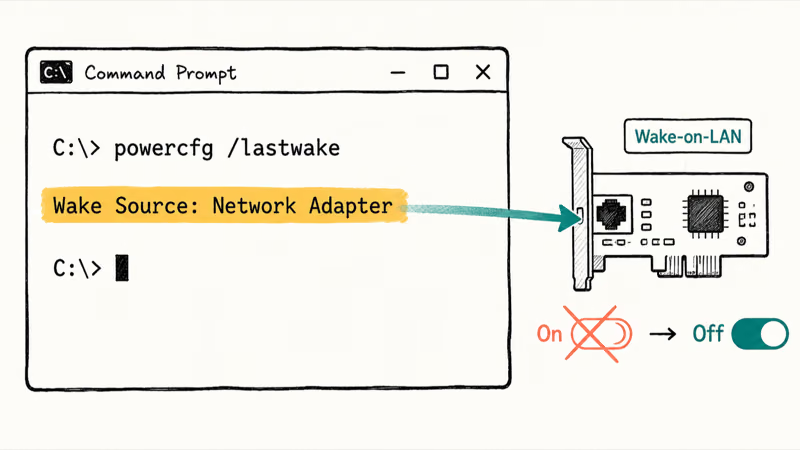
The output names the culprit. It might read a mouse, a network adapter, or a wake timer. That single line usually solves the mystery.
When powercfg /lastwake points at a network adapter’s wake-on-LAN setting, disable that specific wake permission instead of changing the whole power plan. No power-plan roulette required. A flaky network adapter can cause other grief too, like the drops in the windows 11 wifi keeps disconnecting guide.
Next, run powercfg /devicequery wake_armed to list every device currently allowed to wake the PC. Microsoft’s powercfg command-line reference documents this query flag as the way to see which devices are armed to wake the system, and it’s the shortlist you’ll work from in the next section.
#What If Sleep Is Missing or Grayed Out?
A missing or grayed-out sleep option is a different animal. It usually means Windows can’t enter the sleep state your hardware claims to support.
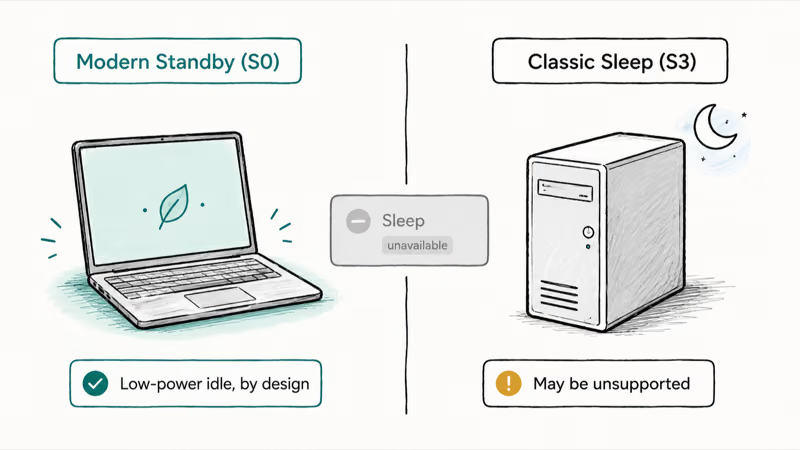
Run powercfg /availablesleepstates as administrator. It reports which sleep states your system supports and, helpfully, tries to explain why any unavailable state is missing. If standby (S3) is listed as unsupported, that’s a hardware or firmware answer, not a settings one.
Many newer laptops use Modern Standby (S0 low-power idle) instead of classic S3 sleep. That’s expected on those machines, not a fault. Don’t chase a classic “Sleep” entry that was never going to exist there, because the behavior you’re seeing is exactly how the hardware was designed to idle, and forcing the old S3 path is usually impossible without a firmware that simply doesn’t offer it.
If sleep vanished after an update, a chipset or graphics driver is the likely cause, and rolling it back often restores the option. A shutdown that hangs is a related but separate issue covered in the windows 11 wont shut guide.
#Disable Wake Timers and Device Wake Permissions
Now act on what powercfg named. If a device is waking the PC, open Device Manager, find that device, and on its Power Management tab clear Allow this device to wake the computer. A USB mouse on a sensitive desk is a classic offender that nudges the system awake.
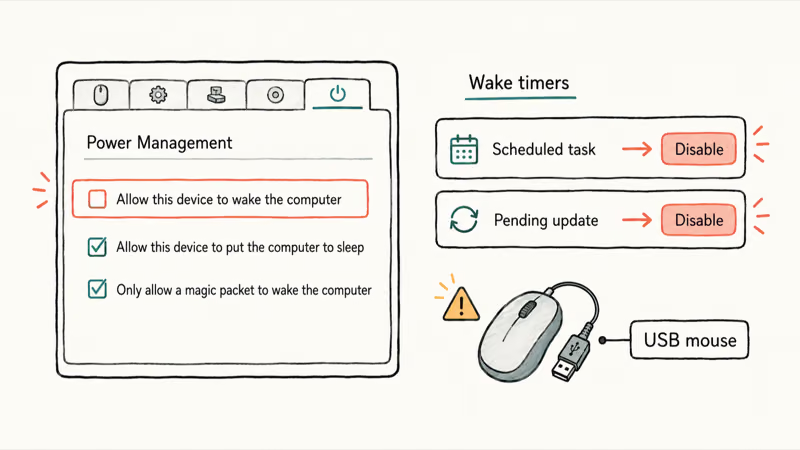
Be careful here, though. If you wake a desktop with the keyboard, don’t blanket-disable USB wake. Disable only the device powercfg /lastwake blamed.
For scheduled wakes, run powercfg /waketimers. Microsoft’s reference states that this command enumerates the active wake timers, which are the scheduled tasks and updates that pull the PC out of sleep. To stop most of them, open the advanced power settings, expand Sleep > Allow wake timers, and set it to Disable.
A maintenance task or a pending update is a frequent timer-based waker. If yours traces to Windows Update, the windows 11 update stuck guide covers settling the update so it stops scheduling wakes. To find a third-party background app that’s blocking sleep or scheduling wakes, Microsoft’s guide to how to perform a clean boot in Windows isolates the offender by starting with only essential services.
#Update Chipset, GPU, and Network Drivers Carefully
When sleep broke after an update, or powercfg keeps pointing at a network adapter or graphics device, the driver is your target. Chipset, GPU, and network drivers all touch power states directly.
Update them from the manufacturer first, not just Windows Update, since OEM power drivers are better tuned. If sleep worked before a recent driver change, roll it back instead from the Properties > Driver tab.
BIOS and firmware are the last software-adjacent stop. Some boards hide wake-from-USB or ErP/deep-sleep settings in firmware, and a BIOS update occasionally fixes stubborn S3 problems that nothing in Windows touches. Treat this as a careful last step, not a first move, and only once the powercfg diagnosis has come up completely empty and a clean driver reinstall hasn’t moved the needle either.
Display-driver issues that disrupt sleep can also surface as detection problems, covered in the windows 11 second monitor guide. A bad power driver can even crash on wake, which the windows 11 bsod fix guide untangles.
#Bottom Line
Don’t guess at random power settings. If Windows wakes immediately, run powercfg /lastwake to name the source, then disable only that device or wake timer rather than changing everything in sight. If sleep is missing entirely, check available sleep states and look at driver, firmware, or Modern Standby before assuming Windows is broken. The powercfg commands turn a guessing game into a targeted fix.
#Frequently Asked Questions
Why is sleep mode not working in Windows 11?
It’s usually one of three things: a power plan with sleep turned off, a device or wake timer pulling the PC awake, or a driver limitation that hides the sleep option. Identify your symptom first.
What should I check first?
Confirm the sleep timer isn’t set to Never in Power & battery settings. If sleep is enabled but the PC wakes on its own, run powercfg /lastwake in an admin Command Prompt to name the exact device or timer that woke it. That one command saves you from guessing.
Can a Windows update cause this?
Yes, in two ways. Updates can swap a chipset, graphics, or network driver that handles power states, which breaks sleep or hides the option, and they can schedule maintenance wake timers that pull the PC back awake on their own clock. If sleep stopped right after an update installed, start by rolling back the related driver from Device Manager, then check powercfg /waketimers for any new scheduled wake the update may have added.
Will changing power settings delete my data?
No, none of it touches your data. Power settings and wake toggles only change how and when the PC sleeps. A powercfg query is read-only.
When should I contact official support?
Reach out when powercfg /availablesleepstates reports that the sleep state your hardware should support is unavailable for a hardware or firmware reason, and a driver update and BIOS update both fail to restore it. At that point it’s a hardware or firmware issue for your PC maker rather than a Windows setting.
How do I prevent this from happening again?
Keep chipset, GPU, and network drivers current from the manufacturer, leave wake timers disabled unless you need scheduled wakes, and remember which single device you allowed to wake the PC. If you swap a power plan for gaming or performance, check that it didn’t quietly turn the sleep timer back off.

Best Laptop for Running LLMs in 2026: Memory Comes First
The best laptop for running LLMs is a memory purchase first. Compare MacBook unified memory against NVIDIA laptop VRAM, and see what each tier really runs.

How to Run a Local LLM on Windows: A 2026 Setup Guide
Run a local LLM on Windows with LM Studio or Ollama. Pick a model that fits your GPU memory, keep every prompt offline, and skip the monthly bill.

Bluetooth Not Working on Snapdragon X? Fixes for 2026
Bluetooth not working on your Snapdragon X Copilot+ PC? Generic audio, mice, and keyboards work, but vendor apps often lack an ARM build. Fixes inside.

Docker Desktop and WSL2 Not Working on Snapdragon X? Fix It
WSL2 runs fine on Snapdragon X, but Docker Desktop ARM is Early Access and throws WSL errors. Use WSL2 plus native ARM64 Ubuntu and Docker Engine.