Windows 11 Second Monitor Not Detected: 2026 Fixes
Windows 11 second monitor not detected? Test the connection chain, refresh the graphics driver, force detection, and fix the March 2026 update display bug.
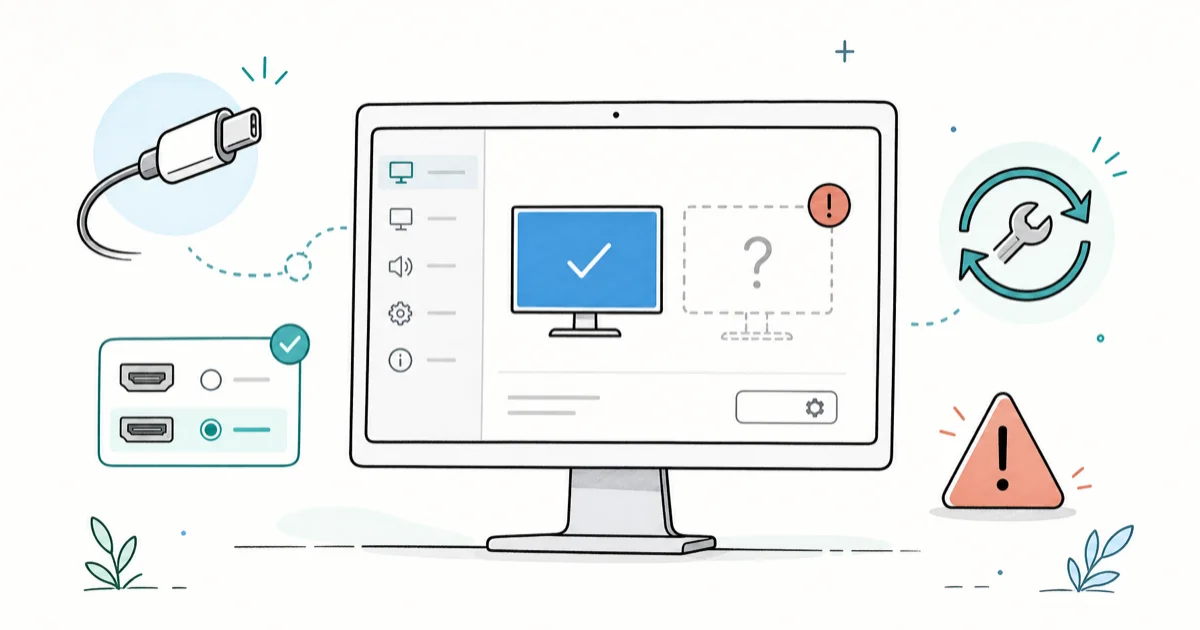
Quick AnswerA Windows 11 second monitor usually fails to appear because of a connection-chain fault: the wrong input source, a USB-C port without video output, or a loose cable. Press Win+Ctrl+Shift+B to refresh the graphics driver.
A Windows 11 second monitor not detected error almost always starts at the physical connection, not in the software. The screen sits dark, shows “No Signal,” or never appears under Display settings even though the cable is plugged in and the monitor has power. Start with the connection chain, then use the graphics-driver reset shortcut before deeper Windows settings.
The trick is to work the chain in order. Power and input source first, then the cable and port, then the graphics driver, and only then the deeper Windows settings. Skip ahead to a driver reinstall and you waste an afternoon on a USB-C port that simply doesn’t carry video.
- Press Win+Ctrl+Shift+B to restart the graphics driver without rebooting; the screen blinks once
- A USB-C port must support DisplayPort Alt Mode to drive an external display, and many don’t
- The Detect button under Settings, System, Display forces Windows to re-scan for a connected screen
- Roll back the graphics driver if the monitor stopped working right after a driver update
- Back up the registry before any display-topology rebuild, since that step edits system keys
#The Four Causes Behind a Second Monitor Not Detected
A second monitor fails to show up for one of four reasons. The most common is a connection-chain fault: a wrong input source, a cable that looks seated but isn’t, or a USB-C port that carries power and data but no video. The other three are a stale or crashed graphics driver, a power setting that drops a dock, and a Windows update that corrupted the saved display layout.
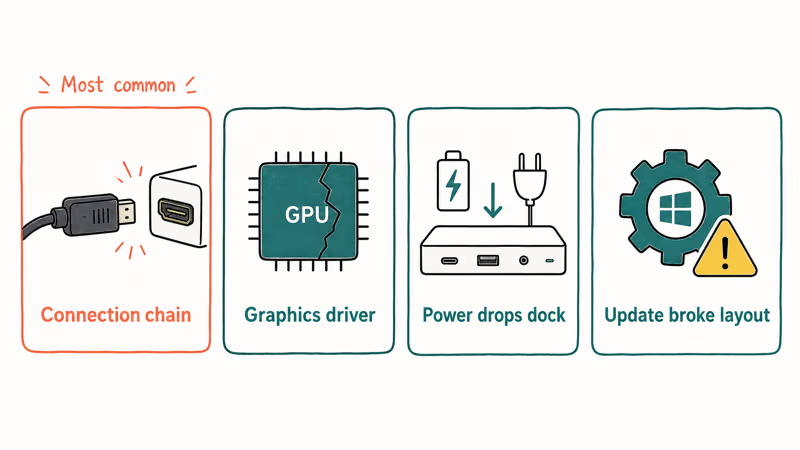
Work from the cheapest fix to the most involved. Each cause has a check that takes seconds.
Many “not detected” cases come down to the input source or a USB-C port that doesn’t support video. Neither needs a single software change. Driver crashes and recent updates are the next layer to check.
Knowing which layer failed tells you whether to reach for the keyboard, Device Manager, or the registry. Running more than two screens? The 6-Monitor Setup guide covers it.
#Is the Connection Chain Actually Working?
Start at the monitor itself. Press its physical Source or Input button and cycle through HDMI 1, HDMI 2, and DisplayPort until you land on the port your cable uses. A surprising number of “dead” monitors are simply showing the wrong input.
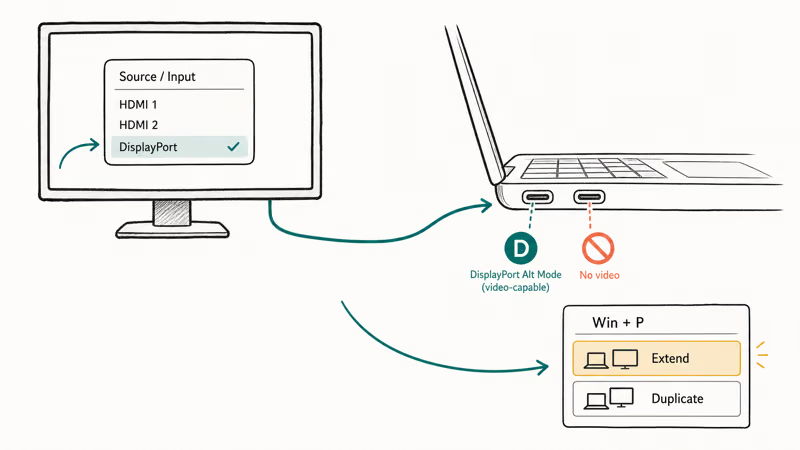
If the monitor’s own on-screen menu still appears, the panel and its power are fine. The problem is upstream.
Next, check the port. A USB-C cable only carries video if both the port and the cable support DisplayPort Alt Mode, and laptop ports that handle charging and file transfer often skip video. Look for a small “D” or DisplayPort logo next to the port, or check the laptop spec sheet. If you use a dock, plug the monitor straight into the laptop to test whether the dock is the weak link.
Then reseat the cable at both ends and swap in a different cable if you have one. According to Microsoft’s guide to using multiple monitors, Windows should pick up a working display automatically and lists the Detect button as the manual fallback.
On a laptop, the Win+P shortcut opens the projection menu. Choose Extend or Duplicate to confirm Windows is even trying to output a signal. A related quirk shows up when the Wi-Fi Option Missing after the same update, so update-related faults are worth keeping in mind.
#Refresh and Roll Back the Graphics Driver
If the connection chain is solid, the graphics driver is the next suspect. The fastest reset is the keyboard shortcut. Hold Win+Ctrl+Shift+B all at once.
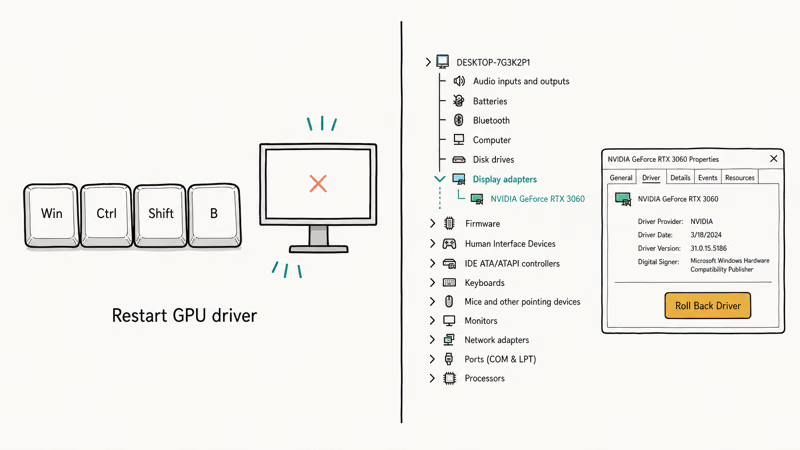
The screen flashes black for a moment and you hear a short beep. Microsoft’s external monitor troubleshooting states that this 4-key shortcut resets the graphics driver and lists it as the first step when a working setup suddenly stops. It restarts the driver without a reboot and often makes a stalled second monitor appear instantly.
When the shortcut doesn’t help, update the driver. In Device Manager, expand Display adapters, right-click your GPU, choose Update driver, and pick the automatic search.
If the monitor worked until a recent driver change, do the opposite: open Properties, go to the Driver tab, and select Roll Back Driver to restore the prior version.
A bad driver release is a frequent trigger after Windows pushes a new GPU package overnight, and the rollback restores the exact version that last worked. For a deeper reset, uninstall the display adapter entirely from Device Manager and reboot, which forces Windows to download and install a clean driver from scratch on the next startup. This clears a corrupted driver that a simple update could not.
Hit a stop error during any of this? The Windows 11 BSOD Fix decodes the crash codes that point at display drivers. Note the driver version before and after each change so you can tell what actually moved the needle.
#Force Detection and Fix Power Settings
Windows doesn’t always re-scan for a display on its own. Right-click the desktop, open Display settings, scroll to Multiple displays, and click Detect. This forces a fresh scan and can surface a monitor the system saw at boot but then dropped.
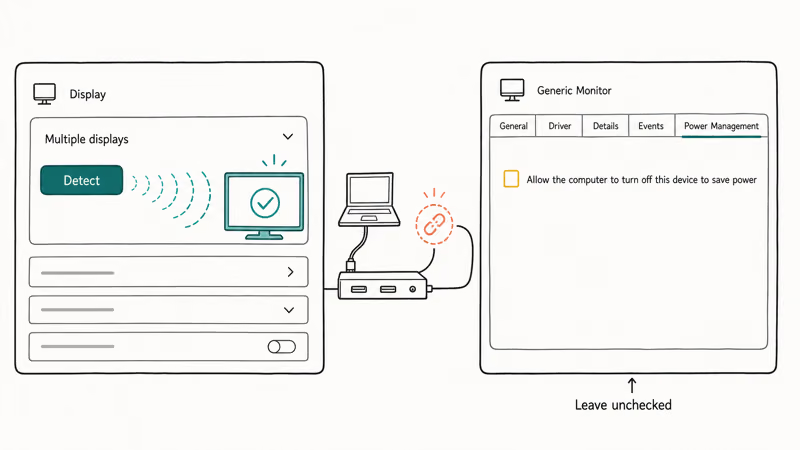
If the monitor shows up but stays blank, set it to Extend these displays.
Docks add a power-management wrinkle. Windows can suspend the USB or PCIe link that feeds a dock to save energy, which silently kills the second screen. Open Device Manager, find the USB controllers and the display adapter, open each device’s Power Management tab, and uncheck “Allow the computer to turn off this device to save power.” For laptops, also set the power plan to High performance while you troubleshoot.
If you’re weighing whether a laptop is even the right machine for a multi-screen setup, the Mac vs PC for Editing comparison covers the display-output differences. If portability matters more than a fixed dock, a Best Portable Monitor that draws video over one USB-C cable sidesteps the dock problem.
#Did a Windows Update Break Multi-Monitor Support?
A monitor that vanished after an overnight update points at the saved display configuration, not the hardware. Windows stores a “display topology,” and an update can corrupt it.
First, try the simple route. Open Settings, go to Windows Update, view your update history, and uninstall the most recent quality update if the timing matches. Reboot and run Detect again. Microsoft’s external monitor troubleshooting recommends checking Windows Update first, since a recent package can change display behavior and rolling it back restores the saved layout.
When uninstalling isn’t an option, rebuild the topology. Back up the registry first, since this step edits system keys.
The Connectivity and display keys under the GraphicsDrivers branch hold the stale layout. Clearing the cached configuration and rebooting forces Windows to redetect every screen from scratch. This is the fix generic lists miss.
#How to Keep Both Monitors Stable After the Fix
Once both screens are back, a few habits stop the problem from returning. Set Windows Update to notify before installing GPU drivers so an overnight package can’t silently break your layout again. Keep the Power Management boxes unchecked on your dock’s USB and display controllers, because a Windows feature update can re-enable them.
Pin your working driver version. After a known-good driver, note its number and avoid “optional” GPU updates unless you have a reason to take one. If you rely on a dock daily, plug it into the same physical port each time, since Windows ties the saved topology to the specific connection path. These small steps mean the next monitor dropout, if it happens, is a one-shortcut fix rather than another full diagnostic.
#Bottom Line
Test the connection chain first. Confirm the monitor’s input source, reseat the cable, and make sure your USB-C port actually supports video output. Then press Win+Ctrl+Shift+B to refresh the GPU and use the Detect button to force a scan.
Disable USB and display power-saving on docks so Windows stops dropping the link. If a recent update is the trigger, uninstall it or rebuild the display topology after backing up the registry, rather than chasing driver reinstalls that never address the real cause.
#Frequently Asked Questions
Why is my second monitor not detected in Windows 11?
The most common cause is a connection-chain fault: the monitor is on the wrong input source, the cable is loose, or the USB-C port doesn’t support video output. Driver crashes and broken display settings after a Windows update are the next likely causes. Check the physical chain before touching any software, since that path often doesn’t require a setting change.
How do I force Windows 11 to detect a monitor?
Right-click the desktop, open Display settings, scroll to Multiple displays, and click Detect. You can also press Win+Ctrl+Shift+B to restart the graphics driver, which often makes a stalled display appear immediately. If neither works, the issue is upstream in the cable or port, not in Windows.
Does the USB-C port matter for an external display?
It matters a lot. A USB-C port only sends video if it supports DisplayPort Alt Mode, and many laptop ports handle only charging and data, so try a different port or the dedicated HDMI jack.
Did a Windows update stop my second monitor?
It can. A quality update sometimes corrupts the saved display topology, hiding a connected monitor even though the cables are fine. Uninstall the most recent update from Windows Update history, reboot, and run Detect again. If the layout returns, pause feature updates for a few weeks until a fix ships, and check Device Manager for a paired GPU driver update that may have shipped alongside it.
Should I roll back the graphics driver?
Roll back only if the second monitor died right after a GPU driver update. Open Device Manager, find your display adapter, go to the Driver tab in Properties, and choose Roll Back Driver. If there’s no recent driver change to undo, a clean reinstall through Device Manager is the better path. Note the working version once it’s stable so you can avoid the next bad release.
When is the monitor itself faulty?
Suspect the monitor when its on-screen menu never appears even after you cycle the input source and confirm power. Test it on another computer to be sure. If the monitor stays dark everywhere, the panel or its power board is the problem.

Best Laptop for Running LLMs in 2026: Memory Comes First
The best laptop for running LLMs is a memory purchase first. Compare MacBook unified memory against NVIDIA laptop VRAM, and see what each tier really runs.

How to Run a Local LLM on Windows: A 2026 Setup Guide
Run a local LLM on Windows with LM Studio or Ollama. Pick a model that fits your GPU memory, keep every prompt offline, and skip the monthly bill.

Bluetooth Not Working on Snapdragon X? Fixes for 2026
Bluetooth not working on your Snapdragon X Copilot+ PC? Generic audio, mice, and keyboards work, but vendor apps often lack an ARM build. Fixes inside.

Docker Desktop and WSL2 Not Working on Snapdragon X? Fix It
WSL2 runs fine on Snapdragon X, but Docker Desktop ARM is Early Access and throws WSL errors. Use WSL2 plus native ARM64 Ubuntu and Docker Engine.