Windows 11 Wi-Fi Keeps Disconnecting: 9 Proven Fixes
Fix Windows 11 Wi-Fi that keeps disconnecting with these 9 proven methods: power management, driver rollback, DNS flush, band switching, and network reset.
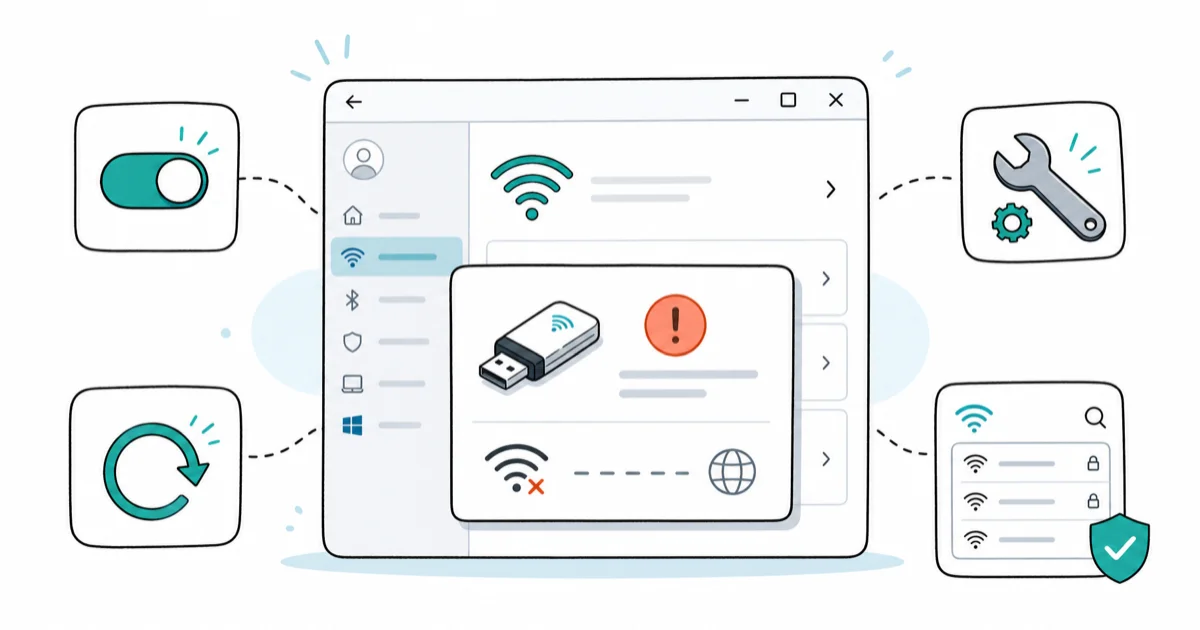
Quick AnswerGo to Device Manager, right-click your Wi-Fi adapter, open Properties, and uncheck 'Allow the computer to turn off this device to save power' under the Power Management tab. This single change fixes the most common cause of Windows 11 Wi-Fi dropping out.
Your Wi-Fi connection drops every few minutes on Windows 11. A common culprit is the power management setting that lets Windows shut off your Wi-Fi adapter to save battery. Start there before reinstalling drivers or resetting the network stack.
These 9 fixes are ranked from most likely to resolve your problem to the nuclear option. Start at the top and work down.
- Power management is the top culprit on laptops
- Disabling “Allow the computer to turn off this device to save power” in Device Manager resolves this for most users
- Driver rollback is the right fix when disconnects started after a Windows Update
- Switching from 5 GHz to 2.4 GHz fixes drops that worsen with distance from your router
- Network reset wipes all adapter settings and reinstalls everything from scratch, clearing the stubborn configuration problems that individual fixes can’t reach
#Fix 1: Disable Wi-Fi Adapter Power Management
This is the fix that works for most people. Windows 11 puts your Wi-Fi adapter to sleep to save power. Sometimes it doesn’t wake back up properly, and the connection dies.
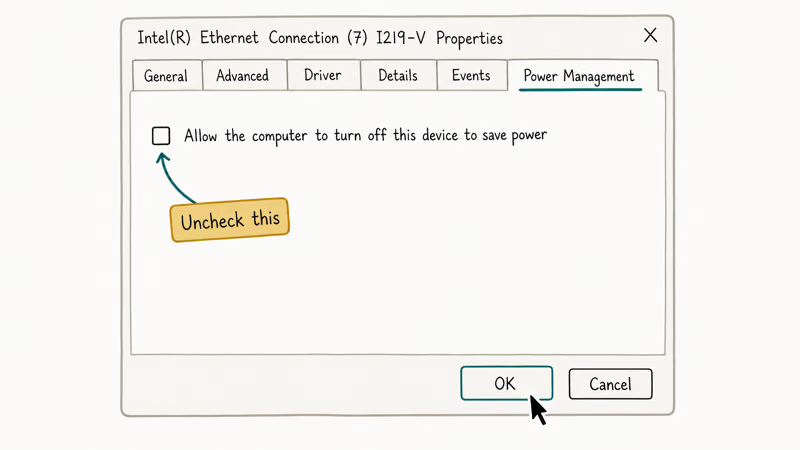
- Right-click the Start button and select Device Manager
- Expand Network Adapters
- Right-click your wireless adapter (often labeled “Intel Wi-Fi” or similar) and choose Properties
- Click the Power Management tab
- Uncheck Allow the computer to turn off this device to save power
- Click OK and restart your PC
After unchecking the power management option, restart once and watch whether the random drops stop. If this tab doesn’t appear, continue with the next power-setting fix.
A note on newer hardware: On Always-On/Always-Connected (AOAC) laptops, this tab doesn’t appear. Move on to Fix 2.
#Fix 2: Change Wireless Adapter Power Saving Mode
Fix 1 stops Windows from cutting power to the adapter entirely. This fix stops Windows from throttling it while it’s on.
- Open Control Panel and go to
Hardware and Sound>Power Options - Click Change plan settings next to your active power plan
- Click Change advanced power settings
- Scroll down and expand Wireless Adapter Settings
- Expand Power Saving Mode and set it to Maximum Performance for both On Battery and Plugged In
- Click Apply and OK
According to Microsoft’s network adapter power documentation, the default Balanced power plan switches your wireless adapter to Medium Power Saving mode when on battery. This activates 802.11 power save mode, which cuts battery life by 2-9% when disabled at Maximum Performance. On routers that don’t handle the 802.11 power save protocol cleanly, this is enough to cause random drops.
#Why Does Windows 11 Wi-Fi Keep Disconnecting?
Four causes account for the vast majority of cases.
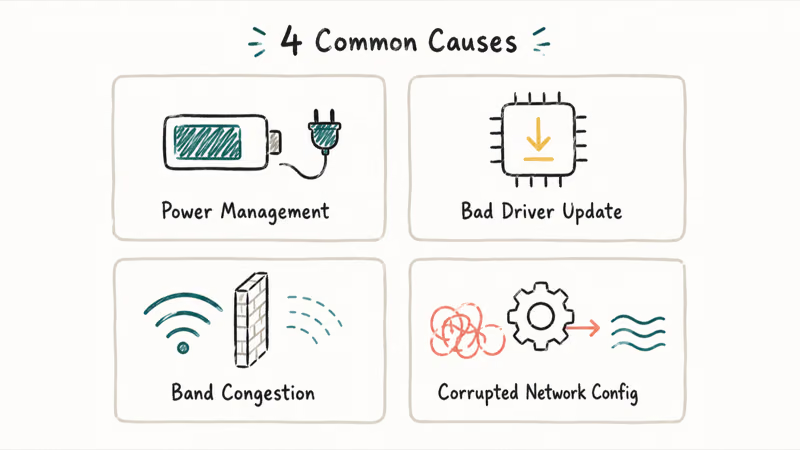
Power management is responsible for most random drops on laptops. Windows silences the adapter to extend battery life, but some routers don’t recover the handshake correctly when the adapter wakes.
A bad driver update causes instant drops after a Windows Update. Roll it back.
Band congestion makes 5 GHz connections unreliable when you’re far from your router. 5 GHz has shorter range than 2.4 GHz and gets blocked by walls and floors. Switching to 2.4 GHz is free and quick.
Corrupted network configuration accumulates over time from failed connections, VPN installs, and major Windows Updates. A full network reset clears the slate.
#Fix 3: Roll Back or Update Your Wi-Fi Driver
If your Wi-Fi started dropping after a Windows Update, driver rollback is the fastest fix.
To roll back:
- Open Device Manager and expand Network Adapters
- Right-click your Wi-Fi adapter and choose Properties
- Click the Driver tab
- If Roll Back Driver is available, click it and follow the prompts
To update manually:
If rollback isn’t available, go to your laptop manufacturer’s website (Dell, HP, Lenovo, Asus, etc.) and download the latest Wi-Fi driver for your exact model. Install it, restart, and test.
Driver rollback is especially relevant when disconnects start immediately after a cumulative update. The Microsoft Learn community forum confirms that the Windows 11 24H2 update broke connectivity for multiple Intel adapter models.
#Fix 4: Flush DNS and Reset TCP/IP Stack
A corrupted DNS cache or TCP/IP stack can cause Windows 11 to lose its network configuration mid-session. This is a 2-minute command prompt fix.
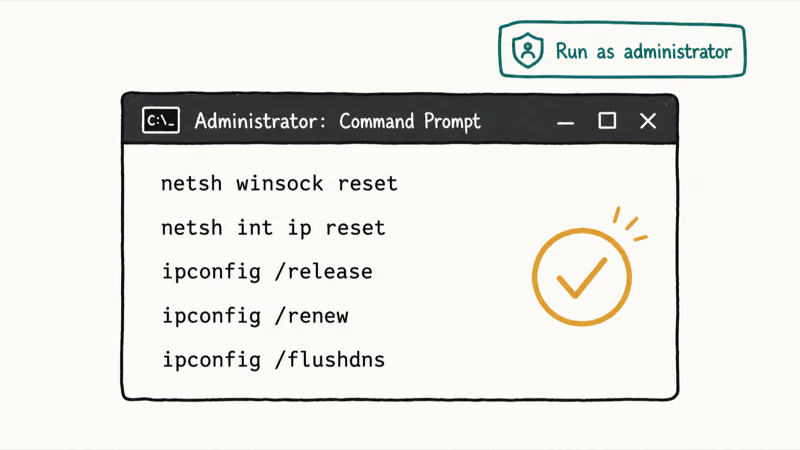
- Press Windows + S, type cmd, right-click Command Prompt, and choose Run as administrator
- Run these commands one at a time, pressing Enter after each:
netsh winsock reset
netsh int ip reset
ipconfig /release
ipconfig /renew
ipconfig /flushdns- Restart your PC
This resets the Winsock catalog and IP stack without touching your saved Wi-Fi passwords. It can clear stale configuration that causes intermittent drops.
If you’re also seeing browser errors like “DNS_PROBE_FINISHED_NO_INTERNET” alongside the Wi-Fi drops, see the guide on fixing DNS probe errors for additional DNS troubleshooting steps.
#Fix 5: Switch Between 5 GHz and 2.4 GHz Bands
Modern routers broadcast two separate networks. If your Wi-Fi drops when you move around the house, band switching often fixes it.
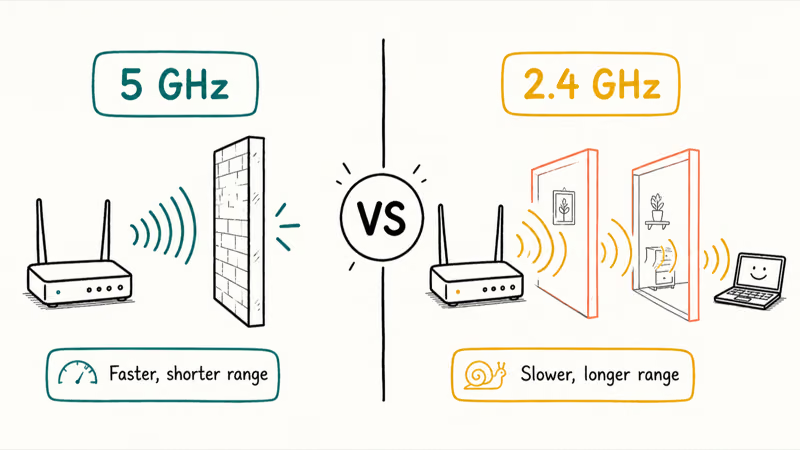
5 GHz is faster but shorter in range. Walls and distance weaken it significantly.
2.4 GHz is slower but covers more distance and passes through walls better.
To switch: open your Wi-Fi settings and look for two network names from your router, typically one ending in “5G” or “5GHz.” Connect to the other band and test whether the drops continue.
If both bands drop, the problem is in your adapter or Windows settings, not the frequency.
#Fix 6: Restart the WLAN AutoConfig Service
WLAN AutoConfig manages all Windows 11 wireless connections. If it crashes, your Wi-Fi goes with it.
- Press Windows + R, type services.msc, and press Enter
- Scroll down to WLAN AutoConfig
- Right-click it and choose Restart
- Double-click it and confirm Startup type is set to Automatic
This takes about 30 seconds and requires no restart. It’s especially effective for drops that follow a pattern, like disconnecting every time your PC wakes from sleep or after being idle for several minutes.
#Fix 7: Update Your Router’s Firmware
Router firmware bugs can cause specific Windows 11 clients to drop repeatedly while other devices stay connected. Only your Windows 11 PC dropping while your phone is fine points to the router.
Log in at 192.168.1.1 or 192.168.0.1. Look under Administration or Advanced for firmware updates.
Asus, Netgear, and TP-Link routers have had documented stability problems with Windows 11 clients that firmware updates fixed. Check your manufacturer’s support page for the latest version.
#Is Your Router the Problem?
If your Windows 11 PC drops while all other devices stay connected, the issue is specific to the Windows-router interaction. Quick diagnostic tests:
- Connect your Windows 11 PC to a mobile hotspot. If it stays connected there, the problem is with your router, not Windows itself
- Check if other Windows PCs on the same network also drop. If they do, it’s definitely the router
- Reboot your router and modem by briefly unplugging them
Microsoft’s Wi-Fi troubleshooting guide recommends restarting your router as an early step.
#Fix 8: Change Your DNS Servers
Your ISP’s default DNS servers can be unreliable. Switching to a public DNS reduces connection drops caused by DNS lookup failures.
- Press Windows + I to open Settings
- Go to
Network and Internet>Wi-Fi - Click your connected network, then click Edit next to DNS server assignment
- Switch to Manual
- Enter
8.8.8.8for the primary DNS and8.8.4.4for the secondary (Google DNS) - Alternatively, use Cloudflare:
1.1.1.1and1.0.0.1 - Click Save
Most effective when sites load slow right before a drop, or drops worsen at peak hours.
For other Windows 11 stability problems, the Windows 11 BSOD fix guide covers system-level errors that sometimes appear alongside network instability. If your PC is running slowly in general, check the Windows 100% disk usage fix too.
#Fix 9: Run Network Reset (Last Resort)
Network reset removes all adapter settings, uninstalls your network adapters, and reinstalls them fresh. It fixes problems nothing else touches.
- Press Windows + I to open Settings
- Go to
Network and Internet>Advancednetwork settings - Click Network reset
- Click Reset now and confirm
Your PC restarts and takes a few minutes to reinstall network adapters. Microsoft’s Wi-Fi troubleshooting page states that network reset is particularly effective for connection problems that started after upgrading from Windows 10 to Windows 11.
What you’ll lose: VPN configs, Hyper-V virtual switch settings, and custom DNS entries. Write down your Wi-Fi passwords first.
After network reset, reconnect to your Wi-Fi and reinstall any VPN software. If disconnects persist after network reset, the issue is hardware-level. An external USB Wi-Fi adapter is a quick way to confirm whether your built-in adapter is failing.
#Bottom Line
Start with Fix 1. Disabling the power management setting in Device Manager resolves Wi-Fi disconnects for most Windows 11 laptops.
If drops started right after a Windows Update, skip straight to Fix 3 and roll back your driver. For everything else, work through the list in order. Network reset (Fix 9) clears nearly every software-level issue, so try it before buying replacement hardware. If disconnects persist after Fix 9, the built-in adapter is likely failing.
If you’re not sure your PC meets Windows 11 requirements, the Windows 11 compatibility check guide walks through the hardware requirements. You can also check whether authenticating to Wi-Fi is causing a separate error if your PC connects but then immediately drops with an error message.
#Frequently Asked Questions
Why does my Windows 11 Wi-Fi disconnect every few minutes?
The power management setting in Device Manager is the top culprit. It lets Windows shut off your Wi-Fi adapter to save battery, and some routers don’t reconnect cleanly when the adapter wakes back up. Right-click your wireless adapter in Device Manager, open Properties, click the Power Management tab, uncheck “Allow the computer to turn off this device to save power,” and restart. The change doesn’t require any download.
Why did my Wi-Fi start dropping after a Windows Update?
A Windows Update installed a bad driver. In Device Manager, right-click your adapter, go to the Driver tab, and roll it back.
Does Windows 11 Wi-Fi drop more on battery than when plugged in?
Yes. The Balanced power plan puts your adapter into power save mode on battery, and some routers drop the connection when the adapter tries to wake. Go to Power Options, expand Wireless Adapter Settings, and set Power Saving Mode to Maximum Performance for both on-battery and plugged-in states. The change doesn’t require a restart.
Will network reset delete my saved Wi-Fi passwords?
Usually no. Your Wi-Fi passwords survive network reset. Write them down anyway. What you’ll lose: VPN configs, Hyper-V virtual switch settings, and custom DNS entries.
My phone stays connected but my Windows 11 PC keeps dropping. What’s wrong?
That’s a Windows-specific issue, not your router. Run Fix 1 (power management), Fix 3 (driver rollback), and Fix 4 (DNS reset) in order. If those don’t help, test on a mobile hotspot: stable on hotspot means the router is at fault; continuing drops mean the adapter is failing.
How do I know if my Wi-Fi adapter is failing?
Hardware failure. Plug in a USB Wi-Fi adapter and test for an hour. Stable on USB, failing on the built-in chip.
Does switching from 5 GHz to 2.4 GHz really fix disconnects?
It depends entirely on your setup. If you’re far from your router or thick walls sit between you and it, 2.4 GHz helps because of its longer range. Drops happening right next to the router won’t be fixed by band switching. Try both bands long enough to see whether the drops continue.
What should I try before doing a network reset?
Work through the list: power management (Fix 1 and 2), driver check (Fix 3), DNS flush (Fix 4), band switch (Fix 5), WLAN AutoConfig restart (Fix 6). Confirm the router isn’t the culprit first by testing on a hotspot. Network reset clears everything and requires you to reconfigure VPN software afterward.

Bluetooth Not Working on Snapdragon X? Fixes for 2026
Bluetooth not working on your Snapdragon X Copilot+ PC? Generic audio, mice, and keyboards work, but vendor apps often lack an ARM build. Fixes inside.

Docker Desktop and WSL2 Not Working on Snapdragon X? Fix It
WSL2 runs fine on Snapdragon X, but Docker Desktop ARM is Early Access and throws WSL errors. Use WSL2 plus native ARM64 Ubuntu and Docker Engine.

Does iTunes Work on Snapdragon X? ARM Windows 11 Guide
Yes, iTunes runs on Snapdragon X laptops through Prism emulation, but the Apple Devices app is the smoother route. Here is what to install on ARM.

Does OBS Studio Work on Snapdragon X? ARM64 Build Guide
Yes, OBS Studio has an experimental ARM64 build since version 31.1, but x64 plugins won't load and hardware encoding is missing. Here is what works.