Windows 11 Won't Shut Down? 8 Fixes That Actually Work
Fix Windows 11 won't shut down by disabling Fast Startup, finishing pending updates, and isolating driver hangs with a clean boot before repair commands.
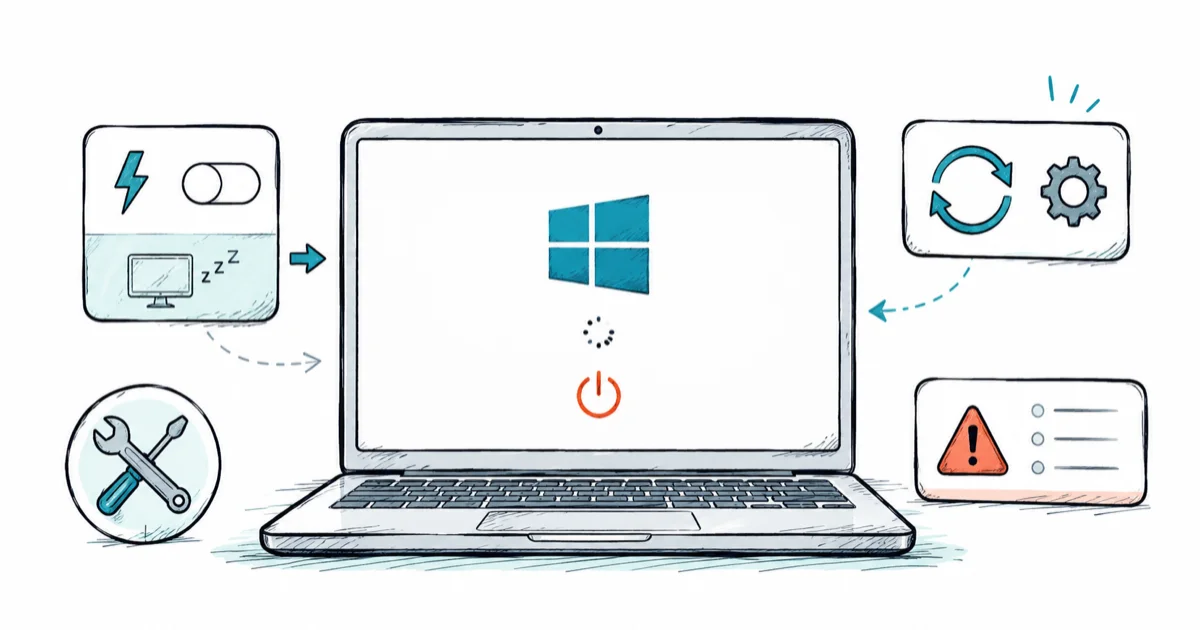
Quick AnswerForce one clean shutdown to escape the loop, then disable Fast Startup, since it's the most common cause of shutdown and restart loops. Finish pending updates before you reach for repair commands.
Windows 11 won’t shut down covers a few distinct failures: the PC hangs on “Shutting down,” it restarts instead of powering off, or it powers back on seconds later. The single best first move is to disable Fast Startup, because it causes more shutdown and restart loops than anything else. After that, you finish updates and isolate driver hangs.
- Fast Startup is the most common cause of shutdown hangs and restart loops, and turning it off fixes many cases
- Holding the power button is an emergency exit, not a fix, so use it once and then troubleshoot
- A pending Windows update can block shutdown until it finishes installing
- A driver or service hang shows up in a clean boot, which isolates the offender safely
- Run SFC and DISM only after Fast Startup, updates, and clean boot have come up empty
#Why Won’t Windows 11 Shut Down?
A shutdown that hangs, loops, or reverses traces to one of a handful of causes: Fast Startup, a pending update, a stuck driver or service, a device set to wake the PC, or corrupt system files. The symptom you see points to the likely cause, so match yours before you start.
Don’t reach for repair commands first. Most of these clear with a setting change or a finished update.
| Symptom | Likely cause | First action |
|---|---|---|
| Stuck on “Shutting down” forever | Driver or service hang | Disable Fast Startup, then clean boot |
| Restarts instead of powering off | Wake or Fast Startup setting | Disable Fast Startup, check wake devices |
| Powers back on seconds later | Wake-on-LAN or USB wake | Disable device wake |
| Shutdown blocked, “Updates pending” | Unfinished update | Let the update finish |
| Hangs only after a recent change | New driver or app | Clean boot to isolate |
Work from the top. The Fast Startup row resolves a large share of cases on its own.
#Force a Clean Shutdown Once, Then Check Updates
If the PC is frozen on “Shutting down” right now, you need to escape the loop before you can fix anything. Hold the power button for about ten seconds until it powers off completely. Do this once, not as a routine, because a hard power-off can corrupt files if you make it a habit.
Once you’re back in Windows, check for a stuck update. A shutdown that says “Update and shut down” or hangs at “Working on updates” is often just waiting on an install. Go to Settings > Windows Update and let any pending update finish, then try a normal shutdown. If the shell itself is frozen and the Start menu won’t respond, the windows 11 taskbar not guide can get you to a state where shutdown even works.
If shutdown hangs because an update is still finishing, let it complete before changing power settings or running repair commands. A truly stuck update is its own problem, which the windows 11 update stuck guide walks through step by step.
If updates are current and shutdown still fails, move to Fast Startup, the most common structural cause.
#Turn Off Fast Startup for Shutdown Loops
Fast Startup is Windows 11’s hybrid shutdown, and it’s the first thing to disable when shutdown hangs or loops. According to Microsoft’s documentation on Fast Startup, it performs a full shutdown sequence and then saves a hibernation file rather than fully powering off.
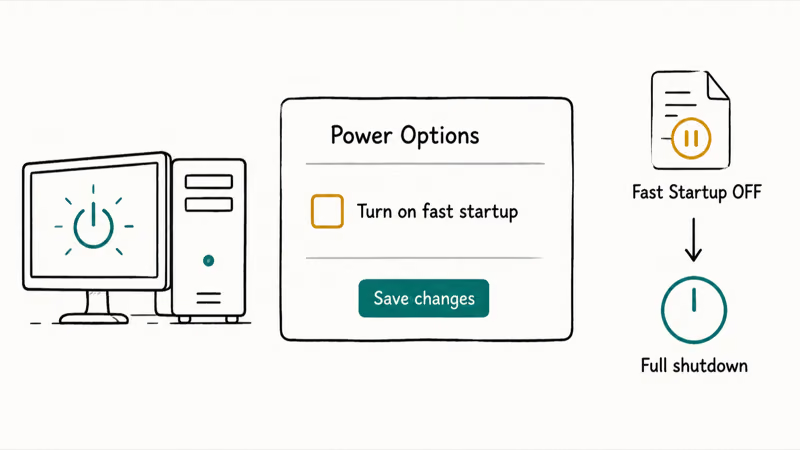
That hybrid behavior is exactly what breaks. When a driver doesn’t handle the hibernation-style state cleanly, the PC hangs on “Shutting down” or springs back to life instead of powering off. Microsoft’s overview of how to shut down, sleep, or hibernate your PC lays out how these power states differ, which is useful context for why a “shutdown” that’s really a hibernation can stall.
To disable it, open Control Panel > Power Options > Choose what the power buttons do, click Change settings that are currently unavailable, then uncheck Turn on fast startup. Save the change and try a full shutdown. Boot will be a few seconds slower afterward, but a PC that actually powers off is worth that small trade, and you can always re-enable the option later if shutdown turns out to be fine without it.
Turning off Fast Startup is worth trying before anything heavier, since it costs you only a few seconds of slower boot.
#What If the PC Restarts Instead of Powering Off?
A PC that restarts the instant you choose shutdown, or wakes seconds after powering off, usually has a wake source or a “restart on power loss” type setting pulling it back. This is a wake problem dressed up as a shutdown problem.
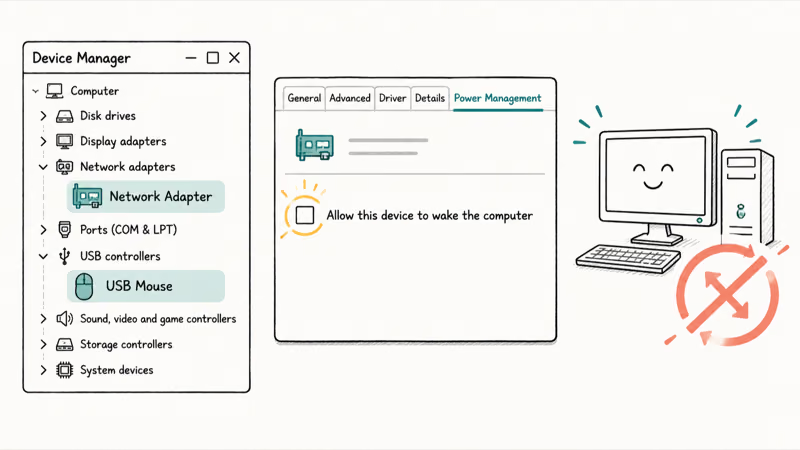
Start with Fast Startup, since the hibernation-file behavior is a frequent cause of this exact symptom. If turning it off doesn’t help, look at what’s allowed to wake the machine.
Open Device Manager, and for your network adapter and any USB input devices, open the Power Management tab and clear Allow this device to wake the computer. Wake-on-LAN and a sensitive USB mouse are classic culprits for a PC that won’t stay off. The same wake-source logic, in reverse, explains a PC that won’t stay asleep, which the windows 11 sleep mode guide covers in detail.
Finally, check the BIOS for a “Restore on AC Power Loss” or “Wake on PCI-E” setting. A board configured to power on when it receives power will look like a shutdown that won’t take.
#Find Driver or Service Hangs With Clean Boot
When shutdown hangs even with Fast Startup off and updates current, a third-party driver or service is probably refusing to close. A clean boot isolates it.
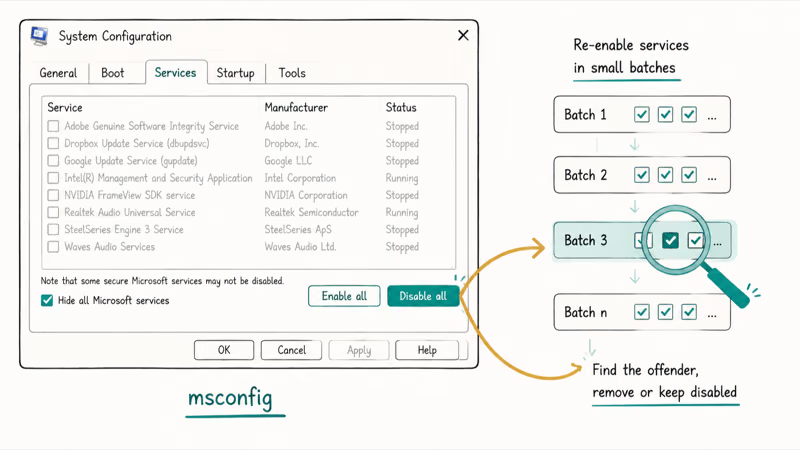
According to Microsoft’s guide to how to perform a clean boot in Windows, a clean boot starts Windows with only essential drivers and startup programs, which makes it easier to identify background software conflicts. Type msconfig, open System Configuration, check Hide all Microsoft services, click Disable all, disable startup items in Task Manager, then restart and test a shutdown.
If the PC shuts down cleanly in that state, a third-party service or app was the holdup. Re-enable services and startup items in small groups, restarting between batches, until the hang returns and names the offender. Display drivers are a common holdout, the same family of driver covered in the windows 11 second monitor guide.
A hung shutdown that ends in a blue screen is a different signal, pointing at a driver crash rather than a polite hang, and the windows 11 bsod fix guide covers reading the stop code.
#Run System Repair Commands as a Last Software Step
If Fast Startup, updates, and a clean boot all come up empty, corrupt system files are the remaining software suspect. This is where SFC and DISM belong, last, not first.
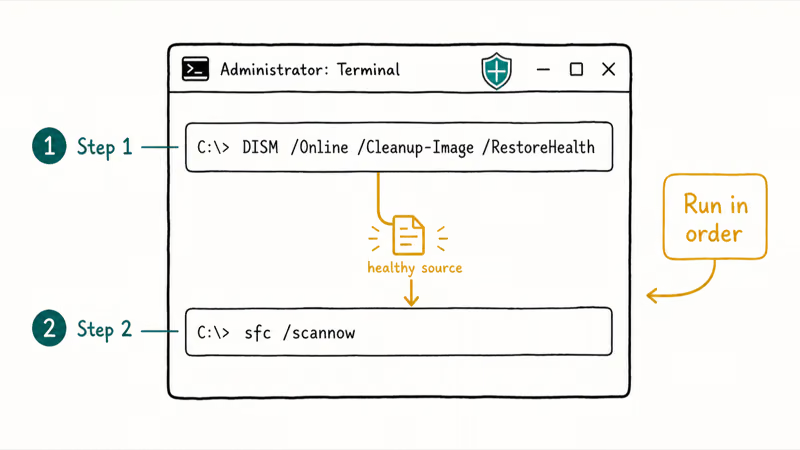
Open Command Prompt or Terminal as administrator. According to Microsoft’s support page, 2 commands handle this repair when you run them in order:
DISM /Online /Cleanup-Image /RestoreHealthsfc /scannow
Microsoft’s support page states that SFC scans all protected system files and replaces corrupted ones with a cached copy, and that DISM supplies the files needed for that repair. Running DISM first gives SFC a healthy source to draw from.
If those finish clean and shutdown still fails, you’re likely looking at firmware or hardware. A BIOS update sometimes resolves stubborn power-state and shutdown problems, but treat it as a careful last step after the software path is exhausted.
#Bottom Line
If shutdown fails repeatedly, disable Fast Startup early, because it causes more shutdown and restart loops than any other single setting. Finish any pending update first, then isolate services and drivers with a clean boot if the hang persists. Holding the power button is an emergency exit to escape a frozen screen, not a nightly fix, and SFC plus DISM are the last software step, not the first.
#Frequently Asked Questions
Why won’t Windows 11 shut down?
The usual causes are Fast Startup’s hybrid shutdown, a pending update, a stuck driver or service, or a device set to wake the PC. Your symptom, hang versus restart, points to which to check first.
What should I check first?
Disable Fast Startup. It’s the single most common cause of shutdown hangs and restart loops, and turning it off in Power Options costs only a slightly slower boot. If a shutdown is frozen right now, hold the power button once to escape, then disable Fast Startup before testing again.
Can a Windows update cause this?
Yes, in two ways. A shutdown can stall while an update finishes installing, which is normal and clears once it completes, and a bad update can leave behind a driver or service that refuses to close cleanly during shutdown. If your shutdown trouble started right after an update, let any pending install finish first, then consider rolling back the related driver from Device Manager if the hang continues even after the update is done.
Will any of these fixes delete my data?
No, none of these touch your files. Disabling Fast Startup, doing a clean boot, and running SFC or DISM all leave your data alone. A clean boot is fully reversible.
When should I contact official support?
Reach out when Fast Startup is off, updates are current, a clean boot still hangs, and SFC and DISM both report clean. At that point the cause is likely firmware or failing hardware, such as a power-delivery fault, and your PC maker or a repair shop is the right next step rather than more software changes.
How do I prevent this from happening again?
Leave Fast Startup off if it caused your trouble, keep chipset and storage drivers current from the manufacturer, and install updates promptly so they don’t pile up and block a shutdown. Avoid making the ten-second power-button hold a habit, since repeated hard power-offs can corrupt files over time.

Best Laptop for Running LLMs in 2026: Memory Comes First
The best laptop for running LLMs is a memory purchase first. Compare MacBook unified memory against NVIDIA laptop VRAM, and see what each tier really runs.

How to Run a Local LLM on Windows: A 2026 Setup Guide
Run a local LLM on Windows with LM Studio or Ollama. Pick a model that fits your GPU memory, keep every prompt offline, and skip the monthly bill.

Bluetooth Not Working on Snapdragon X? Fixes for 2026
Bluetooth not working on your Snapdragon X Copilot+ PC? Generic audio, mice, and keyboards work, but vendor apps often lack an ARM build. Fixes inside.

Docker Desktop and WSL2 Not Working on Snapdragon X? Fix It
WSL2 runs fine on Snapdragon X, but Docker Desktop ARM is Early Access and throws WSL errors. Use WSL2 plus native ARM64 Ubuntu and Docker Engine.