Windows 11 25H2 New Features: What Actually Changed
Windows 11 25H2 shipped September 30, 2025 as an enablement package on the 24H2 branch. Here is what it adds, what got removed, and who can install it.

Quick AnswerWindows 11 25H2 shipped September 30, 2025 as an enablement package on top of 24H2. It enables File Explorer AI actions, Wi-Fi 7, Quick Machine Recovery, and a redesigned Start menu, and removes PowerShell 2.0.
Windows 11 25H2, also marketed as the Windows 11 2025 Update, landed on September 30, 2025. If you’re already on 24H2, it’s a 200 KB download and one restart. The catch nobody likes saying out loud: 25H2 ships with zero brand-new features on day one.
- Windows 11 25H2 released September 30, 2025 as an enablement package on the same servicing branch as 24H2, with WSUS availability following on October 14
- For 24H2 users the upgrade is roughly 200 KB and a single restart; 23H2 and older Windows 11 get a full feature update of around 4 GB
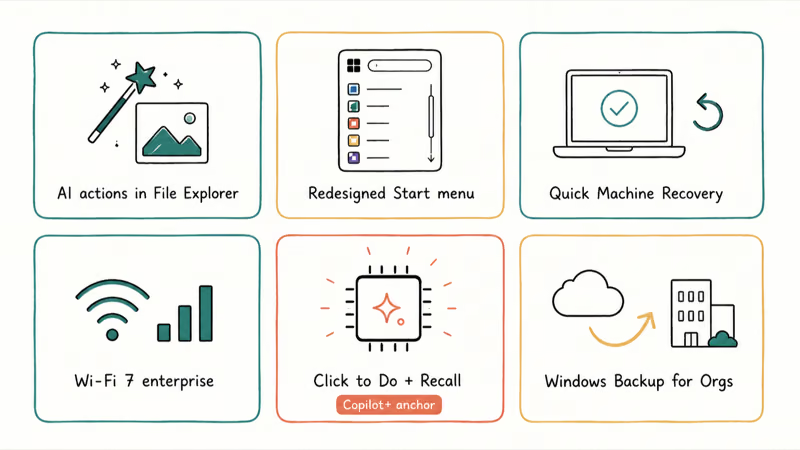
- Headline features include AI actions in File Explorer, a redesigned Start menu with smaller icons, Quick Machine Recovery, and Wi-Fi 7 enterprise access-point support
- PowerShell 2.0 is fully removed and WMIC is uninstalled by default, so legacy scripts that depend on either will break after the update
- Support runs 24 months for Home and Pro and 36 months for Enterprise and Education from the release date, so 25H2 buys you another year of patches
#Windows 11 25H2 Explained: The Enablement Package Model
Windows 11 25H2 is an enablement package, not a separate operating system. Microsoft built 25H2 and 24H2 on the same code base throughout 2025, shipping new code dormant inside the monthly cumulative updates that 24H2 PCs already received. When you install the 25H2 enablement package (KB5054156), it flips those switches on and bumps the version string from 24H2 to 25H2.
According to Microsoft’s What’s New in 25H2 reference, 25H2 and 24H2 share the same servicing branch. That shared branch is why the eKB exists in the first place, and it makes the two versions servicing-equivalent through their shared cumulative updates.
For 24H2 PCs, the install is Patch Tuesday-sized.
#What Are the Headline New Features in 25H2?
Most of what gets called “new in 25H2” actually shipped to 24H2 through monthly updates earlier in 2025. The 25H2 version flip just makes those features official and turns off the temporary enterprise toggles that hid some of them.
Here is what you’ll see once you’re on it.
AI actions in File Explorer. Right-click any image to blur backgrounds or remove objects. Right-click a document to summarize it. No separate app, no upload.
Redesigned Start menu and taskbar. The Start menu now uses a single scrolling layout and exposes a “Show smaller icons” option in Settings > Personalization > Taskbar that compresses the taskbar height. Useful on 13-inch laptops where vertical pixels matter.
Quick Machine Recovery. Built in response to the July 2024 CrowdStrike outage. If Windows fails to boot twice in a row, the Windows Recovery Environment can now fetch fixes from Windows Update and apply them automatically without an installer USB.
Wi-Fi 7 enterprise support. Microsoft confirms that 25H2 adds enterprise access-point support for the Wi-Fi 7 standard, on top of the consumer-side Wi-Fi 7 that 24H2 already enabled.
Click to Do and Recall. These two Copilot+ features extract actions from anything on your screen and let you search your past activity. Both need a Copilot+ PC with a 40+ TOPS NPU: Snapdragon X, Ryzen AI 300, or Intel Core Ultra 200V. Most existing PCs don’t qualify, so don’t expect these on a 2022 ThinkPad.
Windows Backup for Organizations. A cloud-based backup and migration service aimed at small businesses moving users between PCs, separate from the consumer Windows Backup app.
What didn’t make it: a major visual overhaul, a new file system, or anything that requires you to re-learn how Windows works. If you were hoping 25H2 would feel like a meaningfully different OS, it won’t.
#Comparing 25H2 to 24H2: What Actually Differs
On a 24H2 PC that’s stayed current with monthly updates, the practical answer is: not very different. The shared servicing branch means a fully patched 24H2 machine has most 25H2 code already installed but disabled. The enablement package’s job is to switch it on.
The differences that do matter:
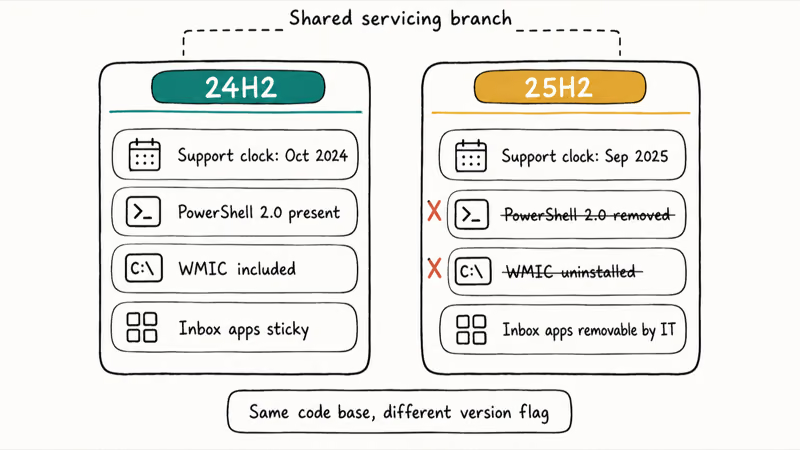
- Version string and support clock. 25H2 shows version 25H2 in
Settings>System>About andstarts a fresh 24-month (Home and Pro) or 36-month (Enterprise and Education) support window from September 30, 2025. 24H2’s clock started a year earlier. - PowerShell 2.0 removed. 25H2 fully removes PowerShell 2.0. Modern PowerShell scripts use 5.1 or 7+, so most workflows are unaffected, but legacy line-of-business scripts that still call
powershell.exe -version 2will fail. - WMIC uninstalled by default. WMIC, the WMI command-line tool, ships uninstalled in 25H2. You can reinstall it as an optional feature for now, but Microsoft has it slated for full removal in a future release.
- Some Microsoft Store apps can now be removed by IT. Enterprises can use Group Policy or device-management tooling to uninstall certain inbox apps that were previously sticky.
For a consumer who keeps 24H2 patched, the day-after-25H2 experience is mostly the same UI you already had, with the version number updated.
#Installing Windows 11 25H2: Three Paths by Starting Version
There are three install paths, and the right one depends on what version you’re upgrading from.
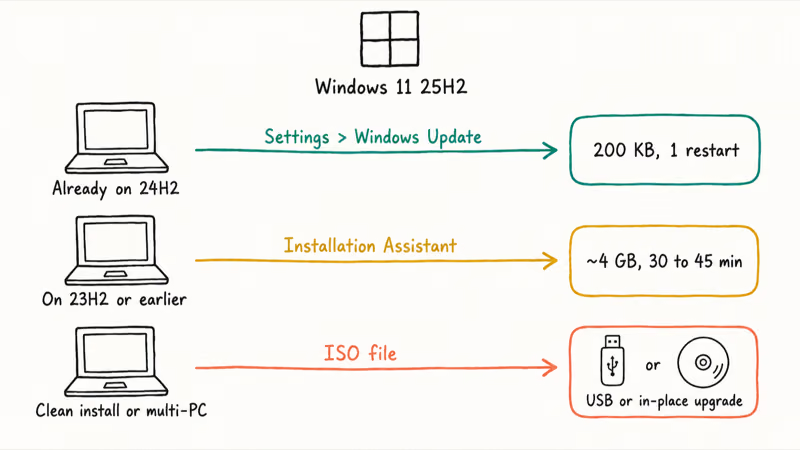
Path 1: Settings > Windows Update (24H2 only). Open Settings, go to Windows Update, and check for updates. If your PC is in the current rollout phase, you’ll see “Feature update to Windows 11, version 25H2” listed. Click Download and install. According to Microsoft’s KB5054156 support page, this path is the ~200 KB enablement package, requires that you’re already on build 26100.5074 (KB5064081) or later, and finishes in a single restart.
Path 2: Installation Assistant (older Windows 11 or stuck offers). If you’re on 23H2 or earlier, or Windows Update keeps showing “you’re up to date” after a month, download the Installation Assistant from Microsoft’s Windows 11 download page.
It’s a full feature-update install, 30 to 45 minutes.
If your browser flags the executable with a “Windows Protected Your PC” SmartScreen prompt, click More info > Run anyway after confirming the publisher is Microsoft Corporation.
Path 3: ISO file (clean install or multi-PC deployment). Download the 25H2 ISO from Microsoft and either mount it for an in-place upgrade or create a bootable USB for a clean install. This is the slowest route and the one most likely to surface install errors. If you hit something like Windows Update error 0x800705b4, the ISO path sidesteps the Windows Update component that’s failing.
On Windows 11 23H2 and earlier, Windows Update offers the full feature update instead of the enablement package. That’s the expected behavior when you’re not already on 24H2.
#Eligibility: Which PCs Can Run 25H2
The hardware floor for 25H2 is the same as 24H2. Microsoft did not raise the bar this year. According to the Windows 11 specifications page, the baseline is:
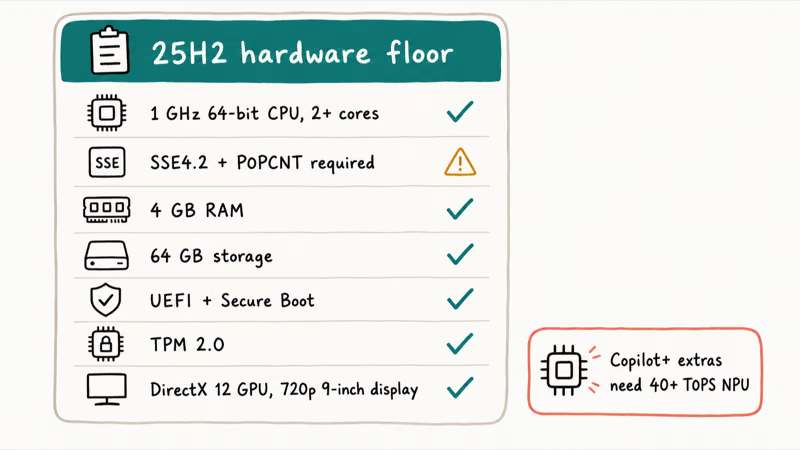
- 1 GHz or faster, 64-bit compatible CPU with 2+ cores
- CPU must support SSE4.2 and the POPCNT instruction (this rules out some Atom and pre-2009 CPUs)
- 4 GB RAM, 64 GB storage
- UEFI firmware with Secure Boot capable
- TPM 2.0
- DirectX 12 compatible GPU
- 720p display 9 inches or larger
That last gotcha — SSE4.2 with POPCNT — catches people off guard. 24H2 made it mandatory at the kernel level, and 25H2 inherits that. A handful of 2010-era CPUs that ran earlier Windows 11 builds will refuse to boot 24H2 or 25H2.
Copilot+ features are a separate eligibility question.
Recall, Click to Do, semantic search, and the Agent in Settings all need a Copilot+ PC: a Qualcomm Snapdragon X, AMD Ryzen AI 300, or Intel Core Ultra 200V series CPU with at least 40 TOPS of NPU performance.
A 2023 Intel laptop with no NPU still gets 25H2 and the basic File Explorer AI actions, just not Recall.
If you’re still on Windows 10 and shopping for a route forward, the upgrade-from-Windows-10 path on a sluggish Windows 10 PC is worth thinking through before you jump straight to 25H2. A clean install on the same hardware is sometimes the better answer than an in-place upgrade.
#Should You Update to 25H2 Now or Wait?
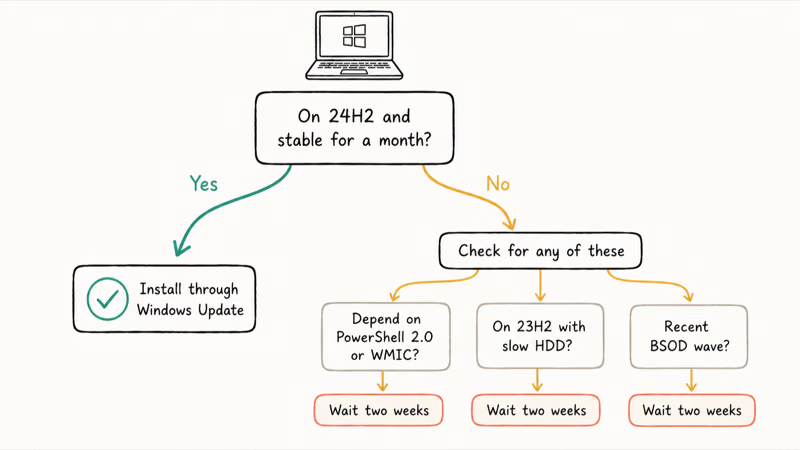
Update if you’re on 24H2 and the machine has been stable for a month or more. The enablement package is small, the restart is quick, and you get a fresh 24-month support window plus the official 25H2 version flag. There’s no good reason to sit on 24H2 once Windows Update offers you the upgrade.
That’s the easy case.
Wait two more weeks if any of these apply:
- You depend on PowerShell 2.0 scripts or WMIC commands that aren’t ready to migrate
- You’re on 23H2 and your only available drive is a slow spinning HDD, because the 4 GB full-feature-update install can run an hour or more on those
- Your PC is part of a recent BSOD wave like the Windows 11 BSOD after KB5083769, because stacking a feature update on top of an unstable system makes the troubleshooting much harder
Skip the Installation Assistant route unless Windows Update still hasn’t offered you 25H2 after a month. Microsoft uses the phased rollout to catch driver issues on specific OEM models before they reach you. Forcing the install steps around that safety net. If you do force-install and the result is a boot loop, the recovery path is the same one used for problems like the Windows 10 automatic repair loop: boot to WinRE and roll back with the uninstall option.
According to Microsoft’s September 30, 2025 Windows Experience Blog announcement, the rollout started broad on day one for 24H2 users and expanded to 23H2 and earlier through Q4 2025. WSUS and Configuration Manager availability followed on October 14, 2025.
#Bottom Line
Install 25H2 through Settings > Windows Update if you’re on 24H2 with a clean monthly-update history. It’s a 200 KB download and a single restart, and it locks in support patches until October 2027 for Home and Pro.
The reward isn’t shiny new features. What you actually gain is the support clock.
Hold off if you run PowerShell 2.0 scripts, your PC is still on 23H2 with a slow drive, or you’re recovering from a recent BSOD that hasn’t been diagnosed yet. Forcing the upgrade through the Installation Assistant gains you almost nothing and skips the phased rollout that was designed to protect your specific hardware model.
#Frequently Asked Questions
When did Windows 11 25H2 release?
September 30, 2025. Microsoft announced general availability through the Windows Experience Blog and started the broad rollout the same day. WSUS and Configuration Manager catalogs received 25H2 two weeks later on October 14, 2025.
Is 25H2 a big update or a small one?
For anyone already on 24H2, it’s small. The shared servicing branch means most of 25H2’s code is already on a fully patched 24H2 PC, just disabled. The enablement package weighs around 200 KB and the install finishes in a single restart. For 23H2 and earlier, it’s a full ~4 GB feature update with a longer install window.
How do I install Windows 11 25H2?
Open Settings, go to Windows Update, and check for updates. If you’re in the current rollout phase, you’ll see a “Feature update to Windows 11, version 25H2” entry. Click Download and install, then restart when prompted. If the offer doesn’t appear after a month and you’re sure your PC is eligible, use the Installation Assistant from Microsoft’s Windows 11 download page.
Does 25H2 remove any features?
Yes. PowerShell 2.0 is fully removed, so legacy scripts that explicitly invoke version 2 will fail. WMIC is uninstalled by default but you can reinstall it as an optional feature for now.
Will my PC get 25H2 automatically?
Eventually, yes, if it meets the hardware requirements. Microsoft’s phased rollout pushes 25H2 to eligible PCs in waves, prioritizing devices with known stable driver profiles. If you don’t see the offer after a month, your hardware combination is probably still in a deferral pool over an open compatibility hold, so wait it out or check Microsoft’s known-issues page for your OEM.
Do I need a Copilot+ PC to use the new AI features?
For the headline AI features, yes. Recall, Click to Do, semantic search in File Explorer, and the Agent in Settings all need a Copilot+ PC with a 40+ TOPS NPU, in the Snapdragon X, Ryzen AI 300, or Intel Core Ultra 200V class. Basic File Explorer AI actions like background blur work on regular Windows 11 PCs with an internet connection.
Can I roll back from 25H2 to 24H2?
Yes, within 10 days. Open Settings, go to System > Recovery, and click Go back. After 10 days the button is grayed out because Windows deleted the rollback files to reclaim disk space.

Bluetooth Not Working on Snapdragon X? Fixes for 2026
Bluetooth not working on your Snapdragon X Copilot+ PC? Generic audio, mice, and keyboards work, but vendor apps often lack an ARM build. Fixes inside.

Docker Desktop and WSL2 Not Working on Snapdragon X? Fix It
WSL2 runs fine on Snapdragon X, but Docker Desktop ARM is Early Access and throws WSL errors. Use WSL2 plus native ARM64 Ubuntu and Docker Engine.
Does iTunes Work on Snapdragon X? ARM Windows 11 Guide
Yes, iTunes runs on Snapdragon X laptops through Prism emulation, but the Apple Devices app is the smoother route. Here is what to install on ARM.

Does OBS Studio Work on Snapdragon X? ARM64 Build Guide
Yes, OBS Studio has an experimental ARM64 build since version 31.1, but x64 plugins won't load and hardware encoding is missing. Here is what works.