Windows 10 Taskbar Not Hiding in Fullscreen? 7 Fixes
Windows 10 taskbar will not auto-hide in fullscreen? Restart File Explorer first, then clear flashing app badges. 7 proven fixes ranked by speed.
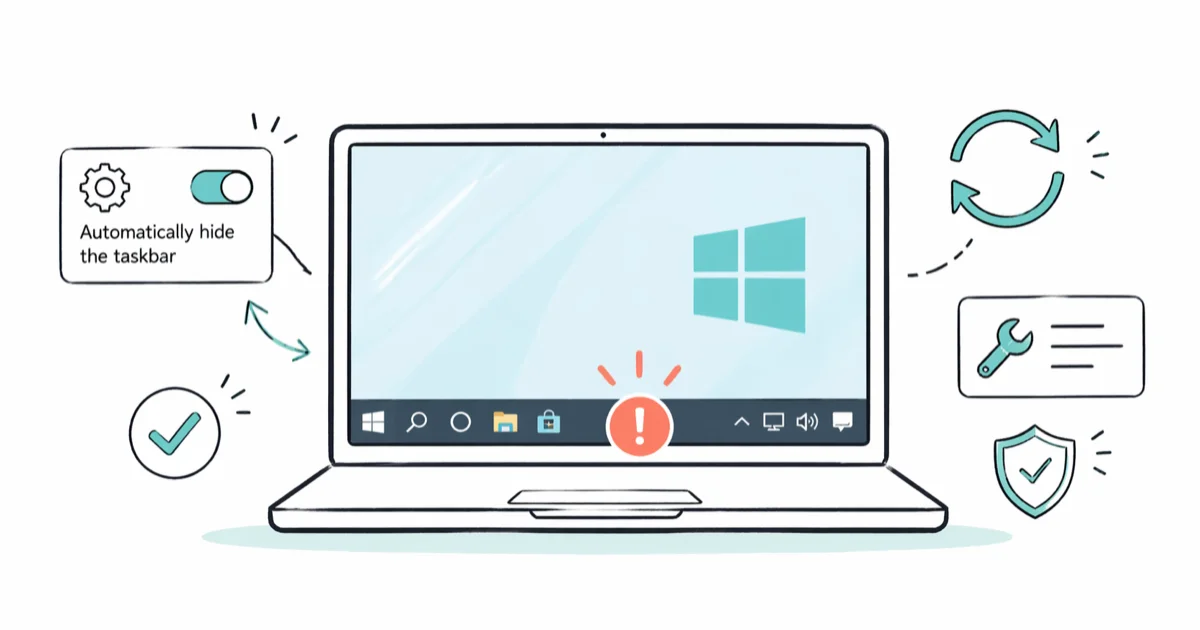
Quick AnswerWhen the Windows 10 taskbar will not hide in fullscreen, restart File Explorer from Task Manager first. A stuck Explorer process is the most common cause, and that single step clears it for most people in under a minute.
The Windows 10 taskbar refusing to hide in fullscreen almost always traces back to one of two culprits: a flashing app icon or a stuck File Explorer process. You start a YouTube video, jump into a game, or open a presentation, and that 40-pixel strip won’t disappear. The good news is you can usually clear it without rebooting, and the fix takes about two minutes.
- A stuck File Explorer process is one of the most common causes of a Windows 10 taskbar that won’t hide
- Restarting File Explorer through Task Manager resolves the issue in under 60 seconds and doesn’t log you out
- A flashing app icon (Slack, Discord, Chrome tab) is the second-largest cause and clears as soon as you click the icon
- Settings, Personalization, Taskbar must show both auto-hide toggles on for the feature to work in desktop and tablet modes
- Group Policy fixes apply only to Windows 10 Pro, Enterprise, and Education editions, not Home
#Why Won’t the Windows 10 Taskbar Hide?
The auto-hide feature listens for two signals: notification flags from running apps and the position of your mouse cursor. When either signal stays active, the taskbar stays visible. An unread chat badge, a stuck sync warning, or a cursor sitting at the bottom edge can keep the taskbar pinned until you clear the signal.
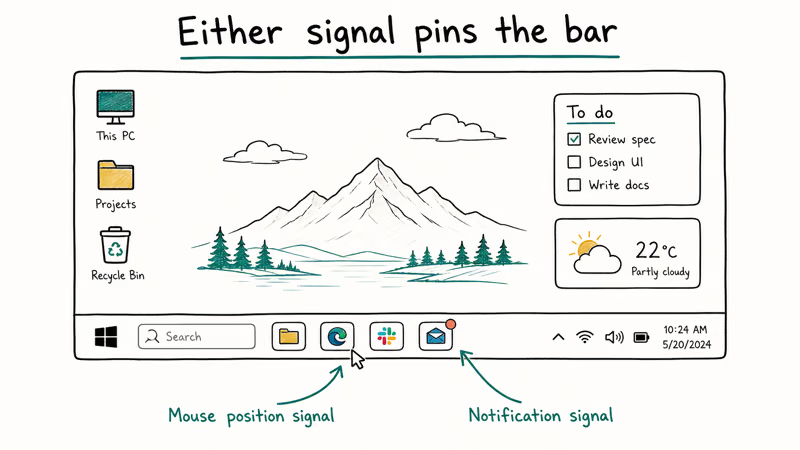
File Explorer itself is the other usual suspect. Explorer handles the taskbar, the Start menu, and the desktop together. When it hits a memory leak or a stalled event handler, the auto-hide signal stops firing even though every toggle in Settings looks correct.
According to Microsoft’s Windows 10 taskbar support page, the taskbar runs inside the Explorer shell. That’s why a Settings tweak alone often isn’t enough, and why restarting Explorer fixes most display glitches without a full reboot. It’s also why the same toggles that work fine after a fresh boot sometimes stop responding days into an uptime streak: the shell accumulates state that only a restart clears.
There’s a third, smaller bucket worth knowing about: third-party software that hijacks the taskbar. Antivirus dashboards, RGB control panels, and some game launchers register their own notification handlers. They keep the taskbar awake even when nothing visible is happening.
#Restart File Explorer (the 60-Second Fix)
Try this first. It clears the stuck Explorer process and forces the taskbar to redraw with auto-hide intact. No reboot, no data loss, no signed-out apps.
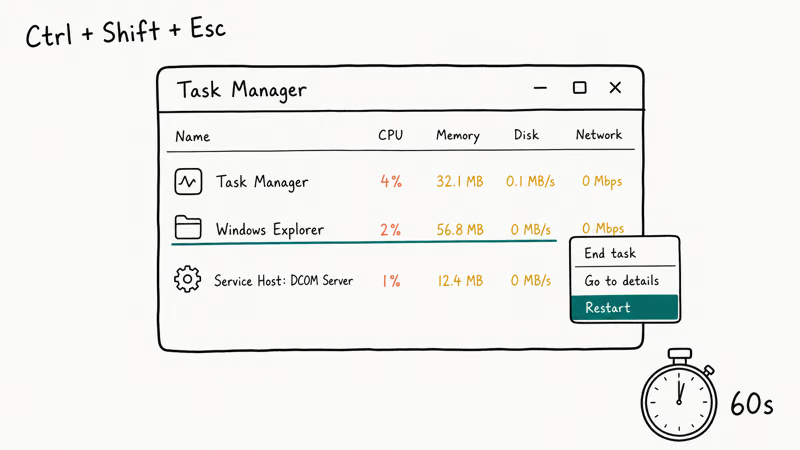
- Press Ctrl + Shift + Esc to open Task Manager directly.
- If Task Manager opens in compact view, click More details at the bottom-left corner.
- On the Processes tab, scroll until you find Windows Explorer. It usually sits near the top under the “Apps” group if you have File Explorer windows open, or near the middle under “Windows processes” if you don’t.
- Right-click Windows Explorer and choose Restart.
Your screen flickers for about one second. The taskbar disappears, the desktop redraws, and auto-hide should work again. This single step is often enough when the Explorer shell is stuck.
If Explorer is missing from the list, you closed it earlier. Use File, Run new task, explorer.exe, Enter.
#Re-Enable Auto-Hide in Settings
A recent Windows update or a third-party tweak can silently flip the auto-hide toggle off. Worth a 10-second check before assuming a deeper bug, especially right after Patch Tuesday.
- Right-click any empty space on the taskbar and choose Taskbar settings. You can also go to Settings, Personalization, Taskbar.
- Scroll to Automatically hide the taskbar in desktop mode and confirm the toggle is On.
- If you use a 2-in-1 device, also turn on Automatically hide the taskbar in tablet mode.
- Toggle each switch off, wait five seconds, then back on. This forces Windows to rebind the auto-hide listener.
The toggle-off-then-on trick sounds silly but it works.
You can also reach these settings by pressing Windows + I, clicking Personalization, then Taskbar on the left sidebar. Bookmark the path if your taskbar misbehaves often after updates.
#Which Apps Keep Forcing the Taskbar Back?
The second-most-common cause is a single app whose icon is flashing for attention. Sometimes the flash is visible, like the orange-tinted Chrome icon when a download finishes. More often it’s silent, like a Microsoft Teams badge with one unread message that you never noticed.
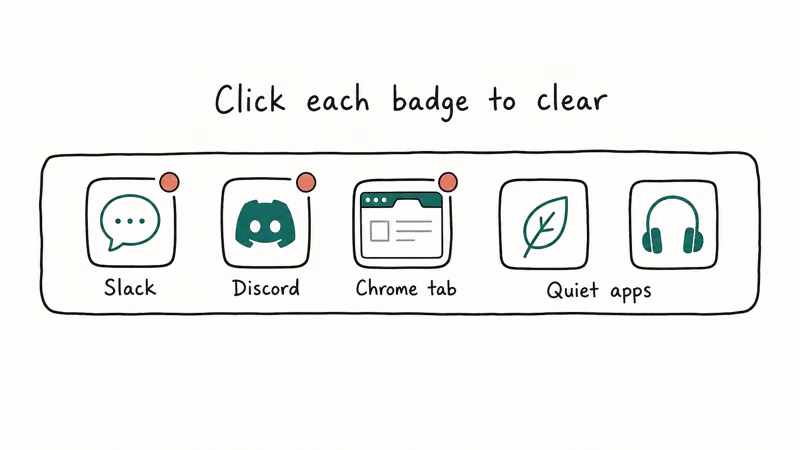
The easiest way to surface every running culprit is to make all notification icons visible at once:
- Open Settings, click Personalization, then Taskbar.
- Scroll to Notification area and click Select which icons appear on the taskbar.
- Toggle Always show all icons in the notification area to On.
- Return to the desktop. Every running app now shows its icon in the system tray.
- Look for any icon with a small dot, badge, or flashing background. Click it once to acknowledge whatever is pending.
Delivery-failure flags in apps like Slack can keep the taskbar awake until you open the app and clear the alert. The same pattern repeats with Discord, Steam, Outlook desktop, and OneDrive sync warnings.
If you’d rather not enable every icon permanently, press Windows + B to jump focus to the notification area, then arrow-key through each icon and inspect it.
#Disable Notifications for the Guilty App
If the same app keeps pinning the taskbar every few minutes, silence its notifications at the source. That’s the right move for chat apps, sync clients, and antivirus tools you don’t want to uninstall but also don’t want to hear from constantly.
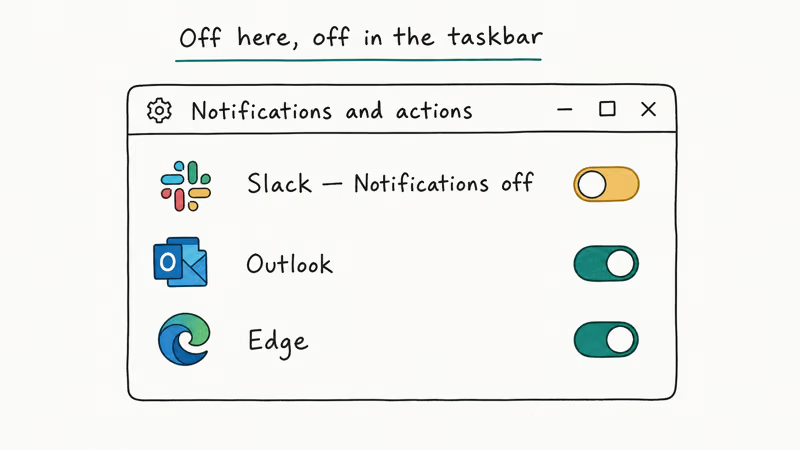
- Open Settings and click System.
- Select Notifications & actions in the left sidebar.
- Scroll to Get notifications from these senders.
- Find the noisy app in the list and toggle it to Off.
If you only want to silence the badge but keep banner notifications, expand the app entry and turn off Show notification badges. That single switch stops most taskbar-pinning behavior without killing the actual notifications you care about, which is usually what you want for things like Outlook or Teams. Lifewire’s Windows 10 notification guide recommends starting with the most chronic offenders first, since silencing five apps at once makes it hard to know which one was the real cause.
Start small.
#Use Group Policy to Suppress Notifications (Pro Editions)
If you run Windows 10 Pro, Enterprise, or Education, Group Policy gives you a stricter switch that overrides per-app settings. Home edition doesn’t include gpedit.msc so this method does not apply there.
- Press Windows + R to open the Run dialog.
- Type
gpedit.mscand press Enter. - In the Group Policy Editor, expand User Configuration, then Administrative Templates, then Start Menu and Taskbar.
- Find Turn off feature advertisement balloon notifications and double-click it.
- Select Enabled, click Apply, then OK.
- Optionally, also enable Turn off all balloon notifications to suppress every popup that could wake the taskbar.
Apply the same settings machine-wide under Computer Configuration.
The policy takes effect on the next sign-in. To activate it immediately, open Command Prompt as administrator and run gpupdate /force. According to Microsoft’s Group Policy reference, gpupdate /force reapplies all policies regardless of whether they appear changed.
#Try a Third-Party Taskbar Tool
When the built-in fixes don’t stick, a small helper utility can take over taskbar management entirely. These options cover the most common taskbar-control needs:
| Tool | Best for | Free version |
|---|---|---|
| TaskbarX | Centering icons, smoothing show/hide animations | Yes (open source) |
| 7+ Taskbar Tweaker | Granular control over click, drag, and hide behavior | 30-day trial, then paid |
| Hide Taskbar | Hotkey-based show/hide, ignores app notifications | Free |
Common tools for taskbar control on Windows 10.
Hide Taskbar is the lightest of the three. It binds Ctrl + Esc to toggle the taskbar regardless of what any app is doing. The Windows Club’s Hide Taskbar download page confirms that the utility is portable, has no installer, and runs on Windows 7 through 11. That hotkey can help when app notifications keep waking the taskbar.
TaskbarX is the better pick if you want a permanent visual change rather than a temporary override. 7+ Taskbar Tweaker sits in between, with the most settings but also the steepest learning curve.
#When the Taskbar Disappears Entirely Instead
A vanished taskbar is the opposite problem and usually points to a different root cause: a crashed Explorer process or a corrupted user profile, not a stuck notification flag. If your taskbar is gone rather than stuck, follow our companion guide on fixing the taskbar that disappeared in Windows 10. It walks through Explorer recovery and user-profile repair, which a notification-side fix can’t address.
A related Explorer issue is high CPU use from the Desktop Window Manager. When dwm.exe is pegged near 100%, the taskbar can freeze in either state. Our Desktop Window Manager high CPU guide covers the driver and graphics-acceleration fixes for that case.
You may also be hitting a broader Explorer slowdown. Our Windows 10 slow performance fixes covers cleanup steps.
Two more related processes worth checking when Task Manager looks busy: Shell Infrastructure Host (sihost.exe) and Your Phone on Windows 10 (yourphone.exe). Both can flag the taskbar through their own notification channels.
#Bottom Line
Start with File Explorer. Restart it from Task Manager before changing deeper settings. If the problem returns quickly, the culprit is often one app with a flashing icon: enable “Always show all icons in the notification area,” click the badge, and silence that app in Notifications & actions. Reserve Group Policy and third-party tools for chronic offenders.
#Frequently Asked Questions
Why does the Windows 10 taskbar reappear during fullscreen video?
A running app is flagging for your attention. Look for a flashing or badged icon in the notification area, then click it to clear the alert.
Will restarting File Explorer close my open windows?
No. Restarting Explorer through Task Manager refreshes the taskbar, Start menu, and desktop without closing browsers, document editors, or any other application. Open File Explorer windows do close, but they don’t lose unsaved state because Explorer is a file browser, not an editor.
Does Windows 10 Home support Group Policy fixes?
No. Home doesn’t ship gpedit.msc. Stick to the Settings app and notification toggles.
Can the auto-hide feature break after a Windows Update?
Yes, this happens more often than you’d think. Cumulative updates have a history of resetting taskbar personalization settings, registering new system services that conflict with auto-hide, or migrating registry keys to a new schema. The fix is easy to miss: open Settings, Personalization, Taskbar, then re-toggle both auto-hide switches to rebind the listener. If that doesn’t help, restart File Explorer through Task Manager.
Are third-party taskbar tools safe to install?
Established tools like TaskbarX (open source), 7+ Taskbar Tweaker (commercial), and Hide Taskbar (freeware from a Microsoft MVP) are widely used and trusted by the Windows community. Avoid random “free taskbar fixer” downloads from search ads, since those often bundle adware. Stick to the developer’s official site or the Microsoft Store.
Why does my taskbar hide on the desktop but not when a game is running?
Borderless windowed mode keeps the desktop active in the background. If Discord, Steam, or your antivirus has a pending notification, the taskbar stays. Switch the game to exclusive fullscreen.
Will a clean Windows reinstall fix a chronically stuck taskbar?
A clean install resolves persistent taskbar issues caused by corrupted user profiles or registry damage, but it’s overkill for most cases. Try restarting File Explorer, clearing notifications, and creating a new local user account first. Reserve a clean install for situations where every other fix has failed across multiple user accounts.

Best Laptop for Running LLMs in 2026: Memory Comes First
The best laptop for running LLMs is a memory purchase first. Compare MacBook unified memory against NVIDIA laptop VRAM, and see what each tier really runs.

How to Run a Local LLM on Windows: A 2026 Setup Guide
Run a local LLM on Windows with LM Studio or Ollama. Pick a model that fits your GPU memory, keep every prompt offline, and skip the monthly bill.

Bluetooth Not Working on Snapdragon X? Fixes for 2026
Bluetooth not working on your Snapdragon X Copilot+ PC? Generic audio, mice, and keyboards work, but vendor apps often lack an ARM build. Fixes inside.

Docker Desktop and WSL2 Not Working on Snapdragon X? Fix It
WSL2 runs fine on Snapdragon X, but Docker Desktop ARM is Early Access and throws WSL errors. Use WSL2 plus native ARM64 Ubuntu and Docker Engine.