Taskbar Disappeared in Windows 10? 6 Fixes That Work
Taskbar disappeared in Windows 10? Restart Explorer or turn off auto-hide. Six step-by-step fixes for real Windows 10 PCs in 2026, ranked by speed.
Quick AnswerPress Ctrl+Shift+Esc to open Task Manager, right-click Windows Explorer, and pick Restart. That single step brings the taskbar back in most cases. If it stays hidden, turn off auto-hide in Taskbar settings or exit Tablet Mode from Action Center.
The taskbar disappeared in Windows 10 usually traces back to one of three things: Explorer.exe stopped responding, auto-hide flipped on, or your PC switched into Tablet Mode after a display change. Start with Method 1 because it doesn’t require a reboot.
Restarting File Explorer often brings the taskbar back quickly.
- Restart Windows Explorer first via Ctrl+Shift+Esc; the taskbar usually reappears without a reboot
- Auto-hide makes the taskbar slide off until your cursor touches the bottom edge; toggle it off under
Settings>Personalization>Taskbar - Tablet Mode hides the taskbar by design on touchscreens; turn it off in Action Center if you’re on a desktop or laptop
- Multi-monitor setups can push the taskbar to a screen that’s been disconnected; press Win+P and pick PC screen only
- If the taskbar refuses to come back, run sfc /scannow then DISM /Online /Cleanup-Image /RestoreHealth from an admin Command Prompt
#Why Did My Taskbar Disappear in Windows 10?
The taskbar lives inside explorer.exe, the same process that draws your desktop icons and File Explorer windows. When that process hangs, crashes, or gets killed by a third-party app, the taskbar vanishes with it. The wallpaper may stay visible while the bottom of the screen goes blank.
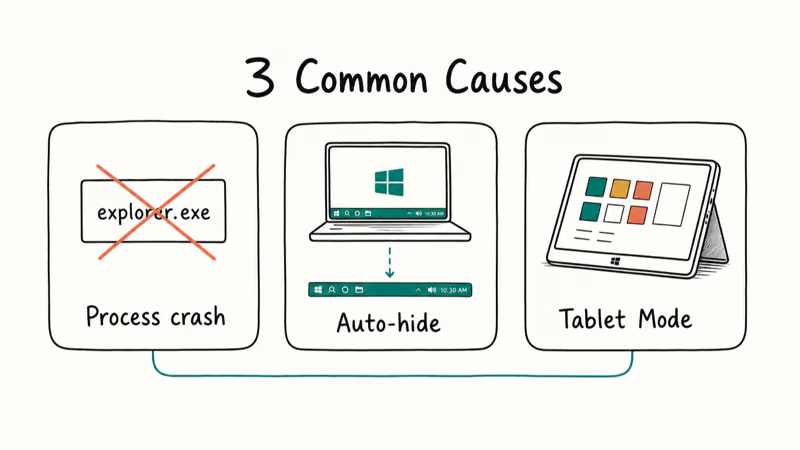
A second common cause is auto-hide. Windows 10 lets you hide the taskbar so it only appears when you push the cursor to the bottom edge. If a recent update or app changed that setting, the taskbar will look gone even though it’s healthy, and the toggle is the very first thing to rule out before reaching for system-repair tools, restarts, or in-place upgrades that take an hour or more to complete.
The third cause is Tablet Mode.
On 2-in-1 devices and touchscreens, switching modes hides the desktop taskbar to free screen space for the Start screen and tile-style apps. Docking changes can flip the mode silently with no notification, which is why the taskbar can look broken when nothing is actually wrong.
Less common causes include a corrupted user profile that breaks the per-user shell registration, a malware infection that disables explorer.exe to keep you out of Task Manager, an old Windows Update that left the Start menu service in a bad state, and a multi-display setup where the taskbar moved to a monitor that’s no longer connected and silently kept rendering off-screen. The checks below follow roughly the order you should try them.
#How to Restart Windows Explorer to Bring the Taskbar Back
This fixes many disappearing-taskbar cases and takes under a minute.
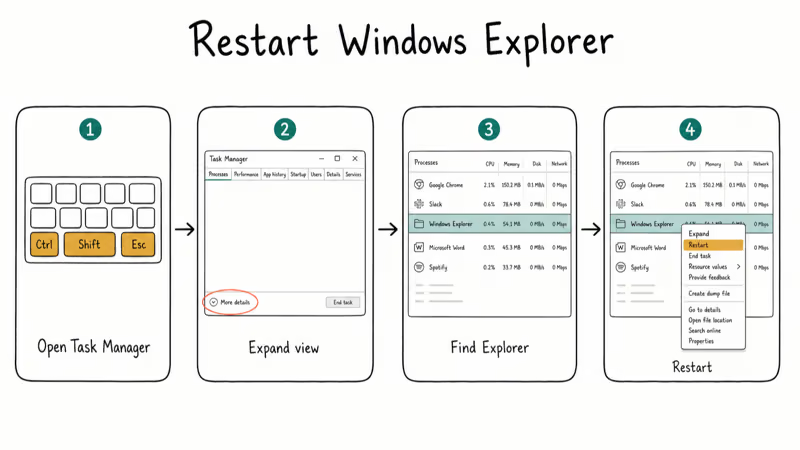
- Press Ctrl + Shift + Esc to open Task Manager directly. This shortcut bypasses the desktop and Start menu entirely, which matters when the taskbar is missing and Win+X is unresponsive.
- If Task Manager opens in compact view, click More details at the bottom.
- Scroll the Processes tab to find Windows Explorer.
- Right-click it and choose Restart.
The screen flickers once. The taskbar should snap back into place at the bottom of your primary display, the desktop icons will redraw, and any open File Explorer windows will reload with the same paths they had before.
If you don’t see Windows Explorer in the Processes list, explorer.exe has already crashed and exited entirely instead of hanging. Click File > Run new task in Task Manager, type explorer.exe, check Create this task with administrative privileges, and press Enter to relaunch the shell from scratch.
Repeat crashes point to a deeper problem.
If explorer.exe keeps dying every few minutes, the cause is usually a third-party shell extension (cloud-storage clients are the worst), a corrupted icon cache, or a runaway service. The same root cause shows up when Desktop Window Manager spikes CPU usage, so check that pattern next before tearing into anything else.
#Turn Off Auto-Hide and Unlock the Taskbar
Auto-hide is the most common reason a “disappeared” taskbar is actually still there. If this setting was toggled during cleanup or after an update, the taskbar can hide even though Explorer is healthy.
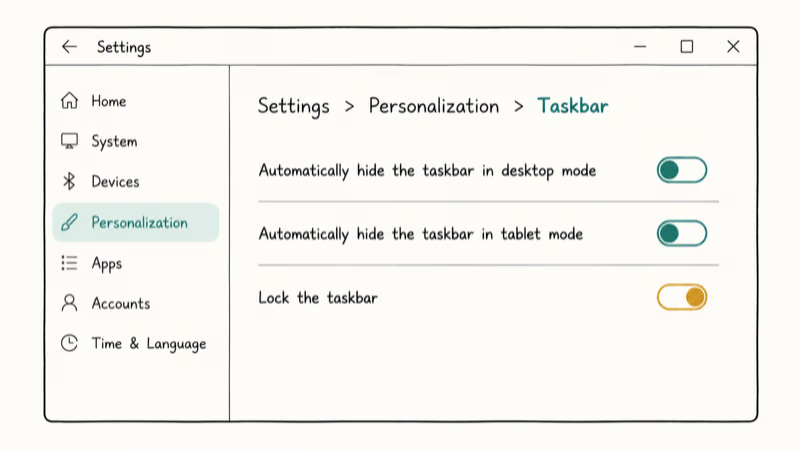
- Press Win + I to open Settings.
- Go to
Personalization>Taskbar. - Switch off Automatically hide the taskbar in desktop mode and Automatically hide the taskbar in tablet mode.
- Make sure Lock the taskbar is on so it doesn’t get dragged off-screen.
Skype, OneDrive, and some screen-recording tools are repeat offenders.
If the toggles look correct but auto-hide keeps reactivating after every reboot, a third-party app is rewriting your settings on startup. The companion guide on Windows 10 taskbar not hiding covers the full diagnostic flow, a registry override that survives reboots, and common apps that overwrite this setting.
Check the Taskbar location on screen dropdown too. If it reads Top, Left, or Right and your monitor was recently rotated, the taskbar may be sitting along an edge you’re not looking at.
#Switch From Tablet Mode to Desktop Mode
Tablet Mode collapses the taskbar by design. If your laptop is a 2-in-1 or your touchscreen Windows 10 install detected a docking change, the OS may have flipped modes without telling you.
- Click the Action Center icon at the right end of the system tray, or press Win + A.
- Find the Tablet mode quick action tile.
- Click it once to toggle off. The desktop taskbar reappears immediately.
If the Action Center tile is missing, go to Settings > System > Tablet and set When I sign in to Use desktop mode, then set When this device automatically switches tablet mode on or off to Don’t ask me and don’t switch. Apply both settings if docking keeps switching modes silently.
This fix only helps if Tablet Mode was the culprit. On a fixed desktop with no touchscreen, Tablet Mode should already be off and you can move on.
#Fix the Display Settings After a Multi-Monitor Glitch
When you unplug an external monitor that was hosting the taskbar, Windows 10 sometimes “remembers” the missing display and parks the taskbar on it. The taskbar is technically still rendering, but on a screen that’s no longer connected.
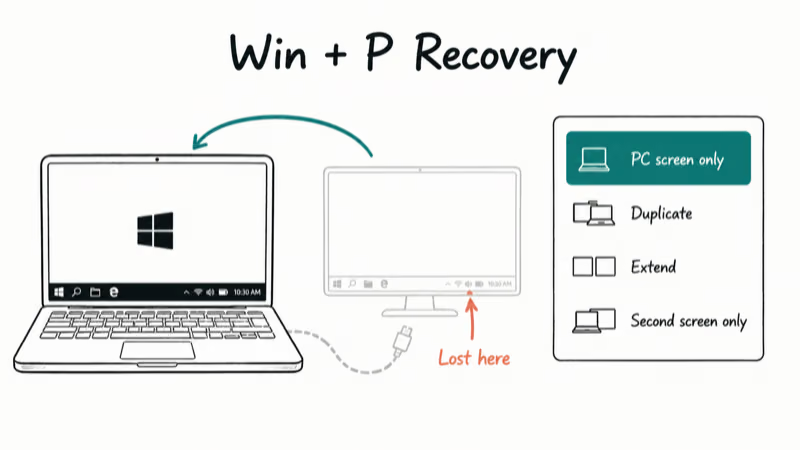
- Press Win + P to open the projection panel.
- Pick PC screen only. This forces all output to your built-in display.
- If the taskbar reappears, your last layout had it on a now-disconnected screen.
- To prevent it from happening again, right-click the desktop, choose Display settings, and confirm Multiple displays lists only the monitors actually plugged in.
A loose HDMI cable or missing meeting-room display can trigger this. Win+P is the quickest way to force the taskbar back onto the built-in display. If your display panel itself is acting up, our walkthrough for when you can’t adjust brightness on Windows 10 covers the same dxgkrnl and graphics-driver layer that controls taskbar rendering.
For desktops with a single monitor, skip this method. Win+P won’t change anything if there’s only one display.
#Run SFC and DISM to Repair System Files
If Methods 1 through 5 don’t work, system files are likely corrupted. The repair takes 15 to 25 minutes total but it fixes the underlying explorer.exe instability that none of the toggles can reach.
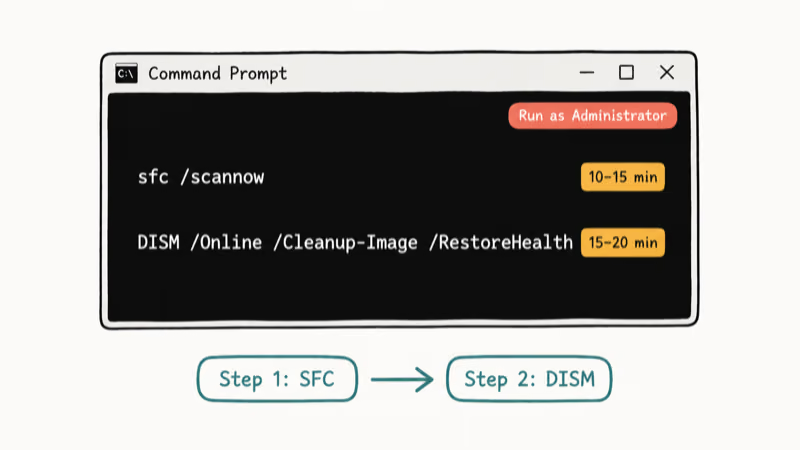
- Press Win + X and choose Command Prompt (Admin) or Windows PowerShell (Admin).
- Type
sfc /scannowand press Enter. According to Microsoft’s System File Checker reference, this command scans the integrity of all protected system files in 1 pass and replaces incorrect versions with correct Microsoft versions. The scan takes 10 to 15 minutes. - When SFC finishes, run
DISM /Online /Cleanup-Image /RestoreHealth. Microsoft’s DISM technical reference confirms that the/RestoreHealthparameter, available since Windows 8 shipped in 2012, repairs the Windows component store when SFC alone can’t finish. - Restart the PC.
- Run
sfc /scannowonce more after restart to verify nothing is left.
If SFC reports “Windows Resource Protection found no integrity violations,” system files probably aren’t the culprit.
If SFC reports corrupt files it can’t fix, DISM repairs the component store so a second SFC pass can replace the damaged files.
If SFC keeps reporting unfixable corruption, Microsoft’s Chkdsk command reference recommends running chkdsk /f /r next to repair disk-level errors before reattempting the file-level scan.
Performance issues can also disguise themselves as taskbar problems.
If you suspect the underlying instability is performance-related rather than file corruption, jump to our Windows 10 running slow guide first. Many of the same explorer.exe indexing tweaks, startup-app pruning, and Search-rebuild steps apply directly to a flickering or vanishing taskbar.
#Is the Taskbar Behind Another App or Off-Screen?
Sometimes the taskbar is alive but covered. Apps that grab full-screen exclusive mode, like older video players and some games, can hide the taskbar even when auto-hide is off.
- Press F11 in the foreground app. Many apps toggle full-screen with this key.
- Press Esc to drop out of presentation mode in PowerPoint, browsers, and most video players.
- Press Win + D to minimize all windows. If the taskbar appears, an app was layering on top of it.
- Right-click an empty spot on the desktop, pick Display settings, and check that your primary monitor is set correctly. The taskbar follows the primary display by default.
Full-screen exclusive mode can persist after Alt+Tab.
Pressing F11 drops many apps out of full-screen and brings the taskbar back.
If your keyboard hardware is acting up and these shortcuts do nothing at all, work through our Windows 10 keyboard not working guide first to rule out input issues before assuming the taskbar itself is broken.
#Bottom Line
Restart File Explorer first: Ctrl+Shift+Esc, right-click Windows Explorer, Restart. That single step fixes many cases quickly. If it doesn’t stick after a reboot, try auto-hide and Tablet Mode in that order, then save SFC and DISM for last because they take 20 minutes and only help when system files are actually corrupted.
#Frequently Asked Questions
Why did my taskbar suddenly disappear in Windows 10?
The most common cause is explorer.exe crashing or hanging, which removes the taskbar along with the desktop icons. The second most common is auto-hide flipping on after a Windows update or app install. Less common causes include Tablet Mode switching on a 2-in-1, a multi-monitor layout that lost a display, or a corrupted user profile.
How do I get my taskbar back without restarting my PC?
Press Ctrl+Shift+Esc, find Windows Explorer, right-click, pick Restart.
Will my open apps close if I restart Windows Explorer?
No. Restarting Windows Explorer only closes File Explorer windows and reloads the desktop shell. Browsers, Office documents, games, and any other apps stay open and keep your unsaved work intact.
What does sfc /scannow actually do?
The System File Checker compares every protected Windows system file against a known-good copy in the Windows component store and replaces any file that doesn’t match. Microsoft’s documentation recommends running it from an elevated Command Prompt. The scan takes 10 to 15 minutes on most modern PCs and reports any unfixable corruption in CBS.log.
How is DISM different from SFC?
SFC repairs individual system files using the local Windows component store as the source of truth. DISM repairs the component store itself by pulling fresh copies from Windows Update. Run SFC first; if SFC reports corruption it can’t fix, run DISM with /RestoreHealth, then run SFC once more.
My taskbar is on the wrong monitor. How do I move it back?
Press Win+P, pick PC screen only, then open Display settings and set your active monitor as the main display.
Can a virus hide my taskbar?
Yes, though it’s rare. Some malware kills explorer.exe to block you from launching antivirus tools or Task Manager from the system tray. If your taskbar disappears repeatedly along with desktop icons on your own computer, run a full scan with Windows Security (Settings > Update and Security > Windows Security > Virus and threat protection) and consider booting into Safe Mode for the scan.
Is reinstalling Windows 10 ever the right fix?
Only as a last resort. If SFC and DISM both fail, your user profile is corrupt, and a clean boot still shows the same taskbar issue, an in-place upgrade install (running the Windows 10 installer over your existing install and choosing Keep my files and apps) can rebuild the system shell without wiping data. Back up your files first.

Best Laptop for Running LLMs in 2026: Memory Comes First
The best laptop for running LLMs is a memory purchase first. Compare MacBook unified memory against NVIDIA laptop VRAM, and see what each tier really runs.

How to Run a Local LLM on Windows: A 2026 Setup Guide
Run a local LLM on Windows with LM Studio or Ollama. Pick a model that fits your GPU memory, keep every prompt offline, and skip the monthly bill.

Bluetooth Not Working on Snapdragon X? Fixes for 2026
Bluetooth not working on your Snapdragon X Copilot+ PC? Generic audio, mice, and keyboards work, but vendor apps often lack an ARM build. Fixes inside.

Docker Desktop and WSL2 Not Working on Snapdragon X? Fix It
WSL2 runs fine on Snapdragon X, but Docker Desktop ARM is Early Access and throws WSL errors. Use WSL2 plus native ARM64 Ubuntu and Docker Engine.