Why Does My Internet Keep Disconnecting? 9 Fixes That Work
Internet keeps disconnecting? Walk through 9 common causes from router reboots to ISP outages, and apply the proven fixes that restore stable service.
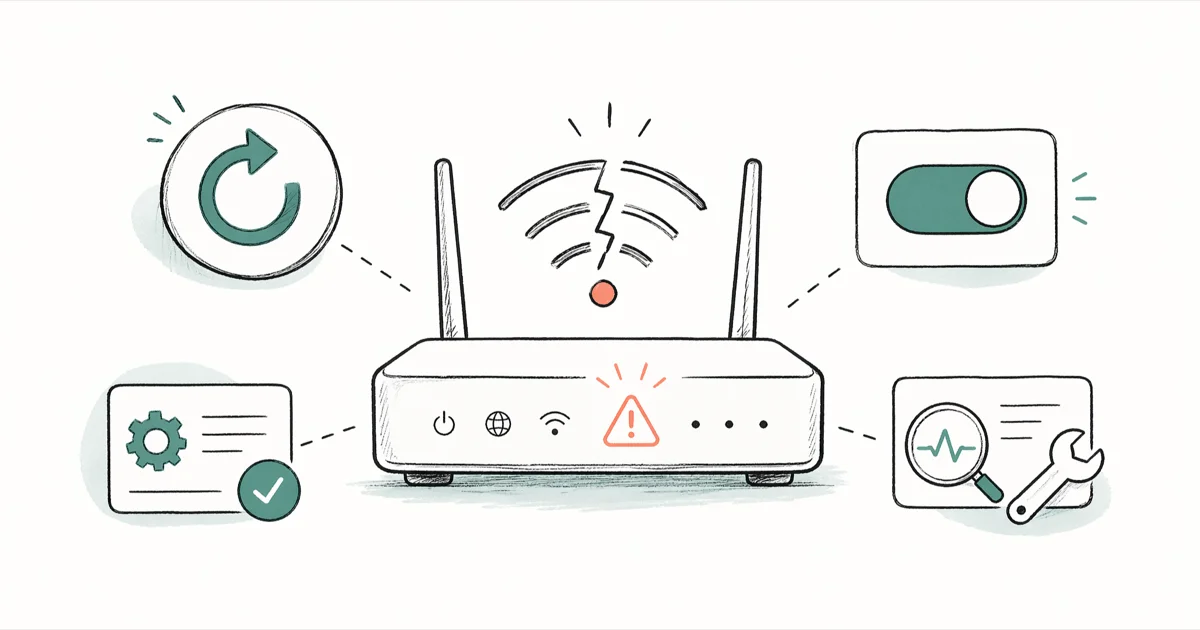
Quick AnswerMost home internet drops come from an overheated router or modem, a weak Wi-Fi signal stretched across too many walls, or a temporary outage on your provider's end. A 30-second power cycle of both devices fixes the majority of cases; the rest usually trace to DNS settings, outdated drivers, or worn cables.
Few things are more frustrating than a video call that freezes every few minutes or a download that stalls right before it finishes. Recurring home internet drops usually trace to a tired modem, a router buried inside a media cabinet, congested 2.4 GHz channels, outdated network drivers on Windows, or an ISP maintenance window.
The good news: most recurring disconnects clear up after a few basic checks. This guide walks through nine fixes in a practical order. Start at the top and move down only if the previous step doesn’t restore stable service.
Skip ahead if you already know which layer is failing.
- Power-cycle the modem and router for at least 30 seconds before trying anything else; this clears the IP lease and resolves about half of recurring home disconnects.
- Place the router in open space at chest height; brick walls, metal shelves, and large appliances cut 5 GHz Wi-Fi range significantly.
- The 2.4 GHz band has only 3 non-overlapping channels (1, 6, and 11), so dense apartment buildings often benefit from a manual channel change.
- Check your ISP’s outage page or a third-party status tracker before buying new hardware; provider issues account for a sizeable share of “router” complaints.
- Replace worn cables and run a wired test before suspecting drivers; bent RJ-45 tabs and 10-year-old Cat 5 cable cause silent random drops.
#Is It Your Hardware, Your Wi-Fi, or Your ISP?
Before changing any settings, narrow the failure down to a single layer.
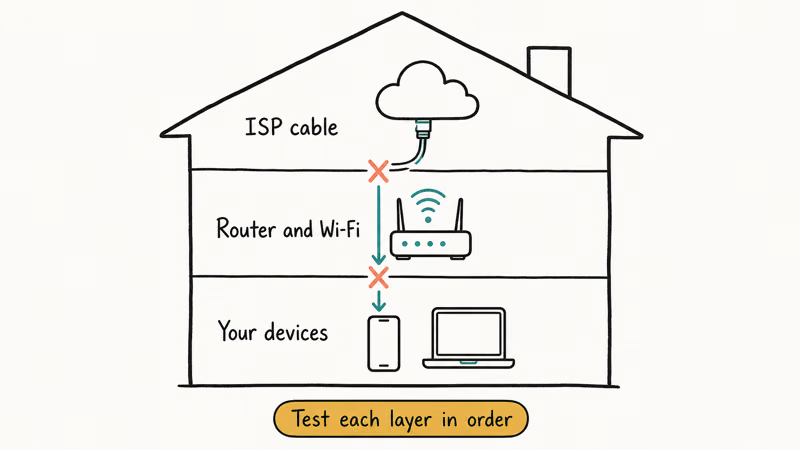
Plug a laptop directly into the modem with an Ethernet cable. If the wired connection stays up while Wi-Fi devices keep dropping, the router or the wireless band is at fault. If the wired connection also drops, the modem or the ISP service is the culprit. This triage step narrows the fault before you change settings or buy hardware.
Once you know which layer is failing, jump to the right section.
#Fix 1: Power-Cycle the Modem and the Router
According to Microsoft’s Windows network troubleshooting guide, restarting the modem and router is the first step recommended for any intermittent home connection problem. The reboot clears stale state on both devices and forces a fresh DHCP lease from the ISP. Order matters, so don’t skip ahead:
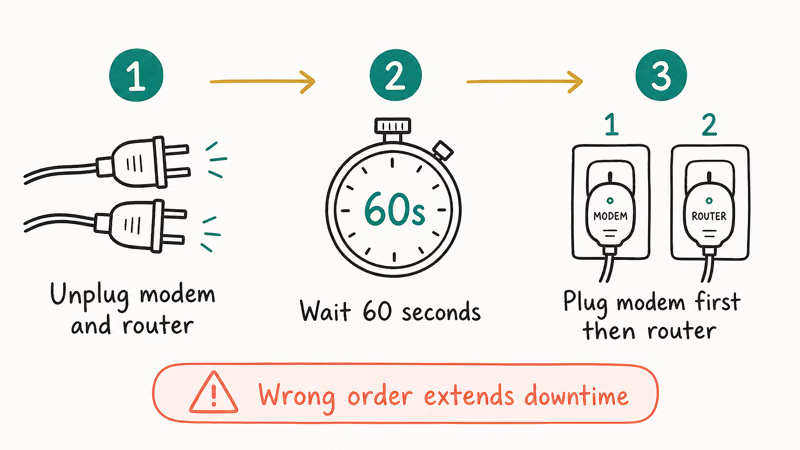
- Unplug the modem from power.
- Unplug the router from power.
- Wait at least 30 seconds (60 seconds if your ISP recently pushed firmware).
- Plug the modem back in and wait for its online LED to turn solid.
- Plug the router back in and give it about two minutes for the Wi-Fi LED to settle.
Don’t press the pinhole reset button on the back of the modem unless you’re ready to re-enter ISP credentials. The reset wipes saved settings and is rarely what you want.
#Fix 2: Move the Router and Test Signal Strength
A router buried inside a TV cabinet behind a metal shelf isn’t really a router. It’s a Faraday cage.
Wi-Fi signal degrades through brick, concrete, drywall stuffed with insulation, and large appliances. Place the router on an open shelf at roughly chest height, central to the rooms you actually use, and well away from microwaves, baby monitors, and Bluetooth speakers.
Channel congestion often shows up as regular drops on stationary devices such as smart TVs or desktops.
If the signal improves after a router move, leave the router in the more open spot and retest the rooms that dropped before.
#Fix 3: Switch Wi-Fi Channels to Reduce Congestion
Neighbors’ networks crowd whatever channel your router defaults to. Apple’s Wi-Fi settings page states that the 2.4 GHz band has only 3 non-overlapping channels (1, 6, 11).
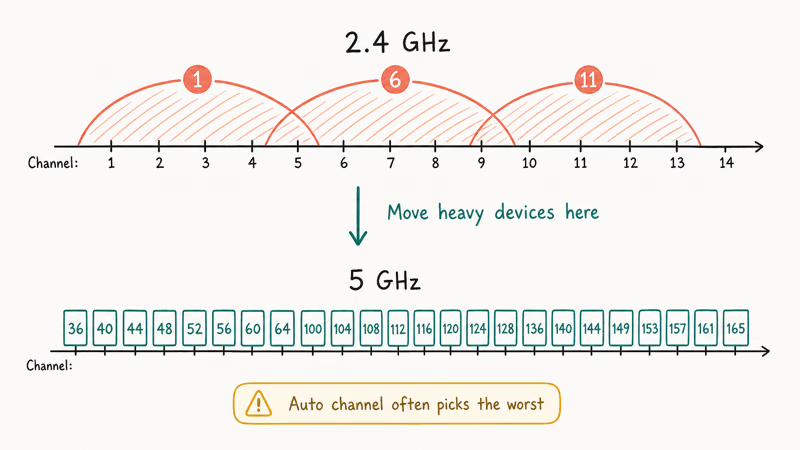
5 GHz offers more than 20 usable channels in most regions, which is why crowded apartments often do better there.
If your router is set to “Auto,” try locking it to channel 1, 6, or 11 on 2.4 GHz, and pick a 5 GHz channel above 100 to avoid older smart-home devices. Run scans with WiFi Analyzer on Android or AirPort Utility on iPhone from the room where disconnects hit hardest, since that’s the radio environment that actually matters to your streaming device.
#Fix 4: Update Router Firmware
Outdated router firmware causes random drops on aging hardware. Modern routers from Netgear, TP-Link, ASUS, and eero check for updates automatically, but it’s worth verifying once a quarter. Log in to the router admin page (commonly at 192.168.1.1 or 192.168.0.1), open the firmware section, and apply any pending update. The router will reboot once during the install.
If your router is more than five years old, replacing it usually delivers a bigger reliability gain than any setting change. The best Wi-Fi routers under $50 roundup covers solid budget picks for typical apartments and small homes.
#Fix 5: Refresh the Windows Network Stack
If only your Windows PC keeps disconnecting while phones and tablets stay online, the network stack on Windows is the likely problem. Open Command Prompt as administrator and run these commands one line at a time:
ipconfig /flushdns
ipconfig /release
ipconfig /renew
netsh winsock reset
netsh int ip reset
Restart the PC after the last command finishes. This sequence rebuilds the DNS cache, releases the current IP lease, requests a fresh one, and resets the Winsock layer. Microsoft’s support article confirms that these are the standard commands for resolving stubborn Windows-only connection issues.
If the disconnects are specific to Chrome, the DNS_PROBE_FINISHED_NO_INTERNET error guide and the ERR_CONNECTION_RESET in Chrome walkthrough cover the browser-specific fixes that pure Windows commands won’t reach.
#Fix 6: Change Your DNS Server
When an ISP’s DNS server is overloaded, pages time out and apps fail to load even though the Wi-Fi indicator stays green. Switching to a faster public DNS often feels like a faster overall connection because lookups happen on every new request.
Try Google Public DNS (8.8.8.8 and 8.8.4.4) or Cloudflare (1.1.1.1 and 1.0.0.1) at the router level so every device benefits at once. Most router admin pages have a WAN or Internet section where you can enter “Primary DNS” and “Secondary DNS” values.
#Why Does My Internet Drop Only at Certain Times of Day?
Time-based drops almost always trace to one of three causes:
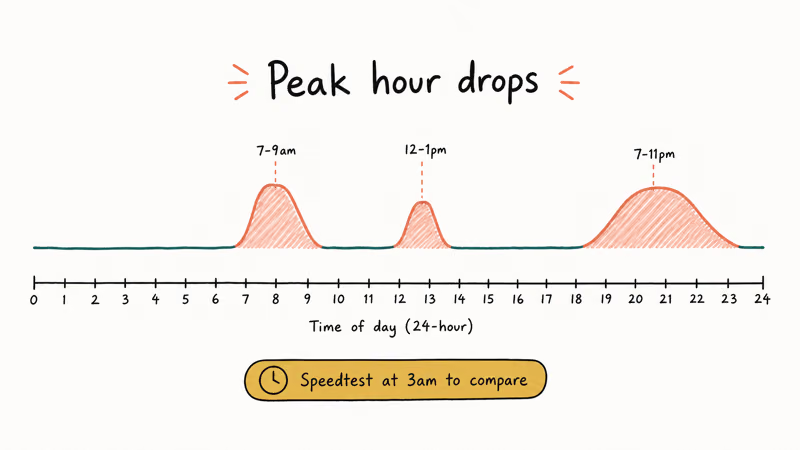
| Window | Likely cause |
|---|---|
| 2 AM to 5 AM local | Automated ISP maintenance push |
| 7 PM to 10 PM local | Peak-hour congestion on a shared node |
| Any time after 6+ hours uptime | Router thermal throttling |
If you can predict the drop within a one-hour window, the cause is environmental rather than random hardware failure.
A scheduled drop is a clue, not a coincidence. If the disconnects happen at the same time each day, document the pattern and ask the ISP to check node congestion or maintenance logs.
#Fix 7: Check for an ISP Outage Before Replacing Hardware
Every major U.S. provider publishes an outage map or status page, and third-party trackers like Downdetector show user-reported issues in near real time. According to the FCC Broadband Speed Guide, recommended minimum speeds for activities like 4K video streaming start at roughly 25 Mbps, so if your speed test drops well below that on a regular plan, the cause is upstream rather than inside your home.
If you’re on Spectrum cable, our Spectrum cable troubleshooting guide walks through the cable-specific LED checks. If you’re on Verizon Fios and the router keeps cycling, the Verizon Wi-Fi not working guide covers provider-specific resets.
#Fix 8: Inspect Cables and the Coaxial Connector
A bent Ethernet RJ-45 tab, an old Cat 5 cable with broken inner pairs, or a loose coaxial F-connector at the wall plate produces silent random drops that look identical to Wi-Fi problems. Replace any cable that bends sharply or shows visible kinks, and hand-tighten coaxial connectors at the wall and at the modem until they’re snug.
Use Cat 5e or Cat 6 for any new Ethernet run. Older Cat 5 cable caps out at 100 Mbps and can introduce errors at gigabit speeds, which routers report as “link flaps” rather than outright disconnects.
Check the cable first. New cables cost a few dollars; a new router costs a hundred.
#Fix 9: Watch for Overheating
Routers and modems run 24/7 and generate heat constantly. Stacked equipment, dust-clogged vents, and direct sunlight push internal temperatures above the silicon’s spec and trigger thermal throttling or full restarts. Google’s Nest Wifi support page recommends keeping the device upright with clear space around the vents, and the same advice applies to any consumer router.
Heat is sneaky. It looks exactly like flaky firmware.
Vacuum the vents every few months, lift the device off any warm surface like a cable box or amplifier, and watch whether the disconnect pattern changes. A small USB fan placed next to a hot router is a cheap test before deciding the hardware itself is failing.
If your phone keeps dropping Wi-Fi while other devices stay online, see the iPhone Wi-Fi not working fixes for device-side steps, or the Phone Wi-Fi slow troubleshooting guide when speeds crawl rather than fully disconnect.
#Bottom Line
For many households, recurring internet drops trace back to a router that hasn’t been power-cycled in months, a Wi-Fi signal stretched too thin across the home, or a temporary outage on the ISP’s end. The modem-and-router reboot is the highest-value first step because it costs nothing and clears stale network state.
Start there. Always.
If reboots aren’t sticking, run the wired-versus-wireless triage to localize the failure, then walk through Fixes 2 through 9 in order. Replace the modem only after you’ve confirmed it’s the modem rather than the cable or the neighborhood node. Most ISPs swap rented modems for free; if you own yours, a current-generation DOCSIS 3.1 cable modem or AX-class Wi-Fi router is a reasonable upgrade after about five years of daily use.
#Frequently Asked Questions
How can I test Wi-Fi signal strength at home?
On Windows, open Command Prompt and run netsh wlan show interfaces to see the Signal line as a percentage. On a Mac, hold the Option key while clicking the Wi-Fi icon to reveal the RSSI value (close to -50 dBm is strong; -80 dBm or lower is weak). Free mobile apps such as WiFi Analyzer on Android map signal room by room and make weak spots easy to find.
Should I restart the modem or the router first?
Restart the modem first and wait until its online LED turns solid before powering the router back on. The modem has to renew its IP lease from the ISP before the router can assign addresses to your devices.
How often should I update my router’s firmware?
Every three months is a sensible manual cadence. Patch immediately if you see news of a security advisory affecting your model.
Can too many devices on one Wi-Fi network cause disconnections?
Yes. Budget routers typically handle 15 to 25 simultaneous clients reliably; beyond that the CPU starts dropping packets. A mesh system or a router with MU-MIMO support and a 1 GHz or faster processor handles heavier loads in busy households.
Is 2.4 GHz or 5 GHz Wi-Fi more reliable?
5 GHz is faster but shorter range; 2.4 GHz reaches farther but is more crowded. For stationary devices within roughly 30 feet of the router, 5 GHz usually wins.
When should I call my ISP instead of troubleshooting myself?
Call your provider if the modem’s online LED won’t turn solid after a full power cycle, if a wired connection drops just as often as Wi-Fi, or if a neighbor on the same ISP reports the same symptoms at the same time. A technician visit is usually free when the issue sits in the wiring up to the modem.
Does using a VPN cause internet disconnections?
A VPN can introduce drops if its server is far away, overloaded, or failing over between regions. Pause the VPN for an hour to check whether the drops stop; if they do, switch to a different VPN server or protocol. WireGuard is generally more stable than older OpenVPN setups on flaky home networks.

Best Laptop for Running LLMs in 2026: Memory Comes First
The best laptop for running LLMs is a memory purchase first. Compare MacBook unified memory against NVIDIA laptop VRAM, and see what each tier really runs.

How to Run a Local LLM on Windows: A 2026 Setup Guide
Run a local LLM on Windows with LM Studio or Ollama. Pick a model that fits your GPU memory, keep every prompt offline, and skip the monthly bill.

Bluetooth Not Working on Snapdragon X? Fixes for 2026
Bluetooth not working on your Snapdragon X Copilot+ PC? Generic audio, mice, and keyboards work, but vendor apps often lack an ARM build. Fixes inside.

Docker Desktop and WSL2 Not Working on Snapdragon X? Fix It
WSL2 runs fine on Snapdragon X, but Docker Desktop ARM is Early Access and throws WSL errors. Use WSL2 plus native ARM64 Ubuntu and Docker Engine.