iPhone Wi-Fi Not Working? 10 Fixes That Actually Work
iPhone Wi-Fi not connecting or keeps dropping? Follow these 10 proven fixes from toggling airplane mode to resetting network settings to get back online.
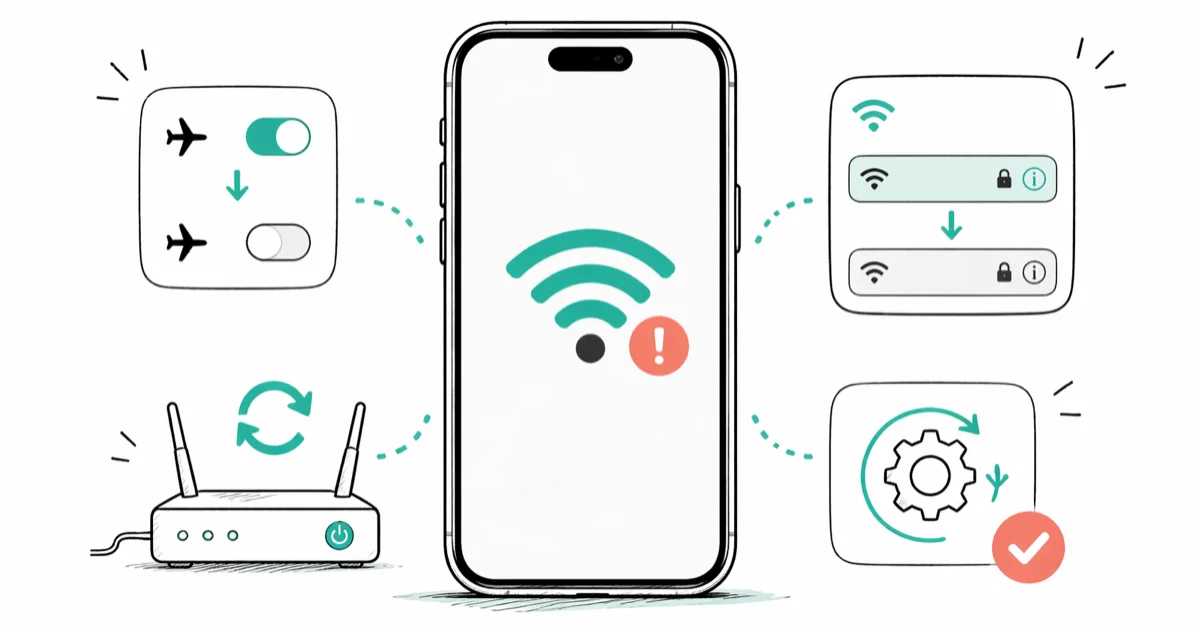
Quick AnswerStart with the basics: toggle airplane mode on and off, forget and rejoin the network, then restart your router. If that fails, go to Settings > General > Transfer or Reset iPhone > Reset > Reset Network Settings. This fixes most iPhone Wi-Fi issues.
iPhone Wi-Fi failures usually fall into one of three buckets: a temporary radio glitch, a corrupted saved password, or a router that needs a kick. The fix you need depends on which bucket your problem belongs to, and most take under two minutes once you know where to start.
- Airplane mode toggling resets the wireless radio in seconds and clears most temporary glitches
- Forgetting a network and rejoining replaces corrupted saved credentials for that specific Wi-Fi
- Reset Network Settings wipes all saved Wi-Fi passwords but resolves stubborn iOS-level bugs
- Recent iOS releases included Wi-Fi stability fixes, so keeping iOS current prevents recurring drops
- An iPhone that can’t detect any Wi-Fi network at all after every software fix points to antenna hardware
#Why Is My iPhone Wi-Fi Not Working?
iPhone Wi-Fi problems sort cleanly into four buckets, and temporary radio glitches plus corrupted saved credentials cover the most common cases.
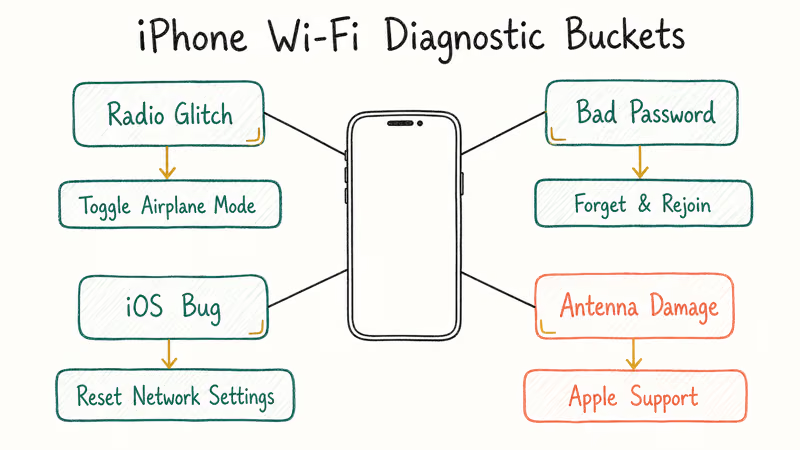
The four buckets are temporary radio glitches, corrupted credentials for one network, persistent iOS-level networking bugs, and antenna hardware damage. A toggle clears the first, forgetting and rejoining handles the second, and a network settings reset clears the third. Hardware failure is the rare last category, showing itself only when no Wi-Fi networks appear at all in Settings, regardless of which one you try to join.
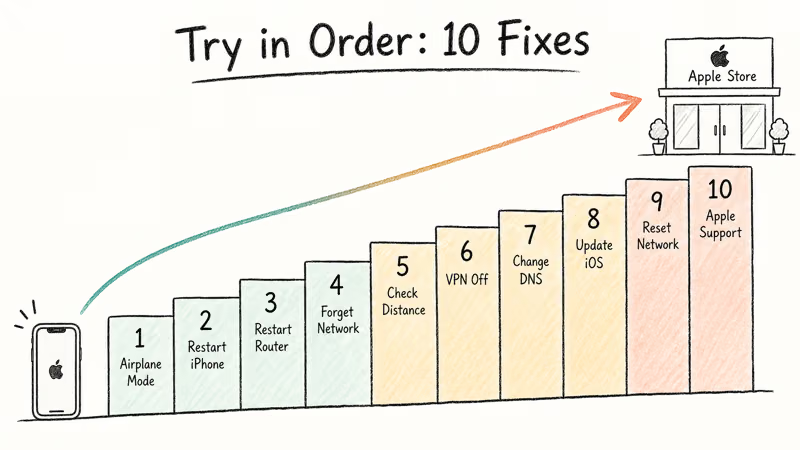
Use the fixes as a ladder: start with quick radio and credential checks, then move to router, DNS, iOS update, and network-reset steps only if the easy fixes don’t bring Wi-Fi back.
Apple’s official Wi-Fi troubleshooting documentation confirms that 4 baseline steps come first: confirm Wi-Fi is on, restart the device, restart the router, and verify other devices can connect. Apple recommends working through software fixes first because antenna failure is uncommon, even on phones that have been dropped repeatedly.
These steps assume you’re working on your own iPhone or a device you legitimately manage, since Wi-Fi password recovery flows are legal only on networks you own or have explicit permission to use. Respecting that boundary protects both your privacy and the network owner’s, and it keeps you on the right side of the Computer Fraud and Abuse Act, which treats unauthorized network access as a federal offense even when no data is taken or modified.
#The 10 Fixes (Try in Order)
#Fix 1: Toggle Airplane Mode
This resets the wireless radio fast. Swipe down from the top-right corner to open Control Center, tap the airplane icon to enable it, wait 15 seconds, then tap it again to disable. Your iPhone reconnects to the last known Wi-Fi network on its own.
If this was a temporary radio glitch, Wi-Fi should reconnect without changing any saved settings.
#Fix 2: Restart Your iPhone
A full restart clears RAM and any background processes interfering with Wi-Fi. Worth trying before more involved steps.
On Face ID iPhones, hold the side button and a volume button until the power slider appears, drag to power off, then hold the side button again to restart. On older Touch ID iPhones, hold the side or top button to get the slider.
#Fix 3: Restart Your Router
Unplug your router from power for a full 30 seconds, then plug it back in and wait about two minutes for the connection to establish. If every other device on your network also can’t connect, the router is almost certainly the cause and your iPhone is fine.
#Fix 4: Forget the Network and Rejoin
Go to Settings > Wi-Fi, tap the i next to your network, and tap Forget This Network. Rejoin with the password.
Forgotten the password already? The how to find a Wi-Fi password on iPhone guide covers the iCloud Keychain method.
#Fix 5: Check Distance and Interference
Walls and metal objects reduce signal strength. Move within 10 feet of the router and check whether the problem persists at close range, since a distance issue needs a placement solution rather than a software one.
If your iPhone shows full bars but can’t reach the internet, the router likely has an upstream connectivity issue. Try other devices on the same network to figure out which side of the problem you are on.
#Fix 6: Disable VPN Apps
Turn off any VPN in Settings > VPN & Device Management. If Wi-Fi works the moment the VPN is off, that VPN configuration needs replacing.
#Fix 7: Change DNS Manually
Your router DNS server can fail or slow down. To use Google Public DNS instead, go to Settings > Wi-Fi, tap the i next to your network, tap Configure DNS, select Manual, and add 8.8.8.8 and 8.8.4.4. Tap Save.
#Fix 8: Update iOS
Check Settings > General > Software Update and install any pending update. Apple patches Wi-Fi bugs in iOS point releases, often without explicitly listing them in release notes.
#Fix 9: Reset Network Settings
Go to Settings > General > Transfer or Reset iPhone > Reset > Reset Network Settings. Your iPhone restarts and every saved Wi-Fi password, VPN config, and cellular setting is wiped. You’ll need to rejoin networks manually afterward.
Photos, apps, and contacts aren’t touched. Only network data is cleared. This is the strongest software fix available short of a factory reset.
#Fix 10: Contact Apple Support
If your iPhone can’t detect any Wi-Fi networks after working through every software fix, the antenna may be damaged. Contact Apple Support or visit an Apple Store. Apple’s internal diagnostics can detect hardware faults that Settings won’t surface.
#What If My Wi-Fi Keeps Disconnecting?
Frequent drops are a different problem from a total failure. A weak saved network nearby can pull the iPhone away from the stronger one you actually want, especially when Auto-Join is enabled.
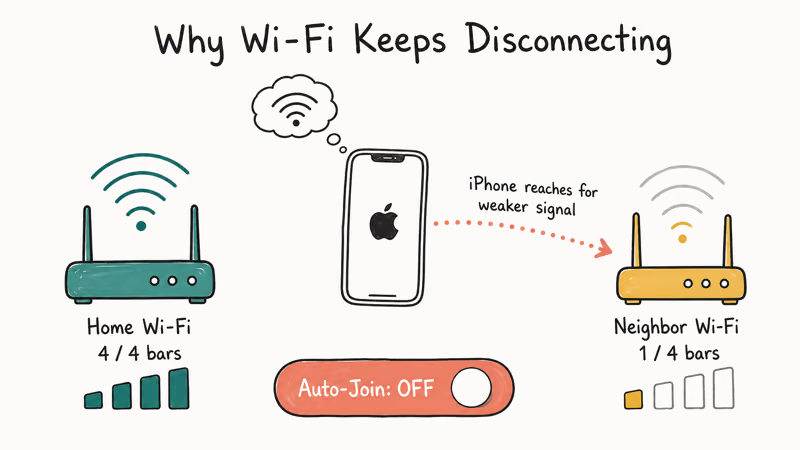
Go to Settings > Wi-Fi and disable Auto-Join for any networks you rarely use. This keeps your iPhone on the chosen network instead of jumping to a weaker one nearby.
If the problem looks different from a network swap, try the guide that matches your symptom:
- Wi-Fi turns off by itself: why Wi-Fi keeps turning off covers those specific causes.
- Issues extend to cellular too: the iPhone no service guide covers radio-level troubleshooting.
- Internet drops across multiple devices: see why internet keeps disconnecting for router-level causes.
Check your router manufacturer’s app or admin panel for firmware updates before adjusting anything on the iPhone side.
#Authentication Errors and Slow Speeds
Authentication errors happen even when the password is correct. Usually a router firmware update changed the security protocol the network advertises.
Forget the network and reconnect fresh. If it still fails, check whether your router is set to WPA3 Personal. Some older iPhones on iOS 14 have WPA3 compatibility issues. Switching the router to WPA2/WPA3 mixed mode often resolves this compatibility mismatch.
For more on this, see Wi-Fi authentication errors.
If speeds are the issue rather than connection failure, that is a different category. See why phone Wi-Fi is slow for speed-specific fixes.
#Router Setup and Network Issues
Sometimes the router is the issue, not the iPhone. Position it centrally, away from thick walls, microwaves, and large mirrors.
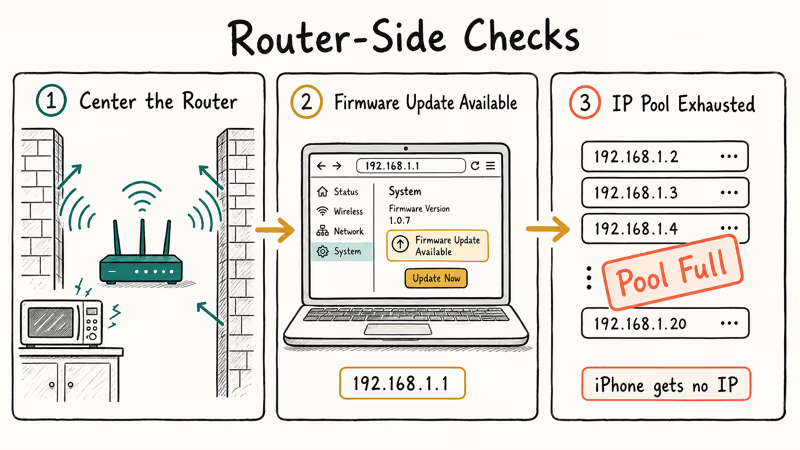
Log into your router admin panel (usually 192.168.1.1 or 192.168.0.1) and check for firmware updates. A router firmware update often resolves iPhone-specific compatibility bugs that no amount of iPhone-side tinkering can address.
Also confirm the DHCP pool isn’t exhausted. Households with many devices can fill the IP address pool. When that happens, your iPhone connects to the network layer but can’t receive an IP address, producing the “connected but no internet” symptom.
#Preventing Wi-Fi Problems Going Forward
Keep iOS updated and restart your router monthly. Both steps clear stale states that cause slow-creep degradation in connectivity.
Apple recommends keeping both iOS and router firmware current, and that combination prevents most recurring issues without manual troubleshooting each time.
Manage your saved networks list as well. Go to Settings > Wi-Fi > Edit and remove networks you no longer use. iPhones with dozens of saved networks occasionally connect to a weak cached network instead of a strong nearby one, causing mysterious drops. As Apple’s guide for an iPhone that won’t connect to Wi-Fi notes, forgetting unused networks is a standard step, and network list bloat is an underappreciated cause of iPhone Wi-Fi instability.
#Bottom Line
For most iPhone Wi-Fi problems, fixes 1 through 4 close the case. Toggle airplane mode, restart your devices, forget and rejoin the network, and update iOS. If those fail, Reset Network Settings (Fix 9) clears the stubborn iOS-level bugs. Save the trip to an Apple Store for the rare case where no Wi-Fi networks appear at all in Settings, since that’s the only symptom that truly points to antenna hardware.
#Frequently Asked Questions
Will resetting network settings delete my photos or apps?
No. Only saved Wi-Fi passwords, Bluetooth pairings, VPN configs, and cellular settings are removed. Photos, apps, and contacts are untouched. You’ll re-enter Wi-Fi passwords after the reset.
Why does my iPhone show Wi-Fi connected but have no internet?
Your iPhone can connect to a router without that router having internet access. The Wi-Fi icon shows local network connection, not internet itself. Try loading any website to confirm. If it fails, restart the router and check with your internet provider whether there is an outage in your area.
Can a phone case block Wi-Fi?
Standard plastic and silicone cases have no measurable effect on Wi-Fi performance. Metal cases and wallet-style cases with metal card inserts are the exception. Metal blocks radio waves, so try removing the case briefly to isolate the cause.
How do I know if my iPhone Wi-Fi hardware is damaged?
If your iPhone can’t detect any Wi-Fi networks in Settings after trying every software fix, the antenna is likely damaged. Bluetooth issues at the same time point to the same cause, since the Wi-Fi and Bluetooth antennas share hardware on most iPhone models. Only Apple’s internal diagnostics can definitively confirm whether the antenna has failed, and that requires a service visit.
Why does my iPhone connect to Wi-Fi but get kicked off after a few minutes?
IP address conflicts and DHCP lease issues cause this. Go to Settings > Wi-Fi, tap the i next to the network, and tap Renew Lease. If the drops continue, try setting a static IP. Also check that your router isn’t assigning the same IP to multiple devices.
Does toggling airplane mode damage the Wi-Fi antenna?
No. Airplane mode is purely a software switch. It’s safe to toggle repeatedly and doesn’t cause any wear on the antenna or radio components.
Should I use 2.4 GHz or 5 GHz Wi-Fi on my iPhone?
5 GHz is faster and less congested but shorter range. 2.4 GHz travels farther but is slower and more prone to interference. Close to the router, use 5 GHz. Far from the router or through thick walls, 2.4 GHz holds a steadier connection.

Mac mini M6 vs M5 Pro: Which Model Should You Buy?
Mac mini M6 vs M5 Pro compared on price, memory, ports, displays, and real workloads. Find the better 2026 Mac mini for your desk and budget.

Apple Siri Settlement: Who Qualifies and How to Claim
Apple's $250 million Siri settlement covers iPhone 15 Pro and iPhone 16 models bought June 2024 to March 2025. See who qualifies and how claims work.

iOS 26.6.1 Security Update: What Apple Fixed and Who Gets It
Apple released iOS 26.6.1 on August 17 with 29 security fixes, including an IPSec interception bug. See what it patches, who gets it, and how to update.

iPhone Adaptive Power: How It Works and When to Use It
Learn how iPhone Adaptive Power works, which models support it, what it changes, and when Low Power Mode is still the better battery-saving choice.