Phone Wi-Fi Slow? 8 Proven Fixes for Android and iPhone
Slow phone Wi-Fi? Here are 8 proven fixes for Android and iPhone, covering router restarts, 5 GHz switching, DNS tweaks, and a clean network reset.
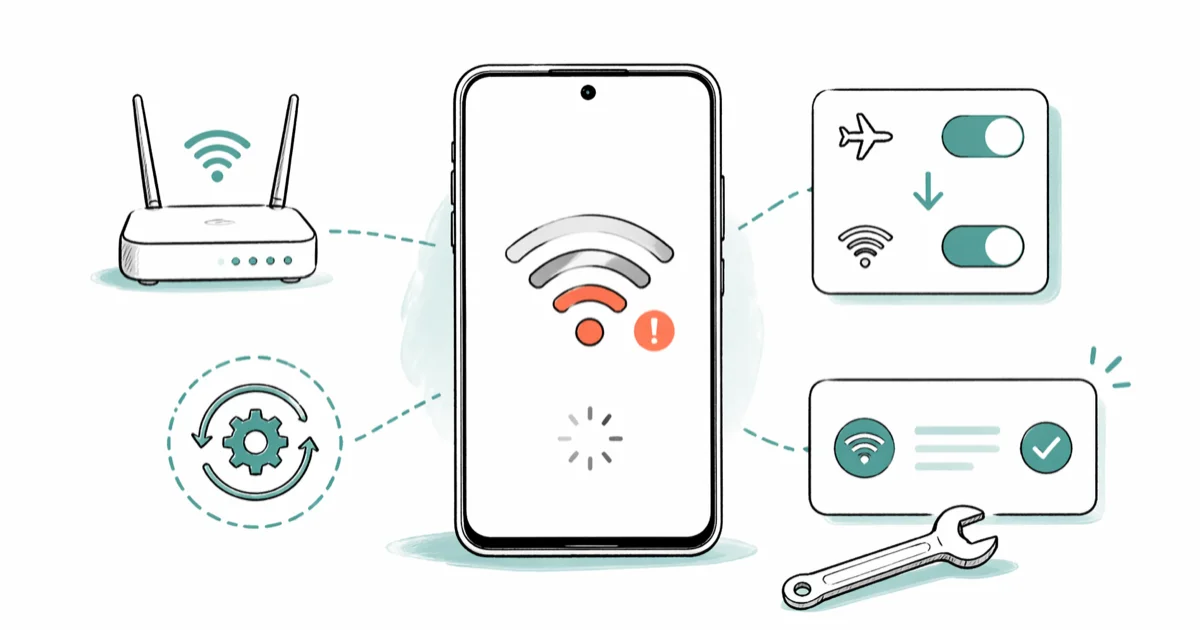
Quick AnswerRestart your router, then toggle airplane mode on your phone. If speeds stay slow, reset your network settings to wipe corrupt Wi-Fi data and reconnect from scratch.
Slow Wi-Fi on your phone is one of the most common tech complaints, and it hits both Android and iPhone users equally. Start with the router and network settings because they clear stale connections without touching your apps or photos. Here is what actually moves the needle.
- Power cycle your router for 30 seconds to flush its memory and recover most slowdowns in about 2 minutes
- Connect to the 5 GHz band when you are within roughly 30 feet of the router for the fastest throughput
- Reset network settings to wipe corrupt Wi-Fi profiles without touching photos, apps, or messages
- Switch DNS to Cloudflare 1.1.1.1 or Google 8.8.8.8 to shorten the wait before pages start loading
- Disable Background App Refresh and unused syncing to free bandwidth your active app actually needs
#Common Causes of Slow Phone Wi-Fi
Your phone’s Wi-Fi speed depends on a lot more than the plan you pay for each month. Distance from the router, the number of devices sharing the network, your phone’s antenna age, and the band you connect to all tug at the final number on Speedtest. Any one of them can cap your throughput well below what your ISP is actually delivering to the house.
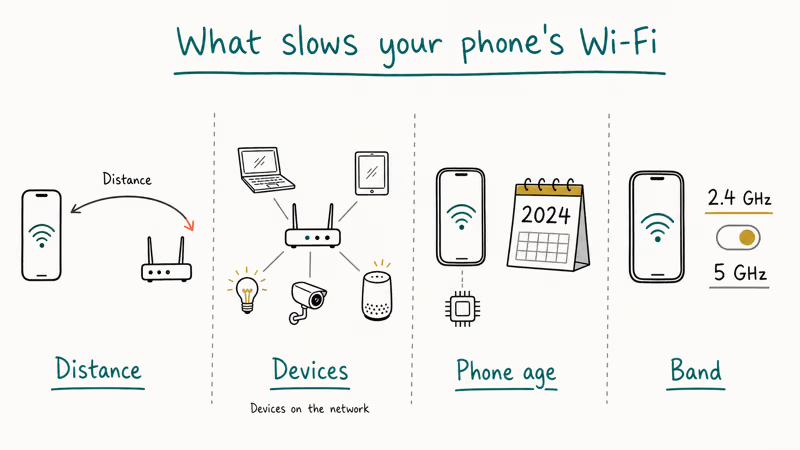
Walls, mirrors, and microwaves all chew through the signal. According to Google’s slow Wi-Fi troubleshooting guide, physical obstructions and distance lead the list of slow Wi-Fi causes.
Older phones cap out near 150 Mbps on Wi-Fi 4 chips, while newer Wi-Fi 6E phones can push past 2 Gbps under ideal conditions. A 4-year-old phone might just be hardware-limited, no matter how fancy your router is. You can sanity-check the model and release year through the serial number or IMEI on the box or in Settings.
A quick reality check before you start tinkering: if every device in the house feels slow at the same time, the router or your ISP is the bottleneck, not the phone.
#How to Fix Slow Wi-Fi on Android
These fixes work on most Android phones running Android 10 or newer. Start with the first one. It solves the problem more often than anything else on this list.
#Restart Your Router
Unplug your router, count to 30, and plug it back in. This clears the router’s RAM, drops stale leases, and forces every device to reconnect cleanly.
Wait roughly 2 minutes for the router to fully boot before you reconnect your phone. If the indicator lights are still blinking, give it another minute.
#Switch to the 5 GHz Band
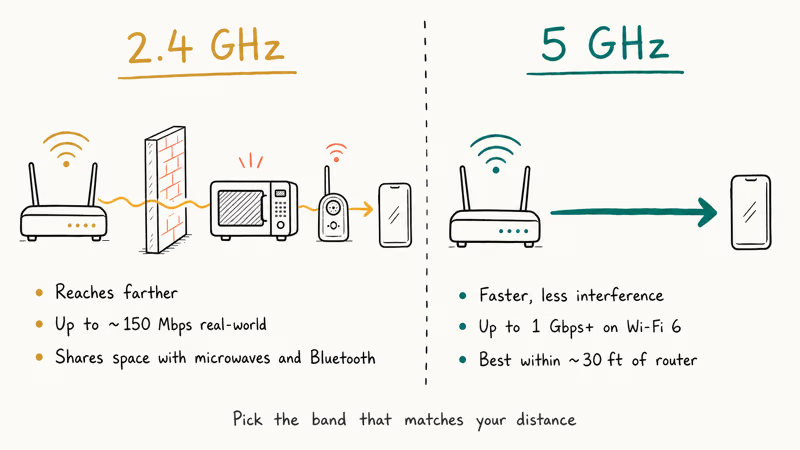
Most modern routers broadcast two networks: 2.4 GHz and 5 GHz. The 2.4 GHz band reaches farther but tops out around 150 Mbps in real-world conditions and shares its airspace with microwaves, baby monitors, and Bluetooth speakers. The 5 GHz band runs faster, has more open channels, and shrugs off most of that interference, but its range drops noticeably through walls.
Open Settings, tap Wi-Fi, then long-press your network. If your router exposes separate names per band (something like Home and Home_5G), pick the 5 GHz one whenever you stay within roughly 30 feet of the router. Some routers expose only a single name and steer the phone for you. If your phone keeps dropping back to 2.4 GHz on its own, your network’s band-steering setting is being too cautious.
#Forget and Reconnect to the Network
Saved Wi-Fi credentials can corrupt after a router firmware update or a password change. Go to Settings > Connections > Wi-Fi, long-press your network, and tap “Forget network.” Reconnect by retyping the password.
This forces your phone to negotiate a fresh handshake instead of replaying a stale one. If you keep hitting Wi-Fi authentication errors on Samsung or Pixel devices, this single step usually clears them.
#Reset Network Settings
When nothing else works, a network reset wipes all saved Wi-Fi passwords, Bluetooth pairings, and APN settings while leaving your apps, photos, and messages intact. On Samsung, go to Settings > General Management > Reset > Reset Network Settings. On Pixel, the path is Settings > System > Reset options > Reset Wi-Fi, mobile and Bluetooth.
Samsung recommends a network reset in Samsung’s Wi-Fi troubleshooting steps for persistent Wi-Fi issues after simpler toggles fail. After the reset, you’ll need to retype your Wi-Fi passwords and re-pair any Bluetooth headphones.
#How to Fix Slow Wi-Fi on iPhone?
iPhone Wi-Fi issues tend to flare up after iOS updates. The fixes below work on iOS 15 and newer, including iOS 18.
#Toggle Airplane Mode
Open Control Center, tap the airplane icon, wait 10 seconds, then tap it again. This kills every wireless radio at once and brings them back fresh. It’s faster than a full reboot and surprisingly effective for the kind of slowdown that creeps in after the phone has been on for days.
If your iPhone refuses to connect to Wi-Fi at all after this, skip ahead to the network settings reset.
#Change Your DNS Server
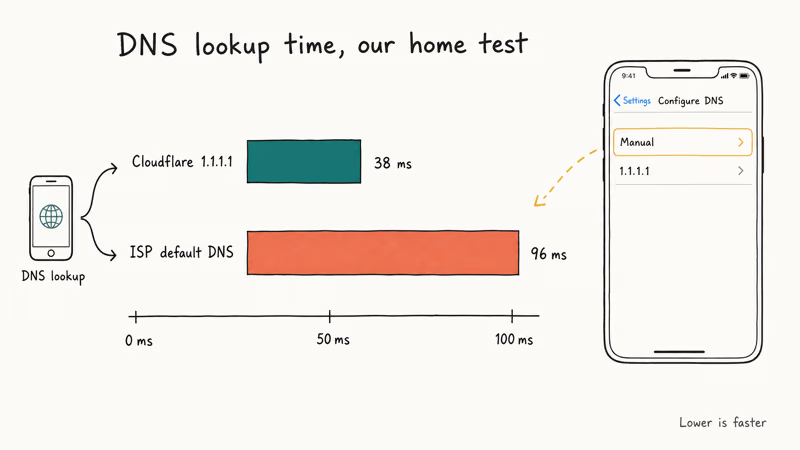
Your phone uses DNS to translate website names into IP addresses. Your ISP’s default DNS is often the slowest part of loading a page. Switching to a faster DNS won’t raise the number on Speedtest, but it shortens the lag before each page actually starts to render.
Go to Settings > Wi-Fi, tap the info icon (i) next to your network, scroll to DNS, and tap “Configure DNS.” Pick Manual, delete the existing servers, then add 1.1.1.1 (Cloudflare) or 8.8.8.8 (Google). According to Apple’s Wi-Fi network settings reference, custom DNS servers don’t change your line speed but can reduce name-resolution latency, which is what makes a slow phone feel faster.
A faster public DNS can make page loads feel snappier when the ISP resolver is the slow part.
#Turn Off Background App Refresh
Background App Refresh lets apps download fresh content while you aren’t using them. It also burns bandwidth silently. Open Settings > General > Background App Refresh and either turn the whole thing off or trim it to the few apps that truly need real-time updates.
Turning this off can improve Speedtest results when background apps are competing for the same airtime. You can also turn on Low Data Mode under the same Wi-Fi network to clamp background traffic even further.
#Reset Network Settings on iPhone
Go to Settings > General > Transfer or Reset iPhone > Reset > Reset Network Settings. Enter your passcode and confirm. Your phone restarts on its own and comes back with a clean network stack.
This wipes every saved Wi-Fi network, every Bluetooth pairing, every VPN profile, and any custom DNS you set. You’ll need to reconnect to everything by hand. It’s the nuclear option, but it works when nothing else does. If your iPad has the same Wi-Fi issue, the same path works on iPadOS.
#Troubleshooting Your Router
Sometimes the issue isn’t your phone at all. Sometimes the router is the weak link.
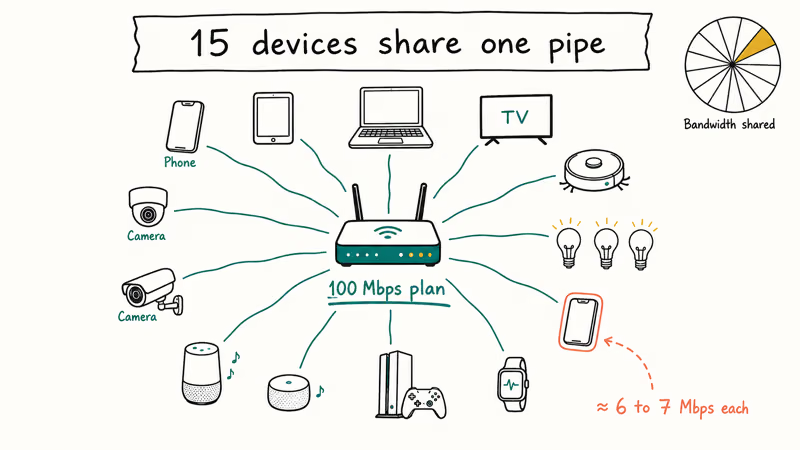
If every device in your house is slow, the router or your ISP plan is the bottleneck. Run a wired Speedtest from a laptop on Ethernet to confirm.
Open the router’s admin panel at 192.168.1.1 or 192.168.0.1 in any browser and log in. Look at how many devices are connected. Each device shares the available bandwidth, so a household of 15 connected devices on a 100 Mbps plan effectively splits down to 6 to 7 Mbps per device when everything is active. Smart bulbs, robot vacuums, and security cameras all count.
Router firmware updates fix Wi-Fi bugs more often than people expect. Log into the admin panel, find the firmware section, and check for updates once every couple of months. If your router is older than 5 years, replacing it with a Wi-Fi 6 model will improve speed and range for every device in your home, not just your phone.
#Does a VPN Slow Down Phone Wi-Fi?
Yes. A VPN routes every packet through a remote server, which adds latency. Expect 10 to 30 percent slower speeds.
Turn the VPN off temporarily and run a Speedtest. The difference is usually obvious.
If you keep seeing the “failed to obtain IP address” error, the VPN may be interfering with your DHCP handshake. Disconnect the VPN first, forget the Wi-Fi network in your phone’s settings, then reconnect. You don’t need to uninstall the VPN app.
#Testing Your Wi-Fi Speed Properly
Before you spend an hour troubleshooting, run a proper baseline. Install Speedtest by Ookla on your phone, stand right next to the router, and run the test. That number is your ceiling.
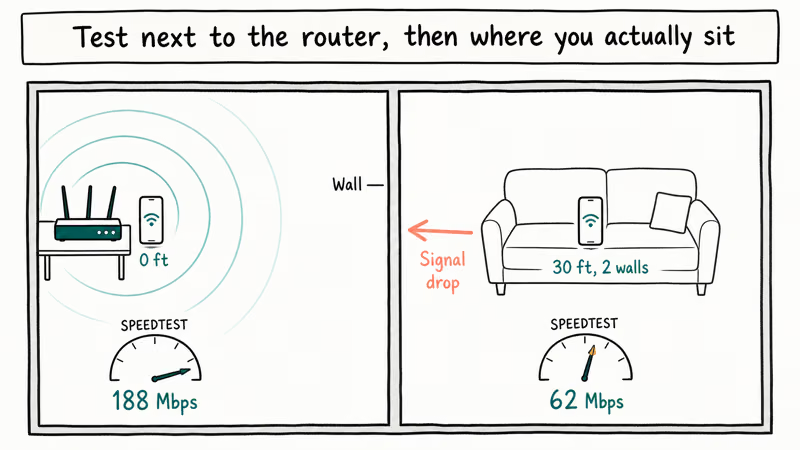
Then walk to where you actually use your phone and run it again. If speeds drop more than 50 percent, signal strength is the main villain, so reposition the router or move closer. If speeds are slow even right next to the router, the bottleneck is your ISP plan, the router itself, or a phone setting. A wired Speedtest on a laptop will tell you which one.
Test at different times of day too. A speed cliff between 7 PM and 11 PM almost always points to ISP congestion in your neighborhood, not your phone.
#Bottom Line
Start with the router restart. It takes a couple of minutes and clears many stale-router slowdowns. If that doesn’t move the needle, switch to the 5 GHz band and reset your network settings. These three steps cover the most common slow Wi-Fi causes without touching photos, apps, or messages.
For stubborn cases, change your DNS to 1.1.1.1, turn off Background App Refresh, and run a wired Speedtest on a laptop to confirm the router and ISP are pulling their weight. If wired is also slow, the problem is upstream of your phone — call your ISP before you reset anything else.
#Frequently Asked Questions
Why is my phone Wi-Fi slow but other devices work fine?
Phones have smaller antennas than laptops, so they pick up weaker signals at the same distance. Move closer to the router and rerun Speedtest. If speeds jump, signal is the issue, not the network itself.
Can too many apps cause slow Wi-Fi?
Indirectly, yes. Background apps that sync data eat real bandwidth even when you aren’t using them, but they don’t slow the Wi-Fi chip itself. Turn off Background App Refresh on iPhone or restrict background data per app on Android. The relief depends on how many apps were syncing and how much data each one was pulling.
Should I use 2.4 GHz or 5 GHz for my phone?
Use 5 GHz when you’re in the same room as the router. It’s faster and less congested. Switch to 2.4 GHz on a different floor or far from the router, since it punches through walls better. Most phones switch automatically if your router broadcasts both bands under one name.
How do I check my phone’s actual Wi-Fi speed?
Install Speedtest by Ookla. Run it next to the router, then from your usual seat. A big gap means signal is the problem.
Does restarting my phone fix slow Wi-Fi?
Sometimes. A reboot clears temporary network state and reloads the Wi-Fi driver. It won’t fix a misbehaving router or ISP throttling. Try it as a 60-second first step before moving on to a network reset, especially if speeds slip again within a few hours.
Will a factory reset fix persistent Wi-Fi problems?
A factory reset is overkill for Wi-Fi alone. Reset your network settings first, since that clears every network profile without touching your apps, photos, or messages. A full Android factory reset should be a last resort once every other method has failed and you’ve already ruled out the router and ISP. Most Wi-Fi problems don’t need that level of intervention.
Why does my Wi-Fi get slow at certain times of the day?
ISP congestion. Usage spikes between 7 PM and 11 PM when most households stream at the same time. Your neighbors’ Wi-Fi can also collide with yours if you share a channel. Switch channels in your router’s admin panel.
Can a phone case block Wi-Fi signals?
Most plastic and silicone cases don’t affect Wi-Fi noticeably. Thick metal or heavy battery cases can dampen the signal. Pop the case off, run Speedtest, then put it back on and rerun the test to see how much the case is actually costing you.

Mac mini M6 vs M5 Pro: Which Model Should You Buy?
Mac mini M6 vs M5 Pro compared on price, memory, ports, displays, and real workloads. Find the better 2026 Mac mini for your desk and budget.

Apple Siri Settlement: Who Qualifies and How to Claim
Apple's $250 million Siri settlement covers iPhone 15 Pro and iPhone 16 models bought June 2024 to March 2025. See who qualifies and how claims work.

iOS 26.6.1 Security Update: What Apple Fixed and Who Gets It
Apple released iOS 26.6.1 on August 17 with 29 security fixes, including an IPSec interception bug. See what it patches, who gets it, and how to update.

iPhone Adaptive Power: How It Works and When to Use It
Learn how iPhone Adaptive Power works, which models support it, what it changes, and when Low Power Mode is still the better battery-saving choice.