What Is Windows Defender and Is It Good Enough in 2026?
Windows Defender is the free, built-in antivirus in Windows 11. Here's what it includes, how it scores in lab tests, and when you might want a paid suite.

Quick AnswerWindows Defender, now Microsoft Defender Antivirus, is the free antivirus built into Windows 11. It runs real-time protection, on-demand scans, a firewall, and SmartScreen web protection, and it scores near the top of independent lab tests, so for most careful users it's enough on its own.
Windows Defender quietly protects almost every Windows PC on the planet, yet most people never think about it until a third-party antivirus nags them to upgrade. The short truth: the free, built-in protection is far better than its old reputation suggests. This guide separates what it really does from the marketing fear that surrounds paid suites.
- Windows Defender is the free antivirus built into Windows 11, now called Microsoft Defender Antivirus
- It includes real-time protection, manual scans, a firewall, and SmartScreen web protection
- Independent labs rate its malware detection near the top, alongside paid competitors
- It turns itself off automatically when you install another active antivirus, then back on if you remove it
- For most careful users, it’s enough on its own without paying for a separate suite
#What Is Windows Defender, Exactly?
Windows Defender is the antivirus that ships inside every copy of Windows 11. It’s free, always on, and active from the moment you start the PC, with nothing to download or subscribe to.
Its job is to catch malware before it runs and clean up anything that slips through. According to Microsoft’s Windows Security guide, it “continually scans for malware, viruses, and security threats” and pulls down fresh updates automatically, so the protection on a brand-new PC is already current the first time you turn it on without you lifting a finger.
The name has shifted over the years. The engine is now officially Microsoft Defender Antivirus, while the app you open is called Windows Security, which is the same protection wearing two different labels and a big source of the confusion people have about whether they’re running one product or two.
#Windows Security vs Microsoft Defender Naming
This naming tangle trips up a lot of people, so it’s worth untangling. Windows Security is the dashboard app, and Microsoft Defender Antivirus is the scanning engine inside it.
Think of Windows Security as the control panel. It houses the antivirus, the firewall, web protection, account safety, and device health all in one window.
Microsoft Defender Antivirus is just the malware-fighting piece of that panel. As XDA explains in its breakdown of the two names, the rebrand caused most of the confusion, but when someone says “Windows Defender,” they almost always mean the antivirus inside the broader Windows Security app.
#What Defender Actually Includes
Defender is more than a virus scanner; it’s a small security suite. The core pieces work together to cover the most common attack routes.
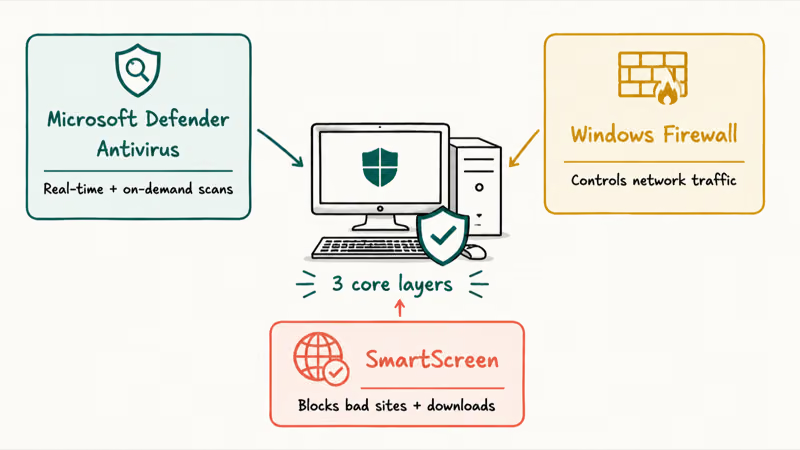
Microsoft confirms that 3 core layers make up the suite: Microsoft Defender Antivirus, Windows Firewall, and SmartScreen. The antivirus handles real-time and on-demand scanning, the firewall controls network traffic, and SmartScreen blocks dangerous websites and downloads before they load.
There’s more under the hood too. You get account protection, device security features like Secure Boot, and protection history that logs what Defender caught. SmartScreen in particular helps with the everyday threats covered in our guide on spotting a fake website, since it flags known phishing pages automatically.
#Is Windows Defender Good Enough on Its Own?
For most people, yes, it’s enough. The fear that the free option is weak is years out of date.
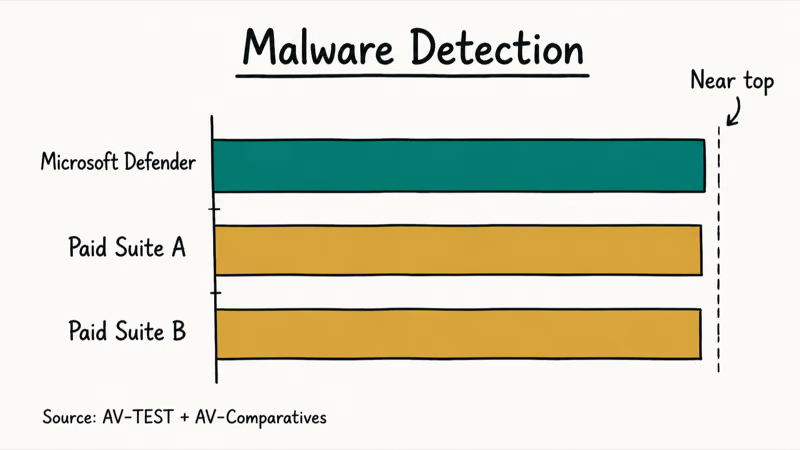
Independent testing labs like AV-TEST and AV-Comparatives regularly rate Defender’s malware detection at or near the top, alongside the big paid names. It catches the overwhelming majority of real-world threats in their tests, which is the bar that matters.
Where it does well also depends on you. Defender plus safe habits beats a paid suite plus reckless clicking every time. Knowing how to avoid sketchy downloads matters more than the badge on your antivirus, which is why whether iPhones even need antivirus sparks the same debate on every platform.
#When a Paid Antivirus Makes Sense
Defender covers the basics brilliantly, but paid suites bundle extras that some people really want. The decision is about features, not raw detection.
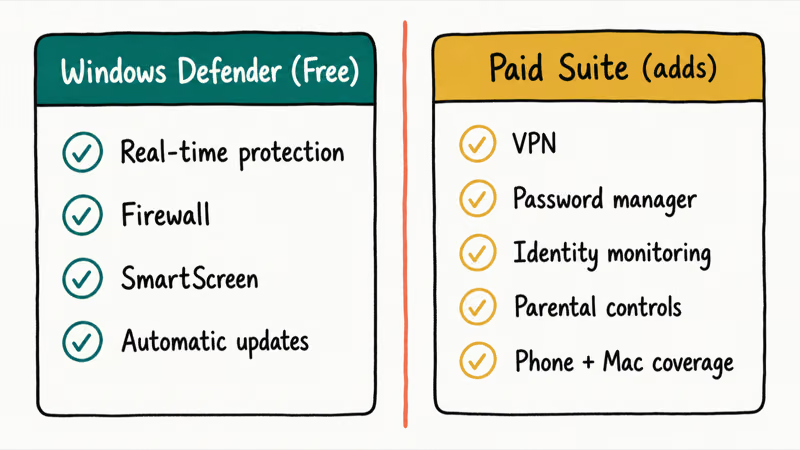
A paid suite often adds a password manager, a VPN, identity-theft monitoring, parental controls, and cross-platform coverage for your phone and Mac. If you’d pay for those separately anyway, a bundle can be good value. Our look at a dedicated password manager shows why some of these tools are worth having on their own.
You might also lean paid if you manage a household of mixed devices or handle sensitive work data. For a single careful user on one Windows PC, though, Defender plus a VPN on public Wi-Fi when traveling covers the realistic risks without a subscription.
#Running a Manual Scan and Staying Updated
Defender runs in the background, but you can start a manual scan anytime. Open Windows Security, click Virus & threat protection, then Quick scan.
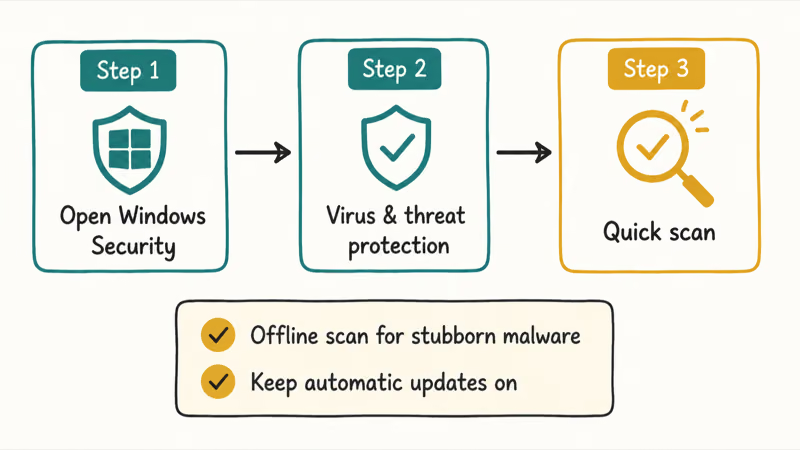
A full scan on a mid-range laptop usually finishes in well under an hour while the PC stays usable. According to Microsoft’s antivirus documentation, Defender also offers an offline scan that runs before Windows fully loads, so deeply hidden malware “has a more difficult time hiding.” That offline option is the one to reach for if you suspect something stubborn, like the kind of file flagged as FileRepMalware.
Keep automatic updates on. Microsoft ships fresh threat definitions constantly, and a scanner with stale definitions is the one real way to weaken Defender.
#Bottom Line
Windows Defender is no longer the weak backup it once was. It’s a capable, free security suite that scores alongside paid antivirus in independent labs, and for a careful user on a single Windows 11 PC, it’s plenty.
Consider a paid suite only if you specifically want the bundled extras like a VPN, a password manager, or identity monitoring, or if you’re covering a whole household of mixed devices. Otherwise, leave Defender on and save the money.
#Frequently Asked Questions
Is Windows Defender the same as Microsoft Defender?
Essentially, yes. “Windows Defender” is the older name; the engine is now Microsoft Defender Antivirus, inside the Windows Security app. Same protection, different labels.
Is Windows Defender good enough without paid antivirus?
For most careful users, yes. Independent labs rate its malware detection near the top, on par with paid suites. Combined with safe browsing habits and SmartScreen blocking dangerous sites, it covers the realistic threats most people face on a single PC.
What is the difference between Windows Security and Defender?
Windows Security is the app, the dashboard where you manage everything. Microsoft Defender Antivirus is the scanning engine inside it. So Windows Security is the control panel, and Defender is the antivirus component within that panel, plus the firewall and web protection.
Does Windows Defender include a firewall?
Yes. The Windows Firewall is part of the Windows Security app and on by default. It controls which network traffic reaches your PC.
Can I run Windows Defender alongside another antivirus?
Not as a second real-time scanner. Microsoft confirms that Defender turns itself off automatically when you install another active antivirus, then switches back on if you remove it, which prevents the slowdowns and false alarms that two always-on scanners cause when they fight over the same files. You can still run a separate on-demand scanner manually without any conflict, though.
Is Windows Defender free?
Completely. Microsoft Defender Antivirus is included in Windows at no cost, always on and always updating. There’s no trial, no subscription, and no upsell required to keep its core protection running.

Best Laptop for Running LLMs in 2026: Memory Comes First
The best laptop for running LLMs is a memory purchase first. Compare MacBook unified memory against NVIDIA laptop VRAM, and see what each tier really runs.

How to Run a Local LLM on Windows: A 2026 Setup Guide
Run a local LLM on Windows with LM Studio or Ollama. Pick a model that fits your GPU memory, keep every prompt offline, and skip the monthly bill.

Bluetooth Not Working on Snapdragon X? Fixes for 2026
Bluetooth not working on your Snapdragon X Copilot+ PC? Generic audio, mice, and keyboards work, but vendor apps often lack an ARM build. Fixes inside.

Docker Desktop and WSL2 Not Working on Snapdragon X? Fix It
WSL2 runs fine on Snapdragon X, but Docker Desktop ARM is Early Access and throws WSL errors. Use WSL2 plus native ARM64 Ubuntu and Docker Engine.