What Is Windows 11 S Mode and Should You Leave It?
Windows 11 S mode only runs Microsoft Store apps for extra security and speed. Here's what it limits, how to switch out for free, and whether you should.
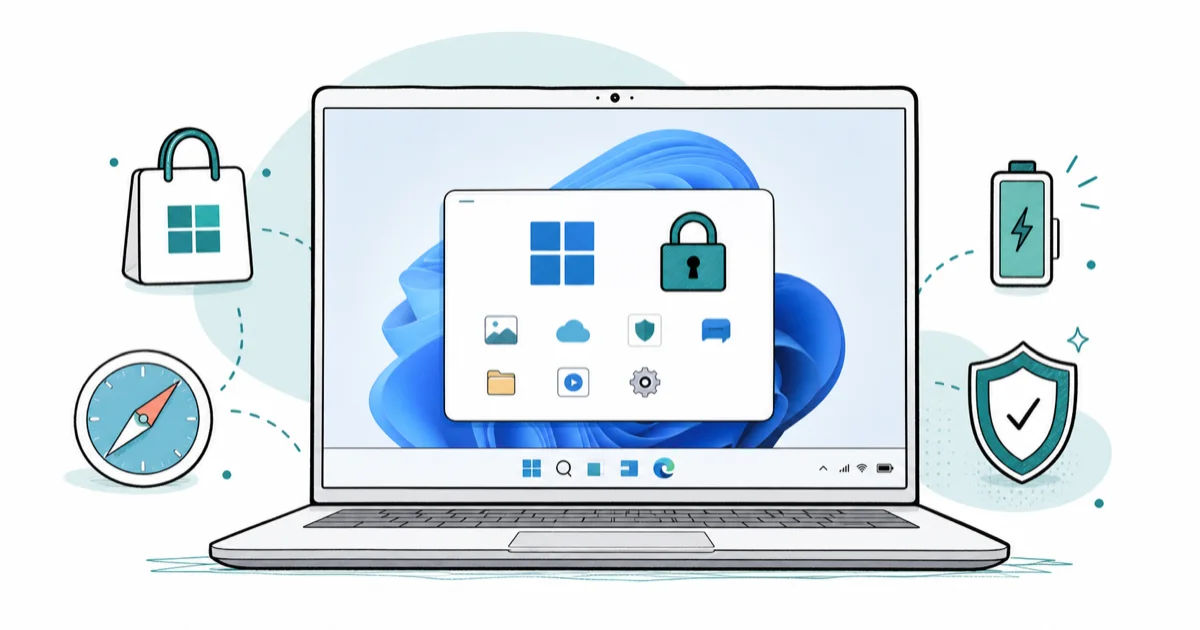
Quick AnswerS mode is a locked-down version of Windows 11 that only runs apps from the Microsoft Store and uses Microsoft Edge for browsing, trading flexibility for security and battery life. You can switch out of S mode for free in the Microsoft Store, but the change is permanent and can't be reversed.
If you bought a budget Windows 11 laptop and hit a wall trying to install Chrome or a downloaded program, you’ve run into S mode. It’s a stripped-down, locked version of Windows that only runs apps from the Microsoft Store, which boosts security and battery life at the cost of flexibility. Understanding the switch-out path matters because it’s free, but it’s also permanent.
- S mode is a locked-down Windows 11 that only installs apps from the Microsoft Store
- It uses Microsoft Edge for browsing and blocks other browsers and downloaded programs
- The trade-off is real: more security and better battery life, but far less flexibility
- Switching out of S mode is completely free through the Microsoft Store
- The switch is permanent and one-way, so you can’t go back into S mode afterward
#What Is S Mode and Why Does Windows Have It?
S mode is a restricted configuration of Windows 11 built around one rule: apps come only from the Microsoft Store. Anything outside that walled garden simply won’t install.
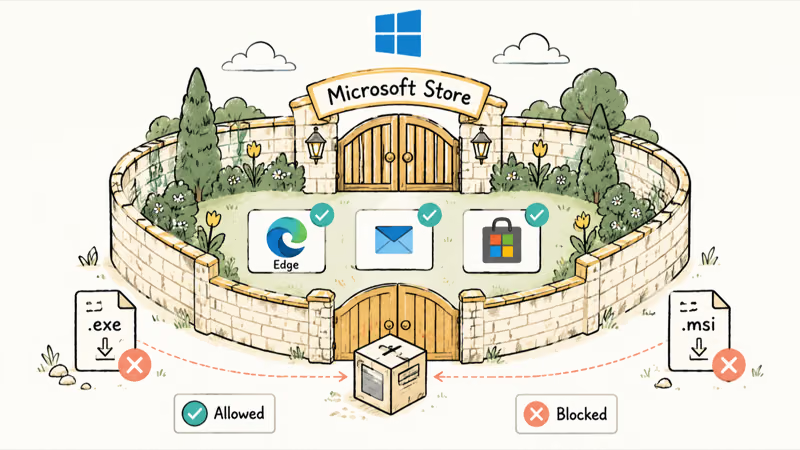
The goal is safety and speed. Blocking arbitrary downloads shuts the door on the most common malware route, and the lighter app set helps cheaper hardware feel snappier.
According to Microsoft’s documentation, Windows in S mode is “designed for security and performance, exclusively running apps from the Microsoft Store.” That’s why it ships on so many school laptops and budget machines, where simplicity matters more than power-user freedom.
#What You Can’t Do in S Mode
The limits are the whole story. The big one: if a program isn’t in the Microsoft Store, you can’t install it.
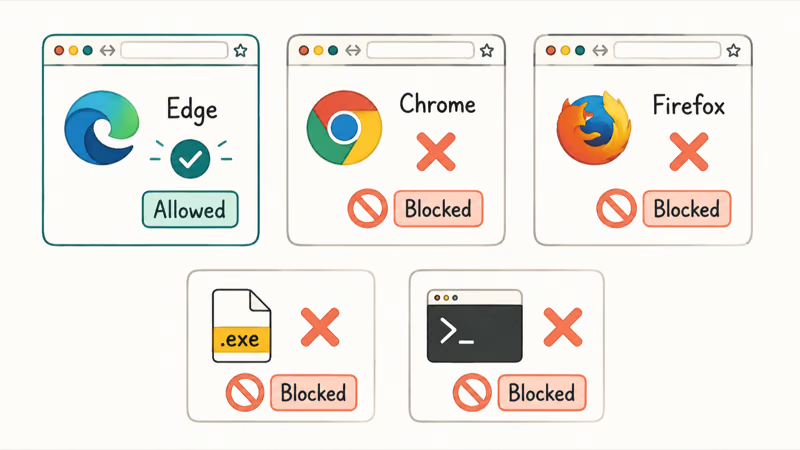
Browsers are the most felt restriction. S mode forces Microsoft Edge and blocks Chrome, Firefox, and other browsers from installing, and it locks the default search to Bing in some cases.
There’s also no command-line freedom for developers and no third-party security software. For everyday browsing, email, and Store apps, none of it matters. For a downloaded game or your preferred browser, it’s a hard stop, which is why many people check whether their PC can even run full Windows 11 before deciding.
#How to Switch Out of S Mode
The good news is that leaving S mode is quick and free. You do it once through the Microsoft Store.
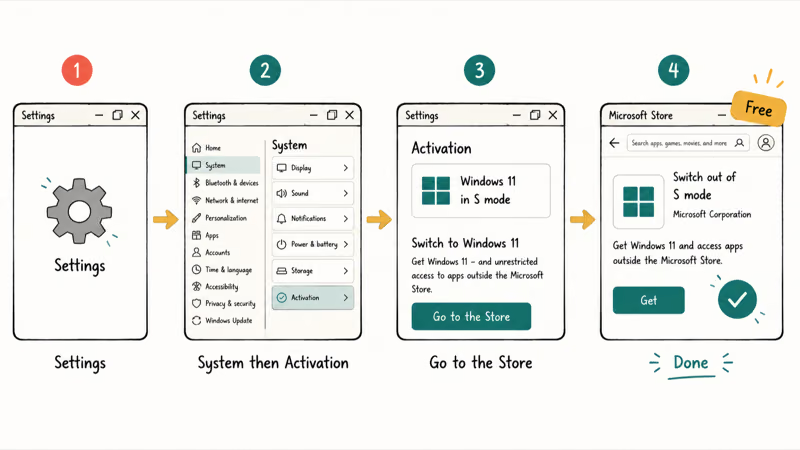
Open Settings, go to System, then Activation, find the “Switch to Windows 11” section, and select Go to the Store. Click Get on the Store page, confirm, and you’re done.
Microsoft confirms that there’s “no charge to switch out of S mode,” so ignore any site claiming you must pay a fee for it. Microsoft Store apps still run on standard Windows, so leaving S mode doesn’t mean leaving the Store behind.
#Should You Leave S Mode or Keep It?
This is the real decision, and it hinges on how you use the PC. According to Microsoft, you get exactly 1 switch, and leaving S mode is one-way and permanent.
Keep S mode if the laptop is for a child, a student, or a relative who only needs a browser, email, and Store apps. The locked-down design clearly reduces the risk of accidental malware, and you never have to manage downloads.
Switch out if you need a non-Store browser, downloaded software, or developer tools, or if the restrictions are already frustrating you. Because the change can’t be undone, decide deliberately. If you do switch and the machine feels sluggish afterward, the managing startup programs in Windows 11 guide helps reclaim the speed S mode used to provide.
#S Mode and Security: What It Actually Protects
S mode’s security comes from restriction, not from a separate shield. By only allowing Store-vetted apps, it removes the riskiest way malware gets onto a PC, which is a user downloading and running something bad.
That’s a real benefit, but it’s narrow. S mode doesn’t add antivirus muscle on top of standard Windows; it relies on the same Windows Defender protection every Windows 11 PC already has.
So switching out of S mode doesn’t leave you unprotected. You keep full Windows Security, including real-time scanning and SmartScreen, as Microsoft’s Windows Security guide describes. You just take on the responsibility of being careful about downloads, since the walled garden that blocked bad installs is now open.
#S Mode vs Standard Windows 11
Once you understand both, the choice gets clear. Standard Windows 11 installs anything; S mode is the same Windows wearing training wheels.
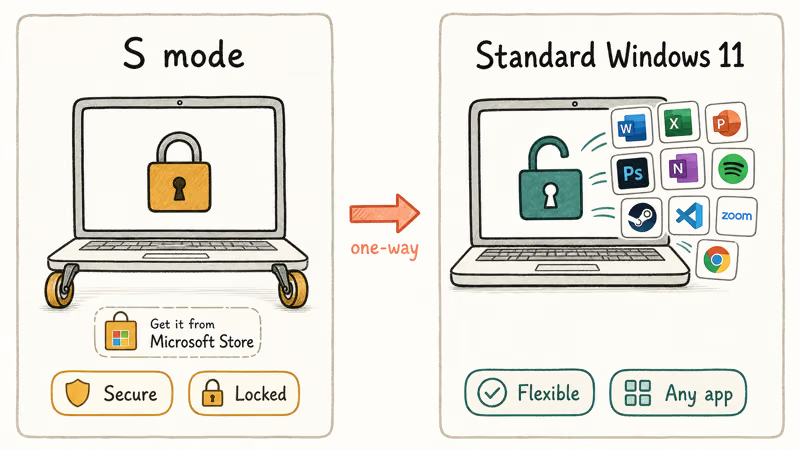
The performance gap is smaller than people assume. According to Microsoft’s S mode FAQ, S mode “can come installed on a PC that has an Intel, AMD, or Qualcomm Snapdragon processor,” so the speed benefit comes from the lighter app set, not faster hardware underneath. If your S mode PC ever feels slow, that’s a separate problem to chase, and the booting Windows 11 into Safe Mode guide helps you diagnose the deeper issues behind it.
After switching out, your machine is simply standard Windows 11. You keep every update and security feature, plus the freedom to install whatever you need, including a clean factory reset that keeps your files later.
#Bottom Line
S mode is a deliberate trade: it locks you to Microsoft Store apps and Edge in exchange for stronger default security and better battery life, which suits a child’s or a student’s laptop perfectly. If you only ever browse, email, and use Store apps, keeping it on is the simpler and safer call for that kind of casual, low-maintenance machine.
But if you need Chrome, downloaded software, or developer tools, switch out. Just remember the one rule that trips everyone up: switching out is free but permanent, so once you leave S mode, there’s truly no going back, and no amount of settings tweaking will restore it.
#Frequently Asked Questions
What does S mode do on Windows 11?
It locks Windows 11 to Microsoft Store apps and Edge browsing. The trade is flexibility for security and battery life.
Why can’t I install apps in S mode?
Because S mode only allows apps from the Microsoft Store by design. If the program you want, like Chrome or a downloaded game, isn’t in the Store, the install is blocked. The fix is to switch out of S mode, which removes the restriction permanently.
Is it free to switch out of S mode?
Yes, completely. Microsoft confirms there’s no charge to leave S mode, and the process runs through the Microsoft Store. Be wary of any website that claims you need to pay a fee, since that’s a scam.
Can I switch back into S mode after leaving?
No. Switching out is a one-way change, so once you leave, you can’t return to S mode on that PC. Weigh it carefully before you do.
Is S mode safer than regular Windows?
In one specific way, yes. By blocking apps from outside the Microsoft Store, S mode removes the most common path malware uses to infect a PC. It doesn’t add extra antivirus power, though, since it leans on the same Windows Security that standard Windows 11 already includes.
Should I turn off S mode?
Only if you need software the Store doesn’t offer. If a non-Store browser, downloaded program, or developer tool is on your list, switching out makes sense. If you’re happy browsing, emailing, and using Store apps, keeping S mode is the simpler, safer option.

Best Laptop for Running LLMs in 2026: Memory Comes First
The best laptop for running LLMs is a memory purchase first. Compare MacBook unified memory against NVIDIA laptop VRAM, and see what each tier really runs.

How to Run a Local LLM on Windows: A 2026 Setup Guide
Run a local LLM on Windows with LM Studio or Ollama. Pick a model that fits your GPU memory, keep every prompt offline, and skip the monthly bill.

Bluetooth Not Working on Snapdragon X? Fixes for 2026
Bluetooth not working on your Snapdragon X Copilot+ PC? Generic audio, mice, and keyboards work, but vendor apps often lack an ARM build. Fixes inside.

Docker Desktop and WSL2 Not Working on Snapdragon X? Fix It
WSL2 runs fine on Snapdragon X, but Docker Desktop ARM is Early Access and throws WSL errors. Use WSL2 plus native ARM64 Ubuntu and Docker Engine.