Factory Reset Windows 11 and Keep Your Files: 2026 Guide
Reset Windows 11 with the Keep my files option without losing personal data. Pre-reset checklist, cloud vs local reinstall, and what to do if reset stalls.
Quick AnswerOn your own Windows 11 PC, open Settings, System, Recovery, click Reset PC and pick Keep my files. Choose Cloud download or Local reinstall, confirm the app list, and let it run 30 to 90 minutes on power.
A factory reset sounds scary when you’ve got a year of photos, half-finished documents, and a dozen browser logins riding on the same SSD. Windows 11’s built-in Reset this PC flow has a “Keep my files” option that reinstalls the operating system while leaving your user folders alone, matching the behavior Microsoft documents.
This guide covers the menu path, what survives, when Cloud download helps, the pre-reset checklist, and stuck-reset recovery. Run this only on your own computer, or with explicit permission from the owner.
- The Settings, System, Recovery path reinstalls Windows 11 while preserving Documents, Pictures, Desktop, Downloads, and Videos inside your user profile.
- All desktop apps, Microsoft Store apps, custom drivers, and non-default settings are removed; Windows drops a
Removed Apps.htmlfile on the desktop after restart. - Cloud download pulls roughly 4 GB of fresh Windows 11 image data from Microsoft; Local reinstall uses your existing recovery image and finishes faster on healthy hardware.
- BitLocker keys, browser passwords saved only in third-party browsers, Wi-Fi passwords, and software license activations frequently need re-entering after the reset.
- If reset hangs above 90 percent for more than four hours, hold the power button to force shutdown, then boot into Windows Recovery Environment and try Cloud download instead.
#What “Keep My Files” Actually Keeps
The label is honest but narrow. Windows 11 preserves the contents of the C:\Users\
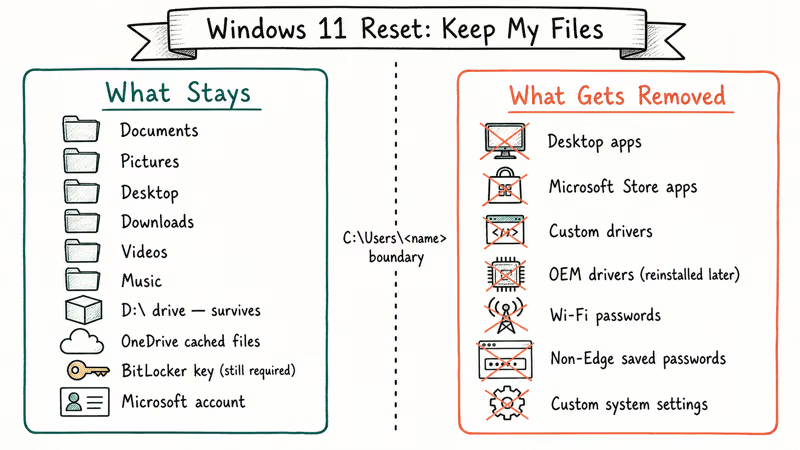
According to Microsoft’s official Reset your PC documentation, Keep my files “reinstalls Windows while keeping your personal files intact.”
Files inside the standard user profile are the ones Windows is designed to preserve. Files saved in temporary or system-level folders on the C: drive can be removed because anything outside the user profile counts as system clutter.
Most people get caught by files saved in non-standard locations. If your editor writes to C:\dev\ or you parked an installer in C:\Program Files\, those paths are wiped along with the operating system. The fix is moving anything you care about into the user profile or onto a non-system drive before you start.
| What stays | What gets removed |
|---|---|
| Documents, Pictures, Desktop, Downloads, Videos, Music in your user profile | All installed apps (desktop and Microsoft Store) |
| Files on D:, E:, and other non-system drives | Custom drivers (OEM drivers reinstall during setup) |
| OneDrive locally cached files | System-wide settings outside Windows defaults |
| Microsoft account sign-in (account itself, not session) | Wi-Fi passwords, VPN profiles, paired Bluetooth |
| BitLocker encryption status (key required to unlock) | Browser passwords stored outside Edge cloud sync |
Windows 11 Keep my files reset preserves and removes on the system drive
#How Do You Start the Reset From Settings?
Press Windows + I to open Settings.
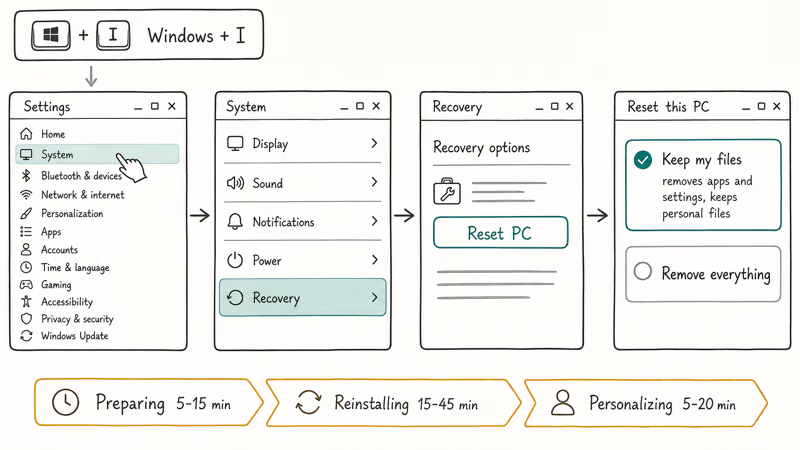
From there, click System, scroll down to Recovery, then click the Reset PC button next to “Reset this PC.” A blue dialog opens with two choices: Keep my files and Remove everything. Pick the first. Windows then asks how you’d like to reinstall the operating system, and that choice matters more than people expect.
Cloud download fetches a fresh Windows 11 image from Microsoft’s servers, while Local reinstall rebuilds Windows from the recovery image already on your drive. Local reinstall is usually faster on a healthy recovery partition because it avoids the download step.
Cloud download wins in three cases: corrupted local recovery image, several upgrades stacked, or suspected system file corruption.
The third screen, “Additional settings,” exposes a Change settings link with a toggle for restoring preinstalled apps. On a brand-new PC from Dell, Lenovo, ASUS, or HP, leave that off so the bloatware doesn’t return.
The final confirmation screen lists every app Windows is about to remove. Scroll through it carefully.
After the reset, Windows places a Removed Apps.html file on your desktop with the same list and Microsoft Store links where they exist. Click Reset and walk away. The progress bar runs through three stages: preparing (5 to 15 minutes), reinstalling (15 to 45 minutes), and personalizing (5 to 20 minutes). Don’t interrupt it.
#The Backup Checklist Before Any Reset
Even with the “Keep my files” option, treat a reset as a backup-required event. Storage hiccups, abrupt power loss, and the occasional Windows bug can turn a routine reset into an unscheduled data recovery. A short preparation pass removes most of the risk:
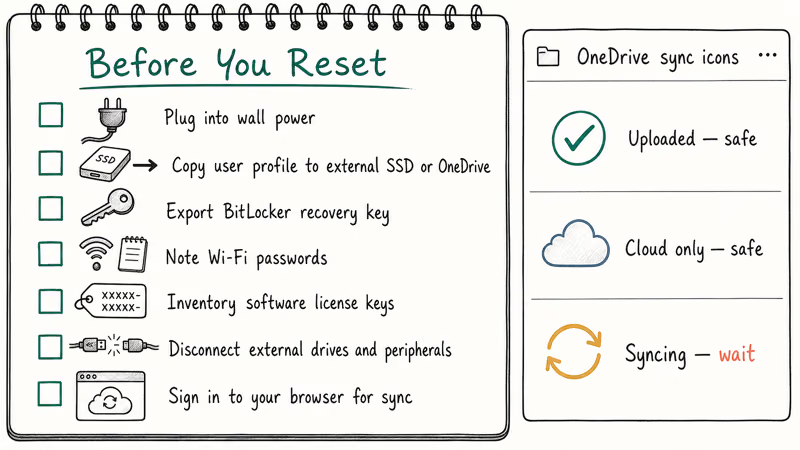
- Plug the laptop into wall power and don’t run on battery. A reset interrupted by a dead battery is the most common cause of unbootable post-reset systems.
- Copy your user profile to an external SSD or OneDrive. Even when “Keep my files” works perfectly, having a parallel copy means a failed reset costs you time, not data.
- Export your BitLocker recovery key. Sign in to your Microsoft account device list and download the key, or save it to a USB drive. Windows often prompts for the key after a reset on encrypted drives.
- Note Wi-Fi passwords for guest or work networks you don’t have memorized.
- Inventory software license keys for paid apps that don’t tie to a cloud account: Office volume keys, Adobe perpetual licenses, niche editing apps, antivirus suites.
- Disconnect external drives and dock peripherals before you start. Less hardware in play means fewer driver edge cases on the way back up.
- Sign in to your browser so cloud-synced passwords and bookmarks return automatically.
Check OneDrive sync status before you reset.
In File Explorer, the green check icon means uploaded, the blue cloud-only icon means safely stored on Microsoft’s servers, and a syncing arrow means the file is mid-transfer and at risk if the reset interrupts. Wait for every arrow to clear before continuing. A screenshot of the installed-apps list in Settings, Apps, Installed apps can also serve as a reinstall reference; Windows’s own post-reset HTML list works too, but the pre-reset snapshot is faster to scan.
#Cloud Download vs Local Reinstall: Which Should You Pick?
Cloud download and Local reinstall produce the same result on a healthy machine: a clean Windows 11 install with your user files intact. The difference is where Windows pulls the installation source from and how that interacts with whatever caused you to reset in the first place.
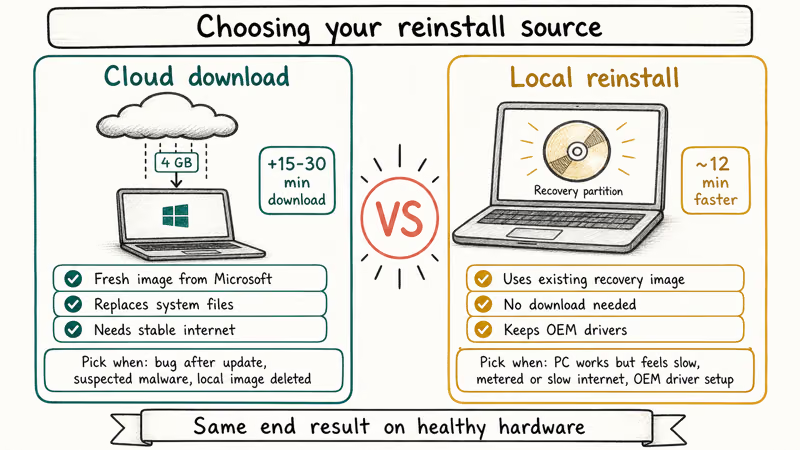
| Scenario | Pick Cloud download | Pick Local reinstall |
|---|---|---|
| PC works but feels slow and bloated | No | Yes (faster) |
| Bug appeared after a Windows Update | Yes (fresh image) | No |
| You suspect malware modified system files | Yes (replaces files from Microsoft) | No |
| Internet connection is metered or under 25 Mbps | No | Yes (no download) |
| Local recovery image was deleted to free disk space | Yes (mandatory) | Not available |
| Branded OEM PC and you want to keep OEM drivers | No | Yes (preserves OEM image) |
| You upgraded Windows 11 from Windows 10 last year | Yes (cleaner reset) | No |
Decision matrix for Cloud download versus Local reinstall on Windows 11
Microsoft’s Reset your PC support page states that Cloud download pulls fresh system files from Microsoft’s servers, while Local reinstall rebuilds from the files already on your PC. That is why the local recovery image on long-running machines drifts from current Windows builds. A PC that shipped on Windows 11 23H2 and ran 18 months of updates still gets reset to the preloaded build by a local reinstall, leaving you to reapply those patches. Cloud download skips that.
Bandwidth is the trade-off. Cloud download pulls 4 to 5 GB. On fiber that’s irrelevant. On a 10 Mbps DSL line or a mobile hotspot, it adds an hour or more and can fail if the connection drops.
Pick Cloud download whenever your network and patience can handle it.
The Windows 10 reset path covered in our without-password guide used the same Cloud vs Local choice from Windows 10 2004 onward, so anyone who’s reset a Windows 10 PC in the last few years has already seen this menu.
#When Reset Gets Stuck: Quick Recovery Moves
The most common reset failure is the progress bar hanging at 1 percent, 33 percent, or 99 percent for hours. Some hangs are real; some are misleading. Microsoft confirms that the personalizing phase can pause for 15 to 30 minutes on slower storage without the bar updating, so patience comes first.
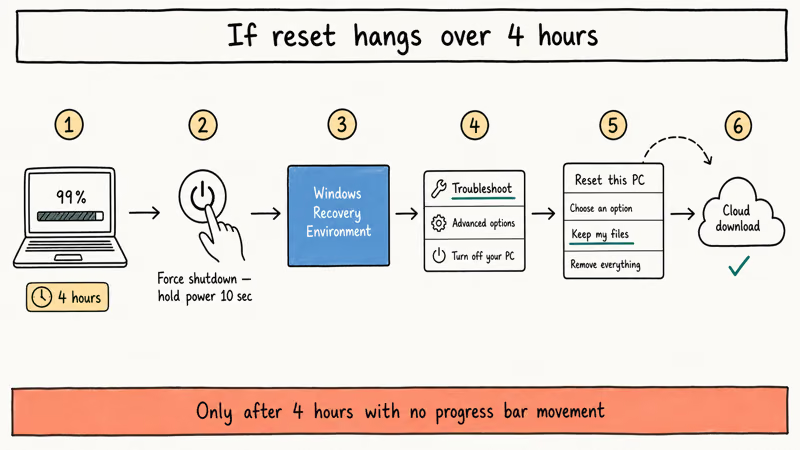
If nothing’s moved in four hours, force shutdown.
On reboot, Windows 11 usually detects the failed reset and opens the Windows Recovery Environment automatically. From the blue WinRE screen, choose Troubleshoot, Reset this PC, Keep my files, and pick Cloud download even when your first attempt used Local reinstall. The fresh image often clears whatever local file was blocking progress.
When the second try also fails, you’re past the easy-button recovery and into deeper repair territory. Our Windows 10 repair without a CD guide walks through DISM and SFC commands inside WinRE that often fix the underlying system-file corruption blocking the reset. When you can’t even reach WinRE, you’ll need a Windows 11 installation USB built on a second machine — see how to check if your PC can run Windows 11 for the requirements.
#What Happens After the Reset Finishes
Windows 11 boots into a stripped-down Out-of-Box Experience after the reset completes. You sign back in, accept the privacy prompts, and land on a clean desktop with the Removed Apps.html file waiting.
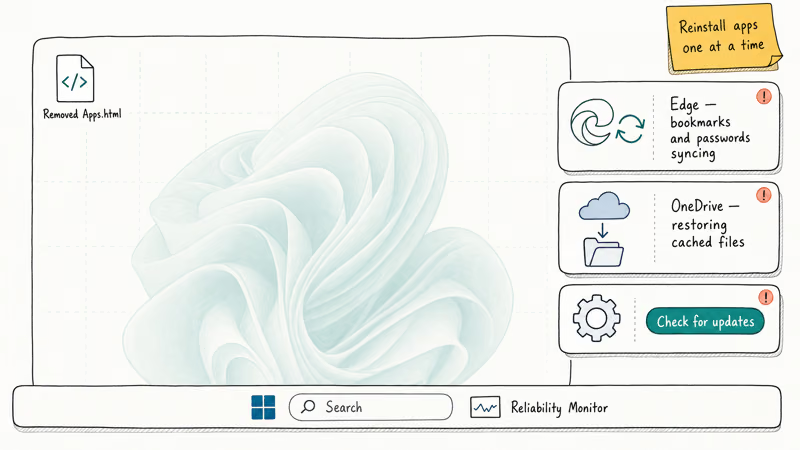
Edge syncs your bookmarks and passwords within a few minutes if you signed in before the reset. OneDrive prompts you to sign back in and starts pulling cached files. Activation is automatic on the same hardware tied to the same Microsoft account. Before reinstalling apps, you can take a screenshot of the post-reset Windows version using Win + Shift + S to document the starting state.
The first week is when latent problems surface. Reinstall apps one at a time over several days, not in a single afternoon. When a specific app caused the original problem, reintroducing them slowly makes the culprit obvious.
Check Settings, Windows Update first. The cloud download already includes the latest cumulative, but driver updates often arrive the next day. Once the new install is stable and you don’t need the rollback snapshot, you can clear out leftover Windows Update files to reclaim storage.
If something feels wrong, open Reliability Monitor for a timeline of post-reset events. It surfaces problem applications faster than Event Viewer.
#Bottom Line
For most Windows 11 users on their own PC, the “Keep my files” reset is the right answer when the machine feels broken and reinstalling apps sounds easier than chasing the root cause. Personal files in your user profile and on secondary drives stay put, the menu path is three clicks deep, and the process is usually done in under an hour on modern hardware.
Two things to take seriously: copy your user profile somewhere else first, and pick Cloud download unless your network can’t carry the download. If the reset is meant to fix a specific symptom, give the rebuilt Windows a clean day before reinstalling everything; many problems people blame on Windows turn out to be a single misbehaving application.
#Frequently Asked Questions
What if the reset gets stuck at a percentage for hours?
If the progress bar hasn’t moved for more than four hours, the reset is most likely stalled.
Hold the power button for 10 seconds to force shutdown, then power back on. Windows 11 usually detects the failed reset and boots into the Recovery Environment. From there, choose Troubleshoot, then Reset this PC, then Keep my files, and pick Cloud download. The fresh image often clears whatever local file was blocking the original attempt.
Will I lose my browser passwords and bookmarks?
It depends on which browser you use.
Microsoft Edge, Chrome, Firefox, and Brave all support cloud sync tied to your account. If you signed in and enabled sync before the reset, signing back in after the reset restores everything. Passwords stored only in the local browser data (no sync) are gone because the browser itself gets uninstalled. The pre-reset checklist above covers verifying browser sync as a 30-second sanity check.
Does Reset this PC remove malware and viruses?
Mostly yes, but not always. The “Keep my files” reset removes installed apps, including any malware that registered as an application, and replaces Windows system files with a clean copy (especially when you pick Cloud download).
Malware hidden inside user-profile files (infected documents, scripts in Downloads, malicious browser extensions backed up in cloud sync) can survive the reset and reinfect the rebuilt system. When you suspect a serious infection, the safer move is Remove everything with the Clean data option enabled, then restore files selectively from a known-good backup.
How long should a Keep my files reset take?
On a 2024-or-newer laptop with an NVMe SSD and Local reinstall, expect 30 to 60 minutes start to finish. Cloud download adds 15 to 30 minutes depending on your download speed. Older spinning-disk PCs or low-end eMMC storage can stretch to two or three hours. A reset still running past four hours without progress bar movement is stuck.
Can I cancel the reset partway through?
Once Windows begins the reinstall stage after the second reboot, you can’t cleanly cancel.
Forcing power off mid-reinstall risks leaving the PC in an unbootable state and triggers a fresh trip through the Recovery Environment to repair. While you’re still in the Settings dialog and haven’t clicked the final Reset button, closing the window is safe. After that, plan to let it finish.
Do I need to reactivate Windows after the reset?
Usually no. Windows 11 ties activation to your Microsoft account and the hardware fingerprint, so signing back into the same account on the same PC reactivates automatically. When activation doesn’t return within 24 hours, run the Activation Troubleshooter in Settings, Activation, and select “I changed hardware on this device recently.”
What about my OneDrive files after the reset?
OneDrive files reattach automatically once you sign back in.
Reinstall the OneDrive client (it ships with Windows 11). Files marked “always keep on this device” download again to the local cache; files marked “free up space” stay cloud-only until you open them. Allow a couple of hours for full re-sync on a folder larger than 50 GB.
Can I reset without a Microsoft account?
Yes, you can.
The reset itself runs without internet, and Local reinstall doesn’t require Microsoft account sign-in. After the reset, the Out-of-Box Experience setup screen still pushes Microsoft account sign-in, but disconnecting from Wi-Fi during setup exposes the “Continue with limited setup” path that creates a local account. The trade-off is losing OneDrive auto-restore and cloud-synced settings on the rebuilt machine.

Bluetooth Not Working on Snapdragon X? Fixes for 2026
Bluetooth not working on your Snapdragon X Copilot+ PC? Generic audio, mice, and keyboards work, but vendor apps often lack an ARM build. Fixes inside.

Docker Desktop and WSL2 Not Working on Snapdragon X? Fix It
WSL2 runs fine on Snapdragon X, but Docker Desktop ARM is Early Access and throws WSL errors. Use WSL2 plus native ARM64 Ubuntu and Docker Engine.
Does iTunes Work on Snapdragon X? ARM Windows 11 Guide
Yes, iTunes runs on Snapdragon X laptops through Prism emulation, but the Apple Devices app is the smoother route. Here is what to install on ARM.

Does OBS Studio Work on Snapdragon X? ARM64 Build Guide
Yes, OBS Studio has an experimental ARM64 build since version 31.1, but x64 plugins won't load and hardware encoding is missing. Here is what works.