What Is TPM 2.0, and Why Does Windows 11 Require It?
TPM 2.0 is a security chip that stores keys and protects your PC. Learn why Windows 11 requires it, how to check if you have it, and how to enable it.
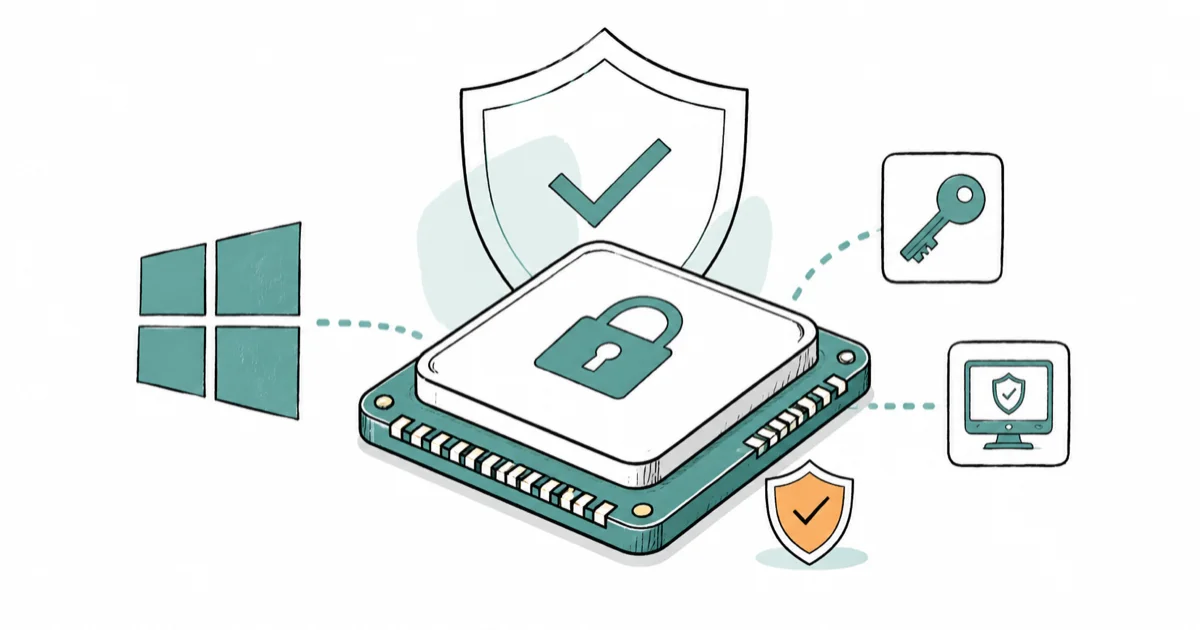
Quick AnswerTPM 2.0 is a Trusted Platform Module, a security chip that stores keys and verifies your PC hasn't been tampered with. Windows 11 requires it, and most recent PCs have it.
TPM 2.0 is a small security chip, the Trusted Platform Module, that stores your PC’s encryption keys and verifies the machine hasn’t been tampered with. Windows 11 requires it, so a “can’t run Windows 11” message often points to TPM. The good news: most recent PCs already have it.
- TPM 2.0 is a dedicated security chip that stores encryption keys and verifies boot integrity.
- Windows 11 requires TPM 2.0, which is why the upgrade check fails on many older setups.
- Check your status by pressing Windows + R and running tpm.msc on your own PC.
- It’s often present but switched off, labeled PTT on Intel boards or fTPM on AMD.
- Disabling TPM lowers your security, so leave it on unless you have a specific reason not to.
#What Does TPM 2.0 Actually Do?
A TPM is a tamper-resistant vault for secrets. Microsoft’s TPM overview confirms that a TPM is a secure crypto-processor that generates, stores, and limits the use of cryptographic keys.
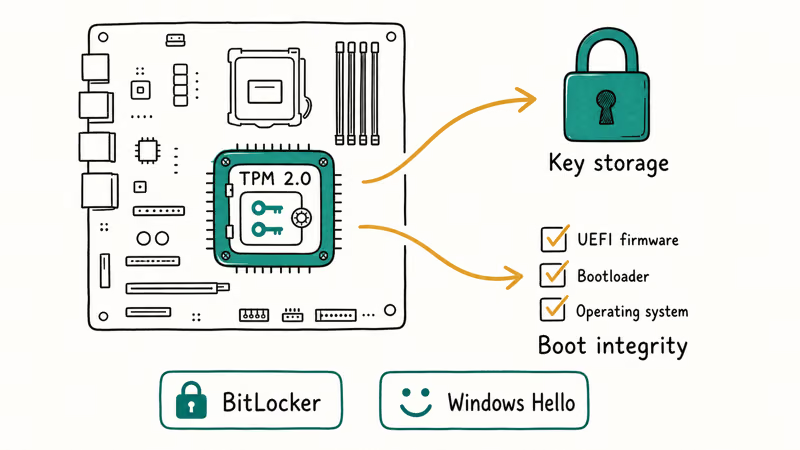
In plain terms, it keeps the keys that protect your data sealed inside hardware.
That hardware isolation is what makes it useful: a key bound to the TPM can’t simply be copied off the drive, which blunts many attacks. The chip also measures the boot process, so the PC can prove it started up with trusted software. These two jobs, key storage and integrity checks, power features like BitLocker and Windows Hello.
#Why Does Windows 11 Require TPM 2.0?
Microsoft drew a hard line for a reason. Microsoft’s Windows 11 system requirements states that TPM 2.0 is required, alongside a 1 GHz dual-core processor and UEFI Secure Boot.
The goal is a higher security baseline for every Windows 11 machine.
By requiring the chip, Microsoft can lean on it for identity protection through Windows Hello, data protection through BitLocker, and verified boot through Secure Boot. If the upgrade check flags TPM, the feature may be disabled in firmware rather than missing entirely. If your PC feels slow before you even upgrade, the slow Windows PC guide can help first.
#How to Check If Your PC Has TPM 2.0
Checking is quick. According to Microsoft’s guide to enabling TPM 2.0, you can verify the chip by pressing Windows + R, typing tpm.msc, and reading the status window.
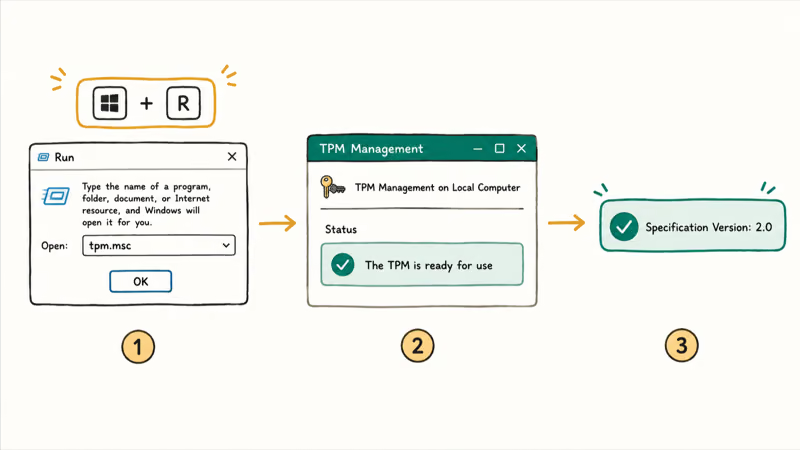
If the window says the TPM is ready and shows Specification Version 2.0, you’re set.
You can also look under Settings, then Update & Security, then Windows Security, then Device Security, where a Security processor entry confirms it. If Windows can’t find a compatible TPM, check firmware before assuming the chip is absent. That distinction matters, because a missing chip and a switched-off chip have very different fixes.
#Enabling TPM 2.0 in BIOS or UEFI
Most retail motherboards ship with TPM turned off, so switching it on is common. On your own PC, open Settings, then Update & Security, then Recovery, and choose Restart now under Advanced startup.
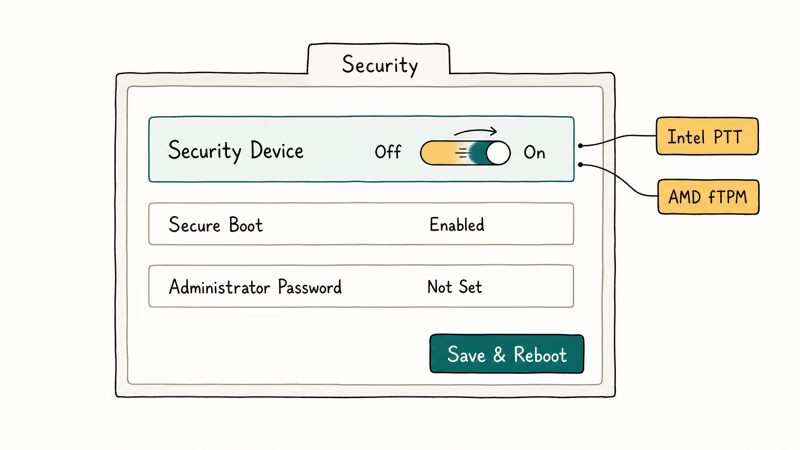
From the boot menu, pick Troubleshoot, then Advanced options, then UEFI Firmware Settings.
Inside the BIOS, look for a security section and a setting named Security Device, TPM State, Intel PTT (Platform Trust Technology), or AMD fTPM. Switch it on, save, and reboot, and Windows should detect TPM 2.0 immediately. Names vary by manufacturer, so check your PC maker’s support page if the wording differs. Knowing this also helps when you factory reset Windows 11 and want security features intact afterward.
#Options If Your PC Lacks TPM 2.0
Some older machines truly have no compatible chip. If checking and the BIOS both come up empty, you have a few honest options rather than a dead end.
A desktop may accept a discrete TPM module on the motherboard’s header, if the board has one.
Many prebuilt and laptop systems can’t be upgraded that way, though, in which case staying on supported Windows 10 or buying a newer PC are the realistic paths. This guide won’t walk through unofficial workarounds here, since bypassing the requirement skips the security baseline Microsoft built it around. If a hardware quirk is your real issue, the Windows 11 hardware problems guide covers related fixes.
#TPM 2.0 vs TPM 1.2, Briefly
You may see TPM 1.2 mentioned on older hardware. The short version: 2.0 is the newer standard with stronger, more flexible cryptography, and it’s the only version Windows 11 accepts.
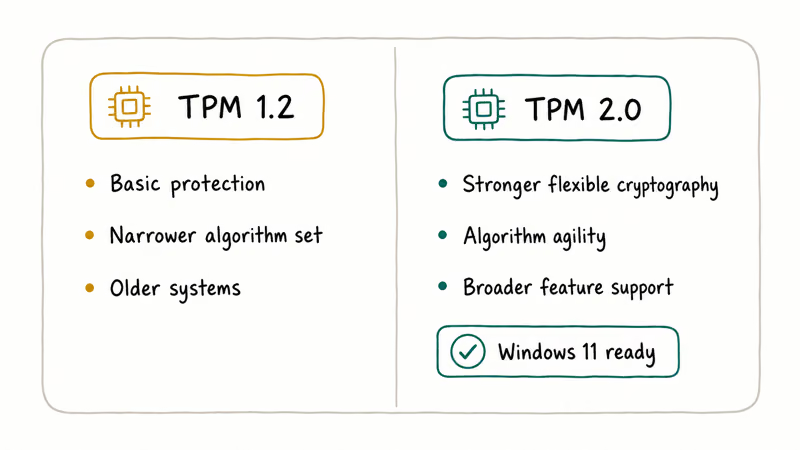
TPM 1.2 still provides basic protection on older systems.
But it lacks the algorithm agility and the broader feature support of 2.0, which is why Microsoft set the line there. If your chip reports 1.2, your PC needs either a firmware update that bumps it to 2.0 (some support this) or newer hardware. For arranging your upgraded desktop neatly afterward, the Snap layouts in Windows 11 and screen recording on Windows 11 guides are handy next reads.
#Bottom Line
TPM 2.0 is a small security chip that does real work, protecting your encryption keys and verifying your PC hasn’t been tampered with, which is why Windows 11 requires it. Most PCs from the last several years have it and just need it switched on in BIOS, so check with tpm.msc first before assuming your machine is incompatible. Leave it enabled once it’s on, because turning it off weakens BitLocker and Windows Hello for no real benefit.
#Frequently Asked Questions
What is a TPM and what does it protect?
A TPM, or Trusted Platform Module, is a security chip that stores cryptographic keys in tamper-resistant hardware. It protects features like BitLocker drive encryption, Windows Hello sign-in, and Secure Boot by keeping their keys sealed away from software attacks.
How do I know if my PC has TPM 2.0?
Press Windows + R, type tpm.msc, and press Enter. The window that opens tells you whether a TPM is present and which specification version it uses. If it reads 2.0 and says the TPM is ready for use, your PC meets that part of the Windows 11 requirement. You can also check under Settings, Update & Security, Windows Security, then Device Security.
How do I enable TPM 2.0 in BIOS?
Restart into your firmware settings through Settings, Update & Security, Recovery, then Advanced startup, and choose UEFI Firmware Settings. Find the security section and enable the setting named TPM, Intel PTT, or AMD fTPM, then save and reboot.
Why does Windows 11 require TPM 2.0?
To guarantee a consistent security baseline. The chip underpins BitLocker, Windows Hello, and Secure Boot, so every Windows 11 PC can use them.
What is the difference between TPM 2.0 and 1.2?
TPM 2.0 is the newer standard with stronger and more flexible cryptography, while 1.2 is the older version with a narrower feature set. Windows 11 only accepts 2.0. Some systems can update firmware to move from 1.2 to 2.0, but many older ones can’t, which is the line that decides upgrade eligibility.
What can I do if my PC has no TPM 2.0?
You have a few choices. A desktop with a TPM header may accept a discrete module, while many laptops can’t be upgraded. In that case, staying on supported Windows 10 or moving to a newer PC are the realistic options, rather than disabling the security baseline the requirement exists to protect.

Best Laptop for Running LLMs in 2026: Memory Comes First
The best laptop for running LLMs is a memory purchase first. Compare MacBook unified memory against NVIDIA laptop VRAM, and see what each tier really runs.

How to Run a Local LLM on Windows: A 2026 Setup Guide
Run a local LLM on Windows with LM Studio or Ollama. Pick a model that fits your GPU memory, keep every prompt offline, and skip the monthly bill.

Bluetooth Not Working on Snapdragon X? Fixes for 2026
Bluetooth not working on your Snapdragon X Copilot+ PC? Generic audio, mice, and keyboards work, but vendor apps often lack an ARM build. Fixes inside.

Docker Desktop and WSL2 Not Working on Snapdragon X? Fix It
WSL2 runs fine on Snapdragon X, but Docker Desktop ARM is Early Access and throws WSL errors. Use WSL2 plus native ARM64 Ubuntu and Docker Engine.