Video Background Eraser: 9 Best Tools Compared in 2026
Compare 9 video background eraser apps and online tools for chroma key, AI cutout, and one-click removal, across desktop and browser on Mac and Windows.

Quick AnswerThe fastest video background eraser is Filmora's AI Portrait or the online tool Unscreen, both of which lift a clean cutout in one click with no green screen. For tougher edges, hair, or reflective surfaces, DaVinci Resolve and Premiere Pro give you real chroma key control.
Picking a video background eraser comes down to one trade-off: AI one-click cutout versus manual chroma key control. The tools below are compared on that single axis so you can see which one fits.
- Filmora’s AI Portrait and Unscreen handle no-green-screen footage in seconds per minute of video, with no chroma key setup required.
- Pro chroma key tools like Premiere Pro and DaVinci Resolve give you control over spill, matte choke, and edge feathering that one-click AI can’t match.
- Free online erasers cap exports at 720p or watermark the output unless you upgrade to a paid tier.
- Movavi and VSDC are the easiest desktop entry points for Windows users who don’t want to learn node graphs.
- Hair, glasses, and motion blur are still the hardest edges; expect to clean up frames manually on close-ups, even with AI.
#Which Video Background Eraser Works Best Without a Green Screen?
If you don’t have a green screen, the cleanest results come from Filmora’s AI Portrait, with Unscreen and Veed.io close behind for browser-only workflows. These tools train on human silhouettes, so a person centered in frame against a plain wall gets a near-perfect alpha matte. On a short handheld phone clip in an ordinary room, Filmora separates the subject in seconds with no setup.
The same clip in Premiere Pro without a green screen would need rotoscoping. Rotoscoping is fine for one short shot, but it falls apart when you stack five minutes of footage. The honest rule of thumb is this: if your subject is a person and the background is plain, an AI tool wins. If your background has plants, posters, or pets moving, you’ll still want a green screen plus chroma key.
For non-human subjects, the picture changes. Wondershare’s AI Smart Cutout documentation describes a separate brush-based tool for cutting out a pet or moving object, kept apart from AI Portrait. A single creator is easy; a dog plus owner often needs the manual brush.
#How Do AI Cutout Tools Compare to Chroma Key Editing?
AI cutout reads pixels and guesses what is foreground; chroma key reads a specific color and removes it everywhere. That distinction shapes every other difference between the two approaches.
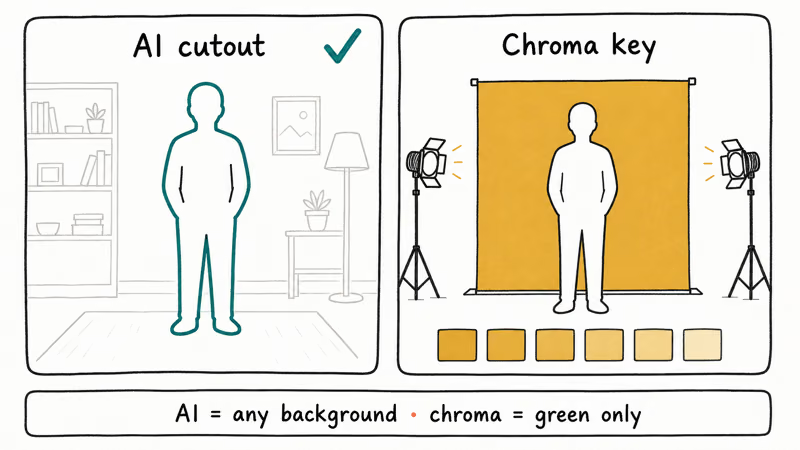
According to Adobe’s Premiere Pro keying documentation, the Ultra Key effect lets you adjust matte generation, spill suppression, and edge softness with three separate slider groups, which is how pro compositors clean up green-screen footage. AI cutout, by contrast, gives you a single “subject” mask with no fine controls. This matters in tricky cases like a green wall behind a green hoodie, where AI tools erase the hoodie too while Ultra Key can mask just the wall.
Apple’s Final Cut Pro keyer guide states that the Keyer effect samples background colors automatically and then exposes refinement sliders for fine tuning. That auto-sample step makes Final Cut feel halfway between one-click AI and full manual chroma key.
The short version: for social clips and webcam recordings without a green screen, AI cutout is faster and good enough. For client work, product compositing, or anything with semi-transparent edges (hair, glass, smoke), chroma key on a real green screen still wins.
#How to Judge a Video Background Eraser
Two source types reveal the real differences: a handheld phone clip shot in an ordinary room with no green screen, and a green-screen take on a tripod with consistent lighting. Judge each tool on time to first preview cutout and matte cleanliness on the hard parts: hair, glasses, and motion-blurred limbs. Performance also depends on hardware, since AI cutout and 4K keying both lean on the GPU.
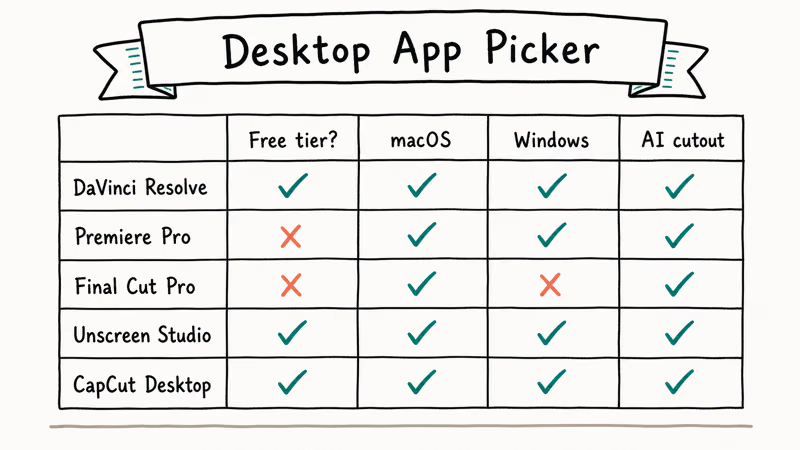
#5 Desktop Apps to Remove Background From Video
Desktop apps give you keyframe control, batch export, and offline rendering. Here are the five strongest picks.
#Wondershare Filmora
Wondershare Filmora has the easiest learning curve of any desktop app on this list, and the AI Portrait feature is the reason it ranks first. Drop your clip on the timeline, click AI Portrait, and Filmora lifts the subject without you touching a chroma key panel. You also get a normal Chroma Key effect for green-screen footage, plus stickers and segmentation effects that layer on top of the cutout.
Some links on this page are affiliate links, which means fone.tips may earn a commission at no extra cost to you.
The trade-off is that Filmora’s matte softens on hair and motion blur. On a clip of a subject walking past a window, the edge of the hair tends to pick up a faint halo. For talking-head content, that halo isn’t visible at 1080p; for product work, you’ll want the manual Chroma Key effect instead.
System requirements: Windows 10 or 11 (64-bit), macOS 11 Big Sur or later, 8 GB RAM minimum.
If you’re already using Filmora and want to ship without paying the upgrade tier, our guide on exporting Filmora without a watermark covers the legal paths.
#Movavi Video Editor
Movavi Video Editor is the Windows-first cousin of Filmora. It has a Chroma Key tool that samples your background color, a sticker library, and Picture-in-Picture compositing once the cutout is finished.
Movavi’s chroma key needs a real green screen to look clean. The plus side is the beginner-friendly UI: every effect has a slider preview, and there’s no node graph in sight. According to Movavi’s green screen tool page, you adjust color tolerance, edges, and transparency to clean up the cutout until edge artifacts disappear.
Movavi is the right pick if you want green-screen results without learning Resolve.
#VSDC Free Video Editor
VSDC is the free Windows option. It includes a chroma key filter, non-linear editing, and 4K support. The interface looks like a late-2000s Windows app, but it works, and you can ship a finished clip without paying anything.
The catch is the workflow. You drop a clip on the scene, add an “Add object” image or video for the new background, then layer the chroma-keyed clip on top and pick the green color with an eyedropper (there’s no auto-detect). For batch work, the absence of presets gets old fast.
VSDC runs on any Windows version from 7 onward. It does not have a Mac build.
#Apple Final Cut Pro
Final Cut Pro is the Mac editor with the cleanest auto-keyer. Drag the Keyer effect onto a clip and it samples your green-screen background instantly. From there you get sliders for Strength, Soft, and Spill Level, plus a matte view to check edge cleanliness.
On a capable Mac with a 4K green-screen clip, Final Cut’s auto-key is nearly instant, with manual fine-tuning adding only a little more. The trade-off is price (it’s a one-time $300 purchase) and that there’s no Windows version. If you already own a Mac and shoot green-screen content regularly, it’s the most ergonomic option on this list.
For Mac users hitting issues with the consumer-tier iMovie instead, our iMovie problems and solutions guide covers Keyer crashes and export errors.
#Adobe Premiere Pro
Premiere Pro is the industry default for a reason. The Ultra Key effect is the most precise tool in this lineup, and Premiere ties into After Effects for compositing tasks that need true rotoscoping or 3D camera tracking.
The downside is the subscription. Premiere costs around $22.99 per month as a single-app plan, and it has the steepest learning curve here. If you only need to remove a background once or twice a month, this is overkill. If your job involves client deliverables, the precision pays for itself.
For a closer look at how Premiere stacks up against the leading free professional alternative, see our DaVinci Resolve vs Premiere Pro comparison.
#4 Online Video Background Erasers Worth Using
Browser tools skip the install. They also cap export resolution, time limits, or both unless you pay.
#Veed.io
Veed.io has a one-click “Remove background” button that doesn’t need a green screen. Upload your clip, click the button, and Veed renders the cutout in the cloud. The free tier caps exports at 720p and adds a watermark; the Pro tier ($25 per month) removes both limits.
On a typical 1080p webcam clip, Veed’s AI cutout takes under a minute and produces a clean edge except on stray hairs. The browser-only workflow is good for quick social posts.
#Cutout.Pro
Cutout.Pro is the most “set and forget” option on this list. It accepts a video upload, runs an automatic AI cutout in the background, and gives you a transparent-background download as either an alpha-channel MP4 or a PNG sequence. There’s no chroma key panel because there’s nothing to configure manually, which is exactly what some workflows want and exactly what others find limiting.
The free tier limits clip length to 10 seconds and outputs at 720p. Paid credits raise both caps. It works well for short b-roll inserts; longer interviews need to be split into chunks.
#Kapwing
Kapwing’s “Erase Background” tool sits inside a full browser editor, so you can erase, then immediately swap in a new background, add captions, or trim. The free tier watermarks the export but lets you process clips up to 4 minutes long.
Kapwing is the best balance of features and access on the free tier. For creators who don’t want to install anything, it’s the best starting point.
#Unscreen
Unscreen is the most focused online tool: one job, one click. Upload a video in MP4, MOV, GIF, OGG, or WebM, and Unscreen returns a transparent-background version. Unscreen’s documentation states that the free tier caps videos at 5 seconds and 720p; the paid Pro tier lifts both limits.
On typical handheld footage, Unscreen produces results close to Filmora’s AI cutout, with slightly softer edges on hair. For GIF workflows specifically, Unscreen is faster than any desktop app on this list.
#Erase Versus Blur: When to Choose Each
Erasing makes sense when you want full creative control over what’s behind the subject: a different room, a green-screen composite, or a transparent overlay for a vlog intro. Blurring is the better call when you just want privacy. Blurring also handles edges more forgivingly because there’s still pixel data behind the subject, so AI cutout halos disappear.
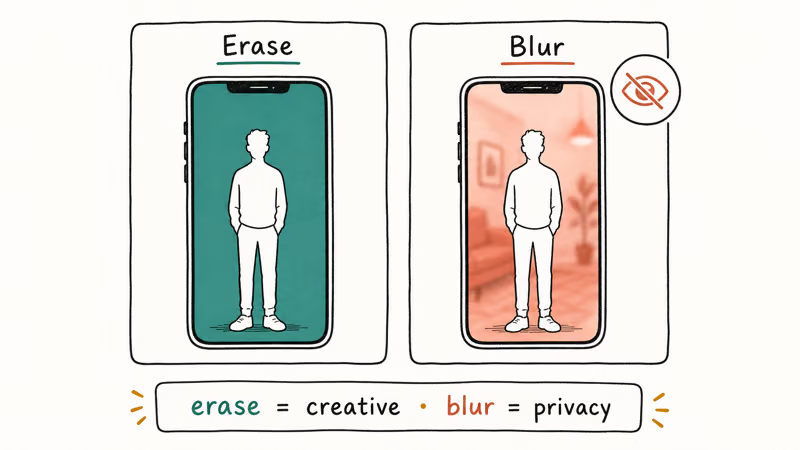
Most phones now blur natively. The iOS Camera app’s Portrait mode and the Google Pixel’s Cinematic Blur both apply a real-time blur using depth data, so for a casual selfie clip you may not need an eraser at all. Reserve the full background erase workflow for projects where you actually want to swap in something new.
If your end goal is a clean reaction-style overlay rather than a swap, see our guide on how to overlay videos for Picture-in-Picture techniques that don’t require a cutout at all.
#Bottom Line
For creators without a green screen, pick Filmora if you’re on a budget and want a desktop app, or Unscreen if you want a browser tool. Both produce a clean cutout on people in under 30 seconds and don’t require chroma key knowledge. If you already pay for Adobe, Premiere Pro’s Ultra Key is the most controllable option; for Mac-only shops, Final Cut Pro’s Keyer is the most ergonomic.
Skip VSDC unless you’re locked to Windows and need a free desktop app. Skip the free tiers of Veed.io and Kapwing only if a watermark is a dealbreaker; for personal use, they’re fine.
For tooling adjacent to background removal, our roundups on OpenShot vs Shotcut and removing a watermark from a video cover the next decisions you’ll likely face.
#Frequently Asked Questions
Can I remove the background from any video without a green screen?
Yes, if the subject is a person. AI tools like Filmora’s AI Portrait, Unscreen, and Cutout.Pro handle that case well. The model struggles with animals, products, and overlapping group shots; for those, you’ll still want a green screen plus a chroma key effect, plus probably some manual rotoscoping for the trickiest frames.
How long does it take to remove a video background?
About 5 to 30 seconds per minute of 1080p video with AI tools. Manual chroma key in Premiere or Final Cut adds another minute or two for fine-tuning the matte sliders. Rotoscoping a clip frame-by-frame without a green screen and without AI takes hours per minute, which is why almost nobody does it for short-form work anymore.
Are free video background erasers good enough?
For 720p social clips, yes.
Free tiers of Veed.io, Kapwing, and Unscreen all produce usable cutouts, with a watermark as the main catch. If you need 1080p or higher exports without a logo, a paid Unscreen tier or a perpetual Filmora license is the cheaper long-term option.
Does removing a background work on a phone?
It works, but quality varies. CapCut, InShot, and Filmora’s mobile apps include AI background removal. Results are typically softer than the desktop equivalents, and battery drain on long clips is significant. Mobile apps suit short TikToks, while desktop is the better choice for anything over a minute.
Why does AI cutout leave a halo around hair?
AI cutout draws a single binary mask, so each pixel is either foreground or background. Hair sits in the semi-transparent zone, which the model has to guess about. The result is often a faint halo where the model picks too much background or too little hair. Premiere’s Ultra Key has a Spill Suppression slider that handles this case better than any AI tool currently does.
Can I replace the background with a video instead of an image?
Yes. Every desktop app on this list supports video backgrounds.
Is video background removal free to use?
Free options exist on every tier. VSDC is fully free for desktop. Veed.io, Kapwing, Unscreen, and Cutout.Pro have free tiers with resolution caps and watermarks. Filmora and Movavi sell perpetual licenses for around $80, which is cheaper than Premiere Pro’s monthly fee if you only edit occasionally.
What’s the best file format to export a transparent video?
For desktop editing, ProRes 4444 on Mac and DNxHR with an alpha channel on Windows preserve transparency cleanly. For web use, WebM with VP9 or a PNG image sequence are the standard. MP4 with H.264 doesn’t support transparency, so anything exported as a plain MP4 will lose the alpha channel and pick up a solid black or white fill behind the subject.

Google Messages Error 3100: Why RCS Is Broken on Galaxy
Google Messages RCS error 3100 hits Galaxy owners after phone or carrier switches. Google told 9to5Google a fix is coming. Here's what actually helps.

Is This Bank App Real? Spot a Fake App on Your Home Screen
A bank app can land on your home screen from a web page with no install warning. Learn the checks that tell a real banking app from a phishing web app.

Apps Crashing After iOS 27 Update? Fix Order (2026)
Apps crashing after the iOS 27 update? Update the app in the App Store first, then offload and reinstall to clear stale cache, then restart. The fix order.

Do AI Translation Earbuds Work Offline? What to Know
Do AI translation earbuds work offline? A few do with downloaded language packs, but most need the cloud. Here's what works offline and what you give up.