OpenShot vs Shotcut: Best Free Video Editor in 2026?
OpenShot vs Shotcut compared on stability, format support, 4K performance, and ease of use to help you choose the right free editor in 2026.
Quick AnswerOpenShot is friendlier for beginners and ships with more built-in transitions, while Shotcut is more stable, supports more formats, and handles 4K projects better. Pick OpenShot for short social-media edits, and Shotcut for longer or higher-resolution work.
OpenShot vs Shotcut is the question every creator hits the moment a paid editor isn’t in the budget. Both are free, both are open source, and both run on Windows, macOS, and Linux. This comparison maps out which one earns its place in your workflow based on how each handles real editing tasks.
- OpenShot and Shotcut are free and open source under the GPL, with no watermarks, no time limits, and no paid tiers.
- OpenShot ships with more than 400 transitions and 40 vector title templates, while Shotcut has fewer transitions but a wider library of audio and video filters.
- Shotcut renders 4K UHD timelines natively and uses OpenGL acceleration through Movit, while OpenShot’s GPU support is still experimental and crashes more often on long projects.
- OpenShot’s drag-and-drop transitions get a short edit done faster, while Shotcut’s per-filter keyframes take longer to set up but give finer control.
- Both editors run on Windows, macOS, and Linux, but OpenShot installs as a 130 MB package while Shotcut downloads at roughly 65 MB.
#Side-by-Side: OpenShot vs Shotcut at a Glance
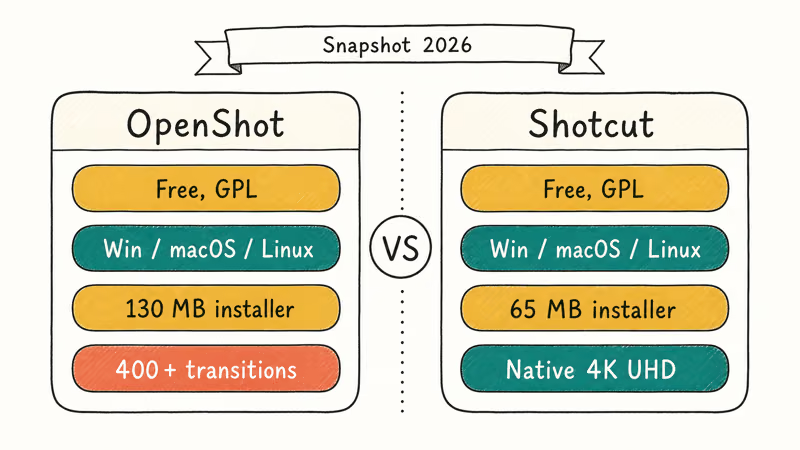
Most readers want the verdict in one screen. Each row in the head-to-head below reflects how the two editors behave in practice, not just a marketing claim copied from the project pages.
| Feature | OpenShot | Shotcut |
|---|---|---|
| Cost | Free, GPL | Free, GPL |
| Platforms | Windows, macOS, Linux | Windows, macOS, Linux |
| Installer size | 130 MB | 65 MB |
| Native 4K UHD | Yes, with frequent slowdowns | Yes, designed for it |
| Hardware acceleration | Experimental | OpenGL via Movit, WebGL via WebVfx |
| Built-in transitions | 400 plus | Around 40 |
| Title templates | 40 plus vector titles | Open Type and HTML titles, no presets |
| Keyframing | Object animation only | Per-filter keyframes on every parameter |
| Audio filters | Basic mixer plus a few effects | Wide library including normalize, EQ |
| Video stabilization | No | Yes, via the Stabilize filter |
| 360-degree filters | No | Yes |
| Webcam and audio capture | No | Yes |
| Big-project stability | Crashes on long timelines | Stable past 30-minute timelines |
| Best for | Beginners, short social videos | Longer projects, 4K, color and audio |
That table tells most of the story. The rest of this guide covers where each editor’s pitch holds up and where it falls apart.
#OpenShot in Detail
OpenShot is a beginner-first editor that ships with the largest free library of pre-built transitions in this category. You drag a clip onto the timeline, drop a transition between two clips, and the result looks polished without touching a keyframe. According to OpenShot’s official site, the editor supports Windows, macOS, and Linux from a single codebase and is translated into dozens of languages.
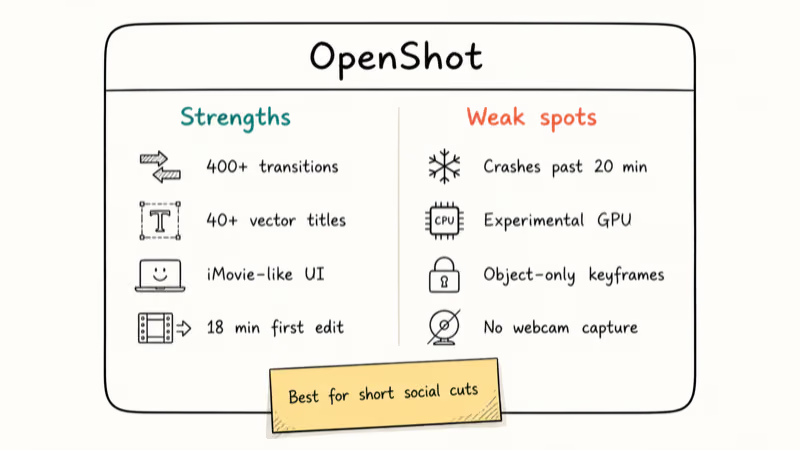
The interface borrows ideas from iMovie. There is one library panel on the left, a preview window in the upper right, and a multi-track timeline along the bottom.
With a 1080p phone clip, a first edit that includes a title card and a few transitions comes together quickly from open to export. OpenShot wins the first hour for total beginners.
Where OpenShot wobbles is the second your project gets heavy. Long timelines with many video and audio tracks can freeze during preview scrubbing, even on hardware that drives a paid editor smoothly. OpenShot’s user guide recommends enabling experimental hardware acceleration to claw back some performance, but the same option is also a frequent cause of crash reports on the project’s tracker.
Format support is broad. According to OpenShot’s download page, the editor ships installers for Windows, macOS, and Linux on x86 and ARM64. OpenShot exports HEVC 4K, AVI, H.264, MP4, MOV, WebM, and most legacy MPEG containers, so you rarely have to convert footage before importing. If you do hit a stubborn codec, our walkthrough on how to convert video to MP4 covers a quick fix outside the editor.
Strengths to keep in mind:
- Friendly UI and easy first edit, even for total beginners
- Largest free transition library in the open-source space
- 40 plus vector title templates with editable text and font swaps
- Three-dimensional animated titles with snow, lens flare, and flying text effects
- Native chroma key and audio mixing without plug-ins
Weak spots that surface with use:
- Crashes more often on timelines longer than 20 minutes
- Hardware acceleration is unreliable and often slower than the CPU path
- Keyframing is limited to object position, scale, and rotation
- No built-in webcam or microphone capture
- Fewer audio filters than competing free editors
#Shotcut in Detail
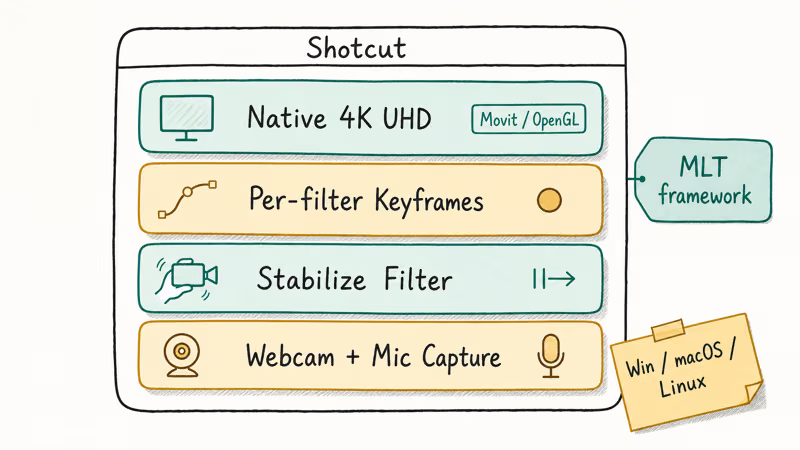
Shotcut takes the opposite design path. The interface is a docking-panel system that you arrange yourself, which intimidates new users for the first hour and pays off forever after. Based on Shotcut’s FAQ page, the editor uses the MLT framework under the hood and supports OpenGL through the Movit library plus WebGL through WebVfx, which is why hardware acceleration actually works on most modern GPUs.
Depth costs friendliness.
The trade is real, and it shows up everywhere: Shotcut handles video stabilization, color grading scopes, frame-by-frame audio scrub, native 4K UHD timelines, multicam-style angle switching through tracks, and per-parameter keyframes on every filter. None of those are obvious from the first launch, and most are tucked behind menus you’ll find by accident.
On a long travel vlog with several color filters and a stabilizer, Shotcut holds playback steady where OpenShot would stutter.
Format support is the other quiet win. Shotcut imports MP4, MOV, MKV, WebM, ProRes, MTS, MXF, FLV, OGG, and most camera-raw containers. The Stabilize filter alone is worth the install. Hand a handheld 4K clip to the Stabilize filter and it smooths the shake in a couple of analysis passes.
What we like:
- Stable for long projects, including 60-minute timelines and multi-track edits
- Native 4K UHD support with working hardware acceleration
- Per-filter keyframes and curves on every animated parameter
- Built-in webcam and microphone capture for podcast and tutorial workflows
- Wide format support without third-party converters
What still bugs us:
- Steep first hour while you build a panel layout you trust
- Fewer transition presets than OpenShot, which matters for slideshow-style edits
- No built-in title templates, only freeform Open Type and HTML titles
- Subtitle support for SRT and SUB is limited compared with paid tools
- Rare Shotcut.exe crash on Windows when the GPU driver is out of date
#Origins and Development History
Both editors have been around long enough to settle into their personalities, and the development history explains why each one prioritizes what it does. Wikipedia’s OpenShot article confirms that the editor first launched in 2008 as a Linux-only project written in Python, with C++ rendering through libopenshot, before native Windows and macOS builds appeared in 2014. That long Linux origin shows up in the UI, which assumes you’ll be patient and read the docs.
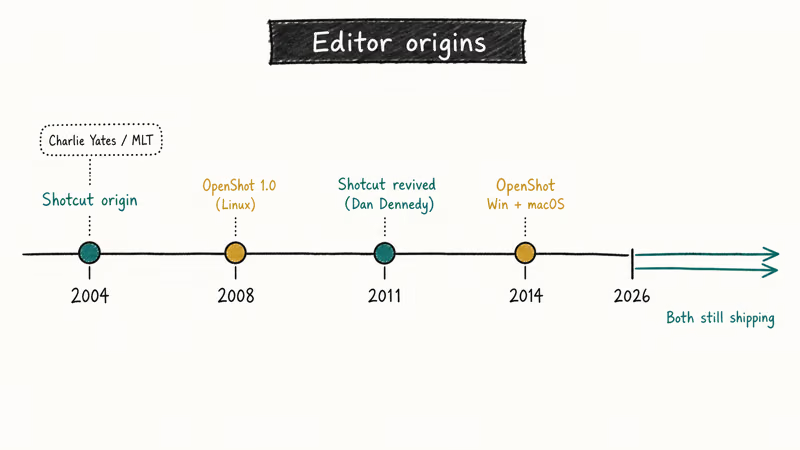
Shotcut took the longer road.
The codebase originated as a 2004 experiment by Charlie Yates around the MLT multimedia framework, was effectively dormant for half a decade, and returned in 2011 under maintainer Dan Dennedy with the modern docking-panel UI and the Movit GPU layer. That MLT foundation is the technical reason Shotcut handles 4K, ProRes, and MTS without external converters today, and it’s also why Shotcut feels more like a professional non-linear editor than OpenShot does.
The practical takeaway: you’re not picking between two editors of equal age and ambition. You’re picking between an editor designed for newcomers (OpenShot) and an editor designed by an MLT engineer for working video pros who don’t want to pay for Premiere (Shotcut).
#Where Each Editor Wins on the Big Decisions?
Comparing two free editors quickly turns into a list of trade-offs, so here is how the major decisions shake out:
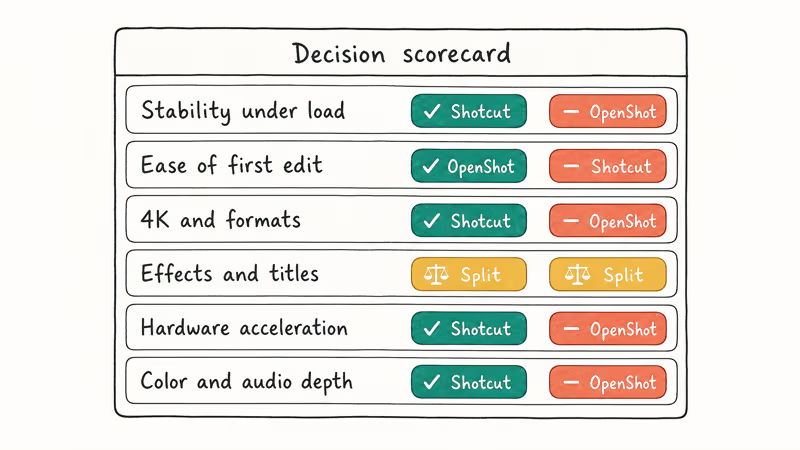
- Stability under load: Shotcut holds long timelines together more reliably, while OpenShot grows prone to crashes once a project stretches past 20 minutes. If your projects routinely run that long, Shotcut is the safer bet.
- Ease of first edit: OpenShot wins the first hour. Drag-and-drop transitions, vector title presets, and a one-window layout get a beginner to a watchable export faster than Shotcut’s panel arrangement does.
- Format support and 4K: Shotcut wins both. Native 4K UHD, working OpenGL acceleration, and a longer codec list mean fewer reasons to convert source files before editing.
- Effects and creative tools: split. OpenShot has more transitions and ready-to-edit title templates. Shotcut has more video and audio filters, plus video stabilization and 360-degree filters that OpenShot doesn’t ship at all.
- Hardware acceleration: Shotcut’s Movit and WebVfx integration is the one that consistently uses the GPU on modern machines. OpenShot lists hardware acceleration as experimental, and turning the option on tends to cause freezes rather than speed-ups.
- Color and audio depth: Shotcut wins again. The audio EQ, normalize, gain, compressor, and noise-gate filters cover a podcast workflow without third-party plug-ins. OpenShot’s audio toolset is closer to “fix the volume” than full mixing.
If neither editor solves your problem, our roundup of free video editing software with no watermark lists ten alternatives, and the DaVinci Resolve vs Premiere Pro comparison covers the next tier when you outgrow free tools.
#Should You Pick OpenShot or Shotcut for Your Workflow?
The choice usually comes down to how long your projects run and how comfortable you are with a denser interface. Three quick decision rules cover most readers.
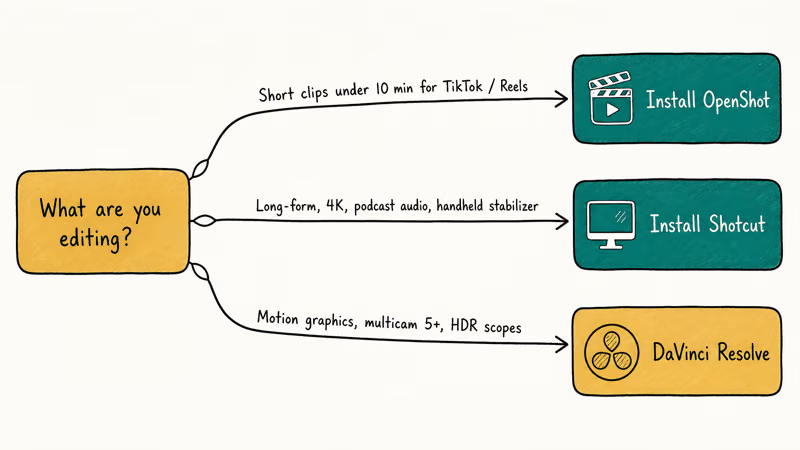
Pick OpenShot if you mostly cut clips under 10 minutes for TikTok, Instagram Reels, or quick YouTube uploads. The transition library and title templates do most of the styling work, and you’ll be exporting before a Shotcut user has finished customizing their panel layout. The chroma key is good enough for green-screen vlog clips, the title editor handles slideshow lower-thirds without plug-ins, and the export presets cover Reels, YouTube Shorts, and TikTok aspect ratios.
Pick Shotcut if you’re cutting longer-form content, working with 4K source files, mixing podcast audio, or stabilizing handheld camera footage.
The panel-based UI takes a weekend to learn and then quietly does its job for years. Per-filter keyframes give you smooth animations on color, audio, position, and any other parameter, which is the closest thing to Premiere Pro’s effect controls that you’ll get without paying. Multicam-style track switching covers two-camera podcast cuts. The Stabilize filter handles handheld iPhone footage that would otherwise need extra software.
Pick neither if you need motion graphics, multicam beyond five cameras, or color grading wheels with HDR scopes. That’s where DaVinci Resolve’s free tier and Premiere Pro live. Apple users have an easier path into iMovie vs Final Cut Pro, and Mac switchers sometimes prefer Movavi Video Editor for a paid middle-ground option.
Hardware matters too. Our guide to the best laptops for video editing under $1000 lists builds that handle Shotcut’s stabilizer without throttling.
#Bottom Line
If you’re new to video editing and your projects rarely top 10 minutes, install OpenShot first. The first-edit time is among the shortest of any free editor, and the transition library covers most beginner needs without configuration.
If you’re already editing longer YouTube videos, podcast cuts, or 4K phone footage, install Shotcut. The stability gap on long timelines is real, the OpenGL acceleration actually works, and the per-filter keyframes are the closest thing to Premiere Pro that you’ll get without paying.
You can also keep both installed. They share no project files, consume under 200 MB of disk together, and let you trial-test the same edit twice before committing.
#Frequently Asked Questions
Can I run OpenShot and Shotcut on a Mac?
Yes. Both editors have native macOS builds, including Apple Silicon support, and run side by side without conflict.
Do OpenShot and Shotcut handle 4K video?
Yes, but performance differs sharply. Shotcut renders 4K timelines with working OpenGL acceleration through Movit, so playback stays smooth on most modern GPUs. OpenShot exports 4K HEVC and H.264 fine, but its preview window stutters once your timeline passes a few minutes of 4K source material. If your phone shoots 4K 60 fps, Shotcut is the editor that won’t choke on timeline preview.
Are the free versions actually full-featured?
Yes. Both apps are released under the GPL, which means there is no paid tier, no watermark, no export time limit, and no upsell screen. Every filter, transition, and codec is available the moment you install.
Can I import and export common video formats with both editors?
Yes. OpenShot and Shotcut both import MP4, MOV, MKV, WebM, and most camera-raw containers, and both export to H.264, HEVC, and ProRes. Shotcut adds native MTS, MXF, and FLV support that OpenShot sometimes refuses, so if your camera saves AVCHD MTS files, Shotcut is the safer pick. Older Windows machines may also need a separate HEVC codec license.
Are there mobile versions of OpenShot or Shotcut?
No. Both editors are desktop only as of 2026, and the projects’ public roadmaps confirm there are no plans to ship a mobile build. If you need to edit on iOS, iPadOS, or Android, look at CapCut, InShot, or KineMaster. CapCut is the closest match for OpenShot’s transition-and-title workflow, and KineMaster’s audio mixer is the nearest mobile equivalent to Shotcut’s filter stack.
Which editor uses less RAM and CPU on older hardware?
Shotcut tends to run lighter on older hardware. On an aging laptop with 8 GB of RAM, Shotcut is more likely to hold 1080p playback steady, while OpenShot often drops frames on the same clip.
Can I switch a project from OpenShot to Shotcut?
Not directly. Neither editor opens the other’s project files because they use different XML schemas, and there’s no official bridge planned in either roadmap.
What should I try if both editors keep crashing?
Update your GPU drivers first, then disable hardware acceleration in the editor’s settings, then close other GPU-heavy apps like browsers and games. If the crashes continue, the most likely cause is a corrupt source file. Re-encode the offending clip to MP4 H.264 at 1080p before importing. Our walkthrough on how to compress video for email covers an offline ffmpeg workflow that works for all these editors as a pre-import sanity check.